
Generic HTTP
Learn how to integrate any third-party Email Service Provider with CleverTap using the Generic HTTP method.
Overview
The Generic HTTP feature enables flexible integration with any third-party Email Service Provider (ESP) using the HTTP protocol. It supports sending email campaigns using custom payloads, headers, and dynamic fields. It also enables callback tracking for delivery success and failures, as well as user interactions such as clicks or unsubscribes.
Set Up Email Provider in CleverTap
To configure any third-party ESP using the Generic HTTP provider in your CleverTap account, perform the following steps:
- Go to Settings > Channels > Email.
- Click + Provider and select Generic HTTP from the Provider dropdown.
- Enter the following provider details:
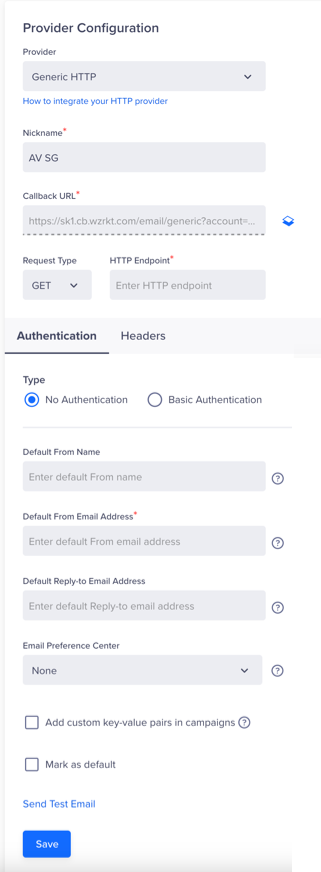
Provider Setup
| Field | Description |
|---|---|
| Nickname | A unique name for identifying the configuration. |
| Callback URL | The Callback URL is used to receive bounce, delivery, and subscription information from the ESP to CleverTap. This is a read-only field that is auto-populated with CleverTap's callback URL. Ensure that you add this URL to your ESP dashboard settings to send callback data to CleverTap. |
| Request Type | Choose between GET or POST.Note: Attachments are only supported with POST requests. |
| HTTP Endpoint | API endpoint of the ESP. Must start with http:// or https://. |
| Authentication | Choose None or Basic. Provide credentials if using Basic authentication. |
| Headers | Add static or dynamic headers. For more information, refer to Headers. |
| Parameters | Applicable for the POST method. Define the request payload in JSON format; supports both single and batch message delivery. For more information, refer to Body Parameters. |
| Batch parameter | - Applicable for the POST method. - Enable sending up to 1,000 emails in a single API call. - Before enabling this option, confirm the batch size supported by your ESP. For more information, refer to Body Parameters. |
| Default From Address | - This field is mandatory only if the feature is enabled for your account. - Enter the default email address you want to use for sending your email campaigns. - The email address will be pre-populated under the From Email Address field as a default value when creating an Email campaign. Note: Adding Default From Address to your email campaigns is currently in Private Beta. For more information, refer to Sender Details. |
| Default Reply to Address | - This field is available only if the feature is enabled for your account. - Enter the default email address to which you want your users to reply to the campaign. - The email address will be used to pre-populate the Reply-to Email Address field as a default value when creating an Email campaign. Note: Adding Default Reply-to Email Address for your email campaigns is currently in Private Beta. For more information, refer to Sender Details. |
| Email Preference Center | - Select System from the dropdown to use a pre-built preference center with a sample preview. - Select Custom URL to add the URL of your hosted unsubscribe page. - Select None if you want to manage the email preferences directly on your own. For more information, refer to Manage Email Preferences. |
- Click Save and click Send Test Email to verify the setup.
Set Up Message Payload
You can configure headers and define the JSON payload structure for sending emails through your Generic HTTP provider, which supports dynamic values and batching.
Headers
Specify headers to pass authentication details (such as API keys or credentials) and campaign-level metadata. Authentication headers are typically static, for example, a username/password or token, and should be added as fixed key-value pairs. If your provider requires additional metadata (such as campaign identifiers) to be sent as headers, use dynamic placeholders to populate those at runtime.
You can either specify one of the following types of headers:
- Static Headers: In this case, you must specify fixed values. For example,
Authorization: Bearer <API_KEY>orContent-Type: application/json. - Dynamic Headers: Dynamic headers let you personalize your HTTP request payload with campaign- and user-level values at send time. These placeholders are defined using the $$ prefix and are replaced with actual values during message delivery. For instance, you can include placeholders such as
$$UserNameor$$CampaignIDin the request headers. These are dynamically populated with actual values defined during campaign setup. To learn about Dynamic Replacement Parameters, refer to System Dynamic Replacements and Custom Dynamic Replacements.
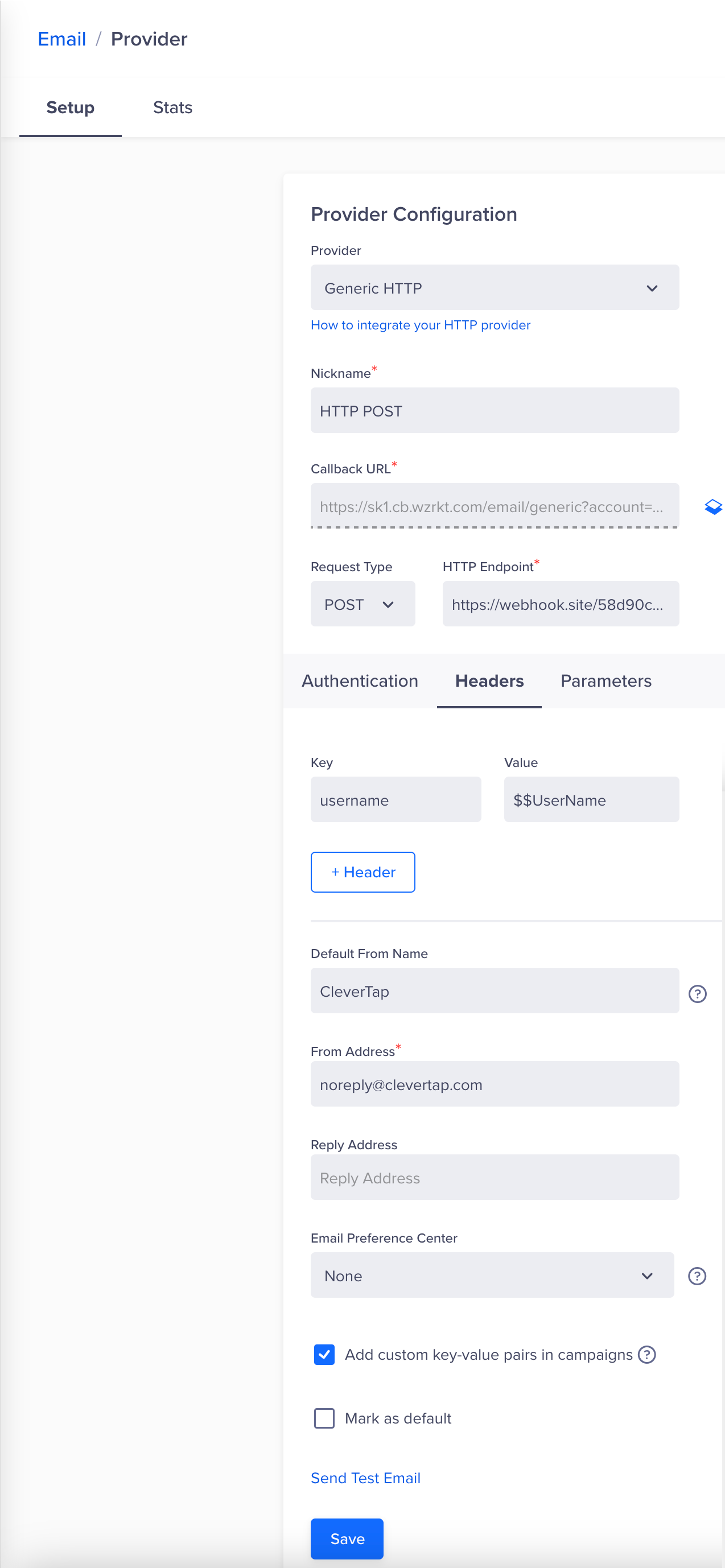
Dynamic Headers - POST Method
In the following example, "UserName": "$$UserName" is a dynamic placeholder used in the payload. The part that follows the $$ (in this case, UserName) must match the key you define in the Request Headers section during campaign setup.
CleverTap uses this mapping to replace the placeholder with the corresponding value when sending the campaign.
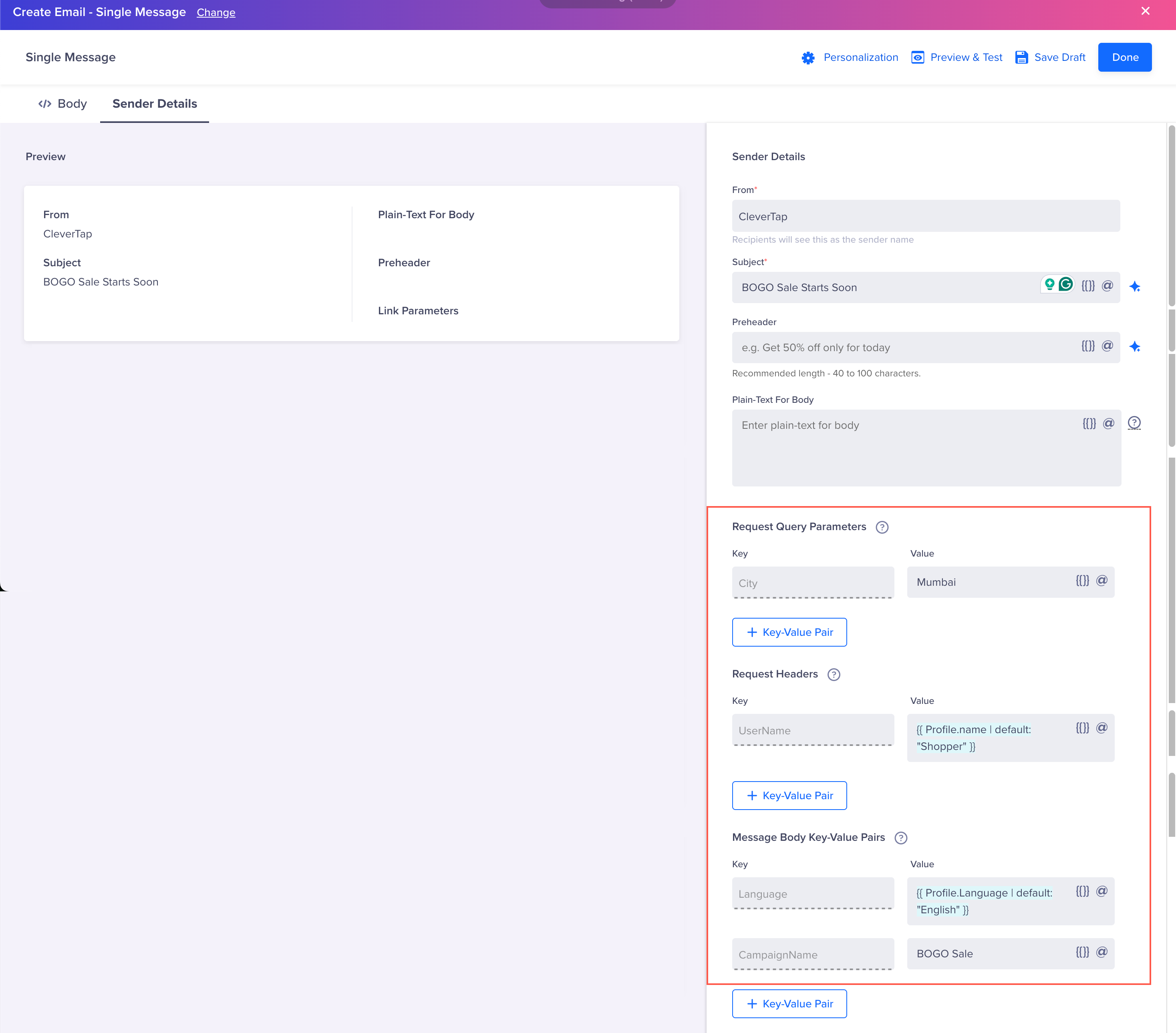
Configure Parameters For POST Method
When using the GET method, parameters are passed via the Request Query Parameters section. This section lets you define dynamic values that CleverTap sends to the query string of your HTTP endpoint.
NoteDo not use dynamic placeholders such as
$$HTMLor any large body content in the query string of the request. Including such content can significantly increase the URL length and may lead to request failures.
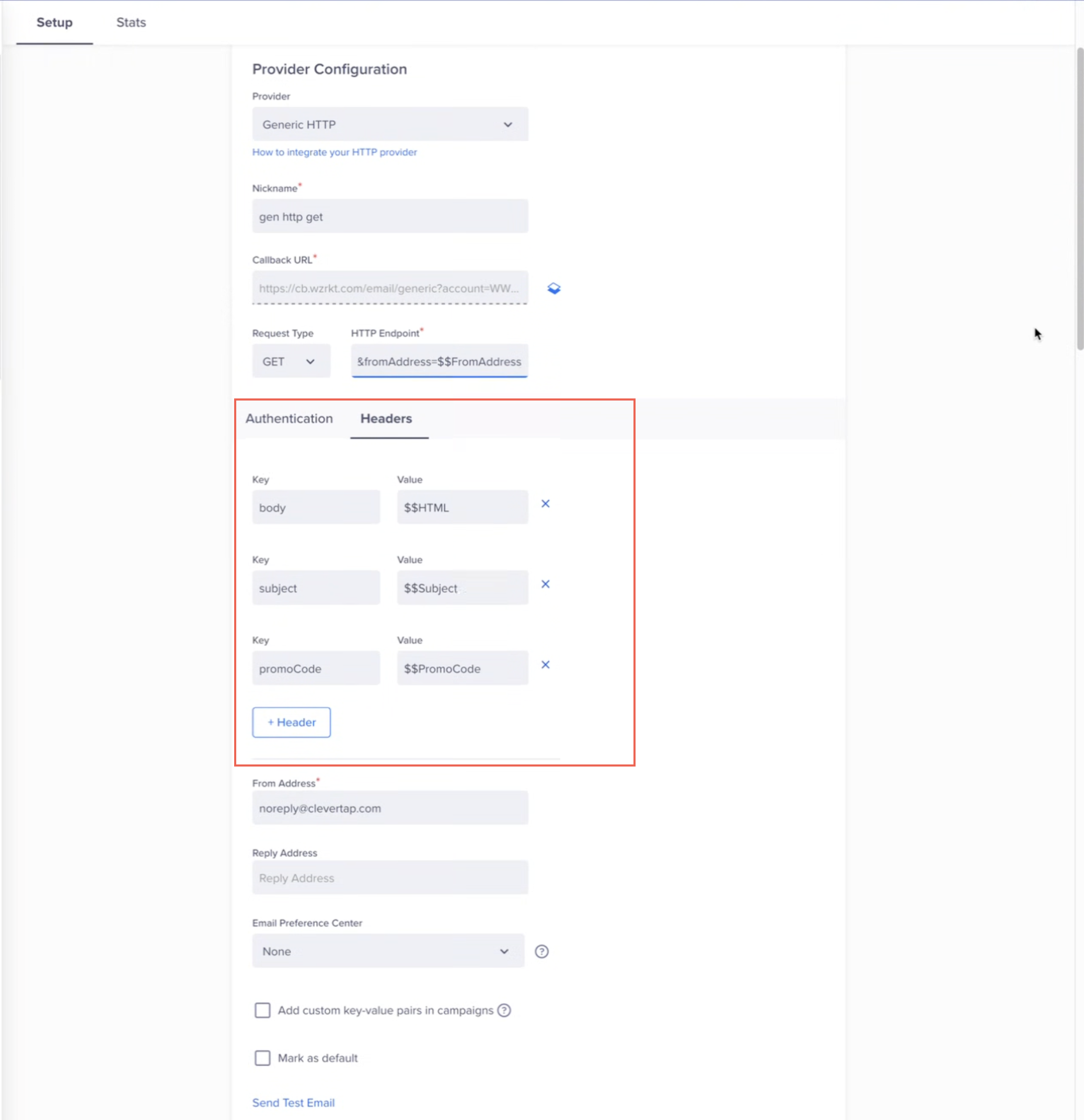
Provider Setup for Generic HTTP - GET Method
In the following example, you define a value for PromoCode during campaign creation.
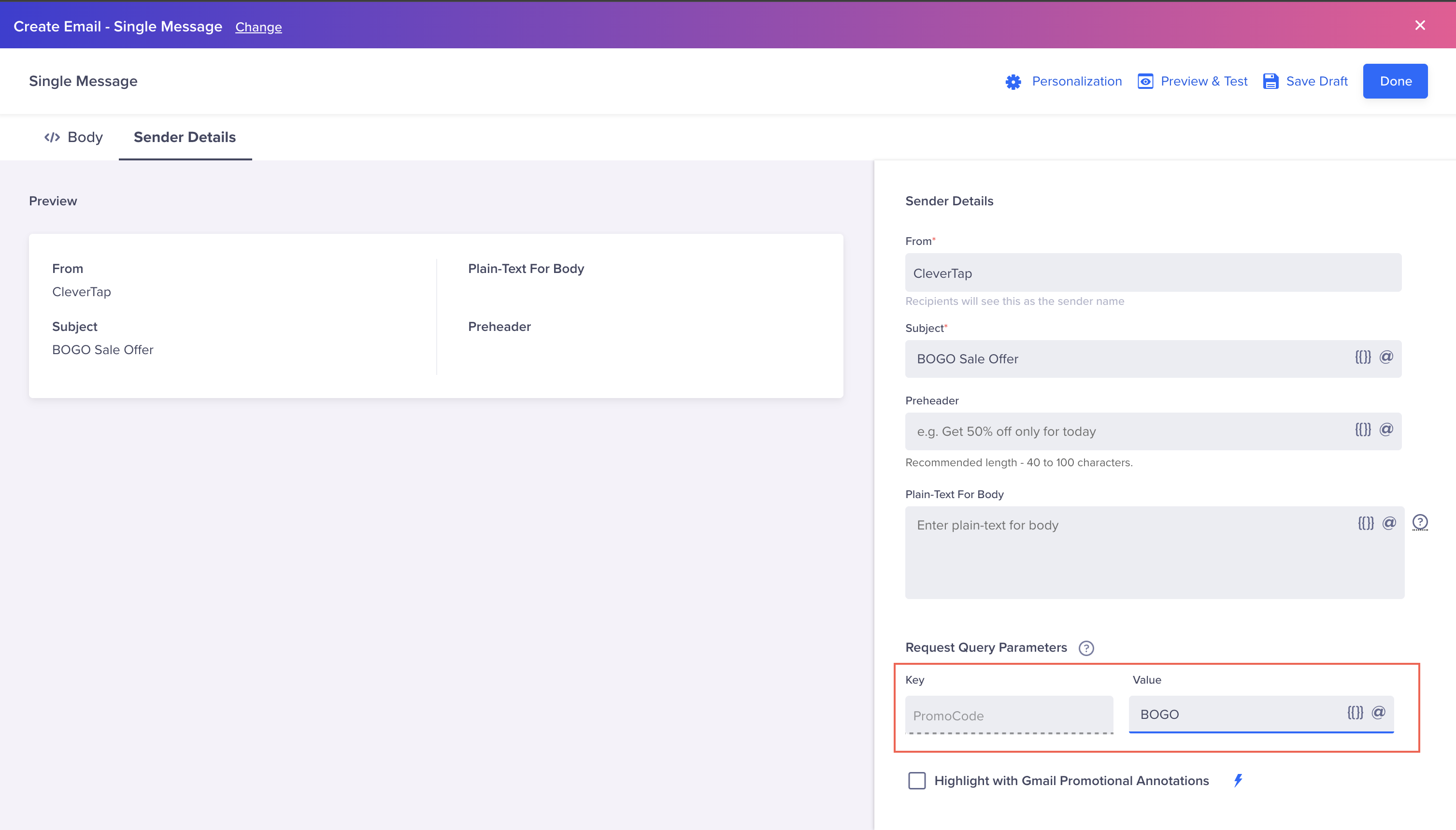
Define Request Query Parameters - For GET Method
Body Parameters
For a POST request type, these parameters are included in the request body to define recipient details and message content. You can also configure batch processing to send multiple messages in a single request.
Sample Request Without Batching
{
  "peid": "1202159255273620968",
  "tmid": "1202159255273620968",
  "cid": "$$CampaignID",   "fromName": "$$FromName",
  "fromAddress": "$$FromAddress",   "to": "$$To",
  "cc": "$$cc",   "bcc": "$$bcc",
  "mid": "$$MessageID",   "uid": "$$userid",
  "variables": "$$TemplateVariables",   "typeB": "$$HTML",
  "plaintext": "$$Plaintext",   "amp": "$$AMPHTML",
  "replyTo": "$$ReplyToAddress",   "tid": "$$Subject"
}
Sample Request With Batching
If your provider supports batching, structure your payload as shown below. In the following example, the msgs array holds multiple personalized email messages. Ensure all dynamic parameters that require user-level or campaign-level personalization (such as $$CampaignID) are included within each object inside msgs.
{
  "peid": "1202159255273620968",       // Static Global key-value pair
  "tmid": "1202159255273620968",       // Static Global key-value pair
  "msgs": [
    {
      "seq": 1,                        // Static parameter
      "cid": "$$CampaignID",                   "type": "$$FromName",
      "typeA": "$$FromAddress",       "to": "$$To",
      "cc": "$$cc",       "bcc": "$$bcc",
      "mid": "$$MessageID",       "uid": "$$userid",               // Dynamic custom parameter, value for userID key should be provided during campaign setup
      "typeB": "$$HTML",       "plaintext": "$$Plaintext",
      "amp": "$$AMPHTML",       "replyTo": "$$ReplyToAddress",
      "tid": "$$Subject"     },     {       "seq": 2,       "cid": "$$CampaignID",
      "type": "$$FromName",       "typeA": "$$FromAddress",
      "to": "$$To",       "cc": "$$cc",
      "bcc": "$$bcc",       "mid": "$$MessageID",
      "uid": "$$userid",       "typeB": "$$HTML",
      "plaintext": "$$Plaintext",       "amp": "$$AMPHTML",
      "replyTo": "$$ReplyToAddress",       "tid": "$$Subject"
    }
  ]
}
Batch Size LimitCleverTap supports a maximum batch size of 1000 records in a single request.
System Dynamic Replacements
You can use the following dynamic replacements within your payload. At send time, CleverTap replaces each placeholder with the corresponding value.
| Key | Description | Mandatory |
|---|---|---|
$$To | A dynamic replacement parameter replaced by CleverTap with the recipient’s email address. | Mandatory |
$$Subject | A dynamic replacement parameter replaced by CleverTap with the subject line of the email. | Mandatory |
$$FromName | A dynamic replacement parameter replaced by CleverTap with the sender’s display name. | Mandatory |
$$FromAddress | A dynamic replacement parameter replaced by CleverTap with the sender’s email address. | Mandatory |
$$HTML | A dynamic replacement parameter replaced by CleverTap with the HTML content of the email. | Mandatory |
$$MessageID | A dynamic replacement parameter replaced by CleverTap with a unique identifier in the outgoing Email payload to the provider endpoint. The provider must send the same value in the callback request to CleverTap's callback URL in the meta key. This is mandatory for DLR (delivered and delivery-related errors, such as bounces, unsubscribe, spam, and so on) tracking. | Mandatory for delivery tracking |
$$cc | A dynamic replacement parameter replaced by CleverTap with the CC recipient email addresses. Note: Adding CC recipients to an email campaign is currently in Private Beta. CleverTap recommends using the $$cc field only if your account has CC support enabled for email campaigns. If the feature is not enabled or CC recipients are not configured during campaign setup, CleverTap still includes the key in the payload with a blank value. For more information, refer to CC/BCC. | Optional |
$$bcc | A dynamic replacement parameter replaced by CleverTap with the BCC recipient email addresses. Note: Adding BCC recipients to email campaign is currently in Private Beta. CleverTap recommends using the $$cc field only if your account has CC support enabled for email campaigns. If the feature is not enabled or CC recipients are not configured during campaign setup, CleverTap still includes the key in the payload with a blank value. For more information, refer to CC/BCC. | Optional |
$$ReplyToAddress | A dynamic replacement parameter replaced by CleverTap with the reply-to email address. | Optional |
$$Plaintext | A dynamic replacement parameter replaced by CleverTap with the plain-text version of the email. | Optional |
$$AMPHTML | A dynamic replacement parameter replaced by CleverTap with the AMP version of the email. Note: AMP for Email is available only with Email Booster Max/Advanced Email add-on. Contact your Customer Success Manager to upgrade your plan. | Optional |
$$CampaignID | A dynamic replacement parameter replaced by CleverTap with the CleverTap campaign ID. | Optional |
$$AttachmentFileName | A dynamic replacement parameter replaced by the filename of the attachment. For example, invoice.pdf.This field is mandatory when sending attachments in email campaigns. | Optional |
$$AttachmentType | A dynamic replacement parameter replaced by the MIME type of the file attached. For example, application/pdf. | Optional |
$$AttachmentContent | A dynamic replacement parameter that CleverTap replaces with the base64-encoded file content of the attachment file at send time. This field is mandatory when sending attachments in email campaigns and must be used together with $AttachmentFileName. If either placeholder is missing from the template, attachments will not be sent, the campaign proceeds without them, and no error will be raised.Attachment file size limits are the same as the existing email attachment size limits of CleverTap. For more information, refer to Sending Attachments. | Optional |
Attachment KeysThe three attachment key placeholders must be used together within an array object in the request body, and cannot be used individually or outside an array. For more information, refer to Sending Attachments.
Custom Dynamic Replacements
Custom dynamic replacements allow you to pass additional metadata, such as user preferences or campaign-level attributes, into your payload. These placeholders are defined during campaign setup and are replaced by CleverTap at send time.
{
  "cid": "432",                            // Global Key-Value pair
  "msgs": [                               // Start of batched message array
    {
      "from": "$$FromName",              // System Dynamic Parameter: sender display name       "senderaddr": "$$FromAddress",   // System Dynamic Parameter: sender email address
      "to": "$$To",                    // System Dynamic Parameter: recipient email address       "mid": "$$MessageID",           // System Dynamic Parameter: unique message ID (used in callbacks)
      "name": "$$name",             // Custom Dynamic Parameter: recipient’s name (user-level personalization)       "uid": "$$userID",    // Custom Dynamic Parameter: user’s ID (user-level personalization)
      "content": "$$HTML",      // System Dynamic Parameter: HTML email body       "heading": "$$Subject"   // System Dynamic Parameter: email subject
    }
  ]
}
In a batching scenario, the JSON payload consists of the following two parts
- Global Key-Value Pairs: Apply uniformly across the entire batch; do not support personalization. In the above example,
cid : 432is a global key-value pair. - Message-level Key-Value Pairs: Specific to individual messages within the batch, supports personalization. In the above example, all the parameters within the
msgsarray are message body key-value pairs.
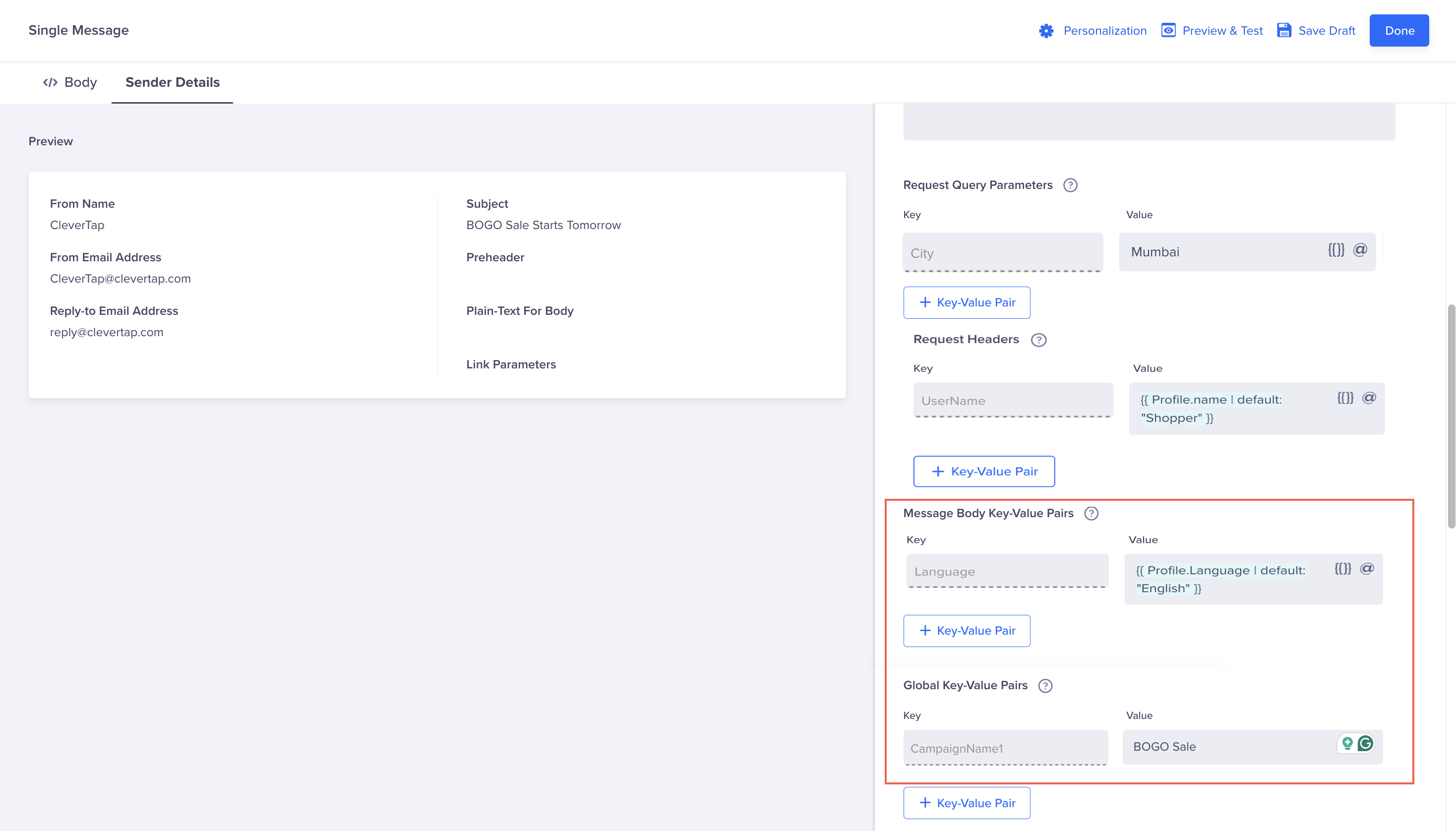
Campaign Creation in case of Batching
When the campaign is sent, CleverTap resolves all placeholders and sends the payload to your email service provider (refer to the following sample JSON payload):
{
  "cid": "43a",
  "discountPercentage": "$$DiscountPercentage",
  "msgs": [
    {
      "from": "Acme Deals",
      "senderaddr": "[email protected]",
      "to": "[email protected]",
      "mid": "[email protected]|1568798080|1730799638|20241105|0|wzrk_default|-17005910|",
      "name": "Sara",
      "uid": "user_9021",
      "content": "<html><body>Hello Sara, enjoy your exclusive 20% discount today!</body></html>",
      "heading": "Your 20% Discount Awaits!"
    }
  ]
}
Sending Attachments
When the campaign is sent, CleverTap replaces the attachment placeholders with actual base64-encoded attachment data.
The array key name (for example, attachments, files, or any other name) and all field names remain exactly as you defined them in the template. CleverTap replaces the placeholder values $AttachmentFileName, $AttachmentType, $AttachmentContent) with the actual attachment data at send time.
Without Batching
{
  "from": "[email protected]",
  "to": "[email protected]",
  "subject": "Your Invoice",
  "html": "<p>Please find attached…</p>",
  "attachments": [
    {
      "file_name": "$$AttachmentFileName",
      "content_type": "$$AttachmentType",       "content": "$$AttachmentContent"
    }
  ]
}
With Batching
{
  "fromName": "$$FromName",
  "fromAddress": "$$FromAddress",   "msgs": [     {       "to": "$$To",
      "mid": "$$MessageID",       "subject": "$$Subject",
      "html": "$$HTML",       "files": [         {           "file_name": "$$AttachmentFileName",
          "content_type": "$$AttachmentType",           "content": "$$AttachmentContent"
        }
      ]
    }
  ]
}
Updated about 1 month ago