
Create Lifecycle Decisioning Agent
Learn how to create a Lifecycle Decisioning Agent
Overview
Create an agent by defining its goal, target segment, engagement strategy, messages, and guardrails. You can save your work as a draft at any step and publish when you're ready.
Prerequisites
Before you begin, check the following
- Lifecycle Decisioning Agent is enabled for your project. An admin enables it in Settings > CleverAI > Agents.
- Your account has capacity for another active agent. Your plan sets a maximum number of active agents. At the limit, stop or pause an active agent, or ask an admin to increase capacity.
- Your role lets you create agents.
- Message templates and, for Email, SMS, and WhatsApp, a configured service provider. If no provider exists, the editor prompts you to add one.
Create Agent
To create a Lifecycle Decisioning Agent, go to Decisioning > Agents > Lifecycle and click Create Agent.
The following image shows the Create New Agent workflow with the five-step navigation bar:
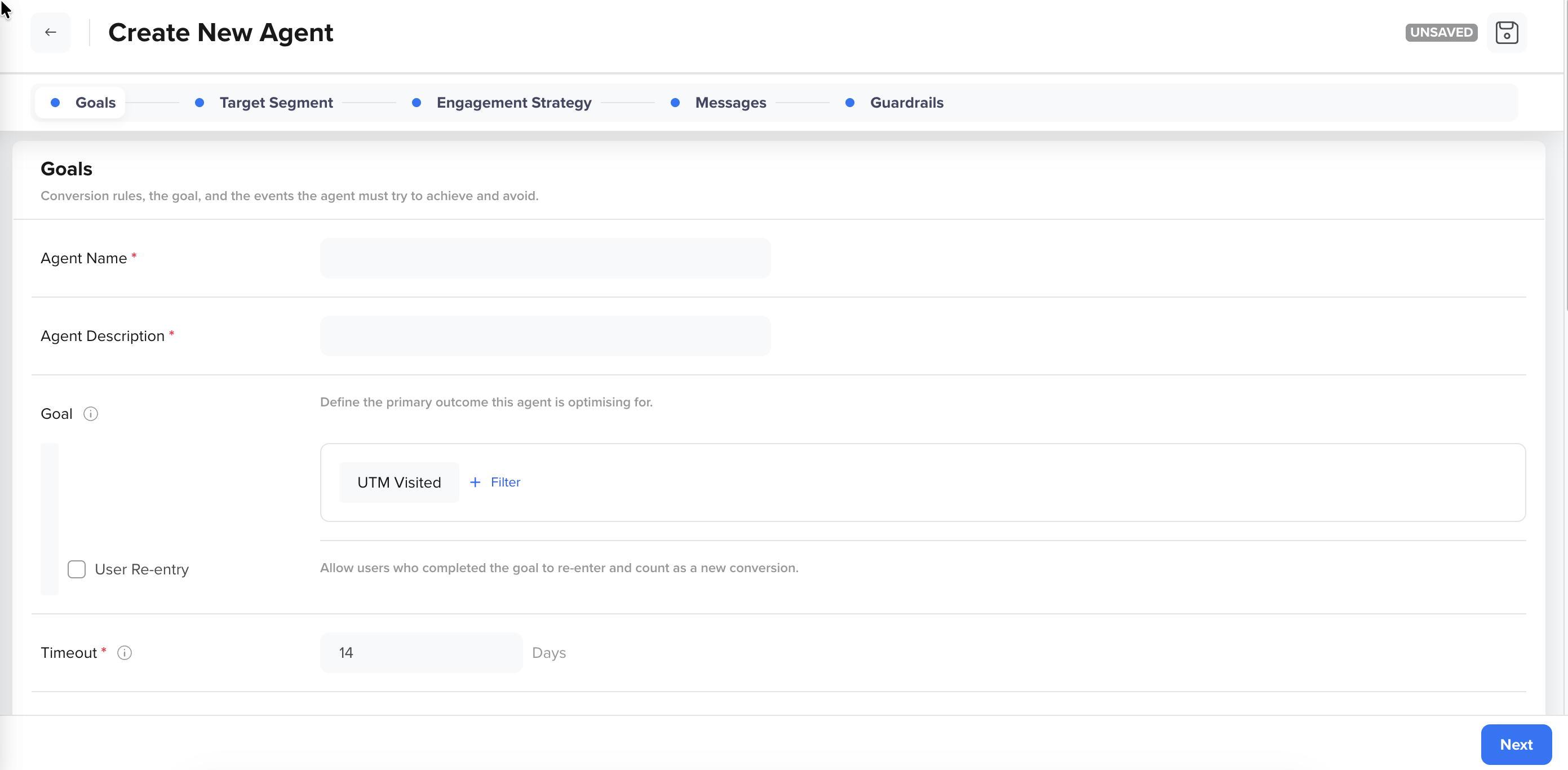
Create new Lifecycle Decisioning Agent
You can create a new agent with a five-step workflow:
| Window Section | What You Configure |
|---|---|
| Set Goals | The conversion goal, guiding events, and the conversion window |
| Define Target Segment | Which users enter the agent and the control group |
| Select Engagement Strategy | The engagement strategy and step rules |
| Define Messages | The messages across different channels available to the agent for selection |
| Define Guardrails | Channel limits, Frequency caps, and Do Not Disturb (DND) windows |
Updated about 3 hours ago
Did this page help you?