
Generate On-Brand Images with Effective Prompts
Create stunning, on-brand campaign visuals with the Image Creator using effective prompts.
Overview
Writing a clear, structured prompt ensures that the generated image accurately reflects your intent, whether for a sales banner, an event promotion, or a seasonal creative. This document helps you write prompts that get precise, visually accurate, and on-brand results.
Review AI-generated images for brand and legal compliance before publishing. Avoid including any confidential or personal information in your prompts. For more legal and compliance-related details, refer to Image Creator: FAQs.
Ways to Generate Images with AI
You can generate on-brand images in multiple ways depending on your campaign needs. The AI Image Generator supports creating new images, editing existing ones, or using a reference image to guide visual consistency.
Writing Effective Prompts
Writing a clear, focused prompt helps the Image Creator understand what you want to create, why you are creating it, and where it will be used. A good prompt explains the intent of the campaign (what you want to achieve with this image), the visual feel, and the layout composition, ensuring the final design looks on-brand and aligns with your campaign goals.
You can follow this simple structure to describe your image idea in a way the Image Creator understands easily:
Define the Purpose (What the Image Is Meant to Do)
Start by defining the intent of the image. This gives the AI the foundation for your creative direction, whether it is a product launch, a discount banner, or a festive greeting. The agent uses this initial instruction to determine the type of image to create (such as product-focused, event-driven, or brand-awareness). For example, "Create a promotional image announcing Diwali Sale on home décor items, offering up to 50% off."
Describe the Look and Feel (How the Image Should Feel)
Add details that capture your brand’s look and feel, mood, colors, and overall tone. Use adjectives that guide the image's lighting, energy, or emotional resonance. This helps the AI interpret the creative style accurately. For example, “Use soft, festive lighting that evokes the spirit of Diwali celebrations.”
Add Layout and Composition (Where Key Elements Should Appear)
Specify the structure of your image, where to place text, logos, or visual emphasis. This provides the AI with guidance on framing and visual hierarchy, enhancing clarity and usability across all campaign channels. For example, “Place the logo in the top-right corner.”
Combine All Three Parts
Create a promotional image announcing HomeStay’s Diwali Sale on home décor items, offering up to 50% off. The image should instantly convey a festive, premium shopping experience and encourage users to click.
Use soft, festive lighting that evokes the spirit of Diwali celebrations. The scene should evoke a sense of luxury and invitation.
Include elegant home décor items, and the overall tone should be celebratory, warm, and of high quality. Place the HomeStay logo in the top-right corner. Display the featured décor items prominently in the center or foreground. Add a ‘Shop Now’ call-to-action button at the bottom of the image.
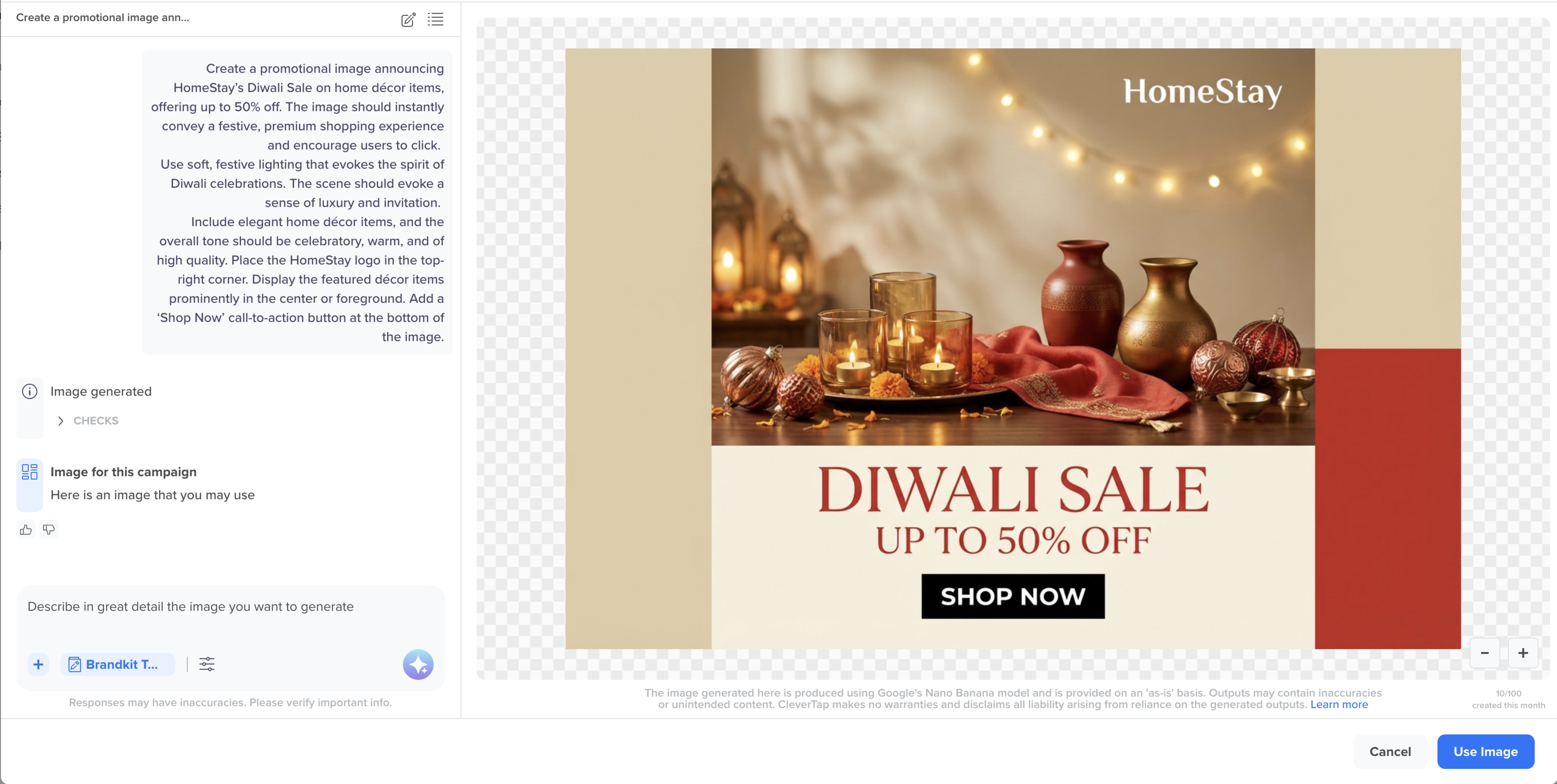
Sample Image
Prompt Tips
The following are some useful tips when adding visual and emotional details to your prompts:
- Describe mood or emotion (for example, warm, premium, playful, trustworthy).
- Mention lighting or visual treatment (for example, soft light, gradient glow, high contrast).
- Be specific and describe what the image should show and why. Avoid short or vague inputs like “banner” or “sale.” For example: “Create a festive Diwali banner with gold lamps, warm lighting, and a red background.”
- Keep tone and brand cues consistent. Choose one style, for example, either “bold and expressive” or “clean and minimal.” Ensure color choices align with your Brand Kit. Avoid mixing contradictory styles (“vibrant and minimal”).
- Specify the text placement and exact text for the image, as the AI renders only the text stated in your prompt. Without text, AI may add placeholder content. For example: “Add the text ‘Shop Now’ at the bottom center in bold white.”
- Upload reference images directly instead of pasting URLs, as external links are not supported.
Sample Prompts
The following sample prompts show how detailed prompts improve image quality, tone, and brand consistency. You can experiment with more prompts to find a suitable message tone and style for your brand. Browse the sample prompts by industry:
E-Commerce
Prompt:
Create a clean, modern e-commerce collage for a winter wear apparel sale.
Use soft, warm lighting and a neutral background to highlight premium winter clothing such as sweaters, jackets, hoodies, coats, and knitwear accessories. Feature a large central hero apparel image with four smaller supporting product shots arranged in a balanced collage grid. Keep the design polished and lookbook-style.
Include a bottom section with a short seasonal tagline and a centered SHOP NOW CTA button.
Result:
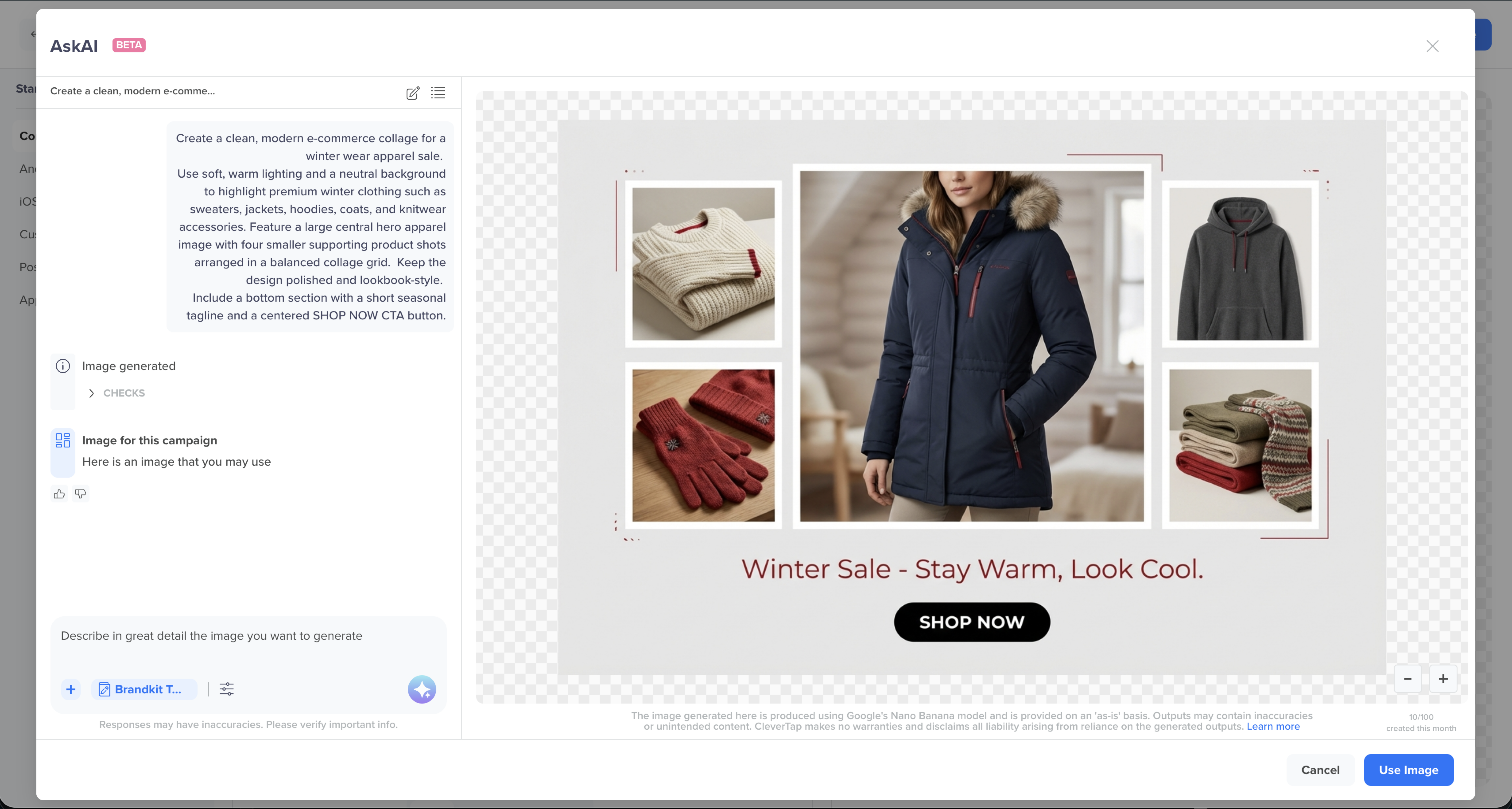
E-Commerce Example
OTT
Prompt:
Create a wide cinematic, symmetrical OTT push banner for a Premier League match. Show two generic football players: one in a red Liverpool-style kit and one in a blue Chelsea-style kit, facing off at the center under bright stadium floodlights in a packed nighttime arena. Add soft haze, lens flares, motion streaks, and a subtle red–blue split glow for energy. Keep the visual sharp, dramatic, and broadcast-grade with clear negative space at the top for text.
Headline (top center): “Premier League Live”
Subheadline: “Liverpool vs Chelsea • One Epic Battle.”
Add a bottom-center CTA button with soft-rounded corners, subtle outer glow for contrast, and bold white text that reads “Catch the Action”.
Result:
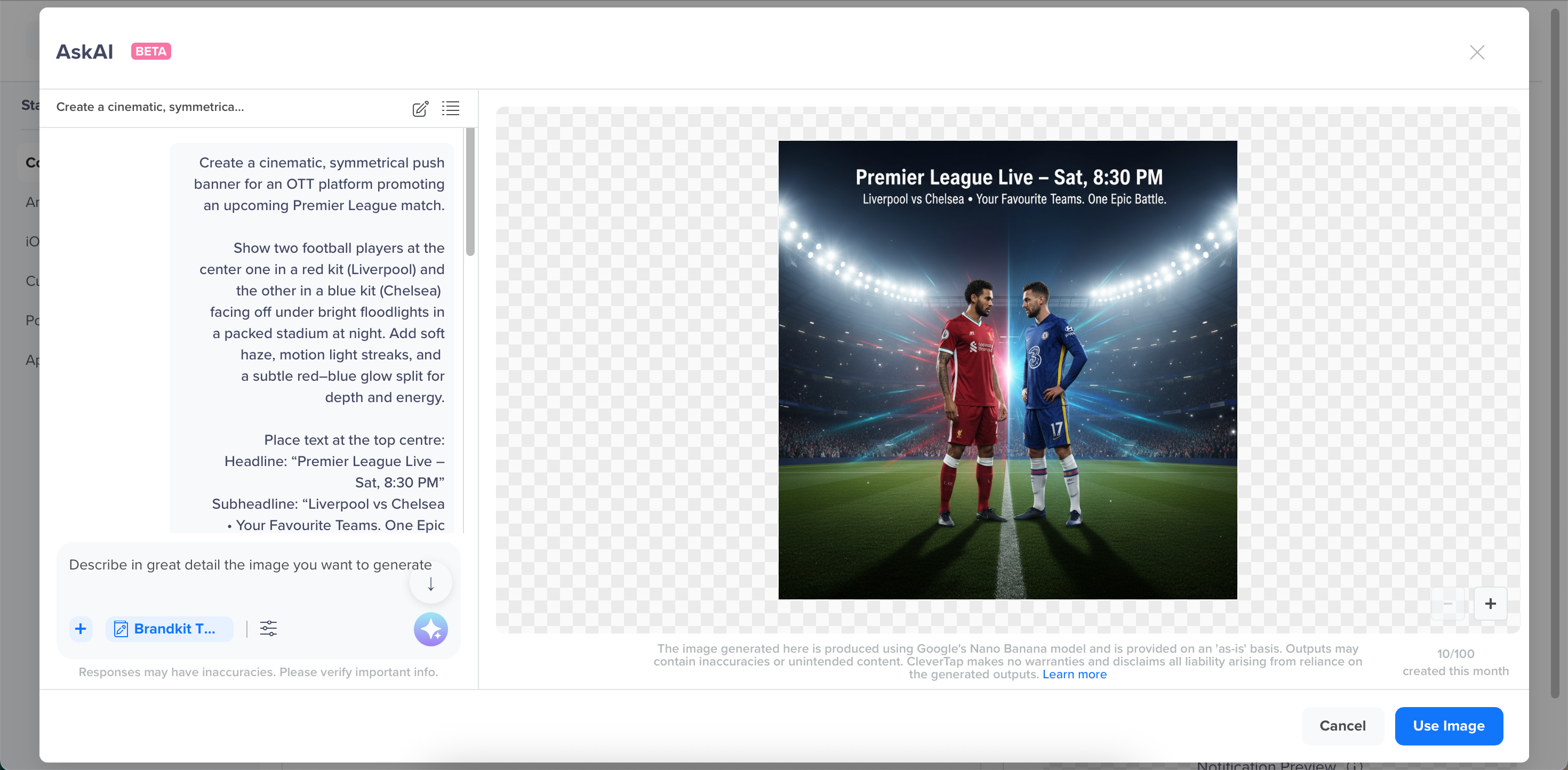
OTT Example
FinTech
Prompt:
Design a clean banner for a home loan offer in the FinTech domain.
Use a calm, trustworthy color palette with blues, soft neutrals, and subtle gradients. Show a young couple or homeowner looking confident, secure, and financially empowered, with realistic, non-exaggerated expressions. Use modern FinTech styling with soft shadows, clean lines, and minimal icons.
CTA button at the bottom center, with rounded corners and solid blue fill, containing bold white text that reads “Apply Now”.
Headline: “Your Dream Home Awaits”
Subtext: “Apply for low-interest home loans today.”
Add fine-print below the CTA: “Terms and conditions apply.”
Result:
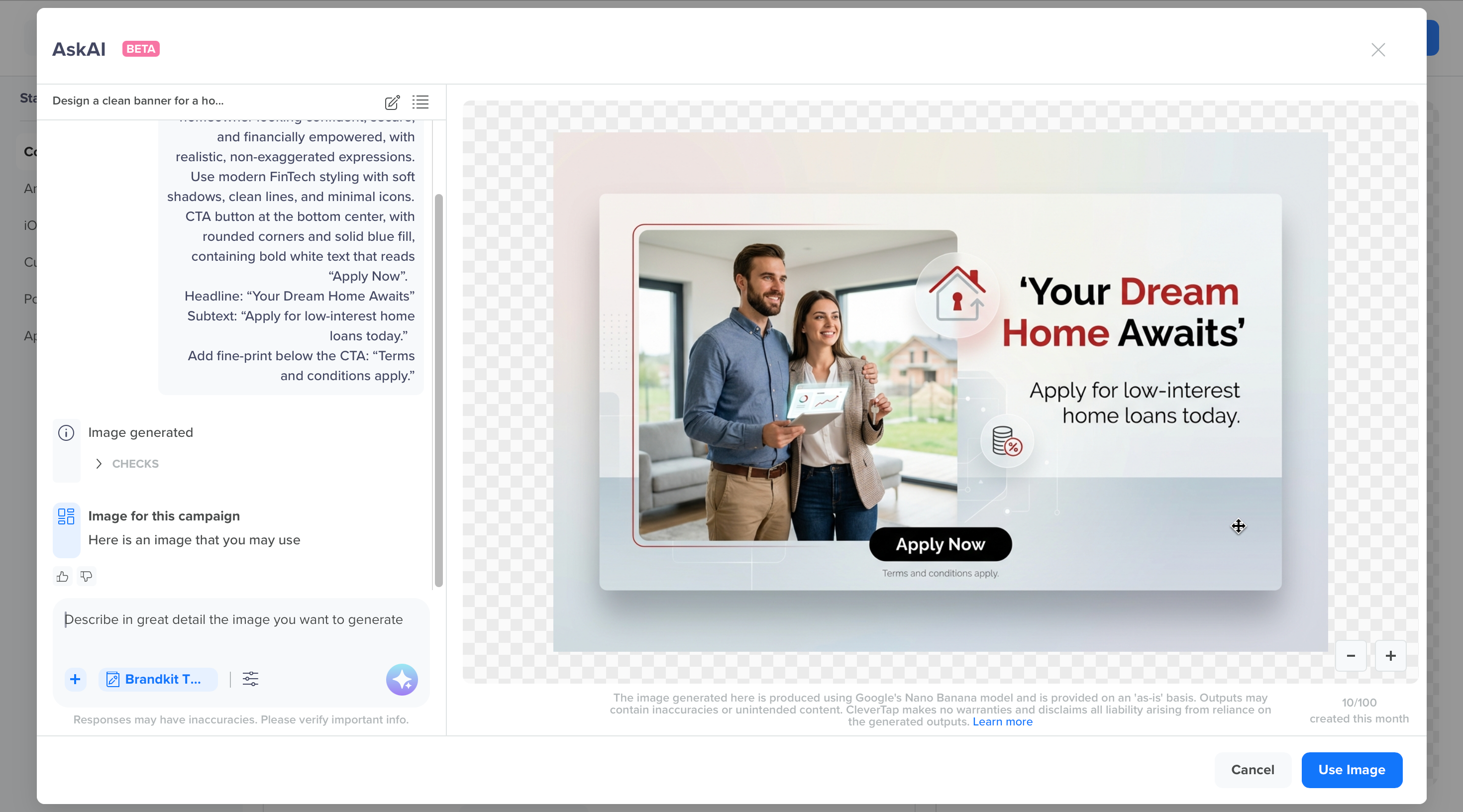
FinTech Example
Food Delivery
Prompt:
Create a photorealistic festive banner for a dessert brand named "TreatsOn.” Show authentic Indian sweets such as barfi, laddoos, and jalebi arranged neatly on golden plates with marigold flowers and festive lights in the background.
Use warm, celebratory colors like saffron, gold, and deep orange. The sweets should look fresh, real, and appetizing, as seen in professional food photography, not stylized or artificial. Add text clearly and prominently in the center-right area with high visibility:
Headline: “Sweet Treats Incoming!”
Subheadline: “Celebrate the Festival with TreatsOn.”
Include the TreatsOn logo in the top-left corner for brand presence. Ensure text has ample contrast and focus, balanced equally with visuals. The overall layout should feel modern, premium, and festive, inspired by food delivery and quick-commerce brand campaigns.
Result:
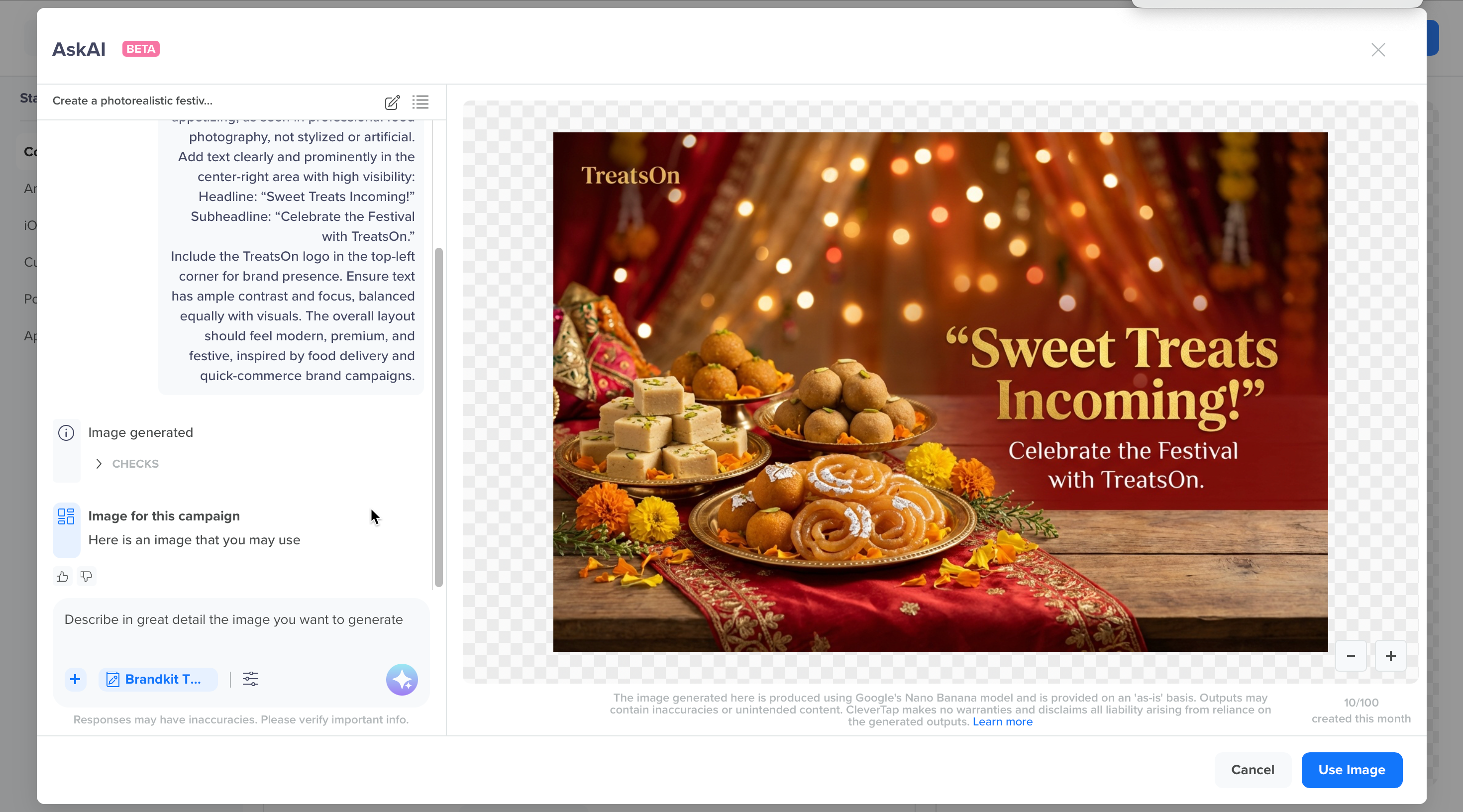
Food Delivery Example
Gaming
Prompt:
Design a cinematic image for a new mobile game release.
Show a central character in a dark, glowing environment with light rays and a bold title area.
Place text at the top center:
Headline: “The Battle Begins.”
Subheadline: “Play the New Action Adventure Now.”
Add a ‘Download & Play’ CTA in blue or gold.
Keep it visually intense, engaging, and ready for campaign use.
Result:
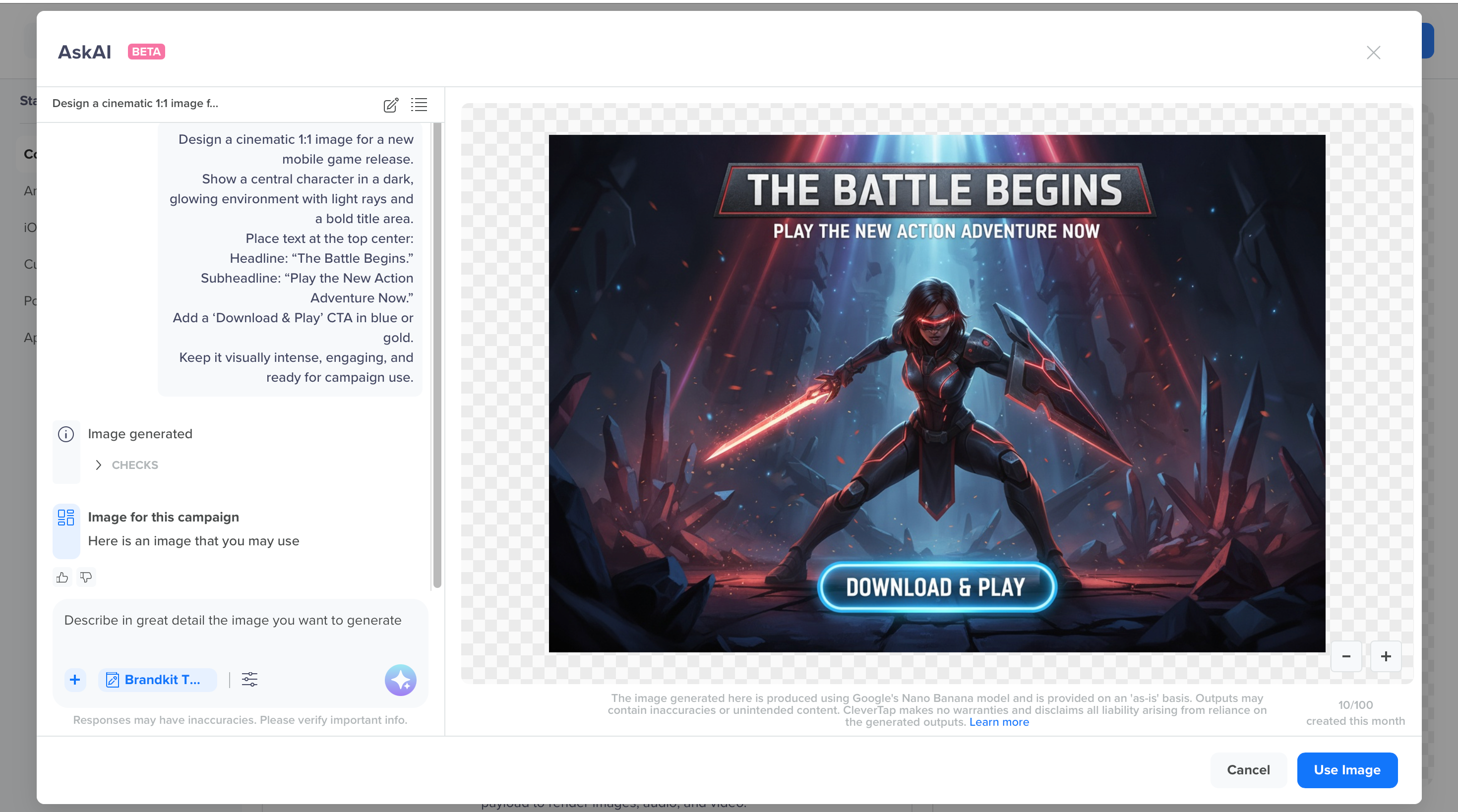
Gaming Example
How Brand Kit and Prompts Work TogetherIf your prompt conflicts with your Brand Kit, the Brand Kit always takes priority to maintain brand consistency. The system applies settings in this order: Brand Kit → Prompt → Filters. This ensures every generated image stays brand-compliant and visually consistent with your defined design standards.
For more information on generating and editing images, along with step-by-step instructions, refer to Image Creator.
Updated about 2 months ago