
Create Feed
Learn how to configure data sources that upload and update products in a catalog.
Overview
A feed is a data source that adds or updates product data in a catalog. Use feeds to do a full upload when setting up a catalog, or to push incremental updates as your data changes. A catalog can have multiple feeds, each handling a different type of update.
For example, consider an e-commerce product catalog:
- One feed uploads the full product list, including IDs, names, categories, and images, from a CSV file.
- Another feed syncs pricing and availability daily from your backend system.
Both feeds update the same catalog but serve different purposes.
Create a Feed
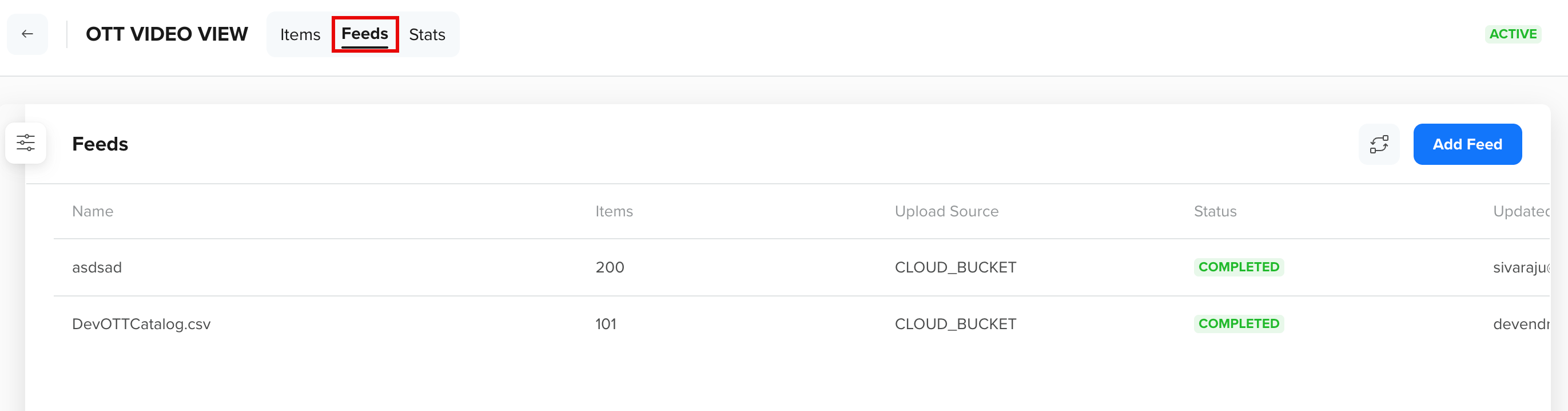
Click Create Feed to configure a new feed for the selected catalog. Perform the following steps:
The following image shows the Feeds tab:
Feeds Tab
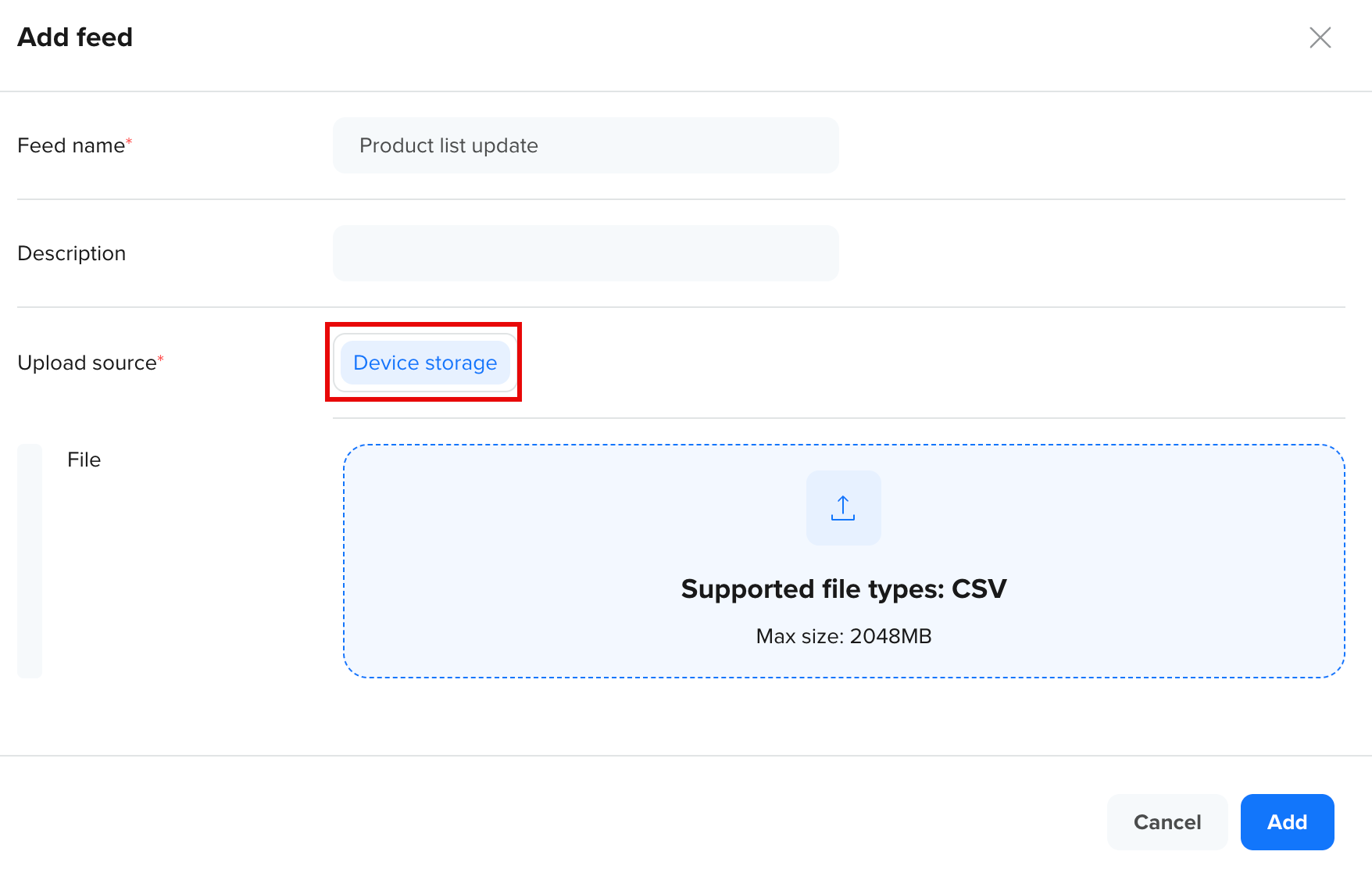
Select an Upload Type
The upload type determines how feed data is sourced. The following table describes the supported options:
| Upload Type | Description |
|---|---|
| CSV / XML / JSON file upload | Upload a file directly. You can connect multiple one-time file uploads to the same catalog. |
| API / URL | CleverTap fetches data from a URL at a set frequency. Only one API/URL feed can be active per catalog at a time. |
| Google Sync | CleverTap syncs data from a Google source at a set frequency. Only one Google Sync feed can be active per catalog at a time. |
The following image shows the Add Feed page:
Add Feed
Configure the Feed Source
Provide the required input based on the upload type you selected.
For file uploads, attach the file directly.
For API/URL and Google Sync feeds, fill in the following fields:
| Field | Description |
|---|---|
| Source URL | The URL from which CleverTap fetches the catalog data. |
| Sync Frequency | The interval at which CleverTap re-fetches data from the source URL. Set a value and select the unit: minutes, hours, or days. |
For further details on configuring upload types, refer to Upload Product Catalog.
Save the Feed
Click Save to add the feed to the catalog.
Manage Feeds
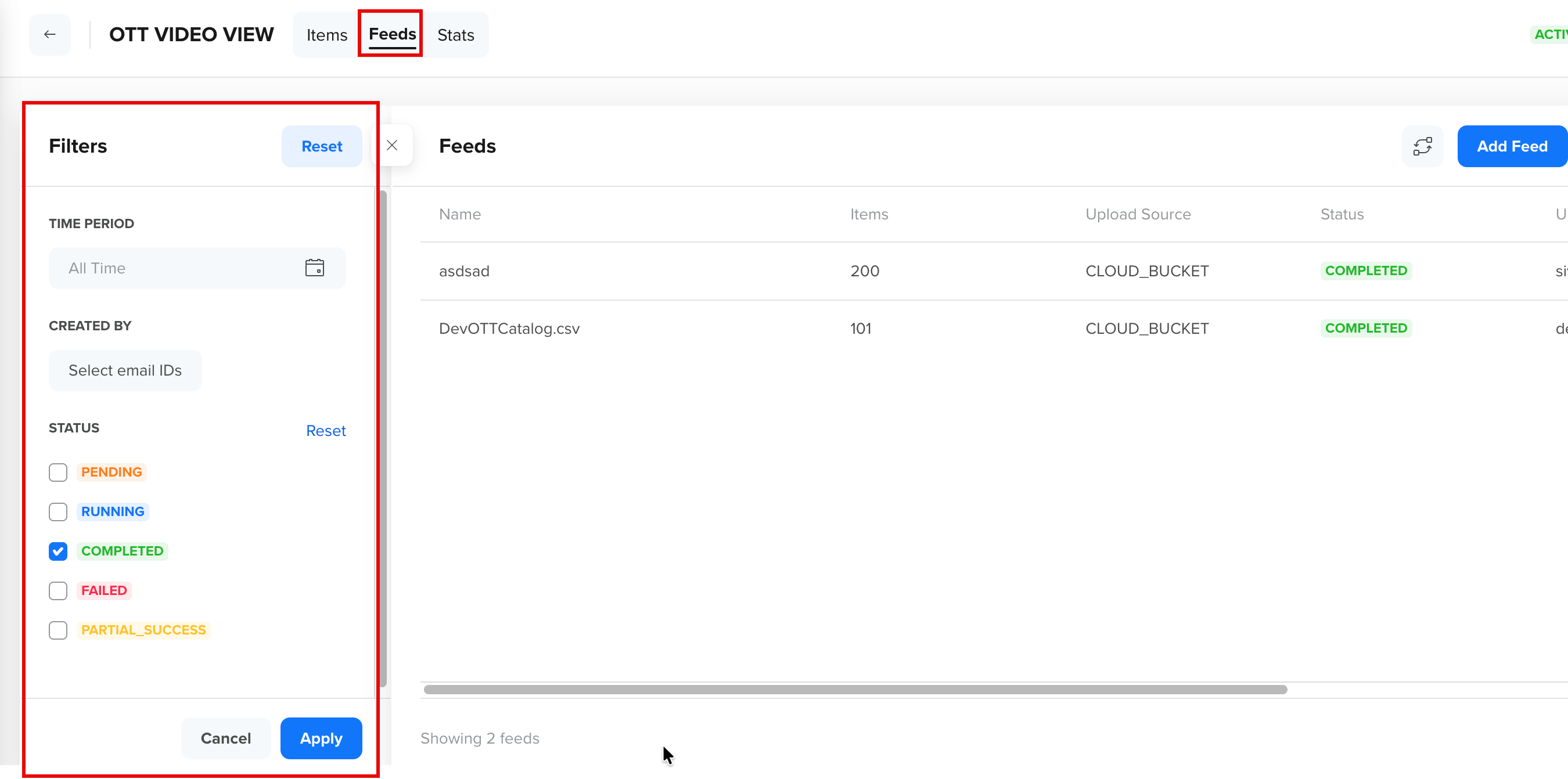
Monitor feed activity from the Feed tab. The Feed tab shows all feeds associated with the selected catalog. Each feed entry includes the feed name, number of products, upload type, status, uploaded by, and last updated.
Filters on Feed Logs
How Multiple Feeds Work
Each feed operates independently. However, updates are not merged across feeds. When a feed processes a product, it replaces the entire attributes object for that product with the data in the current feed. Any attribute not included in the latest feed is removed, not preserved from an earlier feed.
For example, if Feed A sets color and size for a product, and Feed B later updates only the color for the same product, the product retains only the color after Feed B runs. size is dropped.
This allows you to separate initial data ingestion from ongoing updates and maintain multiple data sources for the same catalog. To avoid unintended data loss, include every attribute you want to persist in each feed that touches a given product.
Feed Status
Each feed displays a status that indicates its current state. The following table describes each status:
| Status | Description |
|---|---|
| Pending | The feed has been created and is queued for processing. |
| Running | The feed is currently processing and updating catalog data. |
| Completed | The feed was processed successfully, and the catalog was updated. |
| Failed | The feed processing failed due to validation or upload errors. |
| Partial Success | The feed processed successfully for some records but failed for others. Review logs to identify failed entries. |
Filter Feed Logs
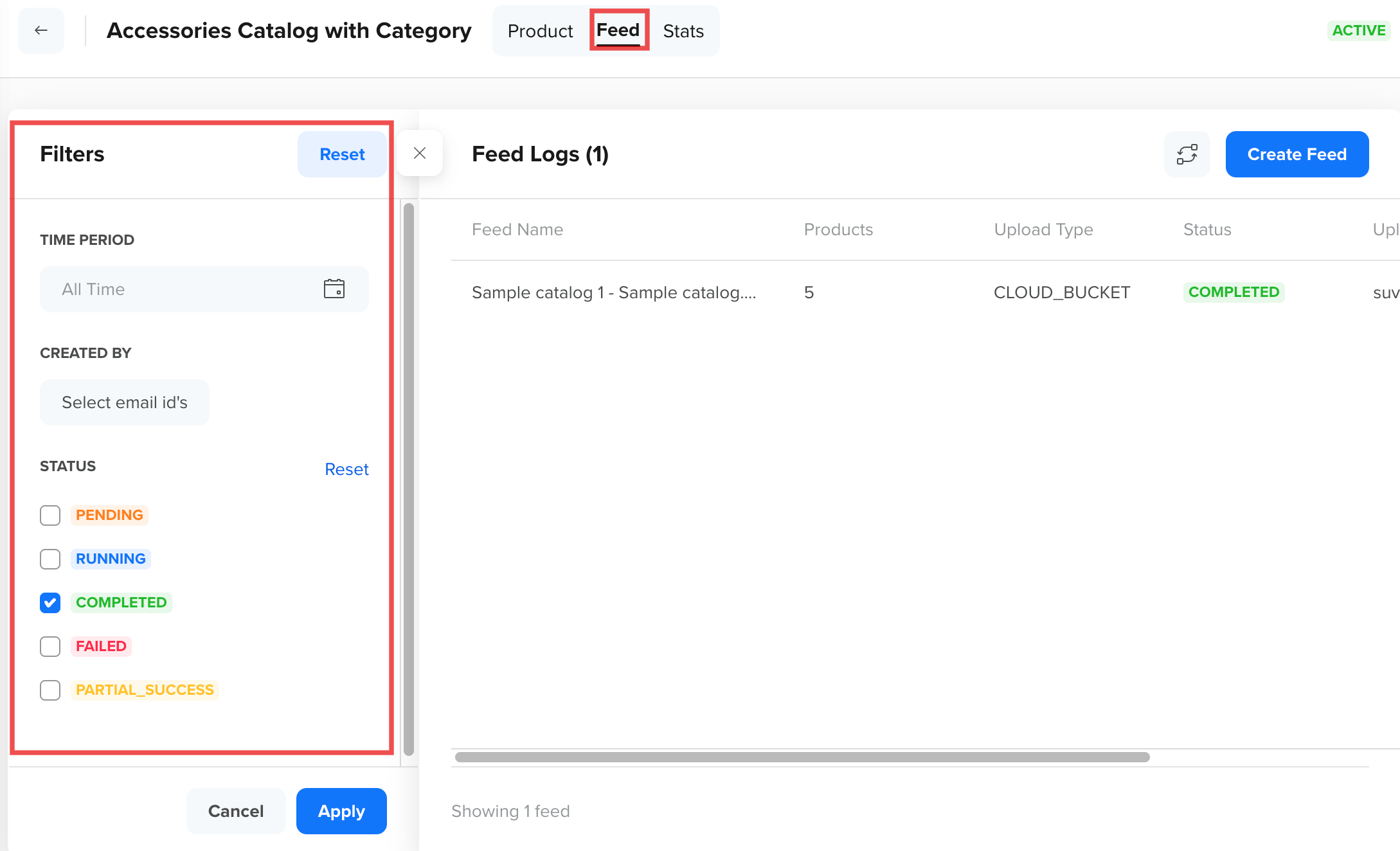
Apply filters to track feed performance and identify issues. The following table describes the available filters:
| Filter | Description |
|---|---|
| Time Period | Narrow feeds by a specific date range based on when they were created or processed. |
| Status | Filter feeds by processing state: pending, running, completed, failed, or partial success. |
| Created By | View feeds created by a specific user. |
The following image shows the filters for feed logs:
Filters on Feed Logs
Edit columns
The Edit Columns option lets you choose which columns to display on the Feed tab and in what order. This makes it easier to focus on the most relevant information based on your workflow.
The following image shows Edit Columns :
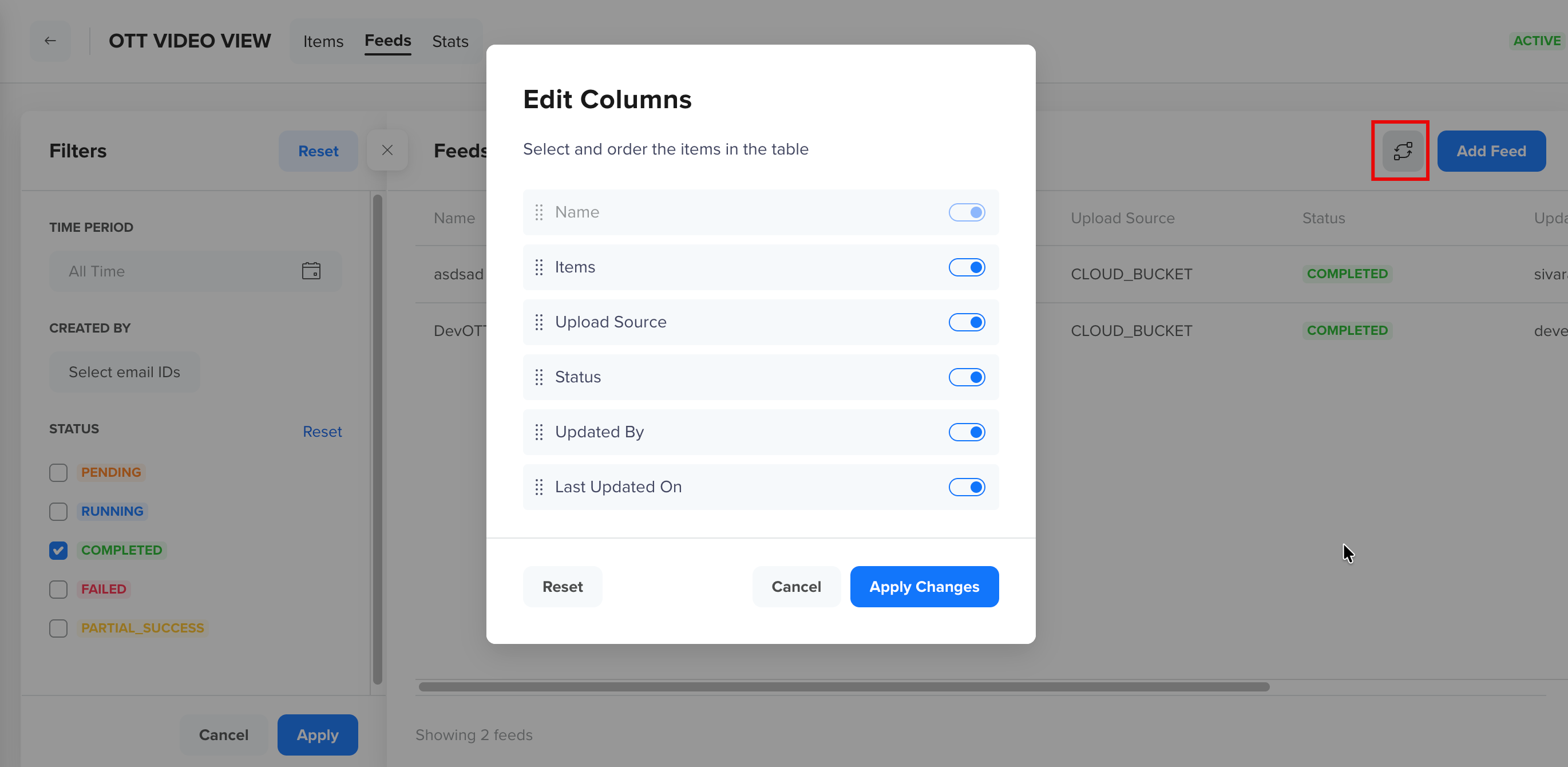
Edit Columns
Updated about 1 month ago