
Time in User Property
Learn how you can use your own best time logic to schedule campaigns with the Time in User Property feature.
Overview
Time in User Property gives you full control over when messages are delivered by allowing you to define the send time outside CleverTap for each user and pass it directly as a user property. Instead of relying on CleverTap’s system-calculated Best Time, you decide the best time logic using your own models, rules, or data pipelines, and CleverTap delivers messages exactly at the time you specify for each user.
The calculated time value is transferred to CleverTap by updating a user property through supported data ingestion methods such as the Profile API, CSV upload, or data sync integrations. The value is stored as a standard user property in the user profile and used during campaign execution to determine message delivery time for each user.
Private BetaCurrently, this feature is a Private Beta Release. If you want access to this feature, contact your Account Manager.
When should you use this?
Use Time in User Property if:
- You externally calculate the best send time for each user.
- You want CleverTap to deliver messages exactly at the time you provide for each user.
- You want to avoid creating multiple time-based campaigns or segments.
Setting up Time in User Property
Setting up Time in User Property involves two steps:
- Pass the time value in a user property
- Use the property in campaigns
NoteTo set up Time in User Property using API, refer to Time in User Property Object.
Step 1: Pass the time value in a user property
Pass a time-of-day value (in minutes) as a user property in the user profile. This value represents the number of minutes since the start of the day (00:00) and is used to determine the exact time at which the message should be sent to that user (in account timezone).
For example, if you set the user property to 1125, CleverTap schedules the message to be delivered to that user at 6:45 PM (account timezone). Similarly, 0 means 12:00 AM, 145 means 02:25 AM, 570 means 09:30 AM, and 1125 means 06:45 PM.
Step 2: Use the property in campaigns
To configure the Send Time for a specific campaign,
- Navigate to the When section.
- Select Schedule for later or Set as Recurring under the Data and time section, depending on the nature of your campaign.
- Select Time in User Property as the send-time option. This instructs CleverTap to schedule message delivery for each user based on the time stored in the selected user property.
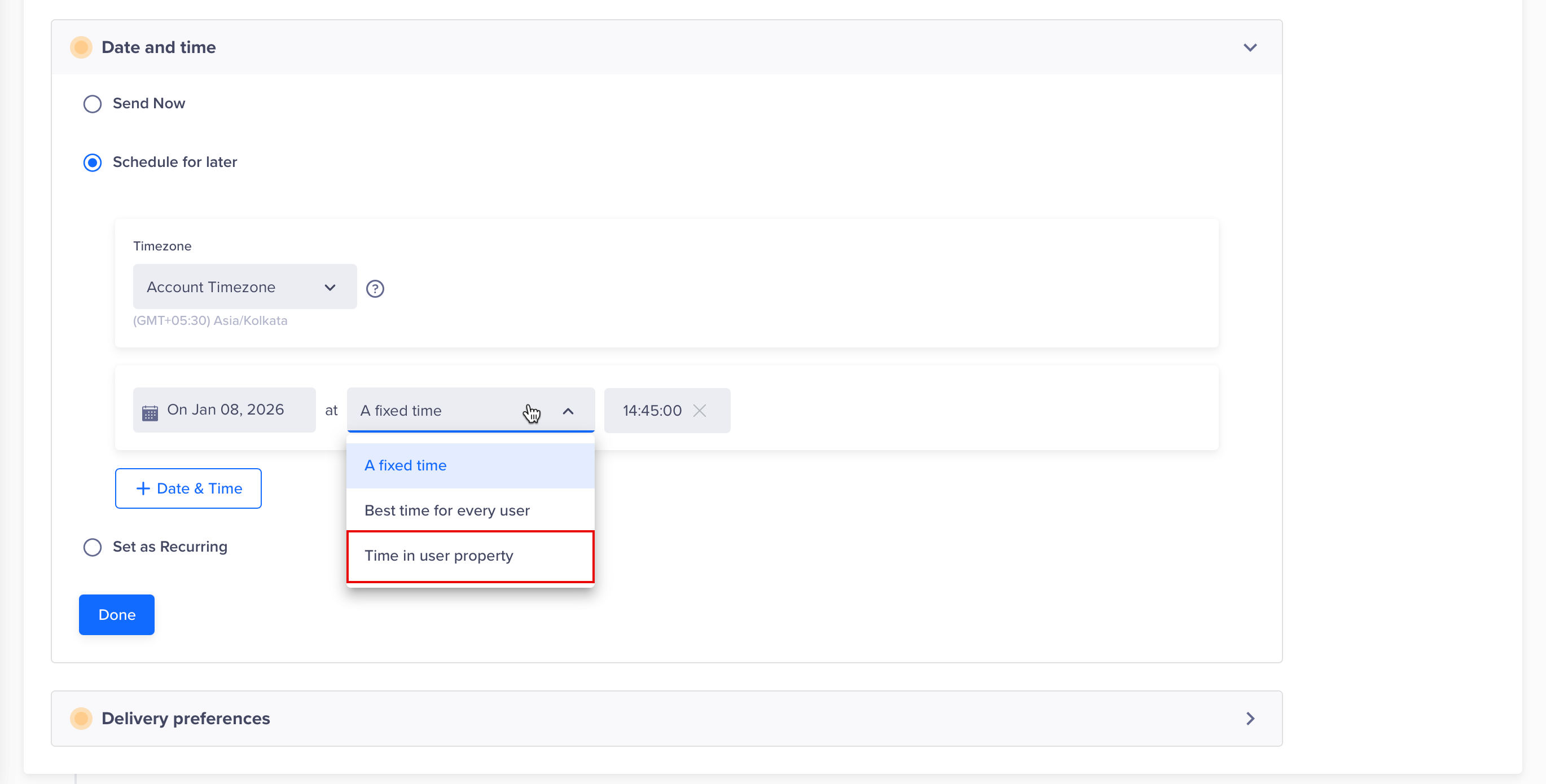
Time in User Property
- Specify the Start time and End time of the campaign. If End Time is not specified, the campaign runs for 24 hours.
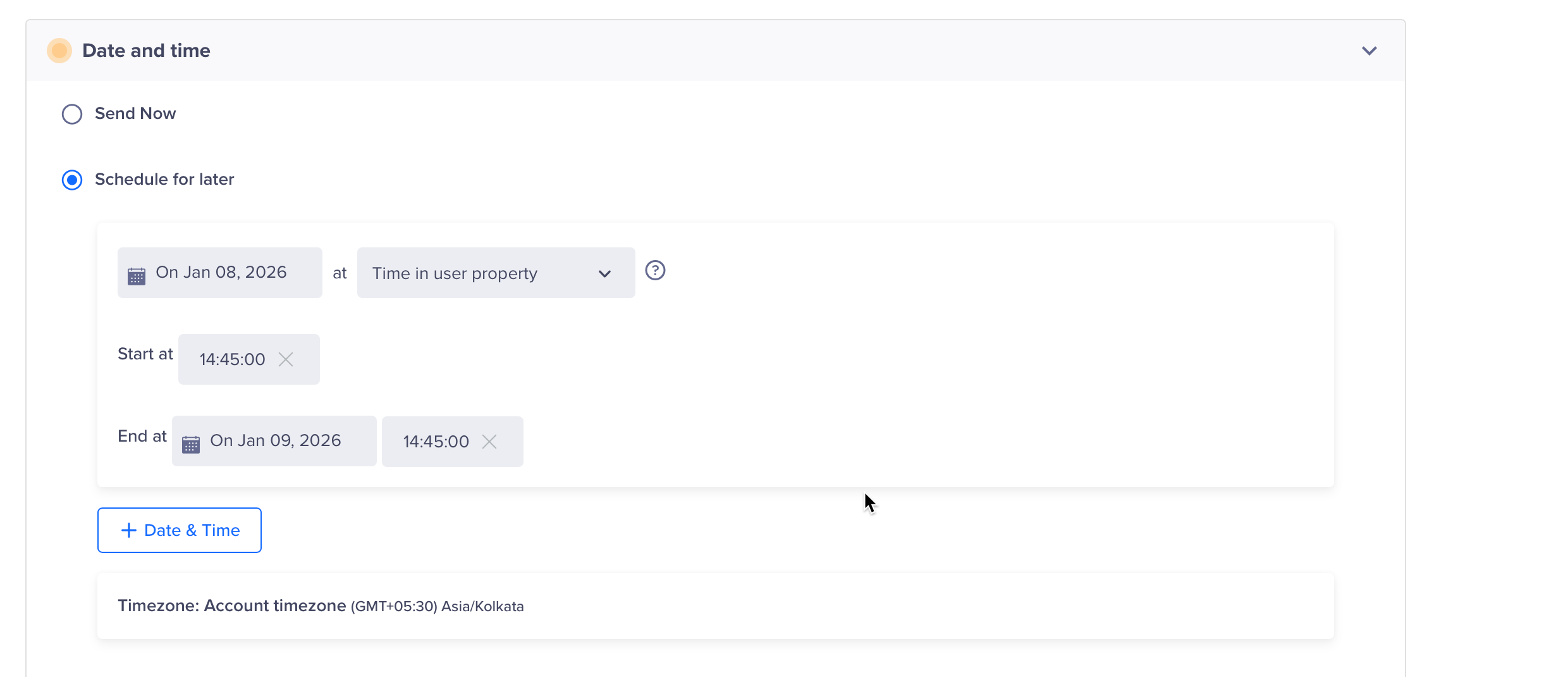
Start and End Time
- In the Delivery Preferences section, navigate to the Time in user property configuration. Select the User Property from the dropdown.
- Configure the fallback behavior for the following scenarios:
- Fallback for users with no/invalid time in user property: Applies when the selected user property is missing, empty, or contains an invalid value, so CleverTap cannot determine a send time for that user using Time in User Property.
- Fallback for users not qualifying in campaign time range: Applies when the user has a valid time value in the selected user property, but that time falls outside the campaign’s configured Start Time and End Time, so the user cannot be included within the campaign’s send window.
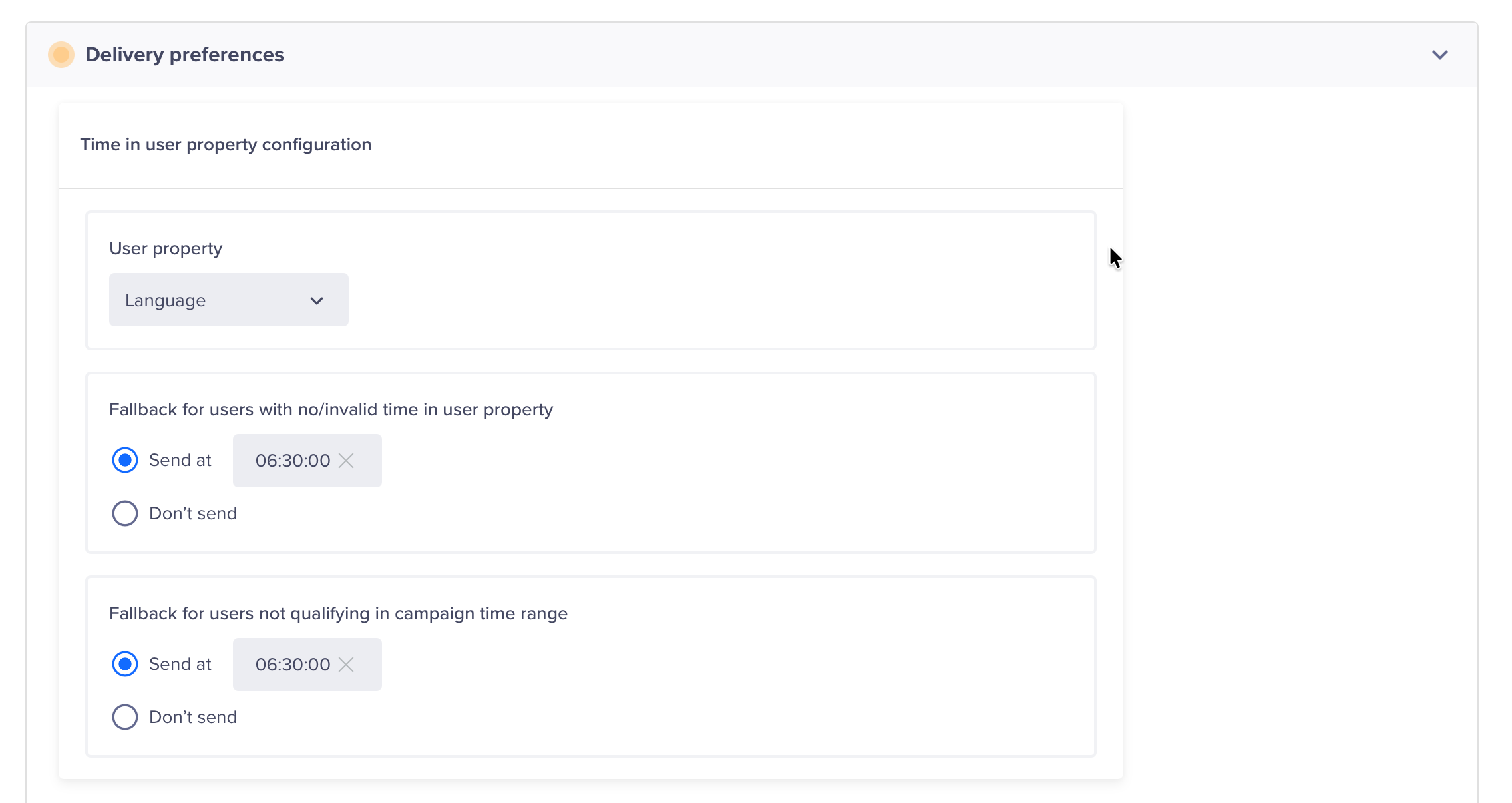
Time in user property configuration
Note
- This option is available only for Past Behaviour Campaigns.
- Campaign-level throttling and limits apply as usual.
- Time in User Property uses the account timezone, not the user’s local timezone.
- The send time is locked in when the campaign begins running for users who qualify at that time. Updates made to the user property after dispatch begins do not affect message delivery for those users. However, users who qualify later will follow the updated time value available at the time they enter the campaign.
- Supported time format:
- The user property must be passed as an integer representing the number of minutes since the start of the day
(00:00).- For example,
145means 02:25 AM and1125means 06:45 PM.- Seconds are not supported.
Updated 4 months ago