
Alot Solutions
Understand how to integrate Alot Solutions with CleverTap for WhatsApp communication
Overview
Alot Solutions is a CPaaS provider that enables businesses to engage customers across multiple channels. Its integration with CleverTap lets businesses send WhatsApp campaigns directly from the CleverTap dashboard using Alot Solutions' WhatsApp Business API infrastructure, with DLR tracking for delivery status and campaign performance visibility.
Here are a few ways businesses use Alot Solutions with CleverTap:
- Approved Templates: Send WhatsApp campaigns using Meta-approved templates.
- Triggers: Trigger transactional and promotional messages based on CleverTap segments and user behavior.
- Delivery Tracking: Track delivery status and inbound user messages using CleverTap callbacks.
Support for IntegrationThis integration is managed and supported by FirstConnectt. For any questions or issues related to this integration, contact Alot Solutions support.
This document covers the following:
- Prerequisites for Integration
- Configure CleverTap Dashboard
- Set Up CleverTap Callbacks in Alot Solutions
- Add WhatsApp Message Templates
- Create a Campaign
- Create a Journey
Prerequisites for Integration
Before configuring Alot Solutions as your WhatsApp provider in CleverTap, ensure the following are in place:
- The WhatsApp Campaigns feature is enabled on your CleverTap account.
- You have an active Alot Solutions account with access to the WhatsApp Business API (WABA).
- A WhatsApp Business number is provisioned and active in Alot Solutions.
- Meta-approved WhatsApp message templates are available in your Alot Solutions dashboard.
NoteIf you are new to Alot Solutions or have not yet completed WhatsApp onboarding, reach out to Alot Solutions support.
Configure CleverTap Dashboard
To configure the CleverTap dashboard, connect Alot Solutions as your WhatsApp provider using the Generic WhatsApp provider option.
- Go to Settings > Channels > WhatsApp in the CleverTap dashboard.
- Select the WhatsApp Connect tab.
- Click + Provider Configuration. The Provider Configuration form opens.
- Under Provider, select Generic (Other) from the dropdown.
- Enter the following details:
| Field | Details |
|---|---|
| Nickname | Enter a unique name for this provider. For example: Alot Solutions. |
| Inbound Message Callback URL | This URL is generated automatically by CleverTap. Copy it and share it with Alot Solutions to receive inbound WhatsApp messages. For setup instructions, see Set Up CleverTap Callbacks in Alot Solutions. |
| Delivery Report Callback URL | This URL is generated automatically by CleverTap. Copy it and share it with Alot Solutions to receive delivery status updates. For setup instructions, see Set Up CleverTap Callbacks in Alot Solutions. |
| Mobile Number | Enter your WhatsApp Business number with the country code. For example: +91888XXXXXX. |
| Request Type | Select POST. |
| HTTP Endpoint | Enter the WhatsApp API endpoint provided by Alot Solutions during onboarding. The URL must begin with https://alots.io/api/v1/meta/clevertap. |
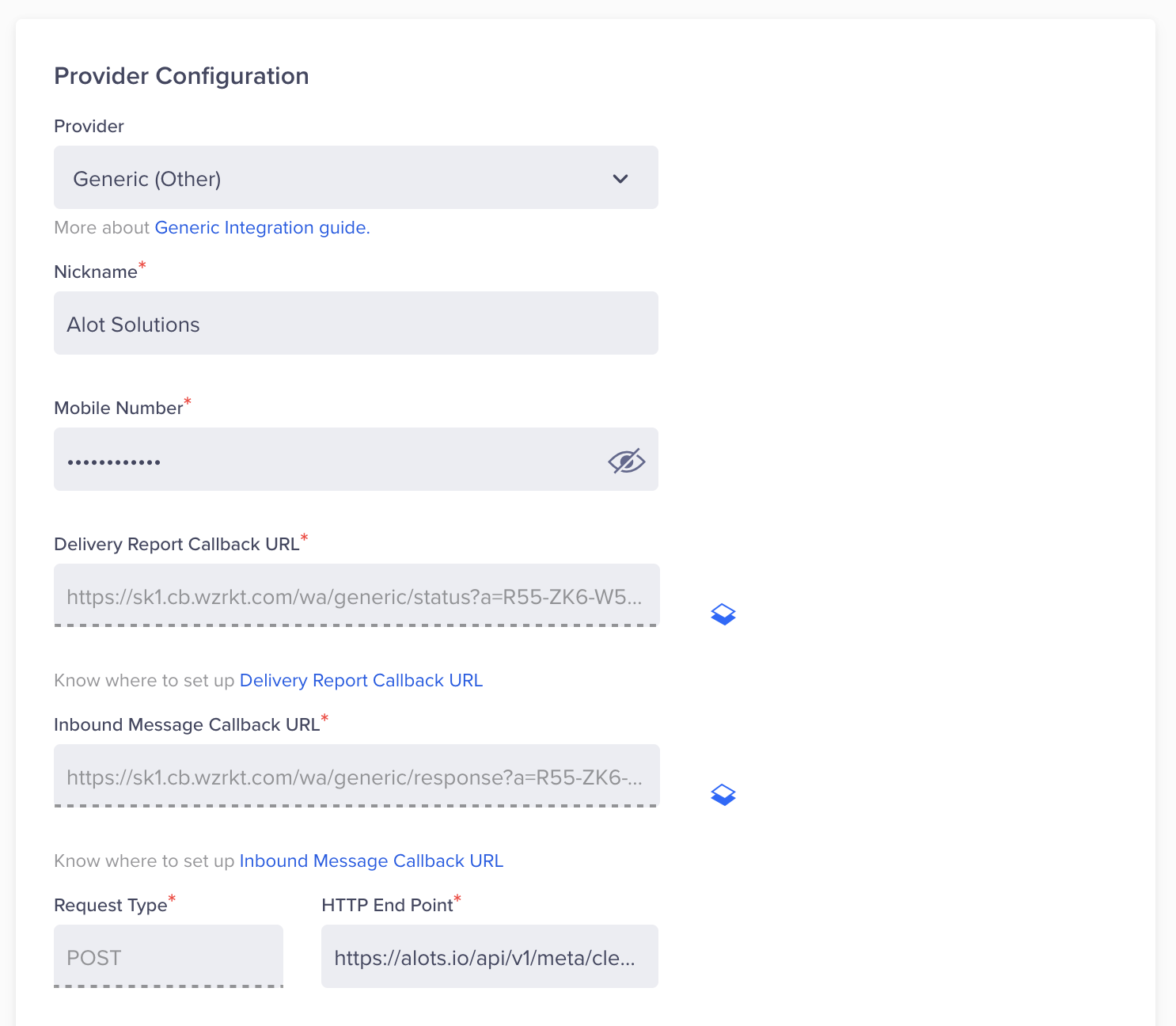
Provider Configuration section for SMS Channel
- Under Headers, add the following key-value pairs using the credentials shared by Alot Solutions during onboarding:
| Key | Value |
|---|---|
Authorization | Bearer <API_KEY> |
Content-Type | application/json |
Replace <API_KEY> with the API key provided by Alot Solutions.
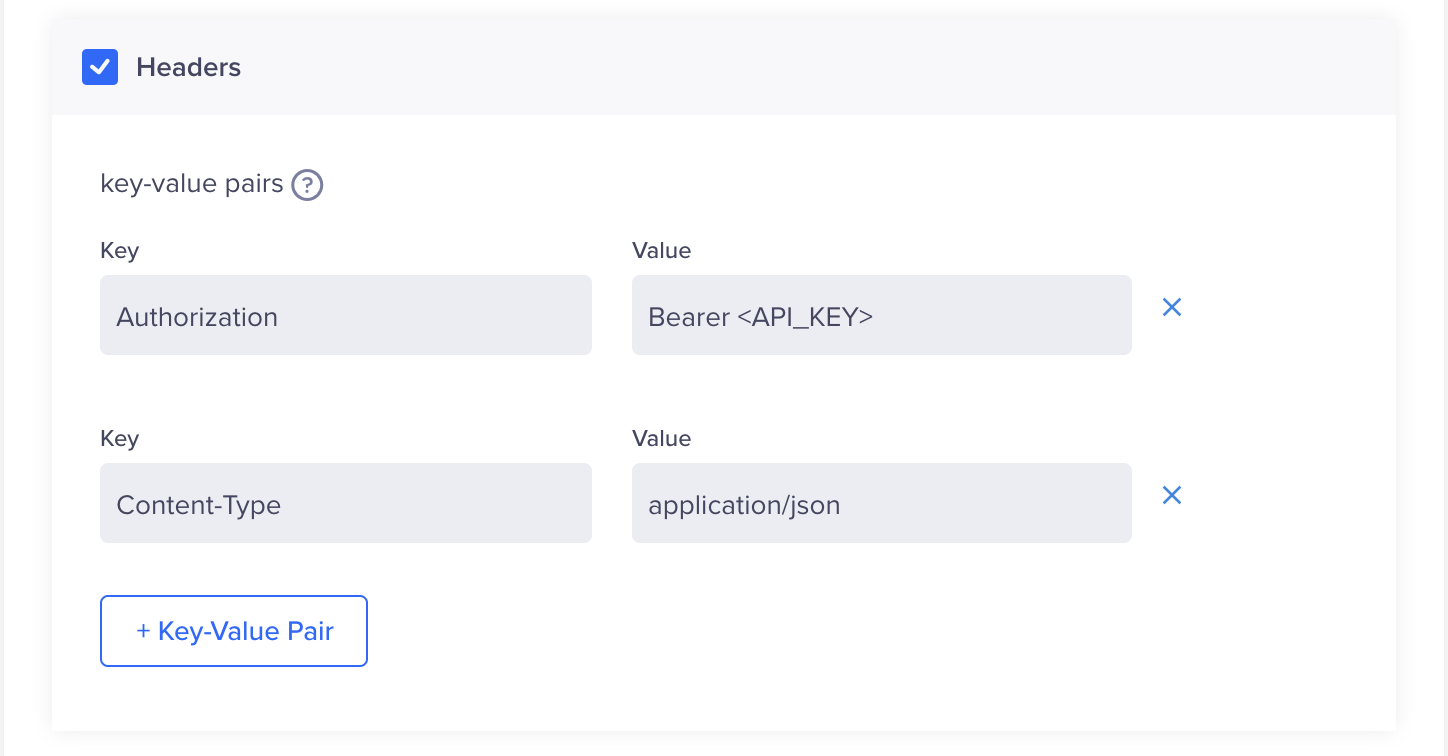
Key-value pair section for WhatsApp Channel
-
Select the following optional settings as required:
- Set auto-reply for users not tracked on CleverTap: Automatically replies to users who send a WhatsApp message but are not tracked in the CleverTap dashboard.
- Mark this as a default: Makes Alot Solutions the default provider for all WhatsApp messages.
-
(Optional) Set Maximum Concurrent API Requests to a value between 30 and 1,000, based on your requirements and Alot Solutions' throughput limits.
-
Click Send Test WhatsApp to verify the configuration, then click Save.
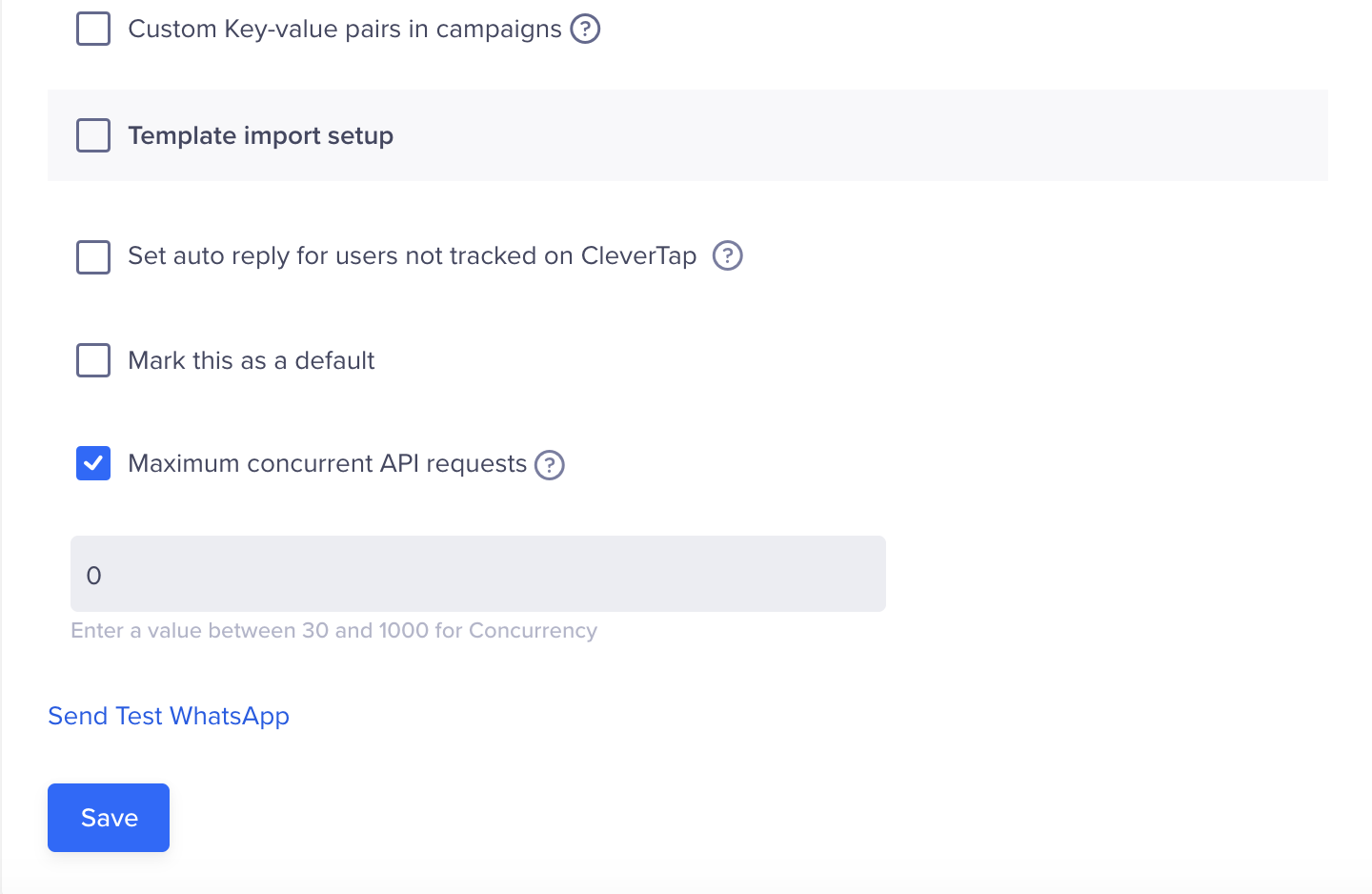
Test WhatsApp Option
Set Up CleverTap Callbacks in Alot Solutions
Setting up callbacks lets Alot Solutions send delivery reports and inbound WhatsApp messages back to CleverTap for accurate reporting and two-way messaging.
- In CleverTap, go to Settings > Channels > WhatsApp > WhatsApp Connect.
- Open your Alot Solutions provider by clicking its nickname.
- From the Provider Configuration form, copy the following auto-generated URLs:
- Inbound Message Callback URL
- Delivery Report Callback URL
Provider Configuration section for SMS Channel
WarningCopy each callback URL exactly as it appears in the CleverTap dashboard. An incorrect URL will prevent delivery reports and inbound messages from reaching CleverTap.
- Log in to your Alot Solutions dashboard and go to Config > WABA Onboarding > Webhook URL.
- Paste the callback URLs, select CleverTap as the integration type, and complete the configuration.
- Click Save to apply the changes.
Add WhatsApp Message Templates
WhatsApp message templates are reusable, Meta-approved messages you can send at scale for alerts, reminders, and promotional campaigns. For detailed instructions on creating and testing WhatsApp message templates, refer to WhatsApp Message Templates.
Create a Campaign
For detailed instructions on creating a WhatsApp campaign using Alot Solutions as your provider, refer to Create WhatsApp Campaign.
Create a Journey
For detailed instructions on creating a WhatsApp journey using Alot Solutions as your provider, refer to Create WhatsApp Journey.
Updated about 5 hours ago