
Rules & Responses for Subscription Management
Learn how to automate WhatsApp subscription actions using keywords, segments, and delivery errors.
Overview
Rules & Responses for Subscription Management let you automate subscription-related actions on WhatsApp, SMS and RCS based on incoming user messages or message delivery errors. For example, when users respond with STOP, CleverTap automatically unsubscribes them from WhatsApp, SMS or RCS communication and sends a confirmation message.
You can trigger subscription actions in the following ways:
- Keyword-based: An incoming message matches a configured keyword. Used for subscribe, unsubscribe, and support actions.
- Segment-based: Unsubscribes all users who match a defined segment. Use this to remove a specific group from WhatsApp, SMS or RCS communication without waiting for them to opt out.
- Error-based: Unsubscribes users when a delivery error indicates their number is invalid or unreachable, for example when a number is not registered on WhatsApp, has been deactivated, or has never opted in. You configure which error types trigger this.
Subscription Rule Behavior
When a subscription rule is triggered, CleverTap updates the user profile to reflect the change in subscription status.
When an inbound message or a delivery error is received, CleverTap evaluates it against your configured rules:
- For keyword rules, CleverTap compares the incoming message against the configured keyword regardless of the casing. Casing variations in the keyword STOP, such as
stop,STOP, andStopall trigger the same rule. The keyword, as configured, appears in the resulting event regardless of how the user entered it. - For error rules, CleverTap compares the delivery error received from the provider against the error types configured in your error-based unsubscribe rule.
- For segment rules, CleverTap evaluates users against the criteria defined in your segment.
When an unsubscribe is triggered through any of these rules, CleverTap updates the user profile as follows:
- Subscription Status: The user's subscription for the channel is set to unsubscribed. CleverTap sets the channel's subscription property, listed in the following table, to
false. This property controls whether messages are delivered to the user profile. - Reachability: The user is added to Do Not Disturb (DND) for the channel, so CleverTap treats them as unreachable on it.
- Campaign Eligibility: Because campaign targeting honors the subscription property, the user is automatically excluded from subsequent campaigns on that channel. No separate exclusion list is maintained.
| Channel | Subscription property |
|---|---|
MSG-whatsapp | |
| SMS/RCS | MSG-sms |
A Channel Unsubscribed system event is logged on the user's timeline. For keyword-based subscribe actions, a Channel Subscribed event is logged instead. These events are available for analytics and audit.
NoteUnsubscribes cannot be reversed from the rule. Once a user is unsubscribed through any method (keyword, segment, or error), the rule cannot re-subscribe them. The user must opt back in through another method, such as replying with a matching keyword configured under Keyword-based subscribe.
Access Rules & Responses
Rules and Responses is available under Subscription Management in the CleverTap dashboard. To access Rules & Responses, perform the following steps:
-
From the dashboard, navigate to Settings > Setup > Subscription Management.
-
Select the Rules & responses tab.
-
Select WhatsApp/ SMS/ RCS.
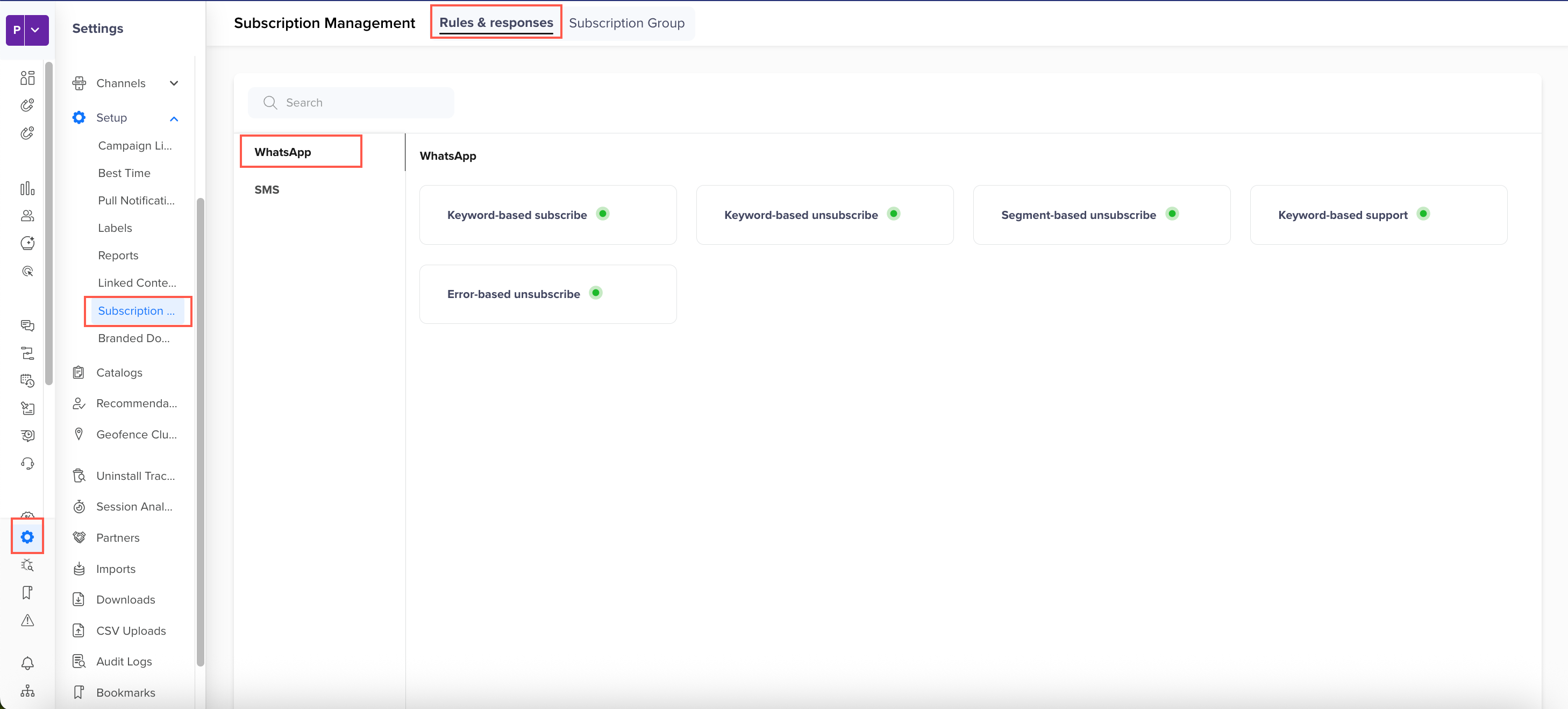
Rules and Responses
The following options are available:
- Keyword-based subscribe: Subscribes users when an incoming message matches a configured keyword.
- Keyword-based unsubscribe: Unsubscribes users when an incoming message matches a configured keyword.
- Segment-based unsubscribe: Unsubscribes all users who match a defined segment.
- Keyword-based support: Identifies incoming messages as support requests when they match a configured keyword.
- Error-based unsubscribe: Unsubscribes users when a delivery error indicates their number is invalid or unreachable, for example when a number is not registered on WhatsApp, has been deactivated, or has never opted in. You configure which error types trigger this.
A status indicator on each option shows whether it is active.
Configure Keyword-Based Rules
Set up the keyword criteria that subscribe, unsubscribe, or route users to support.
Keyword rules define how incoming messages are matched. The setup process is the same for the subscribe, unsubscribe, and support options.
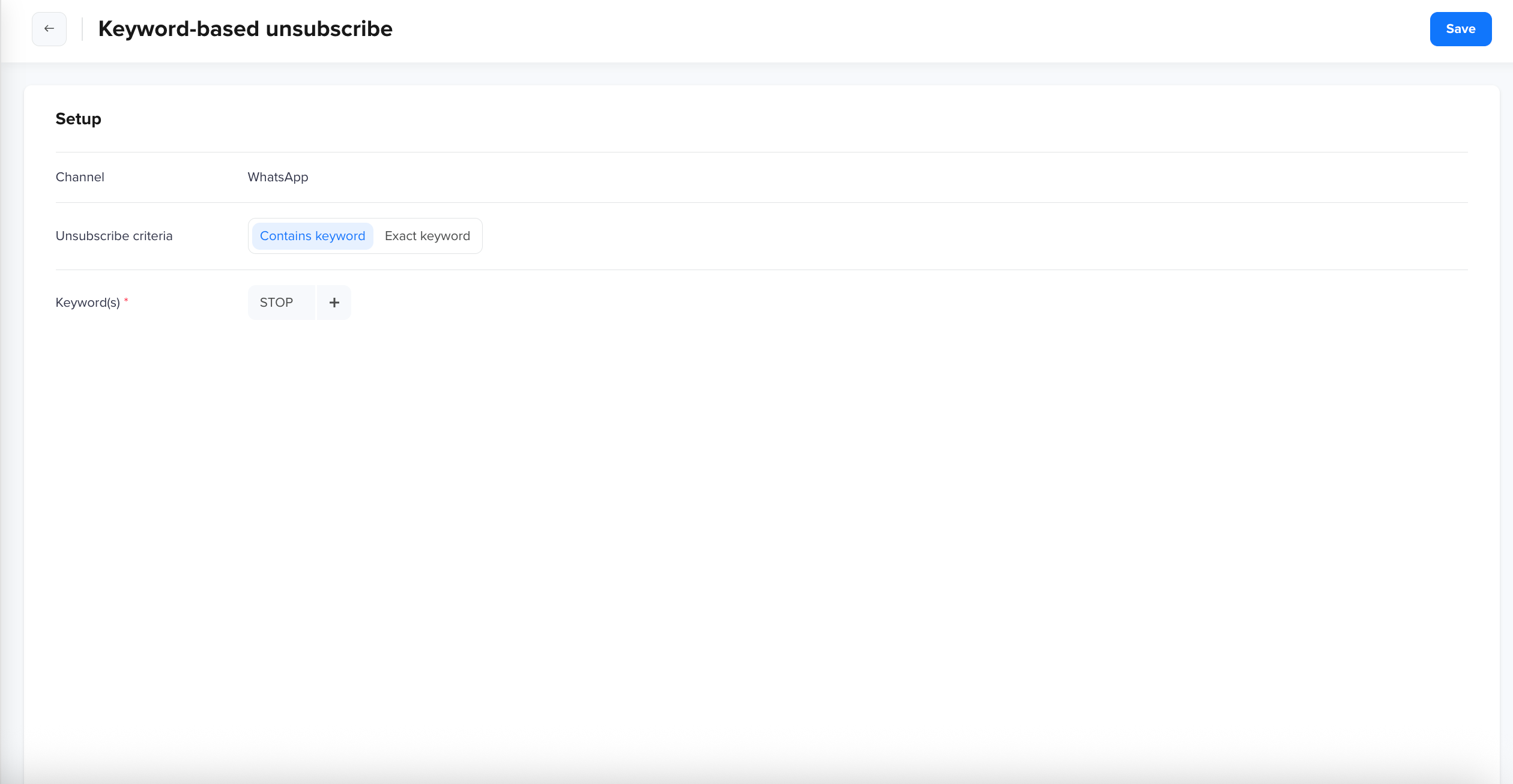
Keyword-based unsubscribe
To configure a keyword-based rule, perform the following steps:
- Select Keyword-based subscribe, Keyword-based unsubscribe, or Keyword-based support.
- The Channel is pre selected and cannot be changed.
- For Keyword-based subscribe only, select the Subscription Type:
- Single opt-in: Subscribes the user as soon as their message matches a configured keyword.
- Double opt-in: Sends a confirmation message to the user after a keyword match. The user is subscribed only after they respond to the confirmation message.
- If you selected Double opt-in, set the Dwell Time, which is the period CleverTap waits for the user to respond to the confirmation message before the pending state expires. Enter a number and select the unit: Minute(s), Hour(s), or Day(s). Dwell Time defaults to 30 days if left unset.
- Select the Subscription criteria:
- Contains keyword: Triggers the rule when the keyword appears anywhere in the message.
- Exact keyword: Triggers the rule only when the entire message matches the keyword and contains no other text.
- Enter one or more Keywords. Add additional keywords using the + option.
- Click Save.`
Keyword matching is case-insensitive, so you do not need to add separate entries for different casings of the same word.
After you save your keywords, the Rules and Responses tabs appear. Open the Responses tab to configure the message sent when the rule is triggered:
- Click Add Message to add a message per service provider.
- Select the service provider and click View Message to assign a template.
- To set a provider as the default, click Set as Default.
For Double opt-in rules, this message is the confirmation prompt. It is sent after a keyword match and asks the user to confirm their subscription.
Double opt-in pending stateWhile a user's confirmation is pending, they are set to DND and will not receive messages until they confirm or the Dwell Time window expires.
Configure Segment-Based Unsubscribe
Unsubscribe a defined group of users from WhatsApp, SMS or RCS without waiting for an inbound keyword.
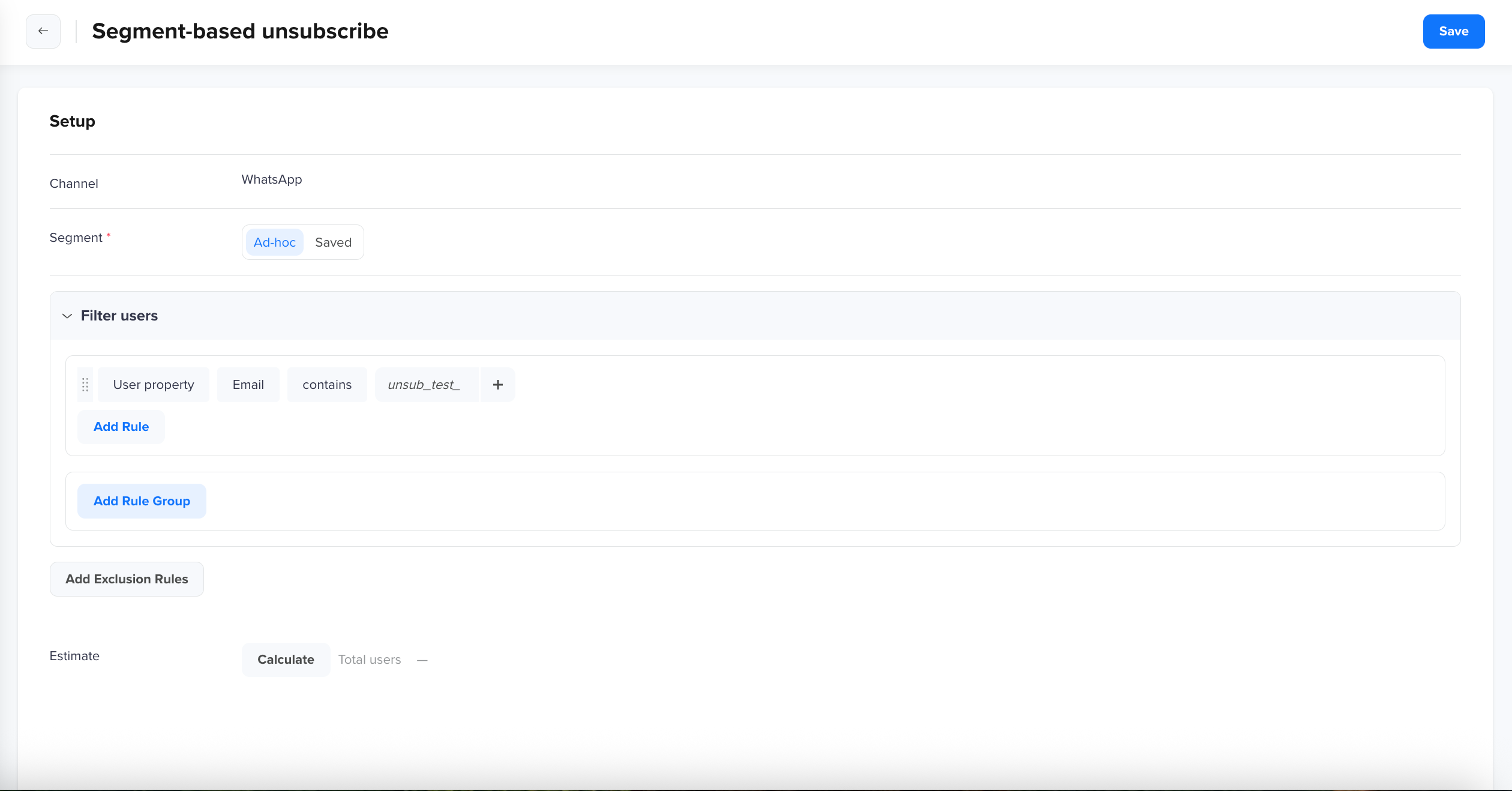
Segment-based unsubscribe
To configure a segment-based unsubscribe rule, perform the following steps:
- Select Segment-based unsubscribe.
- Select the Segment type:
- Ad-hoc: Build the segment inline using filter rules.
- Saved: Select an existing segment.
- For an ad-hoc segment, define your criteria under Filter users (for example, User property > Email > contains a value). Use the following options to refine the segment:
- Add Rule: Add a condition.
- Add Rule Group: Group conditions together.
- Add Exclusion Rules: Exclude users from the segment.
- Click Calculate in the Estimate field to preview the number of users who match the defined criteria.
- Click Save.
Users who match the segment are unsubscribed from WhatsApp, SMS or RCS with the profile updates described in the subscription-rule-behavior section.
Configure Error-Based Unsubscribe
Error-based unsubscribe automatically removes users from your selected channel's communication when a delivery error indicates their number is invalid or unreachable. For example, if a message fails because the recipient's number is not registered on WhatsApp, CleverTap unsubscribes that user and stops sending to that number. You select the error types that trigger this behavior when configuring the rule. This helps you maintain a clean subscriber list and avoid spending on unreachable users.
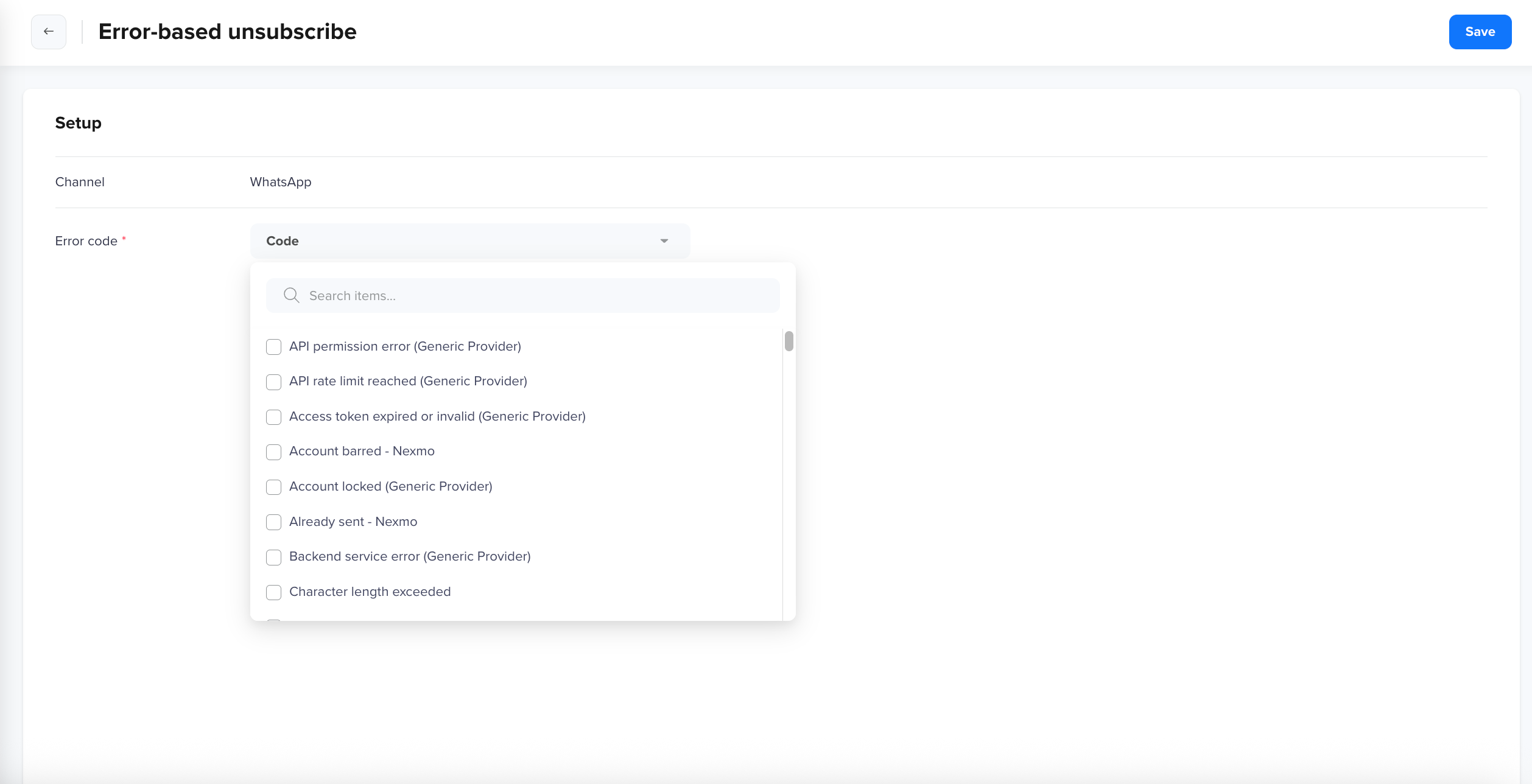
Error-based unsubscribe
To configure an error-based unsubscribe rule, perform the following steps:
- Select Error-based unsubscribe.
- The Channel is pre selected and cannot be changed.
- Click the Error code field to open the error code list.
- Search for and select one or more error types that indicate the recipient's number is invalid or unreachable. Examples include Recipient phone number invalid, Recipient not a WhatsApp user, Not opted in, Blacklisted, and Not reachable. The field displays a count of selected error types. Avoid selecting provider authentication or permission errors, as these indicate a configuration issue on the sending side and should be investigated and fixed, not used to unsubscribe users.
- Click Save.
When a configured error is received for a user's message, CleverTap automatically unsubscribes that user and logs a Channel Unsubscribed event.
Configure Responses
Responses define the automated reply CleverTap sends to a user on the selected channel when their inbound message matches a configured keyword. For example, when a user sends STOP, CleverTap unsubscribes them and sends the configured response confirming that they will no longer receive messages. Responses are available for Keyword-based subscribe, Keyword-based unsubscribe, and Keyword-based support. They are not available for segment-based or error-based unsubscribe.
The Responses tab appears after you save your keywords.
Create a Response
To create a response, perform the following steps:
-
Open the Responses tab.
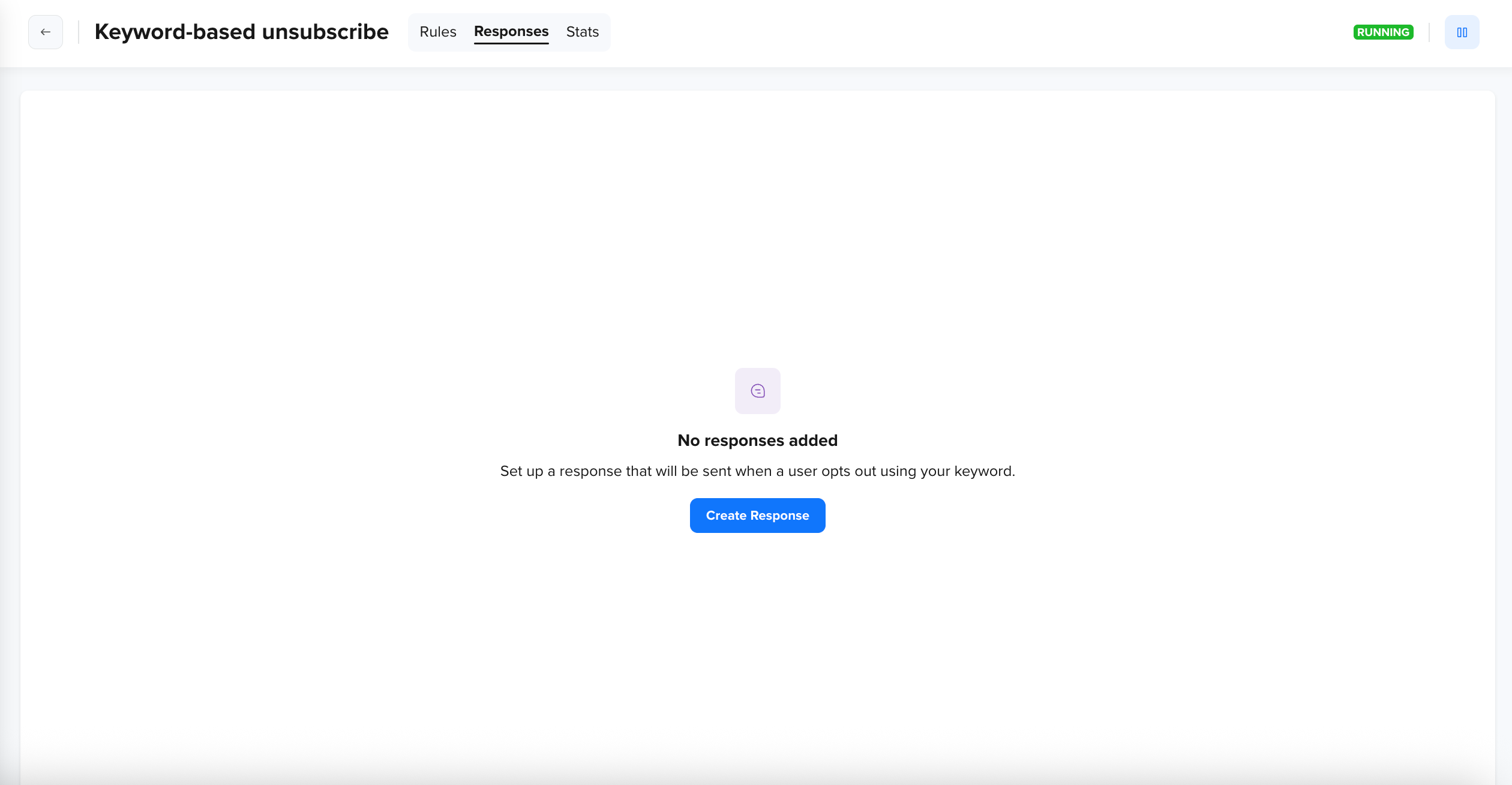
Create Response
-
Click Create Response.
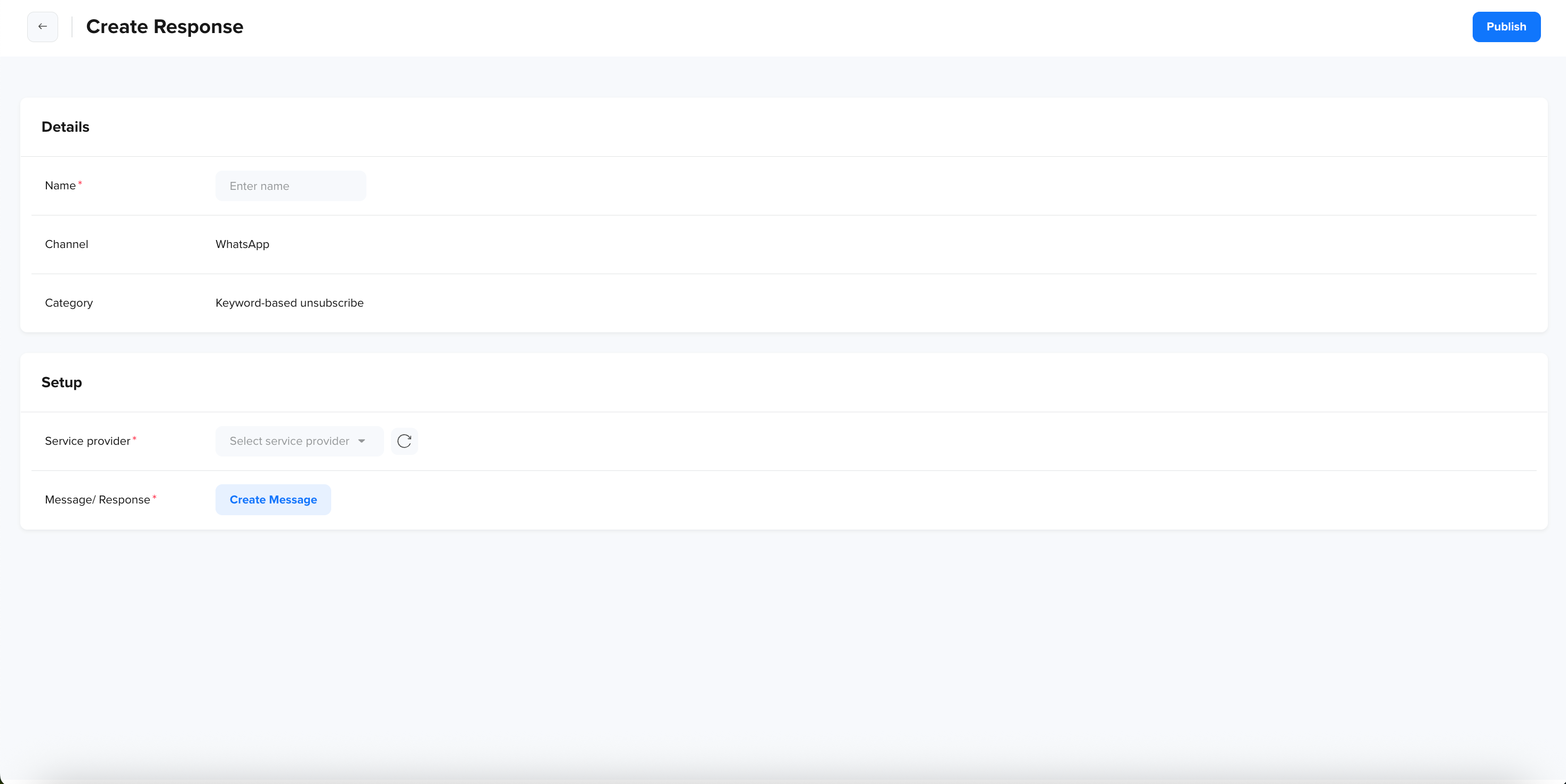
Details and Setup
-
Under Details, enter the response Name.
-
The Channel and Category are auto-populated based on the keyword rule you are configuring and cannot be changed.Under Setup, select a Service provider.
-
Next to Message/ Response, click Create Message to open the WhatsApp, SMS or RCS message selector.
-
Add the message for your channel:
- WhatsApp: Select an approved WhatsApp message template. Only templates approved in your WhatsApp account in the WhatsApp Business Manager are available. For more information, refer to Create WhatsApp Messages.
- SMS: Enter the Message body. For more information, refer to SMS and Regulation Impact.
- RCS: Select an RCS template saved for your provider. For carriers that require approval, such as in India, only approved templates are available. Their content is locked, and you can fill in only the placeholder values, such as
{{1}}. For carriers that don't require approval, you can build a free-form template. For more information, refer to RCS Message Templates and RCS Message Editor.
-
Click Publish.
The response is sent automatically when an incoming message matches a configured keyword. For unsubscribe rules, the user is marked as unsubscribed immediately on a keyword match, regardless of whether the response message is delivered successfully.
Access Responses
All responses associated with the rule appear in the Responses tab, showing the response Name, Service provider, Created on date, and Created by user.
Manage Responses
Add, delete, or pause the responses associated with your rule.
From the Responses tab, you can perform the following actions:
- Add responses: Only one response per service provider can be configured.
- Delete response: Remove responses that are no longer required.
- Pause rule: Use the pause control in the rule header to stop responses. When a rule is paused, responses are not sent until the rule is resumed. A status indicator shows whether the rule is Running or paused.
Monitor Performance
Review how users interact with your configured subscription rules.
The Stats tab shows how users interact with a configured rule. The available metrics depend on the rule type.
The following controls are common to all Stats views:
- Provider filter: Filter metrics by a specific WhatsApp, SMS or RCS provider, where supported.
- Overall / Keywords: Switch between an aggregate trend and a per-keyword (or per-error) breakdown.
- Granularity: View the trend by Day, Week, or Month.
- Trend: A date-wise, time-series chart of users for the selected period.
Keyword-Based Subscribe Stats
View the performance of your opt-in keywords and their numbers.
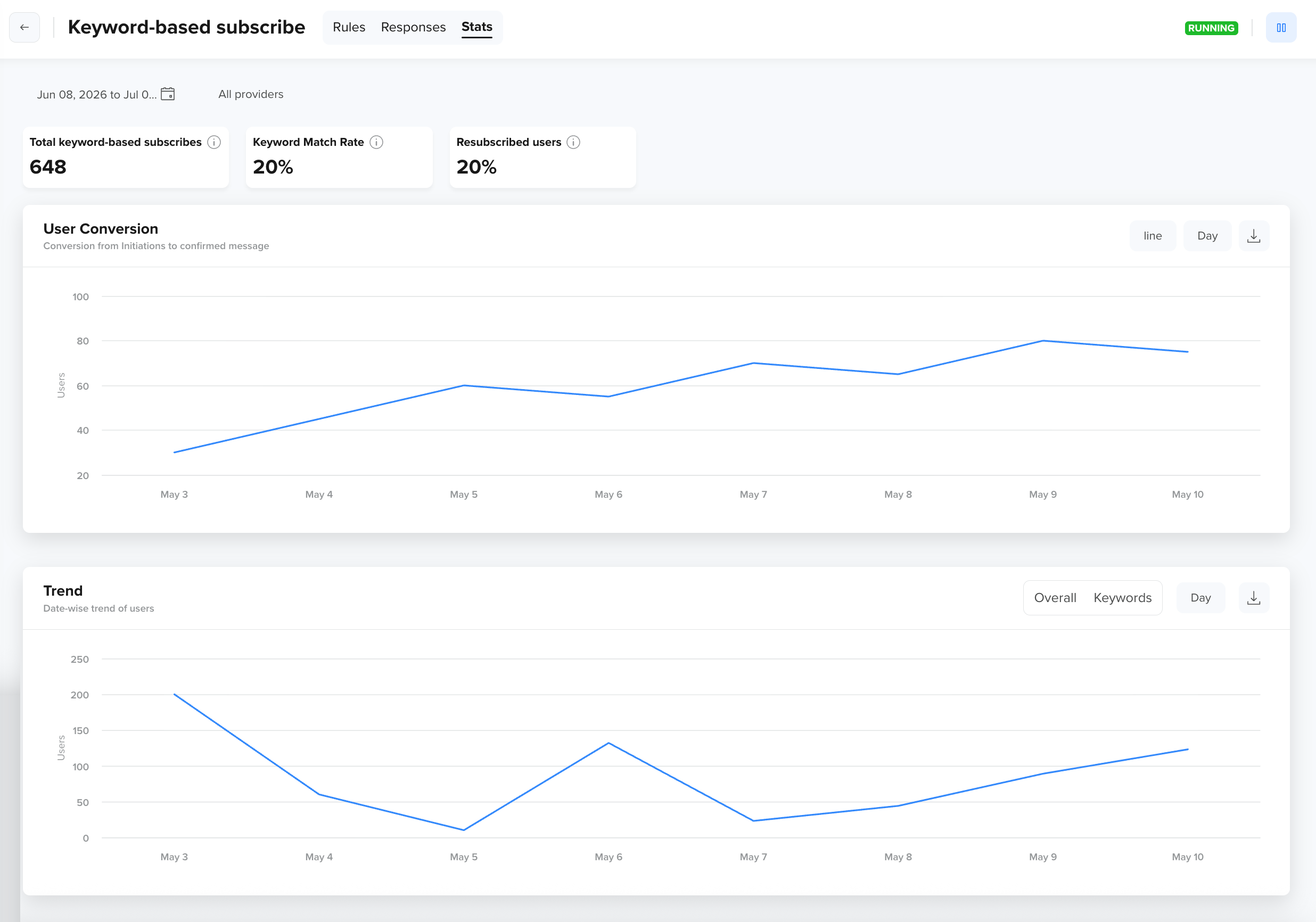
Keyword-based subscribe stats
-
Total opt-ins: Total number of users who subscribed using keyword-based requests.
-
Opt-in rate: Total opt-ins as a percentage of other inbound replies.
-
Re-subscribed users: Users who were previously unsubscribed and subscribed again using a keyword.
-
Unmatched keywords: The most common inbound replies that did not match any configured keyword.
-
Trend: One trendline per configured opt-in keyword.
Keyword-Based Unsubscribe Stats
Track how many users opted out by keyword and which keywords drive the most unsubscribes.
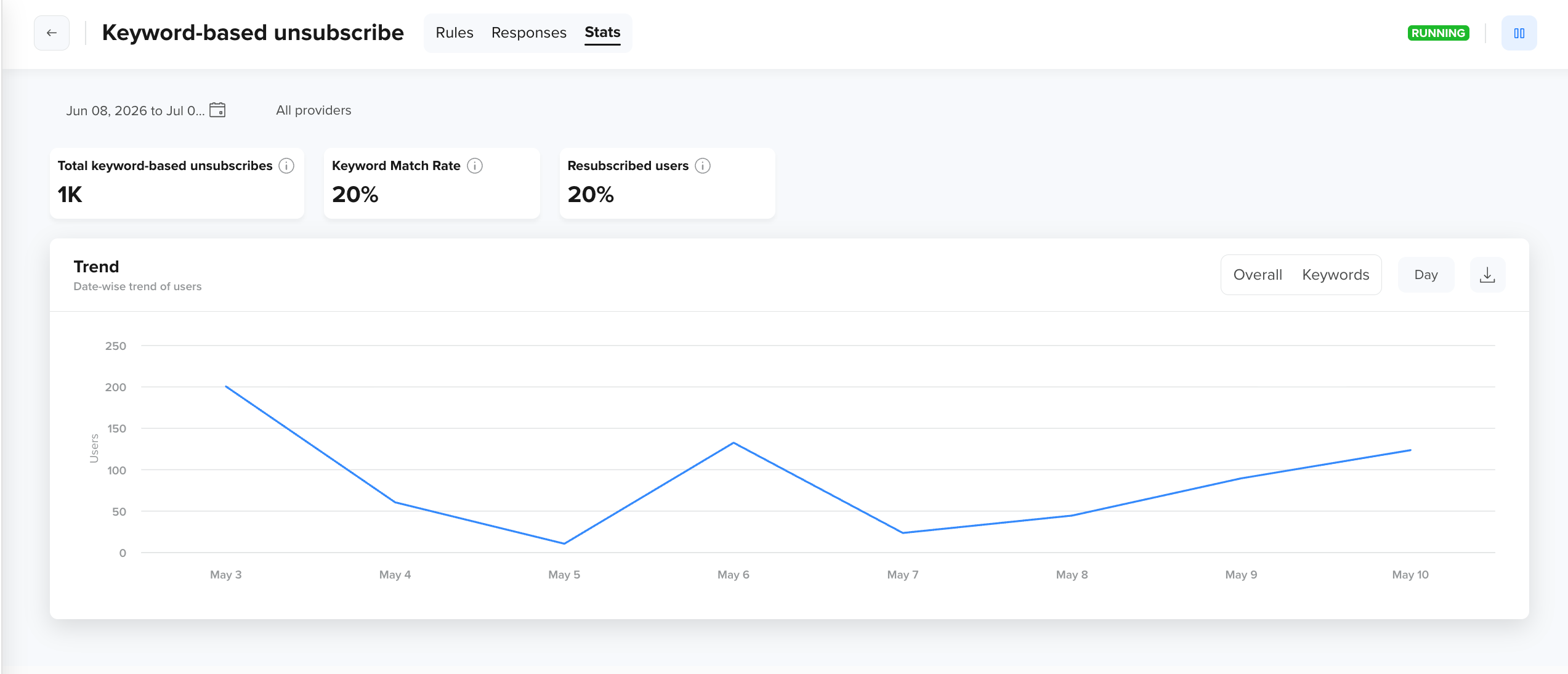
Keyword-based unsubscribe stats
- Total opt-outs: Total number of users who unsubscribed using keyword-based requests.
- Opt-out rate: Total opt-outs as a percentage of active users.
- Trend: One line per configured opt-out keyword.
Keyword-Based Support Stats
Track how many users requested support by keyword and how many later unsubscribed.
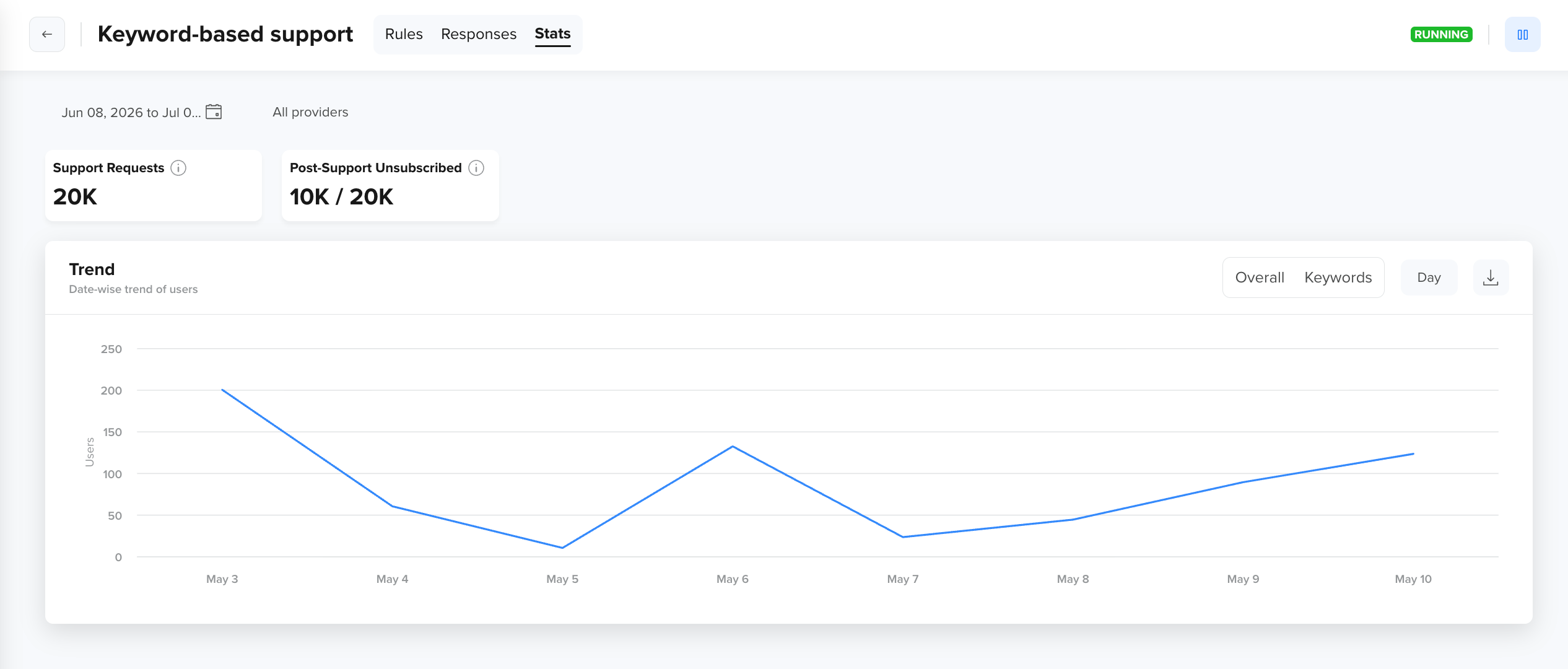
Keyword-based support stats
- Support Requests: Total number of users who sent a configured support keyword.
- Post-Support Unsubscribed: Number of users who requested support and later unsubscribed, shown against the total support requests.
- Trend: A single line of inbound messages matching configured support keywords.
Error-Based Unsubscribe Stats
Track how many users were automatically unsubscribed and which errors triggered them.
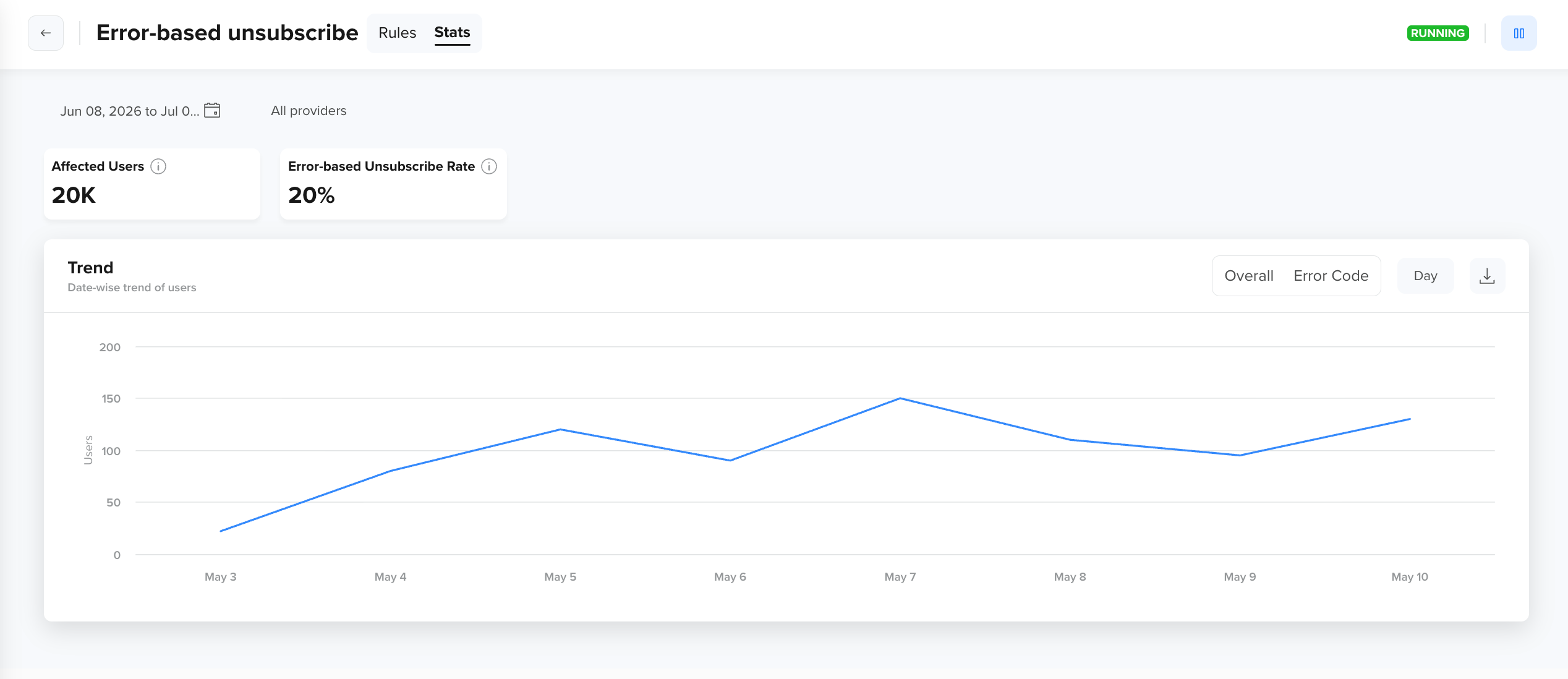
Error-based unsubscribe stats
- Total auto-unsubscriptions: Total number of users automatically unsubscribed due to a configured error.
- Unsubscription rate: Total auto-unsubscriptions as a percentage of active users.
- Trend: One trendline per selected error code.
Segment-Based Unsubscribe Stats
Track how many users were unsubscribed through the segment rule and how many returned.
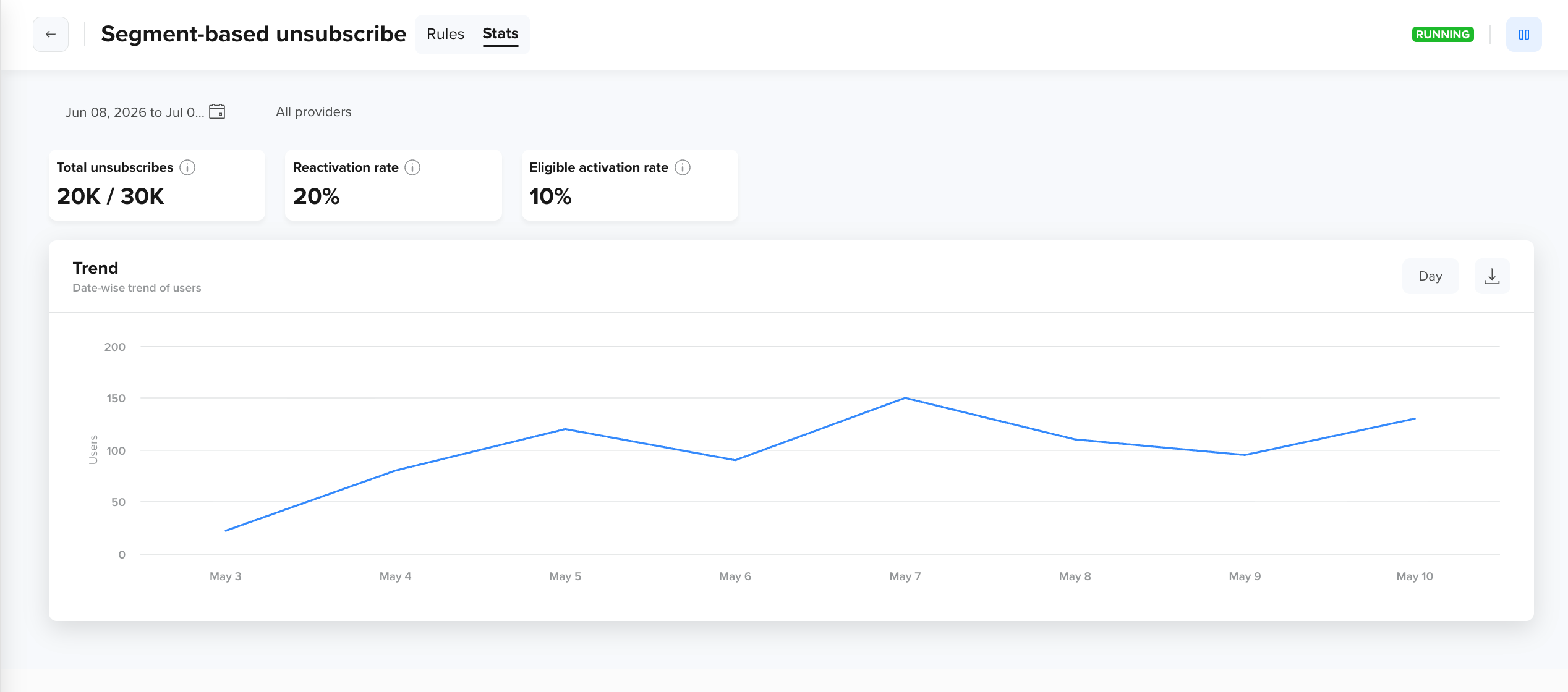
Segment-based unsubscribe stats
- Total unsubscriptions: Total number of users unsubscribed through the segment rule.
- Unsubscription rate: Total unsubscriptions as a percentage of active users.
- Reactivation rate: Users who were unsubscribed through the segment rule and later subscribed again using a keyword.
- Trend: A single trendline of unsubscriptions over time.
Updated about 8 hours ago