
Map Data for Import
Learn how to map user profile attributes and event attributes from your Cloud Storage to CleverTap.
Overview
You can map columns to CleverTap user profiles or event data. CleverTap supports the following two mapping options:
- User Profile Data: Map user attributes such as
email,first_name, or any custom attribute to CleverTap user properties. - Event Data: Map event columns such as
amount,category, orcoupon_codeto CleverTap events and event properties.
Use the toggle to switch between User Profile Data and Event Data mapping options.
Switch Mapping OptionsSwitching between User Profile Data and Event Data clears any field selections and mappings
configured in the current option.
Identity Field Validation Rules
Identity and CleverTap ID values cannot be undefined, null, na, n/a, 0, nil, -1, infinity, -infinity, inf, -inf, nan, -nan, empty, or xxxxxx, and cannot exceed 1024 characters.
User Profile Data
This section explains how user data is mapped and imported from your file into CleverTap.
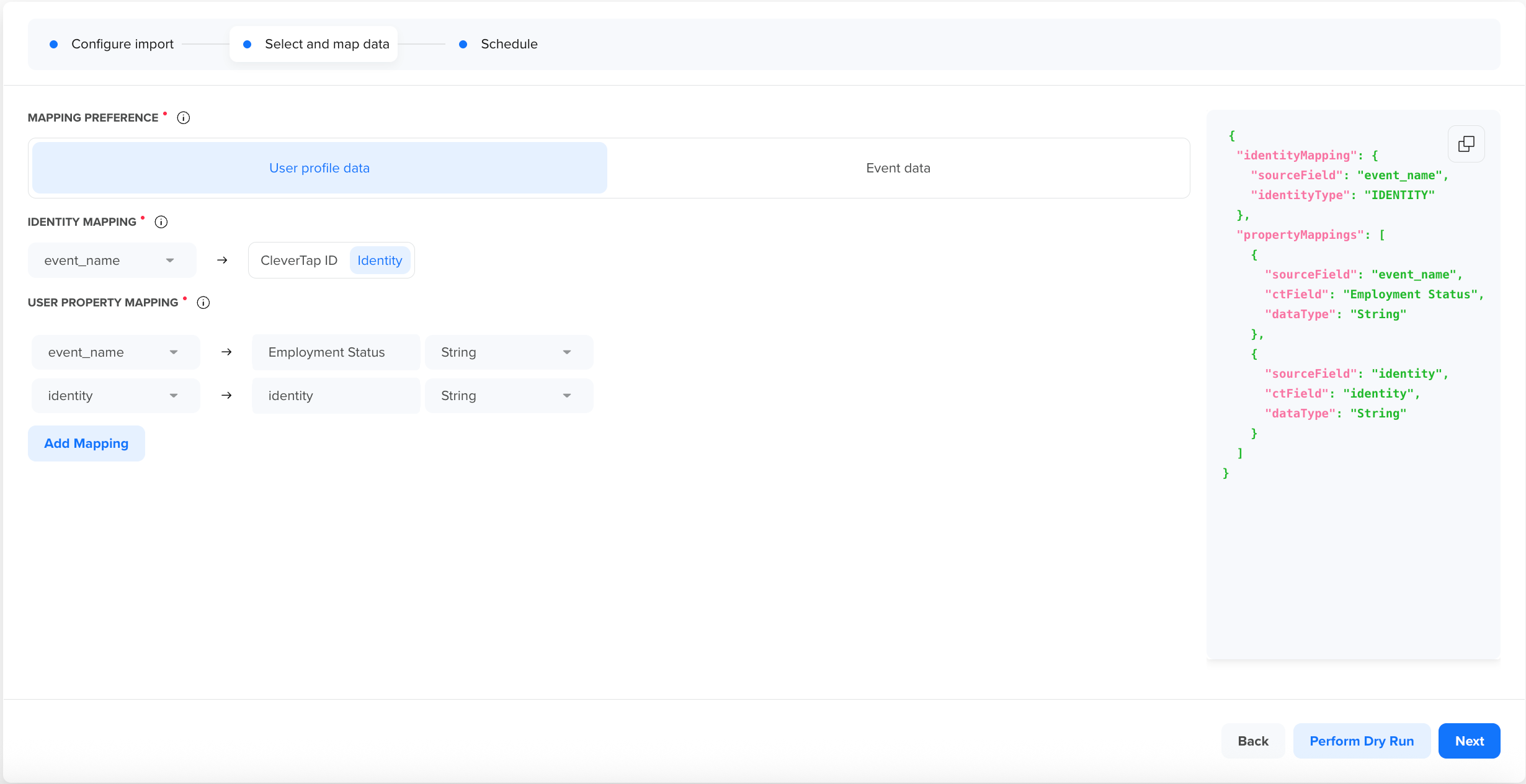
User Profile Data
The mapping of user profile data consists of the following two steps:
Map Identity
This step determines how incoming records are matched to user profiles, using either a unique Identity field (such as email, phone number, or user ID) or the system-generated CleverTap ID.
- Identity: A unique identifier, such as email, phone number, or custom ID, used to match profiles in CleverTap. When using Identity:
- If a profile with the same identity already exists, CleverTap updates or adds properties to it.
- If a matching profile is not available, CleverTap creates a new profile and captures properties to that profile.
- CleverTap ID: A system-generated unique identifier assigned to each user profile in CleverTap. When using CleverTap ID, and if a profile with the same CleverTap ID exists, CleverTap updates or adds properties to that profile.
For a list of values that are not allowed for Identity or CleverTap ID, refer to Identity Field Validation Rules.Note
Choose Identity when you have a unique identifier, such as email or customer ID, to identify your users. Choose CleverTap ID only when your source data already contains CleverTap-assigned IDs.
Map User Properties
To map user profile properties, perform the following steps:
-
Select a Column from your file that contains user-related information, such as
email,name,Customer Type, orWallet Balance. -
Assign a User Property: Map the column to a corresponding CleverTap user property.
- Select from available system properties (for example,
namemaps to Name). - If the desired property is not listed, enter a new name to create a custom property.
- Select from available system properties (for example,
System PropertiesPredefined properties such as Email and Phone have fixed data types and validation rules, as follwos:
- Phone: Must start with
+and contain more than four digits.- MSG Properties (for example, MSG-Email, MSG-SMS): Accepts only
"0","1","true", or"false".- Property Names: Cannot include these characters:
%,>,<,!,|,&,.,:,;,$,',",\,#.For more information, refer to System User Properties.
- Select a Data Type: Use the table below to determine when and how each type should be used.
| Data Type | When to Select | Example Values | Validation |
|---|---|---|---|
| String | Text such as name, email, or label. | "John Doe", "[email protected]", "Premium User" | No validation |
| Integer | Whole numbers, such as age or count. | 30, 120, 500 | Must be numeric |
| Float | Decimal values such as rating or price. | 4.7, 99.99, 15.5 | Must be numeric |
| Long | Whole numbers that exceed the integer range, such as Unix timestamps and so on. | 9876543210, 123456789012345 | Must be numeric |
| Boolean | True/false flags | true, false | Only accepts: "0", "1", "true", "false" |
| Date | Timestamps such as the signup or login date. | 2024-03-18, 18/03/2024, 03/18/2024 | Must match selected date format. For more information, refer to Supported Date Formats. |
- (Optional) Click Add Mapping to add additional column mappings as needed.
Event Data
Configure how event data is mapped and imported from your file into CleverTap. This setup ensures event records are accurately linked to user profiles, timestamped correctly, and enriched with event-specific properties.
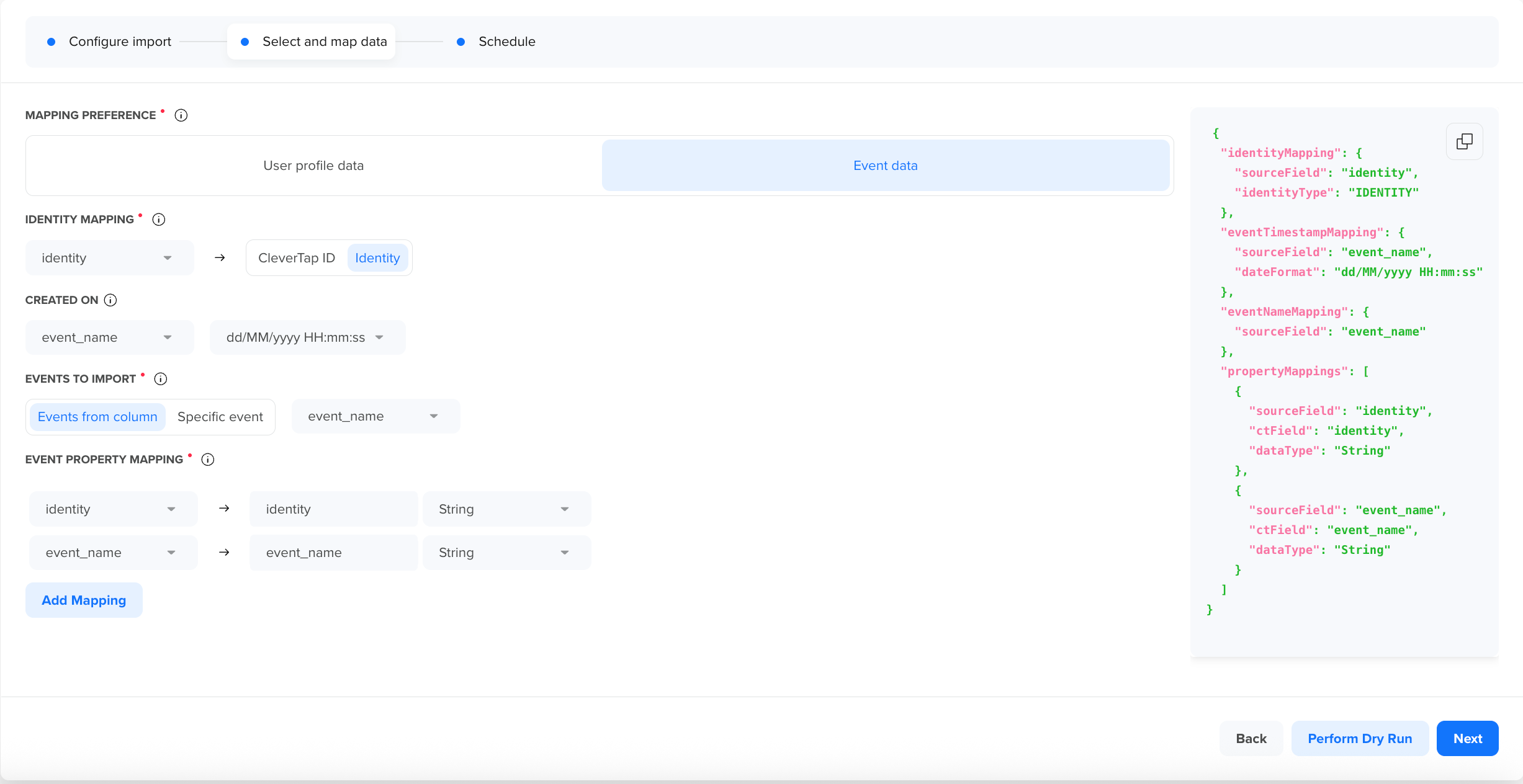
Event Data
The mapping process consists of the following four steps:
- Map Identity
- Define When Each Event Occurred
- Choose How Events Are Named
- Map Columns to Event Properties
Map Identity
This step specifies how incoming records are matched to user profiles, using either a unique Identity field (such as email, phone number, or user ID) or the system-generated CleverTap ID.
- Identity: A unique identifier, such as email, phone number, or custom ID, used to match profiles in CleverTap. When using Identity:
- If a profile with the same identity already exists, CleverTap captures the event against that profile.
- If a matching profile is not available, CleverTap creates a new profile and captures the event against that profile.
- CleverTap ID: A system-generated unique identifier assigned to each user profile in CleverTap. When using CleverTap ID:
-
If a profile with the same CleverTap ID exists, CleverTap captures the event against that profile.
NoteChoose Identity when you have a unique identifier, such as email or customer ID, to identify your users. Choose CleverTap ID only when your source data already contains CleverTap-assigned IDs.
For a list of values that are not allowed for Identity or CleverTap ID, refer to Identity Field Validation Rules.
-
Define When Each Event Occurred (Created On Timestamp)
Use this field to specify when the event occurred. Select the column from your file that contains the event timestamp, and then select the corresponding date format. For supported formats, refer to Supported Date Formats.
NoteCreated On is optional. If you do not map this field, CleverTap records every imported event with
the import time. For historical data imports, not mapping this field will records all events at the import time, which corrupts analytics, funnels, and cohorts. Always map Created On for historical data.
Choose How Events Are Named
Specify how CleverTap should import different types of events, such as Add to chart , Coupon redeem , Lead captured , and others.
- Events from Column: Import different events using a column from your file that contains event names. Ideal when your file contains multiple event types.
- Specific Event: Assign a single static event name to all imported records. Select from existing CleverTap events or create a new one. Best for importing a consistent event type.
Validation Rules for Event Naming
- Event names must not contains:
%,>,<,!,|,&,.,:,;,$,',",\,#.- System events cannot be imported.
Map Columns to Event Properties
This step maps file columns to CleverTap event properties, providing context and detail to each event.
-
Select a Column: Choose a column from your file with event-related details, such as
category,price, ortransactionID. -
Enter Event Property: Assign a name for the corresponding event property. You can use existing property names or enter new ones to create custom event properties.
Points to Remember
- System event properties and
Charged: Item|Propertiescannot be imported.- Event property names must not contain:
%,>,<,!,|,&,.,:,;,$,',",\,#.
- Select Data Type: Use the table below to determine when and how each type should be used.
| Data Type | When to Select | Example Values | Validation |
|---|---|---|---|
| String | Text values such as category or customer type | "Jeans", "Premium User" | No validation |
| Integer | Whole numbers such as item count or balance | 30, 500 | Must be numeric |
| Float | Decimal values such as price or discount | 4.7, 99.99 | Must be numeric |
| Long | Large integers such as transaction IDs | 123456789012345 | Must be numeric |
| Boolean | Binary flags such as order status | true, false, 0, 1 | Only accepts: "0", "1", "true", "false" |
| Date | Timestamps such as event or checkout time | 2024-03-18, 03/18/2024 | Must match supported format. For more information, refer to Supported Date Formats. |
- (Optional) Click Add Mapping to add additional column mappings as needed.
Supported Date Formats
You can select from the following date format patterns when mapping Date-type fields and configuring the Created On timestamp for event data. These formats apply to date values inside your file columns, not the timestamp in the file name. For file-name timestamp formats, refer to the Review Supported Date-Time Formats section in Create Import.
| Format | Example |
|---|---|
| Epoch seconds | 1640995200 |
| Epoch milliseconds | 1640995200000 |
dd/MM/yyyy HH:mm:ss | 18/03/2024 14:30:00 |
MM/dd/yyyy HH:mm:ss | 03/18/2024 14:30:00 |
yyyy/dd/MM HH:mm:ss | 2024/18/03 14:30:00 |
yyyy/MM/dd HH:mm:ss | 2024/03/18 14:30:00 |
dd MMM yyyy HH:mm:ss | 18 Mar 2024 14:30:00 |
dd/MM/yyyy | 18/03/2024 |
MM/dd/yyyy | 03/18/2024 |
yyyy/dd/MM | 2024/18/03 |
yyyy/MM/dd | 2024/03/18 |
dd MMM yyyy | 18 Mar 2024 |
Perform Dry Run (Recommended)
After completing the mapping step, click Perform Dry Run. The system validates your configuration against a random sample and displays detailed results.
NoteThe dry run validates a random sample, not the full file. A successful dry run is a strong signal
but does not guarantee that every row in every file will pass.
Dry Run Results
After the dry run completes, your mapping validation results are displayed in two panels.
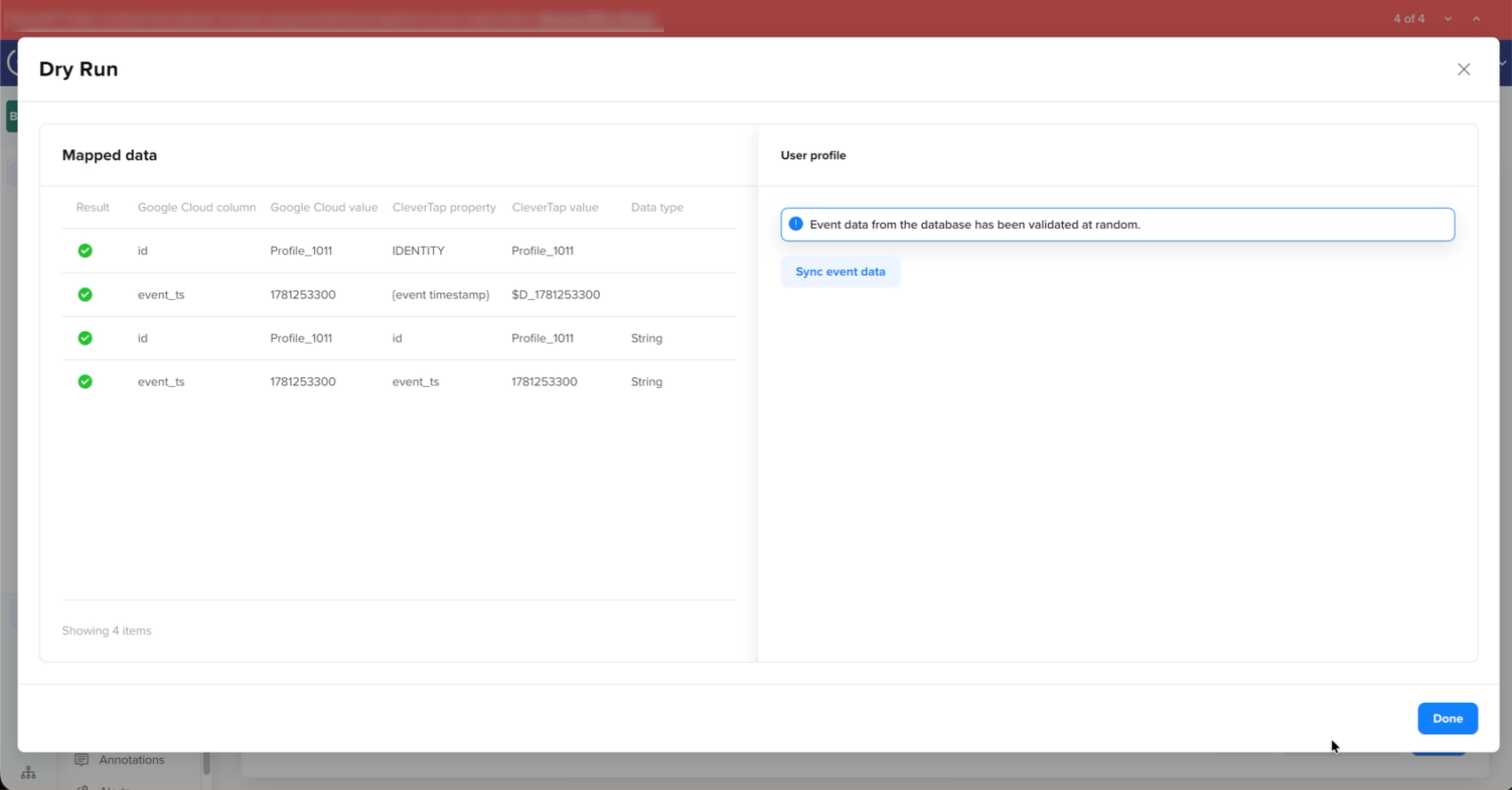
Dry Run Results
The left panel provides a detailed row-by-row breakdown of each mapped field and its validation status.
| Column | Description |
|---|---|
| Result | Shows the validation status of each mapped field. A green checkmark indicates the field passed. A red exclamation mark indicates the field has an error that must be resolved before proceeding. |
| [Partner] Column | Displays the column name used from the file. For example, Amazon S3 column for AWS S3, Google Cloud column for Google Cloud Platform, and so on. |
| [Partner] Value | Displays the sample value from your file to show what data is being imported. |
| CleverTap Property | Shows the corresponding CleverTap property that the column is mapped to. For system-assigned fields, this displays a placeholder such as {event name} or {event timestamp}. |
| CleverTap Value | Shows how the sample value will appear in CleverTap after actual import. |
| Data Type | Indicates the data type assigned to the property. For example, String, Integer, Date, and so on. |
The right panel shows the overall validation summary and indicates whether the mapping is ready to proceed or requires corrections.
| Element | Description |
|---|---|
| Sync CTA | Only appears when validation is successful. Allows you to push the sample data to CleverTap for a final check. For more information, refer to Sync User Profile and Event Data. |
| Validation message | Summarizes the overall result of the Dry Run. A blue message indicates successful validation. A red message indicates errors that must be resolved before proceeding. |
Validation Outcomes
After mapping data fields from your file to CleverTap, the system runs a validation check to assess configuration accuracy, data quality, and identity alignment. The outcomes are categorized as follows:
- Successful Validation (Green): Indicates that the mapping is correctly configured and ready for import.
- Error Detection (Red): Indicates that the mapping contains issues that must be resolved before proceeding. Common causes include:
- Invalid data types or formatting issues.
- Identity/CleverTap ID validation failures.
- System property validation errors (for example, Email or Phone format issues).
- Prohibited characters in property names or event names.
- Date format mismatches.
Click Done to return to the mapping screen and fix the identified issues.
Sync User Profile and Event Data (Optional)
Syncing user profiles and event data lets you push a selected random sample of data from your file to CleverTap. This is useful when you want to verify that data will be correctly captured in your CleverTap instance.
What happens when you sync:
- User profiles: If a profile with the same identity exists, properties are updated. If not, a new profile is created.
- Events: Events are captured against matching user profiles.
Event Data SyncSyncing event data may result in duplicate events being imported to CleverTap. Only sync if you want to verify the data, otherwise proceed directly to scheduling the import.
After you complete the mapping and validate it with a Dry Run, your import job is ready to be scheduled. To continue setting up your import, refer to Schedule Import to configure repeat intervals, custom schedules, or manual triggering for the import job.
Best Practices for Mapping
When configuring import mapping in CleverTap, keep the following best practices in mind:
- Validate Data Upfront: Clean and verify your data before import. Ensure email addresses are well-formed, phone numbers are correctly formatted, and date values are consistent to avoid errors during the Dry Run.
- Consistent Formats: Keep date and time formats uniform across your files. Ensure the format of your date columns matches the format you select in CleverTap. Inconsistent formats will cause parsing errors.
- Leverage Dry Runs: Always run the Dry Run before the actual import. This catches mapping issues early so you can fix them without affecting live data.
- Limit Data to What Is Needed: Import only the columns you want in CleverTap. Avoid mapping extraneous fields or properties. This makes the process faster and reduces risk.
- Naming Conventions: Use consistent names for properties and events. Avoid special characters in property keys. CleverTap does not allow the characters in property names:
%,<,>,!,|,&,:,;,$,',",\,#. - Segmentation of Data: Consider filtering your data to exclude obsolete or inactive users and events before import. This keeps your CleverTap instance clean and focused on relevant data.
Next Steps
After you configure the import, CleverTap saves the import job, and you can view and manage all import jobs from the Import Center.
- Schedule the import. For more information, refer to Schedule Import.
Updated 38 minutes ago