
Popular
Learn how Popular recommendations show consistently high performing items of the catalog using aggregated engagement to drive reliable discovery.
Overview
Popular recommendations surface consistently high-performing items from your catalog based on aggregated user interaction data over a selected time period. Because they rely on group behavior rather than individual history, they work for all users, including first-time visitors with no behavioral data.
The same catalog can produce different results depending on which interaction event is selected. For example, you can use Added to Wishlist for the most wishlisted products.
Use Cases
Popular recommendations work best when broad, data-light recommendations are needed, as follows:
- New or anonymous users: No browsing or purchase history is required, making this suitable for first-time visitors. For example, a homepage banner or app landing screen for users with no prior activity.
- Broad discovery experiences: Surfaces consistently high-performing items across the catalog. For example, an ecommerce platform displaying the most-viewed products on its homepage or category pages.
- Low-signal sessions: Reliable in early-stage user journeys where behavioral data is sparse. For example, during onboarding flows, where personalized recommendations are not yet possible.
- Promotional campaigns: Drives engagement by highlighting top-performing items across the catalog. For example, a weekly email to new users featuring the most-viewed products over the past seven days.
- Reliable fallback slot: A dependable default when a primary strategy cannot return sufficient results.
Strategy Logic
Popular recommendations rank items by aggregating user interactions over a specified time window and ordering them by total interaction volume.
During setup, you select the consideration criteria (interaction event) that defines popularity and configure the time window over which interactions are counted.
Items are ranked by total interactions within the configured time window, with the most interacted items appearing first. The ranking is the same for all users.
Common interaction events include:
| Industry | Event |
|---|---|
| ECommerce | Product Viewed, Charged, Added to Cart |
| OTT | OTTvideoview |
Required Inputs
The following inputs are required:
| Input | Description |
|---|---|
| Consideration Criteria | The user action used to count and rank items. |
| Mapping | Connects the event property containing the item identifier to the identity column of your catalog. |
| Time window | Period over which interactions are counted. If not set, all available historical data for the selected event is used. |
| Interaction filter | Narrows which interactions count toward ranking. For example, filter by Gender or Device type. |
Create Popular Strategy
This section helps you set up a strategy that surfaces the most-interacted-with items across your catalog.
Prerequisites
Before you begin, check if the following are in place:
- A catalog is uploaded and active.
- At least one interaction event is being tracked, such as
OTTvideoview. - The tracked event references the same item ID as the catalog identity column. If they do not match, interactions cannot be attributed to catalog items.
Set Up Popular Recommendation
This section walks you through the steps to create a Popular strategy. Let us take an example: an ecommerce brand wants to recommend the most-viewed products over the last 30 days to new users.
Go to Recommendations in the CleverTap dashboard, click Create Strategy, and perform the following steps:
- Select Strategy Type
- Select Catalog
- Configure Consideration Criteria
- Map Catalog Column to Event Property
- Enter Basic Details
Select Strategy Type
Choose Popular from the list of strategy types.
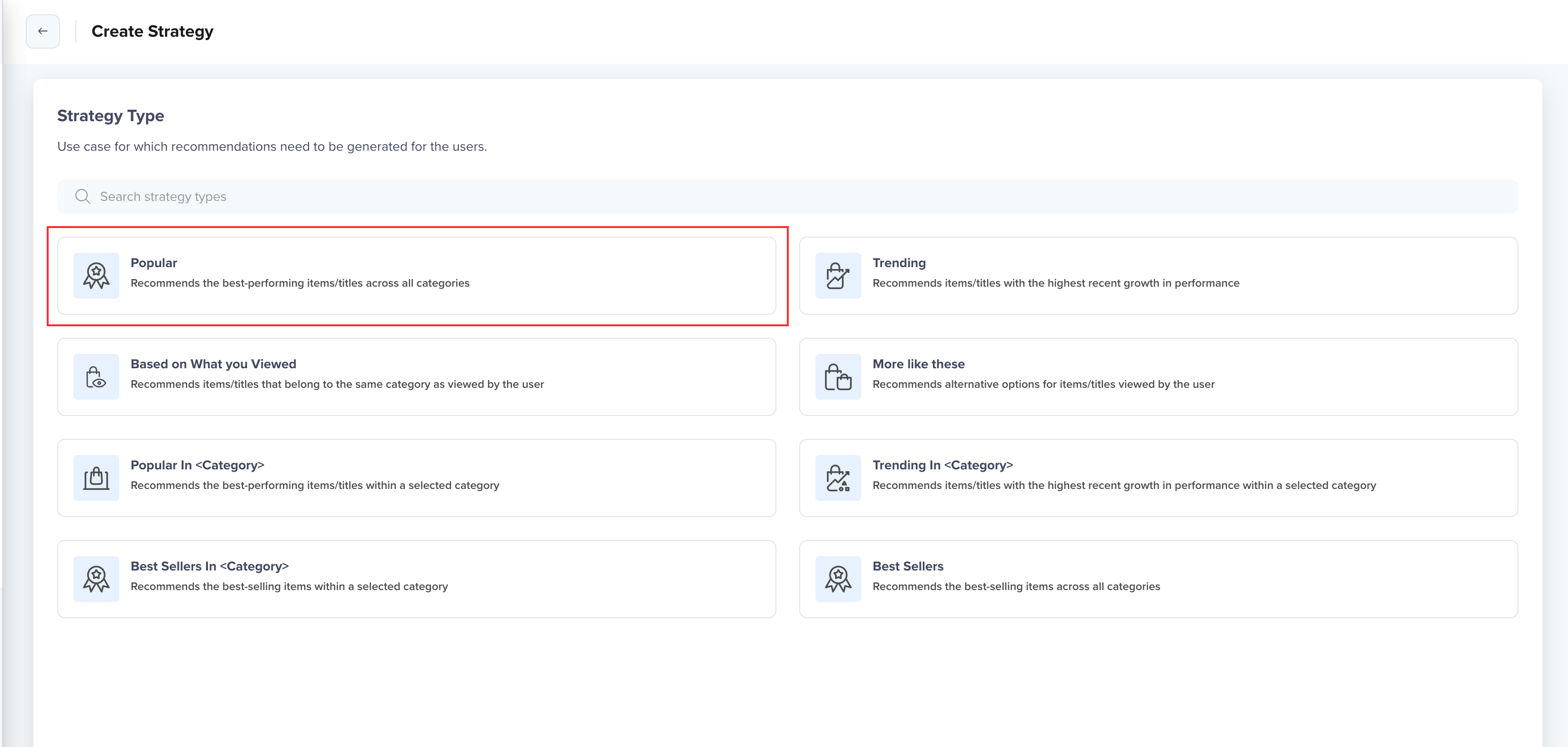
Select Strategy Type
Select Catalog
Select the catalog to use. The catalog must be active and contain the items you want to recommend. For example, select the OTTCatalogdevTV catalog containing your streaming library.
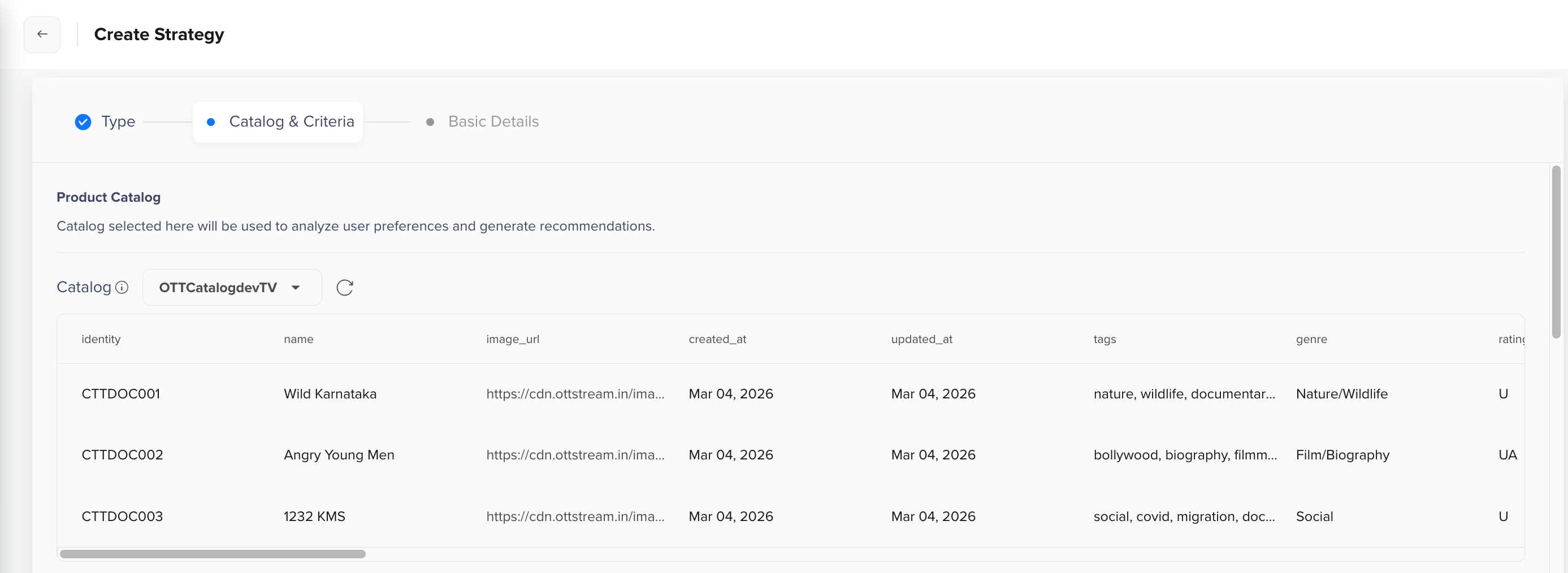
Select Catalog
Configure Consideration Criteria
Pick the single event that defines popularity. This determines what gets counted.
| Event | What it measures |
|---|---|
| OTTvideoview | Titles most watched |
| Any custom event | Whatever signal matters most to your use case |
For example, select OTTvideoview as the interaction event and set the lookback period to Last 30 days. This tells the system to count view activity from the past 30 days to determine which titles are most popular.
You can click Add Criteria to apply property filters that narrow which interactions count. For example, filtering OTTvideoview by Device = Web counts only views from web users when identifying popular titles.
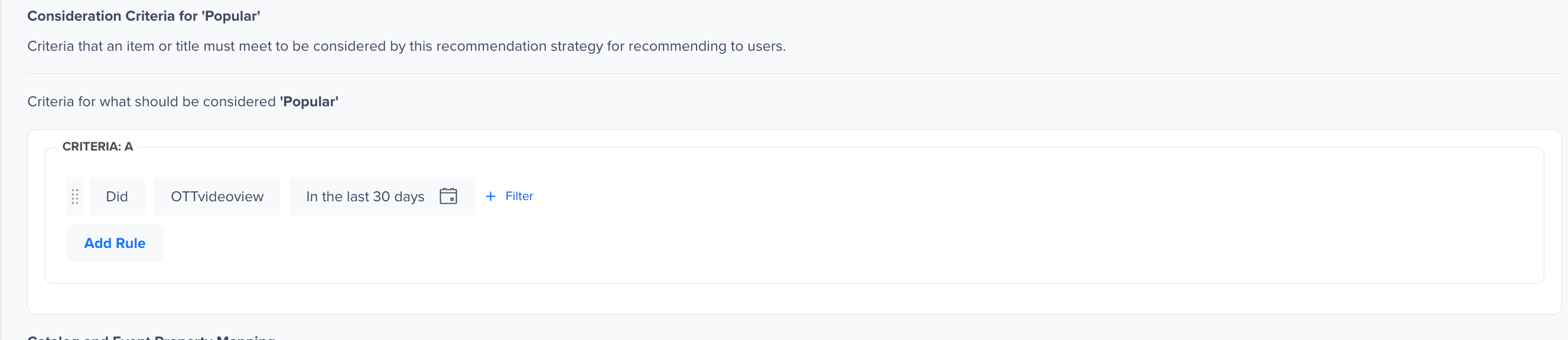
Select Consideration Criteria
Map Catalog Column to Event Property
The catalog column you select must be the column designated as the unique item identifier when setting up the catalog. This is the column the engine uses to match the event to the correct catalog item.
For example, map the catalog identity column to the Content ID event property of the OTTvideoview event.

Map Catalog Column to Event Property
NoteEnsure the mapping is correctly configured. A missing mapping means the engine has no data to rank items against, and the strategy returns no results. An incorrect mapping, for example, selecting a column that does not uniquely identify items; the strategy saves successfully but returns incorrect or empty results at delivery time.
Enter Basic Details
After setting up the Catalog & Criteria tab, click Next to enter the following basic details:
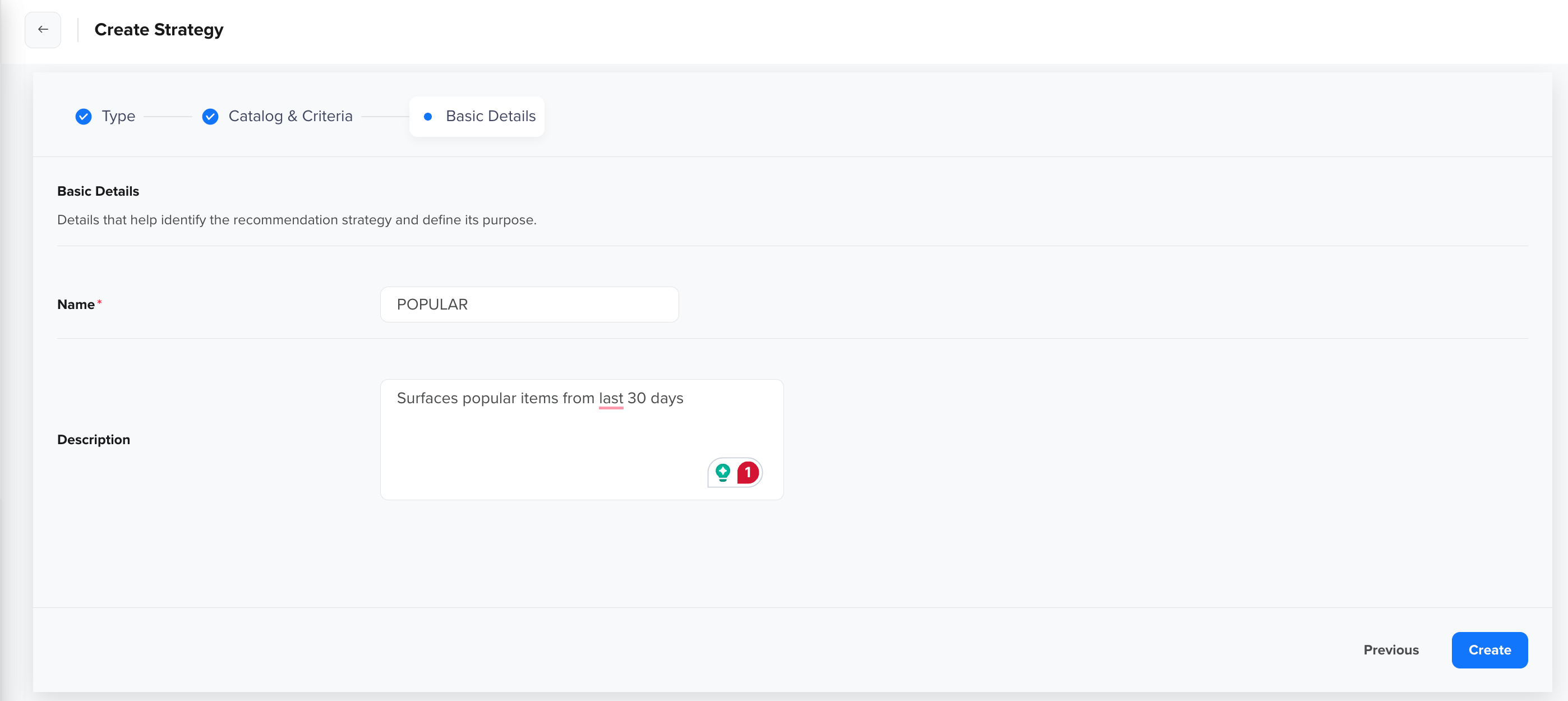
Enter Basic Details for your Strategy
| Field | Details |
|---|---|
| Name | Name the strategy using a clear, descriptive name that reflects the use case and time window. For example, Most Watched Titles Last 30 Days. |
| Description | An optional description for your strategy. |
After adding these details, click Save. Once the strategy is saved, interaction events are evaluated, and when the popular items are determined, the strategy becomes Active and can be used for personalization in the campaigns.
In this case, the strategy surfaces the most-watched titles from the past 30 days. Because no user history is required, the ranked list is consistent across all users, making it suitable for a homepage discovery section or a weekly trending email campaign.
Personalize Campaign Using Popular Recommendation
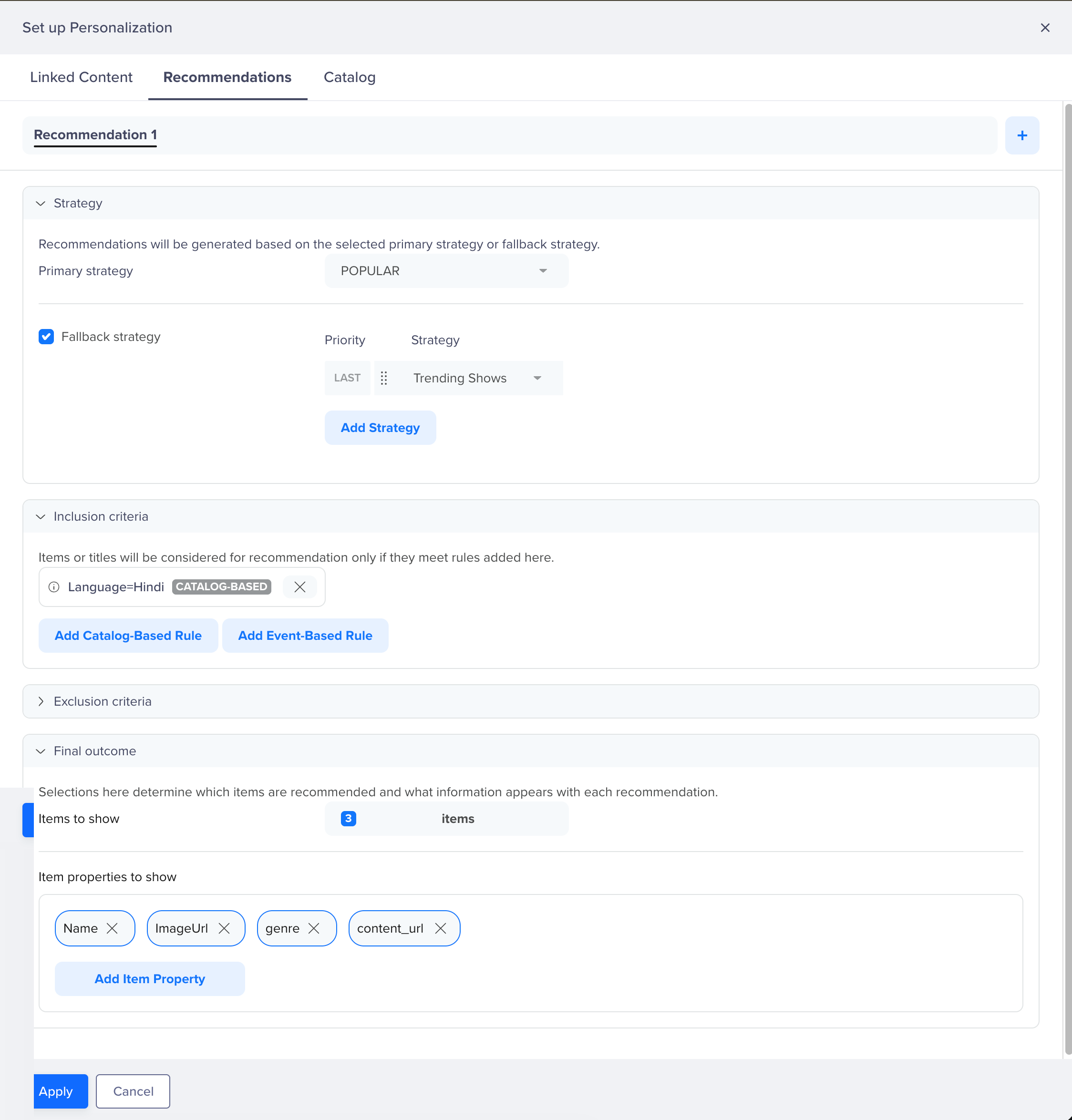
Once the strategy is active, you can use it to personalize recommendations in your campaigns. To configure recommendations within a campaign, click Personalize to open the Set up Personalize panel, then select the Recommendations tab.
Configure the following:
Personalize Campaign Using Popular Recommendation
Strategy
Select the primary strategy to use for recommendations. For example, select Most Watched Titles Last 30 Days to surface the most-watched titles for users browsing the platform. Optionally, enable Fallback Strategy to specify one or more fallback strategies that activate when the primary strategy cannot return enough items. Fallback strategies are evaluated in order of priority, with the last fallback used only if all preceding strategies return insufficient results. Fallback items are deduplicated against popular results before being returned.
For example, set Trending Shows as a fallback so recommendation slots remain filled even when Popular returns fewer items than requested.
Inclusion Criteria
Define rules to restrict which catalog items are eligible for recommendation. You can add Catalog-Based Rules to filter by catalog attributes or Event-Based Rules to filter by user behavior. For example, adding a catalog-based rule Language = Hindi ensures only Hindi titles are recommended.
Exclusion Criteria
Define rules to explicitly remove certain catalog items from recommendations. For example, adding a catalog-based rule Rating = 18+ ensures age-restricted titles do not appear in the recommendation output.
Final Outcome
Specify how many items to recommend and which catalog attributes to return for each item. For example, set Items to Recommend to 3 and select Name, ImageUrl, genre, and content_url as the Item Attributes to Recommend, so the campaign can render each title with its name, thumbnail, genre, and content link. Once configured, click Apply to save the personalization setup for the campaign.
Once the recommendation personalization is set, use Liquid Script to reference the recommendation output in your Title and Message fields.
FAQs
What is the difference between Popular and Trending recommendations?
Popular highlights items with consistently high engagement over the selected time window. Trending highlights items with rapidly increasing engagement, regardless of absolute volume. Use Popular for proven, stable performers. Use Trending to surface what is gaining momentum right now.
Are Popular recommendations personalized?
No. Popular recommendations reflect aggregated user activity and are not user-specific. The same ranked list is returned for all users.
How is the Popular score calculated?
Items are ranked by total cumulative interaction volume within the configured time window. The most interacted-with items appear first. Unlike Trending, no time-decay weighting is applied; all interactions within the window count equally.
What happens if there are not enough popular items?
If the primary strategy returns fewer items than requested, the configured Fallback Strategy fills the remaining slots. Fallback items are deduplicated against the primary results, so you will not see the same title recommended twice.
The fallback dropdown only shows strategies that meet all the following requirements:
- Must be a Popular or Trending strategy
- Must use the same catalog as the primary strategy
- Must not itself be category-scoped
If you have not yet created a plain Popular/Trending strategy in the same catalog, the Add Strategy option remains empty even after selecting Fallback Strategy.
When should I use Popular recommendations?
Use this strategy when you want to highlight proven, consistently high-performing items. It works well for homepages, onboarding flows, and campaigns targeting new or anonymous users where individual behavioral data is not yet available.
Updated about 1 month ago