
Manage Email Notification Preferences
Learn how to use Notification Management to control which CleverTap email alerts you receive.
Overview
CleverTap notifies you about activities in your account, such as when a campaign report is ready, a teammate shares a segment with you, your plan changes, or an outage occurs. Notification Management allows you to decide which of these actually land in your inbox. Unsubscribe from categories for which you do not require notifications.
Mandatory NotificationsAlerts such as downtime notices or billing changes remain mandatory, so you are always informed about important account activities, and you cannot unsubscribe from them.
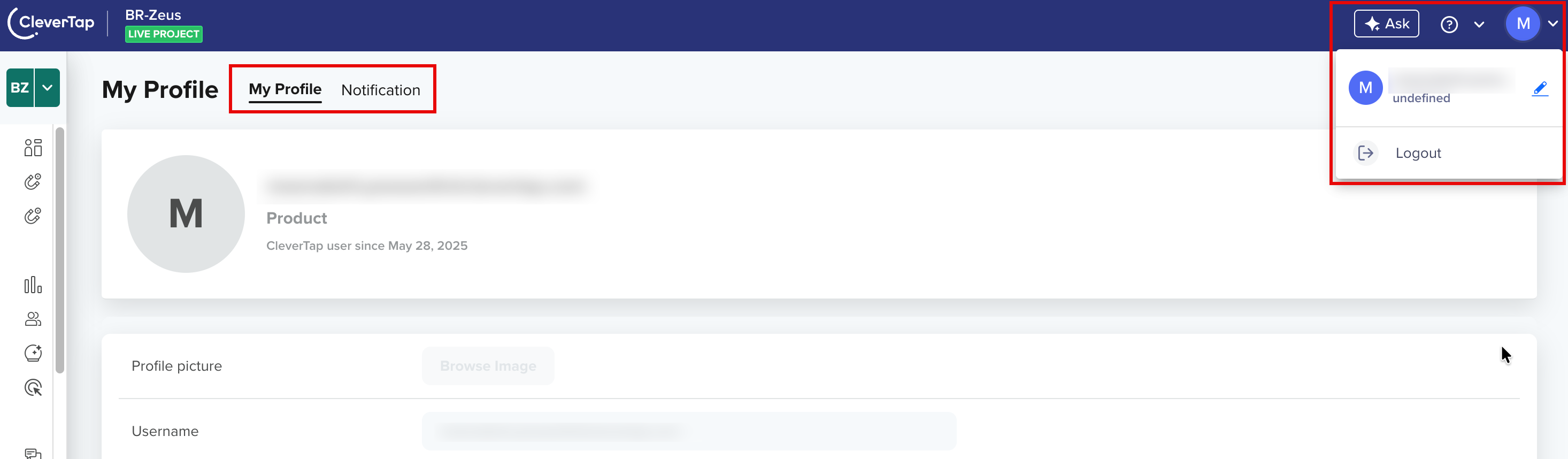
The following image shows the My Profile page:
My Profile
Notification Categories
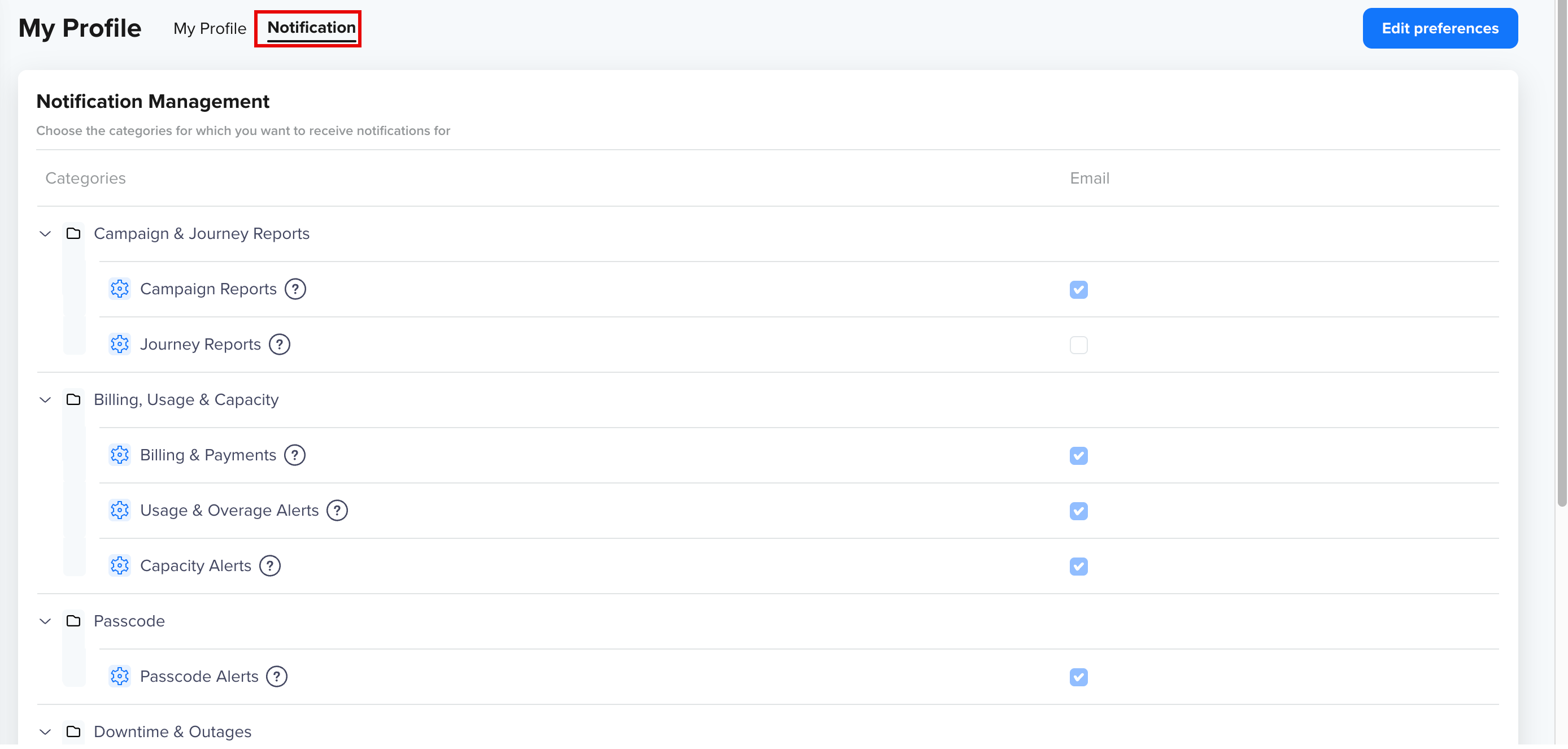
Notification Management groups related alerts into categories. Click the arrow next to a category to expand or collapse and view the individual alerts inside. The Email column shows whether you currently receive that alert, a checked box indicates that the email notification is on. You can Edit your preferences by checking or unchecking that particular notification.
Follow the steps to view the Notification Categories:
- Click your profile avatar in the top-right corner of the dashboard.
- Click your name in the list to open My Profile.
- Switch to the Notification tab.
The Notification Management page opens, which lists the notification categories available to you.
The following image shows the Notification categories:
Notification Tab
Role-Based VisibilityThe categories you see depend on your role. Non-admin users cannot view admin-only categories, such as Billing & Payments, Downtime & Outages, and so on.
The following table lists the notification categories and alerts with the descriptions:
| Category | Alert | Description | Mandatory/Optional | Visibility |
|---|---|---|---|---|
| Campaign & Journey Reports | Campaign Reports | Daily/weekly campaign performance reports | Optional | All users |
| Campaign & Journey Reports | Journey Reports | Journey and project activity reports | Optional | All users |
| Billing, Usage & Capacity | Billing & Payments | Payment receipts, failures, and billing alerts | Mandatory | Admins only |
| Billing, Usage & Capacity | Usage & Overage Alerts | Container, MAU, and overage threshold notifications | Mandatory | Admins only |
| Billing, Usage & Capacity | Capacity Alerts | Events, properties, licensing limits, and email add-on usage | Mandatory | Admins only |
| Passcode Alerts | Passcode Alerts | Passcode expiry and generation alerts | Mandatory | Admins only |
| Downtime & Outages | Downtime & Outages | Scheduled and unscheduled downtime notifications | Mandatory | Admins only |
| Engagement & Collaboration | Segments & Catalogs | Segment and catalog processing notifications | Optional | All users |
| Engagement & Collaboration | WhatsApp Notifications | WhatsApp Connect/Direct add-on and template alerts | Optional | All users |
| Engagement & Collaboration | Collaboration & Sharing | Board sharing and team notifications | Optional | All users |
| Subscription & Account | Subscription & Plan Changes | Add-on, upgrade, downgrade, and plan trial notifications | Mandatory | Admins only |
| Subscription & Account | Account Settings | Event, control group, font, dormant profile, and archiving changes | Mandatory | Admins only |
| Data & Integration | Data Import/Export | SFTP, CSV, parse, and export notifications | Optional | All users |
| Data & Integration | Other Integrations | Facebook, domain, and subscription management | Optional | All users |
Edit Your Preferences
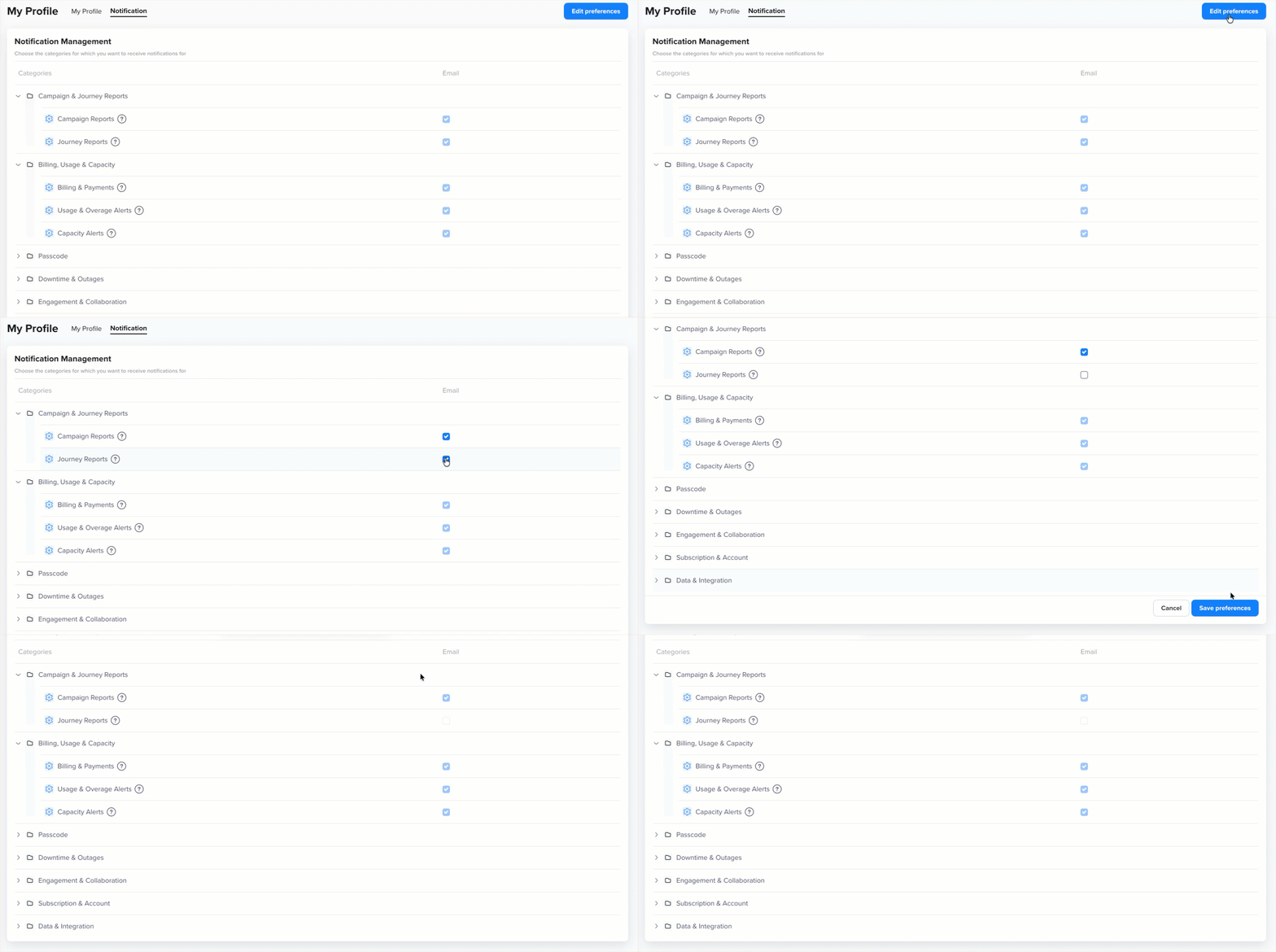
Perform the following steps to edit your preferences:
- On the Notification tab, click Edit Preferences in the top-right corner.
- Expand any category to view the notification list.
- Check the alerts you want to start receiving, and uncheck the ones you want to stop receiving.
- Click Save Preferences to apply your changes.
The following image shows how to edit your preferences:
Edit Preferences
CleverTap confirms the update immediately with a message that reads, Notification preferences for email saved successfully. Your new preferences are applied.
Updated about 2 months ago