
Truecaller
Verified Caller ID Partner
Overview
Truecaller for Business is a verified business calling and messaging platform that displays a brand's verified name, logo, and contextual messaging on the recipient's call screen. The integration with CleverTap connects audience segmentation and campaign orchestration to Truecaller's Verified Campaigns channel via an outbound webhook, enabling branded call-screen experiences to be triggered for the right user at the right moment.
With this integration, you can:
- Trigger Verified Campaigns post-call pop-ups, missed call pop-ups, and sticky messages from CleverTap segments and journeys.
- Personalize the title, subtitle, CTA, and deep link of the call-screen experience using CleverTap user profile attributes and event properties.
- Orchestrate Truecaller as a channel alongside push, email, SMS, in-app, and WhatsApp inside a single CleverTap journey.
- Reach only opted-in audiences by qualifying users through CleverTap segment filters before the webhook fires.
- Measure downstream conversions in CleverTap by associating goal events such as
call_completedorpayment_madewith the Truecaller campaign.
The following image shows the high-level data flow:
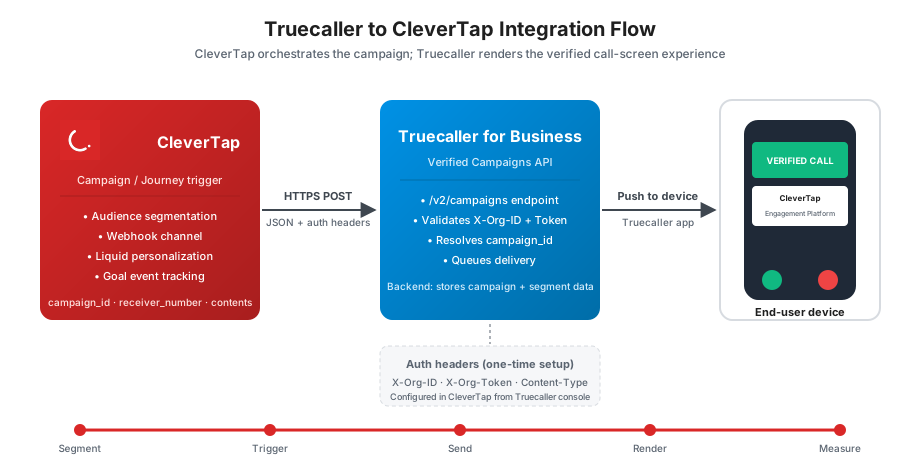
Truecaller and CleverTap Integration Flow
For more information about Truecaller for Business, refer to Truecaller for Business documentation.
Prerequisites for Integration
Ensure you have the following before starting the integration:
- An active Truecaller for Business account with a Customer Experience Solution subscription that includes Verified Campaigns.
- An active CleverTap account with the Webhook channel enabled. If the Webhook channel is not visible under Settings > Channels, contact the CleverTap account team to enable it.
- A Truecaller Verified Campaign template (post-call pop-up, missed call pop-up, sticky message, or business profile) created in the Truecaller Business Console, with the resulting
campaign_id. - The Truecaller Webhook Destination URL, Organization ID, and Webhook Token from the Truecaller Business Console.
- A CleverTap user profile attribute that holds the recipient's phone number in E.164 format (for example,
+919619300858). This is typicallyProfile.Phone.
Integrate Truecaller with CleverTap
The integration process involves the following four major steps:
- Create Verified Campaign Template in Truecaller.
- Copy Webhook Credentials from Truecaller Business Console.
- Create Truecaller Webhook Connector in CleverTap.
- Create Webhook Campaign in CleverTap.
Create Verified Campaign Template in Truecaller
The template defines the visual content (title, subtitle, CTA, deep link, theme) that appears on the recipient's device. Each template is assigned a campaign_id that the CleverTap webhook payload references.
To create a post-call pop-up template, perform the following steps:
- Sign in to the Truecaller Business Console at business.truecaller.com/signin.
- From the left navigation, select Verified Campaigns, and then select Template Generator.
- Select Post-call Pop-up as the campaign type.
- Enter the display fields, such as title (for example, CleverTap), subtitle (for example, Engagement Platform), CTA text, and deep link.
- Upload the required marketing assets, such as the logo and banner image, if not already present.
- Click Save and generate template.
- Copy the
campaign_idassigned to the saved template (for example,CleverTap10). This value is required in the CleverTap webhook payload.
The template is now visible under Verified Campaigns > Campaigns in the Truecaller Business Console
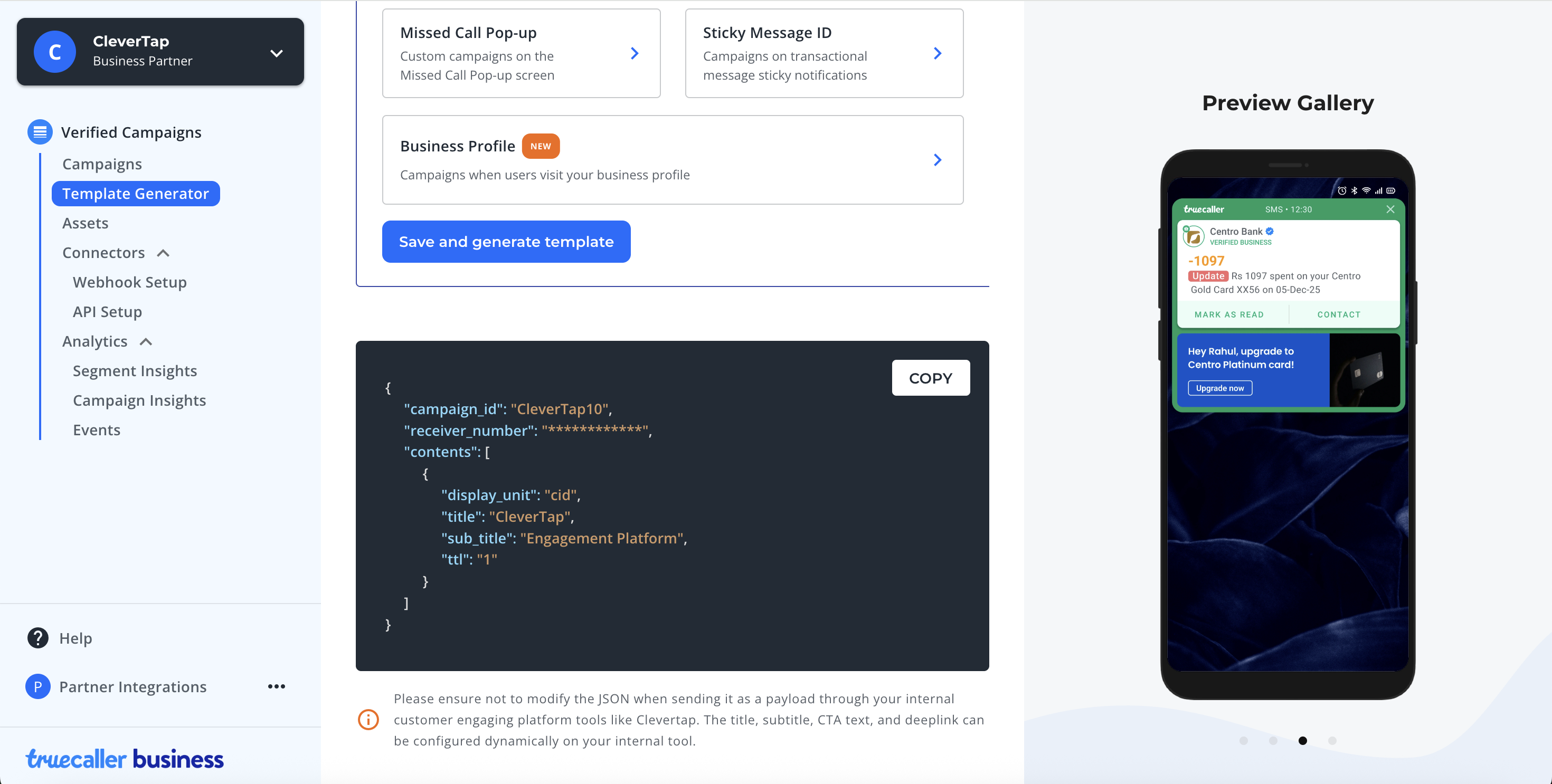
Truecaller-Verified Campaign Template Generator
Copy Webhook Credentials from Truecaller Business Console
CleverTap uses two values from Truecaller to authenticate every webhook call: the Organization ID and the Webhook Token. Both are configured in the Truecaller Business Console.
To copy the webhook credentials, perform the following steps:
- From the Truecaller Business Console left navigation, select Webhook Setup.
- Copy the Organization ID. This is a 16-character UUID assigned to the Truecaller account.
- Click Regenerate token to view the Webhook Token, then copy it. Store the token securely; it functions like a password.
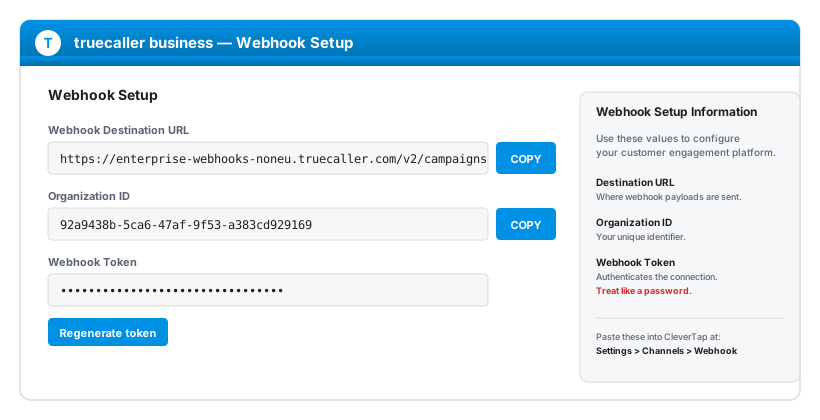
Truecaller Webhook Setup
Create Truecaller Webhook Connector in CleverTap
The webhook connector tells CleverTap where to send the payload and which authentication headers to attach. It is configured once per Truecaller account and reused across multiple campaigns.
To create the webhook connector, perform the following steps:
-
From the CleverTap dashboard, select Settings, select Channels, and then select Webhook.
-
Click + New Webhook.
-
In the Name field, enter a descriptive name, for example, Truecaller.
-
Set the HTTP method to
POST, and set the Destination URL to:https://enterprise-webhooks-noneu.truecaller.com/v2/campaigns -
Under Headers, add the following three key-value pairs:
Key Value X-Org-ID{{your 16-character org UUID}}X-Org-Token{{your webhook token}}Content-Typeapplication/json -
Click Save.
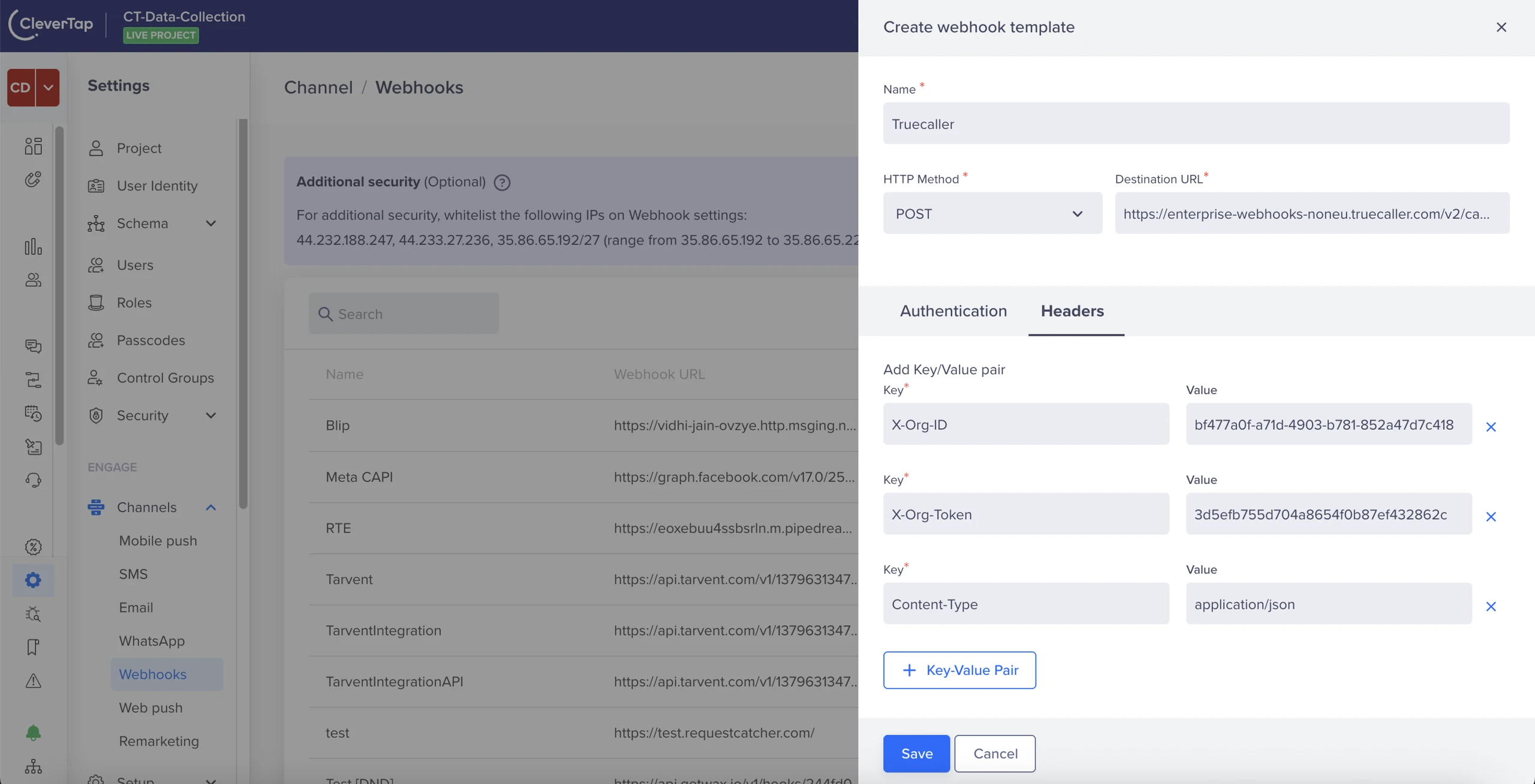
Create Truecaller Webhook Connector in CleverTap
Create Webhook Campaign in CleverTap
The campaign defines who receives the Verified Campaign and when. The custom JSON body composed in the What step references the campaign_id from Truecaller and uses CleverTap personalization tags to populate the recipient phone number.
To create the campaign, perform the following steps:
-
From the CleverTap dashboard, select Campaigns, and then click + Campaign.
-
Select Webhook as the channel.
-
Define the target audience using segment filters. For example, qualify users opted in for calls or users in a specific lifecycle segment.
-
Set the campaign trigger:
- Select Scheduled for batch outbound calls.
- Select Event-triggered for real-time personalization aligned with call timing.
-
Select the Truecaller webhook connector created in the previous section.
-
In the What step, under Message, select Custom body.
-
Compose the JSON payload. The following example references
campaign_idfrom Truecaller and uses theProfile.Phonepersonalization tag for the recipient phone number: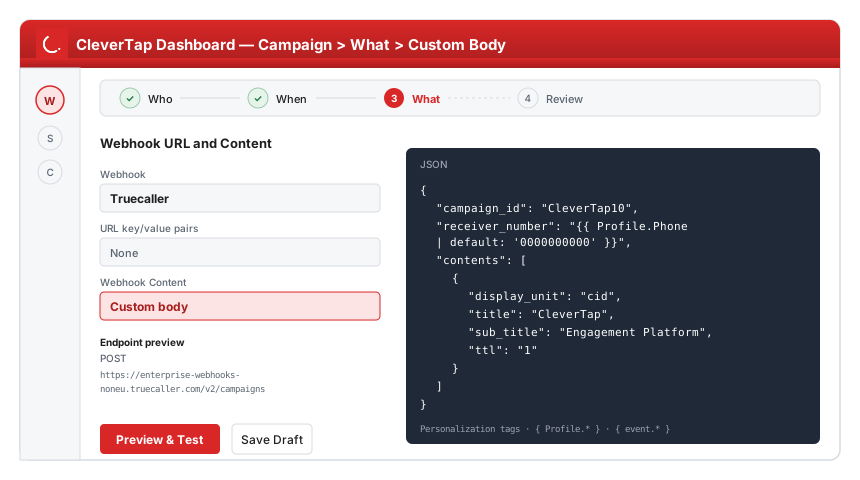
CleverTap Webhook Campaign - Custom Body Configuration
{ "campaign_id": "CleverTap10", "receiver_number": "{{ Profile.Phone | default: '0000000000' }}", "contents": [ { "display_unit": "cid", "title": "CleverTap", "sub_title": "Engagement Platform", "ttl": "1" } ] } -
Click Preview and Test, then send a test to a phone number registered on Truecaller.
-
Place a call from the registered business number to the test device and confirm the post-call pop-up renders with the configured title, subtitle, and branding.
-
From the Truecaller Business Console, select Campaigns and confirm the test payload was received.
-
Click Publish to launch the campaign.
NoteAlways confirm that
receiver_numberresolves from the user profile in the test send, rather than falling back to the default value. A campaign that always fires to the default value will not reach real users.
After the integration is live, Truecaller can be orchestrated alongside other CleverTap channels in segmentation, journeys, and personalization workflows.
Create Live Segment of Truecaller-Eligible Users
To target only users who have opted in for verified calls, create a Live Segment that filters on a custom profile attribute such as truecaller_opt_in.
To create the segment, perform the following steps:
- From the CleverTap dashboard, select Segments, and then click + Segment.
- Select Live Segment.
- Add a filter on the user property
truecaller_opt_inequalstrue. - Add an additional filter for users with a non-empty
Profile.Phone. - Click Save.
Trigger Truecaller Campaign from Journey
Inside a CleverTap journey, the Truecaller webhook can be added as a step that fires after a qualifying event.
To add a Truecaller step to a journey, perform the following steps:
-
From the CleverTap dashboard, select Journeys, and then click + Journey.
-
Select an entry trigger, such as the event
order_placed. -
Add a Webhook action node.
-
Select the Truecaller webhook connector.
-
Compose the custom body using event properties for personalization, for example:
{ "campaign_id": "CleverTap10", "receiver_number": "{{ Profile.Phone | default: '9619300858' }}", "contents": [ { "display_unit": "cid", "title": "Order Confirmed", "sub_title": "Your order #{{ event.order_id }} ships tomorrow", "ttl": "1" } ] } -
Click Save and Publish the journey.
Additional Template TypesFor additional template types (sticky message ID, missed call pop-up, business profile), refer to Verified Campaigns under Truecaller documentation.
Troubleshooting
The following table lists common issues and their resolutions:
| Issue | Resolution |
|---|---|
| Webhook returns HTTP 401 or 403 | Verify that X-Org-ID matches the Organization ID and X-Org-Token matches the current Webhook Token in the Truecaller Business Console. |
| Webhook returns HTTP 404 or "campaign not found" | Confirm that campaign_id in the payload exactly matches the ID of a saved template in Verified Campaigns > Campaigns. |
| Webhook returns HTTP 400 with "invalid receiver_number" | Ensure Profile.Phone is stored in E.164 format with the leading + and country code. Update the user profile or apply a Liquid transform. |
| Pop-up does not appear on the test device | Confirm the test device has Truecaller installed, is signed in, and the test phone number is registered. Verify the call originates from the verified business number. |
receiver_number falls back to the default value in test sends | Test with a user profile that has Profile.Phone set. The default is only meant as a syntactic fallback, not a real recipient. |
| Webhook delivery failures in CleverTap logs | Review HTTP response codes under Settings > Channels > Webhook logs. Common causes are revoked tokens, expired campaigns, or DNS issues. |
EU customer payloads rejected by the noneu endpoint | Replace the destination URL with the EU endpoint shown in the Truecaller console Webhook Destination URL field. |
For Truecaller-specific configuration questions, refer to Truecaller for Business documentation or contact the Truecaller for Business support team.
Verify Integration
Confirm the following before moving the integration to production:
- A Verified Campaign template is saved in the Truecaller Business Console with a known
campaign_id. - The Webhook Destination URL, Organization ID, and Webhook Token are copied from the Truecaller console and stored securely.
- A CleverTap webhook connector named Truecaller is saved with the correct destination URL and the three authentication headers.
- A test campaign sent through the connector returns a success response in CleverTap webhook logs and appears in the Truecaller Campaign Insights.
- The post-call pop-up renders correctly on a registered test device with the expected title, subtitle, branding, and CTA.
receiver_numberresolves from the user profile in test sends, not from the default fallback value.- A goal event (for example,
call_completedorpayment_made) is associated with the campaign for downstream conversion tracking. - Regulatory requirements for outbound calling in the target geography (for example, DLT registration in India) are satisfied.
After all checks pass, the integration is ready for production use.
Updated 5 months ago