
Catalog-Based Rules
Learn how to create recommendation rules using product catalog attributes and conditions.
Overview
A catalog-based rule defines which items from a catalog are eligible for personalization. By applying conditions to catalog attributes such as brand, category, price, or language, a catalog-based rule narrows the pool of items the personalization engine considers. These rules operate solely on item data; they do not factor in user behavior.
Catalog-based rules can be applied to recommendation and catalog send personalization, either to include only matching items or to exclude them from the eligible pool.
How Catalog-Based Rules Work
Catalog-based rules run before items are retrieved from the catalog. They act as a filter, establishing the eligible item pool that the downstream recommendation engine or catalog send process works with.
When a rule is applied, the personalization engine only fetches or considers items that satisfy the rule's conditions. Items that do not match are never retrieved, regardless of how they would otherwise rank.
Include vs. Exclude
A catalog-based rule can be applied in one of two modes:
- Include: Only items that match the defined conditions enter the eligible pool. Items that do not match are excluded before any personalization logic runs.
- Exclude: Items that match the defined conditions are removed from the eligible pool before personalization logic runs. All other items remain eligible.
For example, a catalog rule with the condition Articles EQ ["Politics"]:
- Applied as include: Recommendation engine only fetches and returns Political articles.
- Applied as exclude: Recommendation engine never fetches or returns Political articles, regardless of how those items would otherwise rank.
Include vs. Exclude at a GlanceThe following table summarizes how each rule type affects the eligible item pool:
Include Exclude Catalog Send Only matching items are sent Matching items are removed before sending Recommendation Only matching items enter the recommendation pool Matching items are dropped before the recommendation engine ranks them
Use Cases
| Industry | Filter to Recommend Only |
|---|---|
| ECommerce |
|
| Streaming / OTT |
|
| Travel |
|
| Food Delivery |
|
| Gaming |
|
| EdTech |
|
Create Catalog-Based Rule
A catalog-based rule is created by selecting a catalog and defining one or more conditions on its attributes. Conditions can be combined using AND or OR logic and nested into groups.
To create a Catalog-based rule, perform the following steps:
-
Go to Recommendations and select the Catalog-Based Rules.
-
Click Create Rule.
-
Enter the following details:
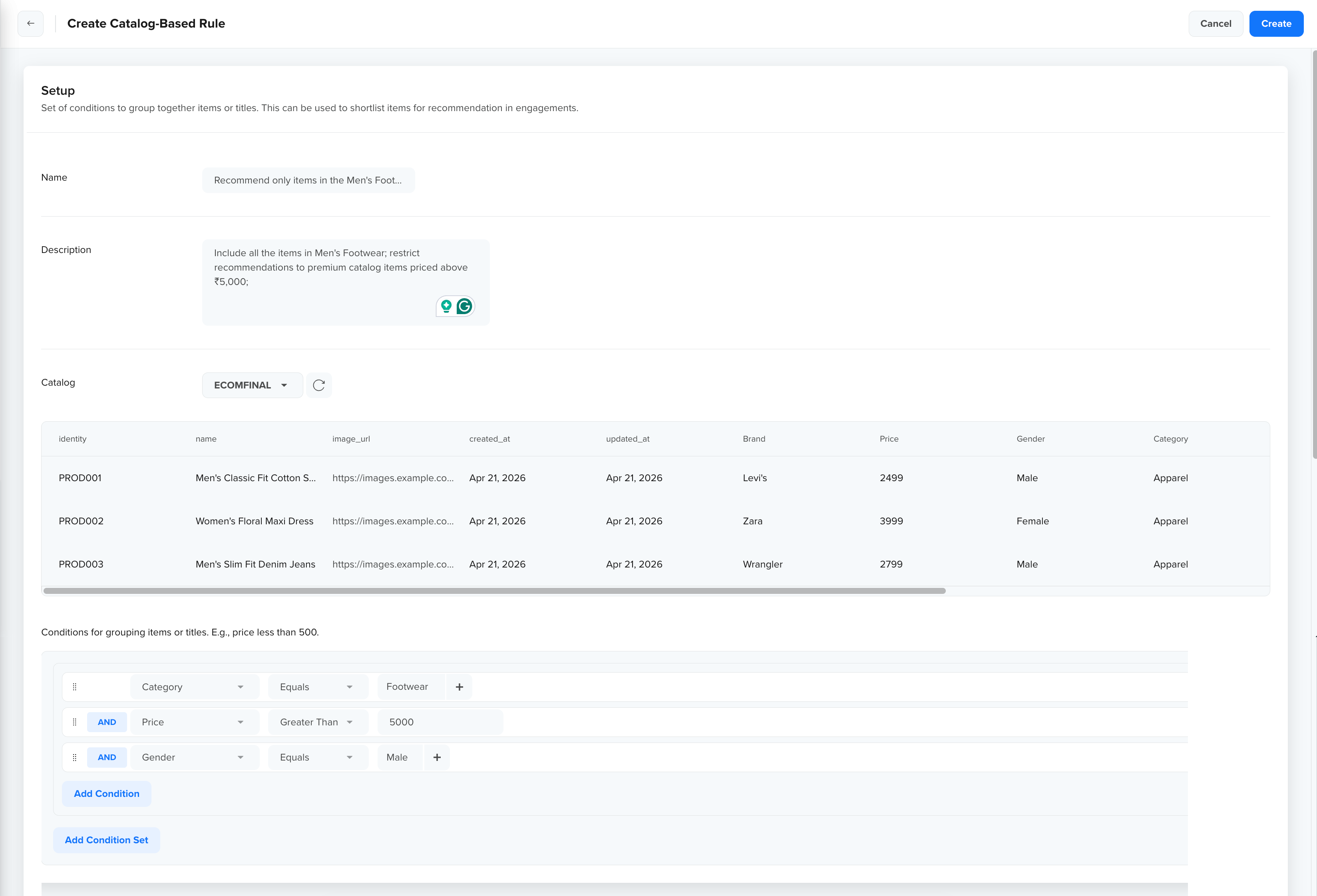
Configure Catalog-Based Rule
Field Details Name Enter a descriptive name that makes the intent of the rule clear. Teams often manage many rules at once, so use names that reflect the specific filter being applied.
For example, Include Nike Products, Include Men's Premium Footwear, Include New Arrivals, Include Men's Running Products, and so on.
The maximum number of characters allowed is 255.
Description This field is optional. Capture the rule's purpose for anyone reviewing it later. Keep it specific and action-oriented.
For example, Include all the items in Men's Footwear; restrict recommendations to premium catalog items priced above ₹5,000;
The maximum number of characters allowed is 1000.
Catalog Select the catalog this rule applies to. You can also upload the catalog from here if you have not already.
Once selected, a product preview table loads automatically, displaying a sample of the catalog's schema, fields such as color, brand, category, price, identity, name, image_url, and _created_a_t.
Use this preview to confirm:- The correct catalog is selected
- The catalog schema is visible
- The attribute you want to filter on (for example, brand) exists in the catalog
-
Click the
 icon next to the catalog dropdown to reload the preview if needed.
 -
Define filter conditions to evaluate a catalog attribute against a value using an operator, thereby refining product recommendations. Only items that satisfy the defined conditions are passed to the recommendation strategy. For more information, refer to Define Filter Conditions.
Define Filter Conditions
Filter conditions are the core of a catalog-based rule. Each condition evaluates a catalog attribute against a value using an operator. Only items that meet the defined criteria are passed to the recommendation strategy.
To add a condition, select a catalog attribute, choose an operator, and enter a value. You can add multiple conditions and combine them using AND or OR logic. Conditions can also be nested into groups for more complex filtering.
The following operators are supported:
| Operator | Type | Description | Value format |
|---|---|---|---|
| EQ | Text / categorical | Equals | List of values, for example, ["Men", "Women"] |
| NE | Text / categorical | Does not equal | List of values |
| CNT | Text / categorical | Contains | List of values |
| DNCNT | Text / categorical | Does not contain | List of values |
| GT | Numeric | Greater than | Single number, for example, 100 |
| GTE | Numeric | Greater than or equal to | Single number |
| LT | Numeric | Less than | Single number |
| LTE | Numeric | Less than or equal to | Single number |
| BET | Numeric | Between | Two-element list, for example [10, 50] |
| INL | Any | Is null | true |
| SWITH | Text | Starts with | String, for example, "Nike" |
| EWITH | Text | Ends with | String |
Manage Catalog-Based Rules
The Catalog-Based Rules list page is the central place to view, search, filter, and manage all rules in your account.
Each rule in the table displays the following columns by default:
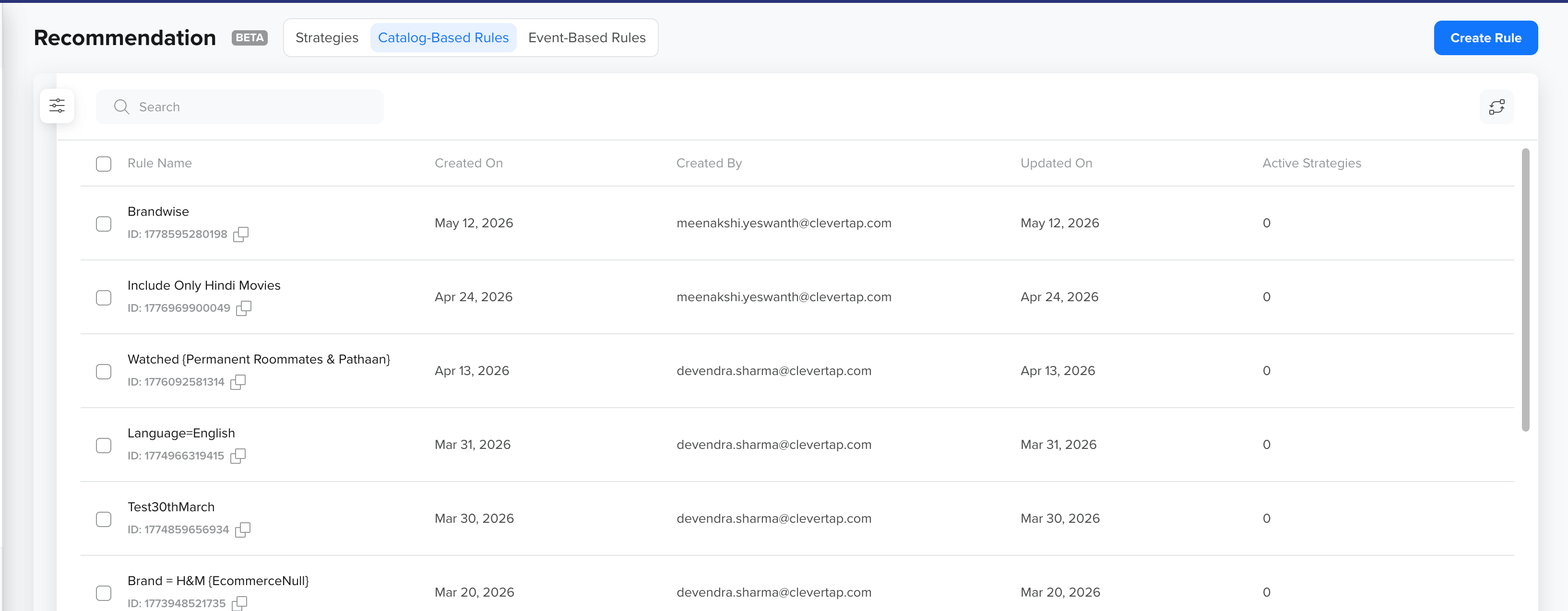
Catalog-Based Rule Listing Page
| Column | Description |
|---|---|
| Rule Name | The name of the rule and its unique ID. Click the copy icon to copy the ID. |
| Created On | The date the rule was created. |
| Created By | The identifier of the user who created the rule. |
| Updated On | The date the rule was last modified. |
| Active engagements | The number of active engagements currently using this rule. A rule with one or more active engagements cannot be deleted. To delete the rule, first remove it from or stop all engagements referencing it. |
From the rules list, you can perform the following actions on any rule:
- Edit: Modify the rule name, description, catalog, or filter conditions.
- Clone: Create a copy of an existing rule. Use this to duplicate a rule's configuration as a starting point for a new one.
- Delete: Remove one or more rules. Select the rules you want to remove and confirm deletion. Deleted rules are removed permanently.
NoteRules that are actively used by one or more strategies cannot be deleted until they are removed from those strategies.
Search Rules
Use the search bar at the top of the list to find rules by name. This is particularly useful when managing a large number of rules.
Filter Rules
Click the <img src="[https://files.readme.io/a973e47e78d9cb32bf7c2372bc46d90fdb6f8eb16dd6ebaa77a63c2b385438c8-Threads_icon.png](https://files.readme.io/a973e47e78d9cb32bf7c2372bc46d90fdb6f8eb16dd6ebaa77a63c2b385438c8-Threads_icon.png)" valign="middle" height="20”> icon to open the Filters panel. Filters help narrow the list to rules that match specific criteria.


The following filters are available:
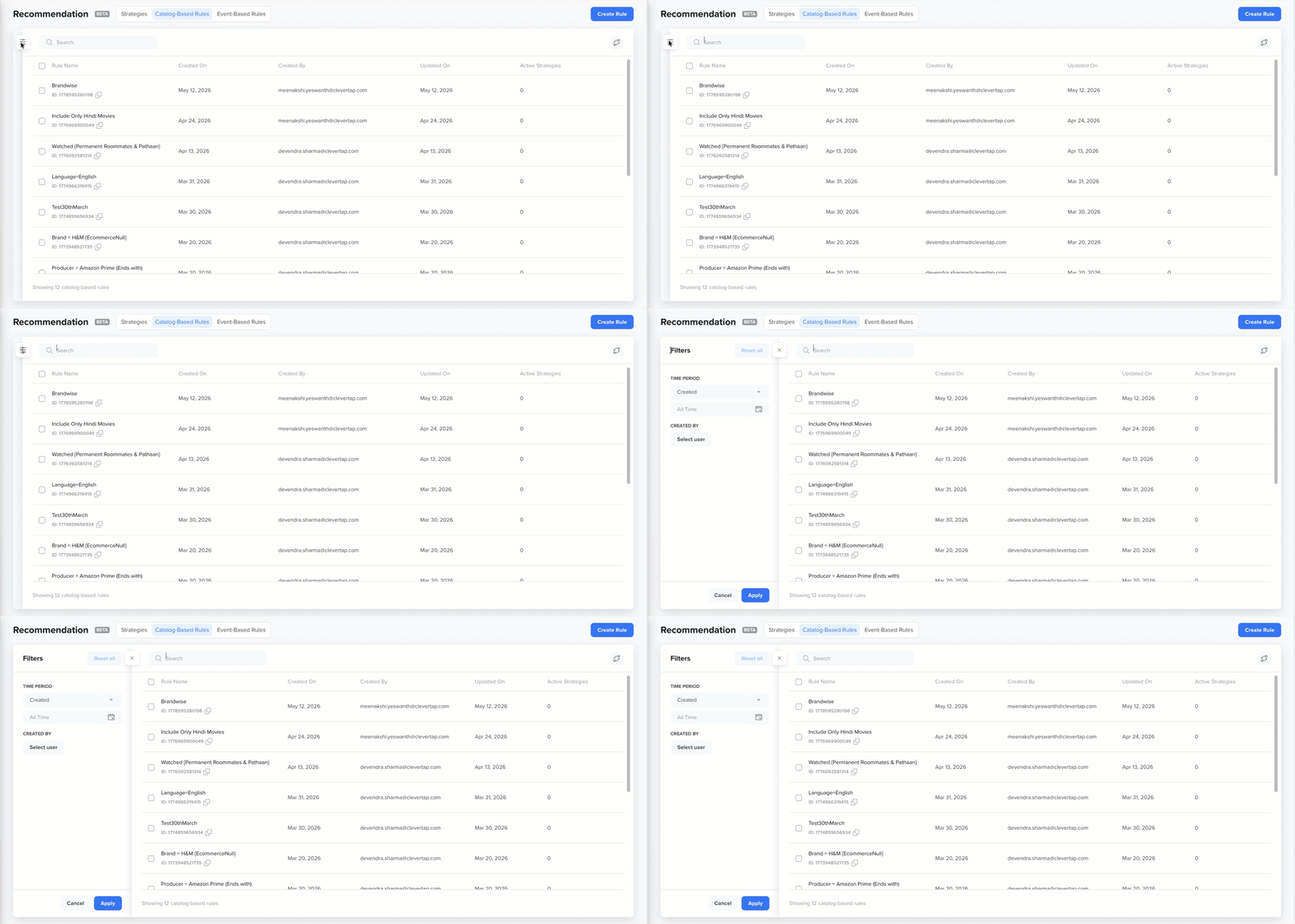
Filter Catalog-Based Rules from List Page
- Time Period: Filters rules by the date they were created or last updated. Select a preset range or define a custom date range using the date picker.
- Created By: Filters rules by the team member who created them. Click Select user to choose one or more users from the list.
Edit Columns
Click the  icon to open the Edit Columns panel. This lets you choose which columns appear in the rules table and reorder them to match your workflow.
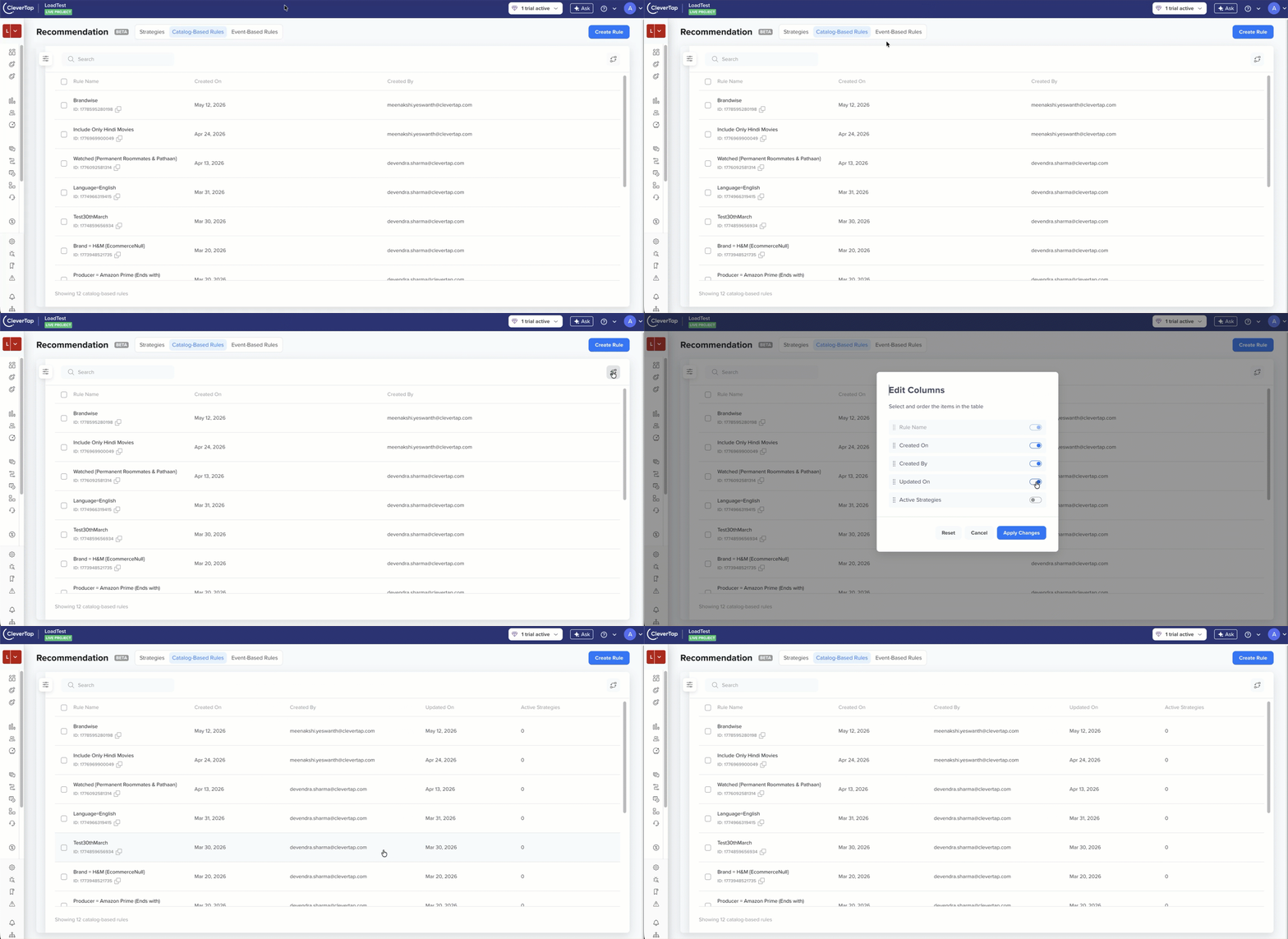
Edit Columns
The following columns can be shown or hidden:
- Created On
- Created By
- Updated On
- Active Strategies
The Rule Name column is always visible and cannot be hidden.
Toggle each column on or off to show or hide it. Drag rows using the handle on the left to reorder columns. Once done, click Apply Changes to save. To restore the default column layout, click Reset.
Updated about 1 month ago