
Product Experiences Approval
Learn about the Prouct Experience workflow management.
Overview
The Product Experiences Approval Workflow is a creator-approver control that gives you increased oversight over changes to A/B Tests and Remote Config Variables before they go live. When enabled, any action that changes the state of an experiment, such as starting, scheduling, pausing, finishing, editing, or deleting, requires explicit approval from the approver before it takes effect. This prevents unauthorized or accidental changes from reaching your production audiences.
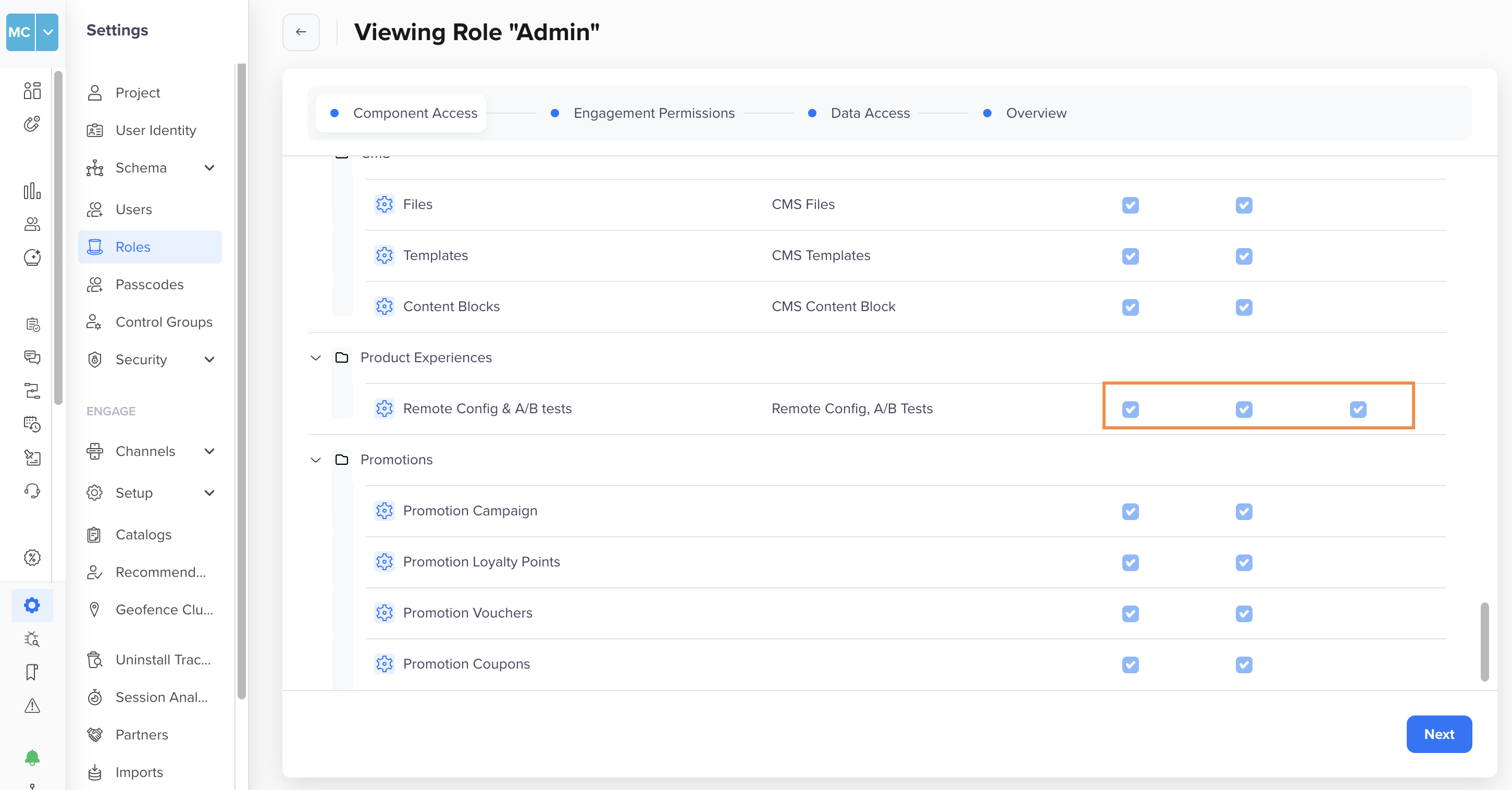
Product Experiences Permissions
The approval workflow applies to:
- A/B Tests
- Remote Config Variables
Enable or Disable the Product Experiences Approval Workflow
To enable the approval workflow, go to Settings > Security > Approval management > Product Experiences [A/B Tests] toggle from the CleverTap dashboard.
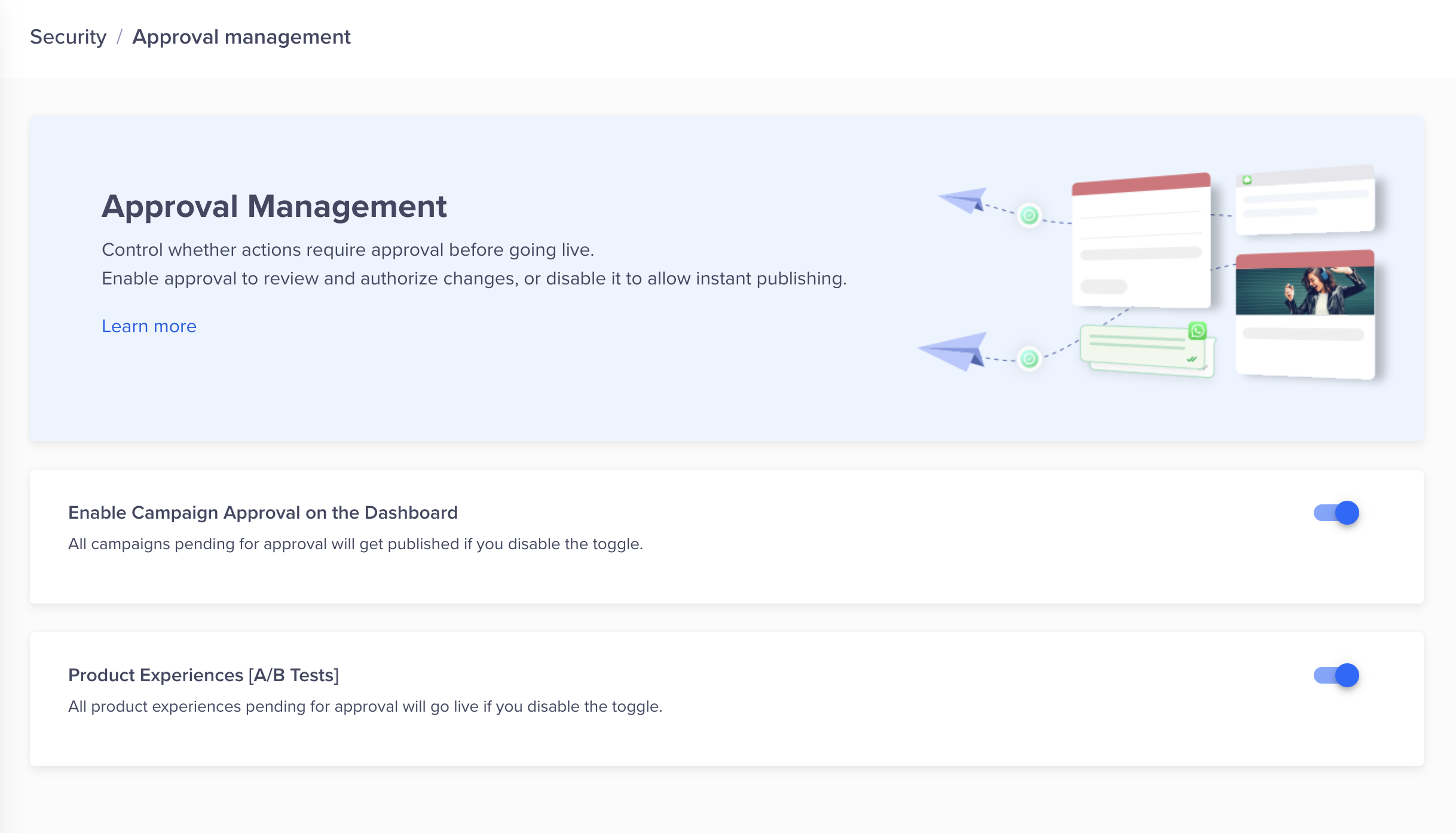
Enable or Disable Approval for Product Experiences
Note
Your account must have the A/B Testing feature enabled. The approval workflow toggle is disabled by default. If the toggle is unavailable, contact your CleverTap account manager.
Note
If you disable the approval workflow, the pending approvals are automatically reverted to their previous states.
Assign Approver Access to Users
After enabling the workflow, you can assign the Approver role to specific users, or create custom roles with approver access for the Product Experiences feature.
For more information on assigning roles, refer to Role Based Access Control.
The following users are considered approvers:
- Any user with the system Admin role
- Any user with the system Approver role
- Any user with a custom role that includes approve permission for Product Experiences
Note
Approver assignments are per account. A user who is an approver on one account is not automatically an approver on another. A creator cannot approve their own submission.
Product Experiences Approval Workflow
After enabling the approval workflow, a new process is required to start, schedule, pause, finish, edit, or delete an experiment. It involves the following steps:
- The creator creates or modifies an A/B Test or Remote Config Variable.
- The creator submits the change for approval. The system transitions the experiment to a Pending Approval state, and an email notification is sent to all Admins and Approvers on the account.
- The approver reviews the proposed change and either approves or rejects it.
The following are some of the key points to remember for the Product Experiences Approval Workflow:
- Approval precedes the change: The experiment remains in its current live state until the approver explicitly approves it.
- Rejection reverts the experiment: If rejected, the experiment returns to its previous state. For example, if a running A/B Test is submitted for a pause and the approver rejects it, the test continues running unchanged.
- Creators cannot approve A/B Tests: The system intentionally separates roles. Only users with the Approver or Admin role can approve experiments.
- Staged edits on live experiments: If a running or paused experiment is edited but not yet published, the staged edits are submitted for approval like any other change. If rejected, the staged edits are discarded, and the experiment continues in its current state.
- Finishing an A/B Test: When an approver approves a finish action, they may optionally select a winning variant to roll out to 100% of users before the test closes.
Note:
If the approval workflow is disabled while approvals are pending, all pending changes are automatically reverted to their previous states. Creators are not automatically notified, so communicate this change to your team manually.
Experiment States
An experiment moves through the following states during the approval workflow. States prefixed with PENDING_ indicate that approver action is required.
| Current State | Action Submitted | Pending State | On Approval | On Rejection |
|---|---|---|---|---|
| Draft | Start | APPROVAL PENDING | Running | Draft |
| Draft | Schedule | SCHEDULING PENDING | Scheduled | Draft |
| Running | Pause | PAUSE PENDING | Paused | Running |
| Running | Finish | FINISH PENDING | Finished | Running |
| Running / Paused | Publish edits | APPROVAL PENDING | Changes go live | Edits discarded, experiment unchanged |
| Paused | Resume | RESUME PENDING | Running | Paused |
| Paused | Finish | FINISH PENDING | Finished | Paused |
| Finished | Delete | DELETE PENDING | Deleted | Finished |
Approve or Reject a Change
An admin or approver can approve or reject a change from the dashboard.
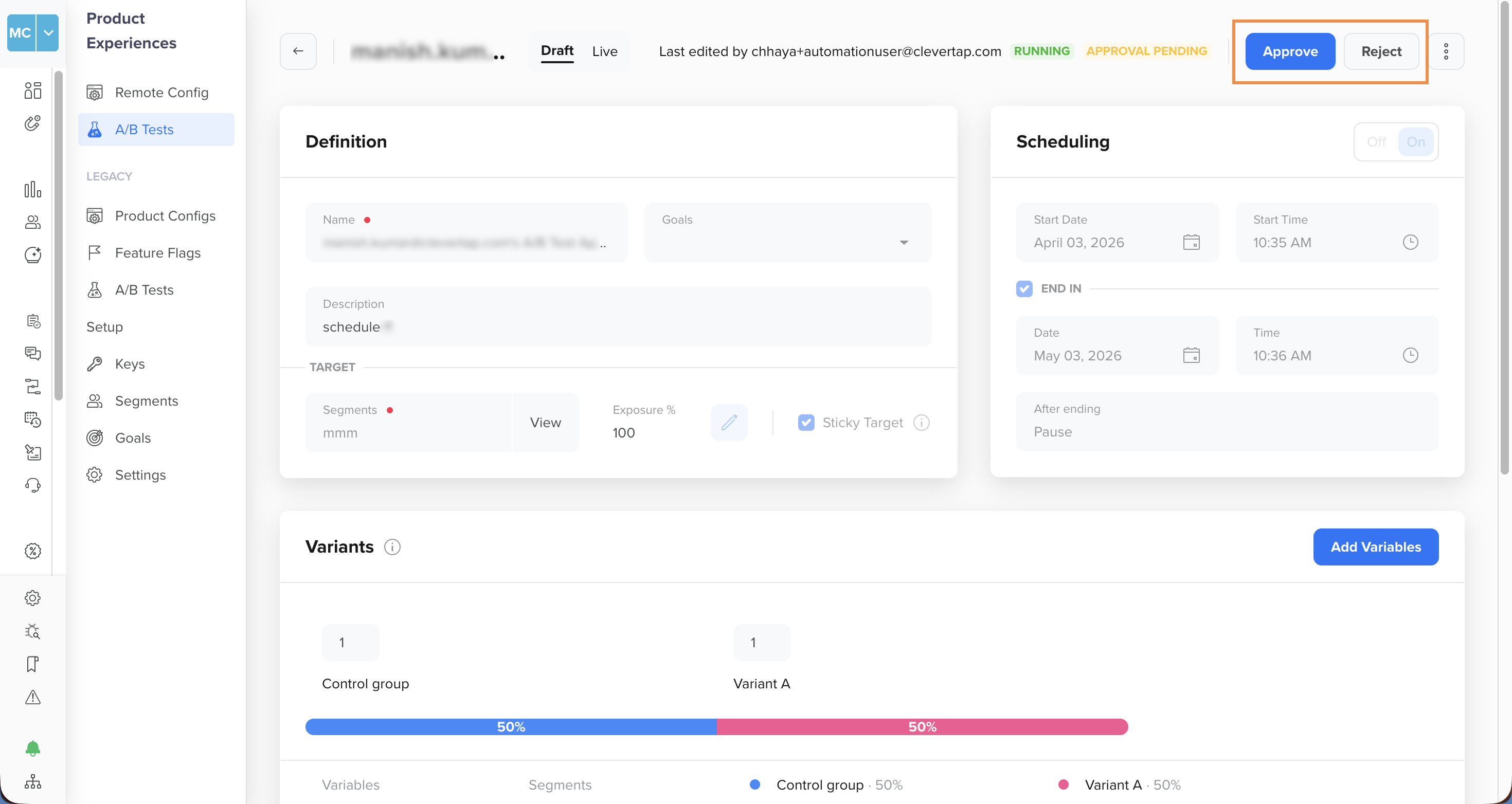
Approve or Reject Experiment
- Open the pending experiment from the dashboard.
- Review the proposed change, such as configuration details, variant setup, targeting, and so on.
- Click Approve or Reject.
- Optionally, add feedback (up to 1,024 characters). Feedback is visible to the creator and recommended when rejecting.
Notifications
The following table shows the notifications sent to users for each event:
| Event | Who Is Notified |
|---|---|
| Change submitted for approval | All Admins and Approvers on the account (email) |
| Change approved | Creator who submitted, all Admins (email) |
| Change rejected | Creator who submitted, all Admins (email) |
| Approval workflow enabled or disabled | All Admins and Approvers on the account (email) |
FAQs
Q. Can a Creator approve their own request?
A. No. The system enforces role separation. Only users with the Approver or Admin role can approve experiments, and they cannot approve submissions they created themselves.
Q. What happens if I disable the approval workflow while approvals are pending?
A. All pending approvals are automatically reverted to their previous state. No experiment transitions silently. Note that creators are not automatically notified, so communicate this change to your team.
Q. What if the designated approver is unavailable?
A. Any Admin on the account can approve. Check that at least one Admin is always reachable. If required, grant additional users the Approver role from Settings > Team.
Q. Can I edit an experiment while it is pending approval?
A. No. The pending state locks the experiment. You must wait for the approver to act, that is, approve or reject the approval request, before making further changes.
Q. What happens to a scheduled experiment if approval is rejected?
A. The experiment reverts to Draft. It does not run at the scheduled time.
Q. Does the approval workflow apply to both A/B Tests and Remote Config Variables?
A. Yes. Enabling the Product Experiences toggle applies the workflow to both A/B Tests and Remote Config Variable changes simultaneously.
Updated 5 months ago