
Microsoft Azure
Understand how to integrate CleverTap dashboard to Microsoft Azure.
Overview
Use Microsoft Azure Blob Storage to import data from files in a container that you own and to export CleverTap data to that container. CleverTap authenticates with a SAS token that you generate for the container. This is the only supported authentication method for both import and export. With the integration, you can:
- Import user profiles and events from CSV or Parquet files stored in your Blob Storage container.
- Export profile and event data to your Blob Storage container for analysis in BI tools or storage in a data warehouse.
NoteCleverTap supports IP whitelisting for Microsoft Azure connections, either through the Allowed IP addresses field on the SAS token or through the storage account firewall. CleverTap connects from fixed IP ranges, and the ranges for import and export differ. For more information about allowed IP ranges, refer to FAQs.
The setup involves the following five steps:
- Create Storage Account.
- Create Container and, for Import, an optional subfolder.
- Generate SAS Token for Container.
- Add Container and SAS Token on CleverTap Dashboard.
If you already have a storage account and container, skip to Generate SAS Token.
Quick Start Guide for Existing Users
If you previously configured an Azure storage account and container and are familiar with the CleverTap dashboard, the setup requires the following details and steps.
Have the following details ready:
- The storage account name, which you enter as Default endpoint on the CleverTap dashboard, or a custom domain mapped to your Blob Storage endpoint
- The container name, which you enter as Folder path on the CleverTap dashboard
- (Import only, optional) The subfolder path within the container
- A container-level SAS token, signed with the account key, with the permissions that your connection needs. For more information, refer to Generate SAS Token.
- Import: Read and List
- Export: Read and Write
Then configure the connection as follows:
- Go to Settings > Partners and select Microsoft Azure on the Integrations tab.
- Select the Import Connections or Export Connections tab, and then click Add Microsoft Azure Bucket.
- Enter the Connection name, select the Azure Blob storage endpoint (Default or Custom), enter your storage account name or custom domain, and enter the Folder path (your container name). For an import connection, optionally enter a Subfolder path.
- Enter the SAS token that you generated for the container.
- Click Save to save the connection. For imports, you can test your connection before saving.
After you save the connection, continue with Next Steps.
Prerequisites for Integration
Ensure the following are in place before you begin:
- An active Azure subscription and permissions to create a storage account and containers in a resource group. The Contributor role on the resource group covers these permissions.
- Permission to generate a SAS token signed with the account key. The permission requires
Microsoft.Storage/storageAccounts/listkeys/action, which the Contributor, Owner, and Storage Account Key Operator Service Role roles include. Without the permission, the portal does not offer Account key as a signing method. - The Allow storage account key access setting is enabled on the storage account. Azure enables the setting by default, but an Azure Policy or an administrator may disable it to enforce Microsoft Entra authentication. When the setting is off, Azure does not let you generate or use account-key SAS tokens. For more information, refer to Microsoft's Prevent Shared Key authorization documentation. If the Account key is unavailable, refer to Generate SAS Token.
- A CleverTap account with the Microsoft Azure partner enabled. To enable the feature for your account, contact your CleverTap account manager.
- A globally unique storage account name and a container name that follow the naming rules in Create Storage Account and Create Container.
- The CleverTap IP ranges to allow, if your organization restricts access to Blob Storage by source IP. For more information, refer to FAQs.
ImportantSign the SAS token with the Account key, not a User delegation key. A user delegation SAS expires after a maximum of 7 days, so a connection that uses one stops working within a week.
Set Up Microsoft Azure for Integration
Setting up Microsoft Azure for the integration involves creating a storage account and a container, optionally creating an import folder, and generating a SAS token. If you already have a storage account and container, skip to Generate SAS Token.
Create Storage Account
The storage account holds your container and provides the Blob Storage endpoint for the CleverTap connection.
-
Log in to the Azure portal, enter Storage accounts in the search bar, and select Storage accounts.
-
Click Create.
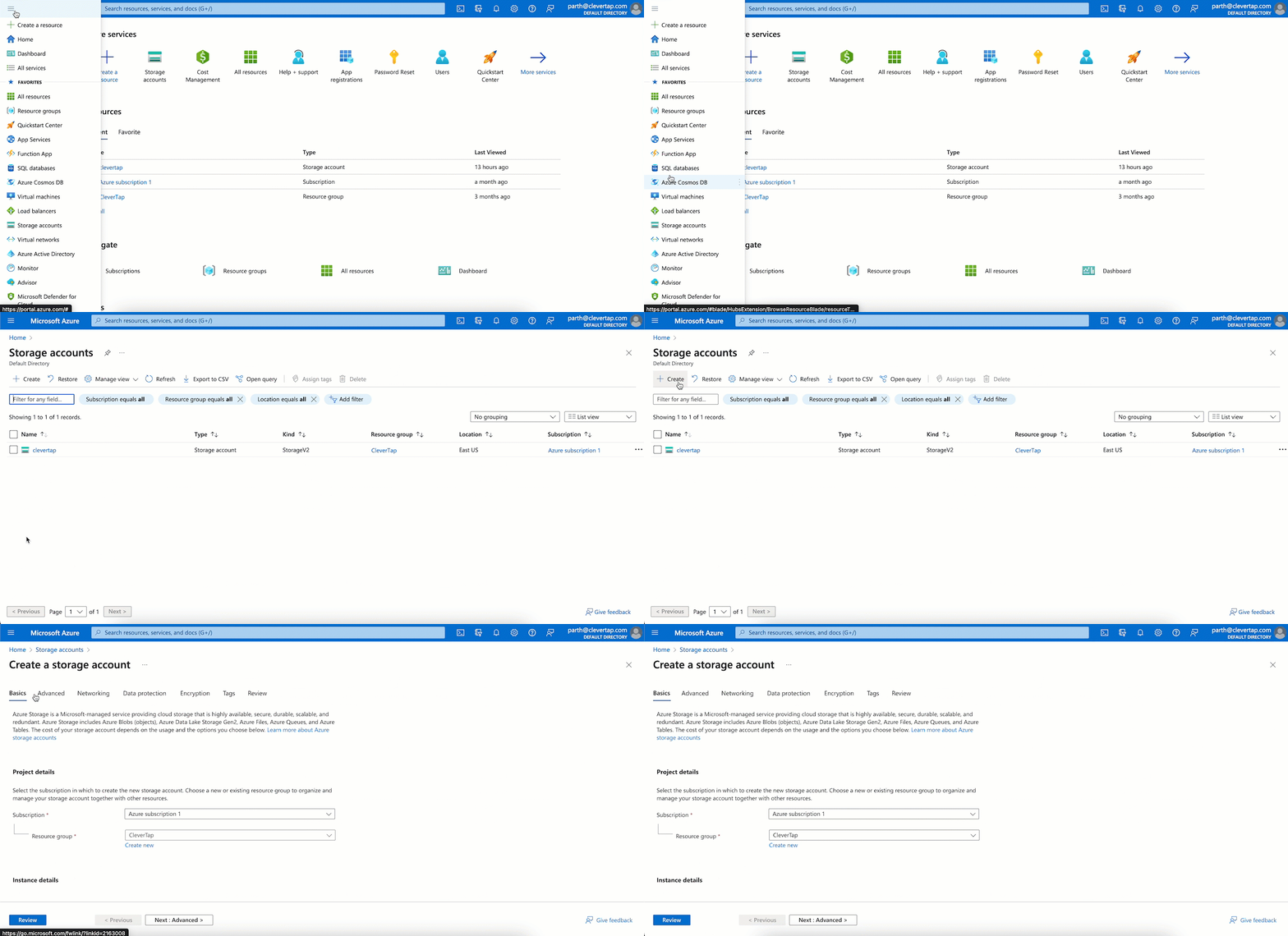
Select Storage Account
-
On the Basics tab, under Project details, select your Subscription, and select an existing Resource group or click Create new to create one.
-
Under Instance details, enter a Storage account name. You enter this value as the Default endpoint on the CleverTap dashboard. For a custom domain, refer to the Custom domain field.
NoteStorage account names must be 3 to 24 characters, contain only lowercase letters and numbers, and be unique across all of Azure. For more information, refer to Microsoft's storage account name rules.
-
Select any Region. CleverTap does not check the region.
-
Keep Primary service as Azure Blob Storage or Azure Data Lake Storage Gen 2, keep Performance as Standard, and select the Redundancy that your organization requires. The default is sufficient for CleverTap.
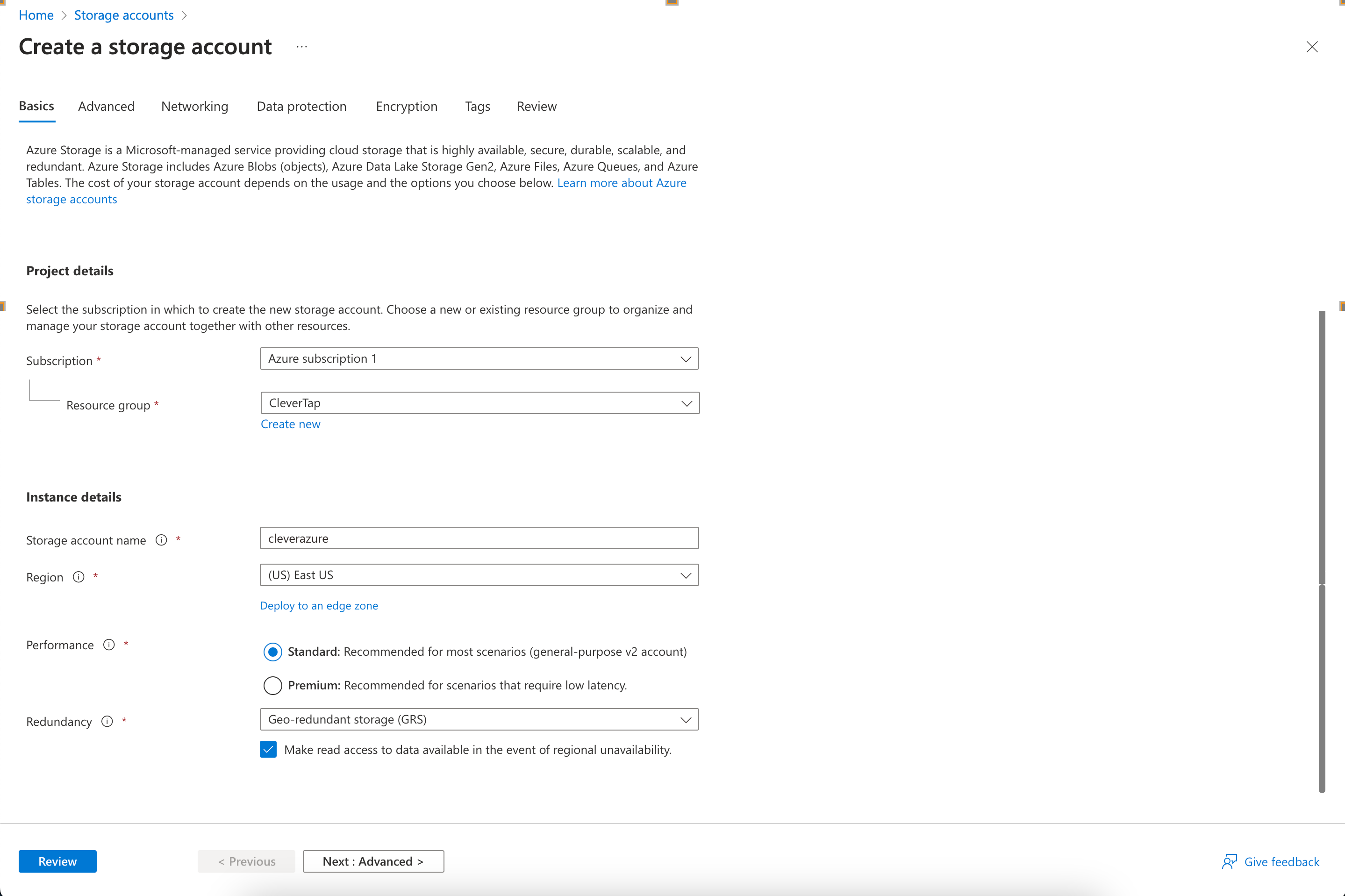
Enter Storage Account Name
-
On the Advanced tab, under Security, select Allow storage account key access. You sign the CleverTap SAS token with the account key, and the token stops working if you later disable this setting.
-
On the Networking tab, select Public network access and set it to Enable from all networks. If your organization requires Enable from selected virtual networks and IP addresses, add the CleverTap IP ranges for your connection type under Firewall. For more information, refer to How do I whitelist CleverTap's IP addresses?
-
Keep the default settings as is for the Data protection, Encryption, and Tags tabs. Do not enable immutable storage on a container that you use for export. If your organization requires customer-managed keys for encryption, refer to Can I use customer-managed keys to encrypt the storage account? before you select them.
-
Click Review + create, and after validation passes, click Create.
-
When the deployment is complete, click Go to resource and note the storage account name.
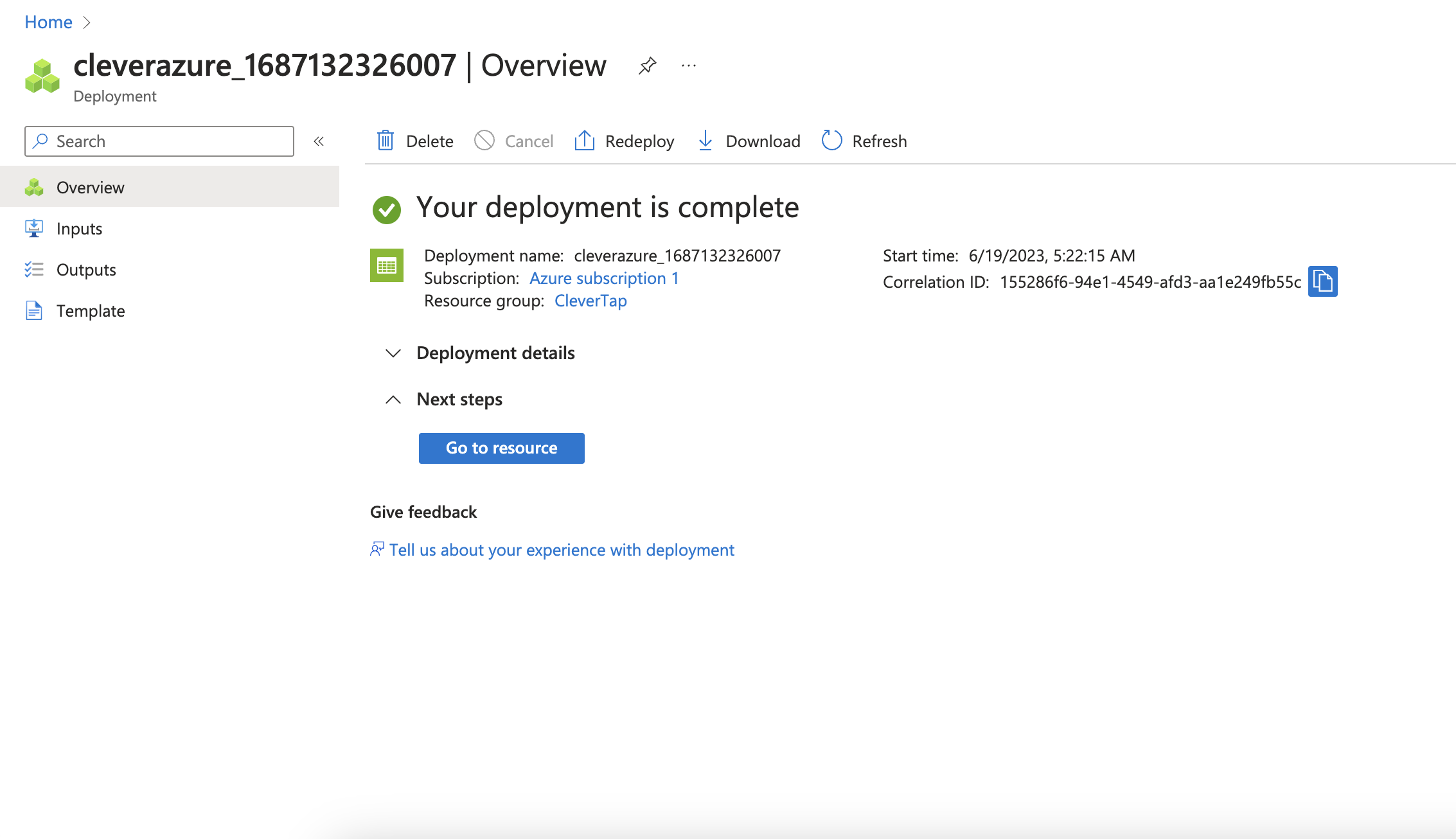
Storage Account Created Successfully
For more information, refer to Microsoft's Create a storage account documentation.
Create Container
CleverTap reads from or writes to a container within your storage account.
-
Open your storage account and, from the left menu, select Data storage > Containers.
-
Click + Container.
-
Under Name, enter a container name.
-
Keep Anonymous access level as Private (no anonymous access).
-
Click Create.
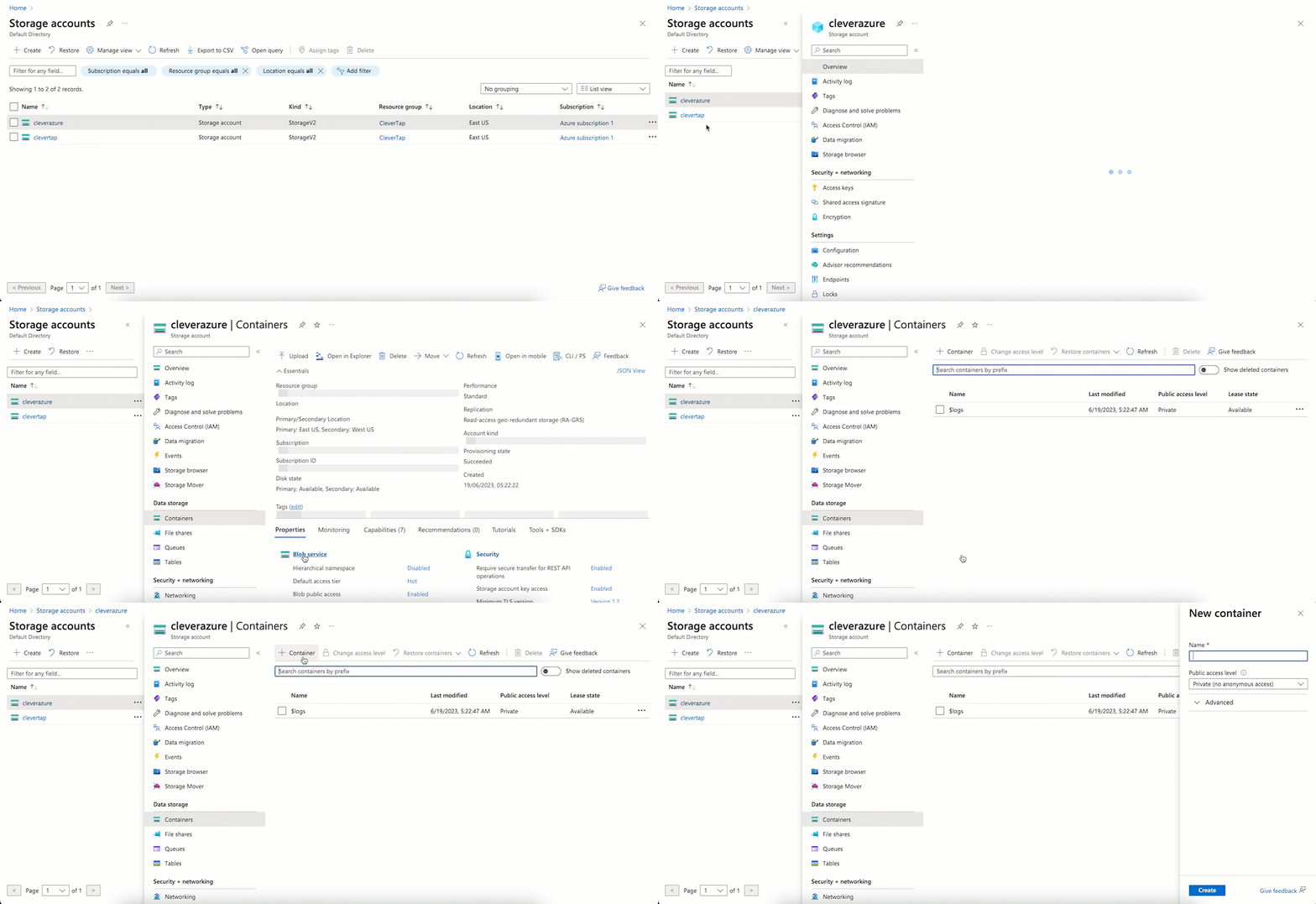
Create Container
-
Copy the container name as you need to enter it in the Folder path field on the CleverTap dashboard.
NoteContainer names must be 3 to 63 characters, contain only lowercase letters, numbers, and hyphens (-), begin with a letter or number, and not contain consecutive hyphens. For more information, refer to Microsoft's container naming rules.
For more information, refer to Microsoft's Create a container documentation.
Create Subfolder for Import
For an import connection, you can optionally point CleverTap at a specific subfolder within the container.
NoteFor an export connection, you set the folder path when you create the export job, and Blob Storage creates the path when CleverTap writes the first file, so you do not need to create a folder in advance.
Blob Storage folders are virtual: a folder exists only while at least one blob has that folder prefix in its name.
-
Open the container from the Containers list.
-
Click Upload.
-
Expand Advanced and, under Upload to folder, enter the folder name, for example,
imports. -
Select a file to upload, such as your first CSV file, and click Upload.
-
Copy the folder name as you need to enter it in the Subfolder path field on the CleverTap dashboard.
If your storage account has Hierarchical namespace enabled (Azure Data Lake Storage Gen2), you can instead click + Add Directory inside the container to create an empty folder. For more information, refer to Microsoft's Upload a block blob documentation.
Generate SAS Token
A Shared Access Signature (SAS) token grants CleverTap limited, time-bound access to the container without exposing your storage account key. You generate the token on the container so that CleverTap has no access to any other container in the account. For more information, refer to Microsoft's Grant limited access to Azure Storage resources using shared access signatures documentation.
-
Open your storage account and, from the left menu, select Data storage > Containers.
-
On the row for your container, click the ellipsis (...) at the right end and select Generate SAS. The Generate SAS pane opens.
-
Enter the following details:
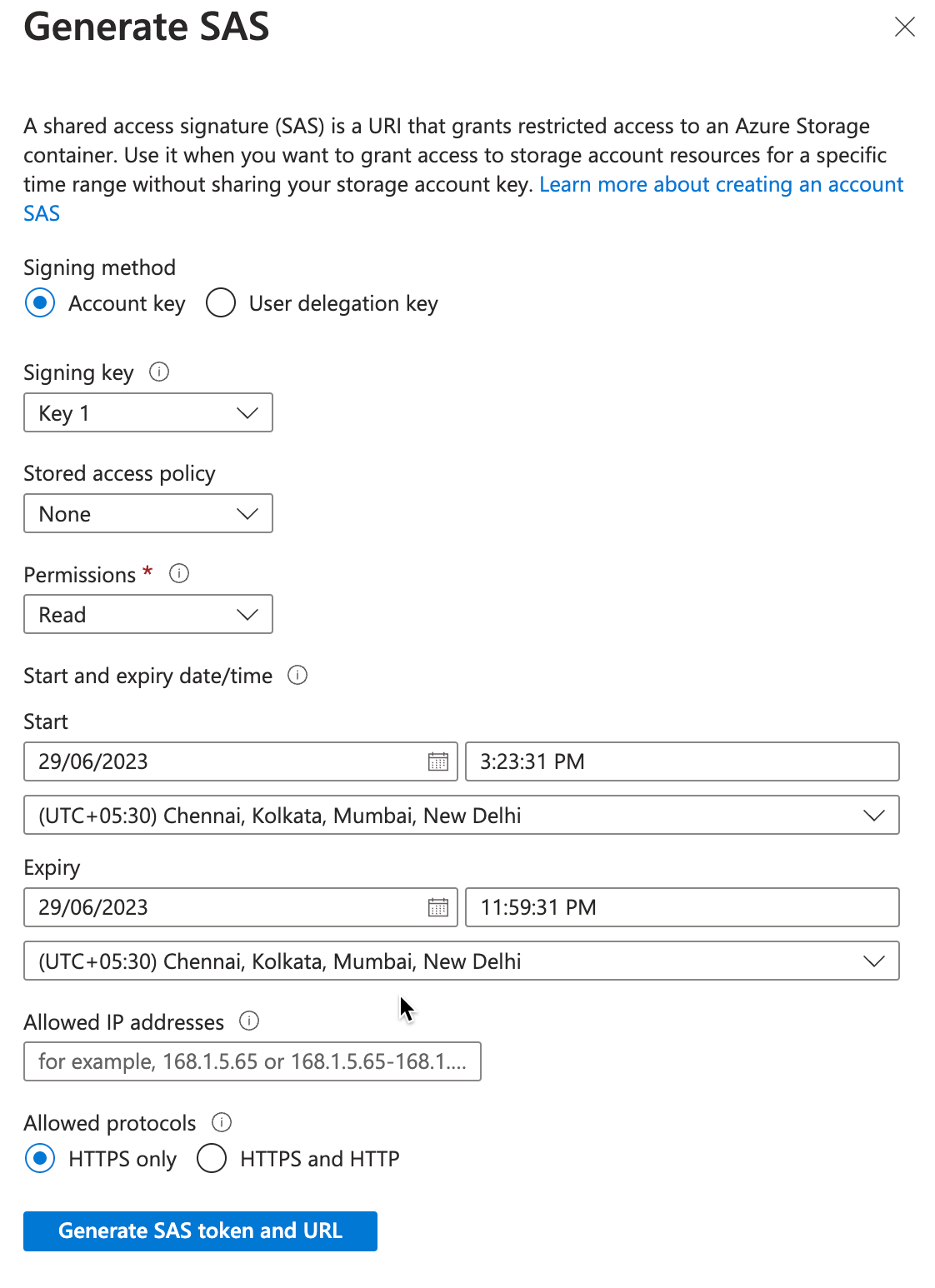
Generate SAS
Field Description Signing method Select Account key. Do not select User delegation key because a user delegation SAS expires after 7 days. Signing key Select Key 1 or Key 2 and note which key you selected. If you later rotate that key, every SAS token signed with it stops working, and you must regenerate the tokens. Stored access policy Keep None unless your organization uses stored access policies. If you select a policy, the token inherits the permissions and expiry of the policy, so the policy must grant the permissions that the Permissions row lists. A stored access policy lets you revoke the token later without rotating the key.
For more information, refer to Define a stored access policy.Permissions Required. Select only the permissions that your connection needs. - Import: Read and List
- Export: Read and Write
For more information, refer to Account SAS Permissions by Operation.Start and expiry date/time Leave Start blank, or set it at least 15 minutes in the past, because a start time of "now" causes intermittent failures for the first few minutes due to clock differences between systems.
Set Expiry to the longest duration allowed by your organization's policy, and record the date, as imports and exports fail once the token expires. CleverTap checks the expiry before it connects and reports "Azure SAS token is expired".
If the storage account has a SAS expiration policy, that policy limits the maximum expiry.
For more information, refer to Configure a SAS Expiration Policy.Allowed IP addresses Leave blank unless your organization requires IP restrictions. If you enter a range, enter the CleverTap IP ranges for your connection type. The import and export ranges differ.
For more information, refer to How do I whitelist CleverTap's IP addresses?Allowed protocols Keep HTTPS only. -
Click Generate SAS token and URL.
-
Copy the value under Blob SAS token, beginning with
?sv=. Enter this value on the CleverTap dashboard; you do not need the Blob SAS URL.Security Best PracticeSave the SAS token securely. Azure does not display the token again after you leave the pane, so generate a new token if you lose it. Never share the storage account key itself. If you believe a token has leaked, rotate the signing key under Security + networking > Access keys, or delete the stored access policy of the token, and then generate a new token.
For more information, refer to Microsoft's Create a service SAS and Configure an expiration policy for shared access signatures documentation.
Account Key Signing UnavailableIf Account key is not offered under Signing method, or Azure returns "Key based authentication is not permitted on this storage account," the storage account has Allow storage account key access turned off. Ask your Azure administrator to enable the setting under Settings > Configuration, or to exempt the storage account from the Azure Policy that disables it. For more information, refer to Microsoft's Prevent Shared Key authorization documentation.
Configure Microsoft Azure in CleverTap
Add the container details and the SAS token on the CleverTap dashboard to complete the connection, as follows:
-
On the CleverTap dashboard, go to Settings > Partners and select Microsoft Azure on the Integrations tab.
-
Select the connection type:
- For import, select the Import Connections tab.
- For export, select the Export Connections tab.
-
Click Add Microsoft Azure Bucket.
-
Under Bucket Details, enter the following details:
Field Description Import Export Connection name A unique name that identifies this connection in CleverTap, for example, events-prod-azure.Yes Yes Azure Blob storage endpoint Select Default to connect through the standard Blob Storage endpoint of your storage account, or Custom to connect through a custom domain that you mapped to it. Yes Yes Default endpoint Visible when you select Default. Enter your storage account name exactly as it appears in the Azure portal, for example, contosostorage, not the full endpoint URL.Yes Yes Custom endpoint Visible when you select Custom. Enter the custom domain mapped to your Blob Storage endpoint. The domain must serve HTTPS. For more information, refer to Microsoft's Map a custom domain to an Azure Blob Storage endpoint documentation. Yes Yes Folder path Required. The name of the container. The name must match your container name in Azure exactly, for example, data.Yes Yes Subfolder path Optional. A folder within the container if your import files are in a subdirectory, for example, imports. CleverTap reads only from this path. For export, you set the folder path when you create the export job.Yes No Preview Displays the resulting path that CleverTap uses. Verify the path before you proceed. Yes Yes SAS token Required. The Blob SAS token that you copied in Generate SAS Token, beginning with ?sv=. Do not paste the Blob SAS URL.Yes Yes 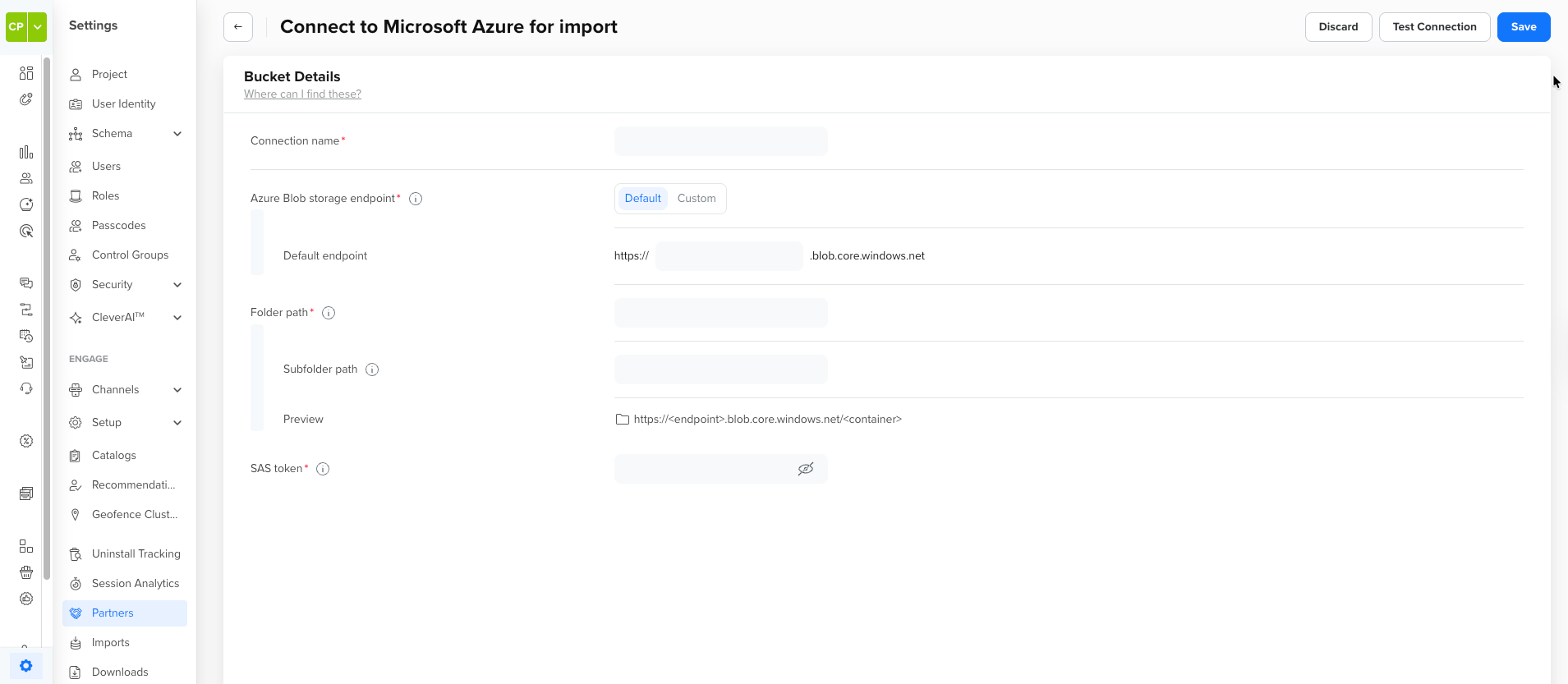
Microsoft Azure Bucket Details
Field MappingThe CleverTap dashboard does not have fields labeled "Storage account" or "Container." Enter your storage account name under Default endpoint, and enter your container name under Folder path, for example,
data. For import connections, use Subfolder path only if CleverTap should read from a folder nested inside that container. -
Verify and save:
- Import: Click Test Connection. CleverTap lists the container and the subfolder, if you entered one, using the SAS token. When the test succeeds, click Save.
- Export: Click Save. CleverTap uploads a test file to the container you specified and saves the connection only if the upload succeeds.
If the test or save fails, refer to FAQs.
The Microsoft Azure container is now configured on both Azure and the CleverTap dashboard.
FAQs
What permissions does CleverTap need?
For import, the SAS token needs the Read (to read file contents) and List (to list files in the container and its subfolders) permissions. For export, the SAS token needs Read and Write (to upload files). CleverTap never needs Delete permission, and it never needs the storage account key itself.
Can I use one connection for both import and export?
No. You configure import and export connections separately under Import Connections and Export Connections. You can point both connections at the same container, and you generate a separate SAS token for each connection with only the permissions that the connection needs.
Does the storage account have to be in a specific region?
No. Any Azure region works.
Can I use customer-managed keys to encrypt the storage account?
You can configure the storage account to encrypt data with a customer-managed key that you store in Azure Key Vault. You set the key on the storage account under the Encryption settings. The key vault needs soft delete and purge protection enabled, and the managed identity that the storage account uses needs the Key Vault Crypto Service Encryption User role on the key vault. For more information, refer to Microsoft's Configure customer-managed keys in the same tenant for an existing storage account documentation.
How can I limit which files CleverTap reads from my container?
Use the Subfolder path field on the import connection to point CleverTap to a specific folder within your container. CleverTap reads only from that path. Because the SAS token covers only the container, CleverTap has no access to other containers in the storage account.
What happens when my SAS token expires?
Imports and exports that use the connection fail, and CleverTap emails the export creator with the message "Azure SAS token is expired." An export remains in the pending or running state. Generate a new SAS token in Azure, go to Settings > Partners > Microsoft Azure, edit the connection on the relevant tab, and replace the SAS token value. For import, click Test Connection and then Save. For export, click Save. Record the expiry date when you generate a token so that you can replace the token before it expires.
How do I revoke CleverTap's access?
Rotate the storage account key that signed the token under Security + networking > Access keys, or, if you generated the token with a stored access policy, delete that policy. Rotating the key also invalidates every other SAS token signed with it.
How do I whitelist CleverTap's IP addresses?
CleverTap connects to Blob Storage from fixed IP ranges. You can restrict access to those ranges in two places: the Allowed IP addresses field when you generate the SAS token, and the storage account firewall under Security + networking > Networking when you set Public network access to Enable from selected virtual networks and IP addresses. In either case, allow the ranges for the connection type that you use. The import and export ranges differ:
- Export: Refer to CleverTap IP Ranges.
- Import: Refer to How can I whitelist IPs for CleverTap integration? in the Import FAQs.
For the storage account firewall, refer to Microsoft's Configure Azure Storage firewalls and virtual networks documentation.
Can I use a storage account with hierarchical namespace (Azure Data Lake Storage Gen2) enabled?
CleverTap connects via the Blob Storage endpoint, which remains available on storage accounts with hierarchical namespace enabled; container SAS tokens work the same way. Run a one-time export or a test import against the container, and confirm the result before you schedule recurring jobs.
Why is Account key unavailable under Signing method?
The storage account has Allow storage account key access turned off, or you lack the listkeys permission. Ask your Azure administrator to enable the setting under Settings > Configuration, or to grant you the Storage Account Key Operator Service Role. For more information, refer to Generate SAS Token.
Why does Test Connection fail for an import connection?
The Default endpoint contains a URL instead of the account name, the Folder path does not match the container name, the Subfolder path does not exist, or the SAS token lacks Read or List, has expired, or you pasted it incompletely. Confirm that the Default endpoint contains only the storage account name, confirm that the Folder path matches the container name exactly, confirm that the subfolder contains at least one file, and confirm that the SAS token begins with ?sv=, includes sp=rl (or a superset), and has an se= expiry in the future.
Why does Save fail for an export connection when CleverTap cannot upload the test file?
The SAS token lacks Write or Read, has expired or is not yet valid, or the storage account firewall or the Allowed IP addresses field of the token blocks the export IP ranges of CleverTap. Confirm that the token includes sp=rw (or a superset), confirm its st= and se= values, and confirm that your organization allows the export IP ranges if it restricts access by IP. For more information, refer to How do I whitelist CleverTap's IP addresses?
Why does an export stop with an "Azure SAS token is not yet valid" email?
The start time of the token is in the future, or you set it to the current time and clock skew between systems has not yet elapsed. Generate a new SAS token with Start blank or at least 15 minutes in the past, and then update the connection.
Why do imports or exports fail after an administrator rotates the storage account keys?
Rotating a storage account key invalidates every SAS token signed with that key. Generate a new SAS token signed with the current key, and update the connection. Before you rotate keys in the future, generate the replacement token with the other key and update the connection first.
Why does a connection with a Custom endpoint fail with a certificate or connection error?
Azure Blob Storage does not serve HTTPS on a custom domain by itself, so the domain needs Azure Front Door or Azure CDN with a certificate. Serve the custom domain over HTTPS through Azure Front Door or Azure CDN, or switch the connection to the Default endpoint.
Why does Azure reject requests although the SAS token is valid?
The storage account restricts Public network access and the firewall omits the CleverTap IP ranges, or the Allowed IP addresses field of the token omits them. Add the CleverTap IP ranges for the connection type under Security + networking > Networking > Firewall, or regenerate the token with the ranges under Allowed IP addresses. For more information, refer to How do I whitelist CleverTap's IP addresses?
Why does an import run but read no files?
The Subfolder path points to a folder that contains no CSV or Parquet files, or the files are in a different folder. Verify that the path under Preview matches the location where your pipeline writes the files. Blob Storage folders are virtual, so a folder with no files does not exist.
Next Steps
After you configure the connection, you can create imports and exports that use it.
- Create an import that reads from this connection. For more information, refer to Create Import, Map Data for Import, Schedule Import, and Import Listing and Stats.
- Create an export that writes to this connection. For more information, refer to Cloud Storage, Event Exports, or Profile Exports.
Updated 43 minutes ago