
SurveyMars
Understand how to capture customer feedback using CleverTap integration with SurveyMars.
Overview
SurveyMars is an online survey platform that enables businesses to capture customer feedback through customizable forms and surveys. By integrating SurveyMars with CleverTap using Zapier, you can automatically sync survey responses with CleverTap to enrich user profiles, track engagement events, and trigger personalized campaigns based on customer feedback.
This integration enables you to:
- Collect User Data Seamlessly: Embed SurveyMars surveys into CleverTap campaigns (In-App, Email, or Web Popups)
- Enrich User Profiles
Map survey responses to CleverTap user profiles to maintain updated user attributes. - Personalize Engagement: Log survey submissions as events in CleverTap to segment users and trigger automated journeys.
- Power Data-Driven Engagement: Use survey responses to personalize messaging and enhance customer engagement strategies.
Prerequisites for Integration
The following are required for this integration:
- Access to your SurveyMars account
- Access to an active Zapier account
- A CleverTap account with a valid Account ID and Passcode.
Integrate SurveyMars with CleverTap Using Zapier
The integration involves the following four major steps:
- Create Passcode on CleverTap Dashboard.
- Create and Configure Survey in SurveyMars.
- Configure CleverTap Campaign.
- Connect SurveyMars and CleverTap via Zapier.
Create Passcode on CleverTap Dashboard
CleverTap uses a header-based authentication model for API requests. Every CleverTap API call must include Account ID and Passcode as request headers. To create a passcode, refer to Create Account Passcode.
Create and Configure Survey in SurveyMars
Create a survey form that captures user contact details, feedback, and preferences. To do so, perform the following steps:
- Go to the SurveyMars dashboard and create a survey. For this example, create a simple survey that collects Name and Email ID. Save the survey.
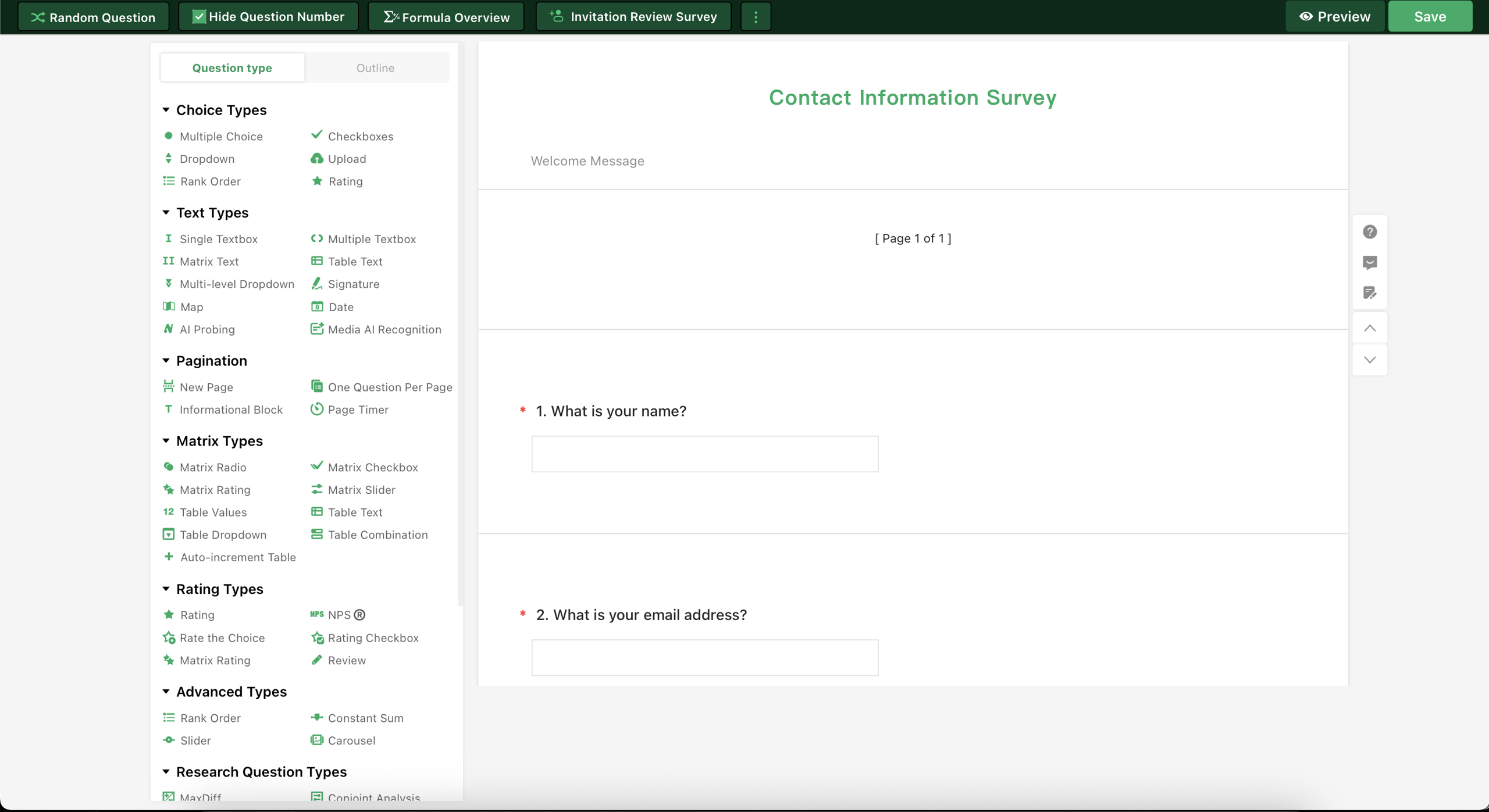
Create Survey
- Select the Share tab at the top. Here, you can find the link to the survey you created.
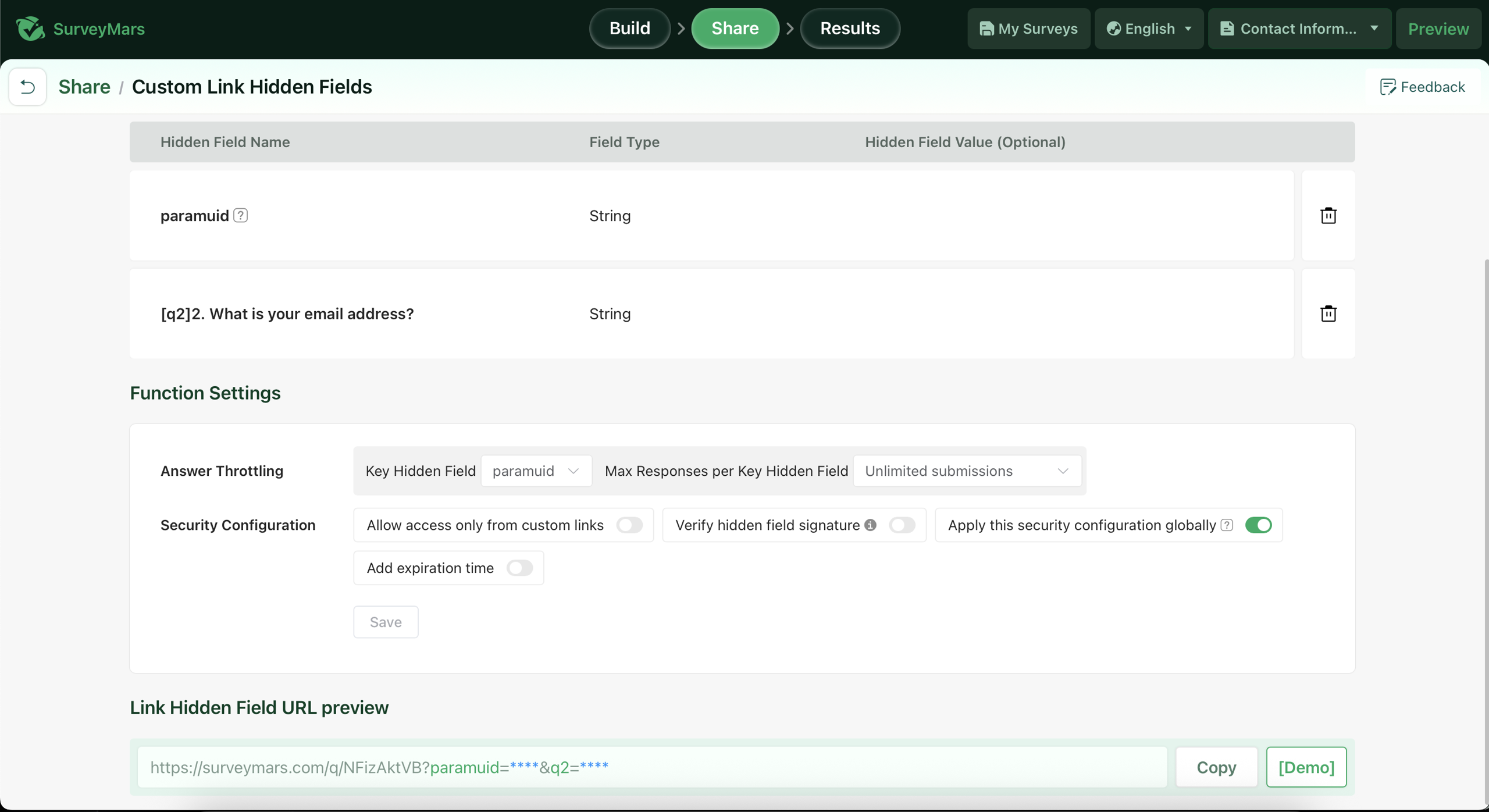
Share Survey
- Click Copy Link to copy the survey URL, which you will need for configuration in the CleverTap campaign.
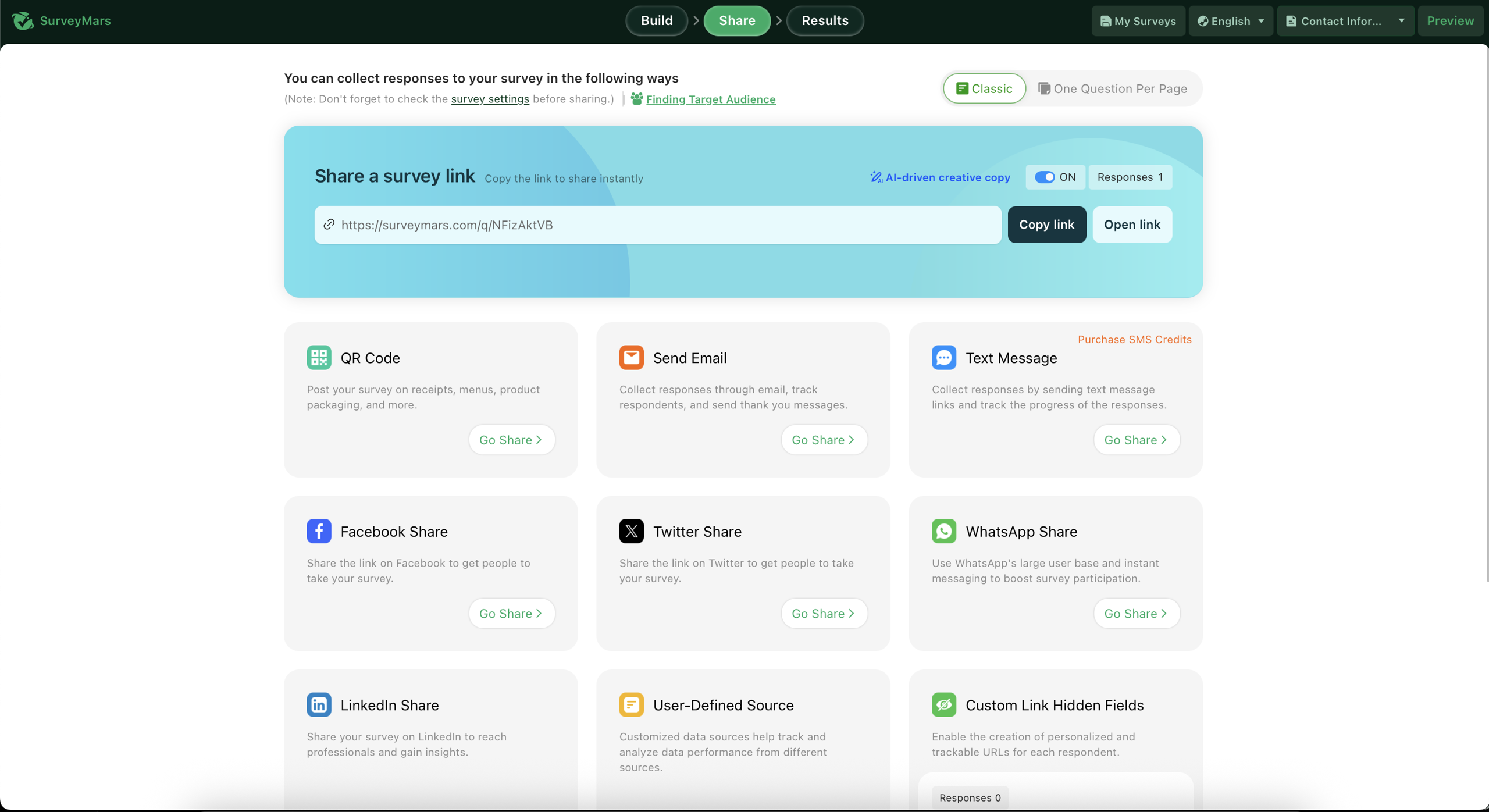
Copy Survey Link
Configure CleverTap Campaign
Configure a CleverTap campaign to display your survey. This allows users to submit responses within the campaign. To do so, perform the following steps:
- In the CleverTap dashboard, create a new InApp Message campaign (you can also use Email or Web Popups that support HTML).
- In the What section, select a Custom HTML Template such as Interstitial.

Custom HTML Templates
- Paste the following code below under the Custom HTML section. And, replace
<survey url>with the survey URL copied in Step 3 of Create and Configure Survey in SurveyMars.<iframe src="<survey url>" style="width:100%; height:100%; border:none;"></iframe>
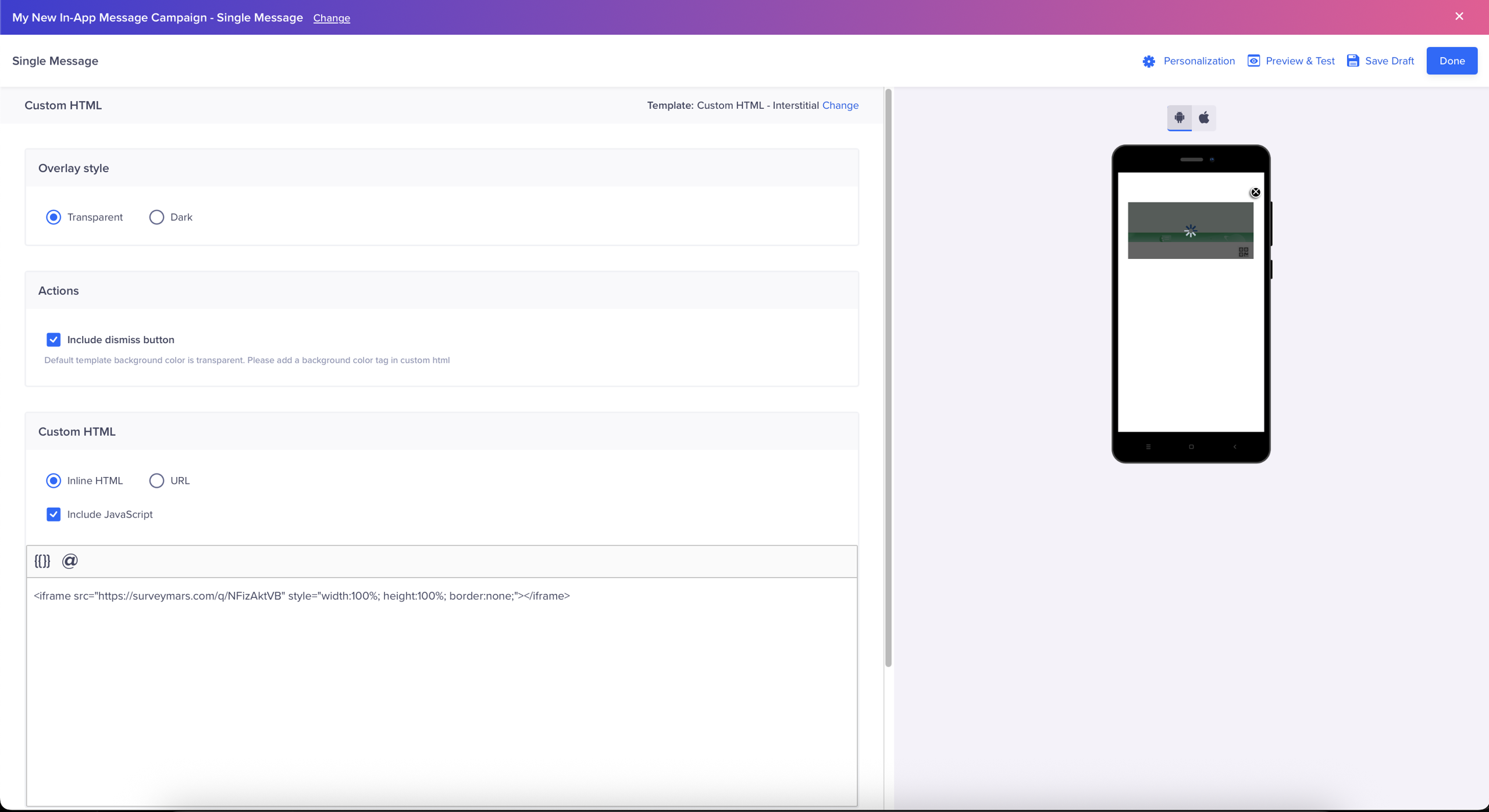
Preview and Test
- Click Preview and Test to verify that the form renders correctly.
- Publish the campaign only after configuring the Create/Update User Profiles or Upload Event zap.
Connect SurveyMars and CleverTap via Zapier
Zapier acts as the automation bridge between SurveyMars and CleverTap. Whenever a user submits a Survey response, Zapier captures the submission and forwards the data to CleverTap in real time. This allows you to:
- Enrich or create user profiles in CleverTap with the submitted attributes. For more information, refer to Create/Update User Profiles.
- Track each submission as an event for segmentation, analytics, and automated engagement campaigns. For more information, refer to Upload Event.
Create/Update User Profiles
Consider an example where you want to automatically sync details captured in SurveyMars with CleverTap to drive personalized engagement. This ensures that each new submission updates the user’s CleverTap profile in real time. To do so, perform the following steps:
- Log in to the Zapier dashboard and click + Create Zap. Zapier can connect different applications, such as SurveyMars.
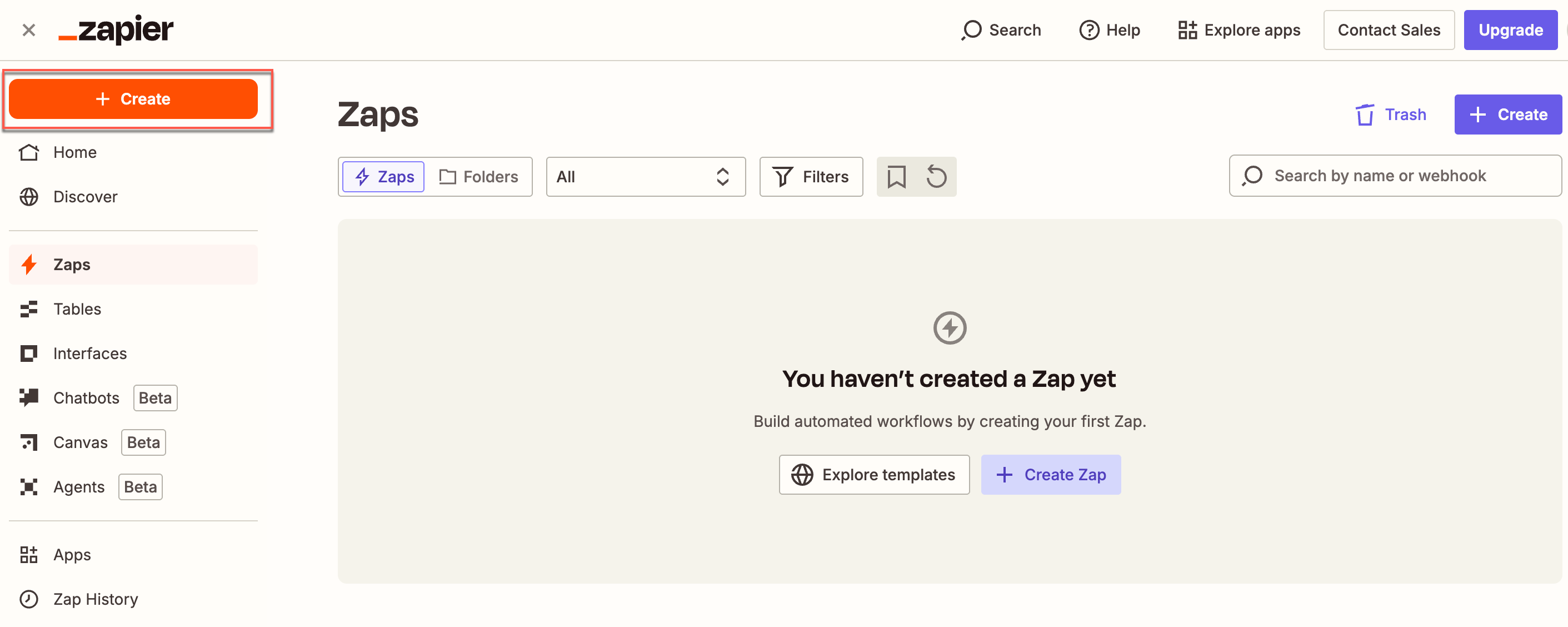
Create a Zap on Zapier Dashboard
- Set up a Trigger. To do so, perform the following steps:
- Select SurveyMars from the App section. This starts the Zap when a trigger event occurs on SurveyMars.
- Select Trigger Event from the dropdown list and then select Get Responses for this use case.
- Select Account and sign in using your SurveyMars account credentials.
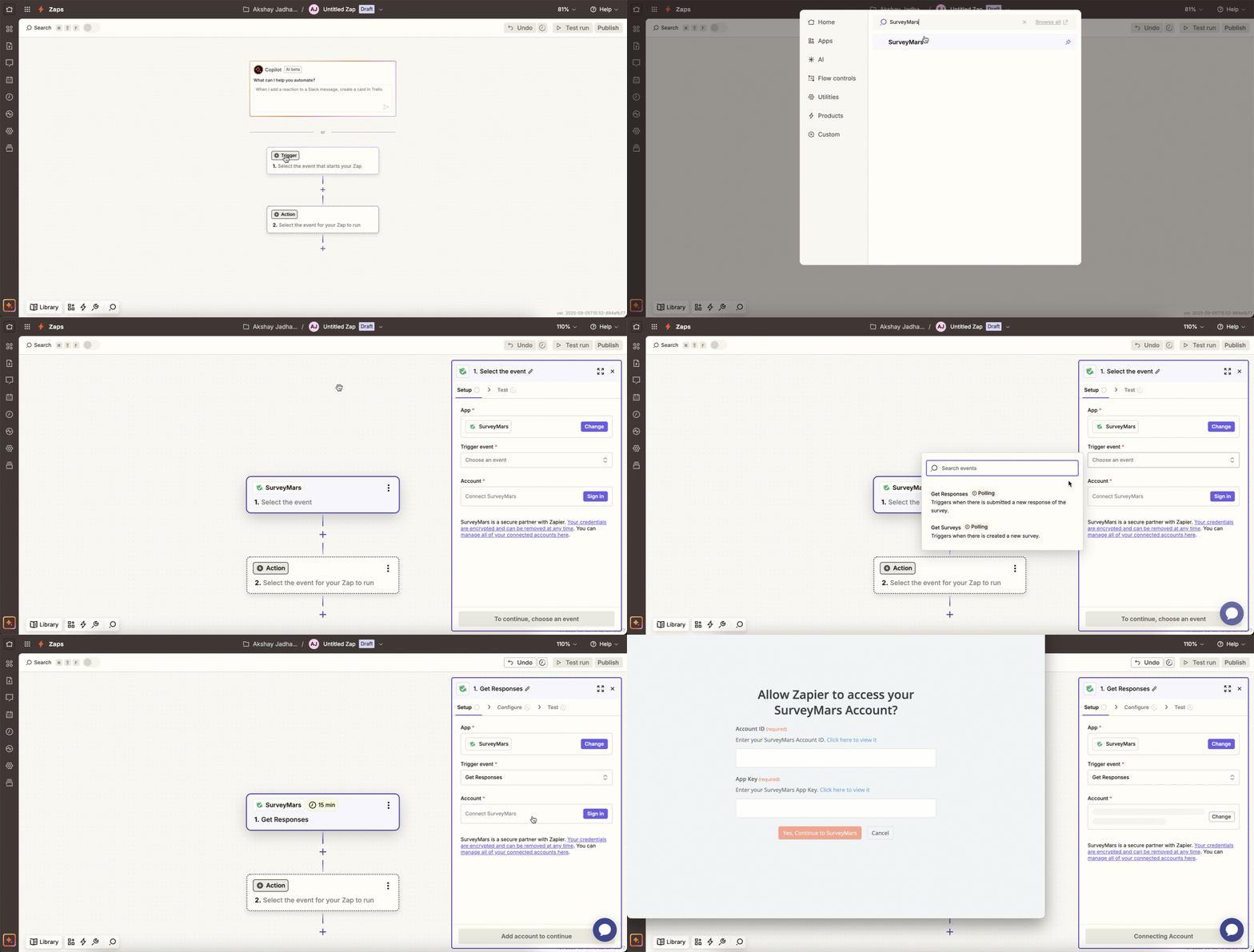
Set Up Trigger Event
- Click Test Trigger. This ensures that the correct account is connected and the trigger is set up correctly.
After testing the trigger, you will see a sample of the most recent responses to the form.
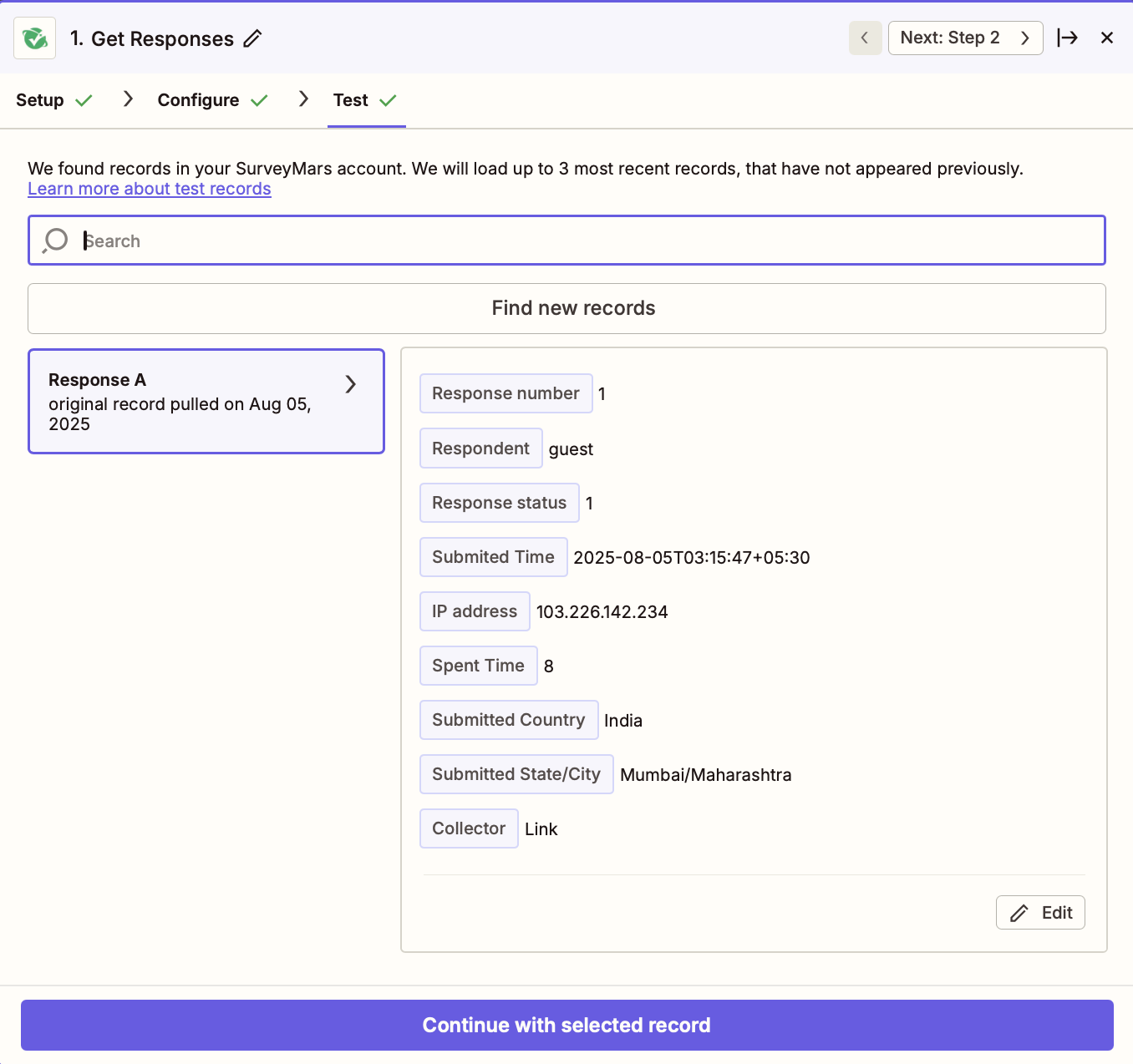
Details of Pulled Records
- Click Continue with selected record.
- Select the Action that the zap must perform after the trigger event occurs. To do so, perform the following steps:
- Select CleverTap from the App dropdown.
- Select Create/Update User Profile from the Action event dropdown. This implies that whenever a new response is generated, a new user profile is created, or an existing user profile is updated with the new information.
- Select Account to connect the CleverTap account. The Zapier window opens. Enter all the required details to connect to the CleverTap account. Enter the same passcode you obtained during the Create a Passcode on CleverTap Dashboard step.
- Click Continue after successfully connecting your account.
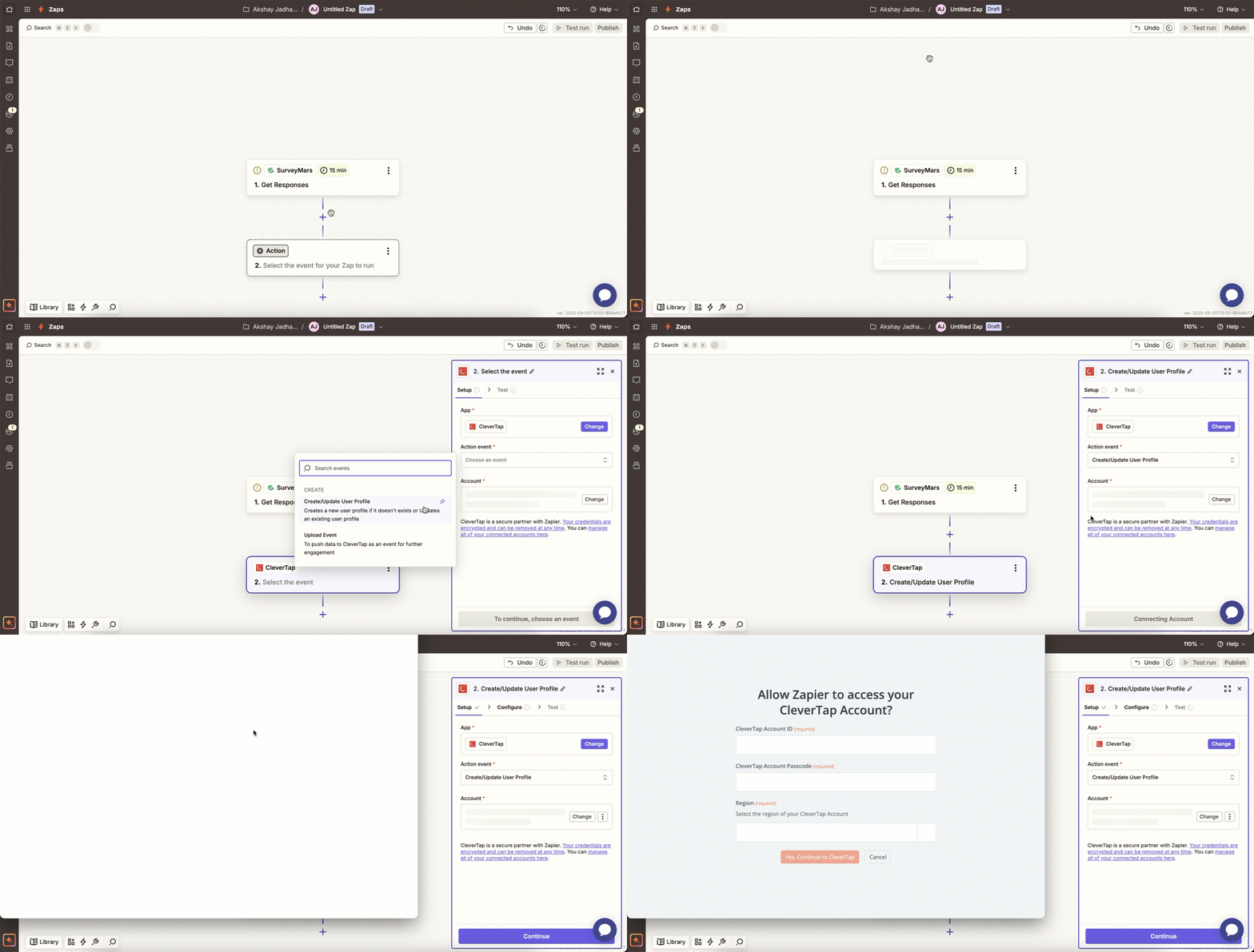
Select the Action for Zap
- Configure the Action. Map SurveyMars data fields to CleverTap fields as follows:
| CleverTap Field | SurveyMars Field |
|---|---|
| Identity | Email or unique user identifier |
| Object ID | Leave blank if Identity is provided |
| Creation Date | Submission date or timestamp |
| Profile Properties | Map survey response fields such as name, email, feedback, or ratings. |
Mapping Identity and Object IDYou can keep the Identity field blank if you provide an Object ID, and vice versa.
- Click Continue, and click Test Step to test the zap after mapping the fields.
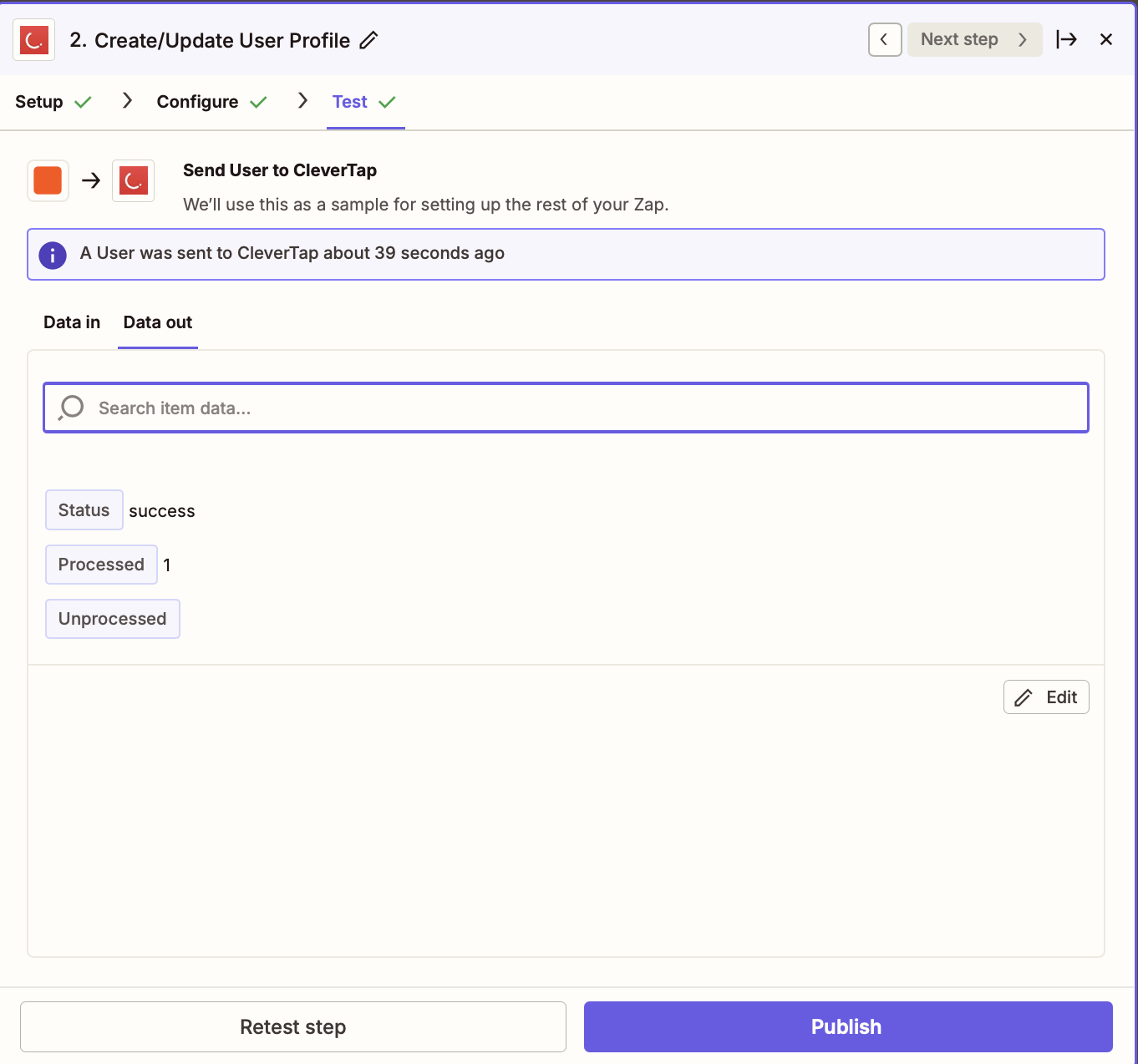
Test Zap
- Click Publish. Also, publish the campaign you have created in Configure CleverTap Campaign. After this, users will receive an InAapp campaign as shown below, and the responses will be sent back to CleverTap via Zapier.
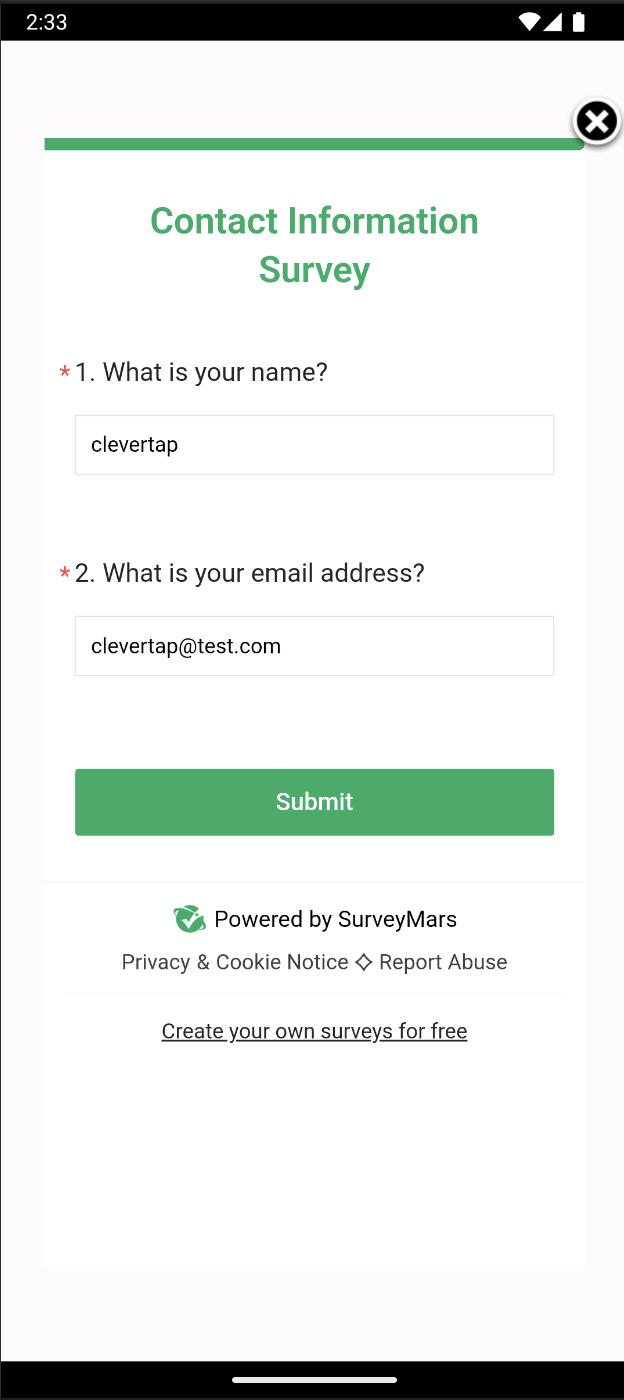
In-App Message
Upload Event
Consider an example where you want to track form submissions as events in CleverTap instead of updating user profiles. This automation ensures that every submission is logged for analytics and segmentation.
-
Follow Step 1 through Step 4 from Create/Update User Profiles to configure SurveyMars as the trigger.
-
Select the Action that the zap must perform after the trigger event occurs. To do so, perform the following steps:
- Select CleverTap from the App dropdown.
- Select Upload Event from the Action event dropdown.
- Select the Account to connect the CleverTap account. The Zapier window opens. Enter all the required details to connect to the CleverTap account. Enter the same passcode you obtained during the Create Passcode on CleverTap Dashboard step.
- Click Continue after successfully connecting your account.
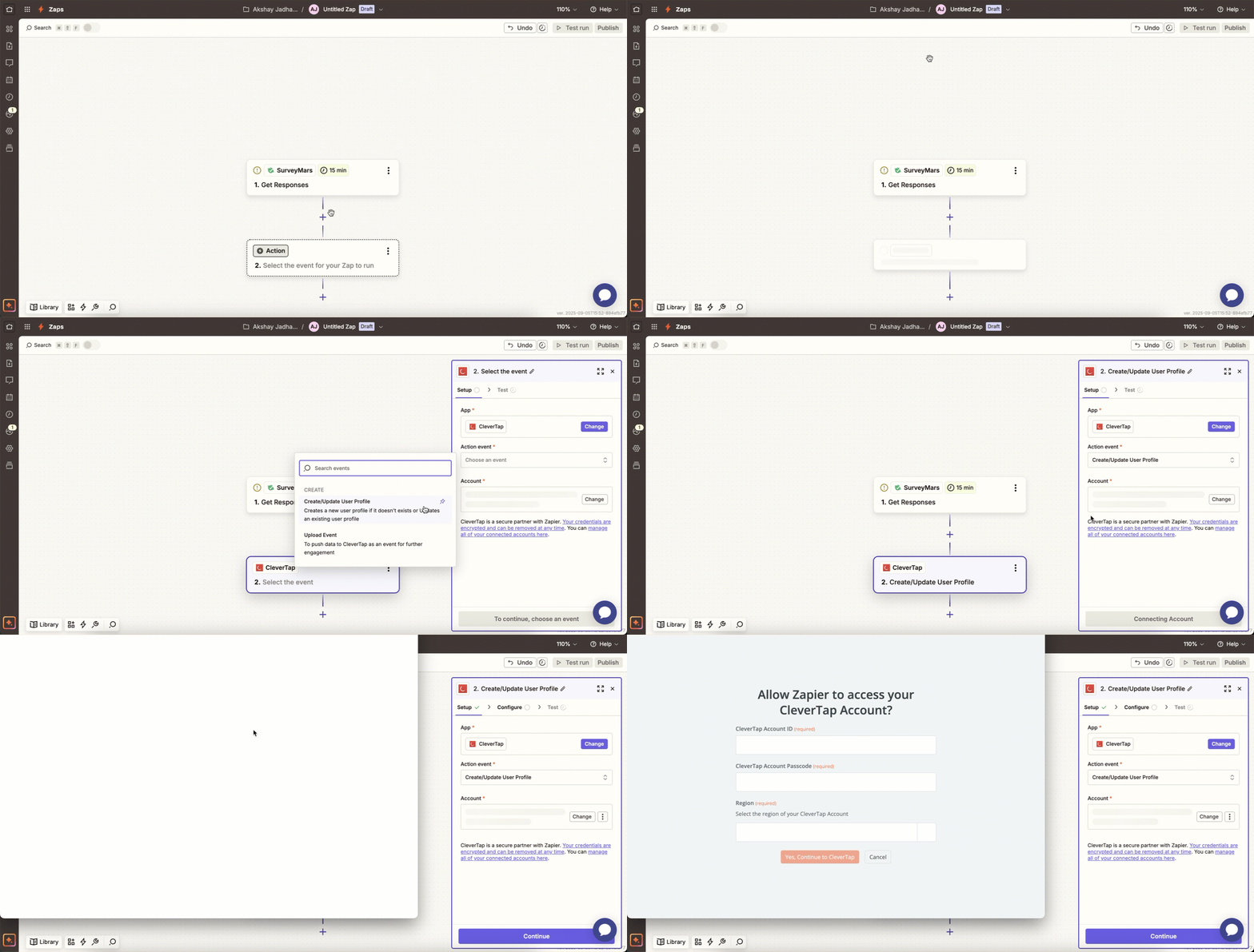
Select the Action for Zap
- Configure the Action. Map SurveyMars data fields to CleverTap fields as follows:
| CleverTap Field | SurveyMars Field |
|---|---|
| User ID | Email or unique user identifier. |
| Event Name | Descriptive event name, such as "Form Submitted" or "Feedback Captured". |
| Creation Date | Submission timestamp. |
| Event Properties | Responses in JSON format (for example, answers, ratings, campaign reference). |
Mapping Identity and Object IDYou can keep the Identity field blank if you provide an Object ID, and vice versa.
- Click Continue and click Test Step to test the zap after mapping the fields.
- Click Publish.
Once published, every new survey response submission will automatically appear in CleverTap as an event, enabling deeper analytics, segmentation, and campaign targeting.
FAQs
Can I embed SurveyMars in Email or Web Popups?
Yes. The integration works with any CleverTap campaign that supports custom HTML, including Email, Web Popups, and In-App Messages.
Updated 6 months ago