
Event-Based Rules
Learn how to create recommendation rules triggered by user events and behaviors.
Overview
An event-based rule defines which catalog items are eligible for personalization based on a user's behavioral signals, the events they trigger, and the properties associated with those events.
Unlike catalog-based rules, which filter items based on static catalog attributes, event-based rules incorporate user behavior to dynamically shape the item pool. Recommendations for each user are resolved from their own event history, so two users in the same campaign can receive entirely different outputs.
Event-based rules can work alongside catalog-based rules in the recommendation pipeline: catalog-based rules define the base item pool using static attributes; event-based rules refine or exclude from that pool using behavioral context.
How Event-Based Rules Work
Event-based rules operate in two phases: a background pre-computation phase and a runtime filtering phase.
Background Pre-Computation
When a user triggers an event, a background process (the populator) evaluates the rule continuously:
- Checks whether the event matches the rule's criteria (event name and filter conditions).
- Uses the Catalog and Event Property Mapping section to identify which catalog item is associated with the event.
- Writes the matched product ID to a per-user feature store, keyed by rule and timestamp.
- Retains only the most recent N entries, where N is the Interaction Count you set on the rule.
The eligible item set for each user is built continuously in the background. When a recommendation request arrives, the engine reads from this store; it does not process event history at that point.
The following fields control how the populator builds the store:
| Field | Effect |
|---|---|
| Condition (event + filters) | Determines which events qualify |
| Catalog and Event Property Mapping (Map catalog column to event property) | Determines which catalog item to associate with each qualifying event. |
| Interaction Count | Determines how many recent qualifying event-item associations to retain per user. The default value is 100. |
| Date/Time Period | Determines how far back in history the populator looks |
Runtime Filtering
When a recommendation request arrives, the recommendation pool is assembled first; event-based rule filters shape it as follows:
- The engine reads each user's pre-computed product IDs for the referenced rules.
- Per-user filtering is then applied to that pool:
- Inclusion rule: Keep only items that appear in the user's resolved include set
- Exclusion rule: Remove items that appear in the user's resolved exclude set
The final ranked output is returned.
NoteWhen catalog-based rules are active, they are applied first at the catalog fetch step to shape the candidate pool. Event-based rules then filter that pool per user.
Inclusion vs. Exclusion
Inclusion and Exclusion are not properties of a rule. The same rule can act as an inclusion in one strategy and an exclusion in another.
The designation is made when you attach the rule to a recommendation strategy, not when you create the rule. When creating a rule, you define the matching criteria and item association. How the resolved item set is applied (i.e., whether to include or exclude it) is a strategy-level decision.
Condition Logic
- Each rule supports exactly one event (for example, Product Viewed or Added to Cart)
- Multiple filter rows within that event are combined with AND logic
- To handle OR logic across different events, create separate rules and reference both in the strategy
Use Cases
| Industry | Use Cases |
|---|---|
| ECommerce |
|
| Streaming/OTT Platform |
|
| Travel |
|
| Food Delivery |
|
| Gaming |
|
| EdTech |
|
Create Event-Based Rule
To create a new rule, go to Recommendations > Event-Based Rules and click Create Rule. The Create Event-Based Rule page opens.
To create a rule, perform the following steps:
- Click Create to save the rule.
- Enter the following details to identify and describe the rule:
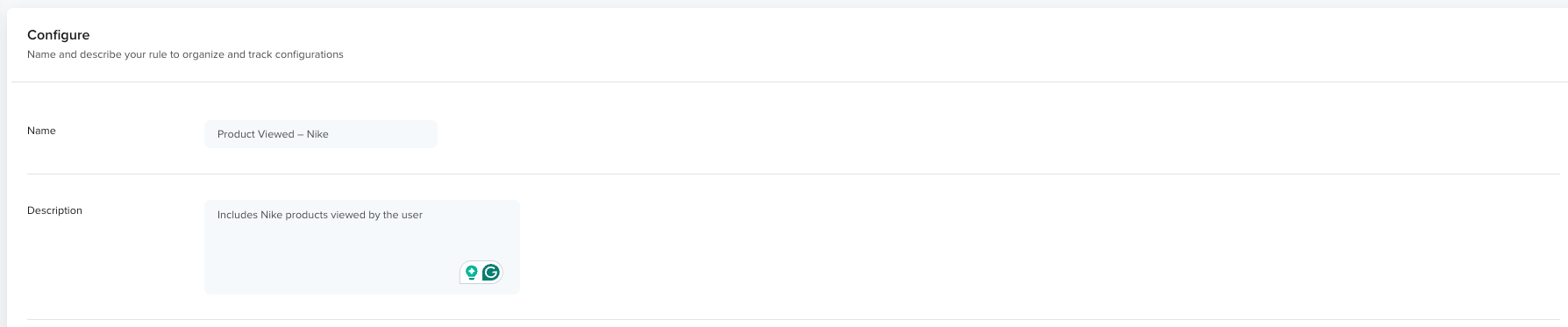
Enter Rule Details
| Field | Description | Constraints |
|---|---|---|
| Name | A descriptive name that makes the rule's intent immediately clear. For example, Added to Cart in Last 10, Product Viewed – Nike, Already Purchased, and so on. | Max 255 characters. Required. Must be unique within the account. |
| Description | A short explanation of what the rule does and when to use it. For example, Excludes items the user has already purchased in the last 30 days. | Max 1000 characters. Optional. |
-
Click Add Condition to add a condition block. Each rule supports one event.
-
Select an Event: Click the event field to choose from the available events in your account, such as Added to Cart, Product Viewed, or Charged.
-
(Optional) Filter the Event: Click + Filter to narrow the event using event properties. A filter row appears with the following fields:
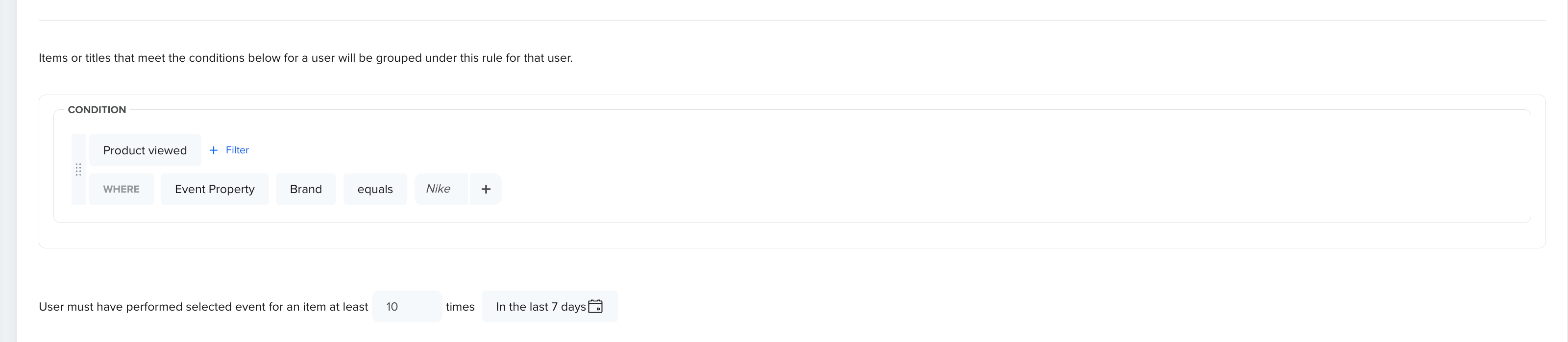
Add Condition
| Field | Description |
|---|---|
| Event Property | Select the specific property source to filter on, such as Brand, Category, or Product Name. |
| Operator | The comparison logic: equals, not equals, contains, does not contain, greater than, less than, between, and others |
| Value | The value to match, entered as free text (for example, Nike) |
| Interaction Count | The maximum number of recent qualifying event-item associations to retain per user. For example, a value of 10 means only the 10 most recent matching events are used. |
| Date/Time Period | The time window within which qualifying events are considered. Supports relative periods (last 7 days, last 30 days) and absolute date ranges. Events outside this window are not evaluated. |
-
Click + to add additional values for the same property (OR logic within the filter row). You can click × to remove a value. To delete the filter row, click the trash icon on the right.
Multiple filter rows on the same event are combined with AND logic: all conditions must match for the event to qualify. For example:
Event: Product Viewed AND Brand = Nike AND Category = FootwearThis applies only to Product Viewed events where Brand is Nike, and Category is Footwear.
Condition Logic
- Each rule supports exactly one event (for example, Product Viewed or Added to Cart)
- Multiple filter rows within that event are combined with AND logic
- To handle OR logic across different events, create separate rules and reference both in the strategy
Catalog and Event Property Mapping
This section maps a catalog column to an event property so the engine knows which catalog item to associate with a qualifying event.
| Column | Description |
|---|---|
| Catalog column | The field from the catalog that identifies the item (for example, product_id) |
| Event property | The event property whose value corresponds to the catalog column (for example, item_id) |
In this example, the Catalog column: product_id maps to Event property: item_id
This tells the engine: when a qualifying event triggers, read the item_id from that event and match it against the catalog column product_id to identify which item is associated.
Column MappingThe catalog column you select must be the column designated as the unique item identifier when setting up the catalog, for example,
product_id. This is the column the engine uses to match the event to the correct catalog item.
Manage Event-Based Rules
The Event-Based Rules list page provides a central view of all rules, with tools for searching, sorting, filtering, and managing them.
Each rule displays the following columns by default:
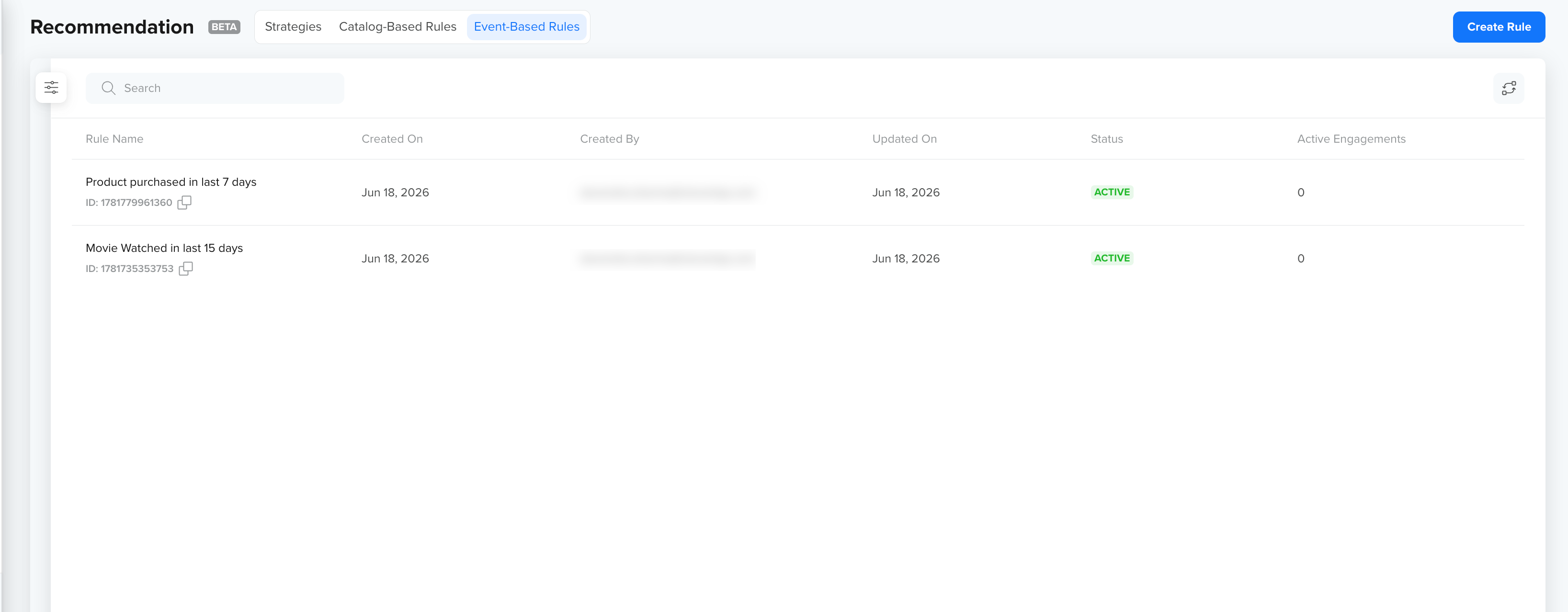
Event-Based Rules List Page
| Column | Description |
|---|---|
| Rule Name | The name of the rule and its unique ID. Click the copy icon to copy the ID. |
| Created On | The date the rule was created. |
| Created By | The user who created the rule. |
| Active Engagements | The number of active engagements currently using this rule. A rule with one or more active engagements cannot be deleted. To delete the rule, first remove it from or stop all engagements referencing it. |
From the rules list, you can perform the following actions on any rule:
- Edit: Modify the rule's name, description, criteria, interaction count, date range, or event mapping.
- Clone: Select the rule to open it and then click
 to create a copy of the rule. You can use this as a starting point for a new rule with a similar configuration.
 - Delete: Select the rule and confirm deletion. A rule cannot be deleted while it is
referenced by one or more active engagements. CleverTap displays the list of campaigns
and journeys blocking the deletion, so you know what to update before retrying.
Search Rules
Use the search bar to find rules by name. Click any column header to sort by that column. A sort indicator appears in the toolbar when a sort is active.
Filter Rules
Click the  icon to open the Filters panel:
| Filter | Description |
|---|---|
| Time period | Filter by the date the rule was created or last updated |
| Created by | Filter by the team member who created the rule |
Edit Columns
Click the  icon to open the Edit Columns panel. Toggle columns on or off and drag rows to reorder them. Click Apply Changes to save, or Reset to restore the default layout.
| Column | Visibility |
|---|---|
| Rule Name | Always visible, cannot be hidden |
| Created On | Can be toggled ON and OFF |
| Created By | Can be toggled ON and OFF |
| Active Engagements | Can be toggled ON and OFF |
Updated about 2 months ago