
One-Time Decisioning Agents
Learn how to create and manage One-Time Decisioning Agents.
Overview
One-Time Decisioning Agent is an AI-powered agent that decides which campaign to send when several campaigns compete for the same user. You configure the agent once by specifying a goal, a Reward Function, an engagement scope, and guardrails. The agent then scores every competing campaign against that goal and selects the one most relevant to each user, within your existing frequency limits.
Unlike a Lifecycle Agent, which runs a continuous, multi-stage journey toward a single lifecycle goal, a One-Time Decisioning Agent makes a single selection decision among your existing campaigns, once per day, per user. It doesn't create its own messaging path; it decides which of your already-scheduled campaigns gets through.
Prerequisites
Confirm the following before you create a One-Time Decisioning Agent:
- You have One-Time Agent access enabled on your CleverTap account.
- You have a Reward Function ready, or you'll define one during the Goal step.
- You have the necessary permissions to create campaigns and agents on your CleverTap account.
NoteCurrently, this feature is a Private Beta Release for Ultimate customers. To access this feature, contact your Account Manager.
Create One-Time Decisioning Agent
To create a One-Time Decisioning Agent, from the CleverTap dashboard, go to Decisioning > Agents, select the One-Time tab, and then click Create One-Time Agent. The Create One-Time Agent section appears.
Creating a One-Time Agent involves the following steps:
- Set Goal: Define the agent's name and description, the Stats Conversion Window, and the Reward Function.
- Set Engagement & Decisioning Scope: Define the agent, channels, and team (if enabled for your account).
- Set Guardrails: Configure applicable frequency limits, Explore Percentage, Holdout User Bucket, and Do Not Disturb behavior.
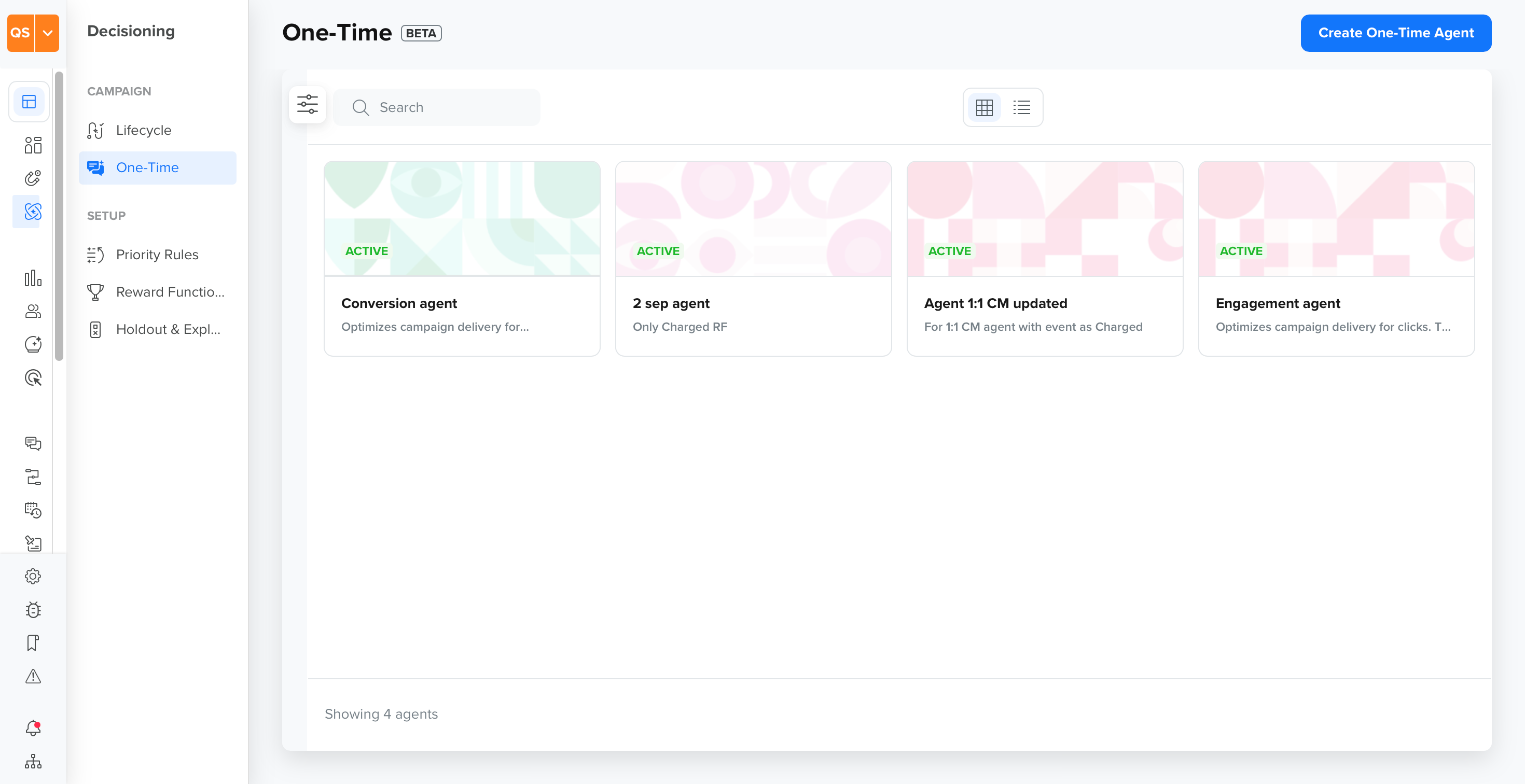
One-Time Agent
Set Goal
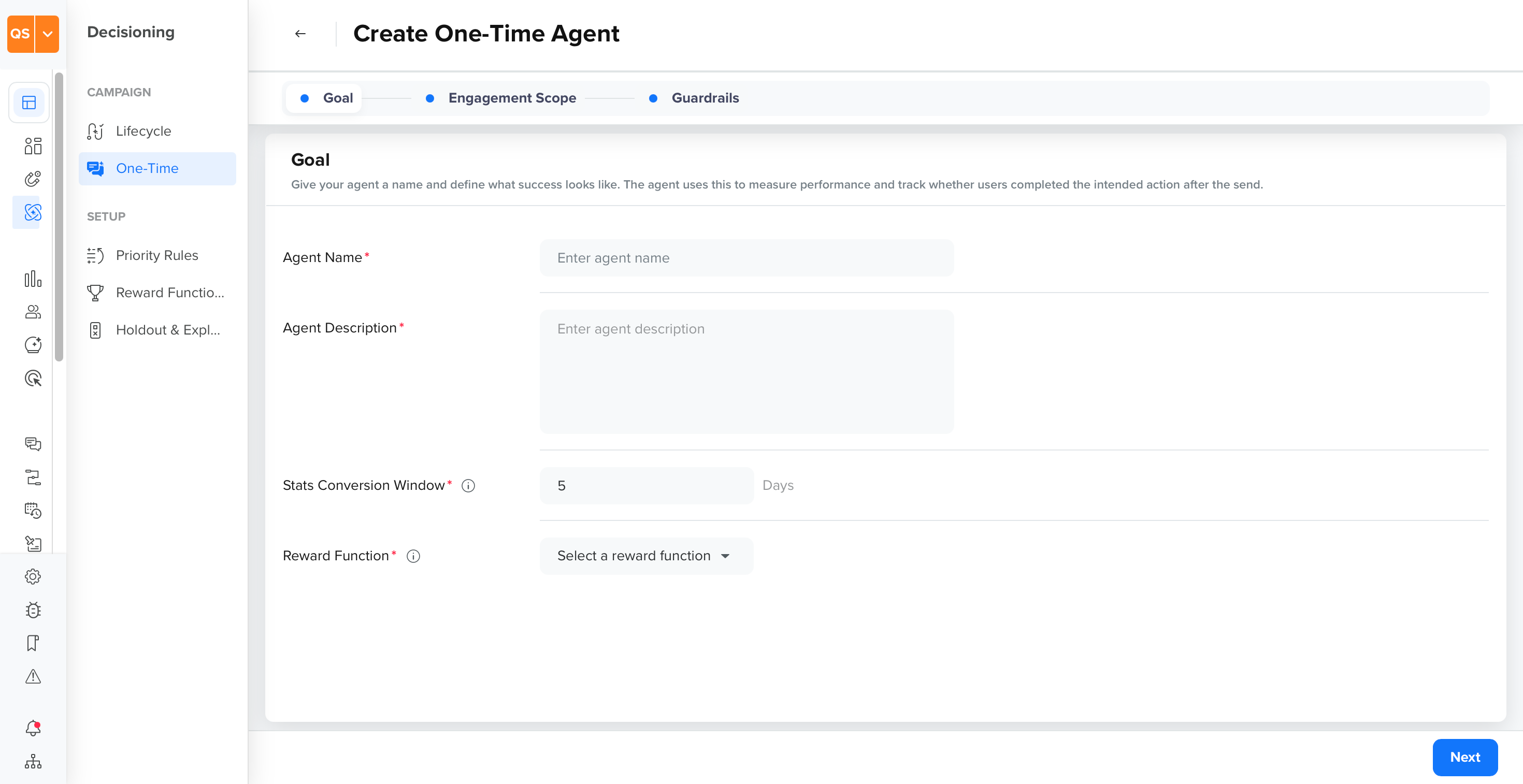
The Goal tab defines success for this agent. You set the agent's name and description, the Stats Conversion Window, and the Reward Function used to rank campaigns. The agent uses this to measure performance and track whether users completed the intended action after the send.
Set Goal
To set up goals, perform the following steps:
-
Enter a descriptive name in the Agent Name field.
-
Enter a short summary for the agent in the Agent Description field.
-
Set the Stats Conversion Window, in days. This is the time period after a send during which a conversion counts toward the agent's stats.
-
Under Reward Function, select the Reward Function that this agent ranks campaigns against. Each Reward Function defines:
- Positive Signal(s): the event(s) that determine completion of a conversion, for example,
Product SoldorPayment Info Submitted. - Negative Signal(s): the event(s) that may adversely affect conversion, for example,
Push UnregisteredorChannel Unsubscribed.
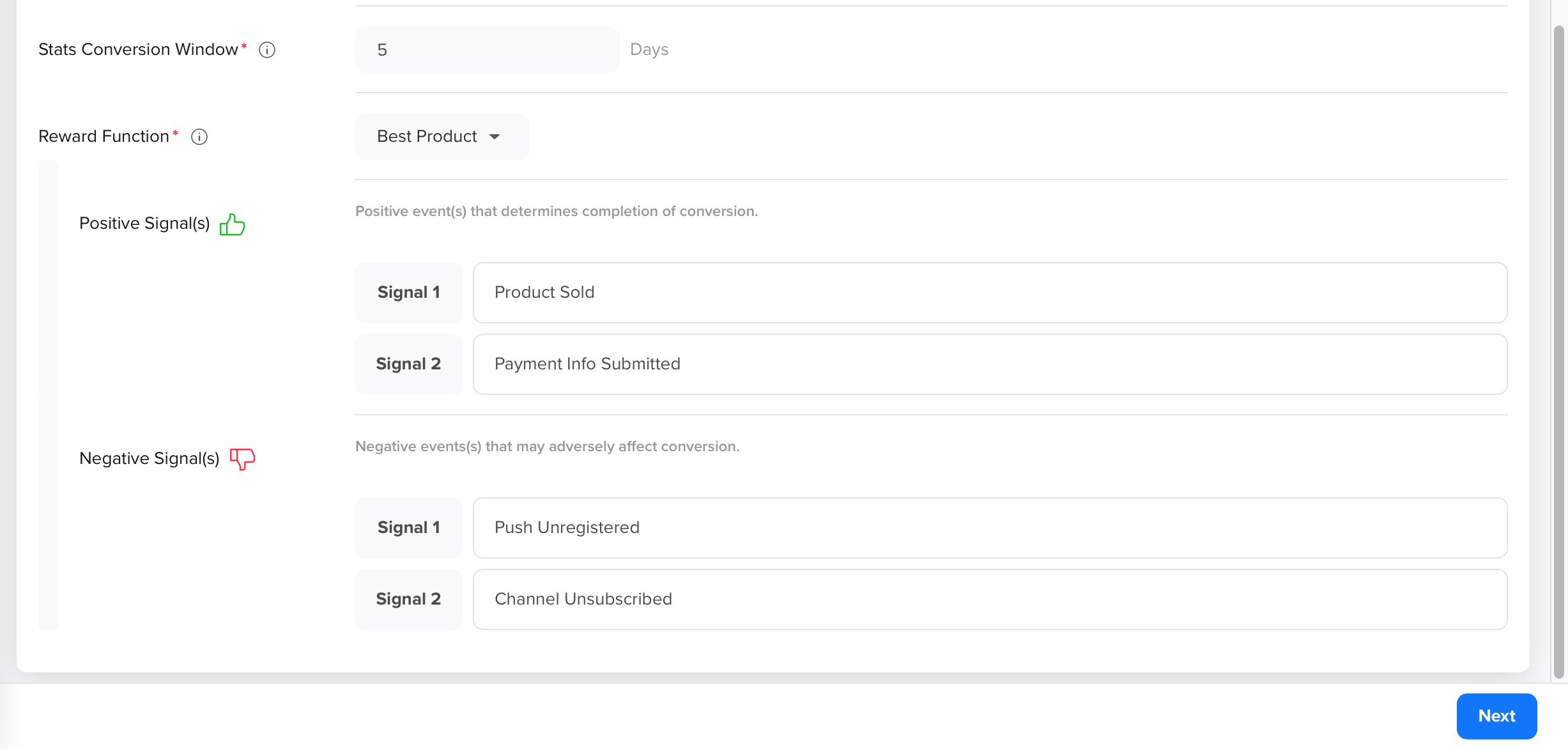
Reward Function
- Positive Signal(s): the event(s) that determine completion of a conversion, for example,
-
Click Next to proceed to the Engagement Scope tab.
NoteUnder Goals, Reward Function (and its Positive/Negative Signals) can be only picked from the existing list. Reward Functions are created separately under Decisioning > Reward Functions. For more information, refer to Reward Functions.
Set Engagement & Decisioning Scope
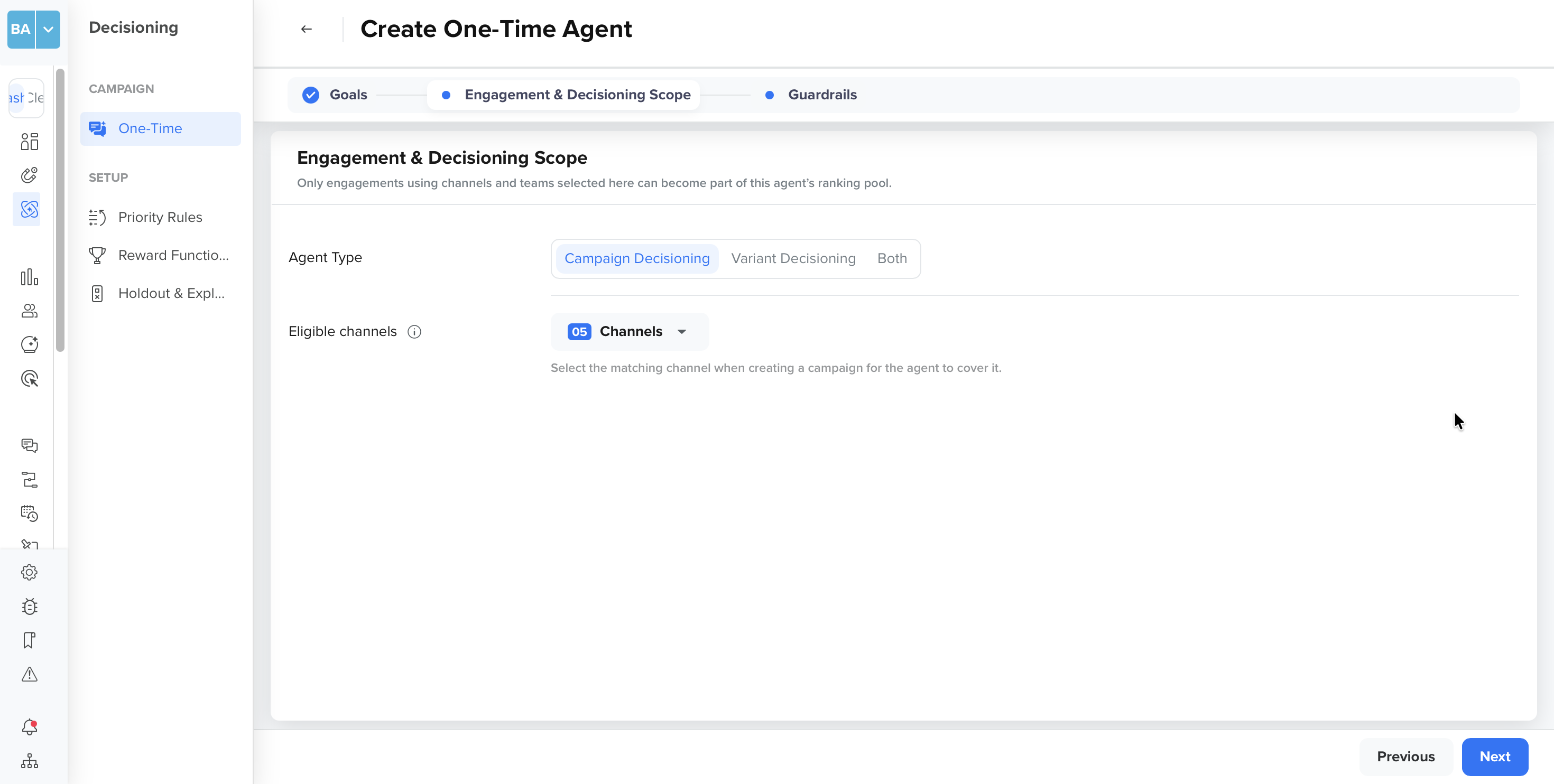
The Engagement & Decisioning Scope tab defines which campaigns the agent acts on. The agent only acts on campaigns that match the channels and team set here. These must also be set during campaign creation; the agent automatically picks up matching campaigns.
Engagement Scope
The Engagement & Decisioning Scope tab specifies which campaigns can be included in this agent's ranking pool. Only engagements using the channels and teams selected here are eligible.
To define Engagement & Decisioning Scope, perform the following steps:
- Select what this agent decides under Agent Type:
- Campaign Decisioning: The agent ranks and selects among competing campaigns.
- Variant Decisioning: The agent ranks and selects among variants of a single campaign.
- Both: The agent handles both campaign and variant decisioning. Under Eligible channels, select the channels this agent can act on. Select the matching channel when creating a campaign for the agent to cover.
- Click Next to proceed to the Guardrails tab.
Set Guardrails
The Guardrails tab configures the hard limits the agent must always respect, regardless of what its model recommends. Guardrails protect your users from over-communication and ensure every send respects your configured frequency limits.
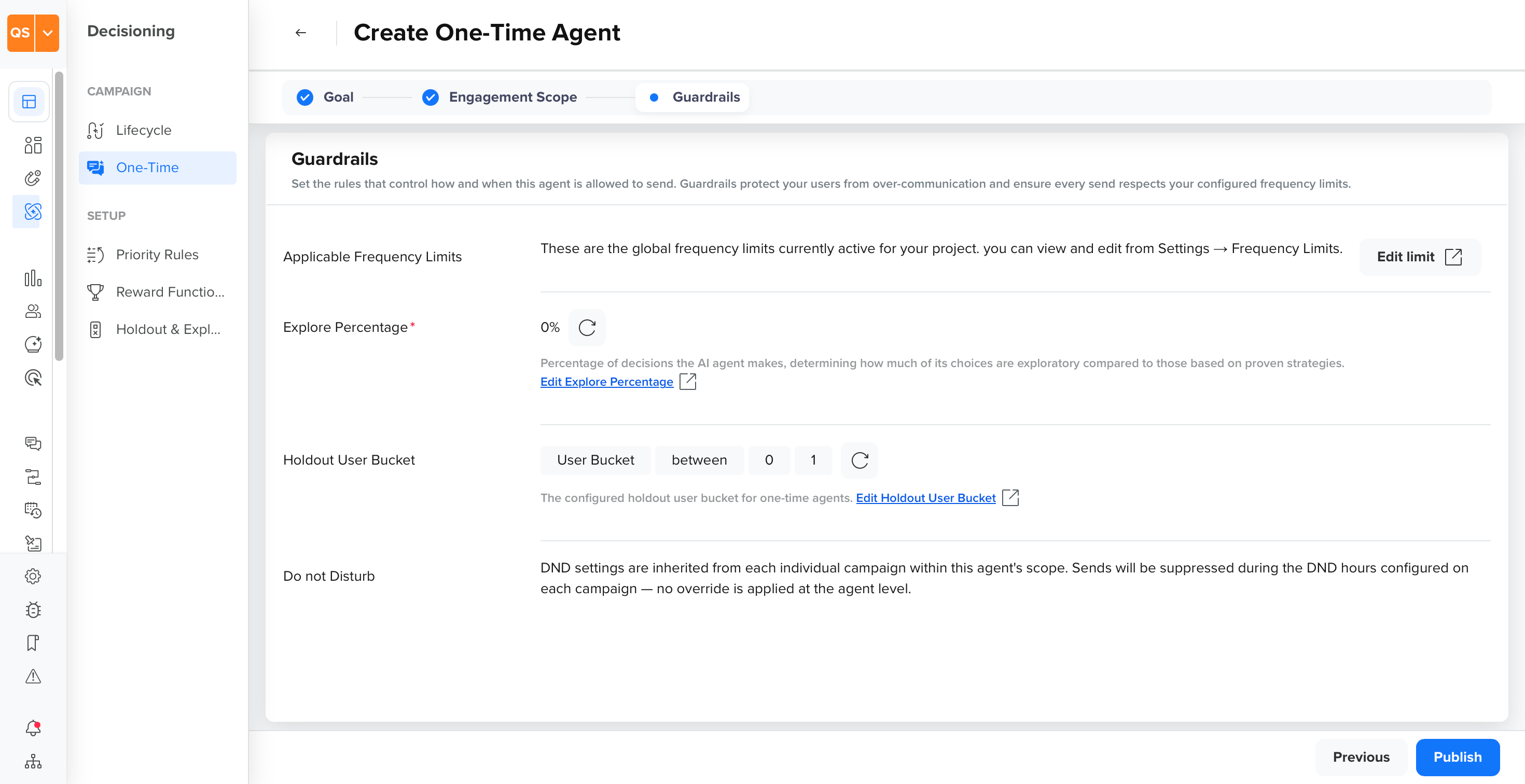
Guardrails
To set Guardrails, perform the following steps:
- Review Global message limits: This is read-only and shows the global frequency limits currently active for your project.
- Set Exploration size: The percentage of decisions the agent makes that are exploratory, compared to those based on proven strategies. Click Edit exploration size to change this account-wide setting. For more information, refer to Holdout and Exploration.
- Set Holdout user bucket: The user bucket excluded from this agent's decisions, defined as a condition (for example, User Bucket not equals 2). Click Edit holdout user bucket to change it. For more information on user buckets, refer User Bucket.
- Review Do not Disturb: DND settings are inherited from each campaign within the agent's scope, and sends are suppressed during the DND hours configured on each campaign. There is no override at the agent level.
- Click Publish to activate the agent.
Enabling or starting an agent does not put it to work immediately. The agent needs to learn before it starts ranking campaigns, which takes up to 24 hours. This duration depends on the dataset used for decision-making and other factors.
Manage One-Time Agents
On the Agents page, click the ⋮ icon on an agent's card to:
- Stop: Pause the agent. Send pauses immediately, and its tagged campaigns revert to standard delivery.
- Delete: Permanently remove the agent and its model. Tagged campaigns revert to standard delivery.
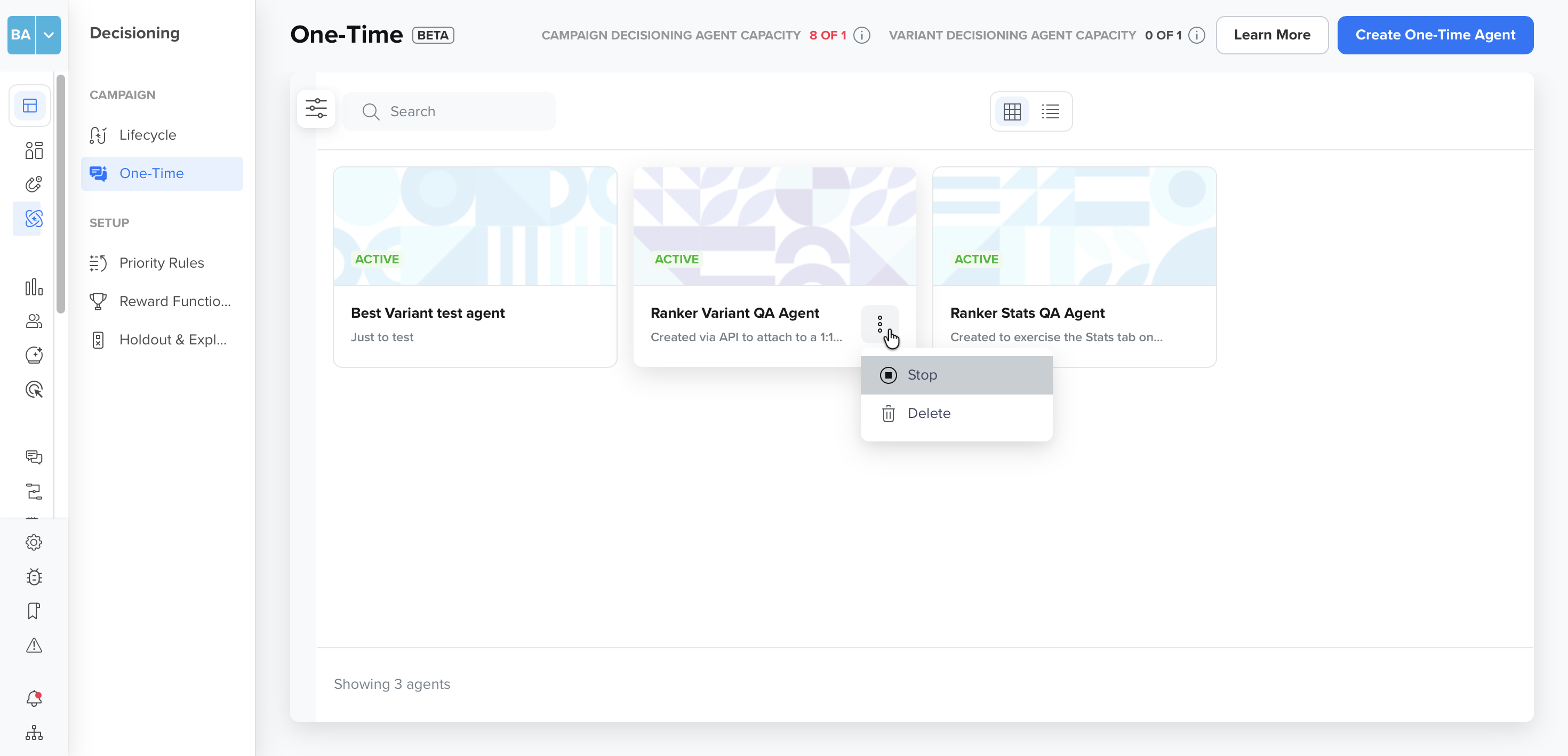
Manage Agents
On the Agents page, use Filters to narrow the list of agents:
- Time Period: Filter by when the agent was created. Defaults to All time.
- Created By: Filter by the user who created the agent.
- Status: Filter by Available, Learning, Active, or Stopped.
Click Apply to update the list, or Reset next to a filter to clear it individually.
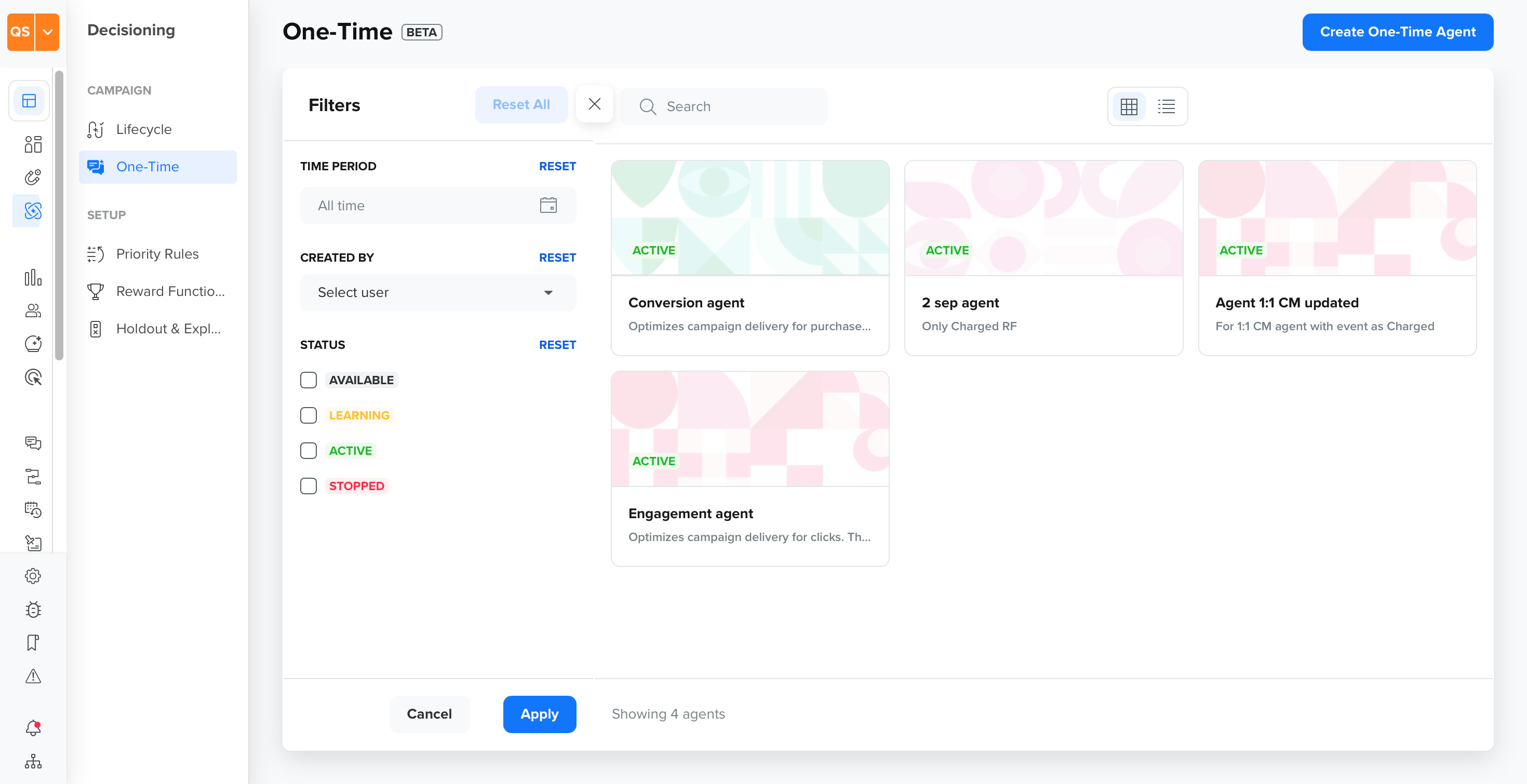
Filter the Agents
Updated 2 days ago