
Authenticate with Access Key
Understand how to configure Amazon S3 in CleverTap using Access Key authentication.
Overview
Use Access Key authentication to let CleverTap read from or write to your Amazon S3 bucket. CleverTap authenticates with the Access Key ID and Secret Access Key of an AWS IAM user that you create for this purpose. This method works for both import and export connections.
NoteAWS recommends short-lived credentials over long-term access keys. If your security policy allows it, use the IAM Role method instead; it requires no credentials in CleverTap and fewer steps on AWS.
Prerequisites
Ensure the following before proceeding:
-
An S3 bucket has already been created on AWS. For more information, refer to Create S3 Bucket on AWS.
-
The bucket details entered on the CleverTap dashboard with Access Key selected. For more information, refer to Add Bucket on CleverTap Dashboard.
-
AWS console access with permissions to create IAM policies, IAM users, and access keys.
Configure with Access Key
Setting up Amazon S3 for Access Key authentication requires an IAM policy, an IAM user with that policy attached, and an access key for the user.
The setup has four parts:
- Create IAM policy.
- Create IAM User and Attach Policy.
- Generate Access Key for User.
- Configure Connection on CleverTap.
If you already have an IAM user for CleverTap, skip to Use Existing AWS Credentials.
Create IAM Policy
The IAM policy defines the S3 permissions that CleverTap needs on your bucket. For more information about AWS IAM, refer to Creating IAM policies on Amazon S3 Dashboard.
-
Log in to your AWS console and go to Identity and Access Management (IAM).
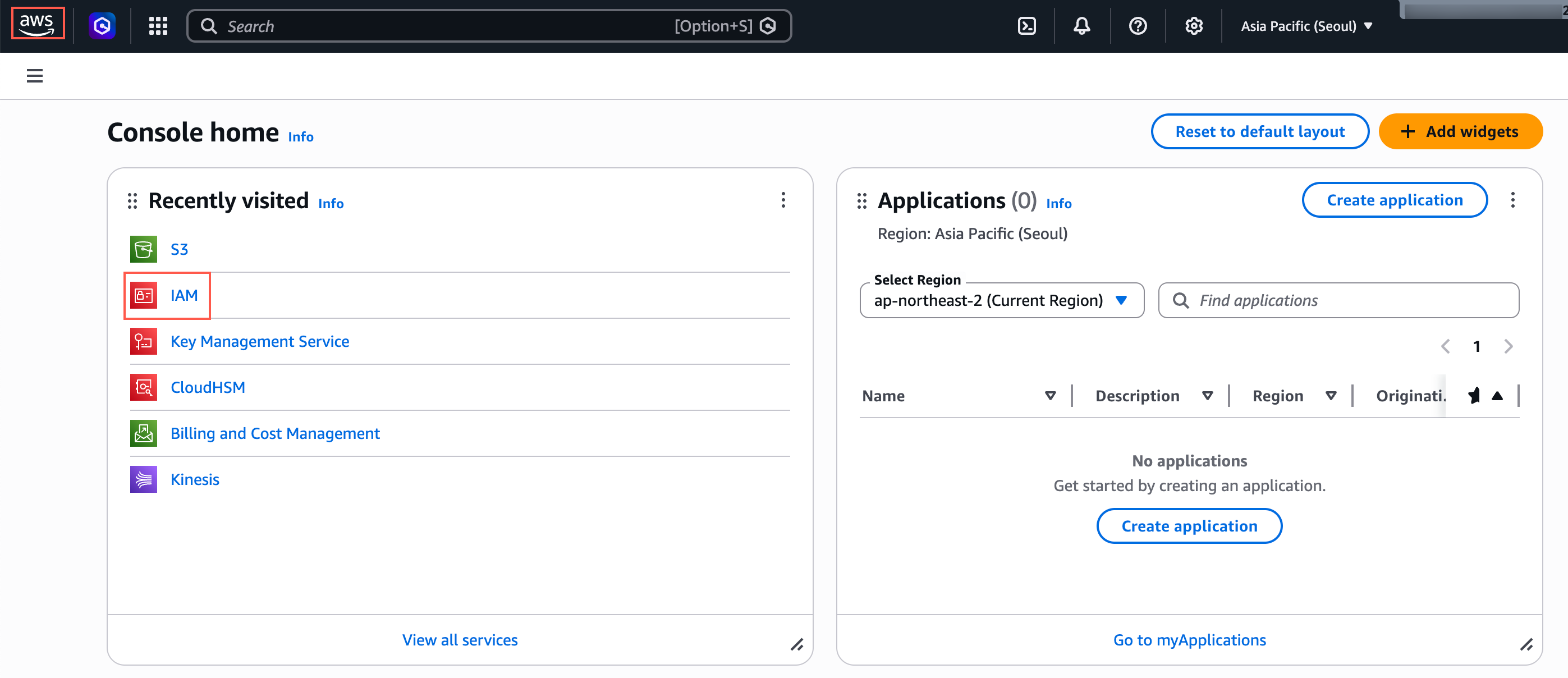
IAM
-
Select Policies from the left navigation and click Create policy.
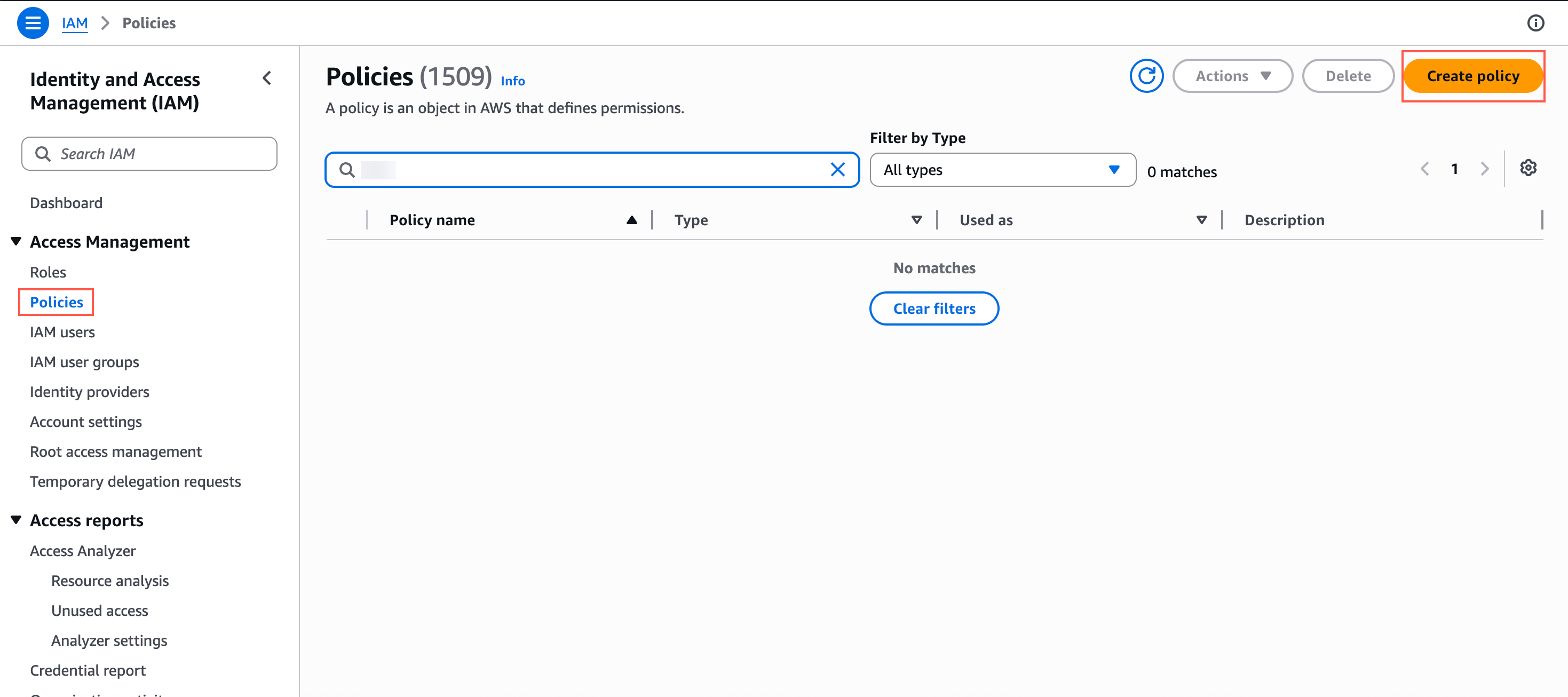
Create Policy on AWS S3
-
Select the JSON tab and paste the policy for your use case into the editor.
-
Replace
bucket-namewith the name of your S3 bucket.{ "Version": "2012-10-17", "Statement": [ { "Effect": "Allow", "Action": [ "s3:GetObject", "s3:ListBucket" ], "Resource": [ "arn:aws:s3:::bucket-name", "arn:aws:s3:::bucket-name/*" ] } ] }{ "Version": "2012-10-17", "Statement": [ { "Effect": "Allow", "Action": [ "s3:ListBucket" ], "Resource": [ "arn:aws:s3:::bucket-name" ] }, { "Effect": "Allow", "Action": [ "s3:PutObject" ], "Resource": [ "arn:aws:s3:::bucket-name/*" ] } ] } -
Click Next.
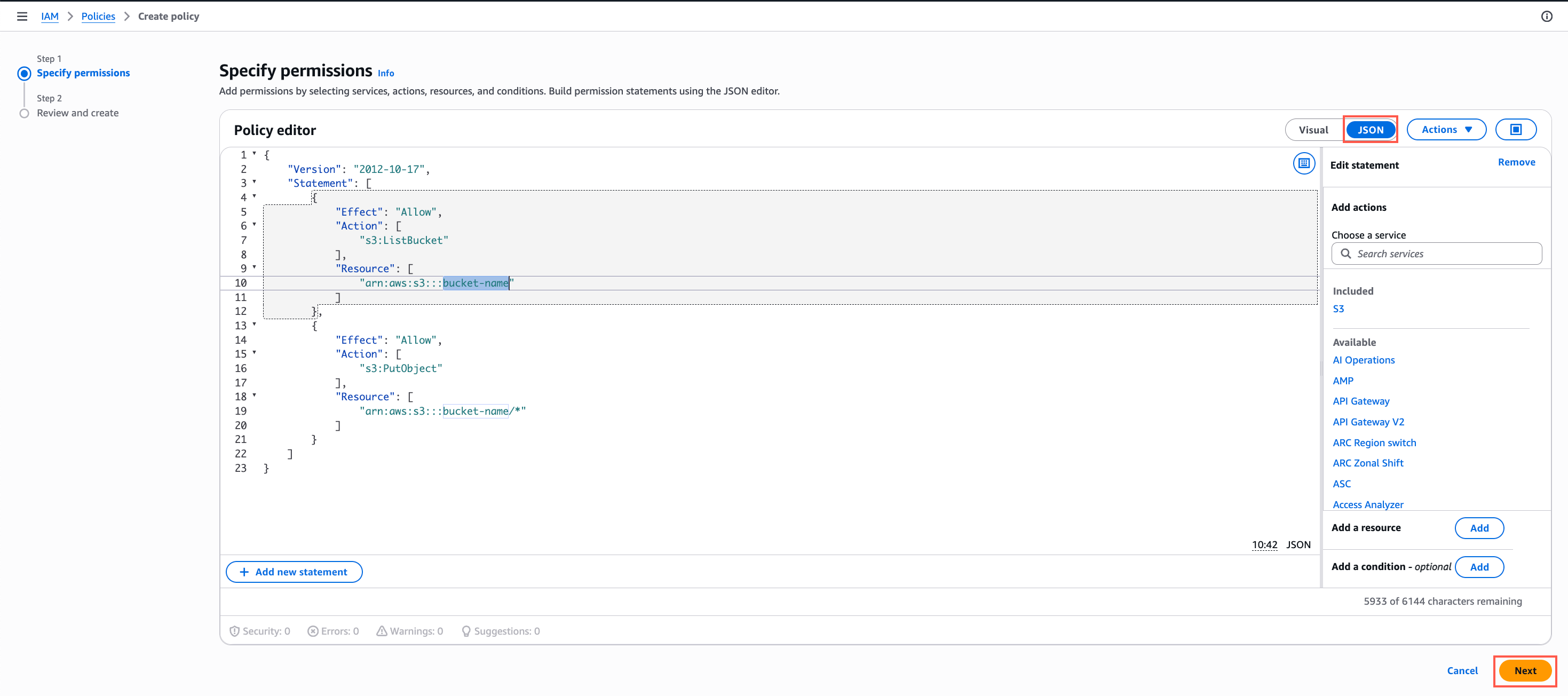
Policy Editor - AWS S3
-
Enter a name for your policy under Policy name and click Create policy.
Create IAM User and Attach Policy
This section covers creating an IAM user for CleverTap and attaching the policy you created.
To create the user, perform the following steps:
-
Select IAM users from the left navigation and click Create user.
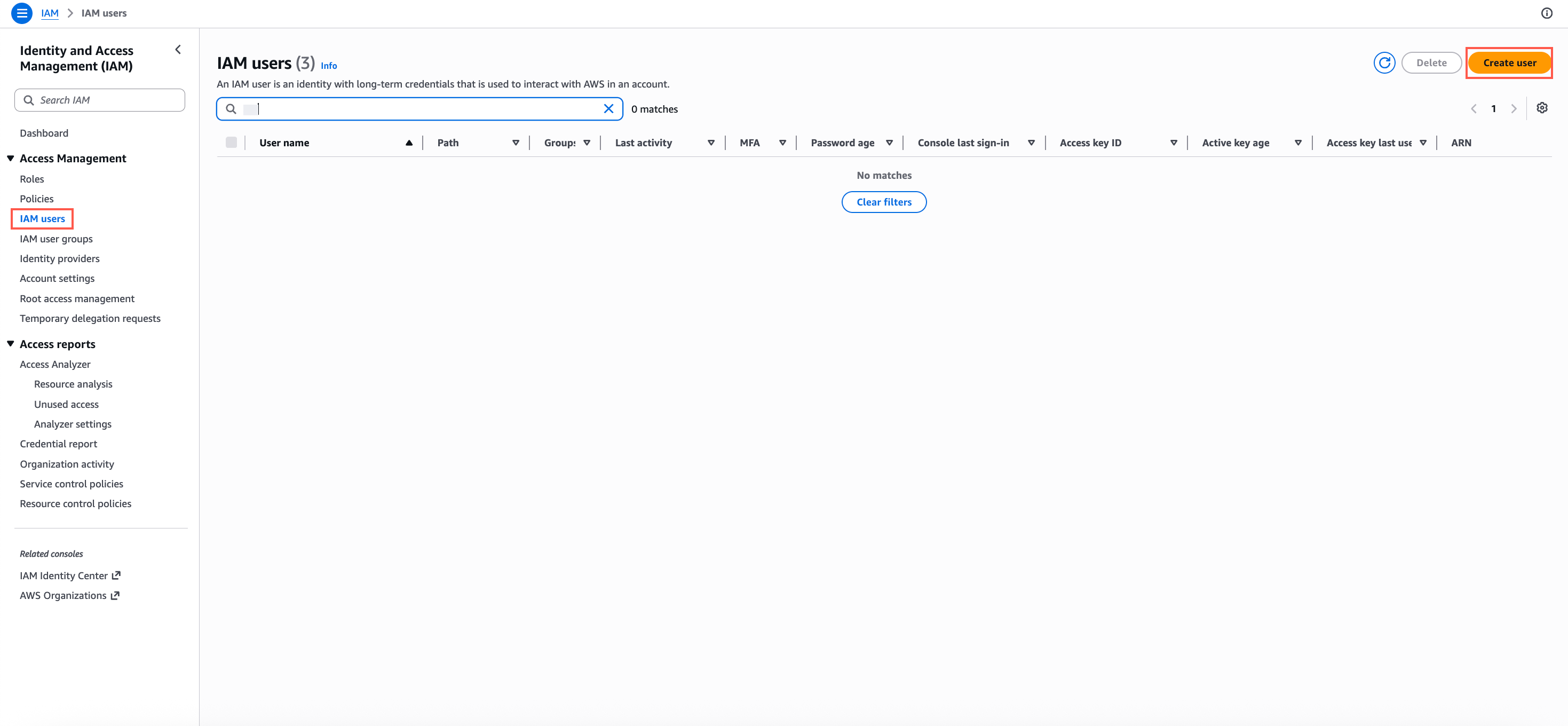
Create User
-
Enter the User name and click Next. Do not select Provide user access to the AWS Management Console; CleverTap only needs programmatic access.
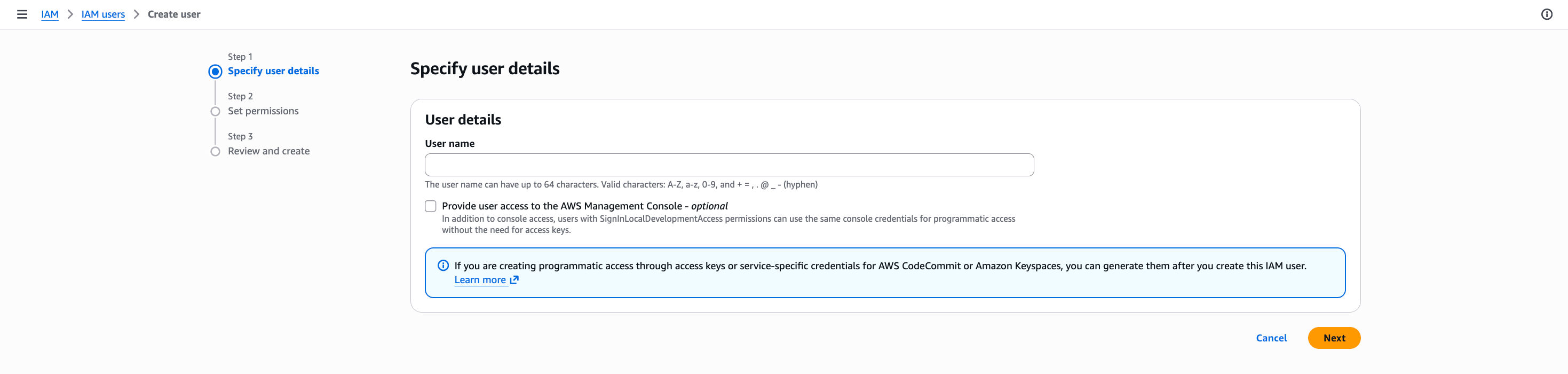
Add User Name - AWS S3
-
Search for the policy you created and select it, and click Next.
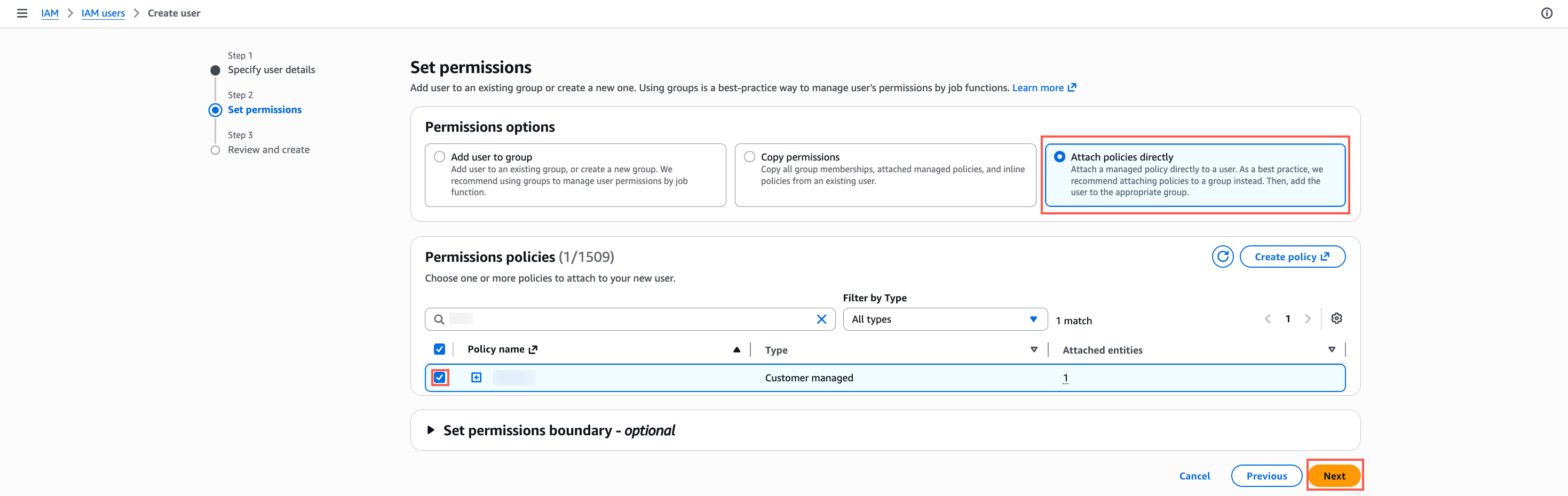
Attach Policies Directly - AWS S3
-
Click Create user.
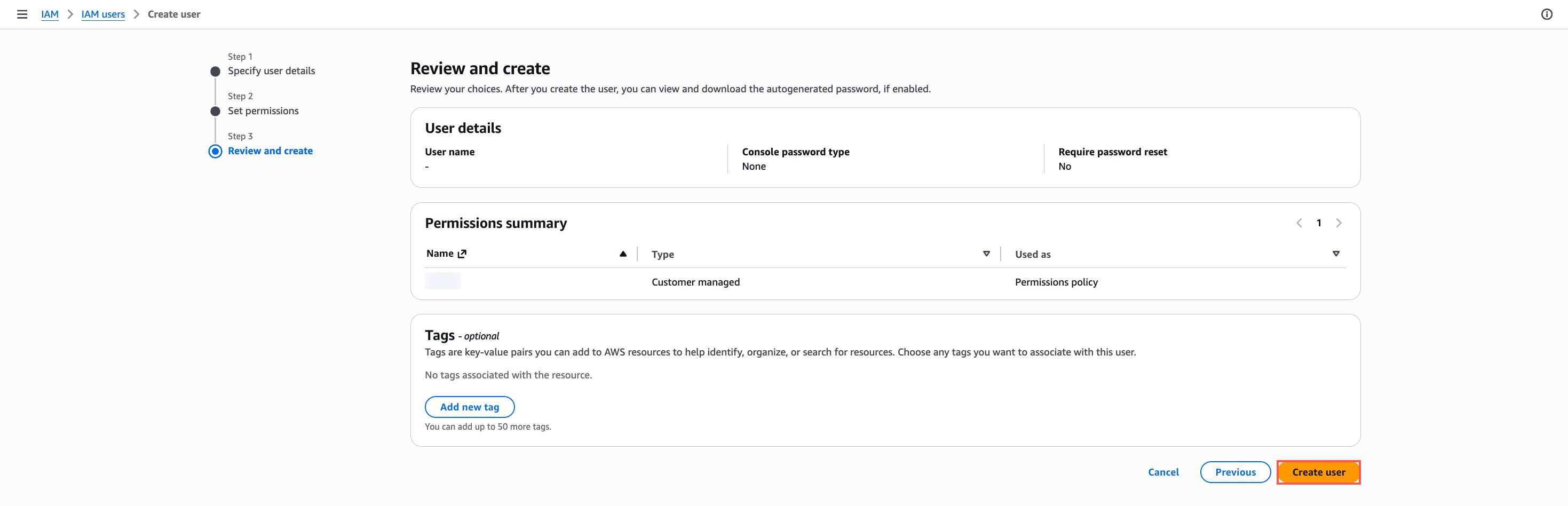
Create User
Generate Access Key
This section covers how to generate an access key that CleverTap uses to authenticate.
- Open the user you just created in the Users list, and select the Security credentials tab.
- Under Access keys, click Create access key.
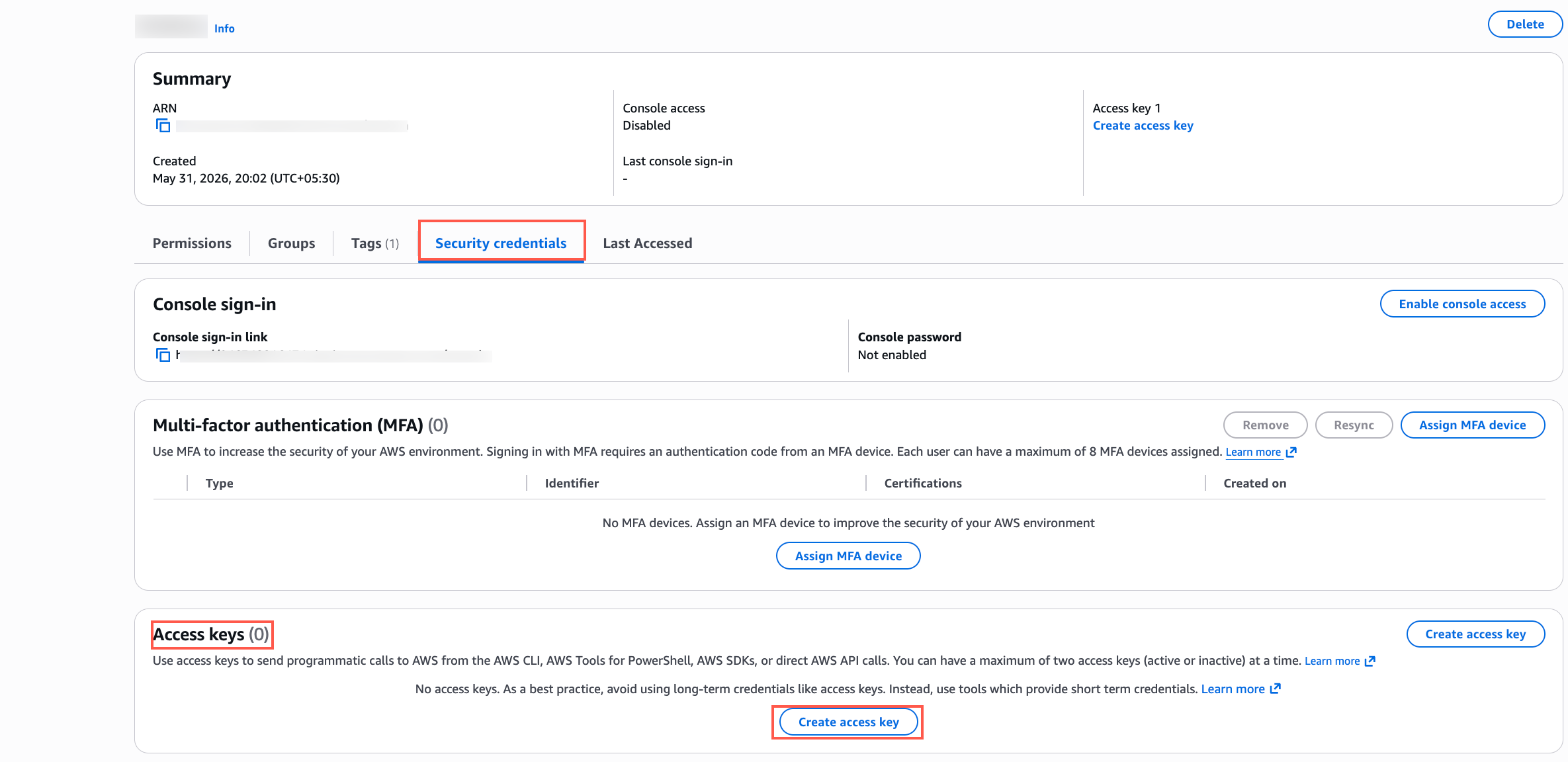
Create Access Key
-
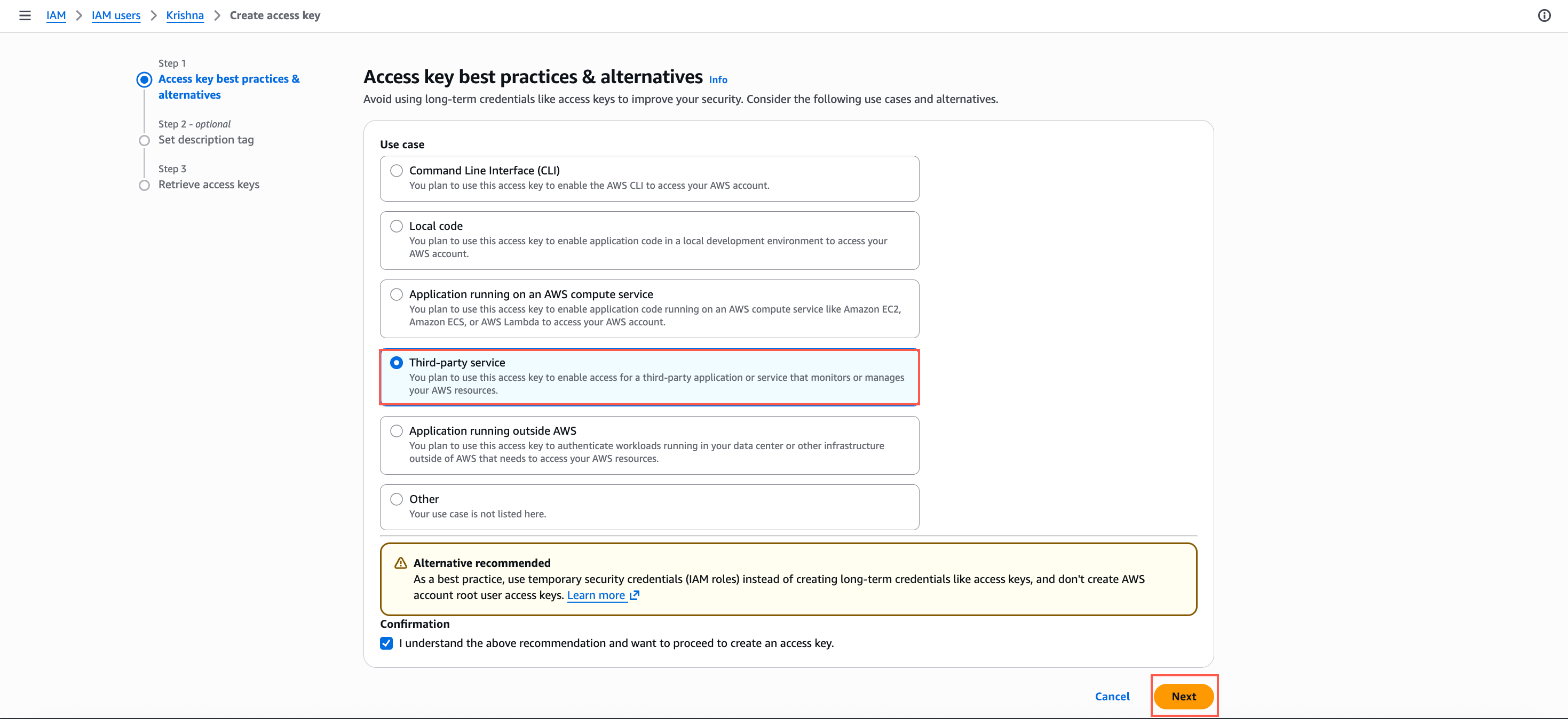
Under Use Case, select Third-party service. Under Confirmation, select I understand the above recommendation and want to proceed to create an access key, then click Next.
-
(Optional) Enter a Description tag value, for example,
CleverTap S3 export. -
Click Create access key.

Set Description Tag
-
Copy the Access Key and Secret Access Key values. You will need these to configure the connection on CleverTap.
ImportantThe Secret Access Key is shown only on this screen and cannot be retrieved later. Store it securely before you leave the page. If you lose it, create a new access key.
Use Existing AWS Credentials
If you already have an IAM user for CleverTap, verify its permissions and retrieve or rotate its access key.
Verify IAM User Permissions
This section covers how to find an existing access key or generate a new one if you have not stored the Secret Access Key.
Open the IAM user that CleverTap uses and select the Permissions tab.
To ensure CleverTap can access your S3 bucket, verify that the IAM user has at minimum the following permissions:
- Open the user from the Users list and select the Permissions tab.
- Confirm that an attached policy grants at least the actions listed below. If not, create the policy and attach it. Replace
bucket-namewith your actual bucket name.
{
    "Version": "2012-10-17",
    "Statement": [
        {
            "Effect": "Allow",
            "Action": [
                "s3:GetObject",
                "s3:ListBucket"
            ],
            "Resource": [
                "arn:aws:s3:::bucket-name",
                "arn:aws:s3:::bucket-name/*"
            ]
        }
    ]
}{
"Version": "2012-10-17",
"Statement": [
{
"Effect": "Allow",
"Action": [
"s3:ListBucket"
],
"Resource": [
"arn:aws:s3:::bucket-name"
]
},
{
"Effect": "Allow",
"Action": [
"s3:PutObject"
],
"Resource": [
"arn:aws:s3:::bucket-name/*"
]
}
]
}Retrieve or Rotate Access Key
Find an existing access key, or create a new one if you did not store the Secret Access Key.
- Select the Security credentials tab and scroll to Access keys.
- If an active access key exists and you have its Secret Access Key stored, note the Access Key ID and continue to Configure Connection on CleverTap.
- If you did not store the Secret Access Key, click Create access key, then follow steps 3 through 6 of Generate Access Key.
NoteAn IAM user can have at most two access keys. Deactivate or delete keys that are no longer used.
Configure Connection on CleverTap
Once your AWS credentials are in place, return to the CleverTap dashboard to complete the connection.
-
Return to the CleverTap dashboard. For import, go to Settings > Partners > Import center and select Amazon S3 connection. For export, go to Settings > Partners > Export center, select Amazon S3 connection.
-
Select Amazon S3, open your connection, and click Edit. The Edit Amazon S3 Connection page opens.
-
Select the Security credentials tab for the IAM user, then scroll down to Access keys.
-
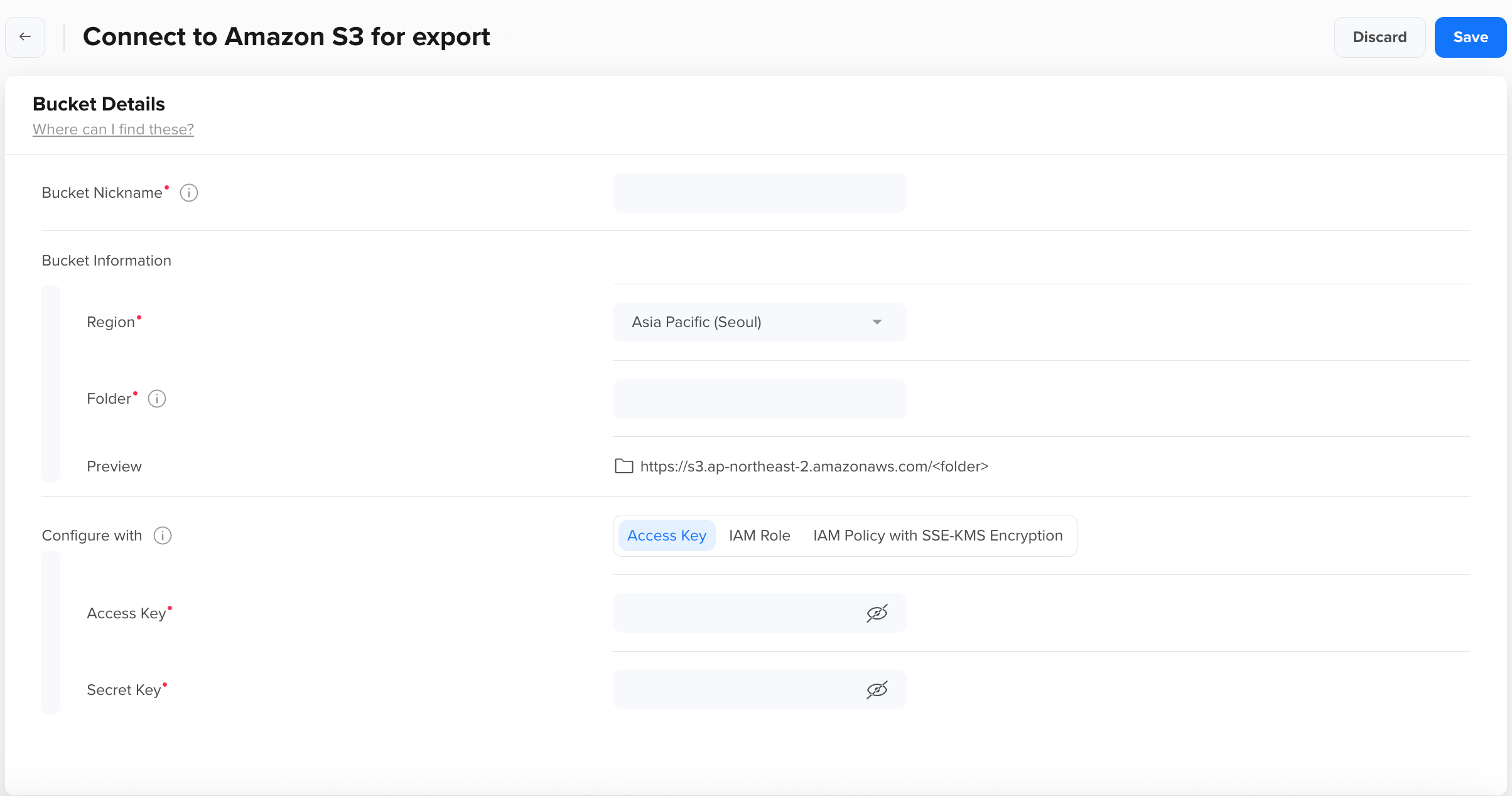
Enter the Access key ID from AWS in Access Key and the Secret access key in Secret Key
-
Verify and save:
- For import, click Test Connection. When the test succeeds, click Save.
- For export, click Save. When you click Save, CleverTap uploads a test file to the specified bucket and region to verify the configuration. The configuration is saved only if the test file upload succeeds.
The Amazon S3 bucket is now configured on both the AWS console and the CleverTap dashboard.
Troubleshooting
| Issue | Cause | Resolution |
|---|---|---|
| Export Save fails with an access-denied error | The IAM policy grants read (s3:GetObject) but not write (s3:PutObject). | Attach the export policy from Create an IAM Policy. |
| Import Test Connection fails with an access-denied error | The IAM policy grants write but not read, or s3:ListBucket is missing on the bucket ARN. | Attach the import policy from Create an IAM Policy. Note that s3:ListBucket applies to arn:aws:s3:::bucket-name (no /*). |
| Connection fails immediately with an invalid-credentials error | The Secret Access Key was mistyped, or the key was deactivated or deleted in IAM. | Create a new access key and update the connection. |
| Next is disabled on the Access key best practices & alternatives screen | The confirmation checkbox is not selected. | Select I understand the above recommendation and want to proceed to create an access key. |
| Policy validation fails in the JSON editor | bucket-name was not replaced, or only one occurrence was replaced. | Replace every occurrence of bucket-name, including the one ending in /*. |
Verification Checklist
Confirm the following before using the connection in production:
- The IAM policy contains only the actions required for the connection type (read for import, write for export).
- The policy's
Resourcevalues reference the correct bucket, with/*for object-level actions. - The IAM user has no console access and no permissions beyond this policy.
- The Secret Access Key is stored in your organization's secrets manager.
- Test Connection (import) or Save (export) succeeded on the CleverTap dashboard.
Updated about 2 hours ago