
WhatsApp Template Pricing
Learn how to set a max price for your WhatsApp marketing templates.
Overview
Max pricing lets you control the amount Meta can charge for each delivered marketing message. When you create a Marketing template, the Pricing step displays the rate-determining details for the template and lets you set a maximum price per delivered message. The max price you set is an upper limit, that is, Meta charges this amount or lower for each delivered message. If you do not set a max price, Meta charges its published rate, that is, Meta's standard rate for delivered messages.
Setting a max price also affects delivery. A higher max price may improve delivery rates when Meta is experiencing high message traffic in the recipient's country. Max pricing is part of Meta's per-message pricing model for marketing messages. For more information, refer to Pricing on the WhatsApp Business Platform.
Before You Set a Max PriceMax pricing is currently in Private Beta. Contact your Customer Success Manager for access.
Max pricing applies only to templates in the Marketing category. Meta charges Utility and Authentication templates at its standard per-message rates. The max price affects how Meta prioritizes delivery.
This document covers the following:
- Set the Max Price for a Template
- Analyze Prices with Price Trend
- Adjust the Max Price in a Campaign or Journey
- FAQs
- Next Steps
Set the Max Price for a Template
The Pricing step appears after you configure the template content and before you send the template for approval.
New Templates OnlyMax pricing can only be set during template creation. It cannot be added to existing templates.
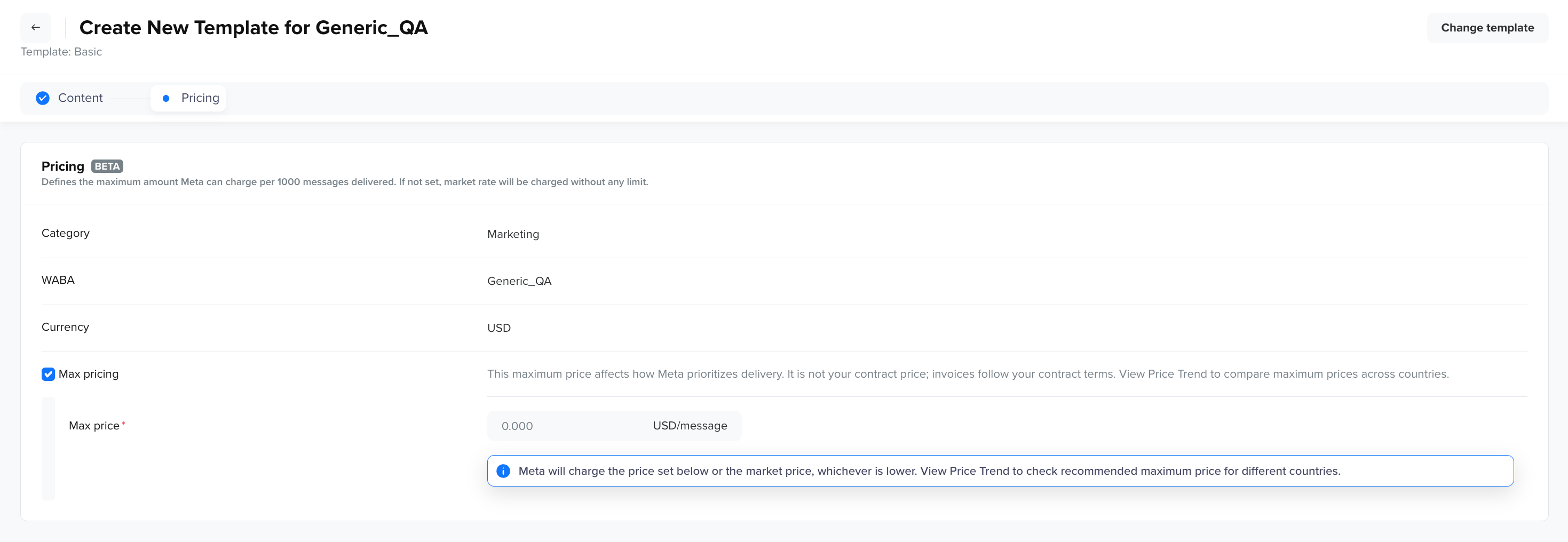
Max price - WhatsApp Template
To set the max price for a template, follow these steps:
-
Go to Content Manager > Templates > WhatsApp and create a Marketing template as described in WhatsApp Templates. After you configure the content, the Pricing step displays.
-
Review the following details. These fields are read-only on the Pricing step and reflect the values you configured during template creation:
Field Description Category The template category. Max pricing applies only to the Marketing category. WABA The WhatsApp Business Account under which the template is created. Currency The currency associated with your WhatsApp Business Account, selected during onboarding. -
(Optional) Select the Max pricing checkbox.
-
Enter the max price per delivered message in the Max price field.
-
(Optional) Click View Price Trend to compare estimated delivery rates at different max prices for your target countries. For more information, refer to Analyze Prices with Price Trend.
-
Click Send for Approval.
Delivery Is Not GuaranteedA higher max price may improve delivery rates when Meta is experiencing high message traffic. It does not guarantee delivery at any price.
Analyze Prices with Price Trend
Price Trend gives you an estimate of how delivery rates may vary at different max prices for each of your target countries. Published rates and message traffic differ by country, so a max price that performs well in one country may not perform the same way in another. These estimates are based on historical delivery data and are meant for planning purposes only. It means actual delivery outcomes can differ due to changing platform conditions and other factors. Use Price Trend to compare estimated delivery rates at different price points and choose a max price that supports your delivery goals across your target countries.
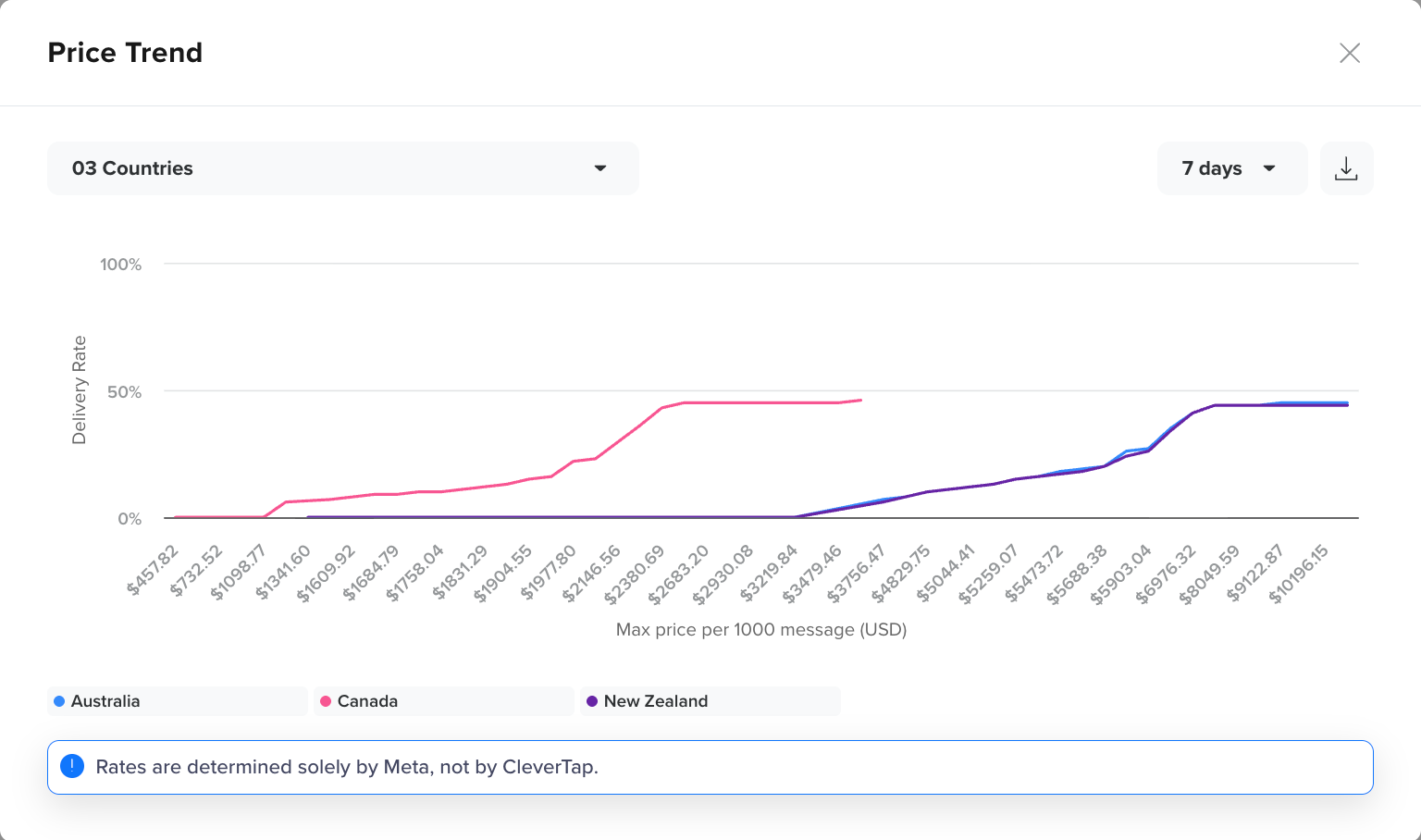
Price Trend
View the Price Trend Chart
The chart plots estimated delivery rate against max price for each country you select.
-
On the Pricing step, click View Price Trend.
-
Select your target countries from the Select countries dropdown. Select every country your campaigns using this template are likely to target, because the same max price produces a different delivery rate in each country.
-
Select a time period, such as 7 days. Estimates are based on Meta's historic delivery data for the selected period. A shorter period reflects more recent platform conditions, and a longer period smooths out short-term spikes.
-
Review the chart. The horizontal axis shows the max price per 1,000 messages, and the vertical axis shows the estimated delivery rate. Each line represents one selected country.
-
Hover over any point on a line to view the max price, the estimated delivery rate, and the effective multiplier for that country at that point.
-
(Optional) Click the download icon to export the chart.
Adjust the Max Price in a Campaign or Journey
The max price you set on a template acts as the default for every campaign and journey that uses the template. To raise or lower it for a single campaign or journey node without editing the template, use the Max Price Multiplier in the builder. The value you enter is multiplied by the template's max price to get that campaign's or journey node's max price. For example, if the template's max price is 0.015 USD and you enter a multiplier of 2, the campaign's max price is 0.030 USD. To reduce spend on a lower-priority campaign using the same template, you can enter 0.5, which sets the campaign's max price at 0.008 USD. For more information, refer to Create a WhatsApp Message.
FAQs
Q. Why was I charged less than my max price?
The max price you set is only a ceiling, not a fixed charge. Meta determines the actual price for each delivered message through its own delivery-optimization process. This price is not tied to Meta's published rate, and it isn't something CleverTap controls or can see into, that is, you can be charged well below your max price, and the price can vary from one message to the next even within the same country.
Q. Is the max price my contract price?
No. The max price affects how Meta prioritizes delivery and caps what Meta can charge per delivered message. Your invoices are calculated according to your contract terms.
Q. What happens if I do not set a max price?
Meta charges its published rate for each delivered message, with no upper limit.
Q. Can I set a different max price for each campaign or journey?
Yes. Use the Max Price Multiplier in the builder to adjust the template's max price for a single campaign or journey node. For more information, refer to Adjust the Max Price in a Campaign or Journey.
Q. Does max pricing apply to Utility or Authentication templates?
No. Max pricing applies only to templates in the Marketing category. Utility and Authentication templates are charged at Meta's standard per-message rates.
Next Steps
Updated 20 days ago