
Holdout and Exploration
Learn more about Holdout and Exploration in agents.
Overview
Holdout and Exploration are account-wide settings that apply to every agent, System, and Custom alike. You configure them once, from Decisioning > Holdout and Exploration.
Exploration
Exploration keeps the agent learning. It keeps an agent's model from only recommending what it already knows works. For a small percentage of message decisions, the system intentionally sends an eligible, lower-ranked campaign instead of the top-ranked one, so it can continue to gather evidence about campaigns and improve its future ranking. Without Exploration, an agent would keep reinforcing the choices it has already made and would never discover that a campaign it ranks low actually performs well.
If exploration is active, the highest-scoring campaign is not always the one sent.
Exploration is a single account-wide setting. It applies to every agent, System, and Custom alike and cannot be set for a single agent. This keeps one consistent balance across your whole account. Each account has its own Exploration %, ranging from 2% to 20%.
Holdout
Holdout lets you measure an agent's real impact by excluding a set of users from its decision-making.
Users in the selected Holdout User Bucket are excluded from an agent's decision-making while the condition is in effect. This doesn't stop the message: a held-out user's tagged campaigns still deliver exactly as they do today, only the agent's ranking is skipped for them.
Holdout buckets are defined at the account level as reusable and can be used by any agent. You do not define a new bucket for each agent. For more information on user buckets, refer User Bucket.
Comparing a Holdout bucket's performance to that of served users shows you the agent's incremental impact. Each agent has its own Holdout % which can be from 0% to 20%, and 5% by default. Holdout % for System Agents isn't editable.
Configure Holdout and Exploration
To configure Holdout and Exploration:
- From the CleverTap dashboard, navigate to Decisioning > Holdout and Exploration.
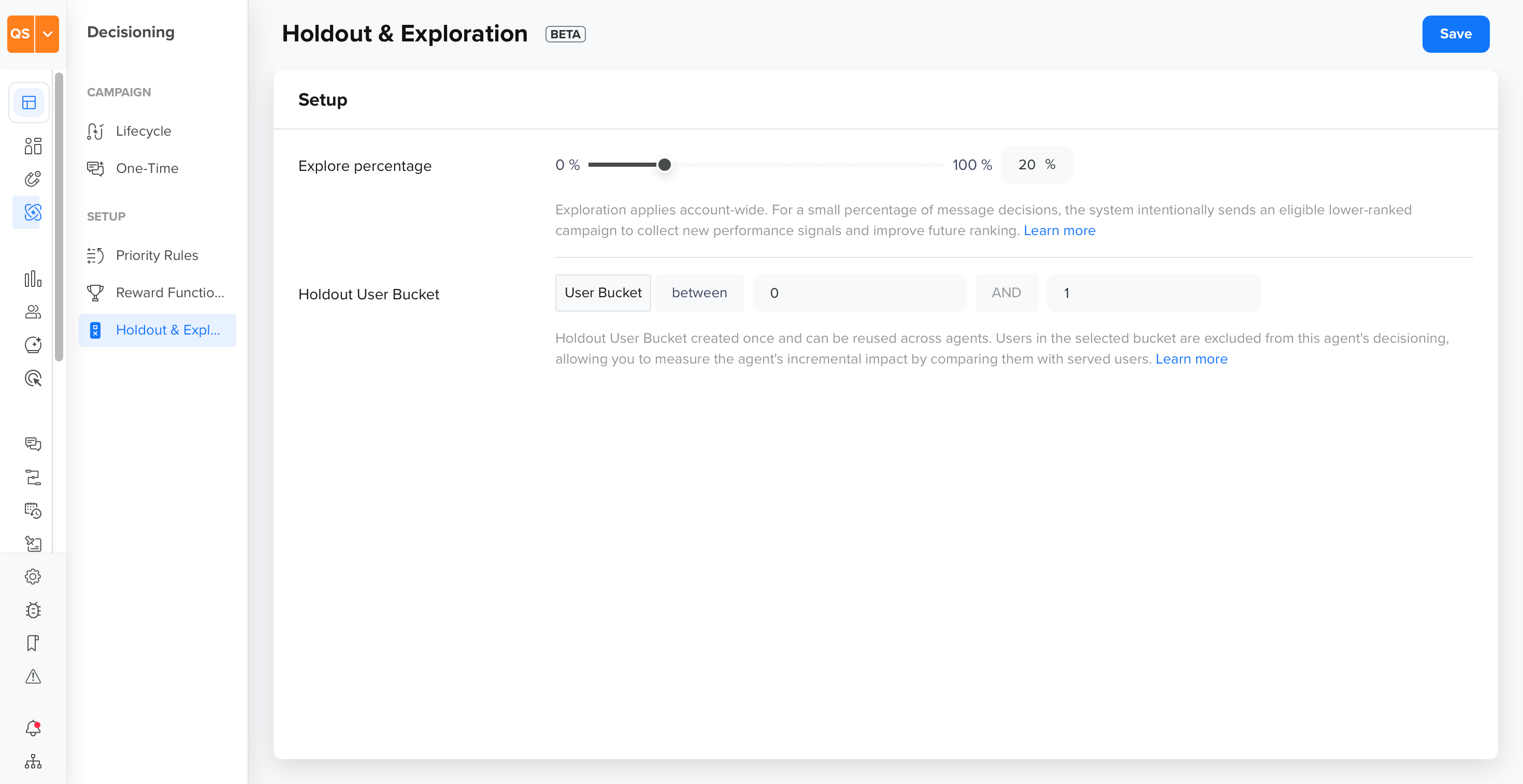
Holdout and Exploration
- Under Setup, drag the Explore percentage slider to set the percentage of message decisions reserved for exploration. This applies across your entire account.
- Under Holdout User Bucket, select a User Bucket, an operator (for example, equals, not equals, and so on), and a bucket value to define which users are held out. Click + to add another condition.
- Click Save.
For more information about user buckets, refer to User Bucket.
Updated 2 days ago