
Guardrails
Learn how to set guardrails for your agent messaging
The Guardrails tab configures the hard limits for messages that the agent must always respect, regardless of what its model recommends.
To complete the Guardrails tab:
- Under Limits, configure message frequency constraints. Select a checkbox to enable a limit, then set the maximum number of messages allowed.
- Channel-wise limit — The maximum number of messages the agent can send through a single channel across all users.
- Set the Per user limit. It is the maximum number of messages the agent can send to any one individual user.
- Under User Distribution, set the testing split for the agent's learning strategy. The slider divides your target audience into two groups:
| Group | Description | Default |
|---|---|---|
| Exploration size | The percentage of users the agent uses to test and learn from different combinations and ordering of messaging. | 20% |
| Exploitation size | The percentage of users the agent engages with using its best-performing messaging sequence. | 80% |
Adjust the slider to change the balance.
- (Optional) Select Do Not Disturb (DND) to define quiet hours. The agent does not send messages to users during DND hours. By default, DND limits use the user's own timezone.
CautionMessages that fall within a DND window are dropped, not rescheduled. If a large portion of your audience is in the same timezone, a wide DND window can significantly reduce message delivery.
The following image shows the Guardrails tab with limits, user distribution, and the DND option:
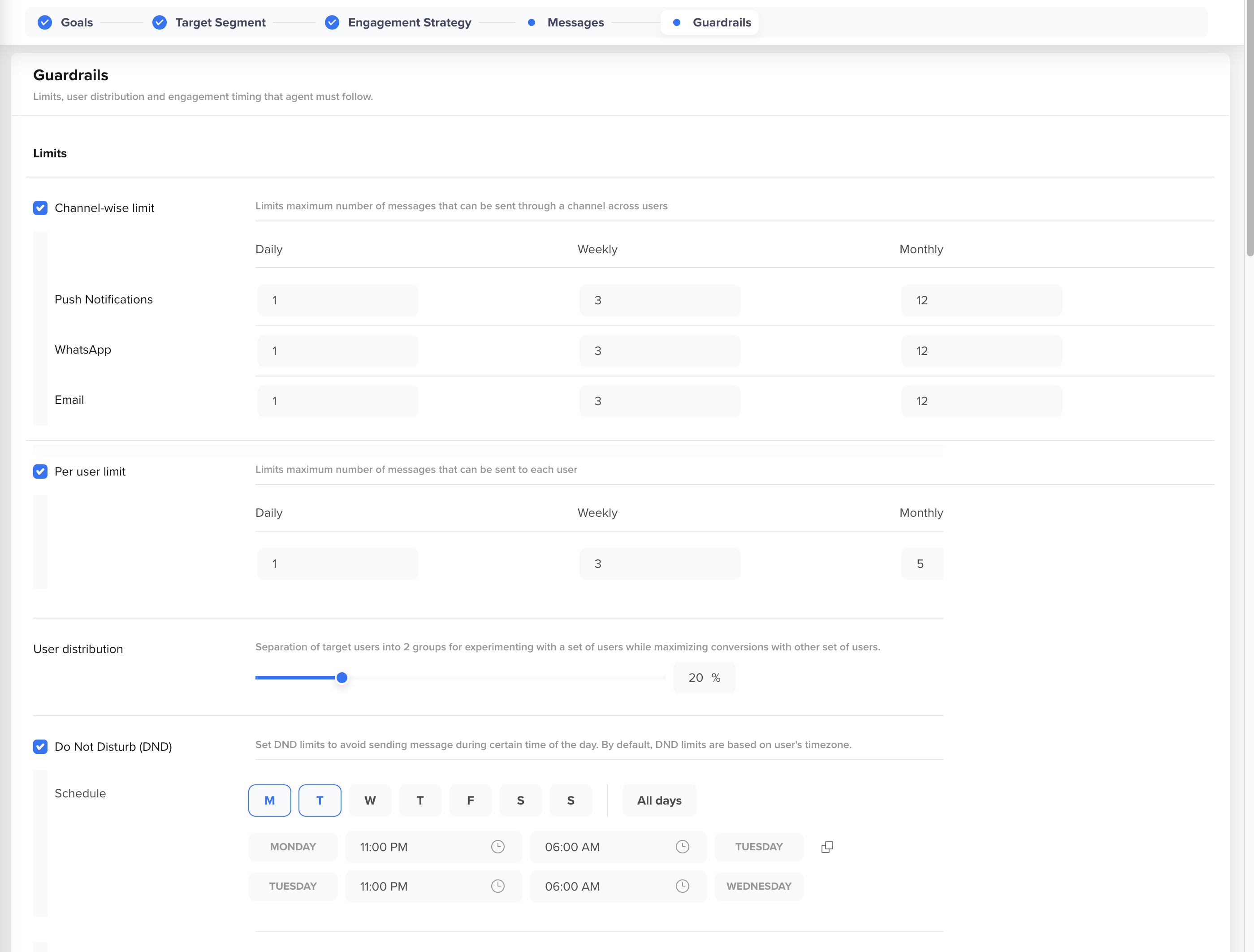
Agent Guardrails
- Click the Save icon in the top-right corner of the window to save the agent.
Updated about 3 hours ago
Did this page help you?