For AI agents: visit https://docs.clevertap.com/llms.txt for an index of all pages formatted in Markdown and endpoints in OpenAPI. Append .md to any documentation page URL to get its markdown version.
Learn how to copy campaigns and journeys across CleverTap projects.
Overview
You can clone engagements across projects to quickly duplicate existing campaigns and journeys between CleverTap projects. This helps you maintain consistent user experiences and significantly reduces the time required to go live, without having to rebuild engagement logic from scratch.
With this feature, you can:
Reduce Campaign Creation Time: You can save effort by instantly copying existing campaigns and journeys across projects instead of recreating them from scratch. For example, a marketer from a global ECommerce company can duplicate a validated onboarding journey from a test project to the production project within minutes.
Work Efficiently Across Projects:
Reuse high-performing engagement campaigns across multiple production projects or business units. For example, a marketer from a global ECommerce company can copy a “Welcome Offer” campaign from the India project to the UAE and Singapore projects to ensure consistent onboarding experiences.
Copy Engagement Across Projects
📘
Prerequisites
Before you begin, ensure that you have access and write permissions for both the source and destination projects.
To copy an existing campaign or journey from one CleverTap project to another, perform the following steps:
Go to the Campaigns or Journeys page from the CleverTap dashboard.
Select the campaign or journey you want to copy.
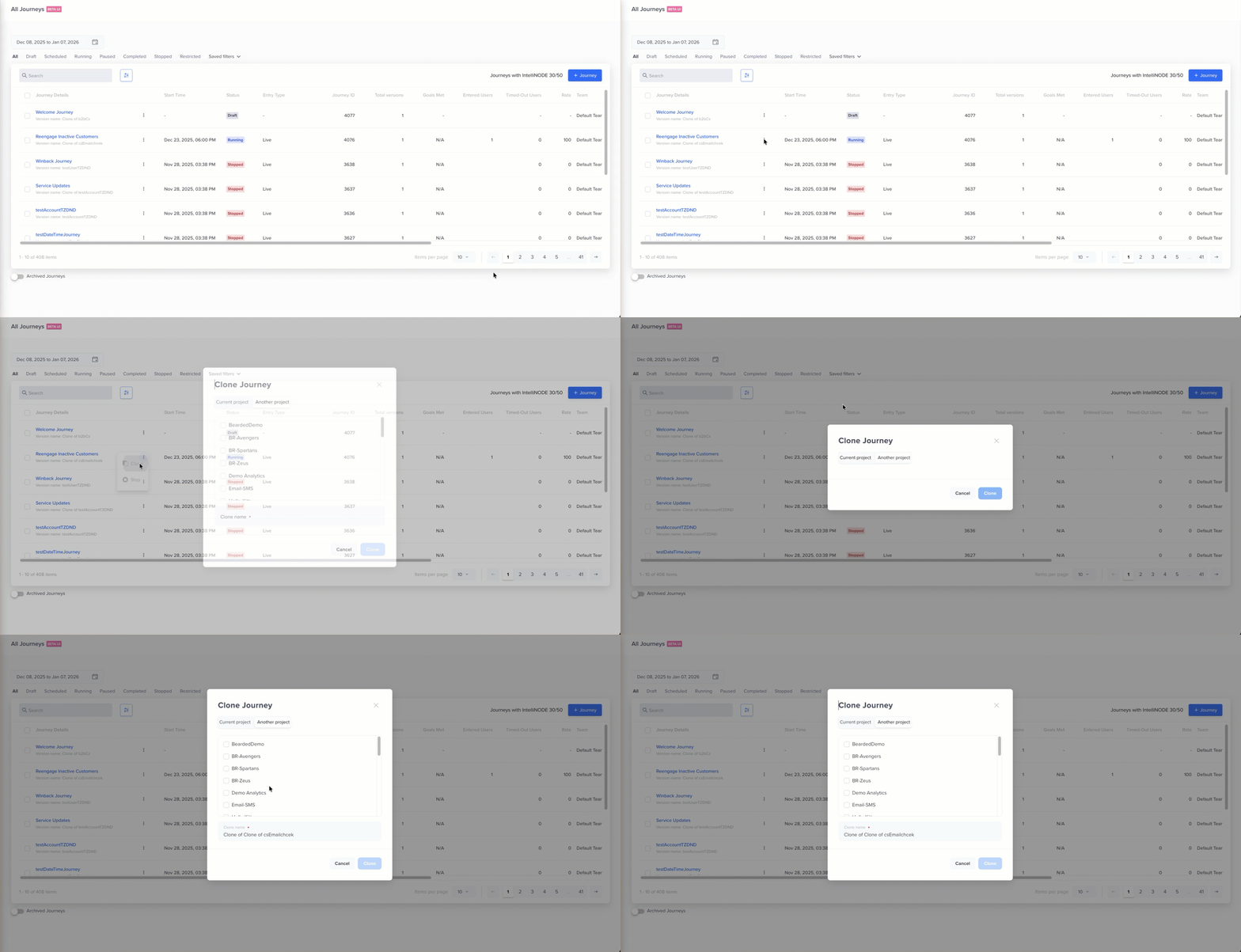
Click the icon and select Clone from the available actions. The Clone Campaign popup opens.
Select Current project to copy the engagement to the same project, or select Another project to copy the engagement to another project of your CleverTap dashboard.
Select the project where you want to create a copy. The copied campaign or journey appears as a draft in the destination project. For more information, refer to How Copy Engagement Works.
Clone Journey
📘
Note
You can copy your engagements to one or more projects. CleverTap prefixes the name of the copied engagement with Clone of to help you identify duplicates. You can rename the engagement later.
Click Clone. You can choose to open the cloned engagement in a new tab. If the destination project does not include required events, segments, or user properties, CleverTap flags them for review. You can fix them directly in the destination project and publish them.
How Copy Engagement Works
When you copy a campaign or journey, CleverTap recreates the structure and logic in the selected destination project. This section explains how different components of campaigns and journeys behave after they are copied, including what is copied and validated during the process.
📘
Exclusions
The following configurations are not cloned and must be set up again in the destination project:
Service Provider configurations
Webhook endpoint configurations
Segments that use include or exclude conditions
Email attachments and Content Manager System (CMS) assets
Subscription Groups and opt-out settings
Multi-App or project-specific integrations
CleverTap highlights missing or incomplete configuration where applicable and prevents publishing until required setup is complete.
The copy process involves the following three key steps:
Access Validation:
CleverTap first verifies that you have write access to the respective campaigns or journeys in both the source and destination projects.
Copy Engagement:
Once access is validated, CleverTap immediately copies the campaign or journey to the destination project. The copied engagement appears as a draft.
Post-Copy Validation:
After creating the copy, CleverTap verifies that all required events, user properties, and event properties are present in the destination project.
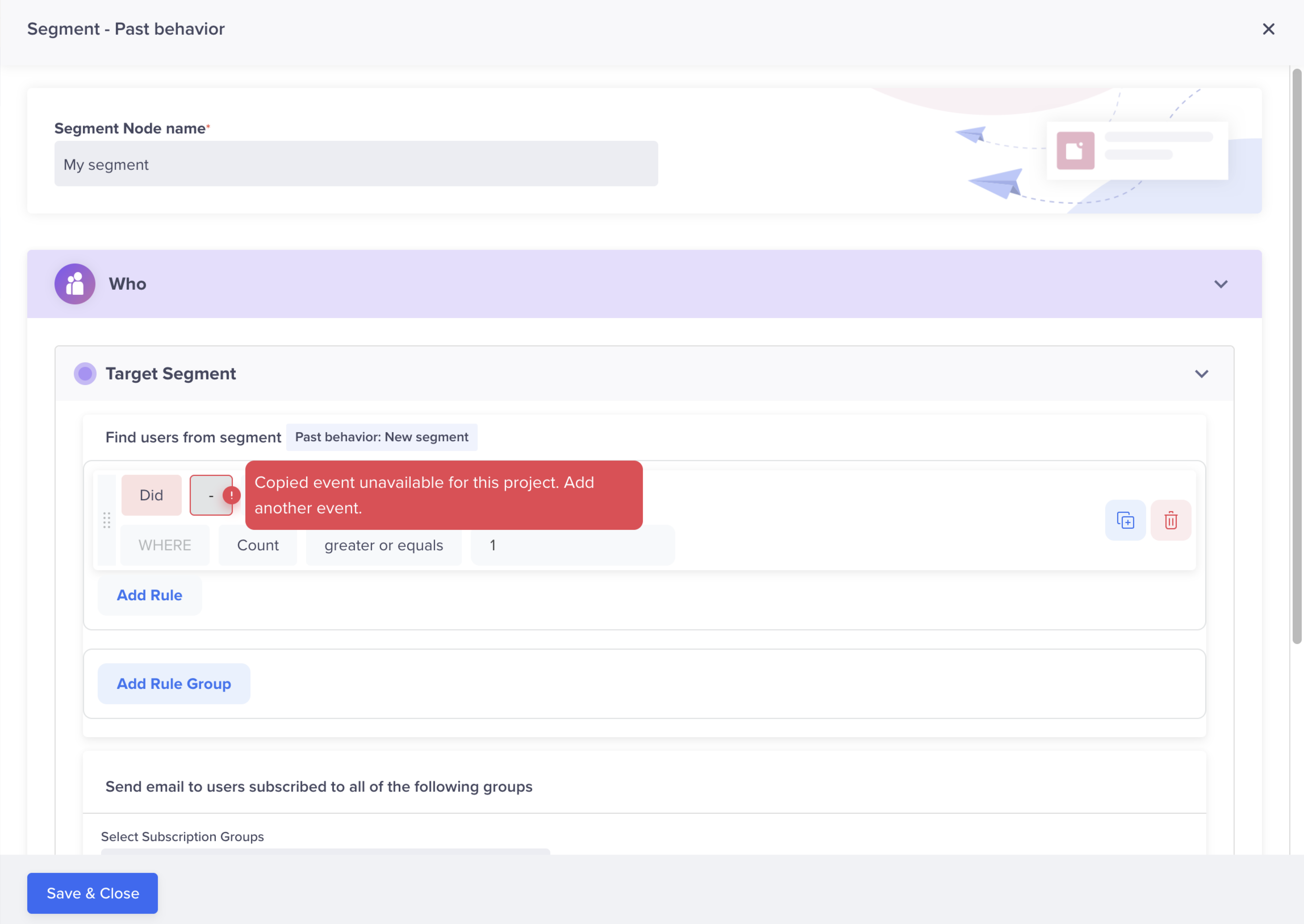
If any dependencies are missing, the system displays validation messages highlighting the fields that must be updated before publishing.
Validation Error Post Cloning
📘
Supported Channels
You can copy engagements for the following five channels: Push Notifications, In-App Messages, Email, App Inbox, and Webhook.
For Campaigns
When you copy a campaign across projects, CleverTap carries over its core configuration, targeting, and personalization details from the source project to the destination.
The following table explains how each campaign component behaves during the copy process, and what actions you may need to take before publishing.
Campaign Component
Behavior in Copied Campaign
Additional Notes
Campaign Name
CleverTap prefixes the copied campaign name with Clone of to help you identify duplicates. The name remains editable.
This helps differentiate the copy from the original.
Labels
All labels from the source are retained. If a label does not exist in the destination project, CleverTap automatically creates and adds it.
Ensures labeling consistency across projects.
Campaign Type
Past Behavior Segment (PBS), External Trigger, and Live campaigns are copied exactly as they appear in the source campaign.
If a trigger type is not supported in the destination, validation highlights the field.
Conversion Event and Goal Settings
Conversion events and goals are copied from the source campaign.
Missing goal events or properties are highlighted.
Personalization rules are copied from the source. If any linked field or token is missing, CleverTap displays a validation error.
The copy cannot be published until all personalization tokens are resolved.
When (Delivery, Recurrence, DND, TTL)
Delivery, recurrence, and Do Not Disturb (DND) settings are copied from the source. Empty fields stay empty.
Fixed-time and best-time scheduling are retained; errors are displayed if the time has passed.
Cut-Off Time and Best Time Settings
Fixed time campaigns copy as-is. If Best Time is enabled and unsupported in the destination, CleverTap reverts to fixed-time.
Adjust the schedule before publishing.
For Journeys
When you copy a journey, CleverTap duplicates its flow structure, nodes, and entry criteria from the source project into the destination project.
📘
Points to Consider
Journeys that include engagement nodes for unsupported channels cannot be copied.
If required events, event properties, user properties, segments, subscription groups, or goals are missing in the destination project, CleverTap clones the journey but highlights affected nodes with validation errors. You must resolve these before publishing.
Partially-Filled Nodes
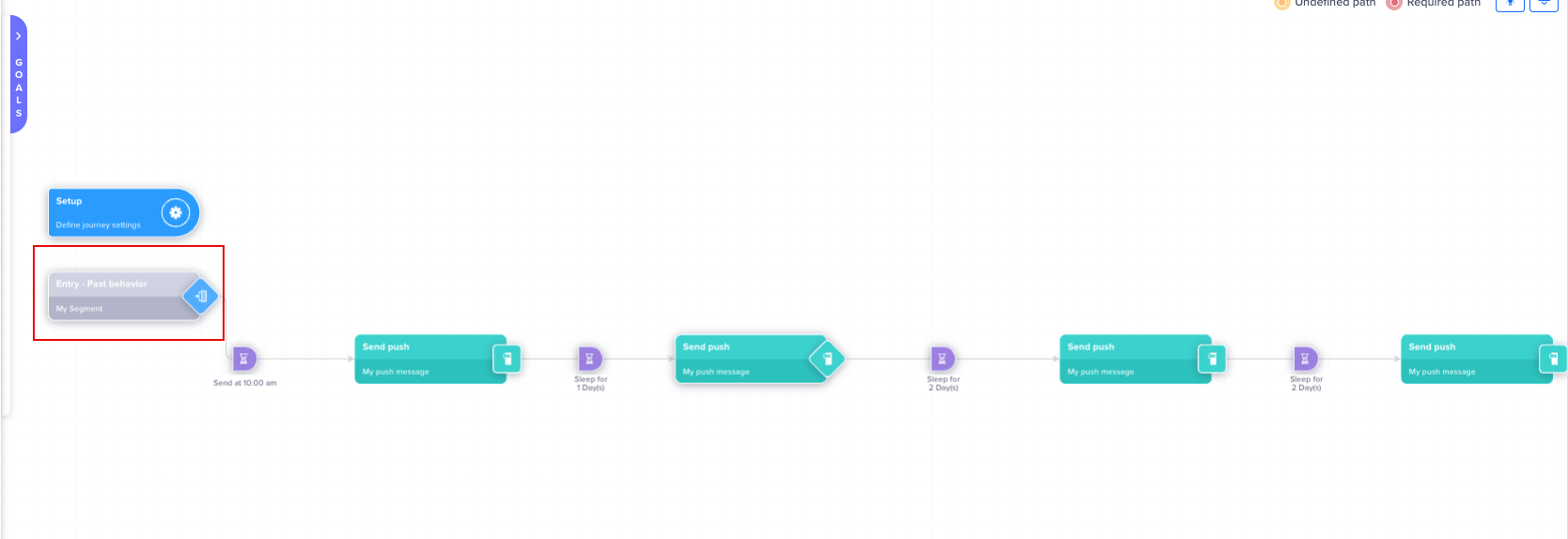
When you clone a journey across projects, some nodes may appear in a partially filled state because the destination project does not have the same events, user properties, or segments used in the source journey.
These nodes are visually greyed out, indicating that the structure was copied but the configuration could not be fully resolved. You must update the missing or invalid fields before publishing. Journeys with partially filled nodes cannot be published.
Partially-Filled Nodes in a Cloned Journey
The following table describes how each journey component behaves, including which parts are retained, validated, or excluded from the copy:
Journey Component
Behavior in Copied Journey
Additional Notes
Journey Name
CleverTap prefixes the journey name with Clone of to distinguish it from the original.
You can rename it any time.
Entry Criteria
Copied from the source journey.
Missing details are highlighted.
Entry and Goal Nodes
Copied from the source journey.
The journey cannot be published until all dependencies are resolved.
Entry Date and Time Settings
Start and end entry conditions (publish date, specific date, recurring) are copied as configured.
If the scheduled time has already passed in the destination, CleverTap displays an error.
Re-entry Rules
Rules for allowing users to re-enter the journey are copied from the source.
Update only if your destination project requires a different entry logic.
DND and Timezone
These are copied exactly from the source.
Ensure the copied timezone aligns with the destination project’s settings.
Control Group Settings (System, Custom, Journey)
Copied if configured in the source. If not set up, these appear unselected.
You can manually select or edit control groups after copying.
Timeout Duration
The timeout duration copies from the source project without modification.
You may edit this before publishing.
PBS and Live Action Nodes
Behavior is identical to campaign components. Events and user properties are validated again in the destination.
Missing dependencies are highlighted for correction.
Engagement Nodes
Copied with the same behavior as campaigns.
Unsupported channels block cloning.
Controller Nodes (Force Exit, User Property, Intellinode, Conditional Split)
Copied from the source journey.
Missing events, properties, or goals are highlighted.
Recurring Entry Schedules
Recurring and schedule-based entries are copied if still valid.
CleverTap shows an error if the configured time has passed.

 icon and select Clone from the available actions. The Clone Campaign popup opens.