
ValueFirst
SMS Provider
Overview
ValueFirst is a global enterprise communication platform enabling brands to deliver SMS notifications, alerts, and promotions worldwide. Integrating ValueFirst with CleverTap allows you to send transactional and promotional SMS messages directly from CleverTap’s engagement dashboard.
This integration enables real-time message delivery, delivery status tracking via callbacks, and event-based campaign triggering.
Businesses integrate ValueFirst with CleverTap to:
- Send Transactional Messages: Send OTPs, verification codes, or order updates.
- Run Promotional Campaigns: Deliver targeted SMS offers to user segments based on behavioral triggers.
- Automate Customer Engagement: Send reminders, feedback requests, or re-engagement messages.
Integrating ValueFirst with CleverTap combines scalable message delivery with advanced segmentation and journey orchestration.
Prerequisites for Integration
Before integrating, check the following:
-
You have an active CleverTap account with the SMS add-on enabled.
-
You have a ValueFirst XML account for the SMS channel API.
- If you don’t have one, email [email protected] to request credentials. You’ll receive your Username, Password, and Sender ID.
-
Check that the CleverTap IP
43.205.172.215is whitelisted on the ValueFirst side.
Support for IntegrationThis integration is managed and continuously improved by ValueFirst. The CleverTap and ValueFirst integration has undergone stringent testing to ensure seamless functionality. For any questions or issues, contact ValueFirst for support and resolution.
Integrate ValueFirst with CleverTap
To integrate ValueFirst with CleverTap, complete the following steps:
Configure ValueFirst
Before configuring CleverTap, authenticate your SMS account in the ValueFirst portal.
To configure ValueFirst, perform the following steps:
- Sign Up for the ValueFirst – CleverTap Integration by entering the required details and clicking Sign Up.
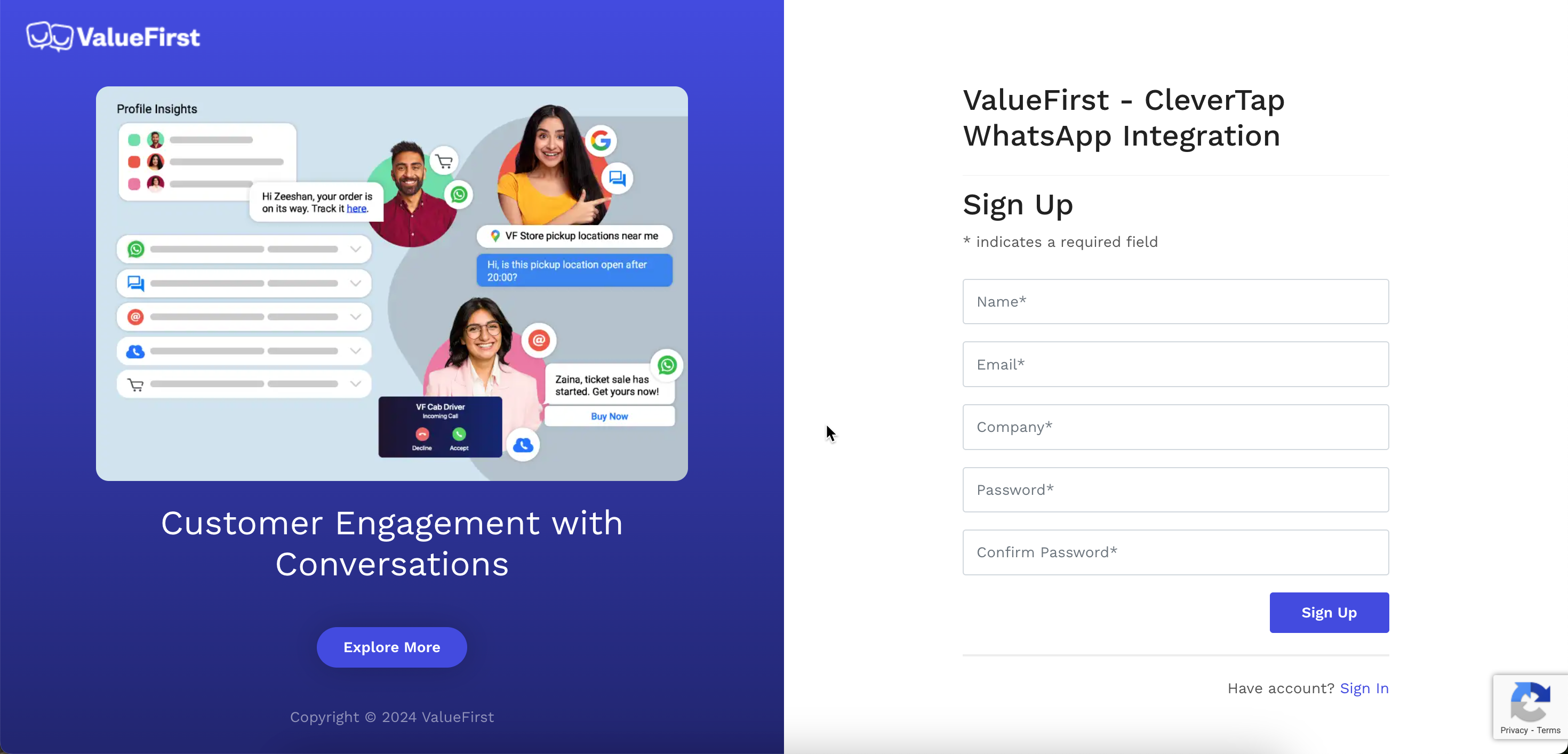
ValueFrist Sign Up
- After signing up, log in to the ValueFirst portal using the credentials created in the above step.
- Enter the following:
- Username and Password
- Default Sender ID (from your ValueFirst account)
- Click Authenticate. The message “Successfully authenticated ValueFirst account.” displays.
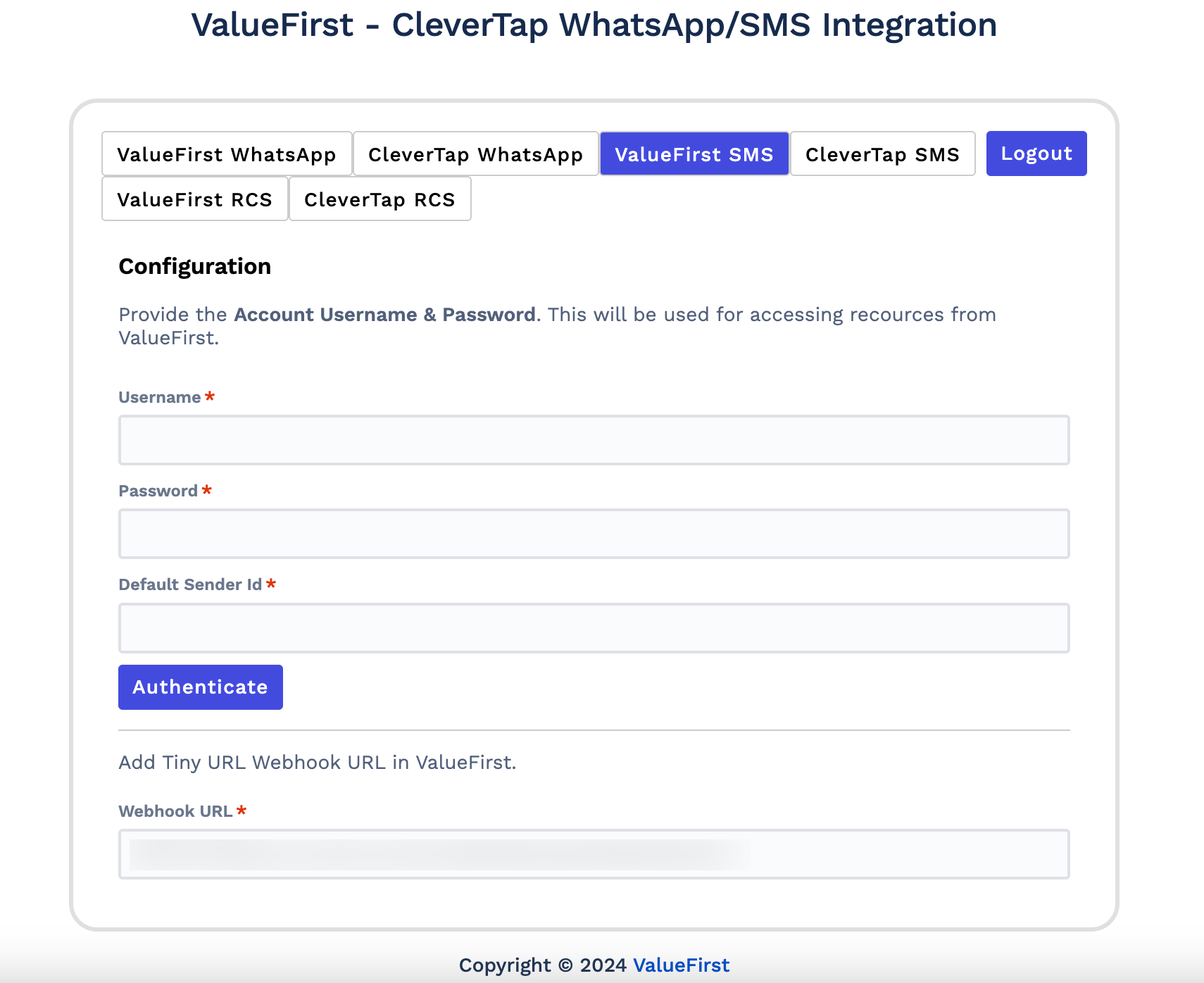
ValueFirst Authentication
Set Up CleverTap Dashboard
Once the ValueFirst account is configured, set up the CleverTap dashboard to connect and authenticate the SMS provider as follows:
- Go to Settings > Engage > Channels > SMS in the CleverTap dashboard.
- Click + Add Provider. The Add SMS provider page opens.
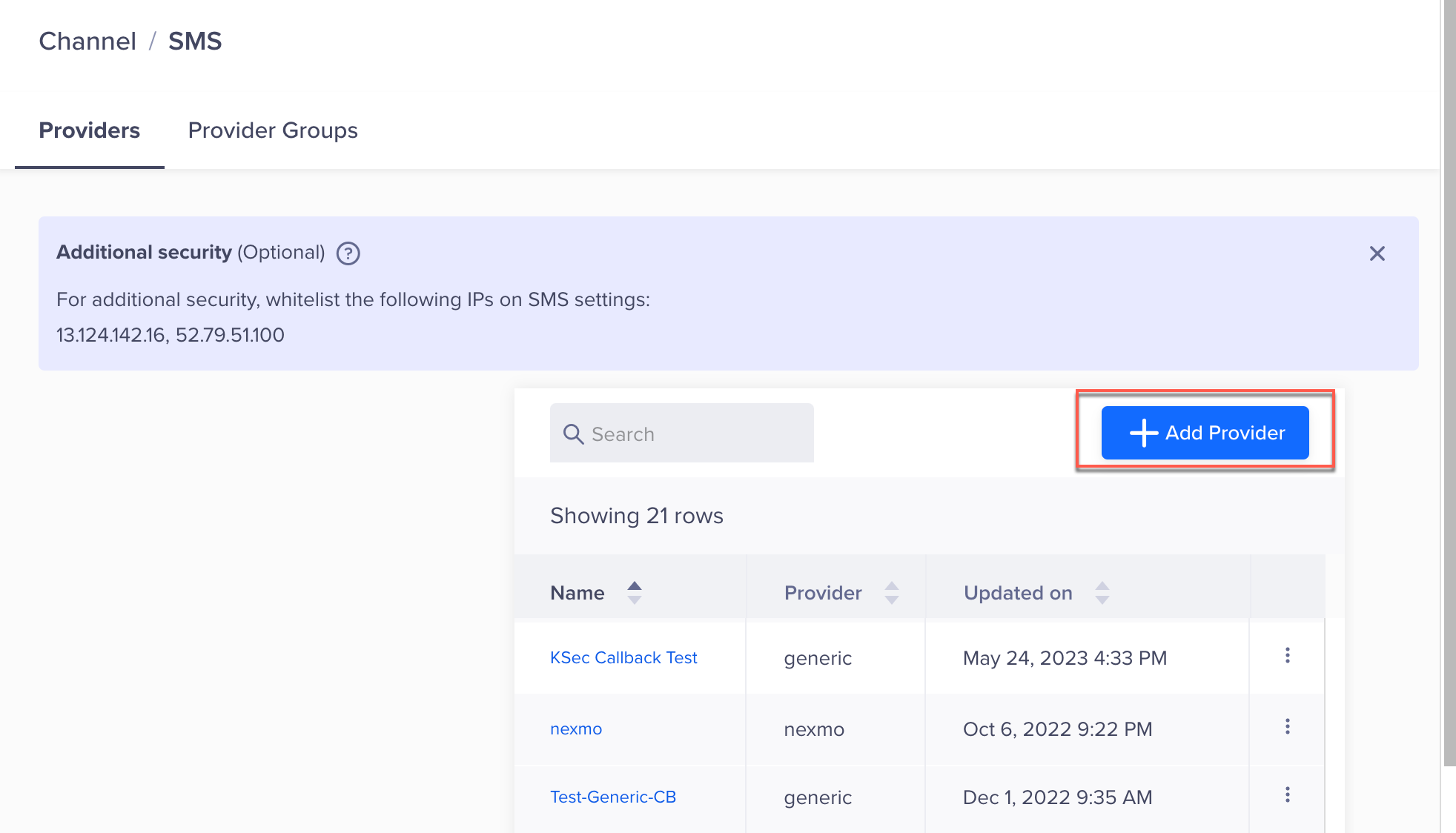
Add Provider
- Under Provider, select Other (Generic) and enter the following details:
| Field | Description |
|---|---|
| Nickname | Enter a name such as ValueFirst_SMS. |
| Delivery Report Callback URL | Enter this URL in the ValueFirst portal to receive delivery reports. Refer to Set Up SMS Callbacks. |
| Request Type | Select POST. |
| HTTP Endpoint | Paste the Auth URL from the ValueFirst plugin. Ensure that the URL is in HTTPS format, that is, your URL must begin with https://. |
- Enter the following details for the key-value pairs under the Headers section.
| Key | Value |
|---|---|
Authorization | Paste the Basic Token Value from the ValueFirst plugin. |
Content-Type | application/json |
NoteThe Authorization token is generated by the ValueFirst plugin and must be copied exactly as displayed. Incorrect keys will result in a
401 Unauthorizedresponse.
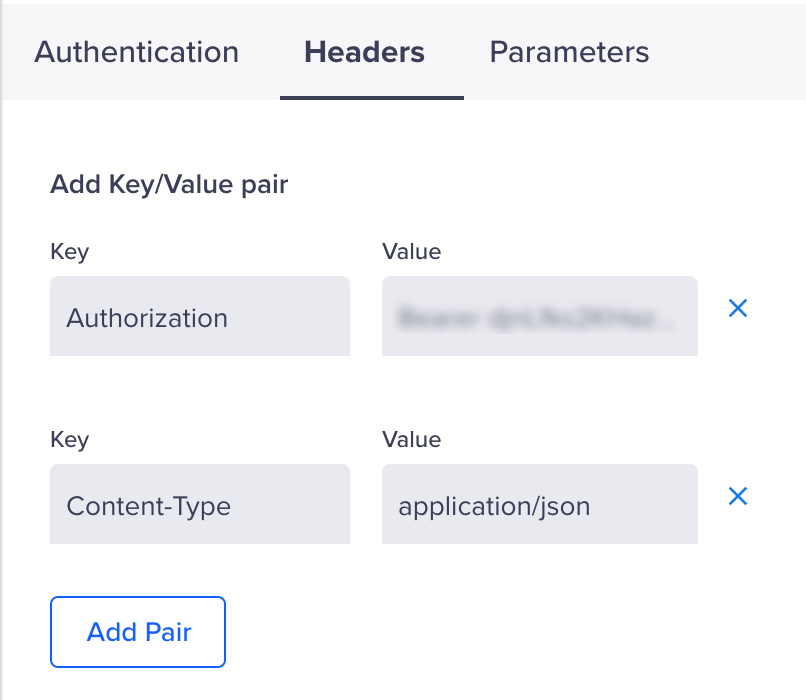
Set Headers
-
Under Parameters, select
JSONas the request type for thePOSTrequest. Refer to the following sample payload for the expected structure.Sample JSON Payload
{
  "from": "<Your Sender ID>",
  "to": "$$To",
  "text": "$$Body",
  "client_ref": "$$MessageID",
  "callback": "<CleverTap Callback URL>"
}| Parameter | Description | Required |
|---|---|---|
from | Sender ID registered in ValueFirst. | Yes |
to | Recipient’s mobile number. Use $$To for dynamic replacement. | Yes |
text | Message text content. Use $$Body. | Yes |
client_ref | Unique message ID (CleverTap dynamically replaces this). | Yes |
callback | CleverTap Delivery Report Callback URL. For more information, refer to Set Up SMS Callbacks. | Optional |
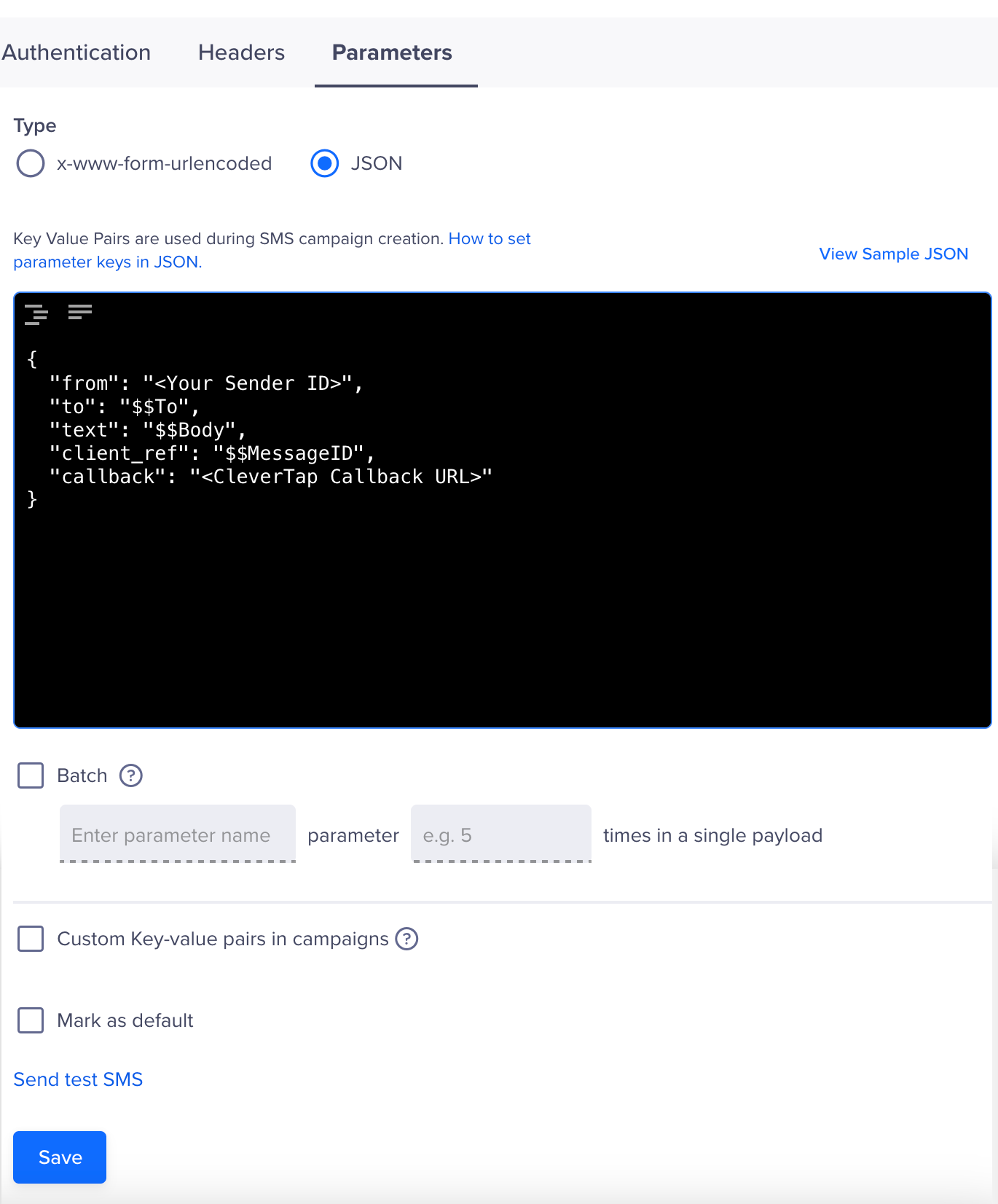
Set Parameters
- (Optional) Select the Batch checkbox, then enter the required details to send multiple SMS messages in a single API request.
- Click Save. A pop-up opens, prompting you to Send Test SMS.
Send Test SMS
Sending a test SMS helps confirm that your ValueFirst integration is working before launching a live campaign. This ensures that the API endpoint is correctly configured, that authentication is valid, and that messages can be delivered.
To verify that the integration works, perform the following steps:
- Click the Send Test SMS hyperlink before creating SMS campaigns and journeys.
- Enter the following details:
- Country Code and Mobile Number: Enter the country code and mobile number to which you want to send the message.
- Message: Enter sample text, such as
This is a test message powered by ValueFirst.
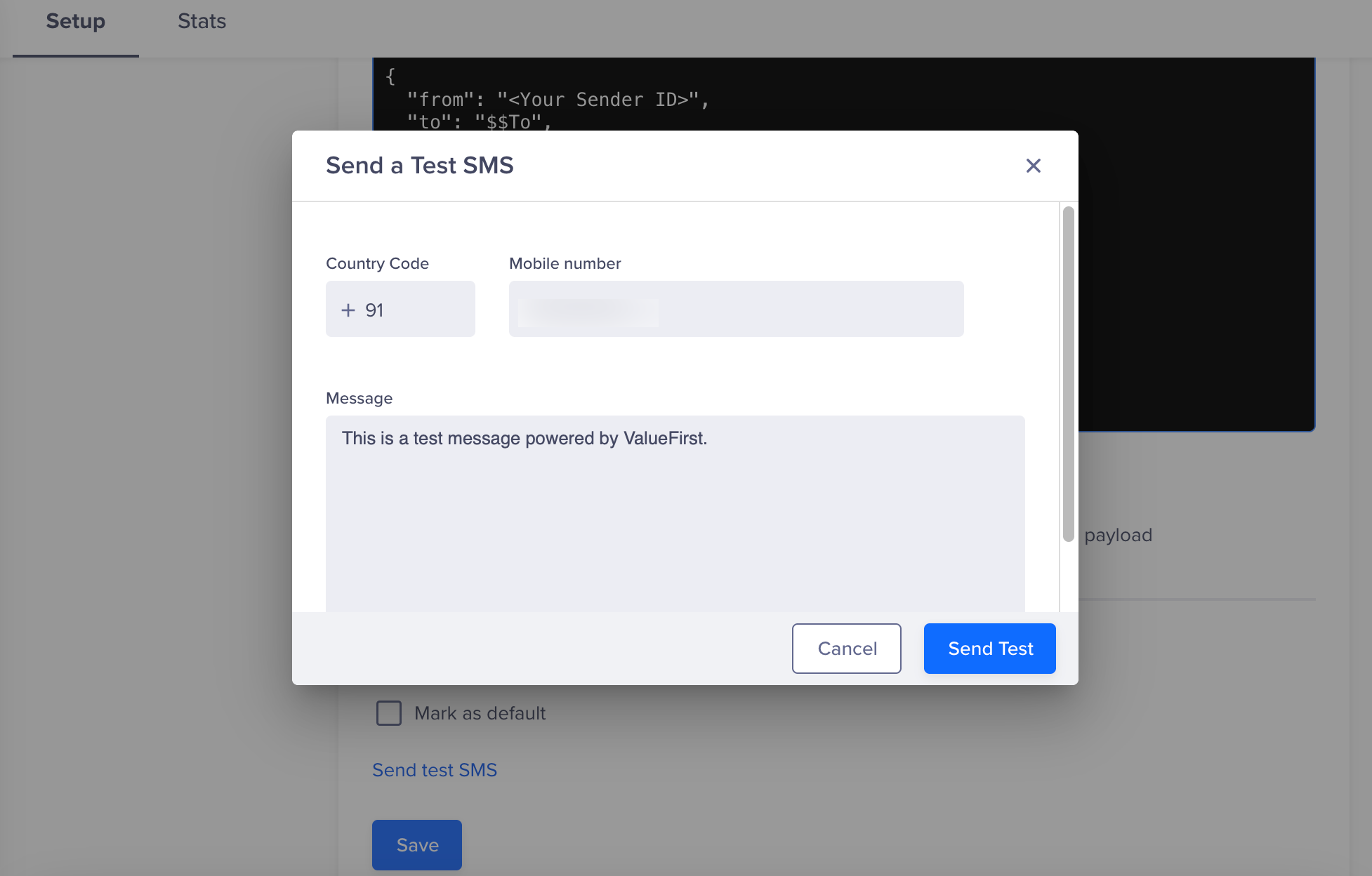
Send a Test SMS
- Click Send Test.
If the configuration is correct, the test message will be delivered, and ValueFirst will return a DLR update. If there is an error (for example, incorrect credentials or endpoint), CleverTap will display a failure notification.
Set Up SMS Callbacks
To track SMS requests, copy the Delivery report callback URL from CleverTap and add it to the JSON payload
- You can find the Delivery report callback URL on the CleverTap dashboard under the Provider
Setup page Settings > Channels > SMS > Provider Nickname. - Add it to the JSON payload.
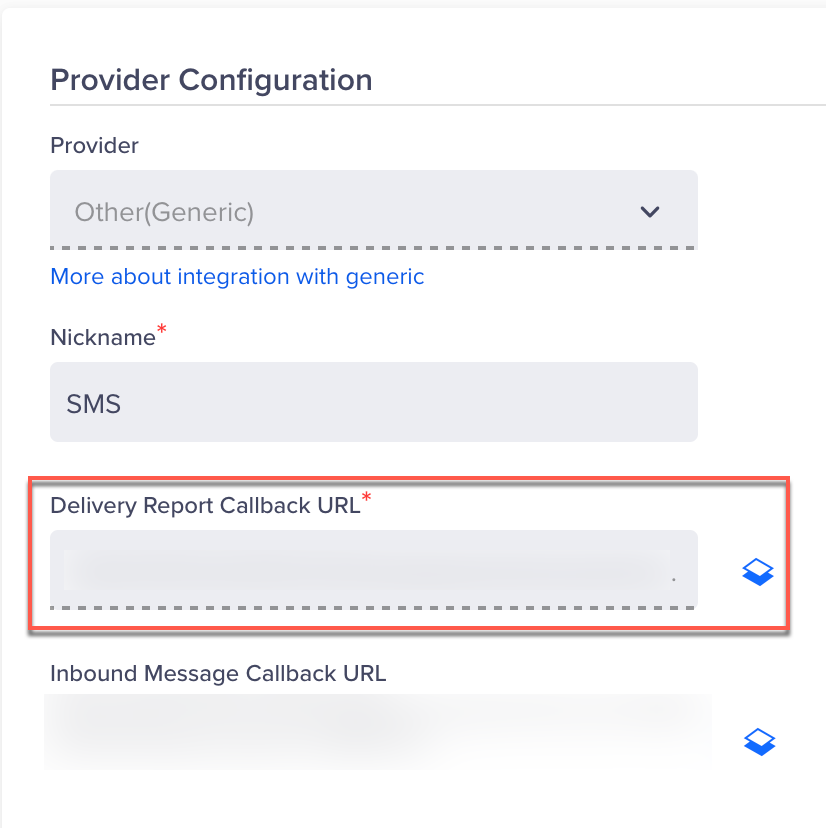
Set Up SMS Callbacks
Verify Successful Integration
Your integration is considered successful when the following criteria are met:
- The test SMS is delivered to the intended mobile number.
- You receive a DLR (Delivery Report) callback from ValueFirst at the configured CleverTap callback URL, indicating delivery, failure, or queue status.
- CleverTap logs show no errors related to authentication, payload structure, or message transmission.
Once these conditions are met, you can proceed to build and publish SMS campaigns or set up Journeys using ValueFirst as your SMS provider.
Updated 6 months ago