
Promo Reports
Learn how to export and analyse reward distribution data for Promotions in CleverTap.
Overview
Private BetaPromo Reports is currently in Private Beta. To enable it for your account, contact your Customer Success Manager.
Reports is a centralized report builder that gives performance marketers, growth teams, and product managers complete visibility into the performance and distribution data for all promotions in one place. Reports are available across Promo Campaigns, Loyalty Wallets, and Partner Vouchers, all from a single interface.
Every distribution log, transaction record, error detail, and user-level audit trail is accessible in one place, exportable in the format and delivery channel you need, and schedulable to run automatically at regular intervals.
With Promo Reports, you can:
- Generate reports for any Promo module with module-specific filters
- Export reports via direct download or cloud storage, such as Amazon S3
- Schedule recurring reports to run daily or weekly
- Track the status of every report execution in real time
- Audit reward distributions at the user level for reconciliation and downstream analytics
The Reports list page is the central hub for all reports created in your account. It provides an at-a-glance view of every report's configuration, current status, and delivery details.
To access Promo Reports, go to Promotions > Reports. The page is organized into two tabs based on how frequently a report runs:
One Time Reports
The One Time tab displays all single-run report exports.
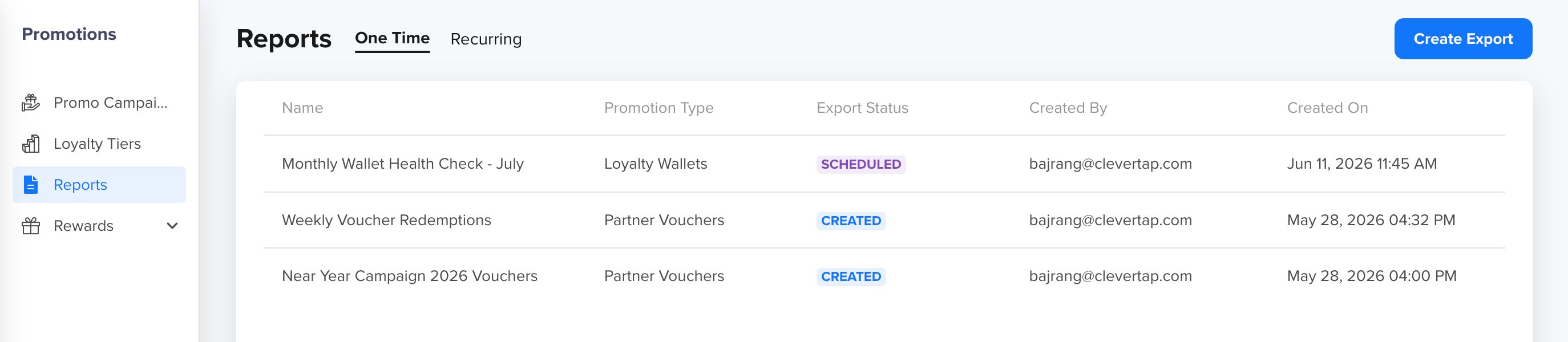
View One Time Reports List
Each row in the table represents one report and shows the following details:
| Column | Description |
|---|---|
| Name | The name assigned to the report at creation. For example, June Wallet Transactions for App Channel. |
| Promotion Type | The Promo module that the report covers. For example, Promo Campaigns or Loyalty Wallet. |
| Export Status | The current state of report generation. |
| Created By | The email address of the user who created the report. |
| Created On | The date and time the report was created, displayed in the account's timezone. |
Export Status
The following statuses indicate the current state of a one-time report:
| Status | Description |
|---|---|
| Creating | The report is currently being generated. |
| Created | The report has been generated and is ready for download or has been delivered to the configured destination. |
| Creation Failed | The report could not be generated. Retry the report or contact CleverTap Support if the issue persists. |
You can click any report row to view its full configuration in read-only mode.
Download Report
To download a completed report as a CSV file directly from the Reports list, perform the following steps:
- Locate the report row in the Report table and click the
 icon.
icon. - Click Save.
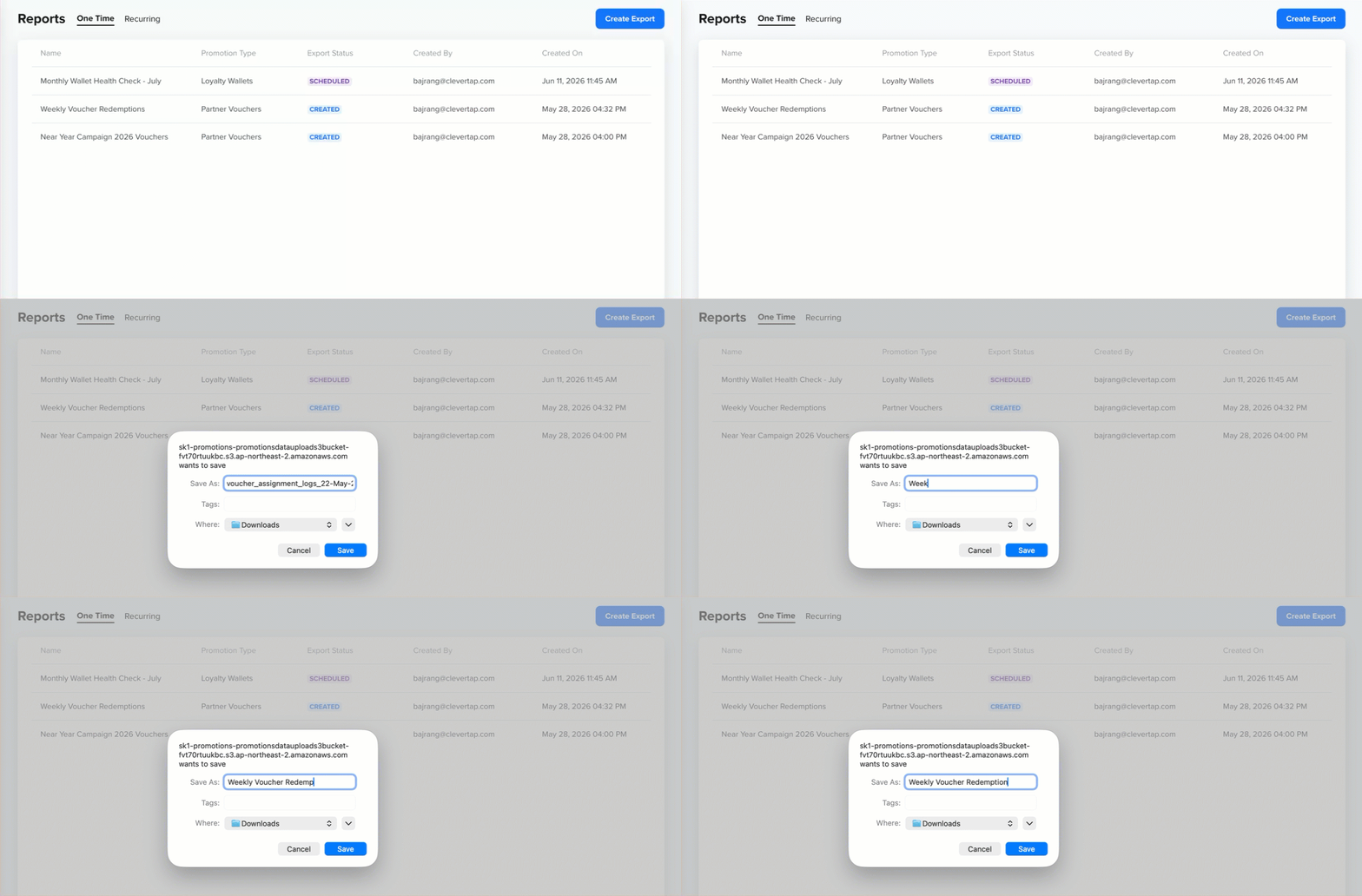
Download Report
NoteReports with a Creating or Creation Failed status cannot be downloaded. The download option is available only for reports with a Created status.
Recurring Reports
The Recurring tab displays all scheduled reports that run automatically at a configured interval.
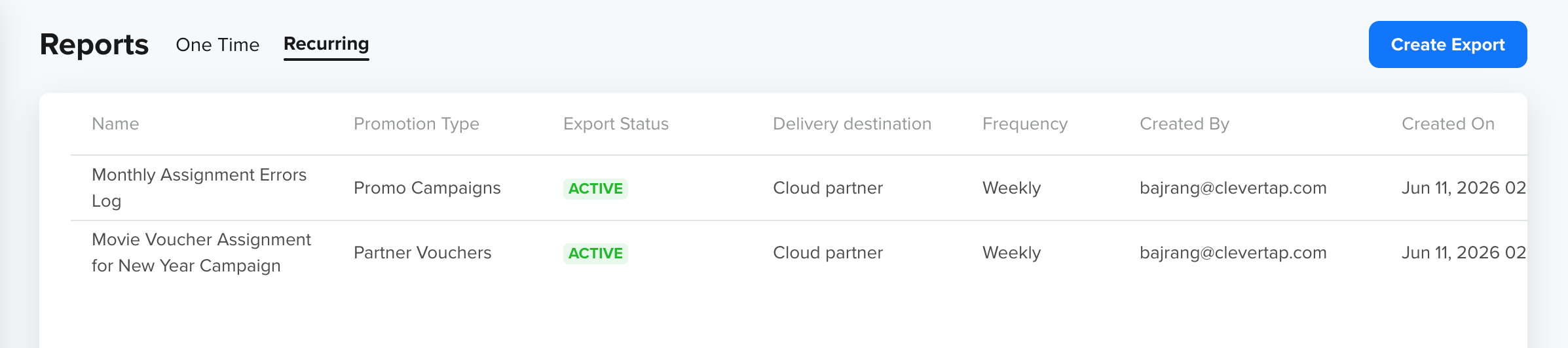
View Recurring Reports List
Each row shows the same columns as the One Time tab, with one additional column:
| Column | Description |
|---|---|
| Frequency | Indicates whether the report runs Daily or Weekly. |
Export Status
The following statuses indicate the current state of a recurring report:
| Status | Description |
|---|---|
| Active | The recurring report is live and running on its configured schedule. |
| Stopped | The recurring report has been paused or deleted and is no longer running. |
Editing Recurring ReportOnce a recurring report is created, you can not edit its configuration. To change the configurations, delete the existing recurring report and create a new one with the updated settings.
Create Report
To create a new report:
- Go to Promotions > Reports and click Create Report.
- Complete the two-step form:
Step 1: Setup
The Setup step defines what data the report includes.
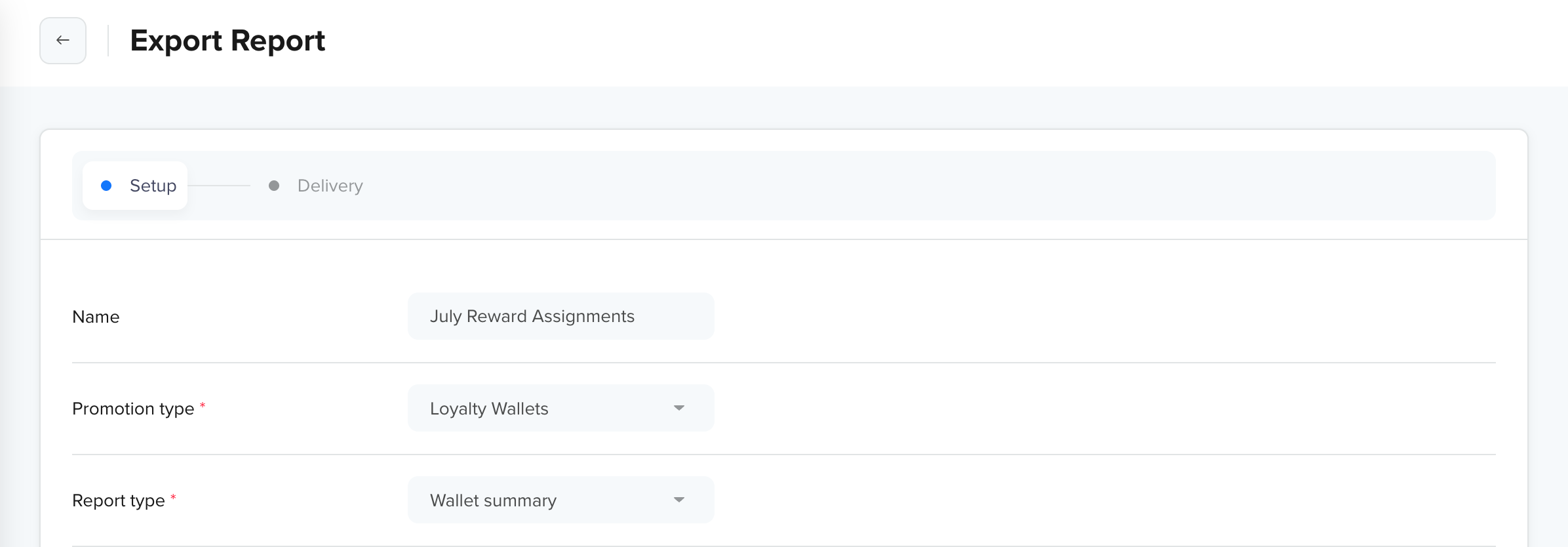
Set Up Report Options
Configure the following fields:
- Name: Enter a descriptive name to identify this report. The name appears in the Reports list. Choose a name that makes the report easy to identify later. For example, July Reward Assignments.
- Promotion Type: Select the Promo module for which you want a report. For example, Loyalty Wallet. The promotion type you choose determines which report type appears in the fields that follow.
- Report Type: Select the specific type of report within the chosen category. The available options are updated dynamically based on the selected promotion type. For the complete list of report types per category, refer to Available Report Types.
After selecting a report type, additional fields appear to configure the report. The following filters may appear depending on the category and report type selected:
| Filter | Appears For | Description |
|---|---|---|
| Loyalty wallet | Loyalty Wallet reports | Select the specific wallet to report on. If only one wallet exists, it is pre-selected. You can select only one wallet at a time. |
| Transaction source | Wallet Transactions report | Filter by the source of the wallet transaction. Options include Cashback Coupon, System, API, and Promo Campaign. All sources are selected by default. You must select at least one transaction source. |
| Transaction type | Wallet Transactions report | Filter by transaction type, such as Credit, Debit, Expired, Promised, Reverse, and Refund. You must select at least one transaction type. |
| Partner | Partner Voucher reports | Select the partner brand to report on. One selection only. |
| List tag | Partner Voucher reports | Select the voucher list within the chosen partner. One selection only. All vouchers are shown regardless of status. |
| Campaign | Promo Campaign reports | Select the campaign to report on. Depending on the report type, all campaigns, specific campaigns, or only one campaign can be selected. All campaigns are shown regardless of status. |
Step 2: Delivery
The Delivery step defines how the report is delivered and how often it runs.
- Delivery destination: Select how you want the completed report delivered. Three delivery methods are available:
- Device Storage: The report is generated and made available for direct download from the Reports list page. No additional configuration is required.
- Cloud Partner: The report is pushed directly to a connected cloud storage destination. Before selecting this option, ensure that the cloud storage integration is configured in Settings > Partner Settings. For Amazon S3 setup instructions, refer to Data Export to AWS S3.
- Partner: Select the cloud storage provider. For example, Amazon S3.
- Bucket: Select the configured storage bucket from the dropdown. Available buckets are fetched from the Partner Export configuration in Settings.
- Export Frequency: Select how often the report runs.
- One Time: Runs the report once for the configured date range and does not repeat the same export. A date range selection is required.
- Recurring: Schedules the report to run automatically at a defined interval. The following additional fields appear when Recurring is selected:
- Interval: Select the recurrence frequency. For example, Daily or Weekly.
- Delivery day: Select the day of the week the report should be delivered. For example, Monday through Sunday. This option appears only for a weekly interval. For example, to deliver a weekly wallet transaction summary to a business intelligence team's S3 bucket every Monday, select Recurring, set the Interval to Weekly, and set the Delivery day to Monday.
Date Range for Recurring ReportsRecurring reports do not include a date range filter. The system automatically computes the data window based on the configured interval, that is the previous day for daily reports and the previous week for weekly reports.
Date Range
For one-time reports, select the data window the report should cover. The following preset options are available: Yesterday, Today, Past 7 days, Past week, Past 2 weeks, Past 3 weeks, Past month, Past 2 months, Past 3 months, and Custom range.
Date Range Availability by Report TypeNot all report types support date filtering. For example, in Loyalty Wallet the users ledger summary report do not include a date range filter. For other report types, a date range selection is required when creating a one-time report.
Submit Report Configurations
After configuring both steps, click Export. A confirmation message Report export created appears.
The report appears on the Reports list page immediately, with a Creating status. The status transitions to Created or Creation Failed once processing is complete.
All report data is exported in the account's timezone. To verify or update the account timezone, go to Settings > Project.
Available Report Types
This section documents all available report types, the filters they support, and the applicable delivery methods and frequency options.
Loyalty Wallet
Loyalty Wallet reports provide a complete picture of wallet activity across your user base, from aggregate summaries to per-user transaction histories.
| Report Type | What It Shows |
|---|---|
| Wallet Summary | Aggregate wallet balance and points statistics per wallet. A wallet summary is useful for a periodic health check of your wallet, reviewing total points issued, total points redeemed, outstanding balance, and expiry volumes over a given period. |
| Wallet Transactions | Every credit, debit, expiry, and promised transaction for a wallet, with source and type filters. Wallet transactions are the most granular report. Use it to audit every transaction that affected a wallet during a period. For example, to reconcile wallet points issued via a promo campaign against points that have since expired, use the Wallet Transactions report with Transaction Source set to Campaign and Transaction Type set to Expired. |
| User Ledger Summary | Per-user point balance snapshot across a wallet. The user ledger summary provides a per-user snapshot, making it useful for compliance audits, customer support lookups, and seeding personalization workflows with current balance data. |
Partner Vouchers
Partner Voucher reports cover assignment and redemption for all configured partner voucher lists.
| Report Type | What It Shows |
|---|---|
| Voucher Assignment Logs | Every instance where a voucher code was assigned to a user from a partner list. Voucher assignment logs help confirm the delivery of partner vouchers to users. For example, after a campaign distributed movie vouchers from a partner to high-value users, this report shows which users received a voucher, the assigned voucher code, and the assignment timestamp of the assignment. |
Promo Campaigns
Promo Campaign reports provide visibility into how campaigns are performing at the distribution level, meaning which users received rewards, which assignments failed, and why.
| Report Type | What It Shows |
|---|---|
| Reward Assignment | One row per successfully distributed reward per user per campaign. The Reward Assignment report is the go-to for reconciliation. If a promo campaign was configured to distribute wallet points to Gold-tier users, this report shows one row per user for each reward successfully assigned, including the reward type and value. |
| User Errors | User-level error details for a single campaign identify specific users and the errors they encountered. It is used when investigating errors for a specific user or a specific segment. It provides the user identity and the exact error each user encountered, which is useful for customer support escalations or targeted re-processing. |
Report Constraints and Limits
The following constraints apply when generating reports. Understanding these limits helps in planning exports correctly.
| Constraint | Value |
|---|---|
| Campaigns per report (Reward Assignment, Campaign User Errors) | One campaign at a time |
| Wallets per report | One wallet at a time |
| Maximum date range | 3 months per export |
| Maximum rows per file | 1,000,000 rows |
| File format, under 1 million rows | Single CSV file |
| File format, over 1 million rows | ZIP file containing multiple CSV files |
| Sort order | Distribution or transaction timestamp, ascending |
| Timezone | Account timezone |
Date Range Limit and Export FormatThe 3-month date range limit applies to transaction log reports only, such as Wallet Transactions and Reward Assignment. Other report types may have different or no date range constraints. For reports expected to exceed 1 million rows, for example, a high-volume wallet transaction export covering three months, the output is a ZIP file. Each CSV within the ZIP contains up to 1 million rows, split chronologically.
Report Delivery Matrix
Not all delivery methods and frequency options are available for every report type. The following table shows which combinations are supported:
| Export Frequency | Delivery Method Available | Date Range Configuration |
|---|---|---|
| One time | Download | Required |
| One time | Partner Export | Required |
| Recurring (Daily or Weekly) | Partner Export | Auto-computed |
FAQs
Find answers to the frequently asked questions for Promo Reports.
Can I edit a recurring report after it has been created?
Editing recurring reports is not available in the current release. To change the configuration, delete the existing recurring report and create a new one with the updated settings.
What happens when I delete a recurring report?
Deleting a recurring report permanently stops it from running. All future scheduled runs are canceled immediately. Reports already generated before deletion are not affected and remain accessible in the One Time tab.
What timezone does the report use for timestamps?
All timestamps in reports use the CleverTap account timezone. Ensure the account timezone is configured correctly before exporting historical data.
Why does my report show a Creation Failed status?
A report can fail due to data processing errors or system issues. Verify that the filters are configured correctly. For example, ensure the selected campaign, wallet, or coupon is still active or falls within the selected date range. If the issue persists, contact CleverTap Support with the report name and creation timestamp.
Can I download a delivered report to an S3 bucket from the Reports list?
One-time reports delivered via Partner Export are listed in the One Time tab with the status Created. However, the download icon on the list is only available for reports configured with the Download delivery method. To ensure a report is always downloadable from the Reports list, include Download as the delivery method when creating the report.
How many reports can I create?
There is no limit on the number of recurring reports.
Can I filter a Wallet Transactions report by a specific transaction source and type simultaneously?
Yes. The Transaction Source and Transaction Type filters are independent, and you can use them together. For example, selecting Promo Campaign as the source and Expired as the type returns only wallet points issued via promo campaigns that subsequently expired within the selected date range.
What is the difference between the Wallet Summary and the User Ledger Summary report?
The Wallet Summary report provides aggregate statistics for the entire wallet, such as total points issued, redeemed, expired, and outstanding, over a selected date range. The User Ledger Summary report provides a per-user breakdown of those figures, showing each user's balance and transaction totals.
Can I run a Promo Reports export outside of the CleverTap dashboard?
Promo Reports are created and managed through the CleverTap dashboard. For automated delivery to cloud storage, use the Partner Export delivery method with a Recurring frequency to push reports to Amazon S3, Google Cloud Storage, or Azure Blob Storage without manual intervention.
Who can create and view Promo Reports?
Promo Reports follows role-based access control (RBAC). Users with write access can create reports and configure delivery settings. Users with read access can view the Reports list and open any report to review its configuration, but cannot create new reports or modify existing ones.
Updated 5 months ago