
Global Exclusion Filter
Learn how to precisely target your audience by excluding users in real time using the Global Exclusion Filter in the Query Builder.
Overview
Global Exclusion Filter enhances the CleverTap Segment Builder by introducing a dedicated Exclude Users section. While you could already define the users you want to include, this addition lets you explicitly remove users who meet specific disqualification criteria from that set.
Instead of relying only on inclusion filters, you can apply exclusion rules that subtract users from the final audience. These exclusion criteria provide more precise targeting control and ensure your segment contains only eligible users.
Global Exclusion Filter is beneficial when you need to do the following:
- Exclude users who don't meet reachability conditions to prevent unnecessary spending on costly channels such as SMS.
- Remove users who match repeat or reusable exclusion criteria
- Apply disqualification rules across the entire segment definition
Inclusion and exclusion are calculated separately, and the final audience is created by removing excluded users from the included users. Any user that matches an exclusion rule is removed from the set of included users, producing the final segment.
Purpose
The Global Exclusion Filter is especially useful when your exclusion conditions are not naturally expressible as part of your inclusion logic, and you want a clear include this, exclude that approach.
The following are examples of exclusion criteria:
- Users who have no push token on any device
- Users who opened the last 3 campaigns
- Internal employees
- Users already in another live journey
- Users with invalid email IDs or phone numbers
- Dormant or inactive users
Example Scenario
If a user has multiple devices, and only some of them have push tokens:
| User | Device | Device Token Exists? |
|---|---|---|
| User 1 | Device 1 | Yes |
| User 1 | Device 2 | No |
| User 1 | Device 3 | Yes |
| User 1 | Device 4 | No |
| User 1 | Device 5 | Yes |
If you want to target users who are unreachable via push on any of their devices, User 1 must not qualify, since they are still reachable on some devices.
Now compare this to a user who is unreachable on every device:
| User | Device | Device Token Exists? |
|---|---|---|
| User 2 | Device 1 | No |
| User 2 | Device 2 | No |
| User 2 | Device 3 | No |
Unlike User 1, User 2 has no push token on any device. Since User 2 is unreachable on every device, they match the exclusion rule and are correctly removed from the final segment.
The Global Exclusion Filter enables you to exclude users who match the disqualification rule from the final segment output. For more use cases, refer to Use Cases and Examples.
When to Use the Global Exclusion Filter
Not every exclusion condition requires the Global Exclusion Filter. Choosing the right approach reduces query complexity and prevents misuse.
The following table describes when to use each approach:
| Goal | Recommended Approach |
|---|---|
| Exclude users who haven't done an event | Use Have Not Done in inclusion filters |
| Exclude users based on reachability | Use Global Exclusion Filter |
| Exclude internal employees globally | Use Global Exclusion Filter |
| Exclude users in another Journey | Use Global Exclusion Filter |
Example for Using Have Not Done Instead of the Global Exclusion Filter
If you want to target users who launched the app in the last 30 days but did not make a purchase in the last 10 days, use inclusion logic with a Have Not Done condition.
- Include users who did App Launch in the last 30 days
- AND have not done Charged in the last 10 days
This is simpler than defining a separate exclusion block and producing the same result.
Use the Global Exclusion Filter when the exclusion condition applies globally to the entire audience or to multiple inclusion groups connected by OR logic.
How to Use the Global Exclusion Filter
This section explains how to build a Target Segment using inclusion and exclusion rules. Follow these steps in order:
Build Inclusion Criteria
In the Filter users section, define the users you want to include.
Example:
- Users who added items to the cart in the last 30 days
- Country = India
Add and Define Exclusion Criteria
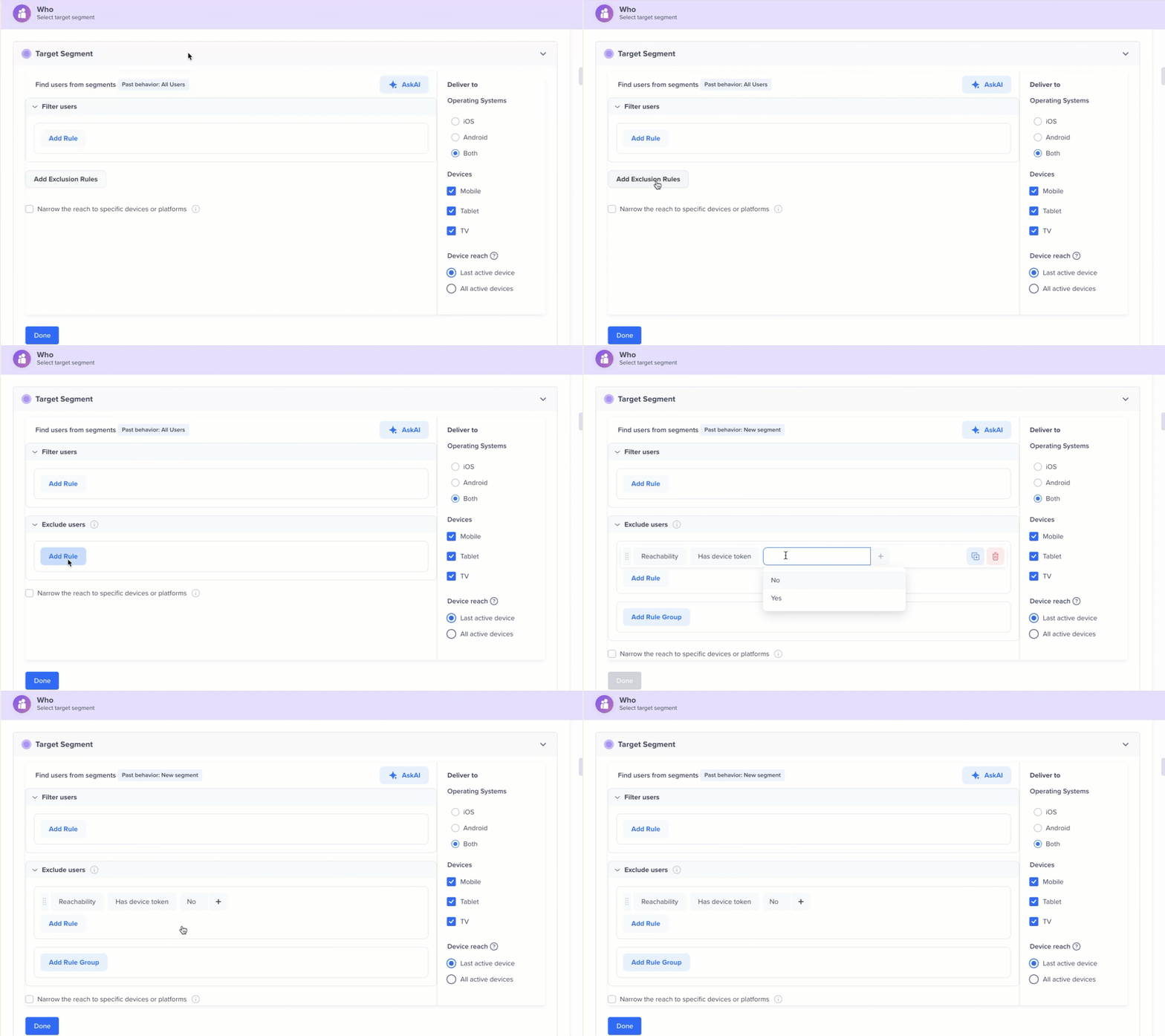
Click Add Exclusion Rules to enable the Exclude Users section, then define the users you want to remove from the final segment.
For example,
- Exclude users who are not reachable via push on any device
- Exclude users with invalid email IDs
- Exclude internal employees
Note: You can also create an exclusion-only segment. Leave Filter Users empty to target all users, then define your exclusion criteria to remove specific users from that audience. See No Rule in Filter Users.
Preview User Counts and Segment Insights
Preview the following user counts and insights:
- Inclusion count
- Exclusion count
- Final audience count in Segment Insights
Exclusion Rules are not reusable across CampaignsThe exclusion block you define in a segment applies only to that segment. It cannot be saved and reused across other Campaigns or Journeys.
If you need to apply the same exclusion criteria repeatedly, create a dedicated segment for those users and exclude it during campaign or journey setup. Reserve the Global Exclusion Filter for one-time or segment-specific exclusions.
Dashboard Overview
The Global Exclusion Filter is available in the existing segment builder, where segmentation rules are created.
The following image shows the Exclusion Filter in the Who section:
Global Exclusion Filter
The Target Segment builder is divided into the following two parts:
- Filter users: Includes the users you want
- Exclude users: Excludes the users you do not want
Evaluation of Inclusion and Exclusion
The Global Exclusion Filter applies exclusion rules after all inclusion groups are evaluated, regardless of how those groups are combined using AND/OR logic.
For example:
Final Segment =
(Users who Added to cart AND Country = India)
OR
(Users who Viewed product AND Country = Dubai)
MINUS
Users who are not reachable via push on any device
NoteInclusion and exclusion counts are both calculated from the All Users set, not from each other. You cannot get the final segment count by subtracting the exclusion count from the inclusion count. Only users who appear in both sets are removed. See Exclusion Count can be higher than Inclusion Count.
CleverTap evaluates the inclusion and exclusion queries independently, then removes any user who matches at least one exclusion rule.
Exclusion Rule BehaviorA user is removed if they meet even one exclusion rule. This is important when you define multiple disqualification criteria, such as excluding both dormant users and invalid email users.
Default Behavior
The Global Exclusion Filter follows specific interpretation rules when one section is left empty. Both Filter Users and Exclude Users are optional. However, at least one of them must contain a rule. For more information, refer to Validation Rules.
No Rule in Filter Users
If you do not add any rules in Filter users, CleverTap treats it as All Users. This enables exclusion-only targeting.
For example,
You want to target all users except internal employees.
- Filter Users: Empty -> Targets all users
- Exclude Users: Internal Employees
- Final Audience: All users except internal employees.
No Rule in Exclude Users
If you do not add any rules in Exclude users, CleverTap treats it as an exclusion of 0 users. This enables inclusion-only targeting.
For example,
You want to target users who Added to cart in the last 7 days.
- Filter Users: Added to cart in the last 7 days
- Exclude Users: Empty -> excludes zero users
- Final Audience: All users who Added to cart in the last 7 days.
Validation Rules
You cannot save a segment if all of the following are empty:
- Filter Users
- Exclude Users
- Global Filters (for example, app version, device, or OS scoping)
Rule Sections cannot be EmptyYou must add at least one rule in Filter users, Exclude users, or Global Device Filters.
In addition, while creating a Campaign or Journey, you will not be able to proceed if both sections are empty. This ensures the audience definition is always meaningful.
User Count and Insights
The Global Exclusion Filter shows separate counts for exclusion. This helps you understand how many users qualify in each section before the exclusion is applied.
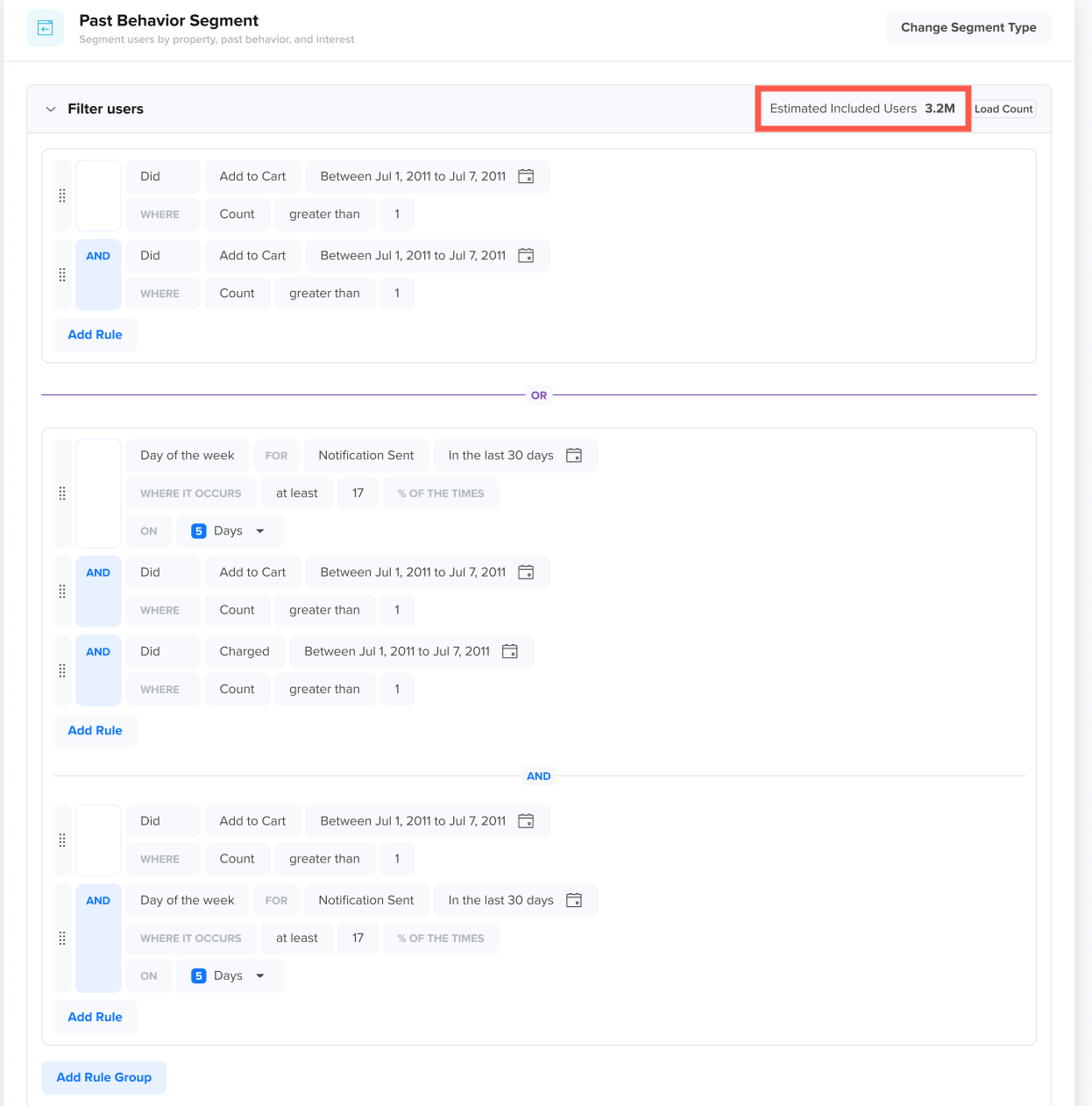
Inclusion Count
The count shown in Filter Users represents the number of users that meet the inclusion criteria.
The following image shows the Filter users count:
Filter Users
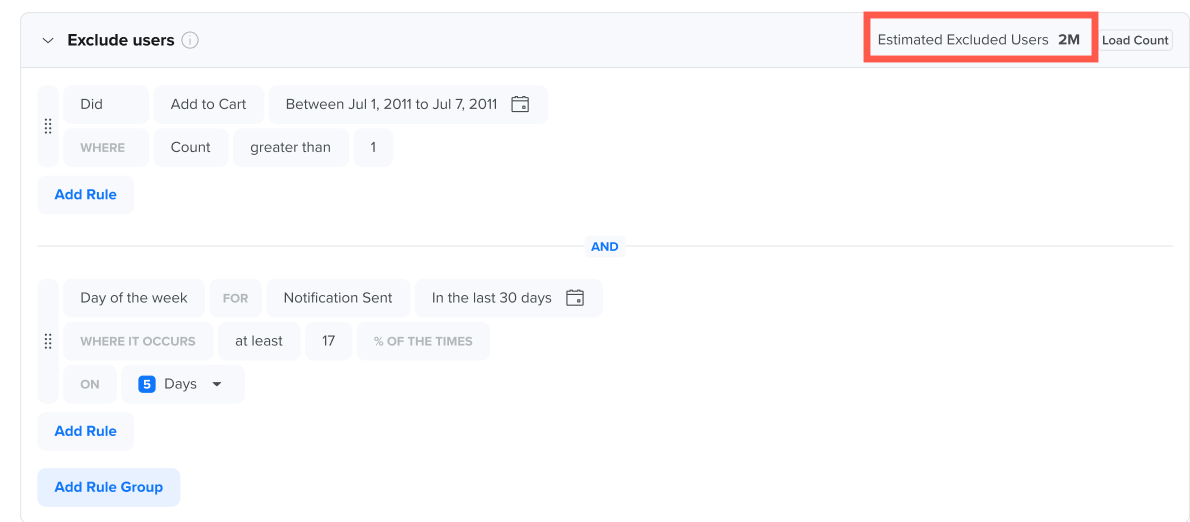
Exclusion Count
The count shown in Exclude Users indicates the number of users matching the exclusion criteria.
The following image shows the Exclude users count:
Exclude Users
Exclusion Count can be higher than the Inclusion CountInclusion and exclusion are evaluated separately from the All Users set.
This means the exclusion set can be larger than the inclusion set.
Example:
- Filter Users returns 100 users.
- Exclude Users returns 10,000 users.
This does not mean 10,000 users will be excluded from your segment. Only users common to both sets will be removed.
Final Segment Count
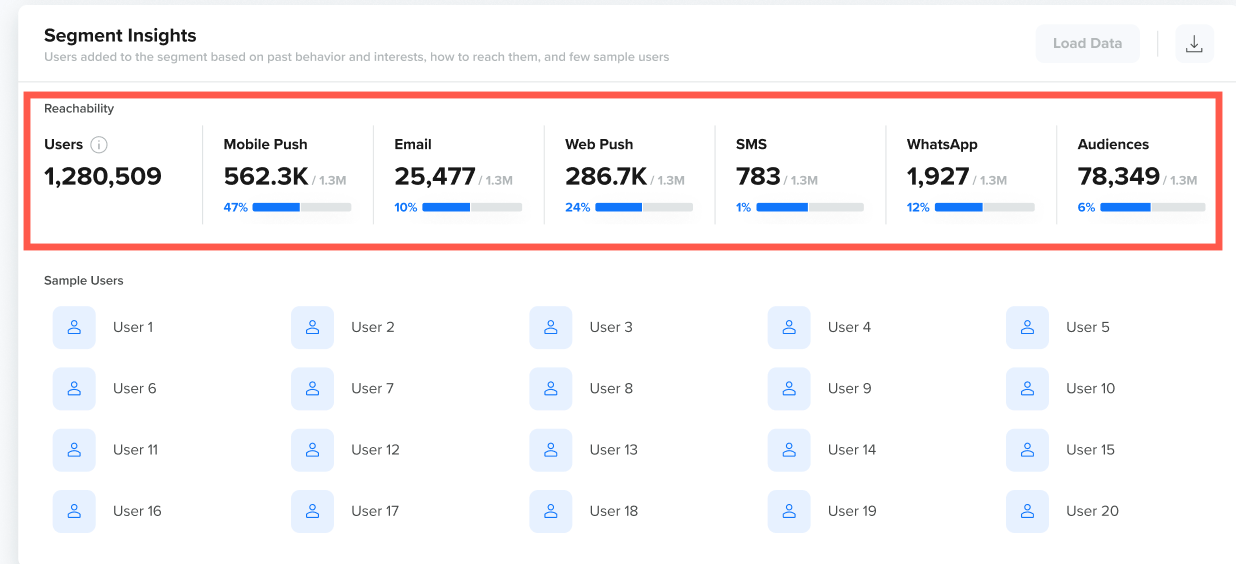
The Segment Insights section displays the channel-wise final segment count after the exclusion.
The final segment contains users who match the Filter Users criteria and do not match the Exclude Users criteria. This is not a simple subtraction of the two counts, since both are calculated independently from the same All Users set.
The following image shows the Segment Insights section that displays the channel-wise user count:
Segment Insights
Use Cases and Examples
These use cases and examples illustrate real scenarios in which the Global Exclusion Filter improves targeting accuracy.
Use Case 1: Exclude Push-Unreachable Users from a Campaign Audience
This is the primary use case for global exclusion filters.
Scenario
You want to send a push campaign to a segment of users, but ensure the final audience includes only users who can receive push notifications.
Rule
Filter Users:
- Users who Added to cart in the last 30 days
Exclude Users:
- Users who are not reachable via push on any of their devices
Result
The final audience consists only of users who have added items to their cart and can be reached via push notifications.
This improves campaign reachability and optimizes campaign costs.
Use Case 2: Exclude Users who Opened the Last 3 Campaigns
This use case helps prevent over-saturation and ensures you do not repeatedly message the same engaged users.
Scenario
You want to run a campaign for users who have not engaged with your communications recently.
Rule
Filter Users:
- Users who are eligible for the campaign
Exclude Users:
- Users who opened the last 3 campaigns
Result
The final audience excludes highly-engaged users who have already opened recent campaigns.
Use Case 3: Exclude Internal Employees from Targeting
This use case prevents accidental targeting of internal users.
Scenario
Your team's test devices and employee accounts are present in the production data, and you want to confirm they are never included in campaign sends.
Rule
Filter Users:
- All users who match your campaign segment
Exclude Users:
- Users matching employee identifiers (for example, internal user property or user bucket)
Result
Final audience excludes employees while retaining all eligible customers.
Use Case 4: Exclude Users already in Another Live Journey
This use case prevents conflicting experiences and avoids over-messaging.
Scenario
You want to launch a journey for cart abandoners, but avoid users who are already part of another live journey.
Rule
Filter Users:
- Users who Added to cart in the last 7 days
Exclude Users:
- Users already in another live journey
Result
The final audience contains cart abandoners who are not currently engaged in another Journey.
Use Case 5: Exclude Users with Invalid Email IDs or Phone Numbers
This use case ensures audience quality and reduces delivery failures.
Scenario
You want to run an email or SMS campaign, but you need to remove users with invalid contact information.
Rule
Filter Users:
- Users eligible for the campaign
Exclude Users:
- Users with invalid emails or phone numbers
Result
The final audience contains only users with usable contact details.
Use Case 6: Exclude Inactive Users
This use case helps focus on active users and improves engagement performance.
Scenario
You want to target users who are recently active and avoid dormant accounts.
Rule
Filter Users:
- Users matching campaign intent criteria
Exclude Users:
- Dormant/inactive users
Result
The final audience excludes dormant users, improving targeting relevance.
Best practices
This section explains how to use the feature effectively and avoid confusion.
- Use exclusion for global disqualification rules
Use the Global Exclusion Filter when your condition applies to the entire audience.
For example,
Excluding internal employees should apply globally, not only to one rule group.
- Use inclusion logic when Have not done already solves the problem
If your goal is to remove users who performed an event, you can often represent this using inclusion logic.
For example,
- Include users who launched the app
- Exclude users who completed a Charged event
Instead, use
- Include users who launched the app, AND
- Have not done a Charged event
This reduces query complexity.
- Validate audience counts before launching engagements
Always review the following before launching engagements:
- Inclusion count
- Exclusion count
- Final Insights count
This validation ensures you understand how exclusion affects the final audience.
Frequently Asked Questions (FAQs)
The following are the FAQs on the Global Exclusion Filter:
Why is the exclusion count higher than the inclusion count?
The exclusion count is evaluated independently of the All-Users set. Only users who appear in both inclusion and exclusion sets are removed from the final audience.
What happens if a user matches multiple exclusion rules?
If a user matches even one exclusion rule, they are removed.
Matching multiple exclusion rules does not change the outcome; the user is excluded either way.
What happens if I do not add any inclusion rule?
If the Filter users are empty, CleverTap treats it as all users.
What happens if I do not add any exclusion rules?
If Exclude users is empty, CleverTap excludes zero users.
Can I save a segment if both sections are empty?
Yes, if a Global Filter (such as app version, device, or OS scoping) is applied. Saving is blocked only if Filter Users, Exclude Users, and Global Filters are all empty. This validation also applies when proceeding with Campaigns and Journeys.
Can I reuse exclusion rules across multiple campaigns?
No. The exclusion block is defined within a segment and applies only to that segment. It is not saved or reusable on its own.
If you need to apply the same exclusion criteria across multiple campaigns or journeys, create a dedicated segment for those users and reference it during campaign or journey setup.
Updated about 9 hours ago