
Migrate Loyalty Tiers
Learn how to migrate existing users and historical activity into a new loyalty tier system on CleverTap.
Overview
The migration feature lets you launch a loyalty tier program on CleverTap without resetting your users' loyalty tiers to zero. Whether you are switching from a legacy tier system or creating new loyalty tiers on CleverTap for users who already have a qualifying history, migration ensures users start in the right tier with the right progress already counted.
Migration is part of the tier creation flow. When you click Create Loyalty Tiers and select Create and migrate existing system, CleverTap adds migration steps between the tier configuration and the final publish step. All data is validated before the tier system goes live, preventing incorrect tier assignments or broken tier expiry calculations.
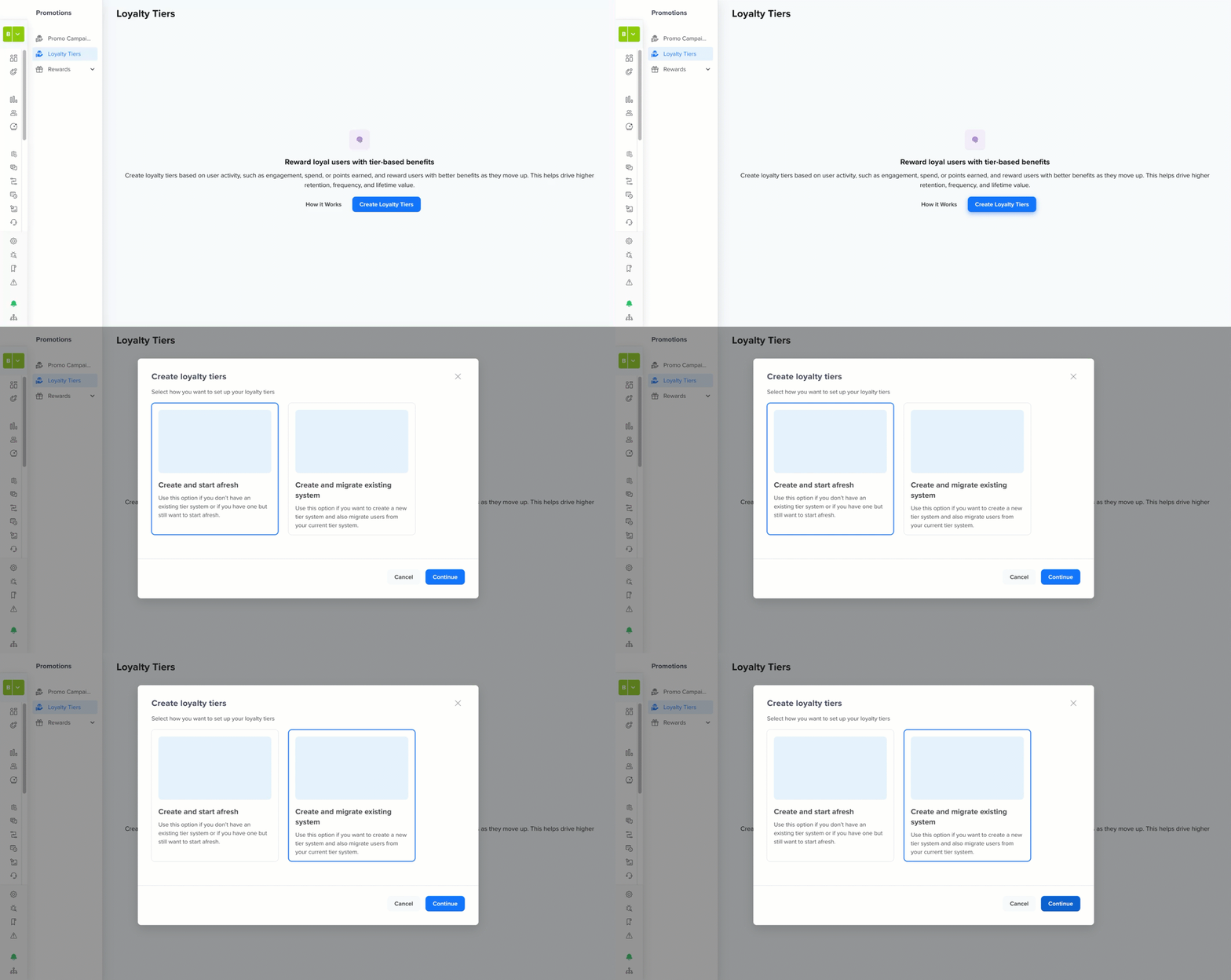
Create and Migrate Existing System
NoteMigration is only available during tier creation. Once a tier system is published, you cannot perform a migration retroactively. Ensure all files are uploaded and validated before clicking Create.
Key Concepts
Before using the migration flow, familiarise yourself with the following terms:
| Term | Description |
|---|---|
| Client type | Refers to whether you are a new client launching tiers on CleverTap for the first time, or an existing client migrating from a legacy loyalty system. |
| User tier data migration | A CSV upload that assigns existing users to specific tiers at launch, bypassing the normal qualification flow for those users only. New users who enter the system after launch still follow the standard base-tier entry flow. |
| Historical activity migration | A CSV upload of past user events that seeds the tier computation engine with historical progress data, ensuring users do not start with zero progress. The data must be provided by the client in the required CSV format. CleverTap does not derive this data from the platform's existing event history. |
| Tier ID | A unique system-generated identifier assigned to each tier level when the tier definition is saved in draft state. Tier IDs are required in migration CSV files to map users to the correct tier. |
| Draft state | An intermediate state in which the tier system configuration is saved but not yet published. Migration files can be uploaded and modified while the system is in draft state. |
When to Migrate?
The migration flow is not required for every tier setup. Use it when your use case involves users who already have tier status or a qualifying history that CleverTap should account for from day one, rather than starting everyone from scratch.
Use the migration flow when you need to:
- Bring over existing members from a legacy loyalty program and preserve their current tier status.
- Assign tiers to users who already met your entry or upgrade criteria before the CleverTap tier system was created. This applies only when you are creating new loyalty tiers in CleverTap for the first time.
- Seed historical activity data so that rolling window calculations start with accurate progress rather than zero
What Data Can You Migrate?
Depending on your client type and tier configuration, you may need to migrate one or both data types. Understanding what each type covers and when it is needed helps you prepare the right files before you begin.
You can migrate the following two types of data into a new tier system:
User Tier Data
This section assigns users directly to specific tiers at launch. Users included in the migration file are placed immediately in the tier you specify, so they do not need to start from the base tier or meet qualification criteria. This applies only to users included in the migration file. The normal base tier entry flow remains active for all new users who enter the system after launch.
Use this to:
- Migrate existing (Gold, Silver, or other) tier users from your legacy system
- Enroll users on CleverTap who already met the tier criteria before the tier system was created
Historical Activity Data
This section uploads past user events, such as purchases or bookings, so that CleverTap can count them toward tier upgrade calculations from day one. This data must be sourced from your own systems and provided in the required CSV format.
Use this to:
- Ensure rolling window calculations are accurate from the moment the tier system goes live
- Preserve in-progress tier upgrades for existing users
Migration Scenario Reference Matrix
The migration steps depend on your client type and the qualification window you set in the Timelines section of the tier configuration. Before configuring your tier system, review the following matrix to understand which migration steps will apply to you:
| Client type | Base tier entry | Qualification window | User tier data | Historical activity |
|---|---|---|---|---|
| Existing client | Any | Rolling window | Required | Required |
| Existing client | Any | Within tier validity | Required | Required |
| New client | All users | Rolling window | Not required | Required |
| New client | All users | Within tier validity | Not required | Not required |
| New client | Specific users | Rolling window | Optional | Required |
| New client | Specific users | Within tier validity | Optional | Not required |
Prerequisites
Before you begin the migration flow, ensure the following conditions are met. Starting without these in place may interrupt the setup or result in validation errors during file upload:
- The Promotions Add-on is enabled on your CleverTap account.
- You have the necessary permissions to create and publish tier systems.
- Your migration CSV files are prepared and validated as per the file format requirements described in this guide. The data in these files must be sourced and exported from your existing loyalty system. CleverTap does not compute or retrieve this data from events already in the platform.
- If you are using rolling window qualification, historical activity data covering the required lookback period must be available in your source system and exported into the historical activity CSV format described below.
- A loyalty wallet is pre-configured in your account if you plan to use wallet points as a tier upgrade parameter.
Get Started with Migration
The migration steps appear after you proceed with the tier system configuration. For information on the five configuration sections, refer to Create Loyalty Tiers.
The migration happens after you complete the following steps:
Assign Tiers to Users
This step lets you assign existing users directly to specific tiers in the new system. In this step, you assign existing users to different tiers. This shall be done to assign higher tiers to existing high-value users or to assign tiers to users that do not exist in the CleverTap database.
NoteIf you assign a user to a specific tier, then they do not need to start from the base tier or qualify for it.
Whether the Assign Tiers to User step appears or not depends on your client type and the base tier entry criteria you configured in the Key Details section.
| Client type | Is this step shown? | Is it mandatory? |
|---|---|---|
| Existing client | Yes | Yes. At least one file must be uploaded before publishing |
| New client with base tier entry selected as All users | No | Not applicable |
| New client with base tier entry selected as Specific users | Yes | (Optional) upload only if users are pre-qualified before the tier launch |
NoteThe base tier entry flow remains active for all new users who join after the tier system is published. Migration only affects users explicitly listed in the migration file.
Upload Tier Assignment Data
This step assigns existing users to specific tiers at launch. Users listed in the file are placed directly into the tier you specify. They bypass the normal base tier qualification flow and do not need to requalify from the base tier.
To upload the tier assignment data for assigning the tiers to users:
- Review the Tier ID reference table displayed below the file guidelines. It lists each tier name and its corresponding Tier ID. You will need these IDs in your CSV file.
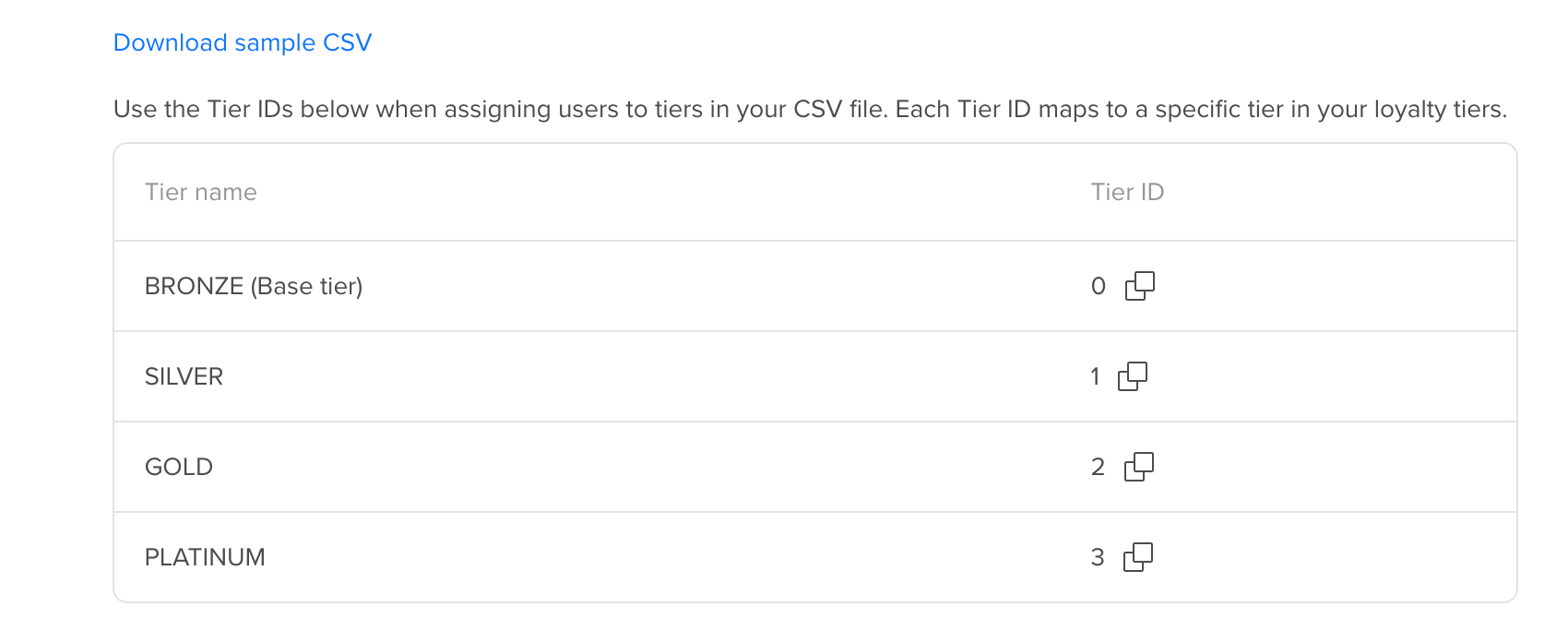
Tier ID Reference Table
- Click Download sample CSV to get a formatted template.
- Prepare your file following the format in User Tier Data CSV Format.
- Click Upload files and select your CSV. The maximum file size is 50 MB per file. Monitor upload status in the Uploaded files panel on the right. Upload additional files if needed. Each file is processed independently.

Upload CSV Files
- Click Continue to proceed to step two (i.e., Import Historical Data), or to the final confirmation if step two does not apply to your scenario.
Deleting a Tier Assignment Data FileTo delete an uploaded file, click the Delete icon next to it in the Uploaded files panel. You can delete both files that have succeeded and files that have failed. If you delete a successfully uploaded file, it will not be included in the tier computation when you publish. Only files present and showing a success status at the time you click Create are processed.
File Upload Statuses
The following are the file upload statuses you can view in the Uploaded files panel in real-time:
| Status | Meaning |
|---|---|
| Loading | The file is being processed |
| File uploaded | The file was validated and accepted successfully |
| File upload failed because of errors in [N] entries | The file was rejected due to validation errors. Review and re-upload a corrected file. |
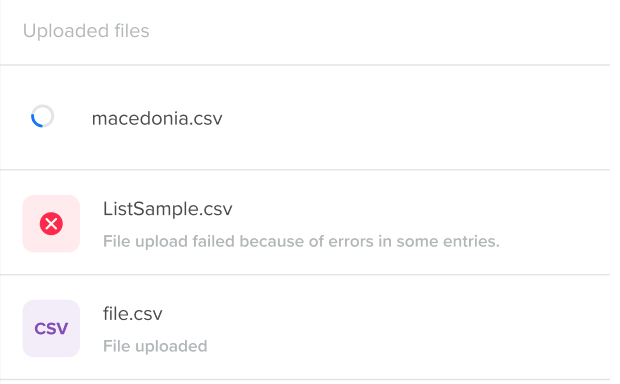
View Status of Uploaded Files
Import Historical Activity
This step uploads past user events, so CleverTap can count them toward tier upgrade calculations from day one. In this step, you upload past user activity for events, properties, or loyalty wallets used to define qualification criteria for different tiers. This data enables CleverTap to count a user's past qualifying activity toward a future tier upgrade.
For example, if the Tier 2 qualification criteria is App Launched equals 10 times, and a user has already launched the app 6 times in the past, they need to launch the app only 4 more times within the qualification window to upgrade to Tier 2.
Whether this step is required depends on your client type and the qualification window you configured in the Timelines section. If your qualification window is set to Within a time period (rolling window), CleverTap needs past activity data to seed calculations from day one. Without it, users start with zero progress.
| Client type | Qualification window | Is this step required? |
|---|---|---|
| Existing client | Rolling window | Yes |
| Existing client | Within tier validity | Yes |
| New client | Rolling window | Yes |
| New client | Within tier validity | No |
Upload Historical Activity Data
This step uploads past user events, so CleverTap can count them toward tier upgrade calculations from the moment the system goes live. Without this data, users with pre-existing qualifying activity would start with zero progress, potentially delaying or preventing upgrades they have already earned.
To upload the data of historical activity for assigning the tiers to users:
- Click Download sample CSV to get a formatted template.
- Prepare your file in the format described in Historical Activity Data CSV Format.
- Click Upload files and select your CSV. The maximum file size is 50 MB per file. Monitor upload status. Upload multiple files if needed.
- Once all required files show a success status, click Continue to proceed to the final confirmation.
Deleting a Historical Activity Data Upload FileYou can delete both the successfully uploaded files and files that failed validation from the Uploaded files panel. Deleting a successfully uploaded file removes it from the migration processing queue. For example, if you accidentally uploaded the same event data file twice, delete one copy to avoid processing duplicate records. Only files present with a success status when you click Create are included in the computation.
Confirm and Publish
After completing all required migration steps, you are ready to finalize and activate the tier system. Review the details carefully at this stage because once published, the tier configuration and uploaded migration files are locked and cannot be modified.
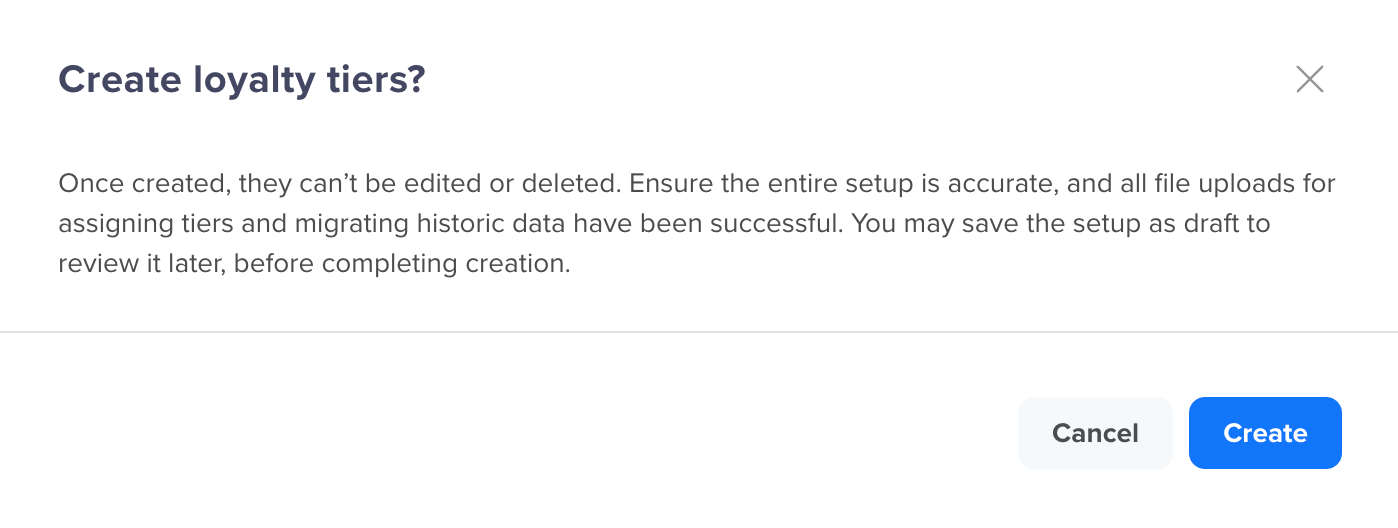
Confirm and Publish Loyalty Tiers
Click Create to publish the tier system. A progress screen is shown while CleverTap processes the setup and runs the migration.
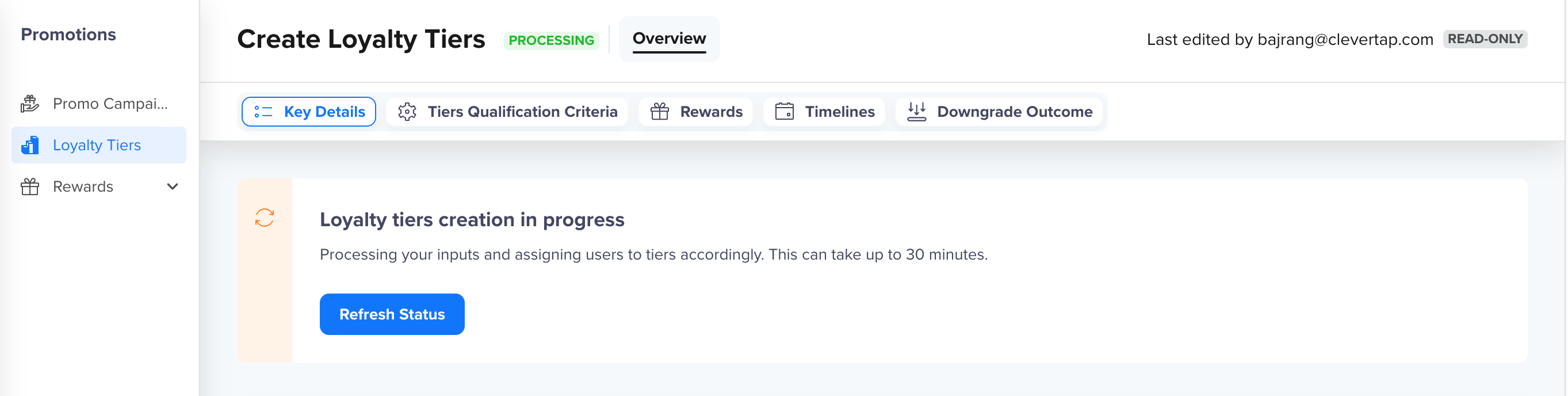
View Progress of Published Loyalty Tiers
The time taken depends on the volume of data being processed and can range from a few minutes to an hour.
NoteWhile the tier system creation is in progress, events configured for tier upgrade parameters continue to be captured and will be considered for tier upgrades as users are enrolled.
After publishing, the tier system configuration is locked in read-only mode. No changes can be made.
Migration Processing After Publish
Understanding what happens in the system after you click Create helps you set the right expectations for when users will appear in their tiers and when tier computations will be complete.
CleverTap processes the migration in the following order:
- User tier assignment: CleverTap maps each user in the uploaded user tier data file to their corresponding tier. For each user being enrolled into the tier system for the first time, a CT Tier Entered event is triggered.
- Historical data ingestion: Historical activity files are validated and stored for each user, including their event details and timestamps.
- Tier computation: The tier computation engine filters the ingested historical data against your configured tier criteria and calculates each user's achieved progress values using the Event occurrence, Sum of event property, and Points in qualification window parameters. If historical activity data indicates that a user qualifies for a higher tier than the assigned tier, a CT Tier Upgraded event is triggered after computation completes.
Live Events During Migration
While the tier system is being created and migration is in progress, the system handles the live user activity as follows:
- Events matching the base tier entry criteria are accepted, and the user is enrolled in the base tier in real time.
- Events matching tier upgrade criteria are accepted and stored. Tier progression for these events is computed after the user is enrolled, applying the appropriate qualification window options (Within tier validity and Within a time period) depending on your configuration.
NoteWhile the tier system is in draft state, live events that match entry or upgrade criteria are not accepted. Event capture begins only after the tier system is published.
CSV File Formats
Both migration steps require CSV files structured in a specific format. This section explains the required column headers, accepted values, and field-level guidance for each file type. Download the sample CSV from the migration modal as a starting template before preparing your data.
User Tier Data CSV Format
Use this file to assign users to specific tiers at launch. Each row in the file represents one user and the tier they should be assigned to. The file must exactly match the column structure below, and any deviation in column naming or formatting will result in rejection.
| Column | Required | Description and impact |
|---|---|---|
| identity | Yes | The unique identifier for the user (i.e., email address, phone number, or identity) as configured in your CleverTap account. Used to map each row to the correct user profile. If the identity does not exist in CleverTap, the row is rejected. Ensure users exist in CleverTap before uploading the file. |
| tierID | Yes | The exact tier ID to assign the user to. Tier IDs are listed in the Tier ID reference table shown during the upload step. Values are case-sensitive and must match exactly. If the Tier ID does not match any configured tier, the row is rejected. Download the Tier ID table directly from the modal to avoid transcription errors. |
| tierStartDate | Required for existing clients only | The date when the user originally entered this tier in your legacy system, in Unix epoch format. This determines the user's tier validity start date and re-evaluation date. For example, if a user was assigned the Gold tier on 1 January 2024 and the tier validity is 12 months, their re-evaluation date is 1 January 2025. If this field is left blank, the tier system publication date is used as the start date for all users. This means all migrated users will share the same tier start date and be re-evaluated together. For new clients, this column is not required and can be omitted. |
The following are the file requirements:
- Format: CSV only
- Maximum size: 50 MB per file
- Column headers must match exactly as shown (case-sensitive)
- Each user identity must appear only once in the file
Sample File for Existing Client
The following sample shows the expected format for an existing client migrating from a legacy tier system. The tierStartDate column is required and should reflect the date each user originally entered the tier in your legacy system.
identity,tierID,tierStartDate
[email protected],tier_gold_001,1704067200
+919876543210,tier_silver_002,1706745600
loyaltyuser123,tier_gold_001,1709251200
Sample File for New Client
The following sample shows the expected format for a new client assigning users to tiers at launch. The tierStartDate column is not required for new clients and can be omitted from the file entirely.
identity,tierID
[email protected],tier_silver_002
+919876543210,tier_gold_001
loyaltyuser123,tier_silver_002
Historical Activity Data CSV Format
Use this file to upload past user events so the tier computation engine can calculate accurate tier progress from day one. Each row represents a single event occurrence for a user. Multiple rows for the same user are expected and accepted. Each row is treated as a separate qualifying event.
| Column | Required | Description and impact |
|---|---|---|
| identity | Yes | The unique identifier for the user (i.e., email address, phone number, or identity) as configured in your CleverTap account. Used to map each event row to the correct user profile. If the identity does not exist in CleverTap, the row is rejected. |
| evtName | Yes | The name of the event performed by the user. Must match a CleverTap event name. For example, Charged or Subscription renewed. Cannot be empty. If the event name is not found in CleverTap, the row is still accepted and stored. |
| evtData | Optional | Key-value pairs representing the event properties. For example, {"Amount": 500, "Category": "Electronics"}. Required only when your tier upgrade criteria uses Sum of event property. In that case, the tracking property key and its value must be present. If not applicable, leave this field empty. We recommend passing all relevant event properties, even if they are not currently used in the criteria, as this data will be available if you update your tier criteria in the future. |
| ts | Yes | The date and time the event occurred, in Unix epoch format (as a numeric value). Used to determine whether the event falls within the qualification window. Cannot be empty, as rows with an empty ts are rejected. |
The following are the file requirements:
- Format: CSV only
- Maximum size: 50 MB per file
- Column headers must match exactly as shown (case-sensitive)
- Multiple rows for the same identity are accepted, meaning each row represents one event occurrence
Sample File
The following sample shows a correctly structured historical activity file. The evtData is included only where the tier upgrade criteria require event property values, and left empty for event occurrence-based rows.
identity,evtName,evtData,ts
[email protected],Charged,"{""Amount"": 2500, ""Category"": ""Electronics""}",1704067200
[email protected],Charged,"{""Amount"": 1800, ""Category"": ""Fashion""}",1706745600
+919876543210,App Launched,,1704153600
loyaltyuser123,Charged,"{""Amount"": 5000, ""Category"": ""Electronics""}",1709251200
File Validation and Error Reference
CleverTap validates all uploaded files before processing. If a file fails validation, the entire file is rejected, even if only one row contains an error. Correct all errors in the file and re-upload the complete corrected version.
User Tier Data Validation Rules
CleverTap validates the entire user tier data file before processing any rows. If a single row fails validation, the entire file is rejected. The table below lists all validation cases, the system's behavior in each case, and the corrective action to take before re-uploading.
| Error | Cause | How to fix |
|---|---|---|
| Unsupported file format. Upload a CSV file. | The file is not in CSV format. | Save the file as .csv and re-upload. |
| File size exceeds 50 MB. Upload a smaller file. | File exceeds the 50 MB per-file limit. | Split the file into smaller files and upload each separately. |
| Uploaded file is empty. Upload a file with valid data. | The CSV has no data rows. | Add user data to the file before uploading. |
| Wrong column headers. | Column names do not exactly match the required headers. | Check that all column names are spelled correctly and match the case shown in the file guidelines. |
| identity is required. | A row has an empty identity field. | Fill in the identity value for every row. |
| identity not found. | The identity value does not match any user in your CleverTap account. | Create the user in CleverTap first, then re-upload the file with the correct identity value. |
| Multiple rows with same identity. | The same user identity appears multiple times in the file. | Each user must appear only once in the user tier data file. Remove all duplicate rows, keeping the correct entry for each user. |
| Invalid Tier ID. | The tierID value does not match any configured tier, or the value is incorrectly cased. | Download the Tier ID reference table from the migration modal and use the exact Tier ID values shown. |
Historical Activity Validation Rules
CleverTap validates the entire historical activity file before processing. As with the user tier data file, a single row-level error results in the entire file being rejected. Review the table below to understand each validation case and how to resolve it before re-uploading.
| Error | Cause | How to fix |
|---|---|---|
| Unsupported file format. Upload a CSV file. | The file is not in CSV format. | Save the file as .csv and re-upload. |
| File size exceeds 50 MB. Upload a smaller file. | File exceeds the 50 MB per-file limit. | Split the file into smaller files and upload each separately. |
| Uploaded file is empty. Upload a file with valid data. | The CSV has no data rows. | Add event data to the file before uploading. |
| Wrong column headers. | Column names do not exactly match the required headers. | Check that all column names are spelled correctly and match the case shown in the file guidelines. |
| identity is required. | A row has an empty identity field. | Fill in the identity value for every row. |
| identity not found. | The identity value does not match any user in your CleverTap account. | Create the user in CleverTap first, then re-upload the file. |
| event name is required. | A row has an empty evtName field. | Fill in the event name for every row. The event name cannot be empty. |
| TRACKING_PROPERTY is required. | The tier uses Sum of event property, but the required tracking property is missing from evtData for this row. | Add the tracking property key and its value to the evtData field for the affected rows. For example, if the criteria tracks Amount, ensure {"Amount": 1500} is present in evtData. |
| ts is required. | A row has an empty ts field. | Add the event timestamp in Unix epoch format for every row. |
FAQs
The following answers address the most common questions about the migration flow, file formats, and system behavior during and after tier publication:
Q. Can I perform migration after the tier system is published?
No. Migration can only be performed during tier creation, before you click Create. Once published, the configuration is locked and cannot be supplemented with migration files.
Q. Can I edit or delete loyalty tiers?
Once created, loyalty tiers can not be edited or deleted. Ensure the entire setup is accurate, and all file uploads for assigning tiers and migrating historic data have been successful. You may save the setup as a draft to review it later, before completing creation.
Q. What happens to new users who join after the tier system is published?
New users are not affected by the migration. They enter the tier system through the normal base tier entry flow configured in Key Details section, either automatically if base tier entry is set to All users, or upon completing the qualifying event if set to Specific users.
Q. Can I upload multiple CSV files in the same migration step?
Yes. You can upload multiple files in both the Assign tiers to users and Import historical activity steps. All successfully uploaded files are processed together at publish time. Ensure there are no duplicate identity values across files in the user tier data step.
Q. What format should tierStartDate and ts be in?
tierStartDate and ts be in?Both must be in Unix epoch format, a numeric value representing the number of seconds elapsed since January 1, 1970, 00:00:00 UTC. For example, 1704067200 represents January 1, 2024, 00:00:00 UTC.
Q. My user exists in CleverTap but is flagged as identity not found. Why?
identity not found. Why?The identity value in your CSV must exactly match the way the user is identified in CleverTap, including the identifier type (i.e., email, phone, or identity). Check for extra spaces, formatting differences, or a mismatch in identifier type. If the user does not exist in CleverTap, create the user profile first, then re-upload the file.
Q. What if I leave tierStartDate blank for an existing client?
tierStartDate blank for an existing client?The tier system publication date is used as the start date for all users whose tierStartDate is blank. This means all such users will have the same tier start date and will be re-evaluated at the same time. For existing clients, it is strongly recommended to provide the actual tier start date for each user to preserve accurate expiry and re-evaluation schedules.
Q. Can the same user appear in multiple rows in the historical activity file?
Yes. Multiple rows for the same user are expected and accepted. Each row represents a separate event occurrence. However, in the user tier data file, each user must appear only once.
Q. How long does migration take after I click Create?
Processing time depends on the volume of data and can range from a few minutes to an hour. Use the Refresh Status button on the progress screen to check the current activation status.
Q. Are tier upgrade events captured while migration is in progress?
Yes. While the tier system creation and migration are in progress, events configured for tier upgrade parameters continue to be captured. These events are considered for tier upgrades as users are enrolled in the tier system.
Updated 5 months ago