
EnableX
SMS Provider
Overview
EnableX is a global communication platform that provides APIs for SMS, WhatsApp, and other messaging channels. Integrating EnableX with CleverTap allows you to send SMS notifications and promotional messages directly from CleverTap’s engagement dashboard.
This integration supports HTTP-based message delivery, DLT-compliant messaging, and secure authentication to ensure reliable delivery and compliance.
Businesses integrate EnableX with CleverTap to:
- Send Transactional Messages: Deliver OTPs, alerts, and account notifications in real time.
- Run Promotional Campaigns: Send offers and updates based on user segments and behavioral triggers.
- Automate Engagement Journeys: Reconnect with users through automated and targeted SMS workflows.
Integrating EnableX with CleverTap combines EnableX’s robust communication APIs with CleverTap’s intelligent engagement platform.
Prerequisites for Integration
Before integrating, check the following:
- You have an active CleverTap account with SMS channels enabled.
- You have an EnableX account with SMS API permissions.
- You have your EnableX Username and Password (available from your EnableX portal).
Support for IntegrationThis integration is managed and continuously improved by EnableX. For any questions or issues, contact EnableX for support and resolution.
Integrate EnableX with CleverTap
To integrate EnableX with CleverTap, perform the following steps:
Find EnableX Account Credentials
Before configuring CleverTap, obtain your EnableX credentials. Once your EnableX SMS account is provisioned, you will receive your Username and Password from the EnableX team via your registered email. These credentials are required for authenticating the integration with CleverTap. If you have not received them, contact your EnableX account representative or email [email protected] to request your SMS API credentials.
Keep these details ready for configuring the CleverTap dashboard.
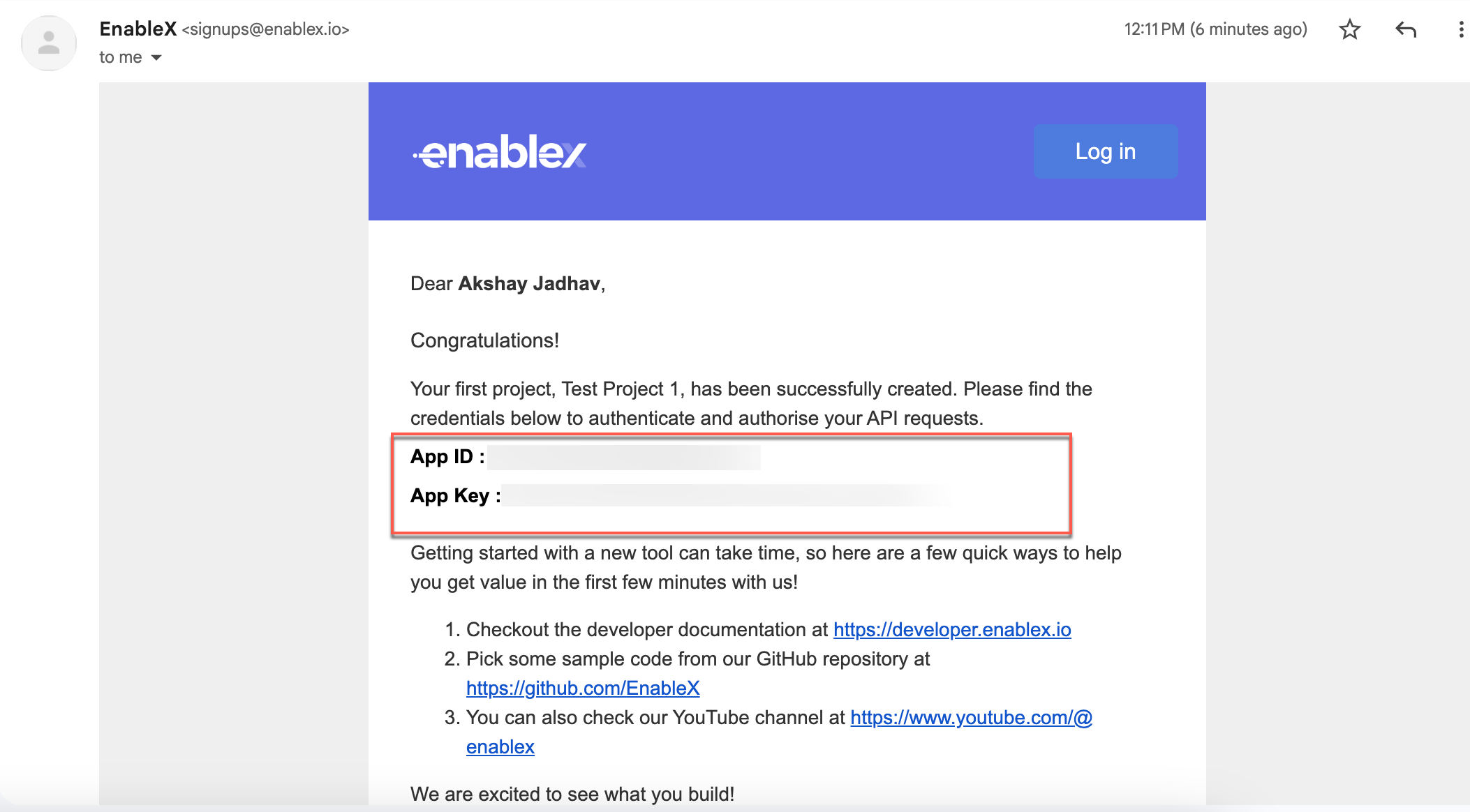
SMS API Credentials via Email
Set Up CleverTap Dashboard
Once you have your EnableX credentials, perform the following steps to connect EnableX to CleverTap:
- Go to Settings > Engage > Channels > SMS in the CleverTap dashboard.
- Click + Add Provider. The Add SMS provider page opens.
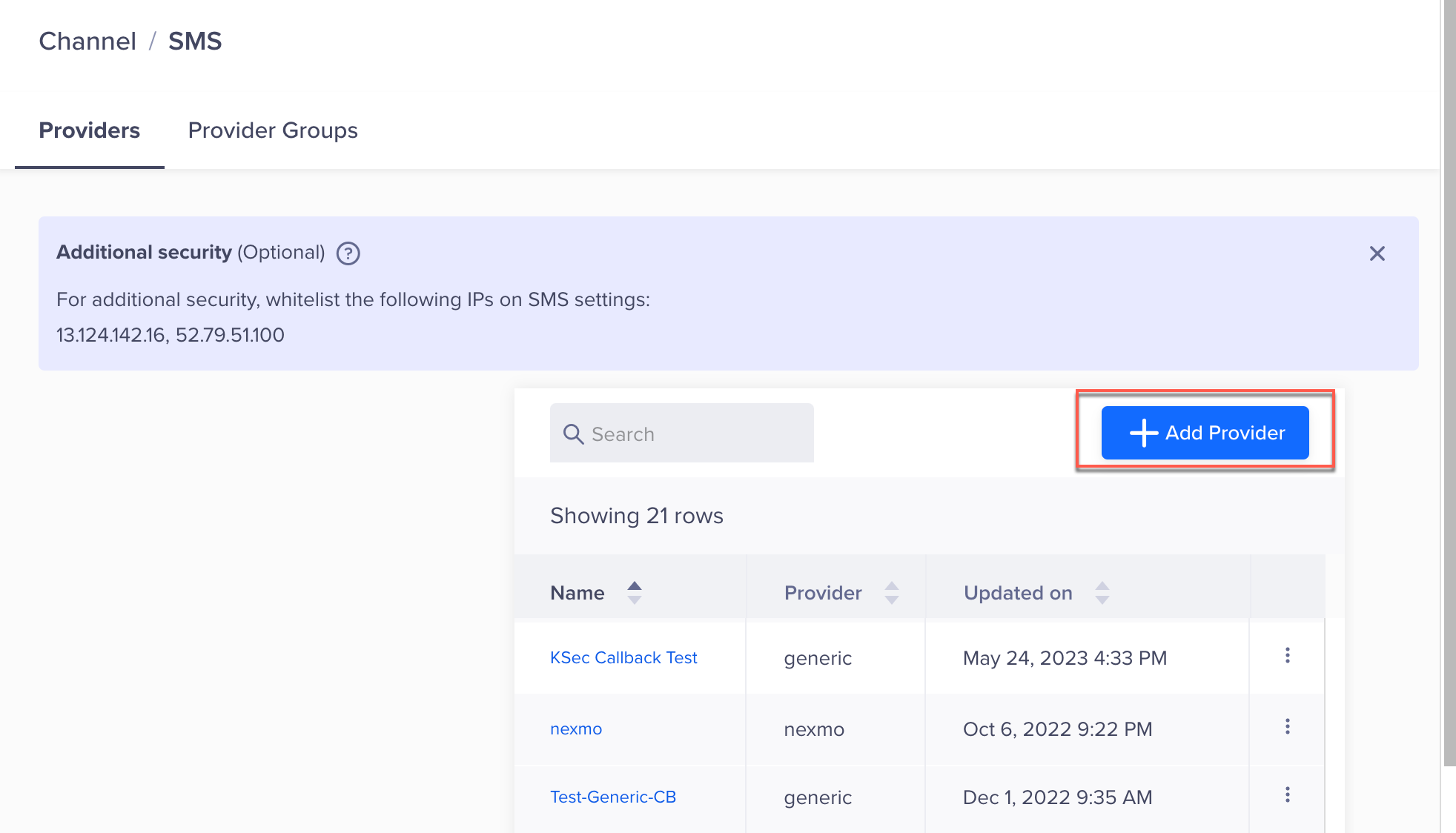
Add Provider in CleverTap
- Under Provider, select Other (Generic) and enter the following details:
| Field | Description |
|---|---|
| Nickname | Enter a name such as EnableX_SMS. |
| Delivery Report Callback URL | Enter this URL in the EnableX portal to receive delivery reports. Refer to Set Up SMS Callbacks. |
| Request Type | Select POST. |
| HTTP Endpoint | Paste https://api.enablex.io/sms/v1/clevertap.Ensure that the URL is in HTTPS format, that is, your URL must begin with https://. |
-
Under Authentication, enter the Username and Password copied from your EnableX account.
-
Under Parameters, select
JSONas the request type and paste the following JSON configuration:
{
  "from": "<Your Sender ID>",
  "type": "sms",
  "data_coding": "plain",
  "campaign_id": "<Campaign ID>",
  "to": "$$To",
  "dlt_template_id": "$$TemplateID",
  "body": "$$Body",
  "message_id": "$$MessageID",
  "callback": "<CleverTap Callback URL>"
}
NoteReplace
<Your Sender ID>and<Campaign ID>with your actual EnableX SMS sender ID and campaign identifier.
The parameters$$To,$$TemplateID,$$Body, and$$MessageIDare dynamically replaced by CleverTap during campaign execution.
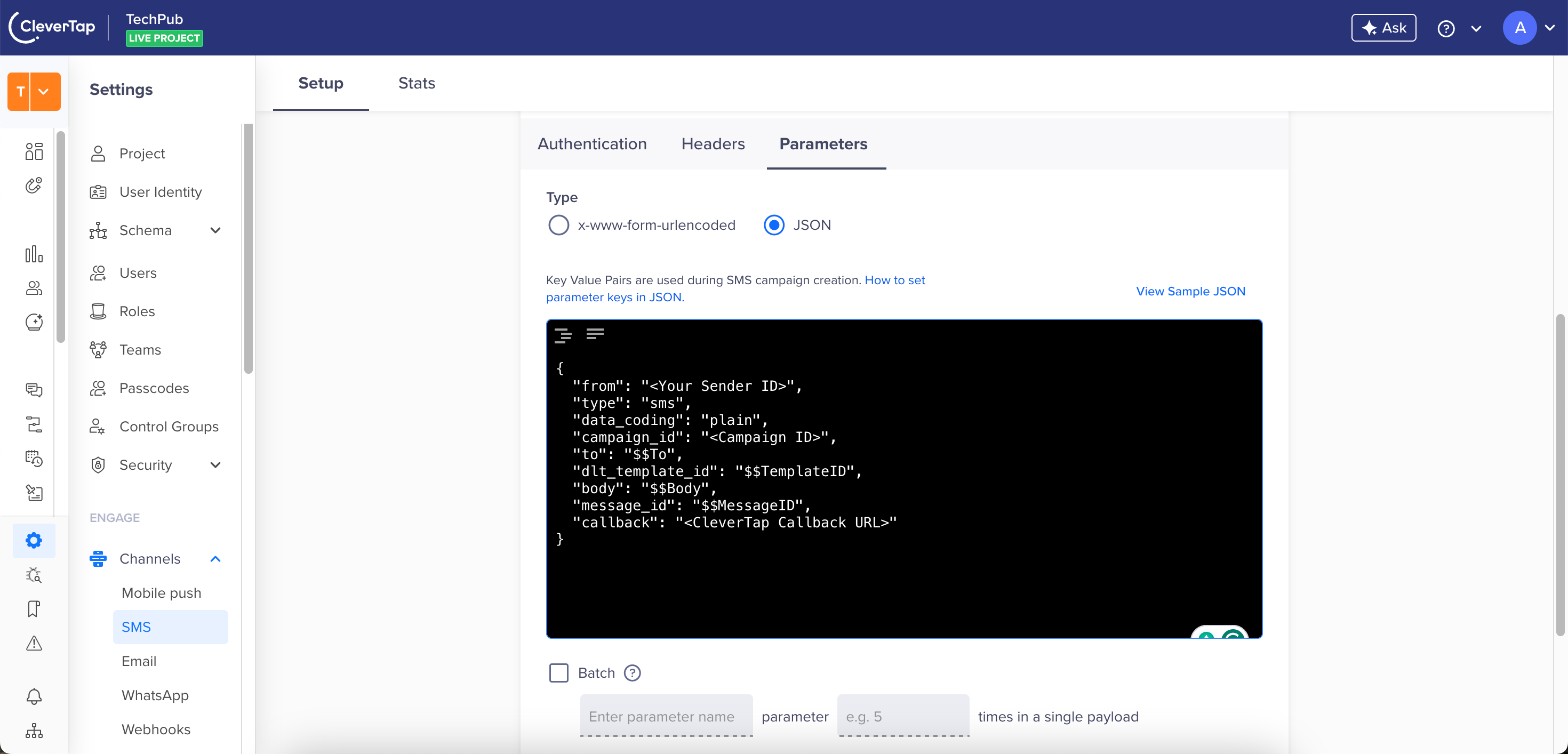
Set Parameters
- (Optional) Select the Batch option, then enter the required details to send multiple SMS messages in a single API request.
- Click Save. A pop-up opens, prompting you to Send Test SMS.
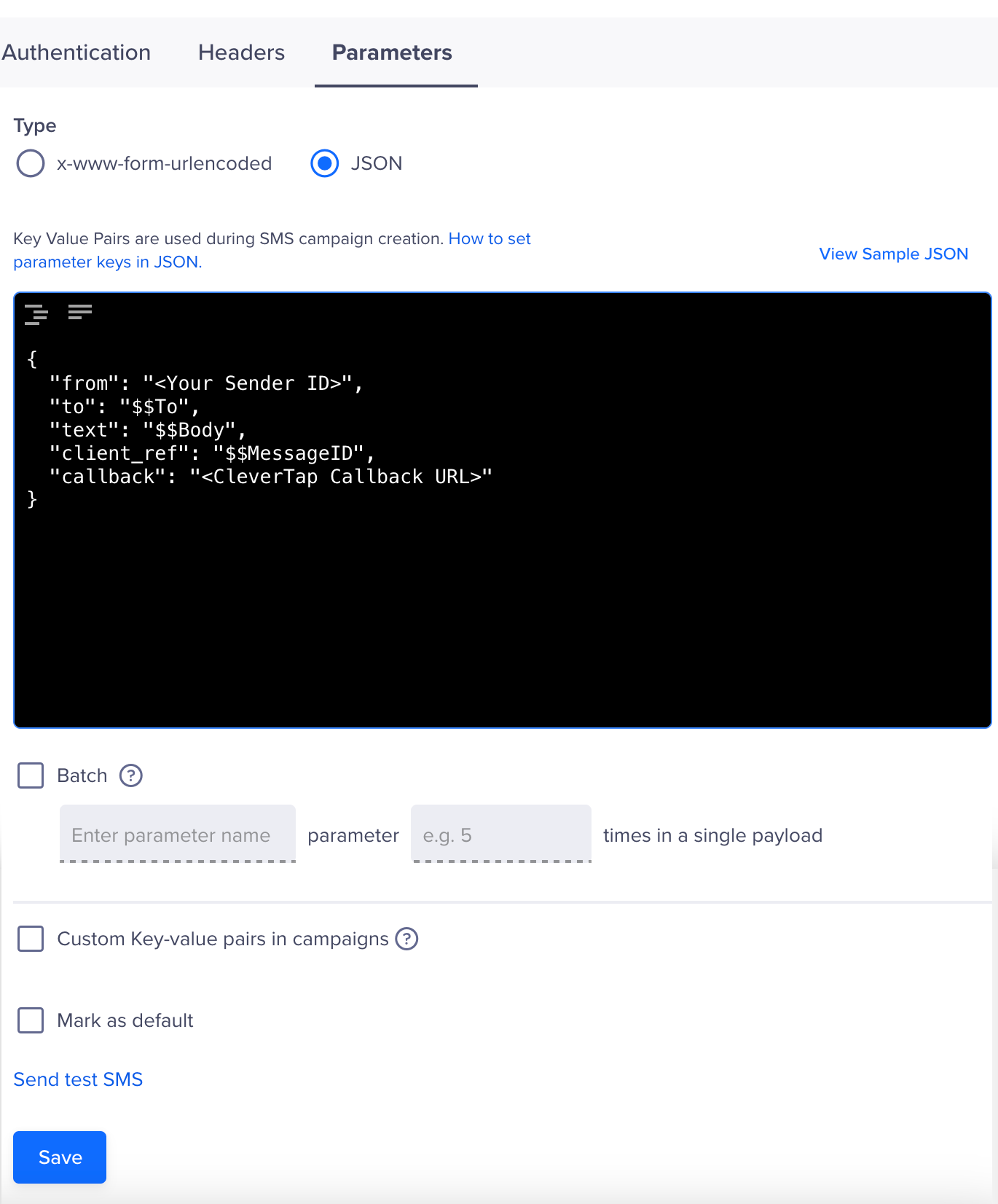
Set Parameters for EnableX in CleverTap
Send Test SMS
Before launching campaigns, verify that the integration is working correctly by sending a test SMS.
To verify that the integration works:
- Click the Send Test SMS hyperlink before creating SMS campaigns and journeys.
- Enter the following details:
- Country Code and Mobile Number: Enter the country code and mobile number to which you want to send the message.
- Message: Enter sample text, such as
This is a test message powered by EnableX.
- Click Send Test.
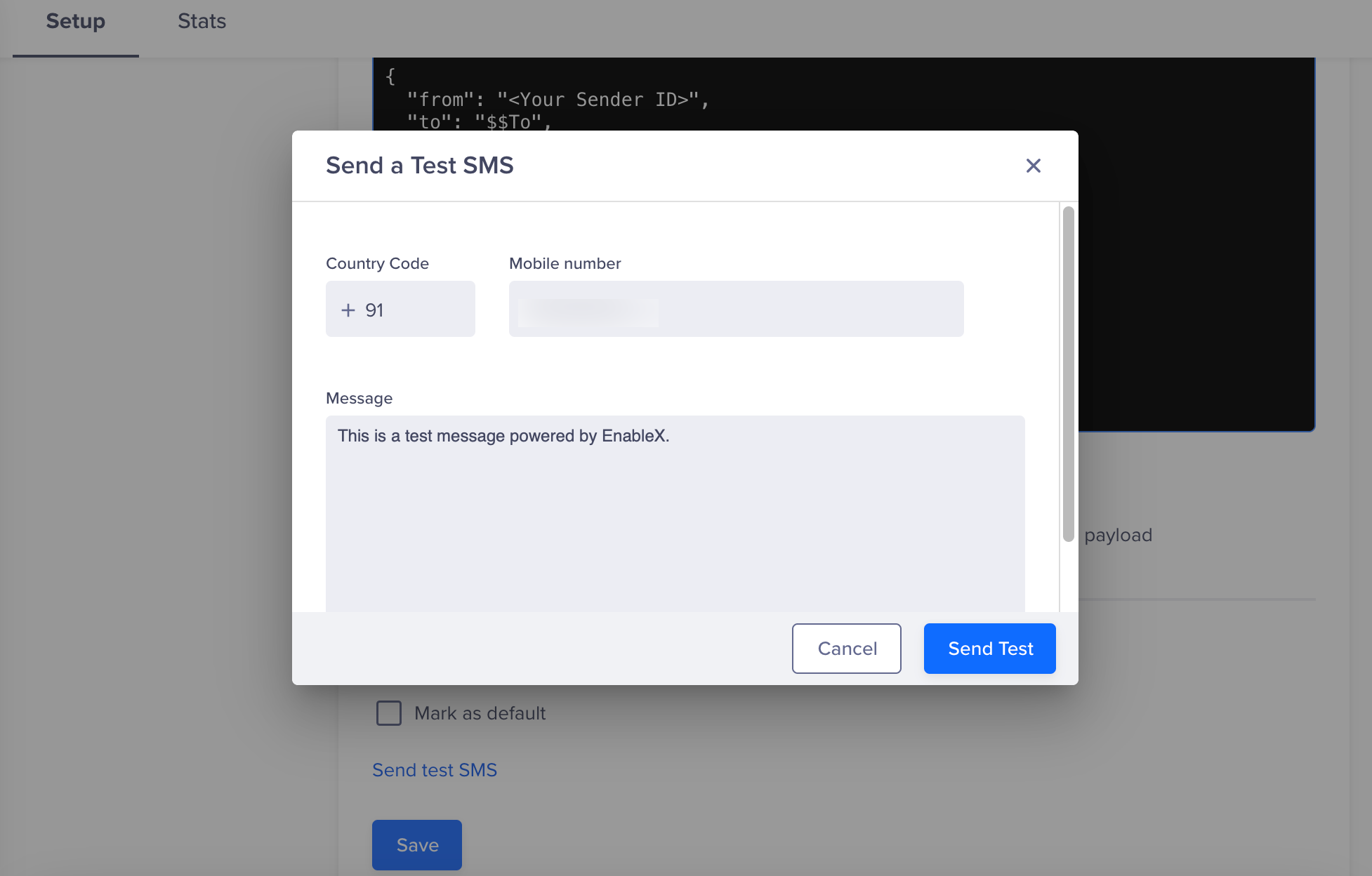
Send Test SMS
If the setup is correct, the test message will be successfully delivered. If not, verify your credentials and endpoint configuration.
Set Up SMS Callbacks
To track SMS requests, perform the following steps:
- Copy the Delivery Report Callback URL from CleverTap and add it to the JSON payload. You can find the Delivery report callback URL on the CleverTap dashboard under the Provider
Setup page Settings > Channels > SMS > Provider Nickname. - Add it to the JSON payload field
"callback": "<CleverTap Callback URL>". - Save the configuration to enable CleverTap to receive DLR updates from EnableX.
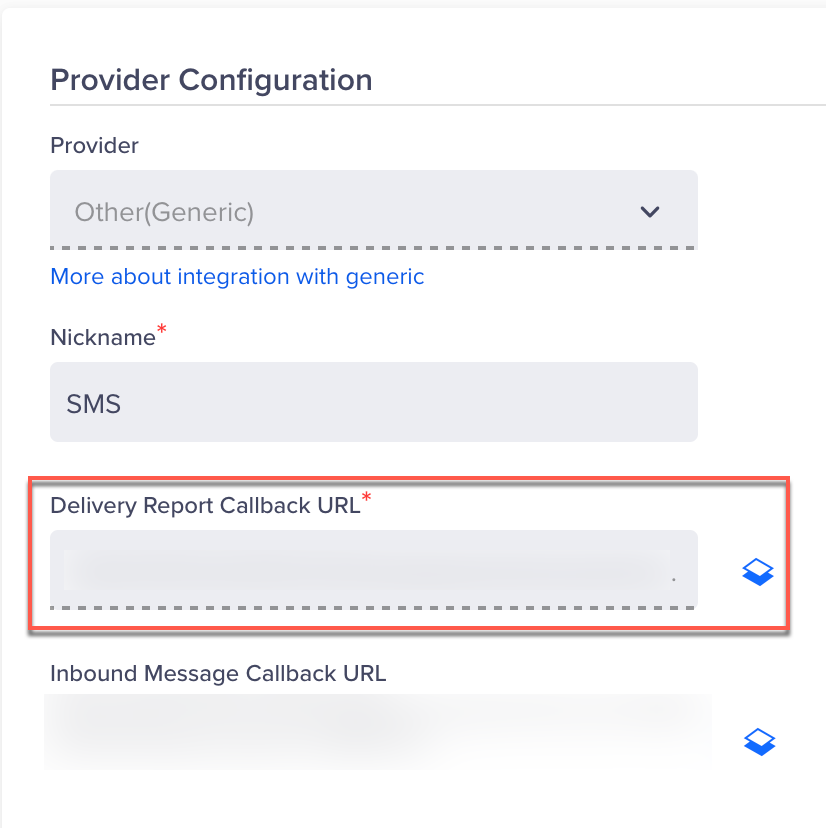
Set Up SMS Callbacks in CleverTap
Verify Successful Integration
Your integration is successful when the following criteria are met:
- The test SMS is successfully delivered to the target mobile number.
- No authentication or endpoint errors are shown in CleverTap logs.
- Delivery reports appear through callbacks or in the EnableX dashboard.
Once verified, you can proceed to build and publish SMS campaigns or set up Journeys using EnableX as your SMS provider.
Updated 6 months ago