
Priority Rules
Learn more about how to create and manage Priority Rules.
Overview
Priority Rules let you control which campaigns are delivered first when several campaigns qualify for the same user at the same time. Each rule gives a group of campaigns a priority, based on the campaigns' label, channel, or team. For example, you can make sure that offers from your Food Delivery team are always considered before Grocery campaigns.
Priority Rules work together with your agents. The agent scores campaigns for each user, but your rules come first: campaigns are ordered by the priority of the rule they match, and the agent's score decides the order only among campaigns with the same priority.
How Priority Rules work
- Rules and priority. A rule is a set of conditions. Every rule has a priority, shown as P0, P1, P2, and so on. P0 is the highest priority.
- Matching. For each campaign, CleverTap checks your rules in priority order and uses the first rule the campaign matches. A campaign matches a rule when it meets every condition in the rule.
- No match. If a campaign matches no rule, it receives a default priority. Its default is lower than your highest-priority rules, so it follows them.
- Ordering. Campaigns are ordered by priority, highest first. Within the same priority, the agent's score for that user decides the order.
Example
A food delivery app has five campaigns scheduled for Wednesday. Each user can receive at most 3 push notifications per day. The app creates one Priority Rule:
| Rule | Conditions | Priority |
|---|---|---|
| Must-send offers | Label is food-offer | P0 |
Refer to the following table for the five campaigns and the agent's score for each of the two users. The scores are illustrative: a higher score means the user is more likely to respond.
| Campaign | Label | Matches the rule? | Priority | John's score | Mark's score |
|---|---|---|---|---|---|
| Free Delivery Weekend | food-offer | Yes | P0 | 0.30 | 0.70 |
| Lunch Combo Offer | food-offer | Yes | P0 | 0.45 | 0.10 |
| Weekly Grocery Restock | grocery-reminder | No | Default | 0.80 | 0.65 |
| Fresh Fruit Deals | grocery-offer | No | Default | 0.60 | 0.20 |
| New Restaurants Near You | discovery | No | Default | 0.50 | 0.90 |
For each user, campaigns are ordered by priority first. Campaigns with the same priority are then ordered by score, highest first.
John
| Rank | Campaign | Priority | Score | Delivered? |
|---|---|---|---|---|
| 1 | Lunch Combo Offer | P0 | 0.45 | Yes |
| 2 | Free Delivery Weekend | P0 | 0.30 | Yes |
| 3 | Weekly Grocery Restock | Default | 0.80 | Yes |
| 4 | Fresh Fruit Deals | Default | 0.60 | No |
| 5 | New Restaurants Near You | Default | 0.50 | No |
Mark
| Rank | Campaign | Priority | Score | Delivered? |
|---|---|---|---|---|
| 1 | Free Delivery Weekend | P0 | 0.70 | Yes |
| 2 | Lunch Combo Offer | P0 | 0.10 | Yes |
| 3 | New Restaurants Near You | Default | 0.90 | Yes |
| 4 | Weekly Grocery Restock | Default | 0.65 | No |
| 5 | Fresh Fruit Deals | Default | 0.20 | No |
What the rule changed:
- Both food-offer campaigns are delivered to both users, even though the Lunch Combo Offer scores only 0.10 for Mark. The rule places them ahead of campaigns with higher scores.
- Without the rule, the agent would rank only by score. John would receive Weekly Grocery Restock (0.80), Fresh Fruit Deals (0.60), and New Restaurants Near You (0.50). Mark would receive New Restaurants Near You (0.90), Free Delivery Weekend (0.70), and Weekly Grocery Restock (0.65).
- The agent still personalizes the remaining slot. After the two food-offer campaigns, John's third message is "Weekly Grocery Restock" (0.80), and Mark's is "New Restaurants Near You" (0.90).
Create a Priority Rule
To create a Priority Rule:
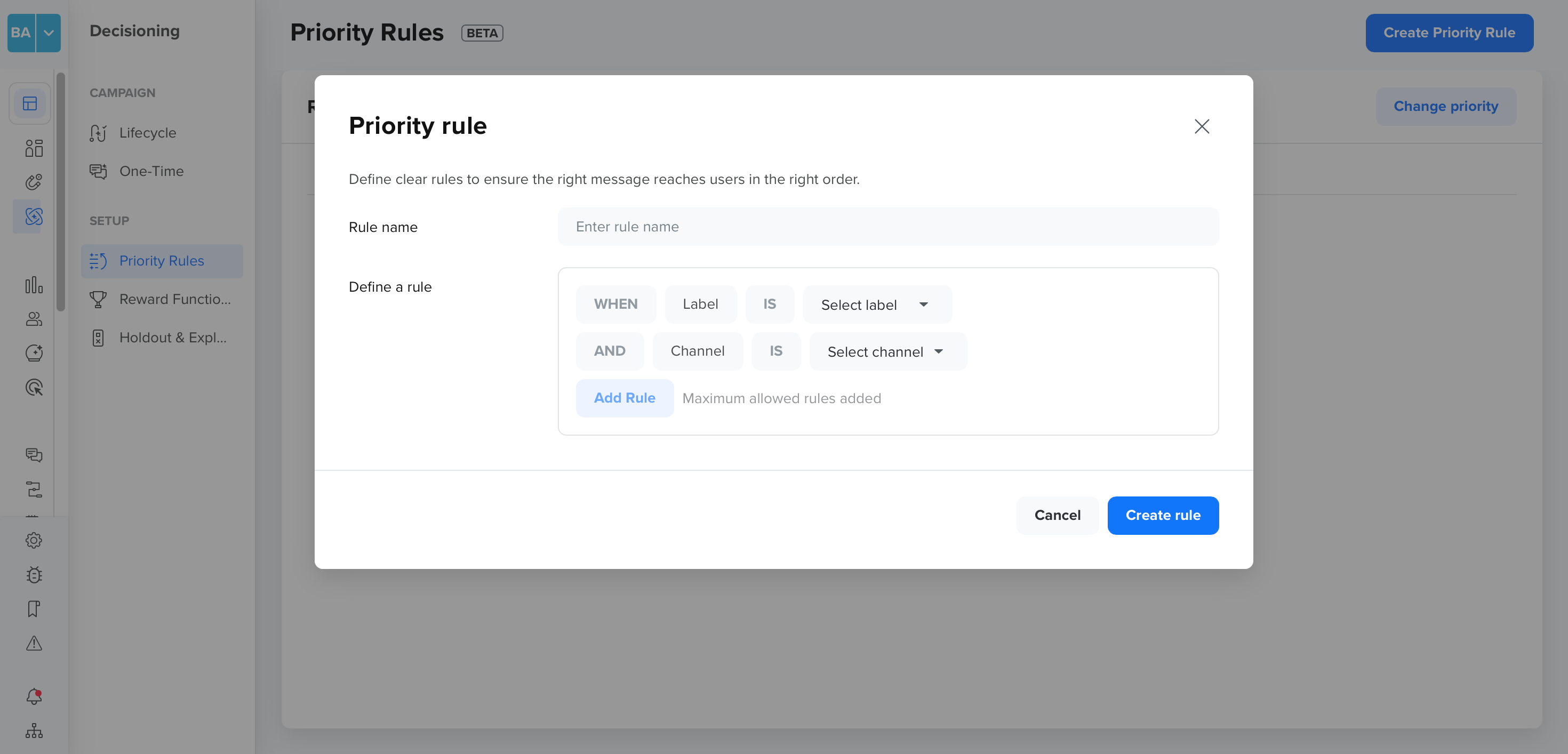
- From the CleverTap dashboard, navigate to Decisioning > Priority Rules under Setup, and then click Create Priority Rule. If you haven't created any rules yet, the page shows Set Priority Rules with a Create button. The Priority rule window appears.
Priority Rule
- Enter a name in the Rule name field.
- Under Define a rule, click Add Rule and select a property:
- Label: campaigns that have a specific label. This option appears only if your account has labels.
- Channel: campaigns on a specific channel: Push, Email, SMS, Web Push, or WhatsApp.
- Teams: campaigns that belong to specific teams. This option appears only if Teams is enabled for your project.
- Select a value for each condition. You can add one condition per property, so a rule has at most three conditions. Conditions are combined with AND, so a campaign must meet all of them.
- Click Create rule.
NoteYou cannot create two rules with the same conditions.
You can create up to 10 Priority Rules. After that, Create Priority Rule is disabled. Delete a rule to create another one.
Set the priority order
A new rule is added at the lowest priority. You need at least two rules to change the priority order. To change the order:
- On the Priority Rules page, click Change priority.
- In the Set priority order window, drag the rules into the order you want. The top rule is P0, the highest priority.
- Click Apply. Click Reset to return to the previous order.
View, edit, and delete rules
The Rules table lists each rule with its Label, Channel, and Team conditions.
- To change a rule, click the edit icon, update the conditions, and click Save Changes.
- To remove a rule, click the delete icon and confirm in the Delete Rule window.
FAQs
Does a Priority Rule override how a Decisioning Agent ranks campaigns?
Yes. Because a rule's priority comes before the agent's score, a high-priority rule can keep a campaign ahead of one the agent scores higher for a user. Use rules for campaigns that must be delivered first, such as time-sensitive offers, and let the agent order the rest.
Do Priority Rules increase how many messages a user receives?
No. Priority Rules don't change how many messages a user receives. Your message limits still apply.
Updated 2 days ago