
Reward Functions
Learn how to create and manage Reward Functions.
Overview
A Reward Function defines which user actions count as good outcomes (positive signals) and which count as bad outcomes (negative signals).
Without a shared Reward Function, you would have to define "what counts as success" separately inside every agent, and there'd be nothing stopping two agents from quietly defining the same goal in two slightly different ways, which makes it harder for the underlying model to learn cleanly from your account's full engagement history.
A Reward Function reduces that redundancy: you do not need to redefine your business goal for every agent you set up. Reward Functions are independent of any single agent. You create a Reward Function once for your account, and any agent that needs one, a One-Time Agent or a Lifecycle Agent, selects it from a list.
How agents use a Reward Function
When you create an agent, you select a Reward Function in the Goals step. The agent works toward the positive signals in that Reward Function.
- Campaign Decisioning: When several campaigns compete for the same user, the agent scores each campaign by how likely it is to lead to your positive signals for that user. It delivers the highest-scoring campaign within your message limits.
- Variant Decisioning: For a campaign that uses the Optimal variant message type, the agent scores each variant in the same way. Each user receives the variant that scores highest for them.
An agent of type Both uses the same Reward Function for both.
NoteAn agent cannot rank campaigns or score variants until it has learned from your account's data. After you publish an agent, this usually takes up to 24 hours.
Types of Reward Functions
CleverTap provides System and Custom Reward Functions. Every account starts with two ready-made System Reward Functions you can use immediately.
- Use a System Reward Function when your goal is simple, optimizing raw notification clicks, or a single conversion event.
- Create a Custom Reward Function when your business goal spans multiple funnel stages, needs negative signals beyond the built-in ones, or uses event names specific to your industry.
System Reward Functions
These come with every account and need no setup. Their name, description, and overall structure are locked and cannot be changed.
| Reward Function | Positive Signal | Negative Signal(s) | Editable |
|---|---|---|---|
| Click Optimizer | Notification Clicked | App Uninstalled (highest priority); channel unsubscribe (any channel) | No |
| Conversion Event | Charged (default) | App Uninstalled (highest priority); channel unsubscribe (any channel) | Only the positive signal |
Tip
- If your business tracks conversions under a different event name, such as "Order Placed," "Subscription Started," "Booking Confirmed", update the Conversion Event Reward Function's positive event to match. Its name and structure stay fixed; only the event itself changes.
- The Conversion Reward Function ships with two positive priority levels: Priority 1 (Charged/Bought/Purchased) and Priority 2 (Added To Cart). Edit these to match your own events.
- This edit is only available when the Reward Function is not currently in use by a running Agent.
Custom Reward Function
A Custom Reward Function is fully editable and lets you tailor signals to your business's funnel.
To create a Custom Reward Function:
- From the CleverTap dashboard, navigate to Decisioning > Reward Function, and then click Create. The Create Reward Function section appears.
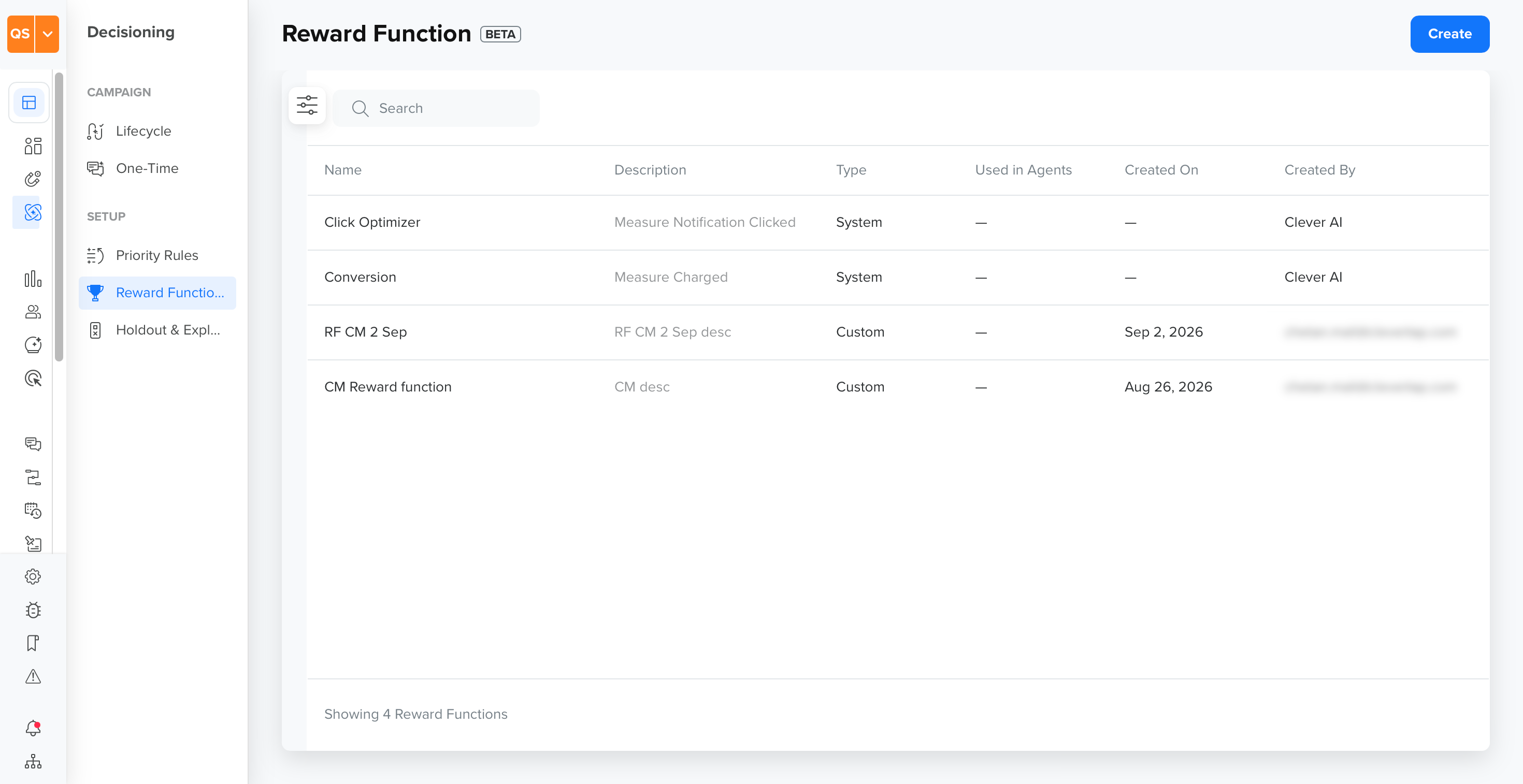
Reward Function
- Enter a name in the Function Name field. Names can be up to 200 characters and must be unique in your account.
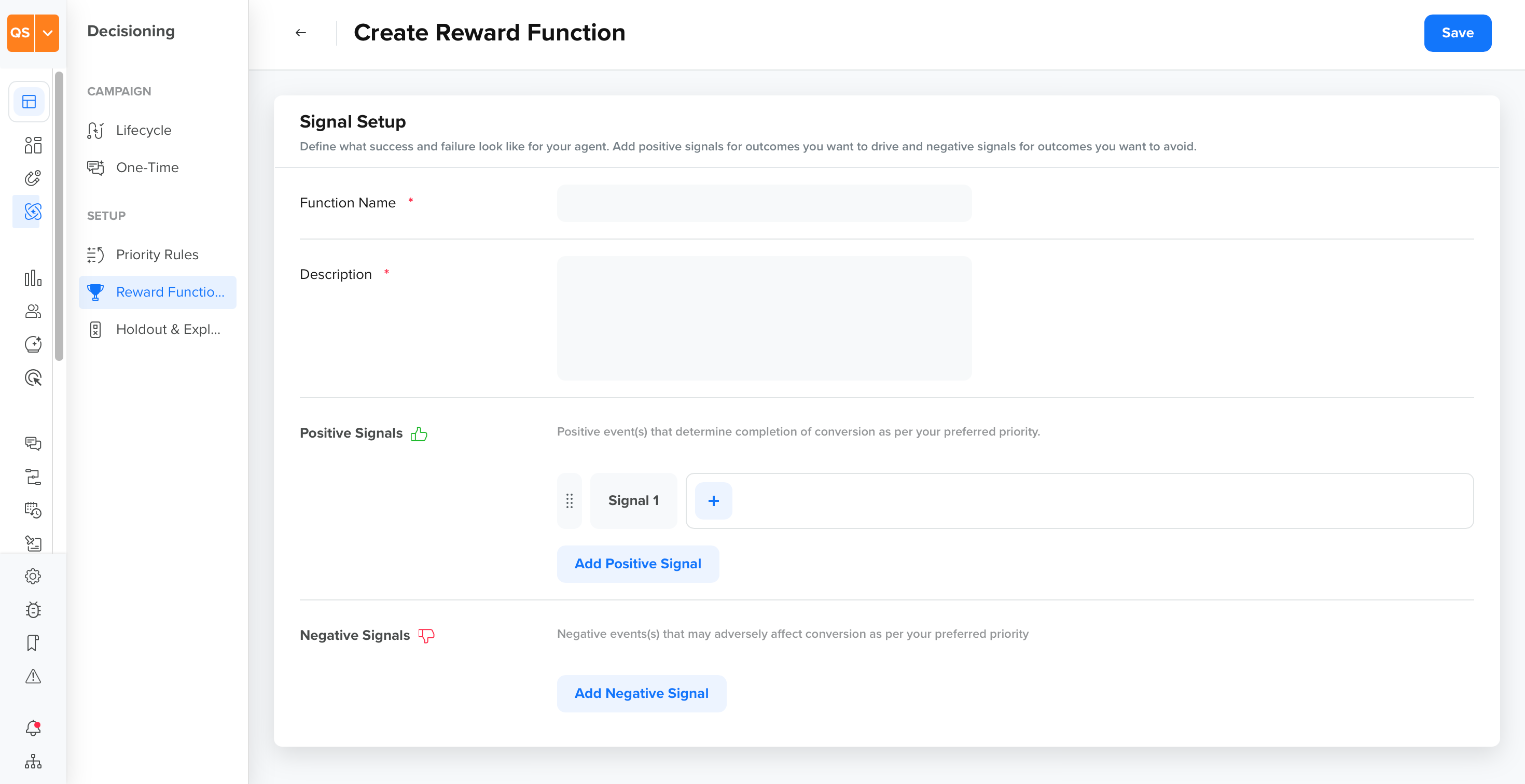
Setup
-
Enter a Description, up to 500 characters, explaining the business goal this Reward Function optimizes for. For example, a retailer might name theirs Maximize Purchases, described as: "Optimizes for users completing a purchase. Penalizes channel unsubscribes to reduce communication fatigue."
-
Under Positive Signals, add at least one positive signal, which is a user action you want the agent to optimize toward.
-
Click Add Positive Signal to add a signal. Each signal you add is its own priority level; drag a signal using its handle to reorder priority, the topmost signal is Priority 1, the highest.
-
Click + Next to a signal to add another event to it. Any one event within a signal satisfies that priority level, events within a signal are evaluated as OR, not AND.
For example:
-
| Priority | Event(s) | What It Means |
|---|---|---|
| Priority 1 (highest) | Charged | Primary conversion goal |
| Priority 2 | Add to Cart or Add to Wishlist | Mid-funnel intent — either counts equally |
| Priority 3 | Product Viewed | Top-of-funnel engagement |
- Under Negative Signals, optionally add signal(s) that may adversely affect conversion. Click Add Negative Signal, following the same pattern as positive signals.
- Click Save.
NoteYour account can have up to 5 Reward Functions in total: the 2 built-in System ones (always present and do not count against your custom quota) plus up to 3 Custom ones you create.
A Reward Function needs at least one positive event to be saved; you cannot save an empty one.
View and Filter Reward Functions
The Reward Function page lists every Reward Function in your account.
Use Filters to narrow the list:
- Time Period: filter by when the Reward Function was created. Defaults to All time.
- Created By: filter by the user who created it.
- Type: filter by System or Custom.
Updated 2 days ago