
Segment Builder: Build with AI
Generate segment query results with a prompt.
Segment Builder allows you to create precise user segments using natural language prompts. The system converts your prompt into structured segment rules that you can further customize using the Query Builder.
This feature helps marketing and product teams create granular segments without needing prior knowledge of event structure, properties, or filter logic.
AvailabilitySegment Builder is available on Pro and Ultimate plans. To access this feature, contact your Customer Success Manager.
Prompt-Based Segmentation has the following stages:
-
Segment Builder
Enter your segment description using plain language. For example:
"Active iOS users who haven’t made a purchase in the last 30 days." -
Query Builder
The system converts the prompt into rules using attributes such as user properties, events, or time filters. These rules are editable and appear on the panel. -
Segment Insights
Once rules are generated, the system displays user counts, channel reachability (Push, Email, SMS, and so on), and sample users for the Past Behavior Segment. -
Edit and Save
You can refine rules, add new conditions, or group rules as needed. Once finalized, click Save Segment to create your new segment.
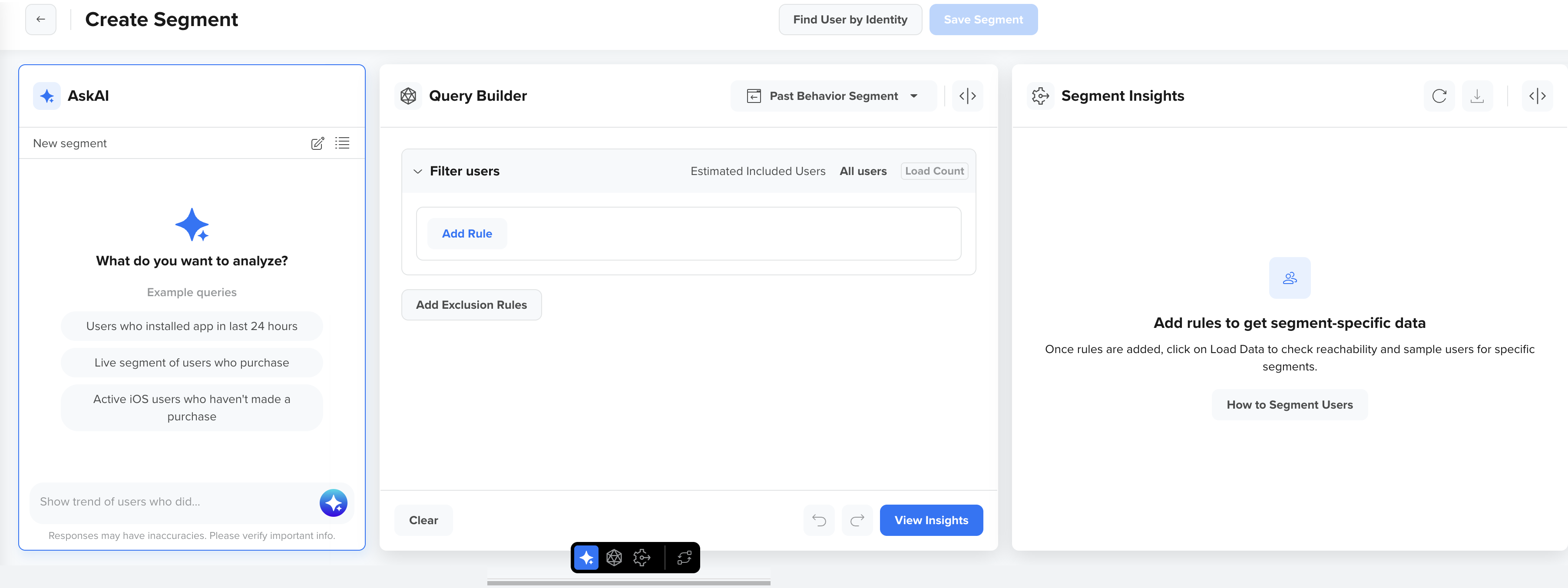
Segment Builder Example
Create a Segment with Prompt
From the CleverTap dashboard:
- Go to Segments > Create Segment.
- Select the required type of segment.
- In the Segment Builder prompt box, enter a clear description.
Example: "Active iOS users who haven't purchased in the last 15 days."
The agent understands your input and generates a matching query. - In the Query Builder, review and adjust the query for any of the following:
- Event filters, for example, Charged or Visited Product Page.
- User Properties, for example, OS = iOS.
- Use Add Rule or Add Rule Group to include more conditions and filters. For more information, refer to Segmentation Rules.
- On the right panel, check Segment Insights. It will show details such as:
- Total users in the segment.
- Reachability by channel (Push, Email, and so on).
- Sample user list.
- Click the Save Segment button in the top right of the page to store and reuse this segment in campaigns.
- Click the
 icon in the Segment Insights section to export your data.
 - To create a new segment, click the New Thread
 icon.
icon.
You can refer to the previous chats by clicking the All threads  icon.
icon.
NoteYou can combine multiple behaviors, conditions, and filters in a single prompt or edit the generated query as needed.
Prompt Segment Operations
You can perform several operations on the Segment Builder window for ease of use.
Expand or Collapse Sections
Click the  icon to expand or collapse sections.
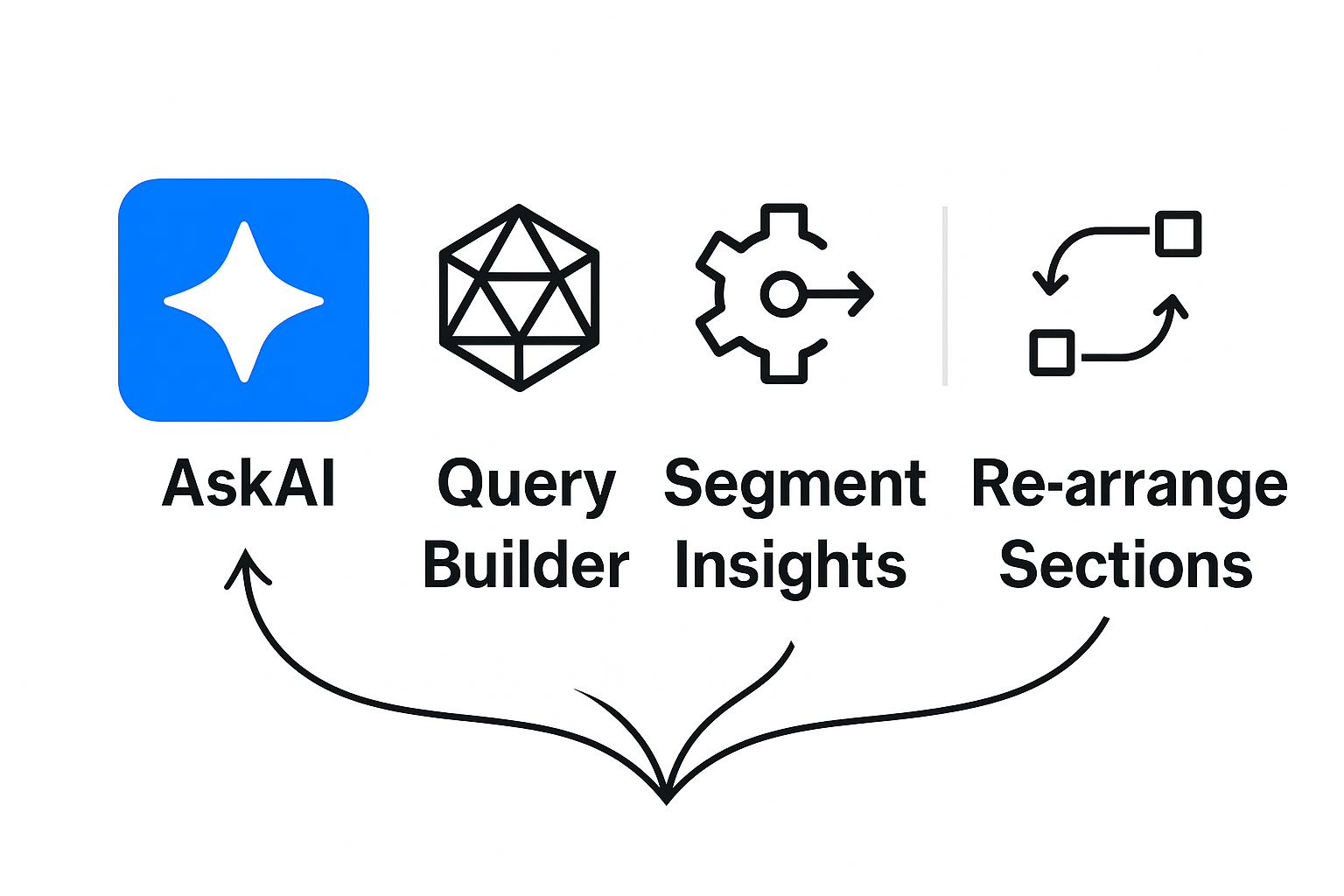
Toolbar
The floating toolbar on the dashboard allows you to select the required section on the Segmentation screen. You can also rearrange the order of the sections by clicking the  icon on the toolbar.
Best Practices
- Use simple and specific prompts.
- Include platforms (iOS/Android), events, or date ranges.
- Review generated conditions for accuracy before saving.
- Save frequently used prompts as named segments.
FAQs
How is my data used and sent to OpenAI?
Your data is never used to train OpenAI models, and is deleted by OpenAI within 30 days. To generate AI output through CleverTap AI features that leverage OpenAI, CleverTap sends your prompt along with event names, event properties, user properties, segment names or IDs, or any other relevant input to OpenAI. The input sent to OpenAI by CleverTap does not identify you or your users unless you choose to include identifiable information in your prompt. CleverTap provides no warranties regarding the AI-generated content, including the output. For more information, see OpenAI’s Enterprise Privacy Policy.
Is there a limit to the thread history?
There is no limit to the thread history. The threads are stored locally at the browser level.
What if my prompt isn't clear?
The system will suggest clarifications or partial matches. Try rephrasing the input.
Can I add multiple events in one prompt?
Yes. You can say: "Users who viewed product but didn’t purchase in the last 7 days."
Does it support AND/OR conditions?
Yes. Use rule groups to apply logical combinations. The builder uses AND by default and supports nested logic.
Can I preview users in a segment?
Yes. The Segment Insights panel shows sample users and reachability.
Can I create queries using custom lists ?
This feature is not supported for custom lists.
Updated about 1 month ago