
Create Loyalty Tiers
Learn how to create loyalty tiers in CleverTap promotions.
Overview
To create Loyalty Tiers, go to Promotions > Loyalty Tiers and click Create Loyalty Tiers.
A modal with the following two options appears, asking you to select how you want to set up your loyalty tiers:
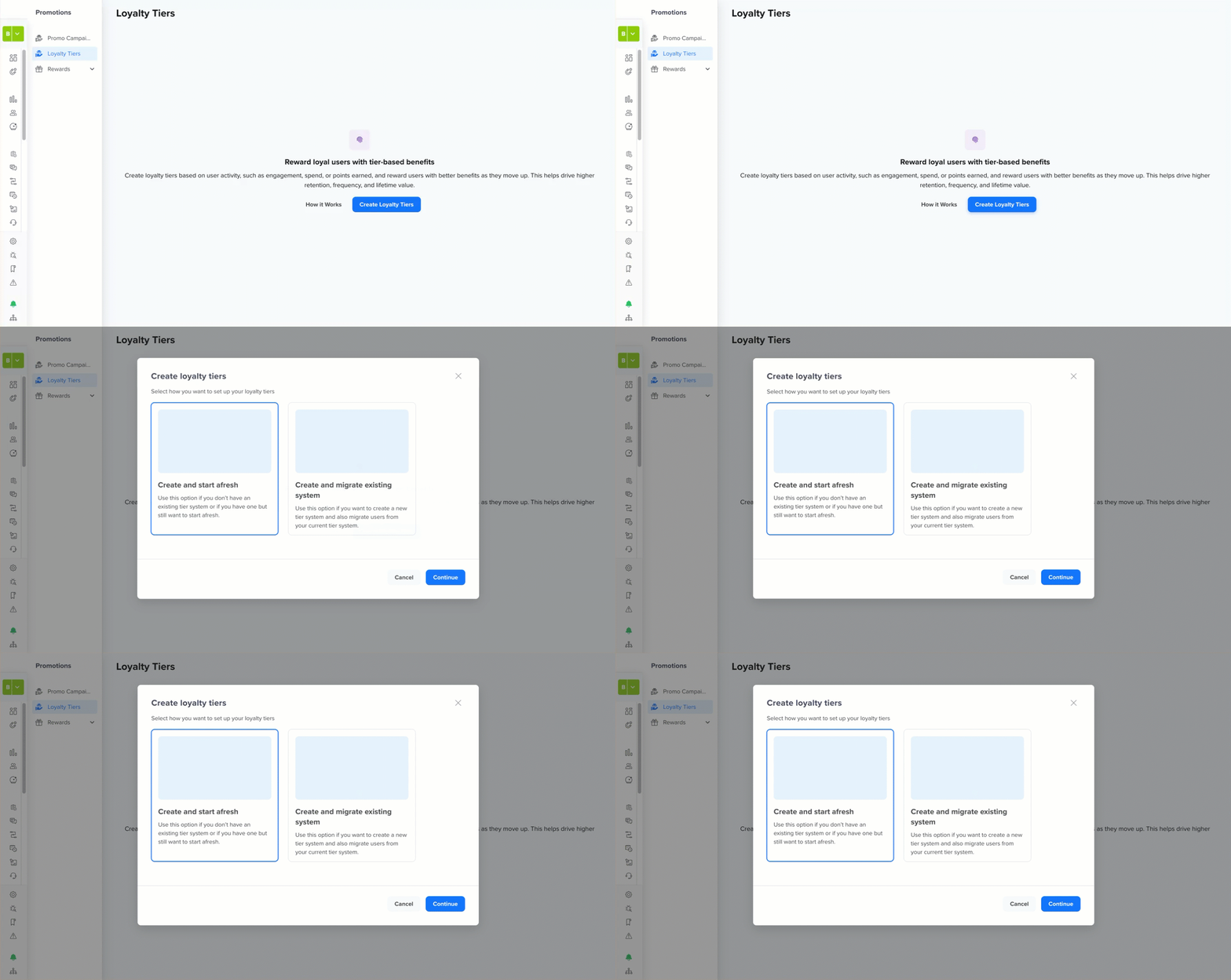
Create Loyalty Tiers
Based on your use case, select an option from the following:
- Create and start afresh: Use this option if you do not have an existing tier system, or if you have one but want to start fresh on CleverTap.
- Create and migrate existing system: Use this option if you are migrating an existing loyalty tier program from a legacy system to CleverTap. This option allows you to recreate your tier structure and bring over existing user tier assignments and historical activity so users retain their current status. For more information, refer to Migrate Loyalty Tiers.
Create and Start Afresh
Select the Create and start afresh option and click Continue, and configure the following five sections:
NoteOnce created, loyalty tiers cannot be edited or deleted. Ensure your setup is accurate before publishing. You can click Save Draft at any time to save your progress and return later to complete the setup.
If you need to delete a published tier system, contact your Customer Success Manager or raise a support ticket.
Key Details
This section includes the entry rules and upgrade conditions for your loyalty tiers, defining who qualifies for each tier and which activities are tracked.
-
Name: Enter a name to identify this tier system on the dashboard. For example,
Airmiles Plus,BlueChip Membership. -
Base tier entry: Defines how users enter the base tier (Tier 1), which is the lowest tier in your loyalty program. Every user must first enter the base tier before moving to higher tiers by meeting the qualification criteria for each tier.
Select how users enter the base tier from the following two options:
- All users: All existing and new users are automatically enrolled in the base tier. No entry criteria are required.
- Specific users: Only users who perform a defined event are enrolled in the base tier. Select the event that triggers base tier entry. For example, a
Chargedevent, aSignupevent, or aLoyaltyRegistrationevent. You can optionally add event property filters to further narrow the trigger.
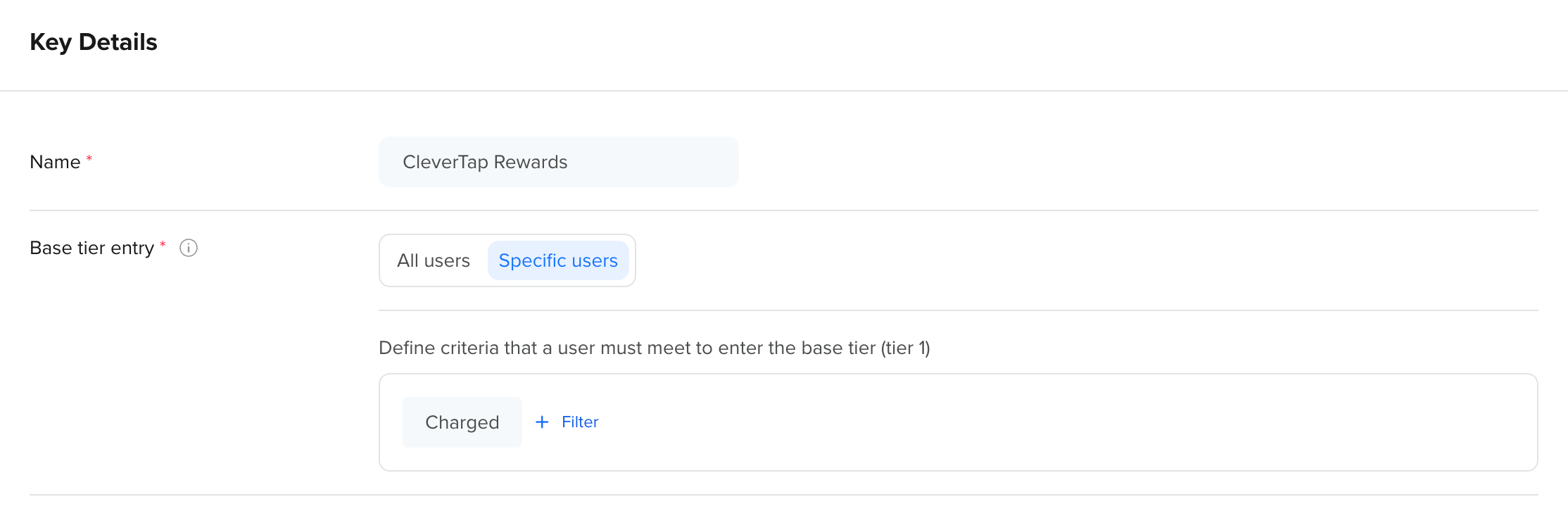
Enter Name and Base Tier Entry Criteria
NoteThe base tier has no expiry. Users who enter it remain there until they qualify for a higher tier.
- Tier upgrade parameters: Define which user activities are tracked to determine eligibility for higher tiers. These parameters act as the signals of loyalty or engagement that users must meet to progress through your tier hierarchy. You must add at least one parameter to create a tier system. Once defined, these parameters are reused as criteria rows when setting qualification rules for individual tiers in the Tiers Qualification Criteria section.
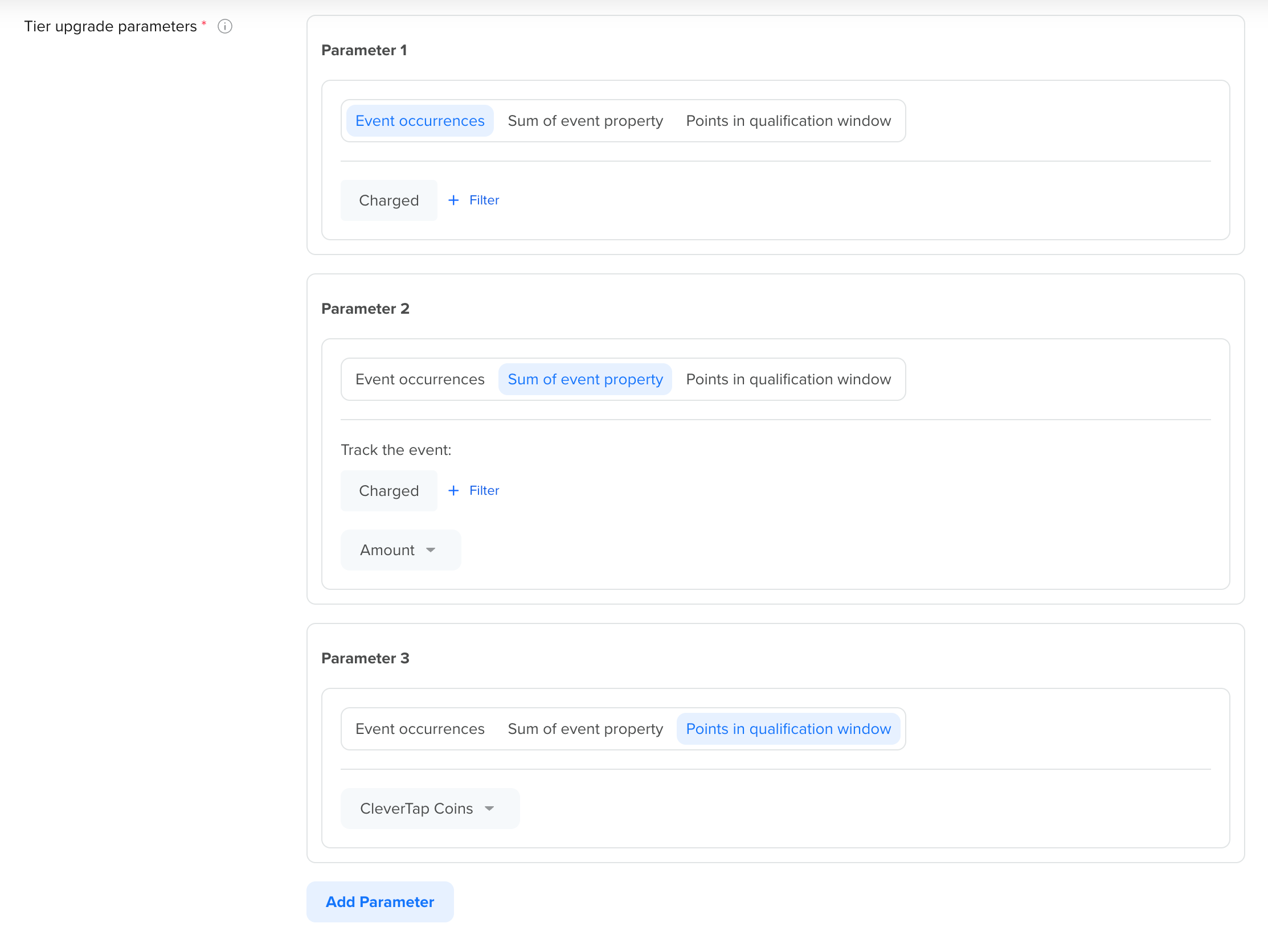
Enter Tier Upgrade Criteria
NoteTier upgrade parameters do not decide which tier a user belongs to by themselves. Instead, they define what data is available to build tier qualification rules.
Supported Criteria Types
You can track user activity using one or more of the following parameter types.
Event Occurrences
Use this parameter to count how many times a user performs a specific event. This is best suited for measuring frequency-based engagement, such as how often users perform an action.
For example, if you select the Order Placed event, you can later define tier rules such as:
- Users with 5 or more orders qualify for Silver
- Users with 15 or more orders qualify for Gold
Select the event from the dropdown. You can optionally add event property filters to count only specific occurrences of the event.
Sum of an Event Property
Use this parameter to track the total value of a numeric property across multiple occurrences of an event. This is ideal for measuring value-based engagement, such as how much a user spends over time.
For example, if you select the Order Placed event and the order_value event property, you can later define tier rules such as:
- Users who have spent $1,000 or more qualify for Silver
- Users who have spent $4,000 or more qualify for Gold
Select the event and optionally add event property filters. Then select the property whose value should be summed.
Points in Qualification Window
Use this parameter to track a user's total loyalty wallet points collected within the qualification window. Select the wallet whose points should be tracked.
For example, if you select a Rewards Wallet, you can later define tier rules such as:
- Users who have earned 500 points qualify for Silver
- Users who have earned 2,000 points qualify for Gold
NoteIf no loyalty wallet has been created for your account, this parameter type shows a No loyalty wallet created error. To select one, first create a loyalty wallet. For more information, refer to Create Loyalty Wallet.
Use Multiple Parameters Together
You can define multiple upgrade parameters to capture different types of loyalty conditions. These parameters can then be combined using AND or OR logic when defining tier qualification rules for individual tiers in the Tiers Qualification Criteria section.
For example, a user qualifies for Silver if they:
- Placed 5 or more orders AND spent $1,000 or more (AND logic), or
- Placed 5 or more orders OR spent $1,000 or more OR earned 500 loyalty points (OR logic)
This approach allows both high-frequency and high-value users to progress through tiers.
You can also add multiple parameters of the same type to track different variations of the same condition. For example, you can create two separate Event Occurrences parameters for the same event with different filters:
- Parameter 1:
Charged event where source = app - Parameter 2:
Charged event where source = website
This lets you track app purchases and web purchases as separate criteria and combine them independently when defining tier qualification rules.
Example Tier Upgrade Criteria by Industry
Use the following examples to understand how tier upgrade criteria can be applied to different business models:
| Industry | Upgrade Criteria Type | Example Criteria | Use Case |
|---|---|---|---|
| Hospitality (Hotels) | Count of an event | Number of nights stayed in the last 365 days | Identify frequent guests based on stay frequency |
| Sum of an event property | Total amount spent on bookings in the last 365 days | Identify high-value guests based on spend | |
| E-commerce | Count of an event | Number of orders placed | Reward repeat shoppers |
| Points collected | Loyalty points earned | Reward active loyalty participants | |
| Airlines | Count of an event | Number of flights booked in the last 365 days | Identify frequent flyers over a fixed period |
| Sum of an event property | Total amount spent on flight bookings | Identify high-value travelers based on cumulative spend |
Tiers Qualification Criteria
This section defines the tier hierarchy and the conditions users must meet to progress from the base tier to higher tiers.
Tier 1 (Base Tier)
Tier 1 is the starting point for every user in the loyalty tier program. This tier exists to enroll users in the tier system and to track their activity for future tier evaluation. You can also use this tier to offer entry-level benefits to new or low-engagement users while they work toward higher tiers.
- Who starts here: All users begin in the base tier.
- Expiry behavior: The base tier is permanent and does not expire.
- Where the entry rule comes from: Entry criteria are defined in Key Details and cannot be edited in this section.
All users who meet the entry condition defined in Key Details section are added to the Base tier. From there, users can qualify for higher tiers based on the upgrade criteria you define.
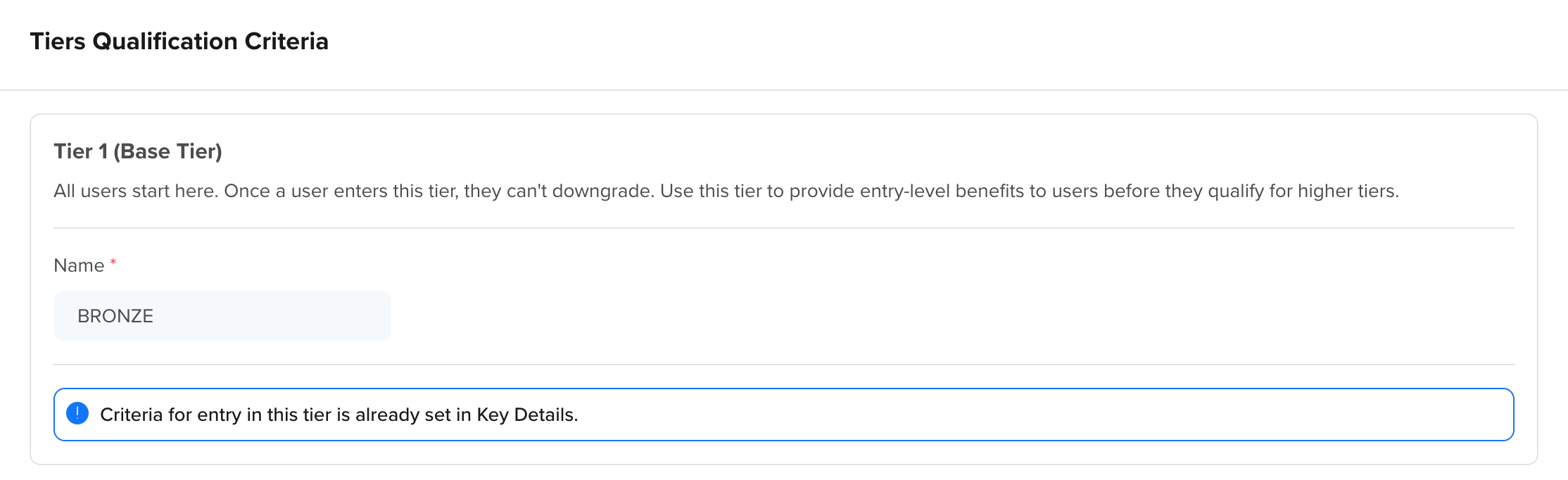
Enter Base Tier Qualification Criteria
Example Base Tier Enrollment Scenarios
Different businesses use the base tier differently, depending on how they want users to join the loyalty program.
| Scenario | Description | Entry Event | Result | Note |
|---|---|---|---|---|
| Automatic enrollment for all users | All new and existing users are enrolled in the base tier without any qualification criteria. | Signup | Every user who signs up is automatically added to the base tier. | Used when all users should be part of the loyalty program by default. |
| Enrollment after the first transaction | Users are enrolled in the base tier only after completing their first transaction. | Charged with filter First Time | Users enter the Base tier after placing their first order. | Use the first-time event filter to ensure users only qualify once, on their very first transaction. |
| Explicit user enrollment (opt-in) | Users are enrolled in the base tier only after explicitly opting in or subscribing. | Loyalty Program Signup | Users join the base tier after subscribing to the loyalty program. | Used when enrollment into the loyalty program is optional and requires explicit user consent. |
Higher Tiers (Tier 2 and above)
Higher tiers represent levels users qualify for after meeting the eligibility conditions defined for each tier. These tiers offer additional or differentiated benefits compared to the base tier. Commonly used higher-tier names include Silver, Gold, and Diamond.
Click Add Tier to add a new earned tier. At least one higher tier is required to publish the loyalty program. For each earned tier, configure the following:
- Tier name: Enter the name of the tier. For example, Silver, Gold, or Diamond.
- User eligibility re-evaluation (On expiry): Select what happens when this tier's validity period ends and the user's eligibility is re-evaluated based on the following options:
- Never re-evaluate: The user remains in this tier regardless of whether they still meet the qualification criteria at expiry.
- Re-evaluate: The user's eligibility is checked at expiry. They are renewed, upgraded, or downgraded depending on their current progress against the criteria.
- Qualification criteria (Based on tier upgrade parameters): Each row displays a parameter configured in Key Details section. For each criterion, you can set the following configurations:
- Operator condition: Select the condition the user's achieved value must satisfy. The choice between greater than and greater than or equal to affects the exact threshold in the following ways:
- Greater than: The user's value must exceed the threshold. For example, if you set
Charged occurrences greater than 10, a user with exactly 10 orders does not qualify, they need 11 or more. Use this option when qualification should begin only after the target value is exceeded. - Greater than or equal to: The user's value must meet or exceed the threshold. For example, if you set
Charged occurrences greater than or equal to 10, a user with exactly 10 or more orders qualifies. Use this option when you want users to qualify as soon as they hit the target value.
- Greater than: The user's value must exceed the threshold. For example, if you set
- Value: Enter the threshold the user must reach. For the
betweenvalue, enter both a minimum and a maximum value. - Include / Exclude: For each tier, you can include or exclude individual upgrade criteria, allowing every tier to have its own set of conditions. This lets you reuse the same upgrade criteria across tiers while applying them differently at each level. This allows higher tiers to have stricter or more comprehensive eligibility requirements without redefining criteria from scratch. Excluded criteria are disabled and not evaluated.
- For example, a Silver tier can include only the
order countcriteria and a Gold tier can include bothorder countandtotal spend, combined using AND logic.
- For example, a Silver tier can include only the
- Operators: When more than one criterion is configured, select how they combine for this tier:
- AND: The user must meet all included criteria to qualify.
- OR: The user must meet one of the included criteria to qualify.
- Operator condition: Select the condition the user's achieved value must satisfy. The choice between greater than and greater than or equal to affects the exact threshold in the following ways:
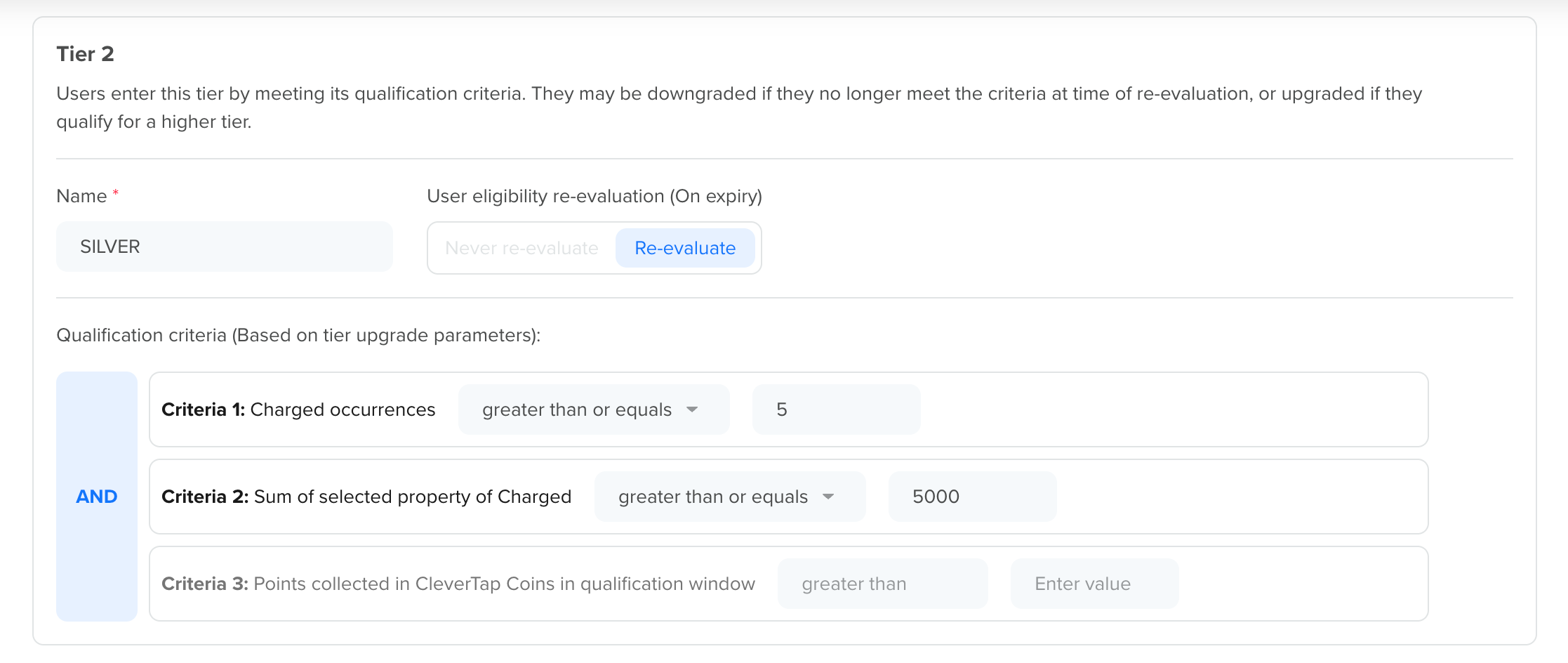
Enter Qualification Criteria for Tier 2
Rewards
This section defines what users receive at each tier. Rewards are distributed automatically when a user enters, upgrades to, renews, or is downgraded to a tier, allowing you to differentiate benefits across the tier hierarchy.
Each tier from your setup is listed here. The tier name shown is pre-filled from the Tiers Qualification Criteria section.
NoteYou may see an informational banner Tier name is already configured in tier qualification criteria block on each tier card. This is expected as the tier name is carried over from the previous tab and cannot be changed here.
For each tier, click Add Reward to open the reward configuration panel. Each tier can have its own reward configuration. Adding rewards to any tier is optional.
Supported reward types include:
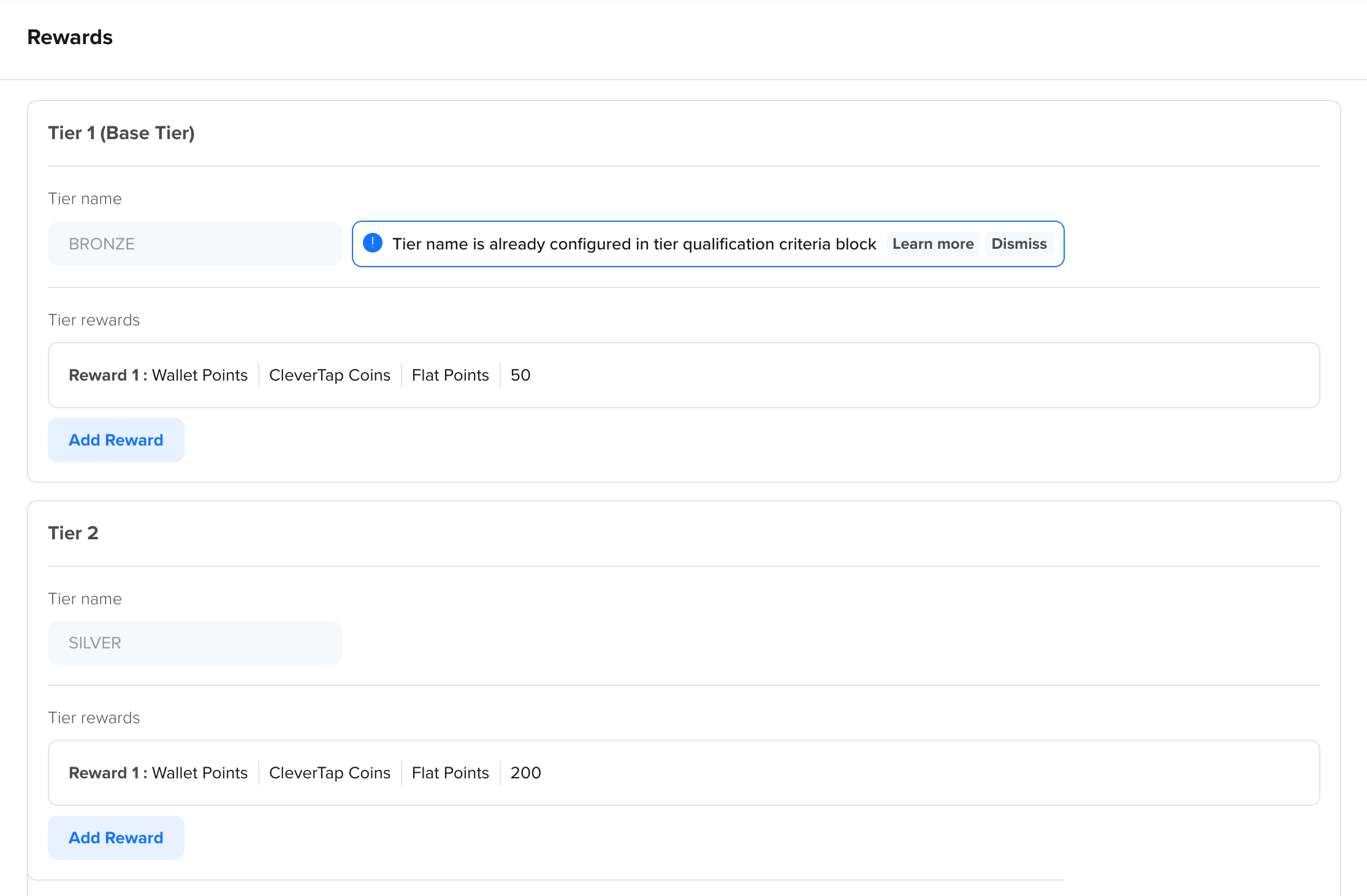
Add Rewards for Tier
Add Reward
When you add a reward to a tier, configure the following:
- Reward type: Select what you want to grant (wallet points, coupon, voucher, or custom reward).
- Reward value: Define the value or selection for the chosen reward type.
- Expiry behavior: Set how long the reward remains valid.
Timelines
On the re-evaluation day, the system checks whether the user meets the eligibility conditions for their current tier. The Timelines section defines how long a user's tier remains valid and the window within which their activity is evaluated for upgrades or renewals. Based on this check, the user is either renewed, upgraded, or downgraded. Both settings apply consistently across all tier levels.
Tier Validity Period
Tier validity periods follow a full-day cycle. If a user enters a tier mid-day, the expiry is calculated to the end of the final day of the validity period, not to the exact time of entry. For example, a user entering a tier on April 20 at 12:45 PM with a 10-day validity period will have their tier expire at midnight on April 30.
Select the period after which tier benefits are re-evaluated for users. You can choose one of the following options:
-
One calendar year: Selecting this validity period means tiers will be re-evaluated at the end of each calendar year, regardless of when the user entered the tier. Re-evaluation applies uniformly to all users simultaneously.
For example, user A qualifies for the Gold tier on April 10, and user B qualifies on September 5. If the Gold tier remains active until December 31, both users are evaluated together at year-end.
-
Specific time period: Selecting this validity period means tiers will be re-evaluated after a defined duration from the date each user qualifies for the tier. Enter the number and select the unit (Days or Months). Each user's expiry date is calculated individually from their own tier entry date.
For example, if the re-evaluation period is 12 months, and a user upgrades to Gold on March 15, the user is re-evaluated on March 14 of the following year.
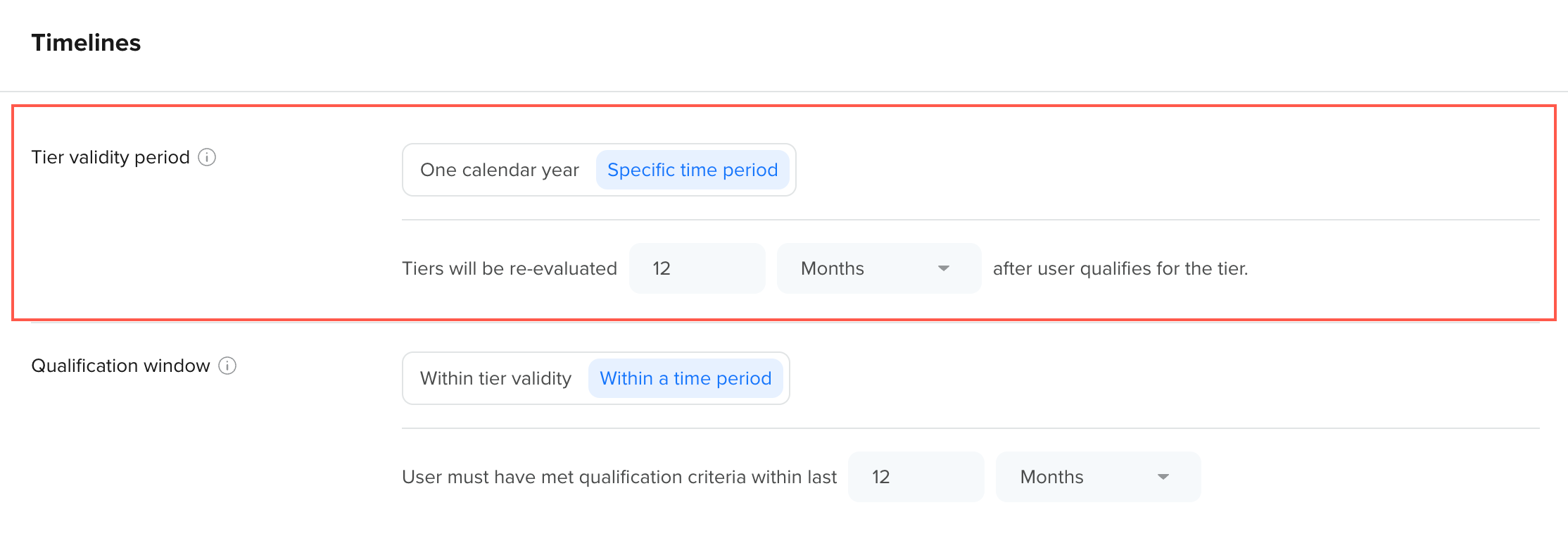
Enter Tier Validity Period
Qualification Window
Select the period within which a user must meet the qualification criteria for a tier to be upgraded to it.
You can choose one of the following options:
-
Within tier validity: Only activity from the user's tier start date to its expiry date is considered. The user must meet the qualification criteria within the time period during which their current tier is valid.
For example, user A enters the Gold tier on March 15, 2025. If the Gold tier is active for 12 months, only activity between March 15, 2025, and March 14, 2026, is evaluated. This ensures users get a full and fair opportunity to retain their tier based on activity during that tier period.
-
Within a time period: Only activity within a rolling window of the last X duration is considered. Enter the number and select the unit (Days or Months). The window shifts continuously and activity older than the window no longer counts.
For example, if the qualification window is the last 12 months and the re-evaluation date is December 31, the system checks activity from January 1 to December 31.
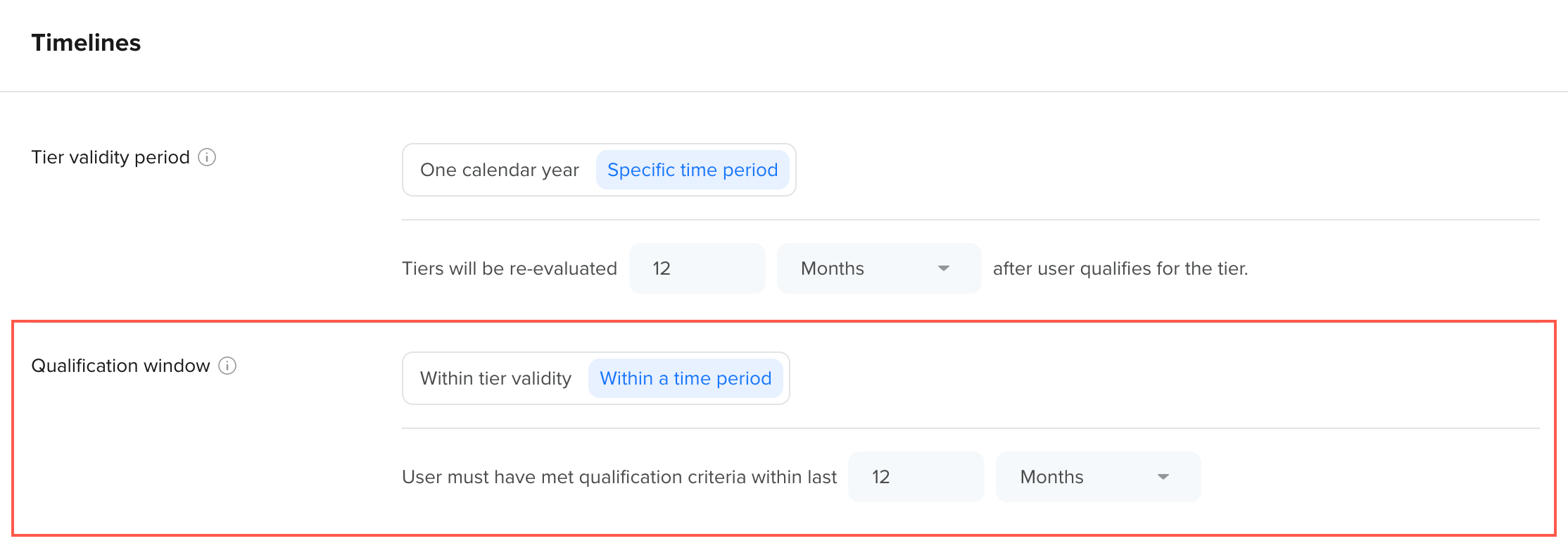
Enter the Qualification Window for a Tier
Downgrade Outcome
This section defines where users are placed when their tier expires, and they no longer qualify for their current tier at re-evaluation. Downgrade only happens on the tier expiry date, not in real time. CleverTap evaluates users at 23:59:59 on the expiry day and applies the downgrade outcome at 00:01 AM the following day.
On the expiry or re-evaluation day, the system checks whether the user still meets the eligibility conditions for their current tier. Based on this evaluation, one of the following outcomes occurs:
- Tier Renewal: If the user meets the current tier’s eligibility conditions, their tier is renewed, and they continue in the same tier.
- Tier Downgrade: If the user does not meet the eligibility conditions, they are downgraded to a lower tier.
When a downgrade is required, the Downgrade Outcome determines how the user is reassigned. You can configure whether users are moved to the next eligible tier, the next lower tier, or directly to the base tier. This gives you control over how strict or flexible your tier downgrade behavior should be when users fail to renew their current tier.
To define a downgrade destination for users who no longer qualify for their current tier, you can choose one of the following options:
-
Next eligible tier (default): CleverTap evaluates the user's current activity against all lower tier thresholds and places them in the highest tier they still qualify for. If a user doesn't qualify for any tier, they're moved to the base tier.
For example, if a user is in Tier 4 but fails to renew, and during re-evaluation, the user does not qualify for Level 3 but does qualify for Level 2. In this case, the user is downgraded to Level 2 (the next eligible tier).
-
Next lower tier: The user is moved exactly one tier down, regardless of whether they actually meet that lower tier's criteria.
For example, if a user is in Level 4 but fails to renew, and during re-evaluation, the user actually qualifies for Level 2. But because the downgrade type is the Next lower tier, the user is downgraded to Level 3 (one level down from Level 4), even if they do not qualify for Level 3.
-
Base tier: The user is moved directly to the base tier, bypassing all intermediate tiers. Use this for programs that require a hard reset when a user fails renewal.
For example, if a user is in Level 4 but fails to renew it. Even if the user qualifies for Level 2, they are downgraded to the default tier.
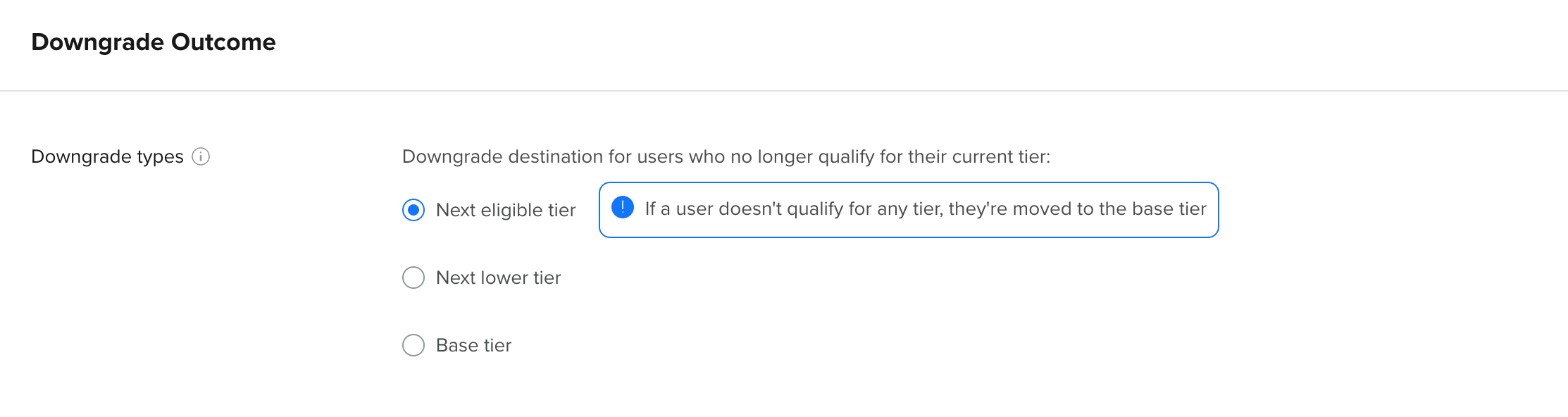
Enter Downgrade Outcome
Publish Loyalty Tiers
Once you have configured all five sections, click Proceed.
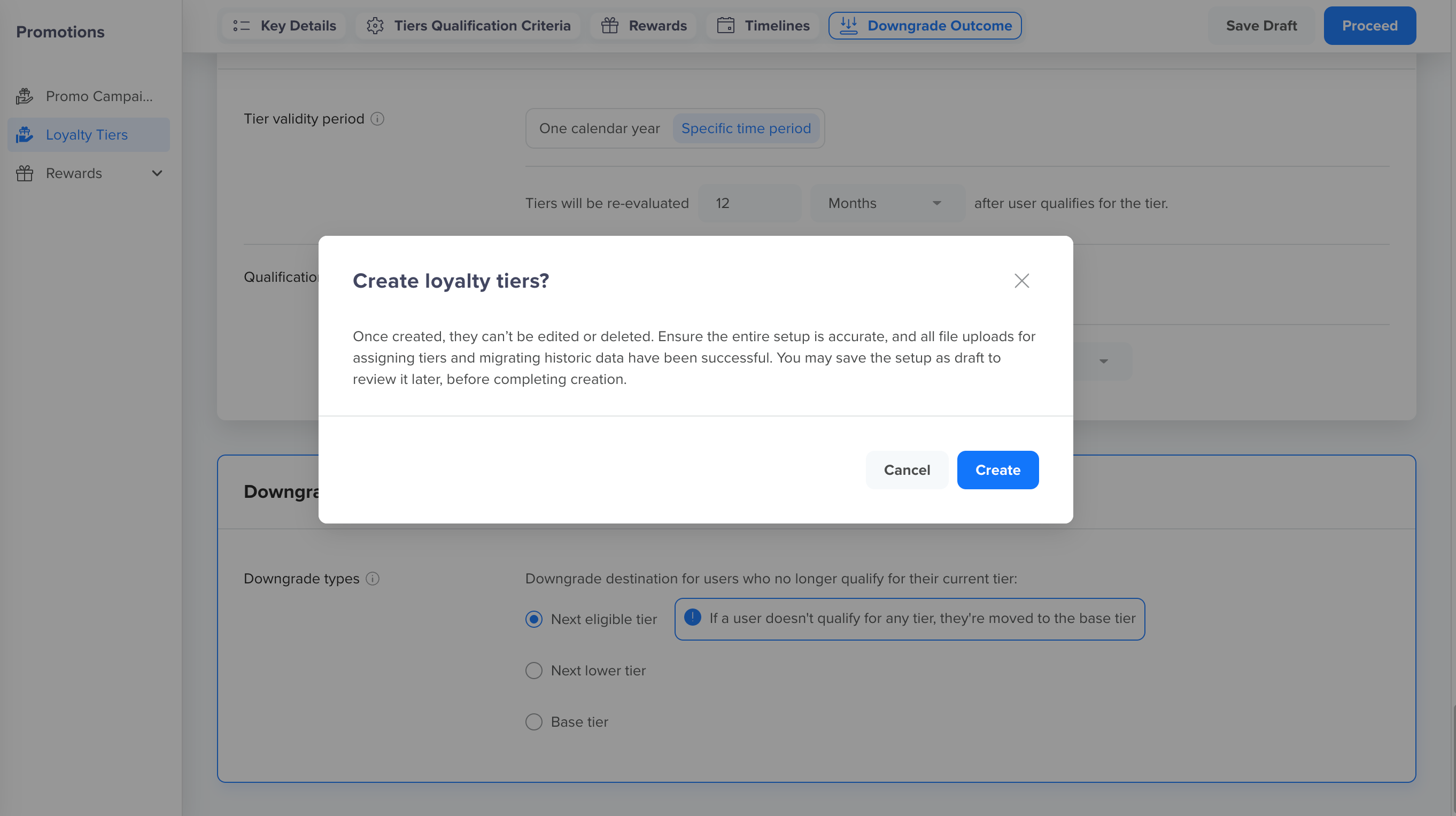
Confirm Loyalty Tiers Creation
Click Create on the confirmation modal to publish the tier system. A progress screen is shown while CleverTap processes the setup:
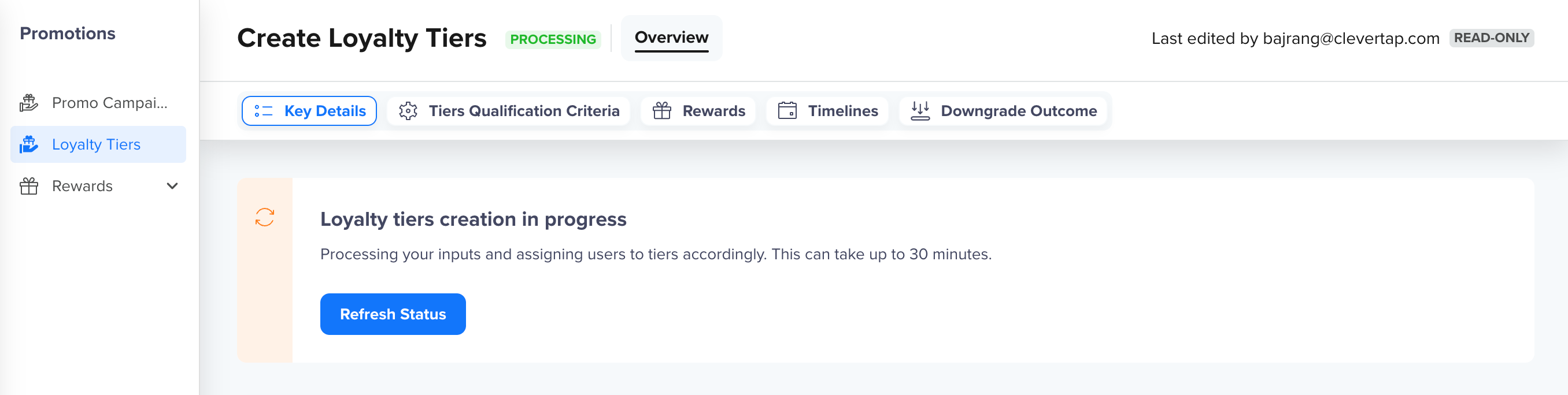
View Progress for Published Tiers
FAQs
Find answers to the frequently asked questions that you may have regarding creating Loyalty Tiers in CleverTap:
Q. What’s the difference between the base tier and the higher tiers?
The Base tier is where all users start. It is permanent and does not expire. Higher tiers (Tier 2 and above) are for higher-tier users who qualify based on activity and can expire or be downgraded per your configuration.
Q. What are the tier upgrade parameters and qualification criteria?
Tier upgrade parameters are the conditions you track. For example, order count, total spend, points collected. Qualification criteria are the thresholds you set for each tier using those conditions. For example, Order count = greater than 5 to qualify for Silver. Parameters are defined once in Key Details and reused across all tiers.
Q. Can a tier system work without a loyalty wallet?
Yes. You can create a tier system using Event occurrences or Sum of event property parameters without a loyalty wallet. However, if you want to use the Points in qualification window parameter or grant wallet points as rewards, you must first create a loyalty wallet.
Q. What are some best practices for tier design?
Keep tiers simple (3–5 tiers), choose criteria that users can realistically achieve, and make rewards meaningfully better as tiers increase. Use the Within a time period qualification window if you want tiers to reflect recent engagement rather than lifetime activity.
Q. Do I need to add anything beyond the base tier?
Yes. A tier system must include at least one earned tier (Tier 2 or above) in addition to the base tier. Earned tiers allow users to progress based on their activity and unlock higher-level benefits.
Q. Do tiers have to follow a specific order?
Yes. Tiers follow a hierarchical order from lowest to highest. Users always progress upward through the hierarchy as their activity increases and cannot skip the defined tier structure.
Updated 5 months ago