
Alot Solutions
SMS Provider
Overview
Alot Solutions is a Communications Platform as a Service (CPaaS) provider that enables businesses to engage customers across multiple channels. When integrated with CleverTap, Alot Solutions delivers transactional and promotional SMS messages directly from the CleverTap dashboard, with full DLR (Delivery Receipt) tracking for visibility into campaign performance and delivery status.
Here are a few ways businesses use Alot Solutions with CleverTap:
- Transactional Alerts: Deliver real-time OTPs, order confirmations, and payment updates.
- Promotional Campaigns: Announce offers, discounts, or product launches to targeted user segments.
- Abandoned Cart Reminders: Prompt users to complete their purchase with time-sensitive nudges.
Support for IntegrationThis integration is managed and supported by Alot Solutions. For any questions or issues related to this integration, contact Alot Solutions support.
This document covers the following:
- Prerequisites for Integration
- Integrate Alot Solutions with CleverTap
- Set Up SMS Callbacks
- Verify Successful Integration
Prerequisites for Integration
Before integrating Alot Solutions with CleverTap, ensure the following are in place:
- An active CleverTap account with SMS channels enabled.
- An Alot Solutions account with the following credentials, provided by your Alot Solutions point of contact:
- Username and password
- Sender ID
- DLT credentials (required for accounts registered in India)
- DLT compliance for your Alot Solutions account, if you are registered in India.
Integrate Alot Solutions with CleverTap
Integrating Alot Solutions with CleverTap requires three steps: finding your API credentials, configuring the CleverTap dashboard, and sending a test SMS to confirm delivery.
Find Alot Solutions API Credentials
To complete the setup, gather the following details from your Alot Solutions account or Alot Solutions support:
| Credential | Description | Where to Find |
|---|---|---|
| Endpoint URL | The API endpoint for Alot Solutions | Fixed value: https://alots.io/api/v1/sms/clevertap |
| API Key | Used in the Authorization request header | Profile Settings in your Alot Solutions Customer Portal |
| Sender ID (SID) | The sender ID linked to your account | Provided by your Alot Solutions point of contact |
Set Up CleverTap Dashboard
Configuring the CleverTap dashboard connects and authenticates your Alot Solutions SMS provider using the Generic SMS provider option.
- Go to Settings > Channels > SMS in the CleverTap dashboard.
- Click + Add Provider. The Add SMS provider page opens.
- Under Provider, select Other (Generic) and enter the following details:
| Field | Description |
|---|---|
| Nickname | Enter a unique name for this provider. For example: Alot Solutions SMS. |
| Callback URL | Contact your Alot Solutions point of contact to obtain the callback URL and configure it on the Alot Solutions platform to receive SMS delivery status updates. |
| Request Type | Select POST as the HTTP method. |
| HTTP Endpoint | Enter the Alot Solutions API endpoint: https://alots.io/api/v1/sms/clevertap |
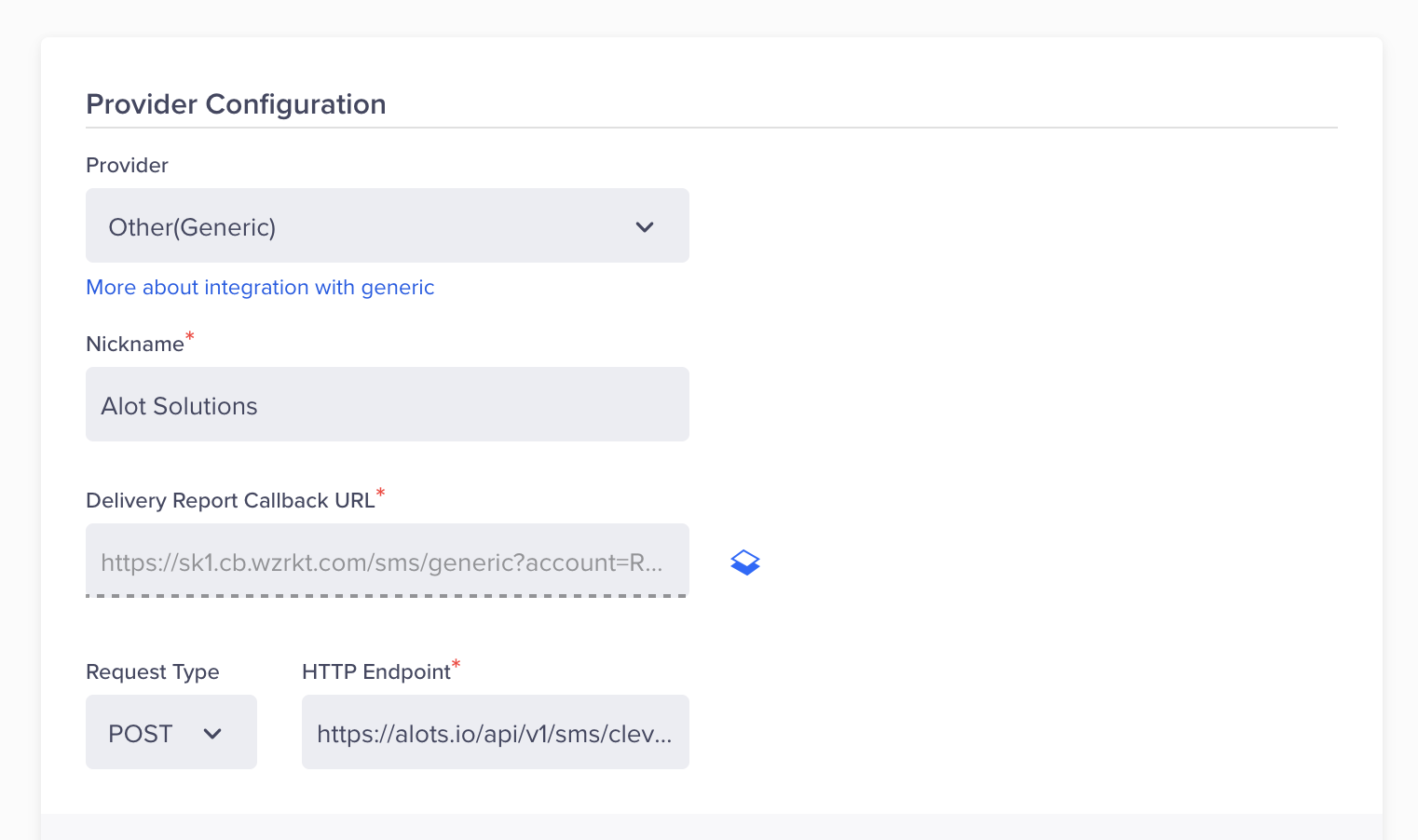
Provider Configuration in SMS Channel
- Under the Headers section, enter the following key-value pairs:
| Key | Value |
|---|---|
Authorization | Bearer <API_KEY> |
Content-Type | application/json |
Replace <API_KEY> with the API key from your Alot Solutions Customer Portal.
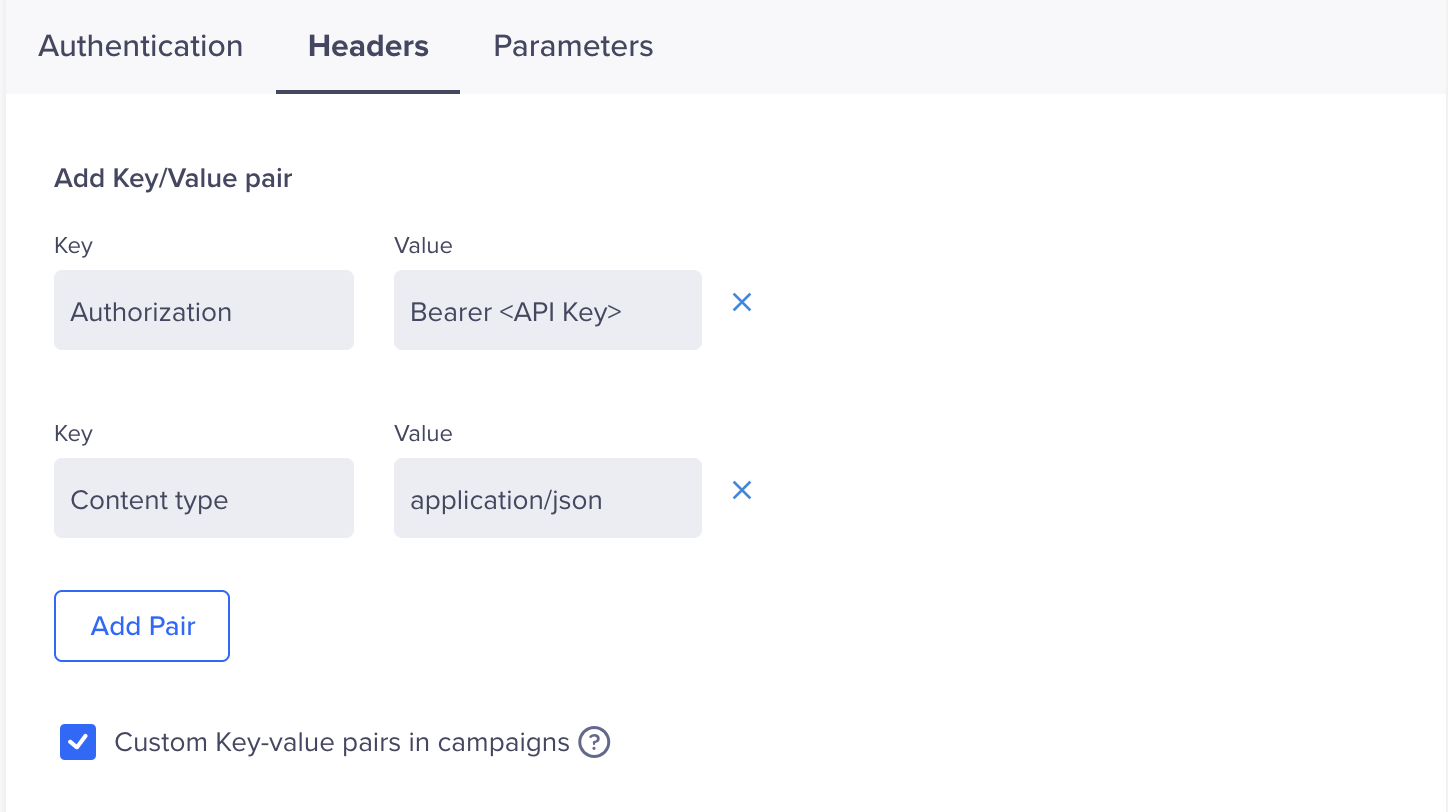
Headers section for SMS Channel
- Under Parameters, select JSON as the request type. Use the following sample payload:
{
  "route": "Transactional",
  "sender": "$$hid",
  "tid": "$$TemplateID",
  "msgs": [
    {
      "message": "$$Body",
      "mobile": "$$To",
      "msg_id": "$$MessageID"
    }
  ]
}
NoteCleverTap replaces
$$Body,$$To,$$TemplateID, and$$MessageIDdynamically at send time with the actual message content, recipient number, template ID, and a unique message identifier.$$MessageIDis required for accurate DLR (Delivery Report) tracking: Alot Solutions must return the same ID in the delivery callback for CleverTap to match and record the delivery status.
- Select the Batch option to send multiple SMS records in a single request. A single batch supports a maximum of 1,000 records.
- Click Save. A prompt appears to send a test SMS.
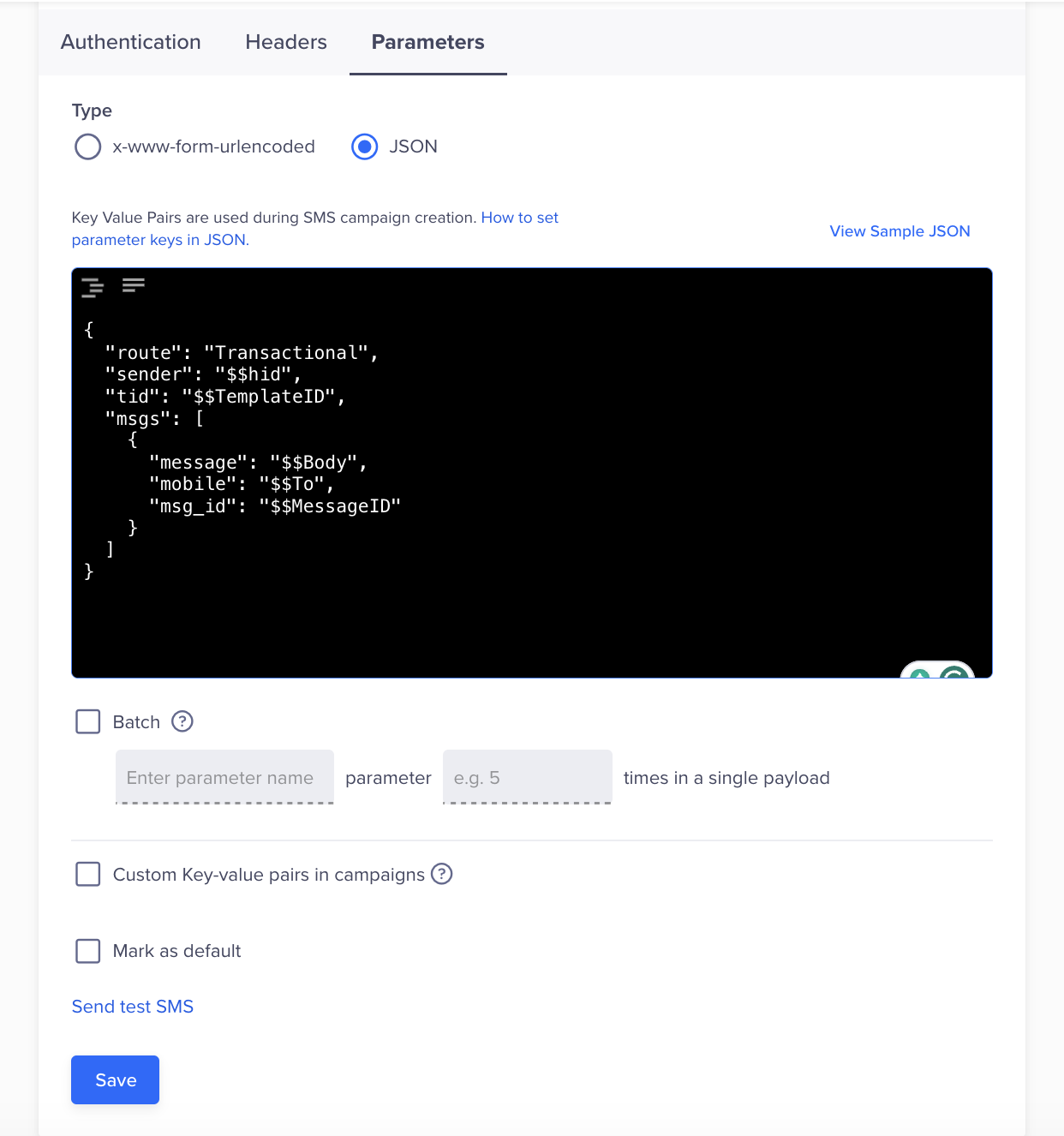
Parameters tab in the Provider Configuration section
Send a Test SMS
Sending a test SMS confirms that the Alot Solutions integration is working before you launch a live campaign.
- Click the Send Test SMS link after saving your provider configuration.
- Enter the following details:
- Country Code and Mobile Number: Enter the country code and mobile number for the test recipient.
- Message: Enter sample text, for example:
This is a test message powered by Alot Solutions.
- Click Send Test.
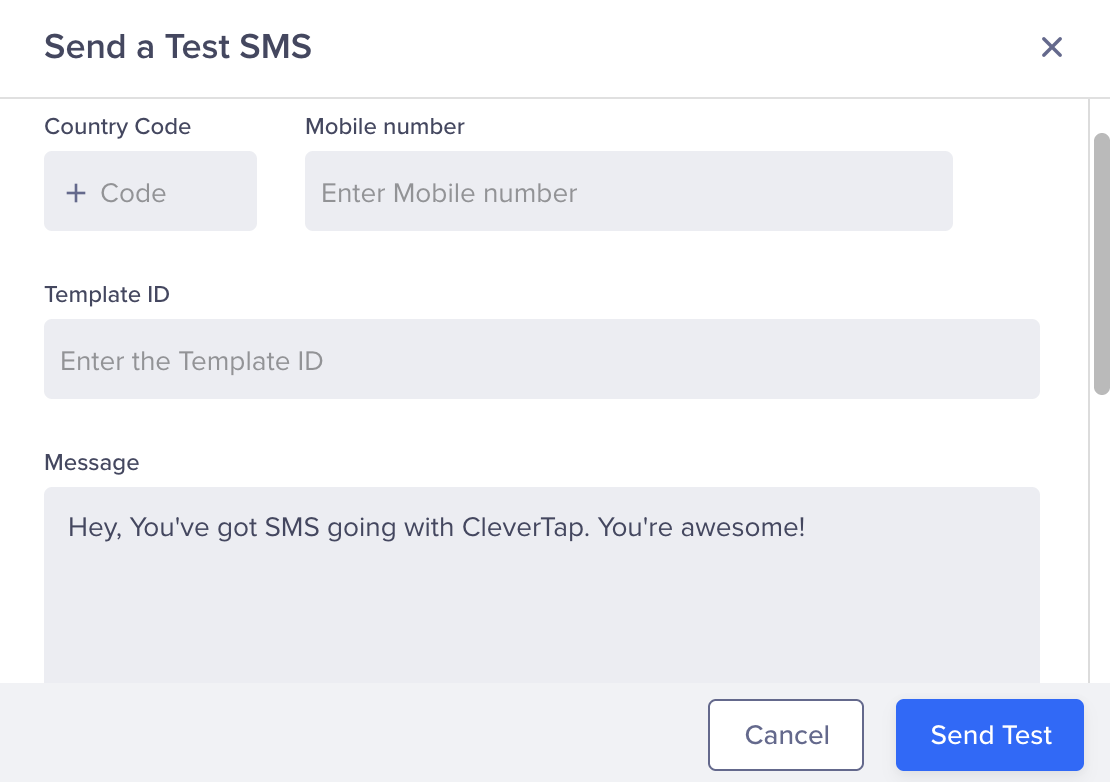
Test SMS Pop-Up
If the configuration is correct, the test message is delivered, and Alot Solutions returns a DLR update. If an error occurs, for example, due to incorrect credentials or an invalid endpoint, CleverTap displays a failure notification.
Set Up SMS Callbacks
Setting up SMS callbacks lets CleverTap receive delivery status updates from Alot Solutions for accurate campaign reporting.
- Go to Settings > Channels > SMS in the CleverTap dashboard.
- Open your Alot Solutions provider by clicking its nickname.
- Copy the Delivery Report Callback URL from the Provider Setup page.
Provider Configuration in SMS Channel
- Share this URL with Alot Solutions support so they can configure it on the Alot Solutions platform.
Verify Successful Integration
Your integration is successful when all three of the following criteria are met:
- The test SMS is delivered to the intended mobile number.
- You receive a DLR callback from Alot Solutions at the configured CleverTap callback URL, indicating delivery, failure, or queue status.
- CleverTap logs show no errors related to authentication, payload structure, or message transmission.
Once these conditions are met, you can proceed to build SMS campaigns or set up Journeys using Alot Solutions as your SMS provider.
Create Campaign
For detailed instructions on creating an SMS campaign with FirstConnectt as your provider, refer to Create SMS Campaign.
Create Journey
For detailed instructions on creating an SMS journey using FirstConnectt as your provider, refer to Journeys.
Updated about 6 hours ago