
IntelliAB
Learn how to configure AI-powered A/B Test for Push campaigns that continuously learns and shifts traffic toward your best-performing message in real time.
Overview
IntelliAB is CleverTap's AI-powered experimentation layer built on top of A/B testing. It enables marketers to test up to 10 message variants simultaneously within a Push campaign and uses a Multi-Armed Bandit (MAB) algorithm to continuously learn which variants drive the most engagement, automatically shifting traffic toward better-performing variants in real time.
Manual A/B testing works well with a small number of variants but becomes inefficient as experimentation scales. When too many variants split your traffic equally, most users see weaker messages, and results only tell you who won and not why a particular variant won. IntelliAB Test solves this by turning experimentation into a continuous, self-optimizing system.
For example, you are running a flash sale. You create 4 push notification variants with different CTAs, tones, and offer framing.
With a Manual A/B Test, you split traffic evenly (25% each) and wait 7 days to determine a winner. By the time you act on results, the sale is over. Users who saw the weaker variants never converted.
With IntelliAB, by day 2, the bandit has already identified that Variant C is getting 3x the clicks and automatically routes 60% of traffic there, while the sale is still live. And it never stops learning. If Variant D starts outperforming C on day 5, traffic shifts again, automatically.
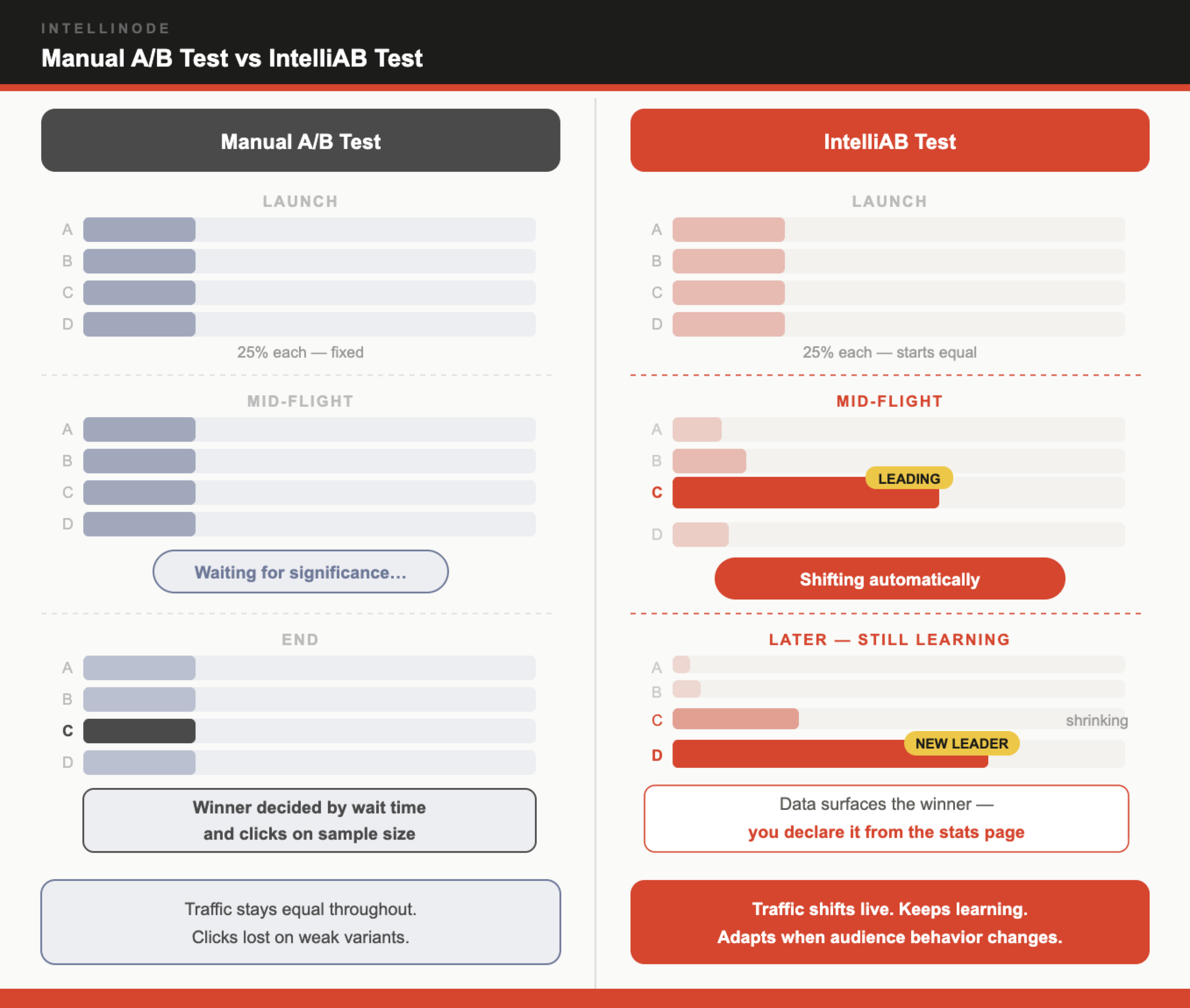
Manual A/B Test vs. IntelliAB Test
AvailabilityIntelliAB is available on Pro and Ultimate plans. To access the feature, contact Customer Success Manager.
Manual A/B Test vs. IntelliAB Test
The following table shows how the IntelliAB Test differs from the manual A/B Test:
| Feature | Manual A/B Test | IntelliAB |
|---|---|---|
| Traffic Allocation | Fixed % split across all variants throughout the campaign. | Dynamic in nature; continuously shifts traffic toward better-performing variants. |
| Learning | Static learning; traffic split remains fixed for the duration of the campaign, regardless of variant performance. | Real-time learning; bandit model updates reward distributions with every event. |
| Exploration | Not applicable. | Stays uniformly random. |
| Winner Selection | Marketer can declare the winner after reviewing engagement results, typically determined by which variant shows the highest click or impression rate over the test period. | Automatic or manual. The marketer can declare when ready; the system signals when the data is reliable. |
| Wasted Impressions | High; equal traffic to weak variants throughout. | Lower; weaker variants receive progressively less traffic. |
| Max Variants | 2–10. | 2–10. Note: Avoid adding variants just to fill the limit. More variants require more data per variant, which means more campaign runs before the system converges on a winner. |
| Best For | Controlled hypothesis testing with statistical significance. | Fast experimentation at scale, messaging optimization, and continuous learning. |
Key Concepts
- Exploration: A configurable percentage of your audience that always receives all variants equally, regardless of which variant is currently winning. This ensures that every variant continues to accumulate data, preventing the system from prematurely locking onto an early leader.
- Exploitation: The remaining traffic is dynamically allocated to the variants the AI model currently believes perform best.
- Arms: Each message variant is an "arm" of the bandit. CleverTap supports up to 10 arms (variants) per campaign.
- Reward Signal: The event you define as success. When a user achieves this event after receiving a variant (for example, clicking the notification), that variant receives a "reward" that improves its standing in the model.
IntelliAB Test Workflow
Algorithm
IntelliAB Test uses a goal-based MAB algorithm to dynamically allocate traffic across variants. For each variant, CleverTap maintains two counters:
- Total messages sent
- Total goal events achieved (rewards)
These feed a statistical model (Beta distribution) per variant. As more data accumulates, each variant's model becomes more precise, allowing the algorithm to distinguish genuine winners from early flukes.
The algorithm balances two competing objectives simultaneously:
- Exploration: A configured percentage of traffic is always distributed equally across all variants, regardless of which is currently winning. This ensures that every variant continues to receive data throughout the campaign.
- Exploitation: The remaining traffic is allocated by the AI model, which routes users toward the variant most likely to achieve the configured goal based on current performance data.
The degree of exploration vs. exploitation is controlled by the Exploration % setting configured before publishing the campaign. A higher exploration % means traffic is more evenly distributed across all variants; a lower % means a larger share of traffic is routed by the AI model toward the leading variant.
Traffic Allocation
For every user who qualifies for the campaign, the system makes a real-time routing decision:
-
Exploration bucket (your configured Exploration %)
The user is assigned uniformly at random to any variant, regardless of current performance. This is the always-testing portion that keeps all variants alive.
-
Exploitation bucket (remaining % of traffic) The system samples from each variant's probability model and routes the user to whichever variant it predicts is best at that moment. Variants with consistently higher goal rates get selected here more often.
Recurring CampaignsOn the first run of a recurring campaign, all traffic is distributed equally across all variants, no exploitation happens yet. This serves as the initial data the model needs to learn from.
Exploration + Exploitation begins from the second run onward.
What Counts as Reward?
The reward signal is the goal metric that the marketer selects when configuring the experiment. Notification Clicked is the supported goal metric.
Every time a user who received a specific variant triggers your chosen goal event, the variant reward count increases. This improves the model score and share of exploitation traffic.
How Variant Weights Update Over Time?
After each campaign run (recurring) or on an ongoing basis (live/trigger), the system:
- Reads the latest Sent + Goal-Met counts for all variants.
- Rebuilds each variant's probability model from the updated data.
- Uses the updated model for all subsequent user routing decisions.
Better-performing variants (higher goal rate per send) progressively capture a larger share of the exploitation traffic. The gap widens as data accumulates.
When Does IntelliAB Test Declare Winner?
The campaign runs continuously and optimizes in real time; there is no fixed time window or sample size that triggers an automatic stop.
You declare a winner manually from the stats page when you are satisfied. CleverTap supports this decision by indicating the variant with a Statistically significant badge when its probability of being the best performer is 90% or higher. This indicates that the data is reliable enough to act on.
Once you declare a winner, 100% of traffic goes to that variant for the remainder of the campaign.
Set Up IntelliAB Test Campaign
The setup involved the following six significant steps:
- Create A/B Test Push Campaign.
- Define Variants.
- Configure Experiment Mode and Goal.
- Set Exploration Rate.
- Configure Delivery Preferences.
- Publish Campaign.
Create A/B Test Push Campaign
To create a Push campaign that uses an IntelliAB test mechanism, perform the following steps:
- Go to Campaigns and click + Campaign.
- In the What step, select A/B Test as your message type.
Define Variants
You can create your campaign message manually or use the Fill with AI option. AI fills the title and message of the current variant. For more information about creating a message using AI, refer to Scribe.
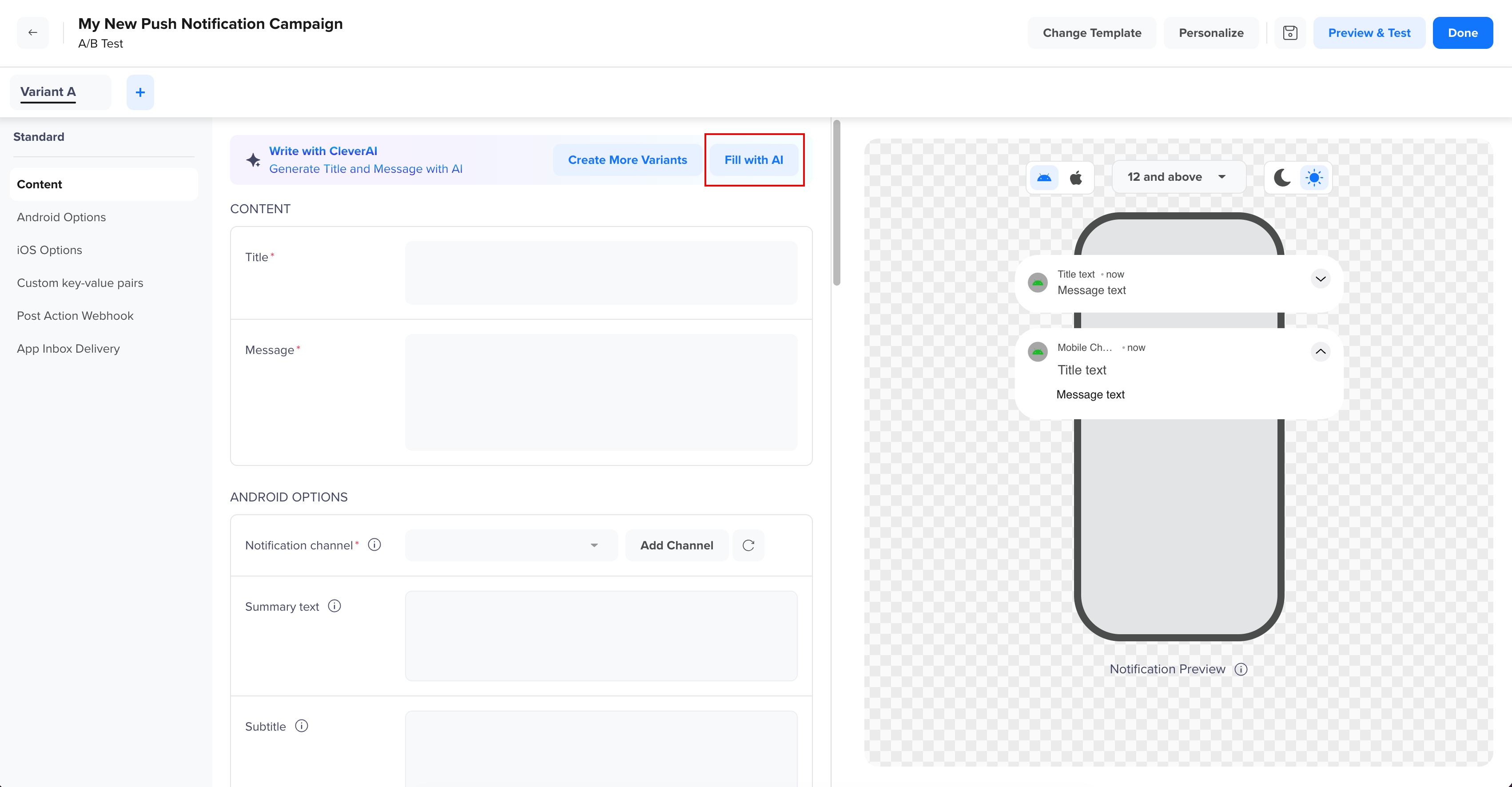
Fill with AI
To create variants, you can do it manually by clicking  or by clicking Create More Variants. AI generates a new variant based on the intent of your existing copy. All non-copy fields are auto-cloned from the source.
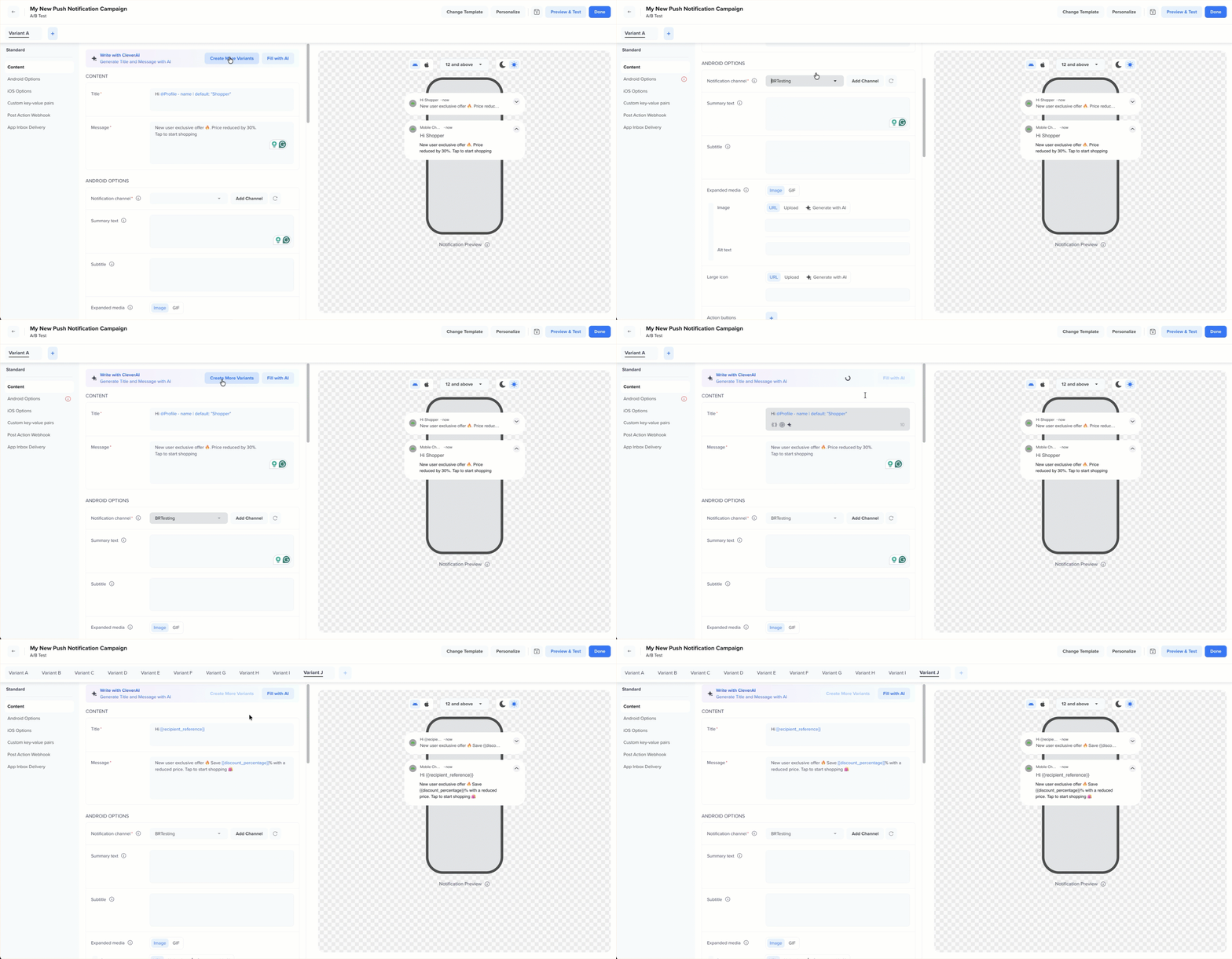
Create More Variants Using AI
Each variant supports Clear, Delete, and Copy controls, the same behavior as standard A/B. Edits to each variant are independent and persist separately.
ErrorEnsure all mandatory fields are filled before proceeding. If you are creating variants using AI, make sure all liquid tag variables are resolved before moving to the next step.
Configure Experiment Mode and Goal
Once the variants are set, save them, then click Done. The campaign Overview page opens. To configure the Experiment Mode and Goal, perform the following steps:
- Set the User distribution to Automated.
- Under Win criteria, select your goal event, that is, Notification Clicked
The Win criteria event is used to compare variant performance and determine the winner.
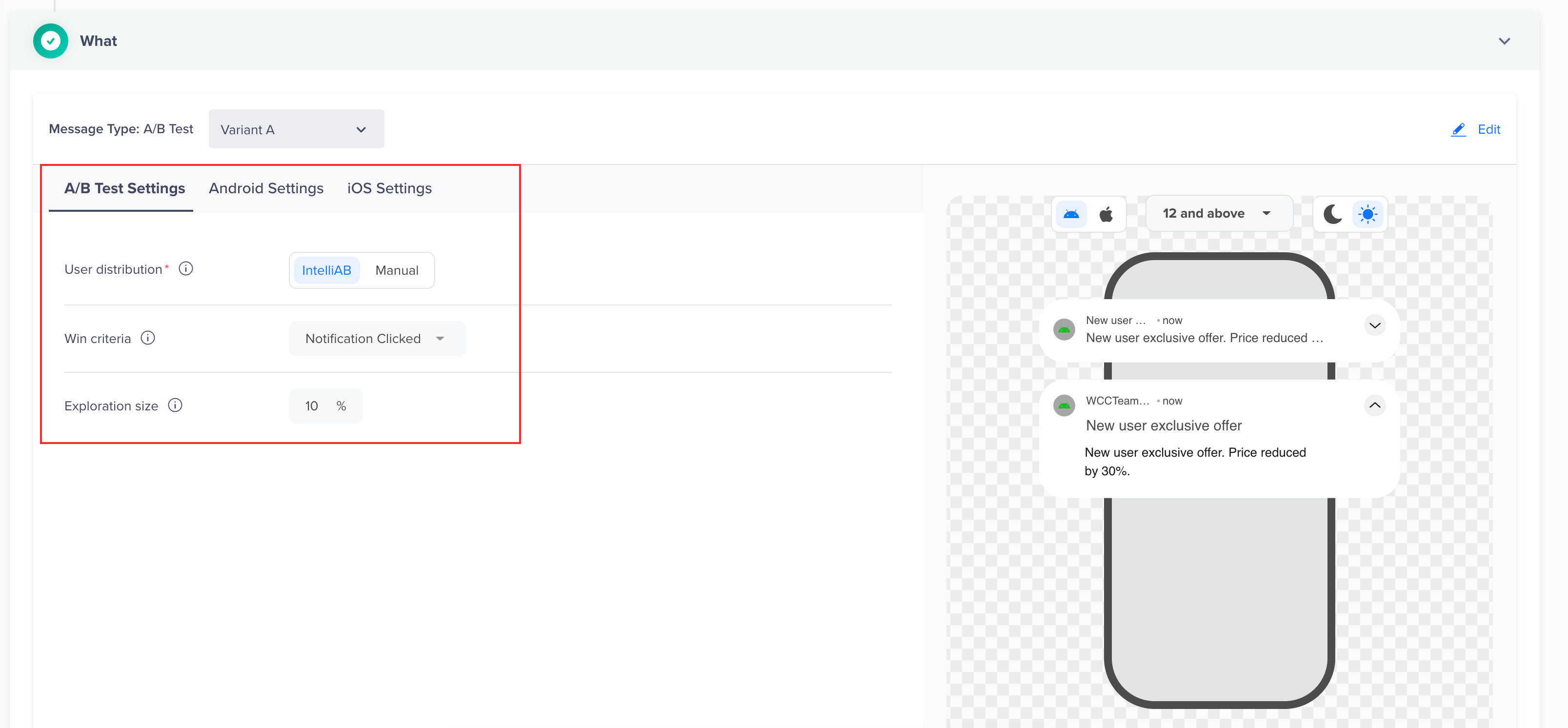
Configure Experiment Mode, Goal and Exploration Size
Set Exploration Size
Exploration Size is the percentage of your audience that will always receive all variants equally, even as one variant starts winning.
Percentage of users who receive all variants, split evenly, even after a variant is winning. In the first run, variants are split evenly across the segment.
| Exploration % | Trade-off |
|---|---|
| Higher | Slower convergence; better adaptability if audience behavior shifts. |
| Lower | Faster convergence; less adaptable to mid-campaign shifts. |
Configure Delivery Preferences
Define the campaign schedule. An IntelliAB Test campaign is available only for campaigns that run more than once:
| Campaign type | Manual A/B Test Availability | IntelliAB Test Availability |
|---|---|---|
| Live / trigger-based | Yes | Yes |
| PBS Recurring | Yes | Yes |
| PBS One-Time / Send Now | Yes | No, a one-time campaign sends immediately and ends, leaving no time for the MAB to learn or adapt. |
If you switch delivery from recurring/trigger to one-time after configuring Automated mode, the experiment settings reset to Manual A/B Test.
Publish Campaign
Review all variants, your goal metric, exploration %, and delivery type, and publish the campaign when ready.
The first run distributes traffic evenly across all variants, regardless of your exploration setting, seeding the learning model. Optimization begins from the second run onward.
IntelliAB Test Campaign Stats
You can view the campaign stats by selecting the campaign on the campaigns list page, then selecting the Stats tab. For IntelliAB Test campaigns, the stats page includes the following:
- Variant-Level Performance Table
- Goal Conversion Trend Chart
- Statistically Significance
- Declare Winner
Variant-Level Performance Table
The campaign Stats page displays a variant-level performance table. The table includes:
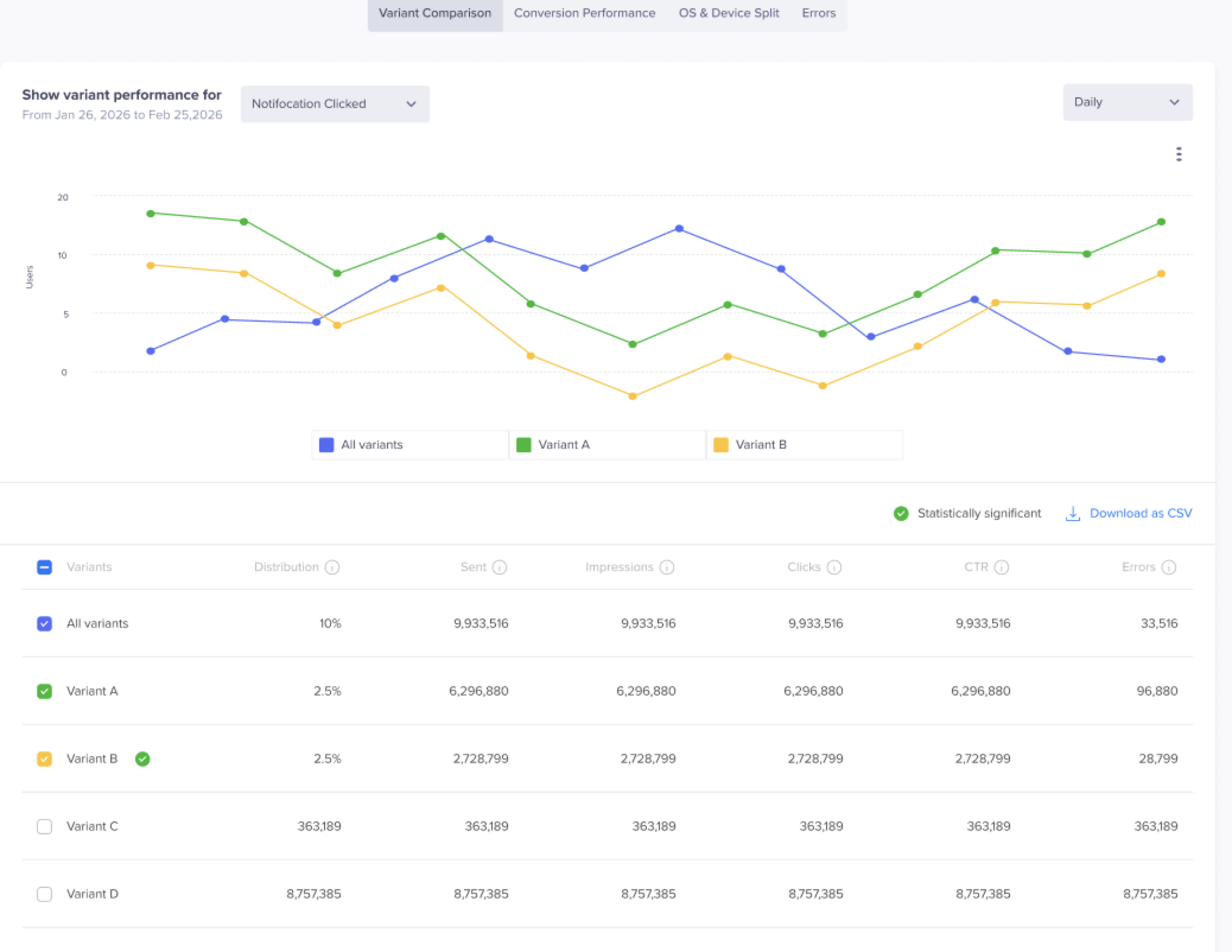
Variant Performance Table
| Metric | Description |
|---|---|
| Variant Name | The label for each variant (A-J, up to 10). |
| Distribution % | Current traffic allocation percentage for the selected variant. |
| Sent | Total messages delivered for the selected variant. |
| Impressions | Total number of times the notification was viewed. |
| Clicked | Total number of clicks on the selected variant |
| CTR | Click-through rate for the selected variant. Calculated as: Clicked / Sent |
| Errors | Number of delivery errors. |
An All Variants aggregate row is shown at the top of the table. CSV download is supported for all variant data.
Goal Conversion Trend Chart
A line chart shows each variant's goal conversion % over time. This visualizes the learning progression; you can see how the IntelliAB Test identifies and converges on the better-performing variants.
Time granularity adjusts based on campaign type: Hourly for Live campaigns, Daily/Weekly/Monthly for PBS campaigns.
Statistical Significance
When a variant reaches 90% or more probability of being the best performer, CleverTap highlights it with a Statistically Significant badge, shown as a green checkmark next to the variant in the stats table.
Declare Winner
IntelliAB Test campaigns have no fixed test window; the experiment runs continuously for the campaign lifecycle. You do not need to stop the campaign to get value from the IntelliAB Test. However, you may want to manually declare a winner when:
- One variant's goal conversion rate is clearly and consistently higher than that of other variants.
- The campaign has run long enough for the distribution trend chart to show stable allocation.
- You want to lock in a variant and stop further exploration.
NoteOnce you declare a winner, 100% of traffic is routed to the winning variant for the remainder of the campaign. However, the Distribution % in the stats table will be a static value.
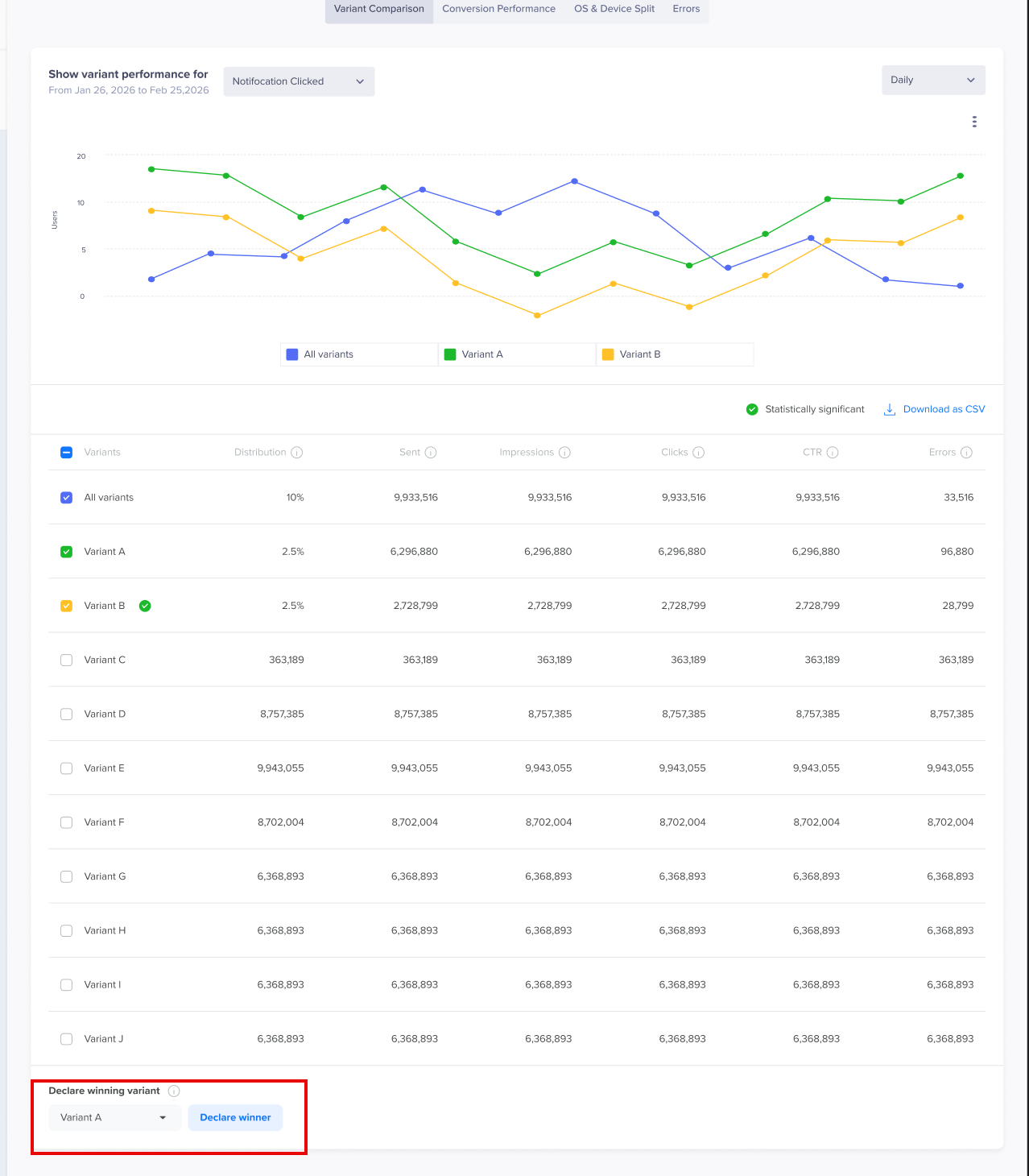
Winner Declaration
Winner DeclarationDeclaring a winner freezes traffic allocation immediately. 100% of subsequent sends go to the winning variant. This action cannot be undone.
Best Practices
Wait for the statistical significance badge before acting
An IntelliAB Test has no fixed sample size requirement; it runs continuously. But results early in the campaign (especially the first run) are unreliable, as all traffic is distributed equally to seed the model. The statistical significance badge is your reliable signal to act.
Ideal campaign types for IntelliAB Test
IntelliAB Test compounds its advantage across multiple runs. It works best for:
- Recurring push campaigns (weekly/monthly re-engagement, promotional)
- Always-ON trigger campaigns (onboarding, lifecycle nudges)
Avoid using an IntelliAB Test for a campaign you will only send once. It will not have enough runs to optimize meaningfully.
Choosing Right Goal Event
You must pick based on your campaign objective:
| Goal event | Use when |
|---|---|
| Notification Clicked | You want to drive an action, for example, purchase, sign-up, or feature use. |
Setting Exploration %
- Do not go too low: The system can get stuck on an early leader. If that variant's performance later drops (audience shift, seasonal change), you'll have too little data on others to pivot.
- Do not go too high: Exploitation never gets enough traffic to meaningfully reward the best variant.
Updated about 1 month ago