
Nexla
Data Warehousing and Analytics Platform
Overview
Nexla is a unified data operations platform that enables teams to connect, transform, and monitor ready-to-use data across any system. Designed for analytics and AI workflows, Nexla simplifies complex data integrations using no-code and low-code tools.
With the CleverTap and Nexla integration, you can:
- Export campaign interaction events from CleverTap to data warehouses using Data Warehouse Exports or Webhook campaigns.
- Transform and forward enriched data from Nexla to CleverTap using Amazon S3, SFTP Imports, or Nexla’s REST API.
This integration enables real-time, high-quality data flow between CleverTap and your enterprise data stack, powering personalized engagement and advanced analytics.
Prerequisites for Integration
Ensure the following before starting the integration:
- An active Nexla account.
- Automated Data Warehouse Exports or Webhook campaigns configured in CleverTap.
- Access to your BigQuery , or Amazon S3 account.
Integrating Nexla with CleverTap
To integrate Nexla with CleverTap, perform the following five major steps:
- Export Data from CleverTap
- Add Data Source in Nexla
- (Optional) Send Webhook Data from CleverTap to Nexla
- Transform Data in Nexla
- Import Data Back into CleverTap
Export Data from CleverTap to Your Data Warehouse
Use Data Warehouse Exports in CleverTap to send campaign interaction data to supported destinations such as:
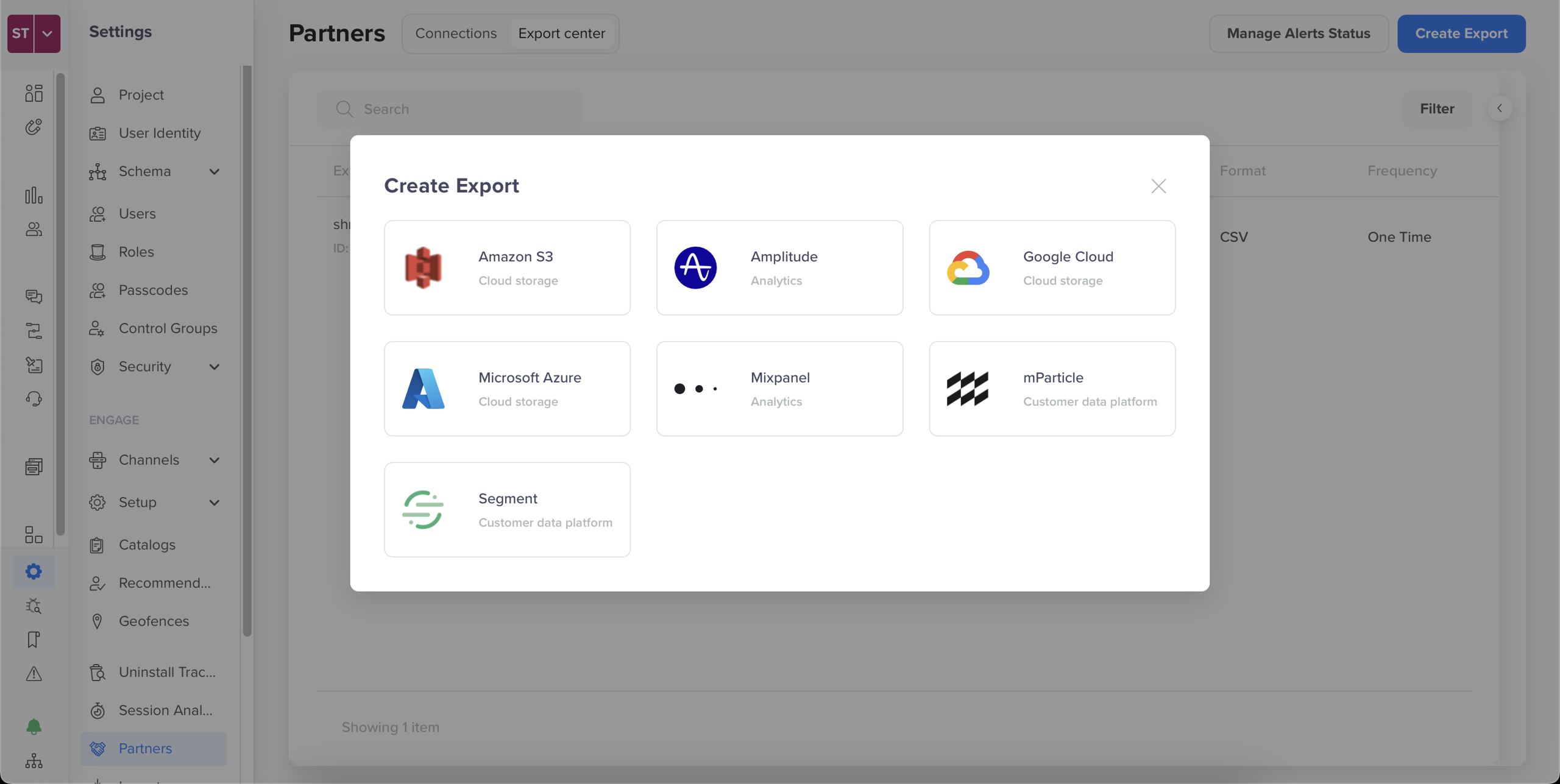
Create Export
Once configured, Nexla can pull this data directly from the connected source.
Add Data Source in Nexla
To configure your data source, perform the following steps:
- Log in to the Nexla dashboard.
- Add the appropriate warehouse (such as BigQuery or Amazon S3). For more information, refer to Add a Data Source in Nexla.
- Authenticate using your access credentials.
Once connected, Nexla begins ingesting the exported CleverTap data.
(Optional) Send Webhook Data from CleverTap to Nexla
You can optionally use Webhook campaigns in CleverTap to push event data to Nexla in real time. You can do so by creating a connector webhook campaign with Nexla’s webhook URL as the endpoint.
Use this approach if you want immediate data delivery without waiting for exports.
To configure Webhooks, refer to Send Webhooks from CleverTap and Nexla Webhook Reference.
Transform Data in Nexla
To apply custom logic or formatting before sending data to CleverTap, perform the following steps:
-
Locate the dataset in Nexla and click Transform.
-
Use the Transform Builder to:
- Rename fields
- Apply conditions or filters
- Add computed fields or enrichments
-
Click Save to transform the dataset.
For more information, refer to Using the Transform Builder.
Import Data Back into CleverTap
You can send data from Nexla into CleverTap using one of the following options:
Nexla REST API Destination
- Configure Nexla to use CleverTap’s Upload Users or Events API.
- Format the JSON payload to match the API requirements.
- Ensure the following headers are set:
X-CleverTap-Account-Id: <Your Account ID>
X-CleverTap-Passcode: <Your Passcode>
Content-Type: application/json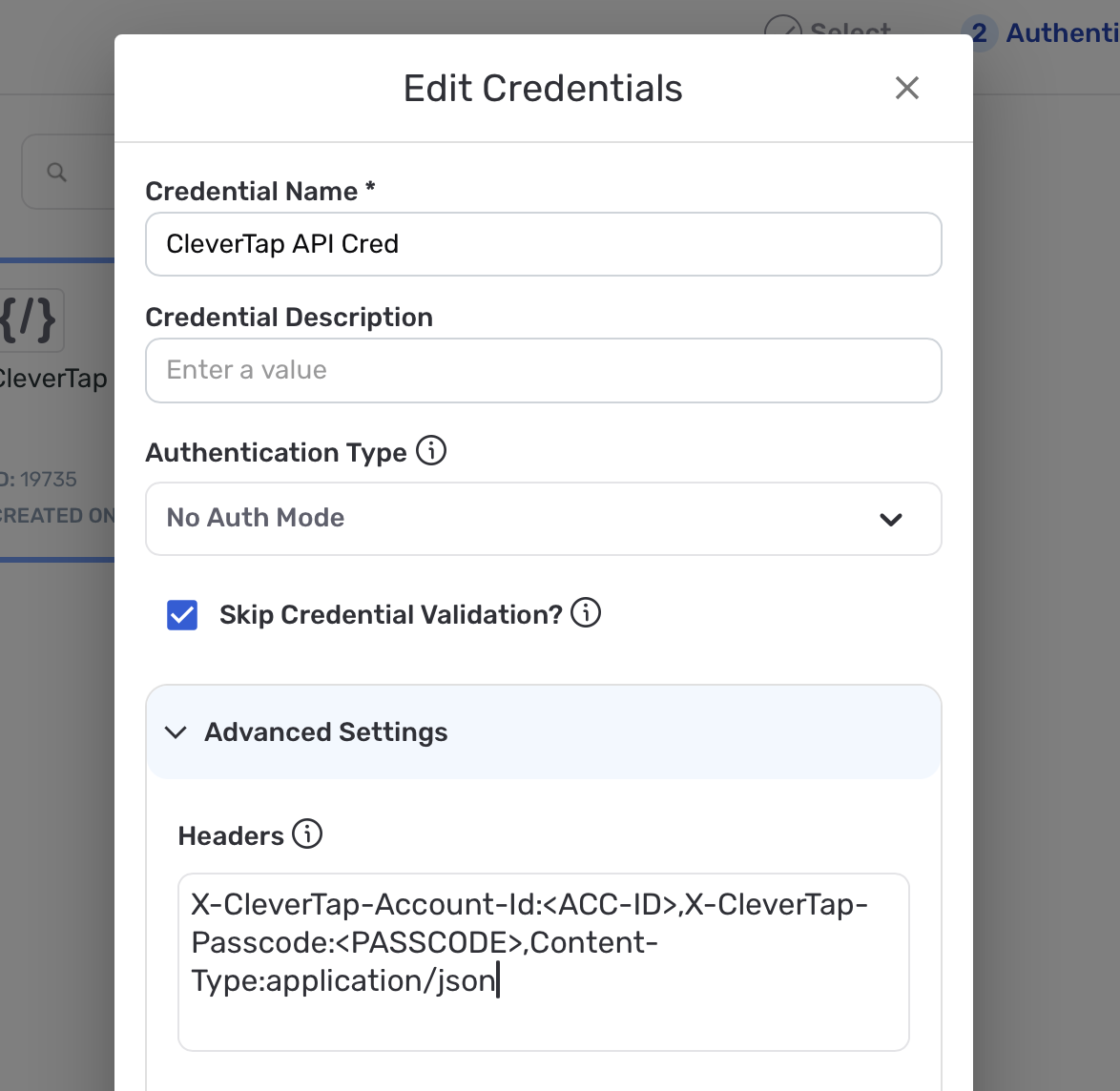
Edit Credentials
NoteSelect Skip Credential Validation to set up header values manually using your CleverTap credentials.
Using SFTP Imports
Export the transformed dataset from Nexla to a supported destination (for example, SFTP). Configure CleverTap to import the data using the native import capability. For more information, refer to SFTP Import.
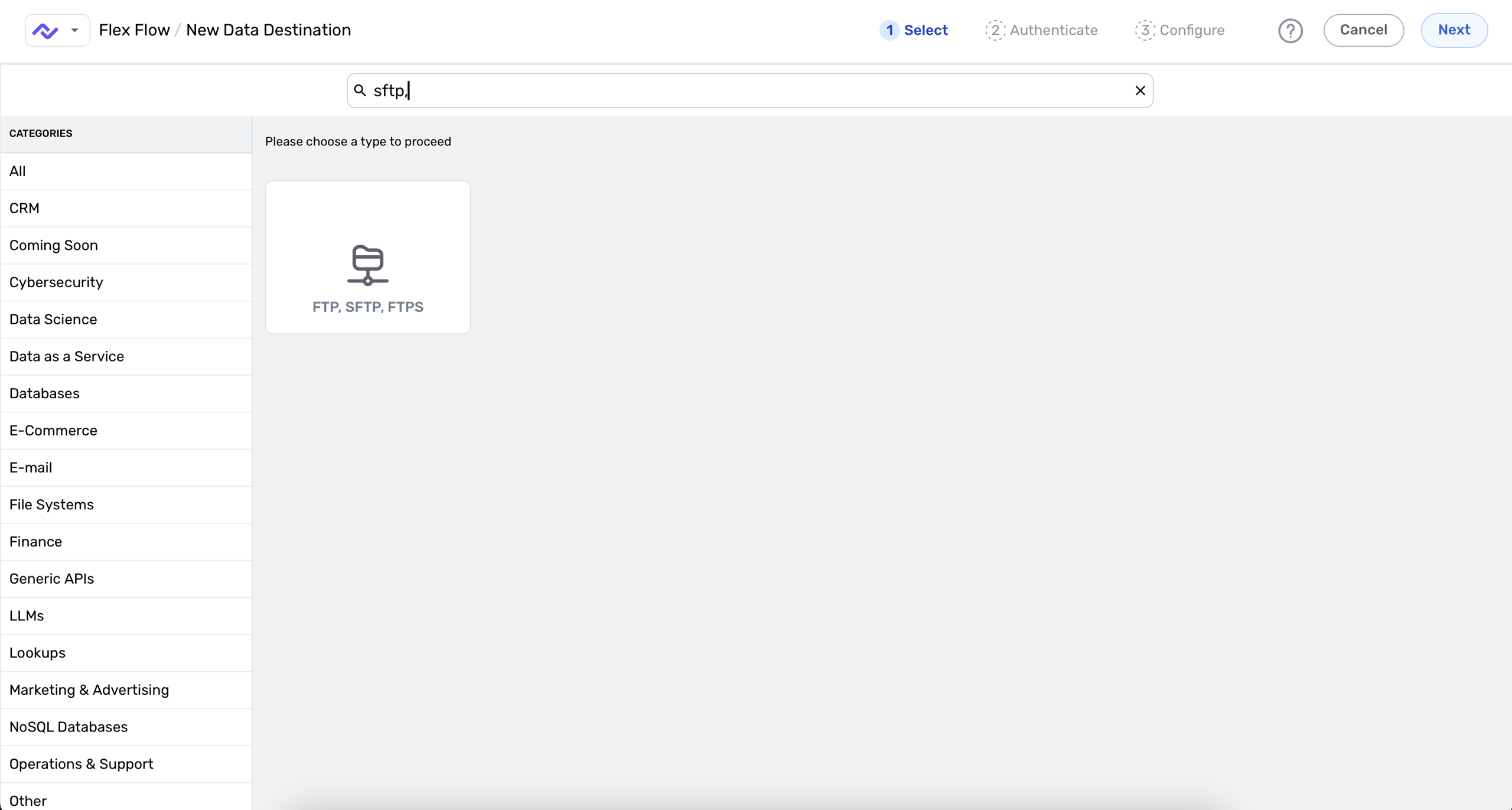
SFTP Imports
Verify Integration
Once your data flow is set up:
- Nexla monitors source and destination schema changes.
- Errors are flagged and visible in the Nexla dashboard.
- Any edits to the flow (such as sources, transformations, and destinations) are reflected automatically.
This enables a fully automated, scalable, and error-resilient integration between Nexla and CleverTap.
Updated 8 months ago