
Email Templates
Learn how to use email templates in the Content Manager.
Overview
You can create, manage, and reuse email templates directly from the Content Manager. Email templates let you design and save reusable message structures, using drag-and-drop, pre-built layouts, or the HTML editor, that can be applied across campaigns for consistent branding.
To access Email Templates, go to Content Manager > Templates > Email.
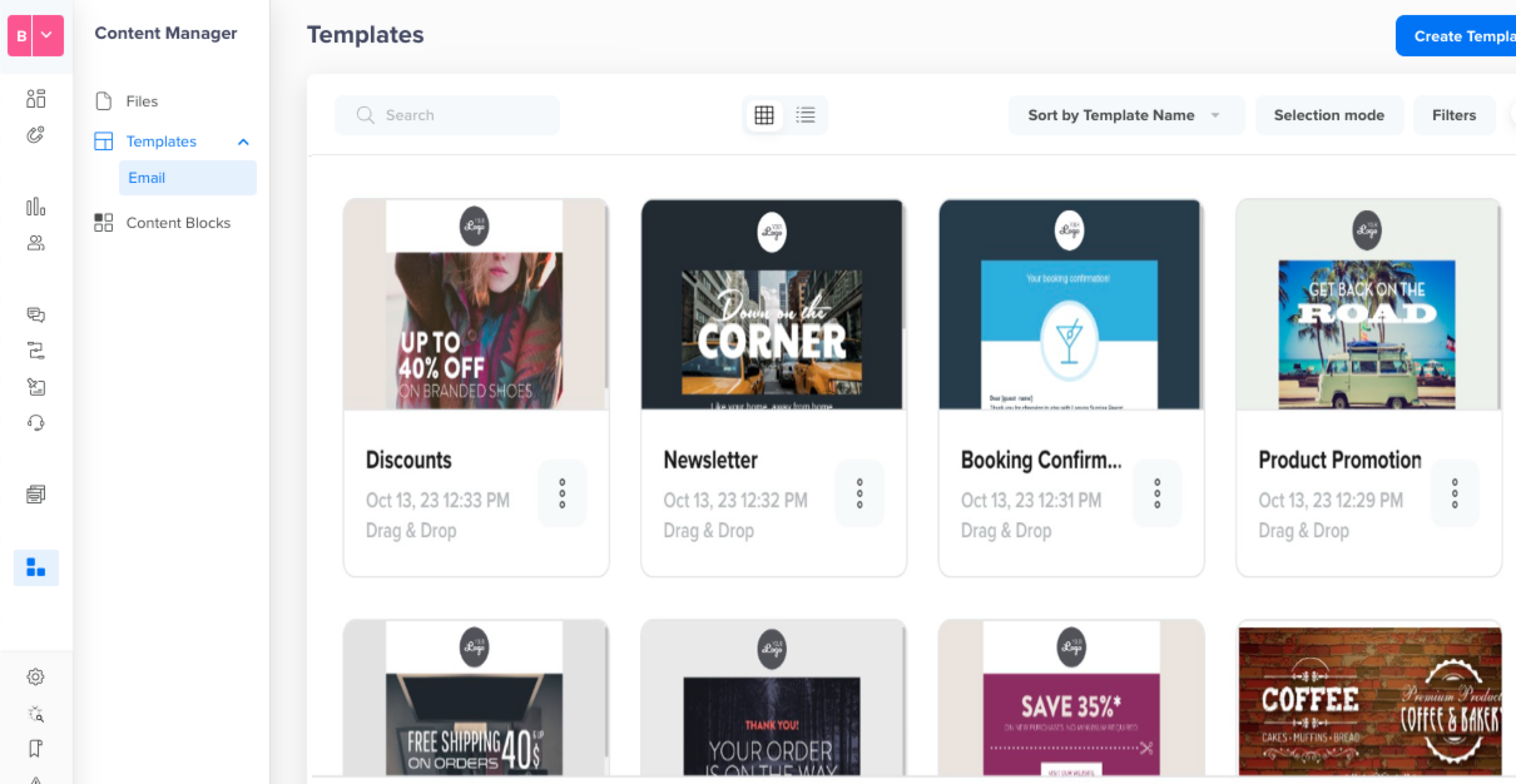
Email Templates
Create Template
You can create a template that can be used across various campaigns. To create a template:
- Go to Content Manager > Templates > Email.
- Click Create Template.
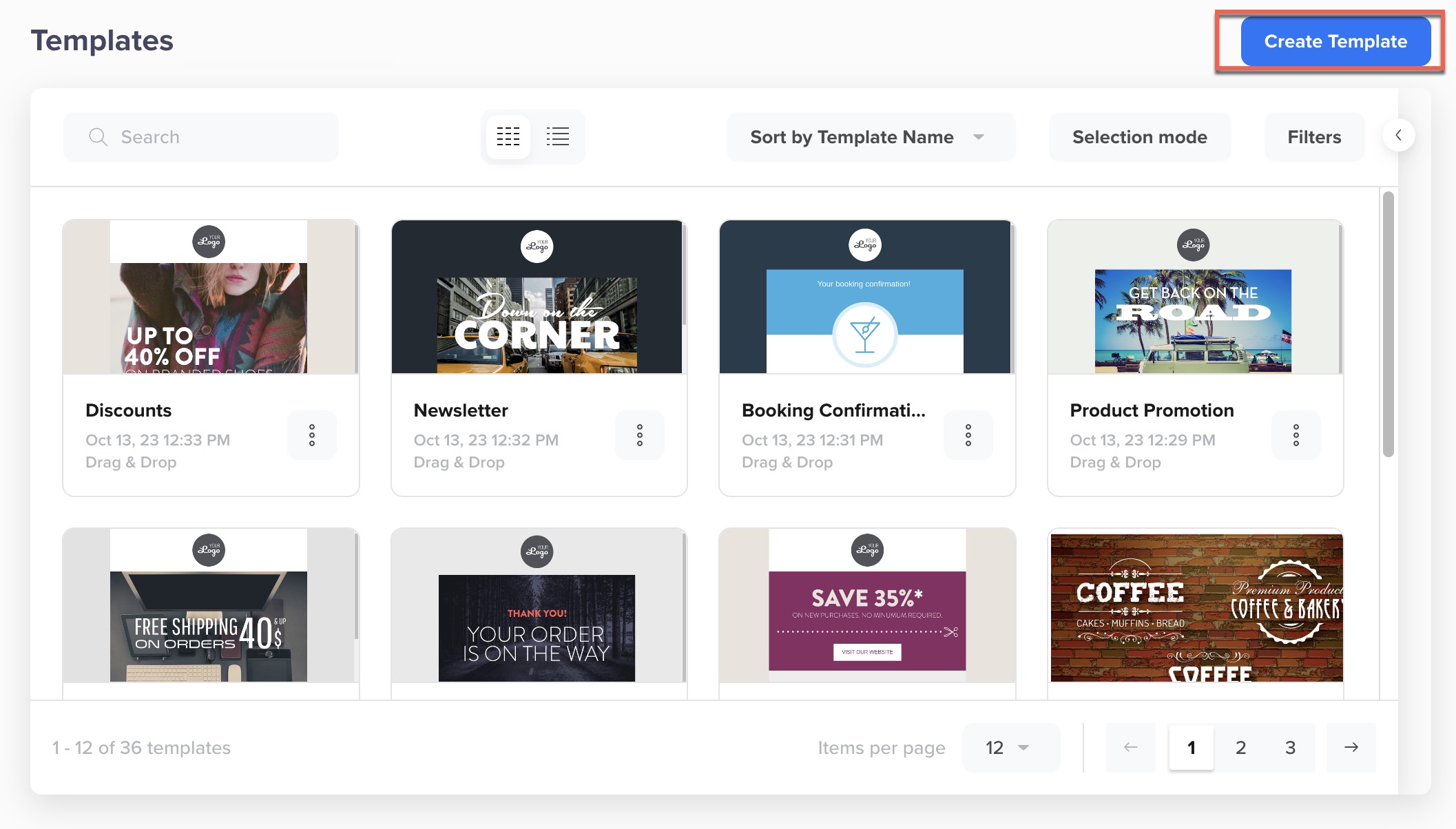
Create Templates
- After completing the steps to create a template, click Save. The Save Template popup opens.
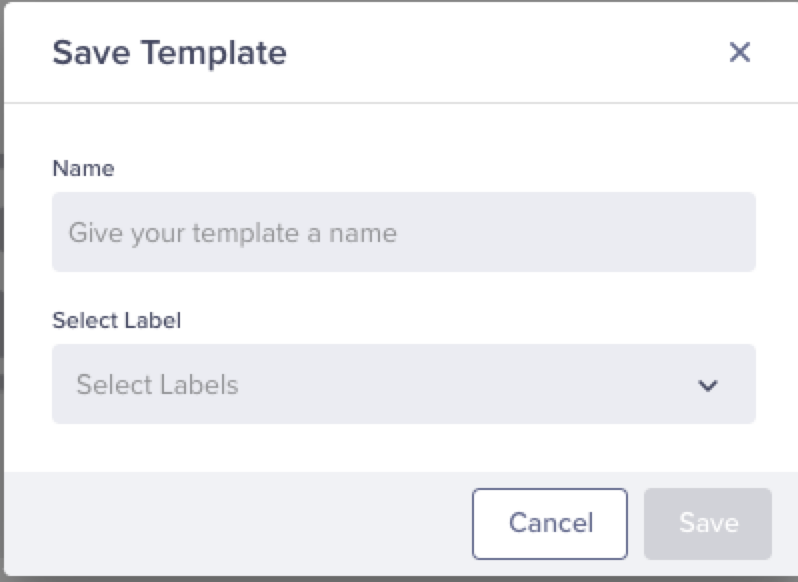
Save a template
- Enter a name and select a label for the template.
Template namesTemplate names can include letters, numbers (0-9), underscores (_), periods (.), hyphens (-), and spaces. Names must begin with a letter. Additionally, the template name must be unique.
- Click Save to save your template.
Add content to pre-built templates or customize and build your templates. To create a new template with drag-and-drop elements, refer to drag and drop templates.
You can also create a template from the HTML editor with a Rich Media template. For more information, refer to Source HTML Editor.
You can also save the Email Template directly from engagements.
Filter Templates
You can filter the templates to narrow down your search.
- Navigate to Content > Content Manager > Templates.
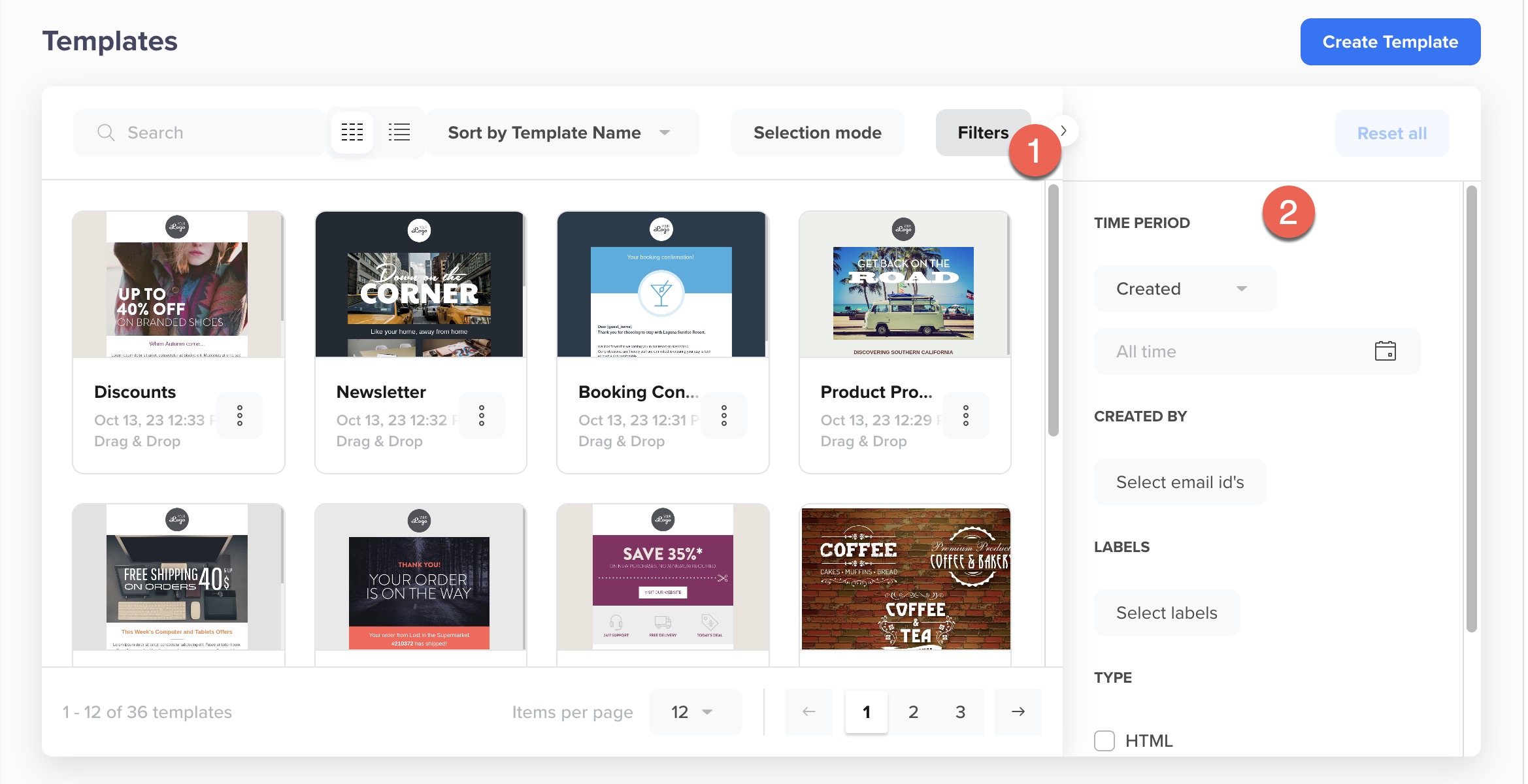
Filter Templates
- Click Filters. You can filter templates based on the following criteria:
- Time Period: Filter and search by the template's creation period.
- Editor Type: Filter and search by the template type.
- Amp Type: Filter and search by AMP (Amp Accelerated Mobile Pages).
- Labels: Filter and search the template by the assigned label.
- Created by: Filter and search by the person who created the template.
- Click Clear Filters to reset all applied filters.
Use Email Templates in Campaigns
When creating an email campaign, you can select a saved CMS email template instead of building from scratch:
- In the new email campaign, navigate to the What section. Click Go to Editor.
- Switch to the Saved Templates tab to view your saved email templates.
- Search, filter, or browse to find the right template.
- Select a template. The composer auto-populates with the saved content such as title, message body, media, deep links, and other fields.
- Edit any fields as needed before sending or scheduling the campaign.
NoteUsers with read-only access to Templates can view, preview, and apply email templates in campaigns, but cannot modify or save changes back to the Content Manager.
Updated 3 months ago