
Analytics Builder: Build with AI
Generate advanced queries and visual reports with a simple prompt.
Overview
Analytics Builder lets you generate advanced queries and visual reports simply by describing your intent in plain language. This AI-powered agent saves time by eliminating the need to create advanced queries or manually navigate query builder menus.
Use this feature to quickly explore user behavior or product usage by entering a natural language prompt.
AvailabilityAnalytics Builder is available on Pro and Ultimate plans. To access this feature, contact your Customer Success Manager.
Analytics Builder has three stages:
-
Analytics Builder
Enter your prompt in the Analytics Builder input box. For example: "Show me active users trend for the past week." -
Query Builder
The agent interprets your prompt and runs a structured query. You can edit this query to further customize filters, events, or metrics as required. -
Analysis Output
The query analysis is available in the Analysis section. If you modified the query, click View Analysis to run it again. The output appears in the Analysis section.
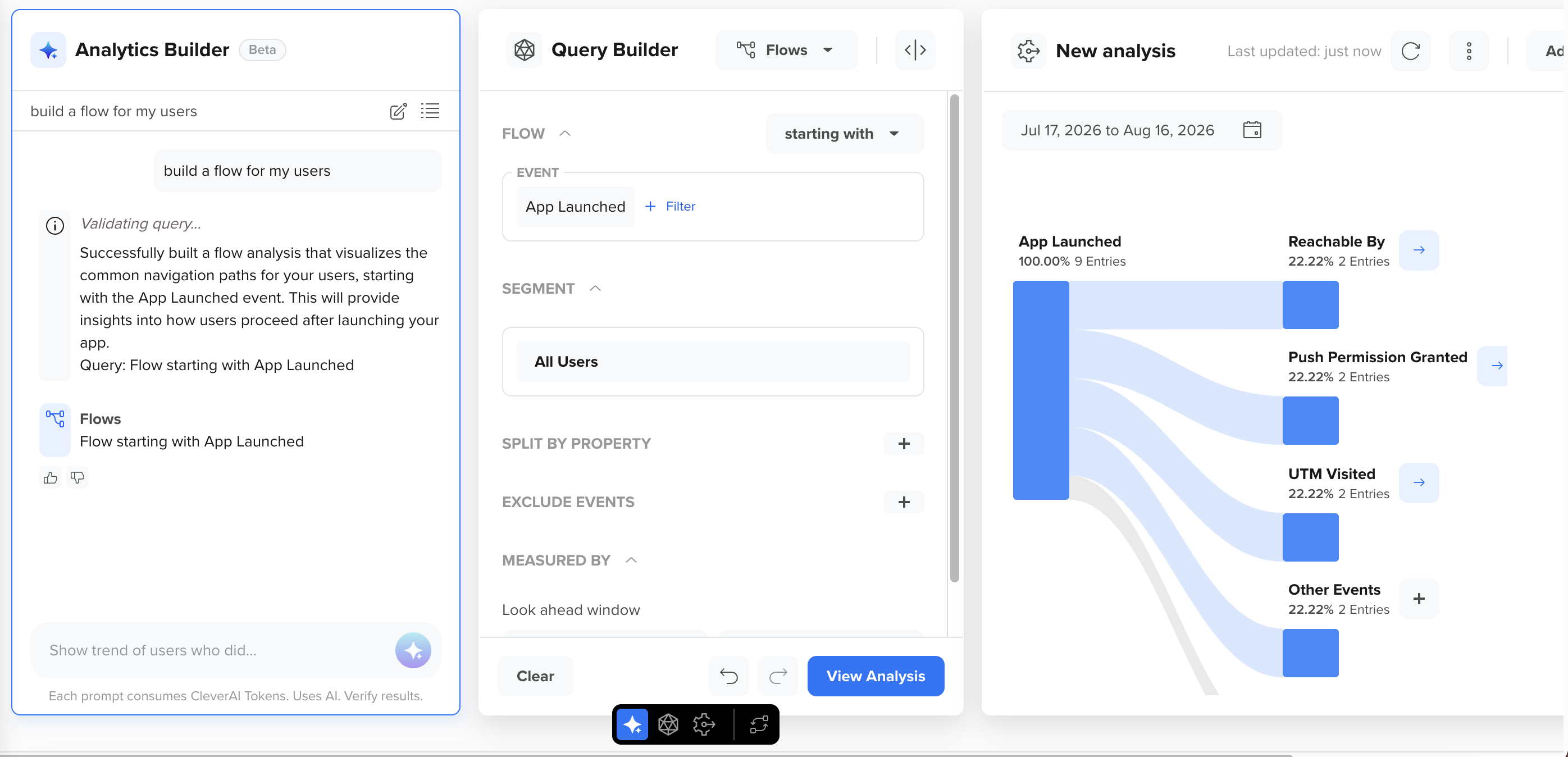
Analytics Builder Example
Generate Analytics Insights
To use Analytics Builder:
- From the CleverTap dashboard, go to Analytics, and select New Trends, Funnels, or Flows.
- Enter your question in the Analytics Builder input box. For Example: "Show me active users trend for the past week".
- The system will generate a query in the Query Builder. Edit the query to modify any fields, filters, or event parameters.
- View results in the New Analysis section.
- To generate a new query, click the New Thread
 icon.
icon.
You can refer to the previous threads by clicking the All threads  icon. It shows your past queries. Click the queries to show the results. You can also go back to the previous questions in this thread to view the results.
Prompt Segment Operations
You can perform several operations on the Segment Builder window for ease of use.
Expand or Collapse Sections
Click the  icon to expand or collapse sections.
Toolbar
The floating toolbar on the dashboard allows you to select the required section on the Segmentation screen. You can also rearrange the order of the sections by clicking the  icon on the toolbar.
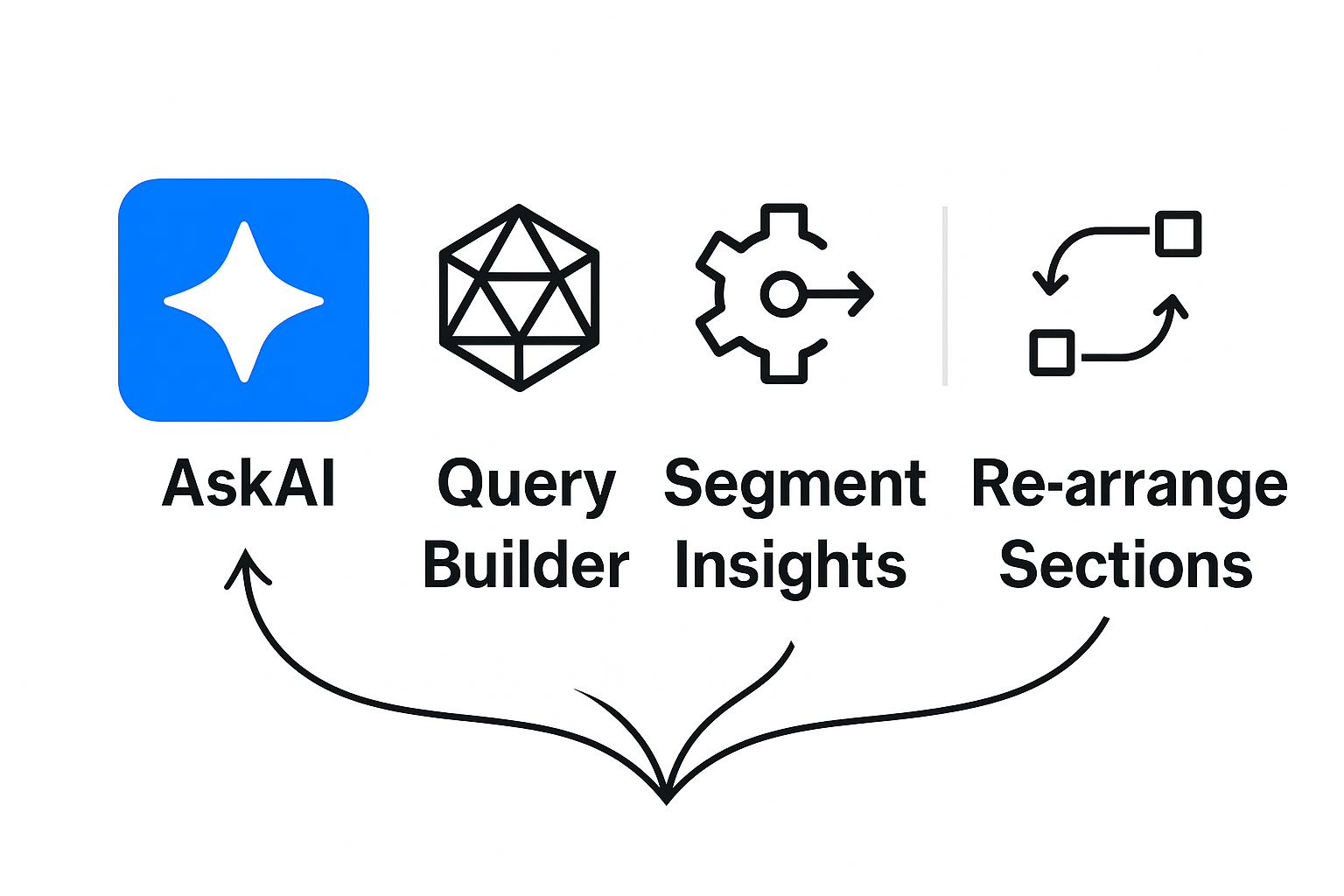
Best Practices
Follow these best practices to get the best results:
- Use descriptive, focused prompts.
- Do: "Show monthly sign-ups by platform."
- Avoid: "Tell me everything about users."
- Include time frames and event types for better precision.
- Use domain-specific language familiar to your workspace.
FAQs
Can I edit the generated query?
Yes. You can modify the filters, time range, and logic in the Query Builder section.
What types of Analytics are supported?
This feature supports new Trends, Funnels, and Flows.
How is my data used and sent to OpenAI?
Your data is never used to train OpenAI models, and is deleted by OpenAI within 30 days. To generate AI output through CleverTap AI features that leverage OpenAI, CleverTap sends your prompt along with event names, event properties, user properties, segment names or IDs, or any other relevant input to OpenAI. The input sent to OpenAI by CleverTap does not identify you or your users unless you choose to include identifiable information in your prompt. CleverTap provides no warranties regarding the AI-generated content, including the output. For more information about OpenAI's data handling, refer to OpenAI’s Enterprise Privacy Policy.
Why can't I see my conversation threads?
Clearing your browser storage will also clear your conversation threads.
Is there a limit to the thread history?
There is no limit to the thread history. The threads are stored locally at the browser level.
What if my prompt is unclear?
The system will prompt you to rephrase. Use direct and specific language for better interpretation.
Are custom events supported?
Yes. All custom events configured in your workspace are supported.
Updated about 1 month ago