
Create Import
Learn how to import data from Cloud Storage into CleverTap to enable personalized targeting and optimized campaigns.
Overview
You can import CSV or Parquet files from your connected cloud storage partner into CleverTap to keep user profiles and event data up to date. The import job defines the file name convention that CleverTap uses to identify and process files on each run.
This document covers the following:
Prerequisites
Before you create an import, ensure that a connected storage bucket and correctly formatted files are available.
- A connected storage bucket from a supported cloud storage partner. For more information, refer to the configuration document for your partner: AWS S3, Google Cloud Platform, or Microsoft Azure.
- Files in CSV or Parquet format that meet the requirements in Review File Requirements
Review File Requirements
To import data from your cloud storage bucket, files in CSV or Parquet format must meet the following formatting requirements.
| Specification | Requirement |
|---|---|
| Header Row | Required. CleverTap treats the first row as column headers. |
| Delimiter | Comma |
| Character Encoding | UTF-8 |
| Maximum File Size | 5 GB |
| Specification | Requirement |
|---|---|
| Library | Uses the parquet-avro library (Apache Parquet), which reads the footer (schema and row-group index) first and then fetches only the parts that it needs. |
| Schema/Header Validation | Every column that you map should exist in the file. CleverTap checks column names case-insensitively. |
| Maximum File Size | 1 GB |
ImportantCleverTap picks up files based on file prefix, timestamp, format, and size. If your pipeline is still writing a file when CleverTap begins copying it, the file size changes during the process, and CleverTap marks the file as failed. Ensure that each file is fully written and closed before you place it in the bucket.
Create Import
Creating an import defines the bucket, the file name format, and the nickname that CleverTap uses to find and process your files.
Configure Import
Configuring the import involves selecting a cloud storage partner and entering the import details.
-
Go to Settings > Partners > Import Center and click Create Import.
-
Select a cloud storage partner from the Create Import popup.
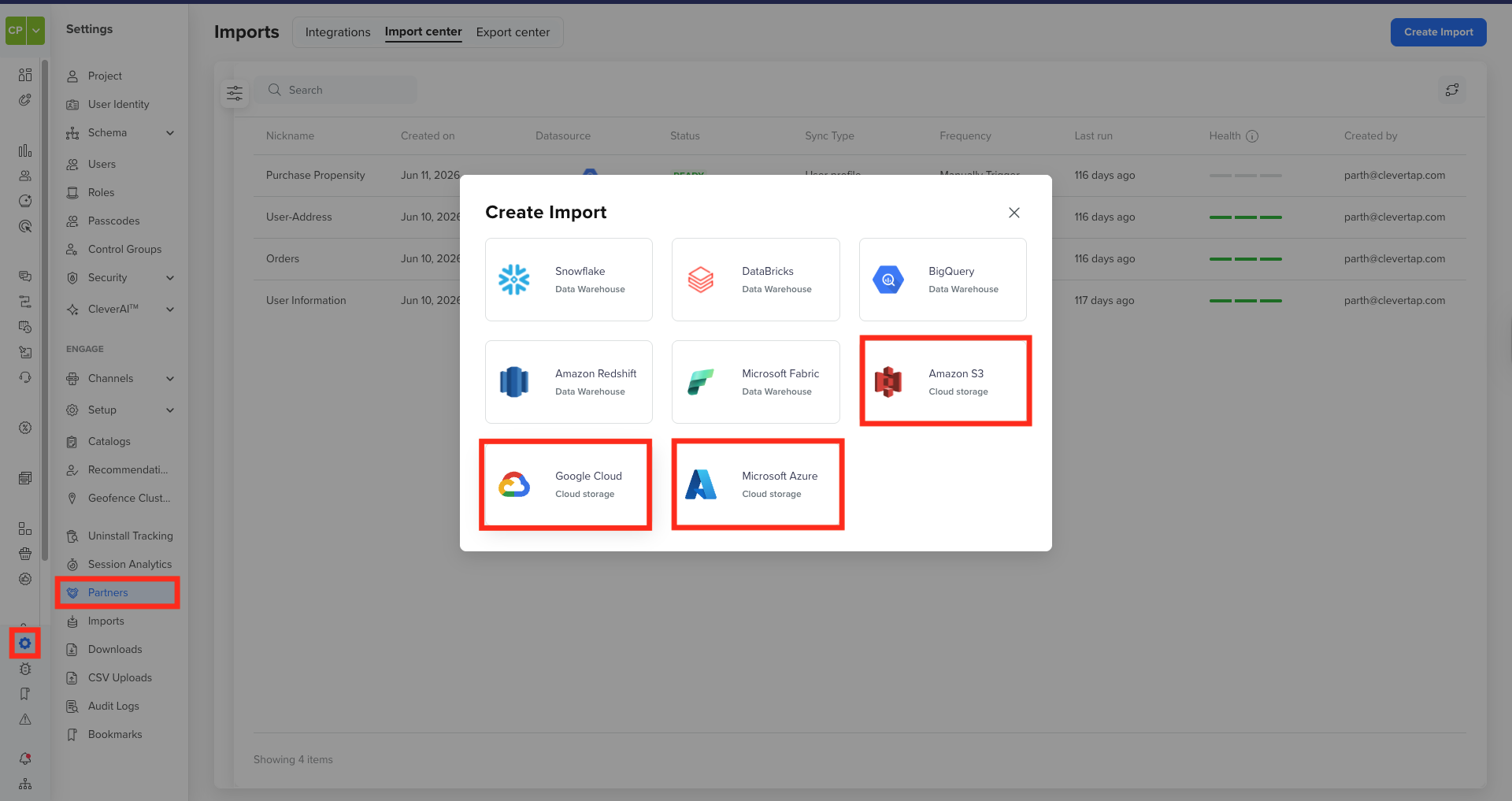
Create Import
-
Under Configure Import, add the details in the following table:
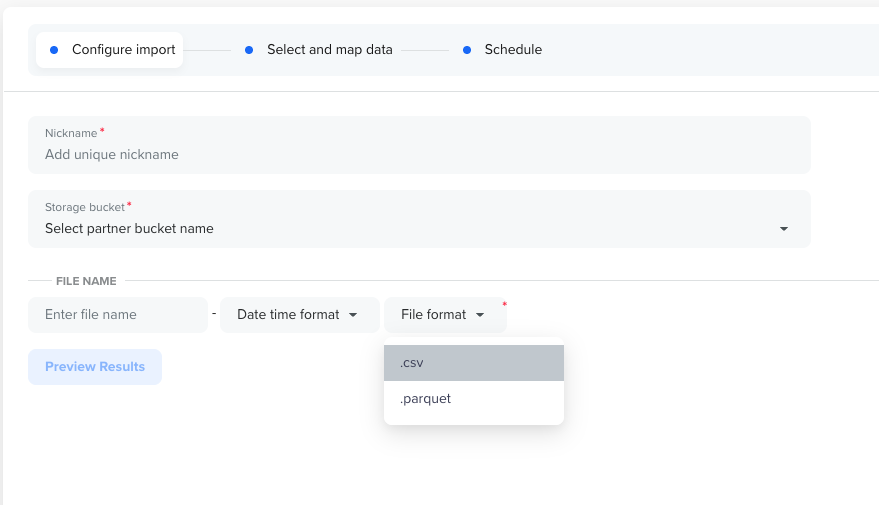
Configure Import
Field Description Nickname A unique name that identifies the import job in CleverTap. Choose a name that reflects the purpose of the import, for example, Events Daily.Storage Bucket Select a connected storage bucket from the dropdown. CleverTap populates the storage URL automatically based on the selected bucket. For more information about setting up a connection, refer to the partner-specific configuration document. File Name Define the file name format that CleverTap processes. The file name is case-sensitive. CleverTap imports only files whose names exactly match the specified file name, timestamp, and format. For more information, refer to Define File Name Format. -
(Optional) Click Preview Results to validate your configuration.
-
Click Next to open the Select and Map Data page, where you set the mapping preference, configure identity mapping, and map your file columns to CleverTap fields. For more information, refer to Map Data for Import.
Preview ResultsPreview Results does not import any data into CleverTap. It displays the first few records from the first file in the bucket that matches your configured file prefix, timestamp, and file format.
Define File Name Format
CleverTap recognizes and processes only files that use the following name format:
<File Prefix><Date Time Format>.<File Format>- File Prefix: Enter the exact leading portion of the file name in the text field.
- Date-Time Format: Select the timestamp format used in your file names. CleverTap uses this format to parse the timestamp and determine which files to process on each run. For more information, refer to Review Supported Date-Time Formats.
- File Format: Select CSV or Parquet to match the format of your files.
Review File Selection for Each Run
CleverTap selects files whose names begin with the configured file prefix, end with a timestamp, and use the selected format (.csv or .parquet). On the first run, CleverTap processes all matching files in the bucket. On each subsequent run, CleverTap processes only files with a timestamp newer than the previous run.
Timezone MismatchCleverTap evaluates file name timestamps against your CleverTap account timezone, not your cloud storage account timezone. For example, if your CleverTap account uses IST and your file-generation pipeline stamps file names in PST, the timestamps do not match, and CleverTap skips the files. Generate file name timestamps in your CleverTap account timezone to avoid missed files.
Review Supported Date-Time Formats
CleverTap supports the following timestamp formats for file name matching, and you select the format that matches your files from the Date-time format dropdown.
| Type | Description | Format | Example |
|---|---|---|---|
| Epoch | 10-digit Unix timestamp (seconds since January 1, 1970). | 1745000000 | 1745000000 |
| Epoch Milliseconds | 13-digit Unix timestamp (milliseconds since January 1, 1970). | 1745000000000 | 1745000000000 |
| Date First | Timestamp that begins with the day, followed by the month, year, hour, minute, and second. |
|
|
| Month First | Timestamp that begins with the month, followed by the day, year, hour, minute, and second. |
|
|
| Year First | Timestamp that begins with a four-digit year, followed by the month, day, hour, minute, and second. |
|
|
NoteThese formats apply to the timestamp in the file name. For the date formats that apply to values inside a column, such as a Date property or the event Created On field, refer to Supported Date Formats in Map Data for Import.
FAQs
What happens if my file exceeds the maximum file size?
CleverTap marks files that exceed the maximum file size (5 GB for CSV and 1 GB for Parquet) as failed and does not process them. Ensure that your files stay within the limit before you upload them to your cloud storage bucket.
Next Steps
After you configure the import, CleverTap saves the import job, and you can view and manage all import jobs from the Import Center.
- Map your file columns to CleverTap fields. For more information, refer to Map Data for Import.
- Schedule the import. For more information, refer to Schedule Import.
Updated about 1 hour ago