
Variant Decisioning Agent
Learn how to select the Best Variant for your campaign using Variant Decisioning Agent.
Overview
Manual A/B testing picks one winning message variant and sends it to everyone. In practice, different users respond to different triggers; one user clicks on urgency-driven copy, another responds better to a savings-focused message, and a third to something more personal. A single "winner" can't be the best message for all of them.
Variant Decisioning Agent is a Message Type in the What section of your campaign that solves this differently: instead of picking one winning variant for your whole audience, it uses your account's Agent, a scoring model set up in the Campaign Ranker project, to predict, for every individual user, which of your variants they're personally most likely to engage with. At send time, each user gets their own best-matched variant.
Private BetaCurrently, this feature is released in Private Beta and is available for accounts on Ultimate plan. To access this feature, contact your Account Manager.
Variant Decisioning Agent is available for Push, Email, SMS, and WhatsApp campaigns.
For example: an online fashion retailer runs a flash-sale reminder Push campaign with three variants, one leading with urgency ("Sale ends tonight!"), one with savings ("Up to 50% off"), and one with exclusivity ("Your VIP early access"). Rather than testing these on a sample and picking one winner, Variant Decisioning Agent sends each customer whichever of the three the model predicts they'll personally respond to.
How this differs from other Message Types
- Manual A/B Test finds one winning variant and sends it to everyone.
- User Property routes variants using a rule you define on a known attribute (like language or customer tier).
- Variant Decisioning Agent routes variants using an AI-powered score, computed per user, based on that user's own engagement history, no rule-writing involved.
Assign your agent
Before you get to the What step, the Start here step determines where you'll pick your Agent.
- Open the Start here step and go to Campaign Priority Management.
- Under Campaign priority, choose one of:
- Manually manage priority — no Agent is selected here. You'll pick an Agent for variant scoring separately, when you get to the What step.
- Agent manages priority — select an Agent here to drive campaign priority. This same Agent is automatically carried forward to power your variant scoring later, you won't need to select an Agent again in the What step. For more details, refer to Ranker Agent.
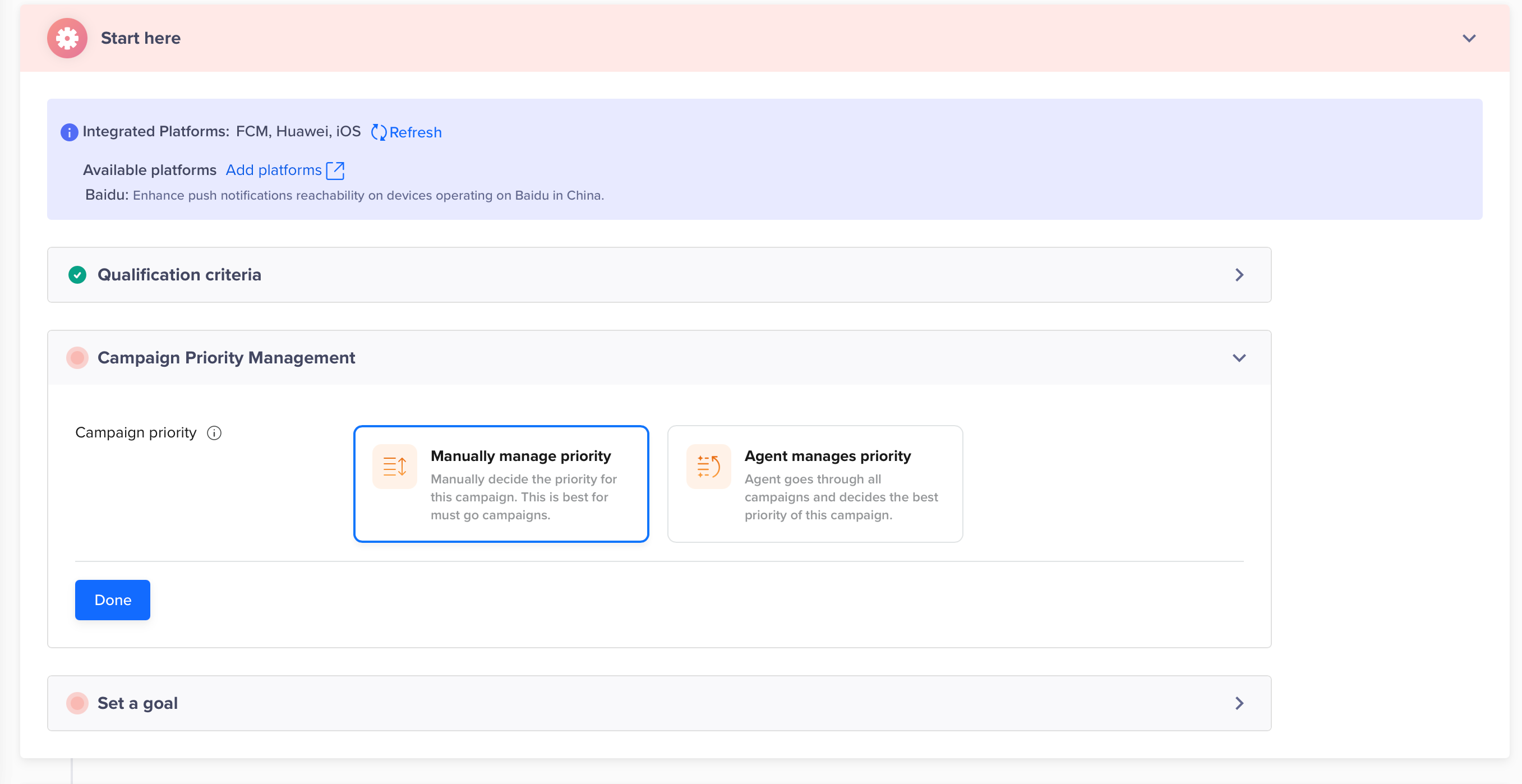
Campaign Priority Management
- Select Done.
Note
- This choice doesn't change what the Agent does.
- Choosing an Agent under Campaign Priority Management still controls your campaign's send-time priority, exactly as it does today. The only difference Variant Decisioning Agent adds is that this same Agent's scoring model is also used to pick each user's best variant — with no extra selection needed in the What step.
Select Variant Decisioning Agent and create your variants
- Go to the What step. Under Message type, you'll see five cards: Single message, A/B Test, Split Delivery, User Property, and Variant Decisioning Agent. Select the agent.
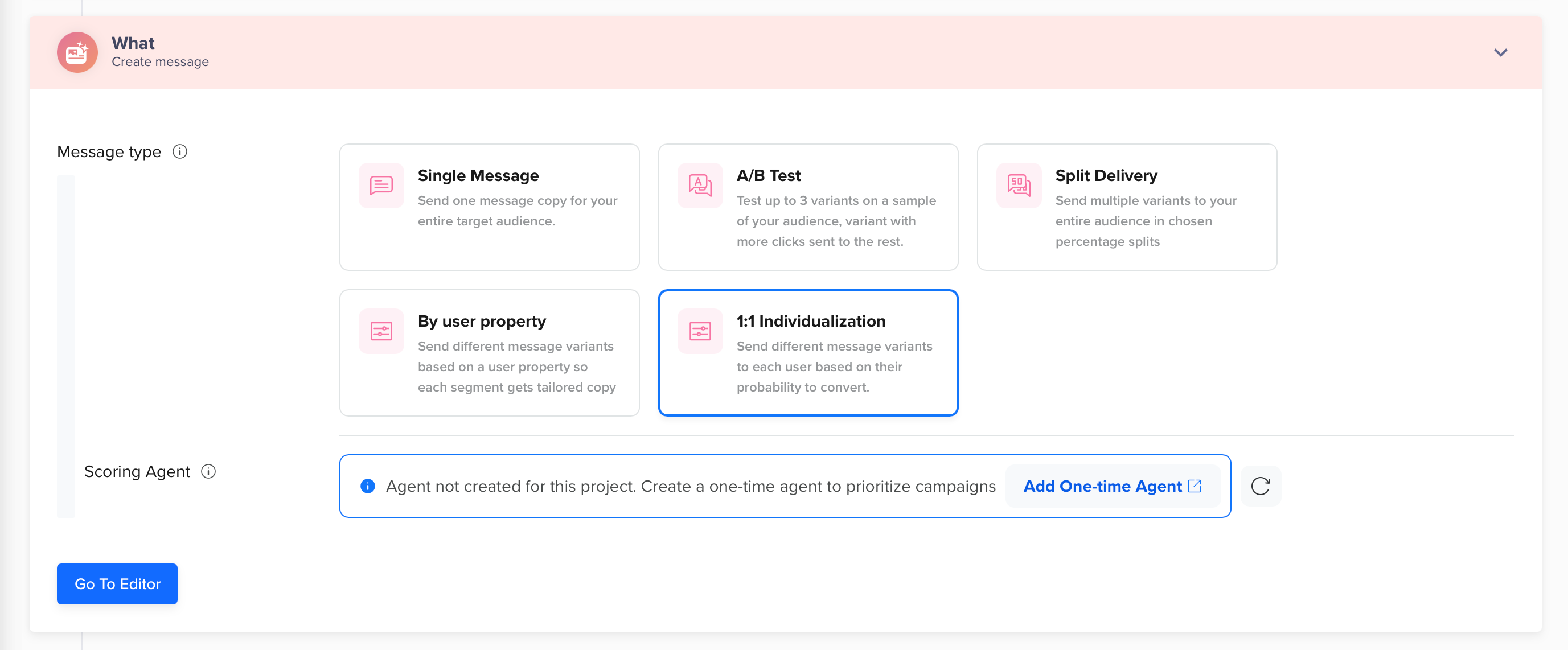
What Section
- An Agent field appears below the grid. Depending on what you chose in Campaign Priority Management:
- If you selected Agent manages priority there: this Agent also powers your variant scoring, you'll see it confirmed as a read-only Scoring agent once you move past this step. No further action is needed here.
- If you selected Manually manage priority there: the Agent field is empty. Select the Agent whose scoring model should score your variants.
No Agent in your account yet?If you haven't created an Agent, this field shows: "No agent created. Agents can handle campaign priorities effectively," with an Add new agent link. You must create or select an existing default Agent before you can launch a Variant Decisioning Agent campaign.
- Select Add Variant to create each variant, start blank or duplicate an existing one. Your variants appear as a row of buttons (Variant A, Variant B, and so on); select a variant's button to open its content editor (subject, body, and CTA, as applicable to your channel). You edit one variant's content at a time, switching between them using these buttons. For our example, the retailer creates three variants: an urgency-led one, a savings-led one, and an exclusivity-led one. Create between 2 and 10 message variants for the campaign, the same way you would for an manual A/B Test, manually or using Scribe (AI-assisted copy).

Variant
- Select Done.
What happens after you publish
At dispatch, the Agent's Ranker model scores every variant against every user in your target audience, and each user receives whichever variant scored highest for them.
Campaign Type | What happens |
|---|---|
| One-time | The Ranker scores every user once, at dispatch. It uses whatever engagement history the Agent has already accumulated from other campaigns. |
| Recurring | The Ranker re-scores at every recurrence. A user can receive a different variant on a later send if their engagement signals have changed since the last one. |
If scoring fails for a particular user or the whole scoring step fails, that user still receives a message: CleverTap sends a designated default variant instead of skipping them.
Edit an existing campaign to use Variant Decisioning Agent
You can change an already-running campaign's Message Type to Variant Decisioning Agent without recreating it. Your existing audience, schedule, and channel settings carry over. Before you reactivate the campaign, add at least 2 variants and make sure an Agent is associated with it, either through Campaign Priority Management or the What section.
Updated 2 days ago