
VTEX
Learn how to integrate your VTEX store with CleverTap.
Overview
The CleverTap VTEX Pixel app provides an easy, no-code way to integrate your VTEX store within minutes. All you require is a CleverTap account, and you can have a seamless flow of events and user data from your VTEX store. You can also send personalized messages to your users through channels such as Web Push, Web Pop-up, Web Inbox, and Web Native Display.
Integrate VTEX
After you install the CleverTap app, log in to the VTEX Admin and follow the steps below to complete the integration.
The integration includes the following steps:
- Install and Connect App
- Configure App Settings
- Customize Events
Install and Connect App
Contact your CleverTap Success Manager to install the app. Once installed, the app appears on the My Apps page under the Installed tab.
To verify the installation, navigate to Apps > My Apps from the VTEX Admin. The CleverTap app will be listed under the Installed tab.
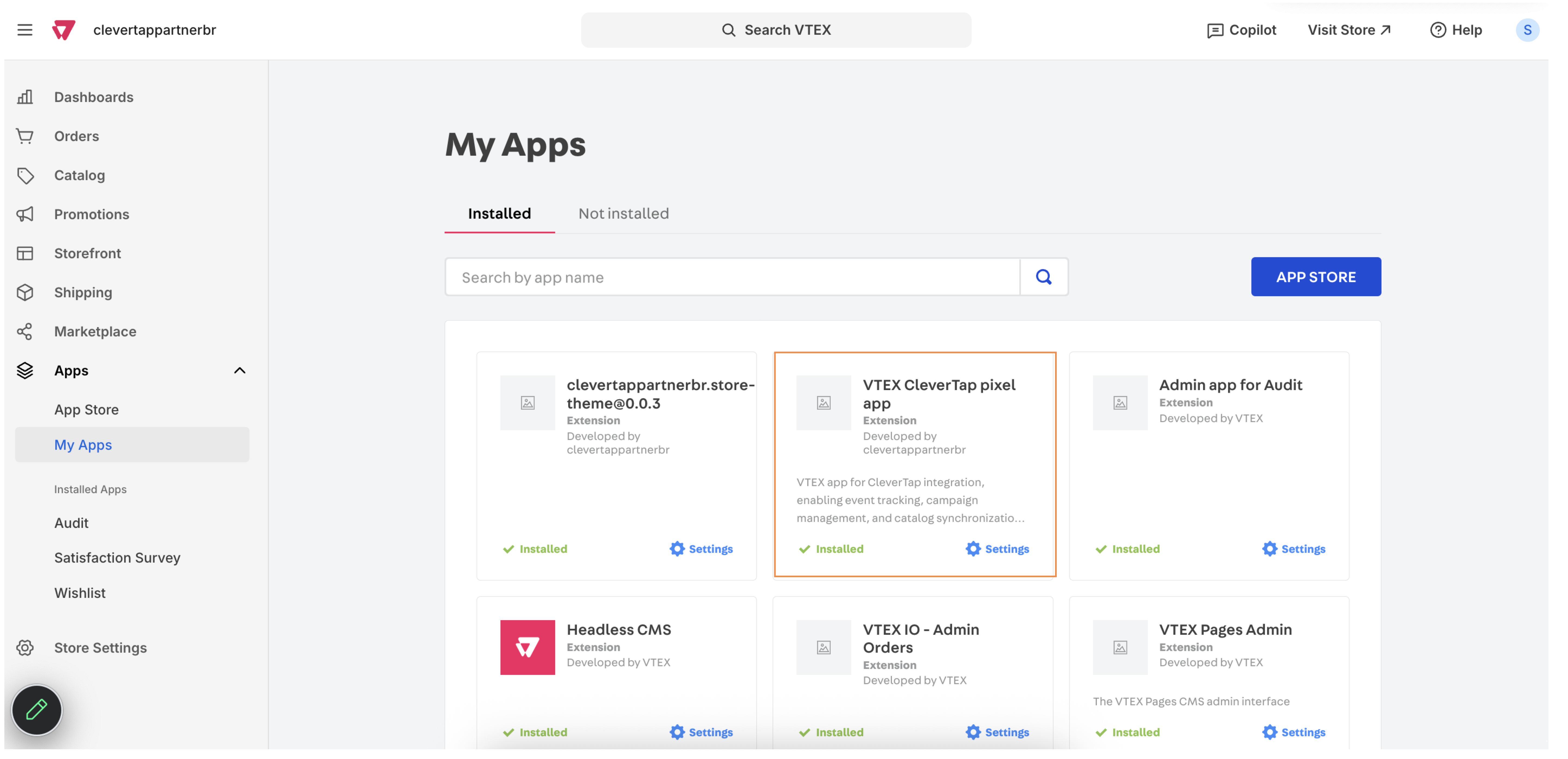
Check for the installed CleverTap app
Configure App Settings
After installing the app, you must configure it with your CleverTap account credentials.
- Navigate to Apps > My Apps from the VTEX Admin.
- Locate the CleverTap app tile on the Installed tab.
- Click Settings on the app tile. The app settings page opens.
- Enter the following details:
- CleverTap Project ID: Enter the Project ID of your CleverTap account. You can find this in your CleverTap dashboard under Settings > Project.
- CleverTap Account Passcode: Provide the authentication passcode for your CleverTap account. This is available in your CleverTap dashboard under Settings > Project.
- CleverTap Region: Specify the data center region of your CleverTap account (for example:
us1,in1,sg1,sk1). You can find this in your CleverTap dashboard. For more information, refer to Region Codes.
- Click Save once all credentials have been entered.
Customize Events
After configuring your credentials, you can select which VTEX store events to track and send to CleverTap.
- On the CleverTap app Settings page, scroll down to view the available VTEX events.
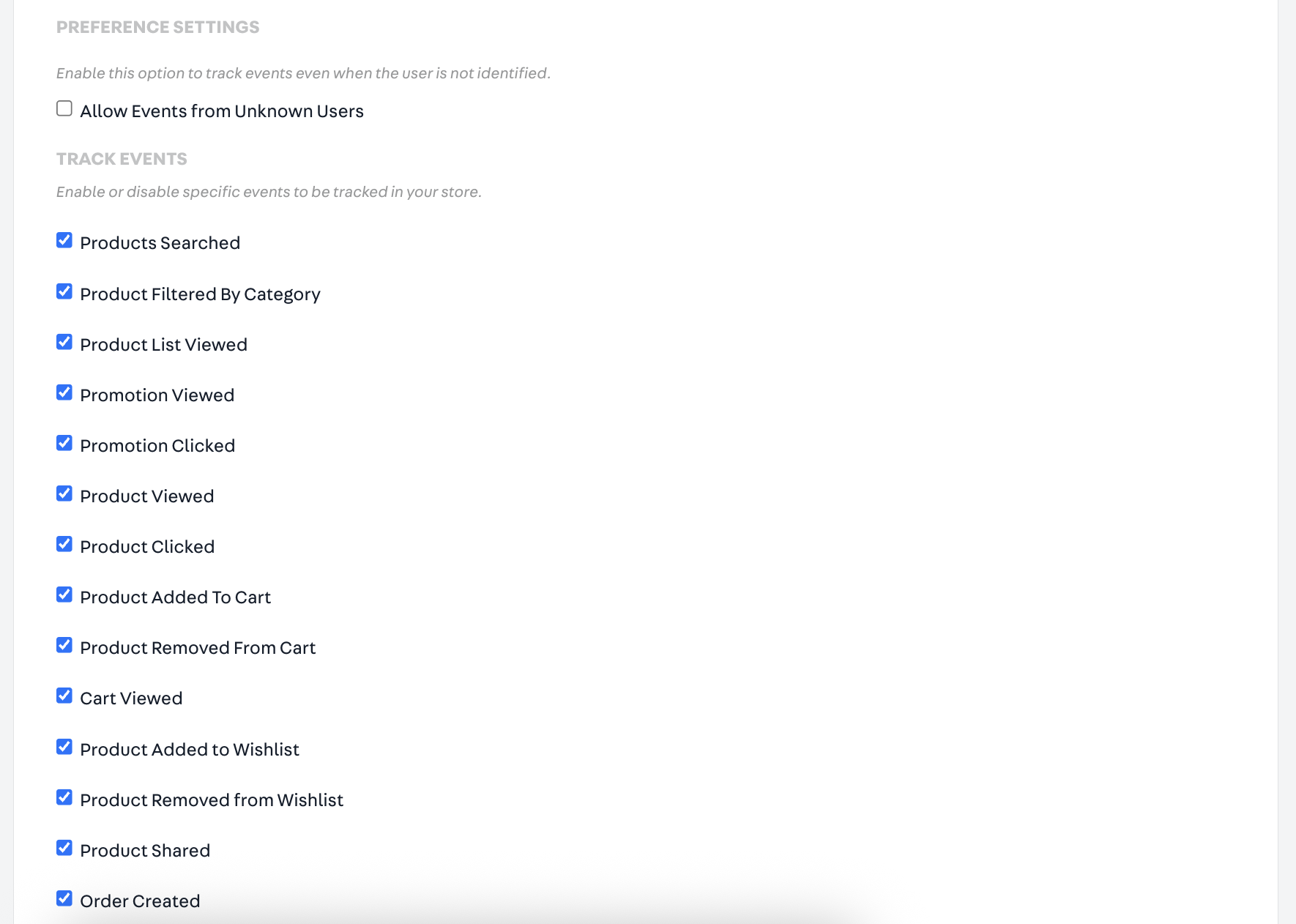
Select VTEX events
- Select the events you want to track. Common VTEX events include product views, add to cart, checkout started, and order placed.
- Click Save to apply your configuration.
Your VTEX store is now connected to your CleverTap account and will begin sending the selected events and profile data. For more information about VTEX events, refer to VTEX events.
Create Web Campaigns
The CleverTap VTEX Pixel app provides support for web channels such as Web Push, Web Pop-up, and Web Exit Intent without the need for any manual code integration.
To create a Web campaign:
- From the CleverTap dashboard, navigate to Campaigns.
- Click + Campaign.
- Create a Web Push*, Web Pop-up, Web Native Display, or Web Inbox campaign to engage your users.
Updated about 3 hours ago