
Brand Kit
Learn how to set up a consolidated Brand Kit for Image Creator.
Overview
Brand Kit helps ensure consistency across all generated assets, including copy and creative, and serves as a brand governance framework that defines your brand colors, tone, and buttons. Once configured, these settings are automatically applied across AI tools (Image Creator and Scribe), ensuring a unified branding experience in every campaign.
The following are the benefits of using a Brand Kit for your assets:
- Ensures automatic application of brand-specific colors, typography, and styles, maintaining a consistent look and feel across all content and visuals.
- Reduces back-and-forth during reviews by enforcing brand rules upfront, ensuring faster approvals and on-brand creative output.
- Scales campaign creation across regions and teams without diluting brand identity.
- Smarter content reuse with Campaign Lookback (for content only), enabling the AI to learn from past campaign tone and messaging patterns.
- Reduced dependency on the Copy and Design teams, enabling faster campaign iterations.
Accessing Brand Kit
You can access and manage Brand Kits from the Content Manager section of your account. Only users with CMS Brand Kit access can view or edit Brand Kits. Brand Kit permissions are managed through CMS Role-Based Access Control (RBAC) as follows:
| Role Type | Default Access | Description |
|---|---|---|
| Admin | Read and Write | Full control to create, edit, clone, or delete Brand Kits. Changes apply across all AI tools once published. |
| System Roles (for example, Admin, Marketing Manager) | Read-only | Can view Brand Kits but cannot edit or create new ones. |
| Custom Roles (for example, Content Executive, Analyst) | Configurable | Access can be customized based on organizational needs. Admins can enable or restrict Create/Edit permissions. |
Brand Kit Access in Teams
Teams is a separate feature currently available in Private Beta. Team-based Brand Kit access is visible only to accounts where Teams is enabled. When Teams is not enabled, all users in the account can view every available Brand Kit. For more information on how Teams works, refer to Teams Setup.
Refer to the following table for more details:
| Scenario | Brand Kits Available | Description |
|---|---|---|
| Team A user | 4 kits | Team A has 1 team-specific Brand Kit and there are 3 Brand Kits with all Teams access. The user sees all 4 brand kits. |
| Team B user | 4 kits | Team B has 1 team-specific Brand Kit, and there are 3 Brand Kits with all Teams access. The user sees all 4 brand kits. |
| Admin (logged in with Team A) | 4 kits | Admins see Brand Kits assigned to the team they are logged in to (Team A), plus all kits with access to all Teams. To view kits assigned to another team, the admin must switch to that team. |
Brand Kit PrecedenceWhen generating or editing images, Brand Kit styles are applied as defaults for image generation, but a user's prompt takes priority over the Brand Kit when the two conflict.
For example, if a prompt requests a different color than your Brand Kit specifies, then the Image Creator generates the image using the prompt's color.
Locking a Brand Kit prevents other users from editing its stored settings in the dashboard, but it does not change this behavior during generation.
Create Brand Kit
Admins and content team members with access to Brand Kit define elements such as brand colors, button styles, and content guidelines to ensure every AI-generated asset aligns with your brand identity.
To create a new Brand Kit, perform the following steps:
- Go to Content Manager > Brand Kit and click Add Brand Kit.
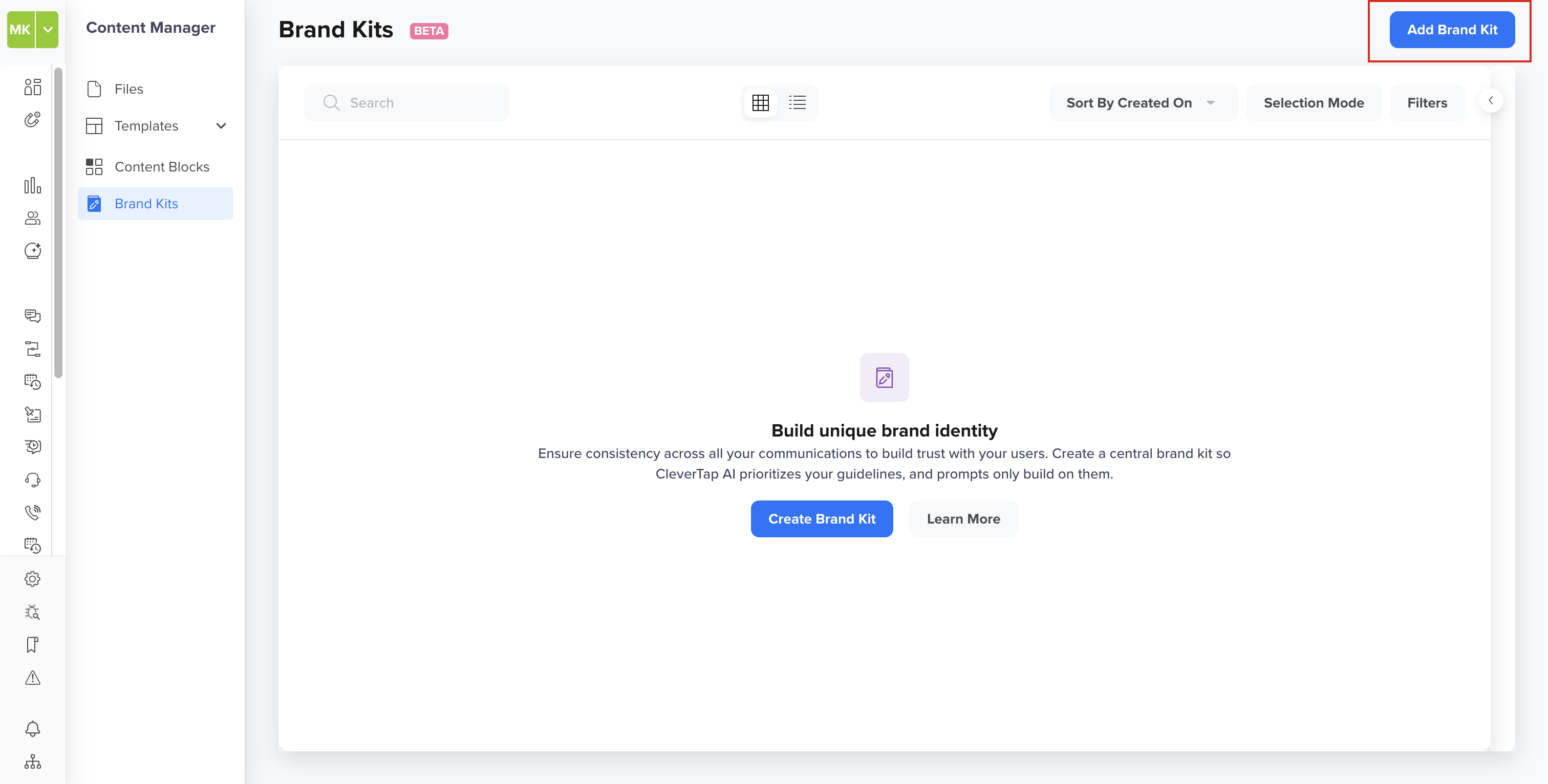
Add Brand Kit
- Enter the brand details, such as Setup, Content Guidelines, and Image Guidelines, and click Create.
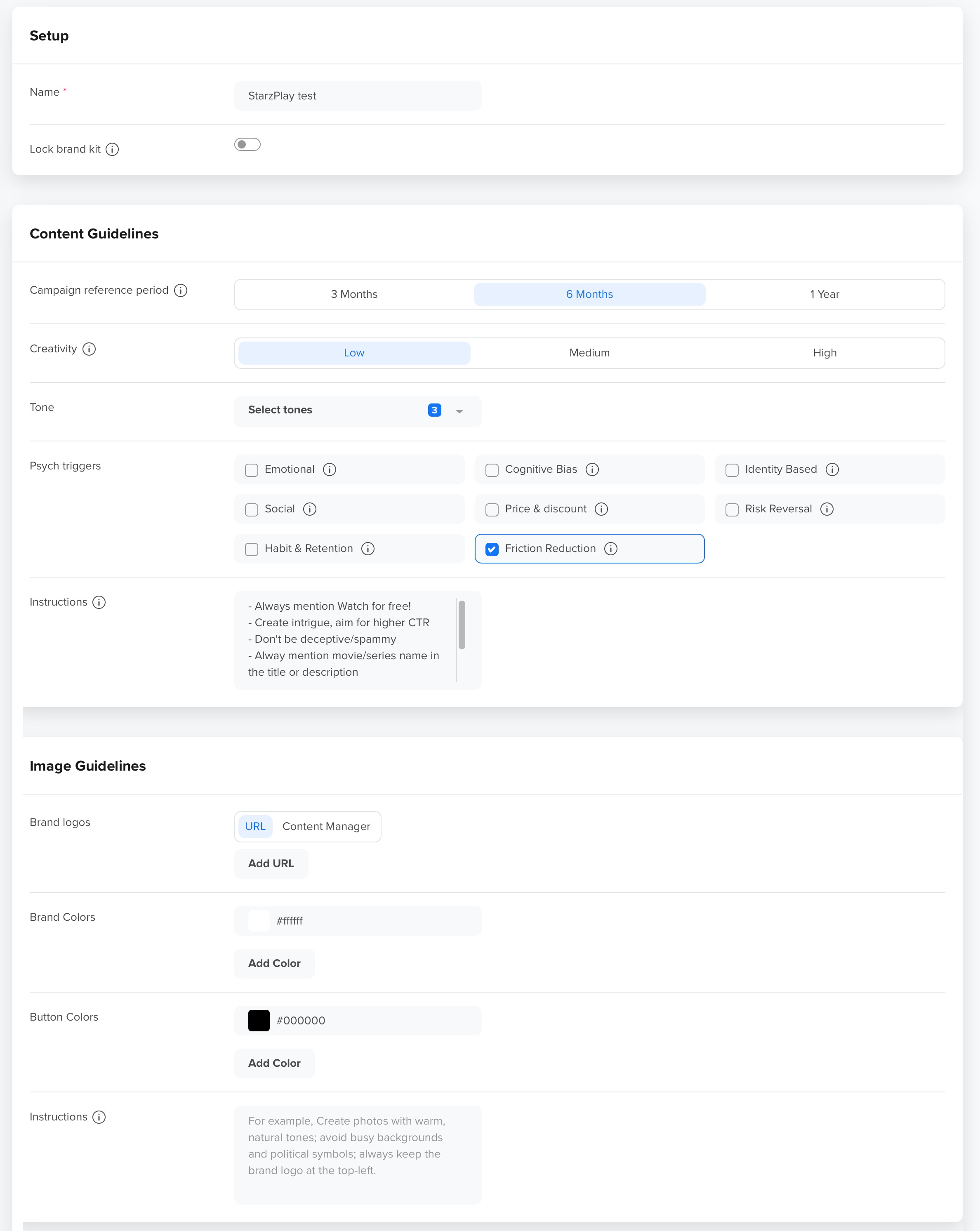
Enter Brand Kit Details
Enter the following Brand Kit details:
| Field | Required/Optional | Description | Notes |
|---|---|---|---|
| Name | Required | The display name for the Brand Kit. It must start with a letter. Supports letters, numbers, underscores, hyphens, parentheses, and spaces (limit: 150 characters). | Character Limit: 150 |
| Lock Brand Kit | Optional | When enabled, this prevents users from editing brand settings during campaign creation. Locking ensures brand consistency across global teams and eliminates off-brand variations. |
|
| Campaign Lookback | Optional | Determines how far back the AI can reference past campaigns to maintain tone, language, and visual consistency. | Options: 3 Months, 6 Months (default), or 1 Year. |
| Creativity Level | Optional | Controls the balance between reliance on past campaign references and creative freshness in AI-generated output. Set it High for more creative experimentation, or Low for outputs that stay tightly within your Brand Kit. |
|
| Tone (Brand Tonality) | Optional | Defines tone and voice for AI-generated content. Allows multiple tone selections. | Up to 3 tones can be selected (for example, Friendly, Professional, Confident). |
| Psych Triggers | Optional | Defines the psychological motivators that guide AI-generated copy. Selected triggers influence how Scribe identifies and reuses high-performing messaging patterns from past campaigns. | Select 1 to 8 triggers. Deselect the triggers that your brand must avoid for regulatory or compliance reasons. For more information, refer to Psych Triggers. |
| Instructions (Content Guidelines) | Optional | Provides guidance on writing and language for AI-generated text. | Content and Image Guidelines each have a 500-character limit. Example: For a retail brand like Urban Threads: "Use an active, conversational tone. Highlight benefits and promotions in clear, positive language. Avoid jargon and overpromising. Keep copy brief and easy to scan.” |
| Brand Logos | Optional | Add up to 3 logo variations to maintain consistent visual branding. |
|
| Brand Colors | Optional | Define up to 5 primary brand colors. | Default: White (#FFFFFF). Used as base colors for visuals. |
| Button Colors | Optional | Add up to 3 button colors used in AI-generated creatives. |
|
| Instructions (Image Guidelines) | Optional | Defines guidance for how visuals should represent the brand. | Example: For the same retail brand: "Use bright, engaging visuals with product focus. Maintain natural lighting and clean composition. Avoid overly dark or text-heavy designs." |
Note
- Maximum 10 Brand Kits can be configured per account.
- Each Brand Kit belongs to your account, and is either assigned to a specific team or made available to all teams as a Global kit.
- Any updates made to a Brand Kit apply automatically across Scribe and Image Creator once published.
- Create separate Brand Kits for each brand, region, or business unit. Use clear, meaningful names to help teams quickly identify the right kit when creating campaigns, for example, InstantMart, Insurance, or Ticket Booking.
Psych Triggers
Psych triggers are psychological motivators that influence how users respond to campaign copy. When selected in a Brand Kit, they guide Scribe to produce content that aligns with the emotional and behavioral patterns most relevant to your brand and audience.
You configure Psych Triggers in Create Brand Kit, under Content Guidelines.
Select 1 to 8 triggers. At least one must be selected; CleverTap does not allow you to save with none selected.
| Trigger | Description | Example |
|---|---|---|
| Emotional | Appeals to feelings such as joy, nostalgia, or excitement to create a personal connection. | Rediscover the joy of your morning coffee. |
| Cognitive Bias | Leverages predictable patterns in human reasoning, such as anchoring or social proof. For example, people trust something more when they see others already using it. | Join 10,000+ shoppers who upgraded this month. |
| Identity Based | Speaks to who someone is or wants to be seen as. | Built for the modern minimalist. |
| Social | Draws on social influence, peer behavior, or community dynamics. | Your friends are already saving with this. |
| Price & Discount | Highlights value, savings, or deal-based incentives. | Save 20% today only. |
| Risk Reversal | Reduces perceived risk by emphasizing guarantees, free trials, or no-commitment offers. | Try it free for 30 days, cancel anytime. |
| Habit & Retention | Reinforces repeat behavior and long-term engagement through consistency cues. | Keep your streak going; log in today. |
| Friction Reduction | Removes perceived barriers to action, making the next step feel easy and immediate. | One tap. Done. |
How Psych Triggers Work
CleverTap looks at your account's historical campaign data to identify which of your selected triggers performed best, based on click rates. When a marketer enters a prompt in the Scribe, the system:
- Identifies the intent behind the prompt (for example, cart abandonment or re-engagement).
- Surfaces the best-performing historical reference copies that used the selected triggers.
- Identifies the dominant trigger from the top-performing copy and uses its sub-triggers to generate new variants.
For a new account with no campaign history yet, generation proceeds using your Brand Kit and selected triggers alone; no substitute reference data is used in place of your own campaign history.
Opting out of triggers
Brands can deselect specific triggers to restrict the types of copy the AI generates. This is useful in regulated industries, for example, a financial services brand might deselect Risk Reversal or Price & Discount to stay compliant with advertising guidelines.
Deselected triggers are excluded from copy generation for all campaigns created from this account.
Manage Brand Kits
From the Brand Kit page, you can:
- View all existing Brand Kits in a list or grid view.
- Edit, rename, or delete kits.
- Duplicate an existing kit to create a variant.
Edit Brand Kit
To edit an existing Brand Kit, perform the following steps:
- Click
 icon and select Edit.
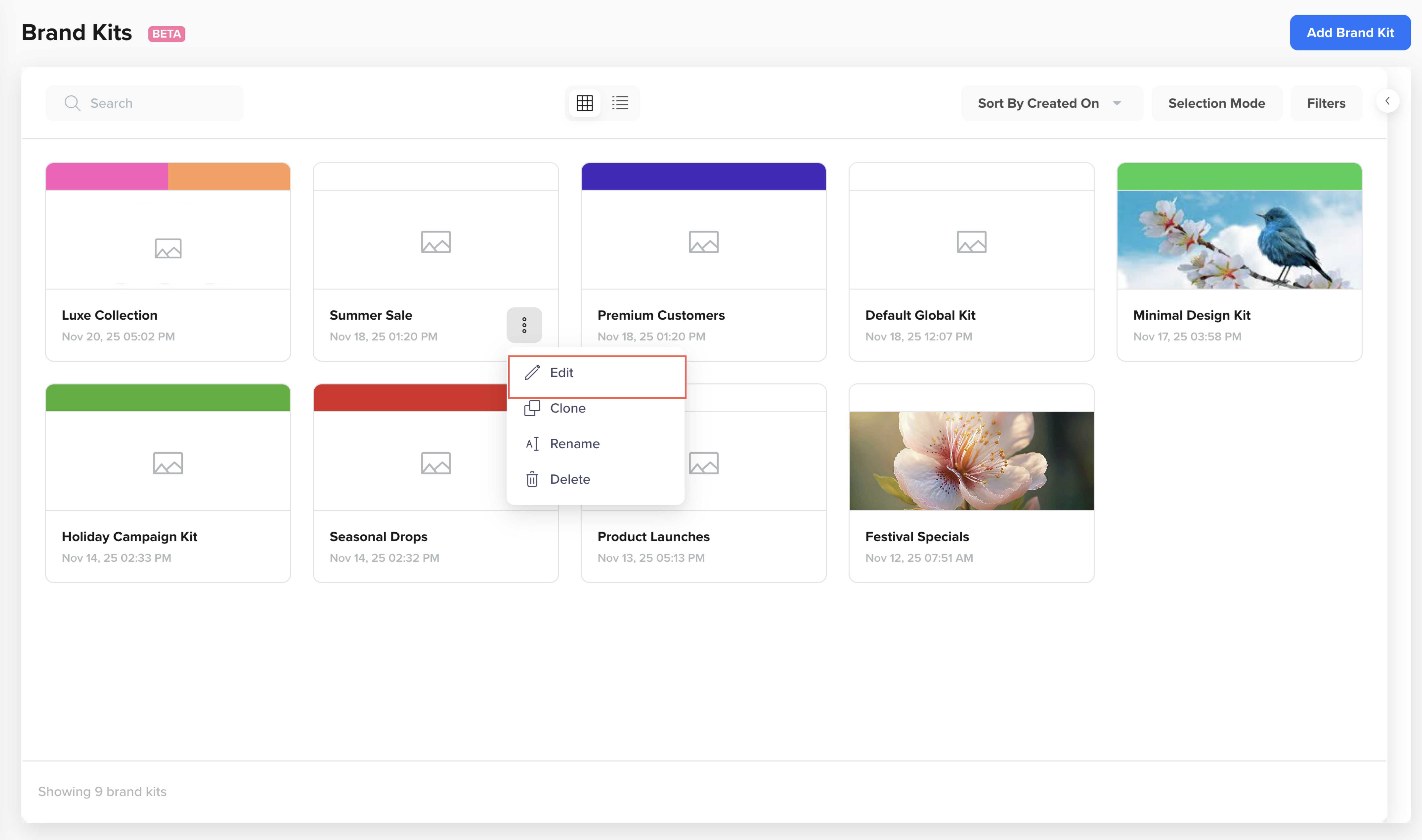
Edit Brand Kit Details
- Modify the required details and click Save.
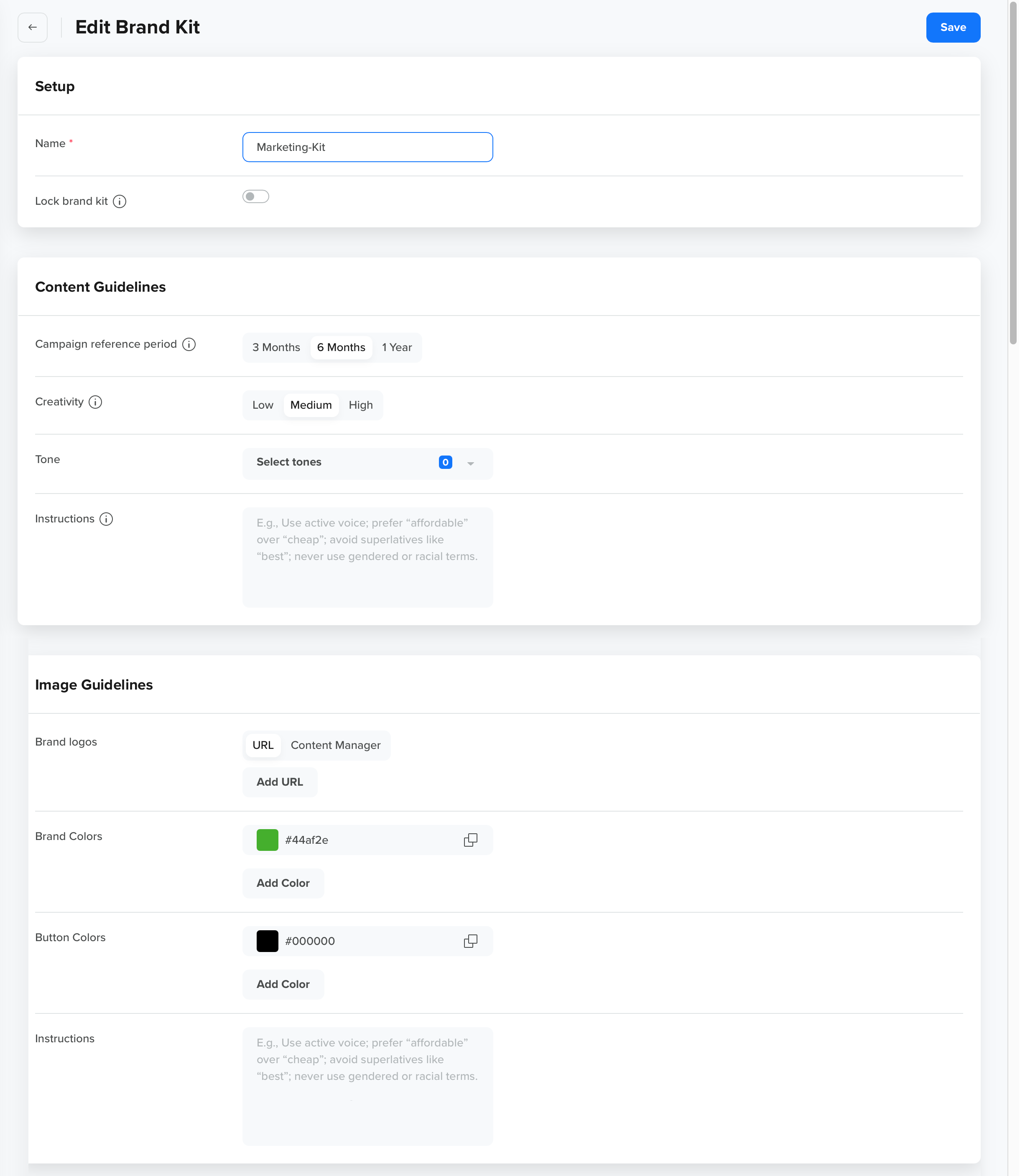
Edit Brand Kit
Best Practices for Defining Brand Kit Guidelines
Use the Instructions field to clearly express what your brand stands for and how your content should feel. These guidelines enable the AI to select the appropriate tone, wording, and visual direction for all generated content.
Follow these best practices listed below when defining your Brand Kit guidelines:
- Define your brand’s tone and communication style. Describe how your brand should sound and feel (for example, trustworthy, conversational, premium, inspiring, and so on). This helps the AI maintain consistent tonality across all content and imagery.
- Add clear instructions for generating copy and images. The more details you provide, the more accurately the AI can generate brand-aligned content and images.
- Clarify visual intent for images, such as mood, color direction, and overall feel (for example, clean, modern, high-contrast).
- Note any boundaries or must-avoid areas, including regulatory or compliance requirements.
Example by Industry
Use these as a starting point, and adapt the language to match your brand's actual tone rather than using it as-is.
| Industry | Content Guidelines | Image Guidelines |
|---|---|---|
| Financial Services / Banking | “Maintain a professional, confident tone. Use factual, non-exaggerated statements. Avoid words like ‘guaranteed’ or ‘risk-free.’ Ensure all messaging meets regulatory requirements.” | “Use trustworthy, calm visuals — clean design, corporate colors, and professional imagery. Avoid any visuals that may misrepresent returns, outcomes, or endorsements.” |
| Healthcare / Pharma | “Write in an empathetic, factual tone. Avoid making clinical claims or outcome promises. Ensure all messaging aligns with approved regulatory language.” | “Use clean, minimal visuals that focus on care and trust. Avoid imagery suggesting medical results or diagnoses. Prefer healthcare professionals and real people imagery.” |
| Technology / SaaS / B2B | “Maintain a clear, formal tone. Use precise and informative statements that highlight value and reliability. Avoid hyperbolic or casual expressions.” | “Use minimal, professional visuals with abstract or product-based graphics. Keep the color palette brand-aligned and consistent. Avoid unlicensed or stock-heavy visuals.” |
| Food & Beverage | “Use friendly, appetizing language that highlights taste and quality. Avoid unrealistic or exaggerated claims like ‘best ever.’” | “Use warm, natural lighting and authentic food photography. Keep focus on product quality and freshness. Avoid overly edited or artificial looks.” |
| Gaming / Entertainment | “Use an energetic, motivational tone. Highlight rewards or events with excitement, but avoid misleading outcome statements.” | “Use vibrant, high-contrast visuals with bold elements. Maintain consistent color palettes and avoid off-brand effects.” |
FAQs
Can I edit or clone a Brand Kit later?
Yes. If you have edit access to the Brand Kit, you can edit all fields or clone a kit to create a new variant with similar settings.
How many Brand Kits can I create?
You can create up to 10 Brand Kits per account.
Can I assign a Brand Kit to multiple teams?
Yes. You can assign it to a single team or make it Global, so all teams can use it. Teams feature is in Private Beta. For more information, refer to Teams.
What happens if I lock a Brand Kit?
Locking a Brand Kit prevents users from editing or overriding its settings during campaign creation or image generation flow. When unlocked, users can make temporary, campaign-level, or thread-level adjustments that apply only to that instance and do not save back to the stored Brand Kit. Whether locked or unlocked, Brand Kit settings always take precedence over prompt inputs or AI variations.
What happens if I try to create something outside the Brand Kit settings?
If a Brand Kit is active, the AI automatically enforces its rules to maintain consistency. If your prompt or request conflicts with Brand Kit specifications (such as using a different color, font, or tone), the AI will prioritize the Brand Kit settings and adjust the output accordingly.
Updated about 2 months ago