
Session Analytics
Understand how users engage within sessions by analyzing session duration, distribution, and activity patterns across your app.
Overview
Session Analytics can be used to track the events that users perform within a session. Analyzing session length is a great way to measure engagement for certain apps, such as video or music streaming, news, and so on.
A session is a period of continuous activity by the user. A user can perform as many events as required over a period of time; however, we consider a session timeout after 20 minutes of user inactivity. A new session is created after this session timeout. Sessions can be tracked on the Web as well as mobile apps.
Tracking SessionsSessions cannot be tracked for events pushed through API calls.
Activate Sessions
You can start tracking user sessions after activating sessions from the CleverTap dashboard. The ability to track sessions is available in Settings > Session Analytics.
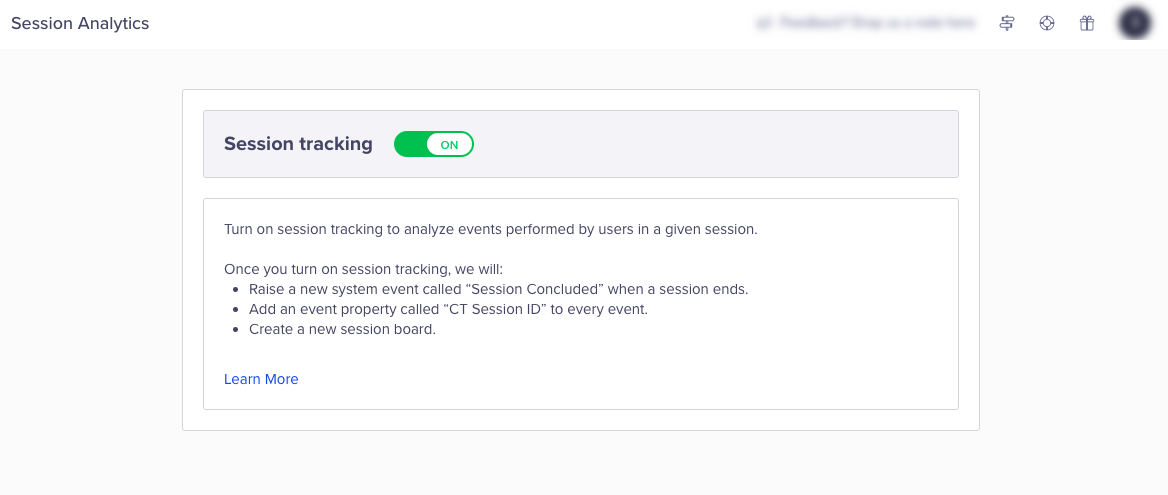
Activate Session Tracking
After you activate session tracking, you have the following:
- The Session Concluded event is raised to mark the end of every session.
- A new system property called CT Session ID is available for every custom event.
- A Session Board is available within the Boards section.
List of Events that Are Not ConsideredThe following events are not considered for a session:
- App Installed
- App Uninstalled
- UTM Visited
- Identity Set
- Identity Reset
- Identity Error
- Push Impressions
- Notification Sent
- Notification Clicked: These events are not considered for engagement channels like Email, Web Push, or Mobile Push.
However, they are considered for channels such as Native Display, App Inbox, In-App, Web Exit Intent, and Web Popup.- Notification Viewed: These events are not considered for engagement channels like Email or Web Push.
However, they are considered for channels such as Native Display, App Inbox, In-App, Web Exit Intent, and Web Popup.
CT Session ID
A system property called CT Session ID is available for each custom event. This CT Session ID also appears on the user’s profile page.
Session Concluded Event
A system event called Session Concluded marks the end of a session. This event is raised after 20 minutes of inactivity.
The Session Concluded event contains the following event properties:
- Session Length: It is the time period from the first event up to the last event measured in seconds. When analyzing session length in charts such as Trends or the Session Dashboard, values may be grouped into bucket ranges for visualization. For details on how these ranges are calculated and displayed, refer to Session Length Distribution Buckets.
- Session ID: It is a unique ID to identify the session.
Availability NoteThis event is not available for engagement in the live user segments.
Timestamp for a Session ConcludedThe timestamp for the Session Concluded event is the same as the most recent event.
For example, Event 1 was performed at 11:00 AM and Event 2 was performed at 11:10 AM. There is a period of inactivity after this event. After waiting for 20 minutes, a Session Concluded event is raised at 11.30 AM, however, the timestamp for the Session Concluded event is marked as 11:10 AM to identify the exact time of the last activity.
Session Dashboard
This board is created automatically after you turn on session tracking. To view the session dashboard, perform the following:
- From the CleverTap dashboard, click Boards.
- Check for a board called Session and open it.
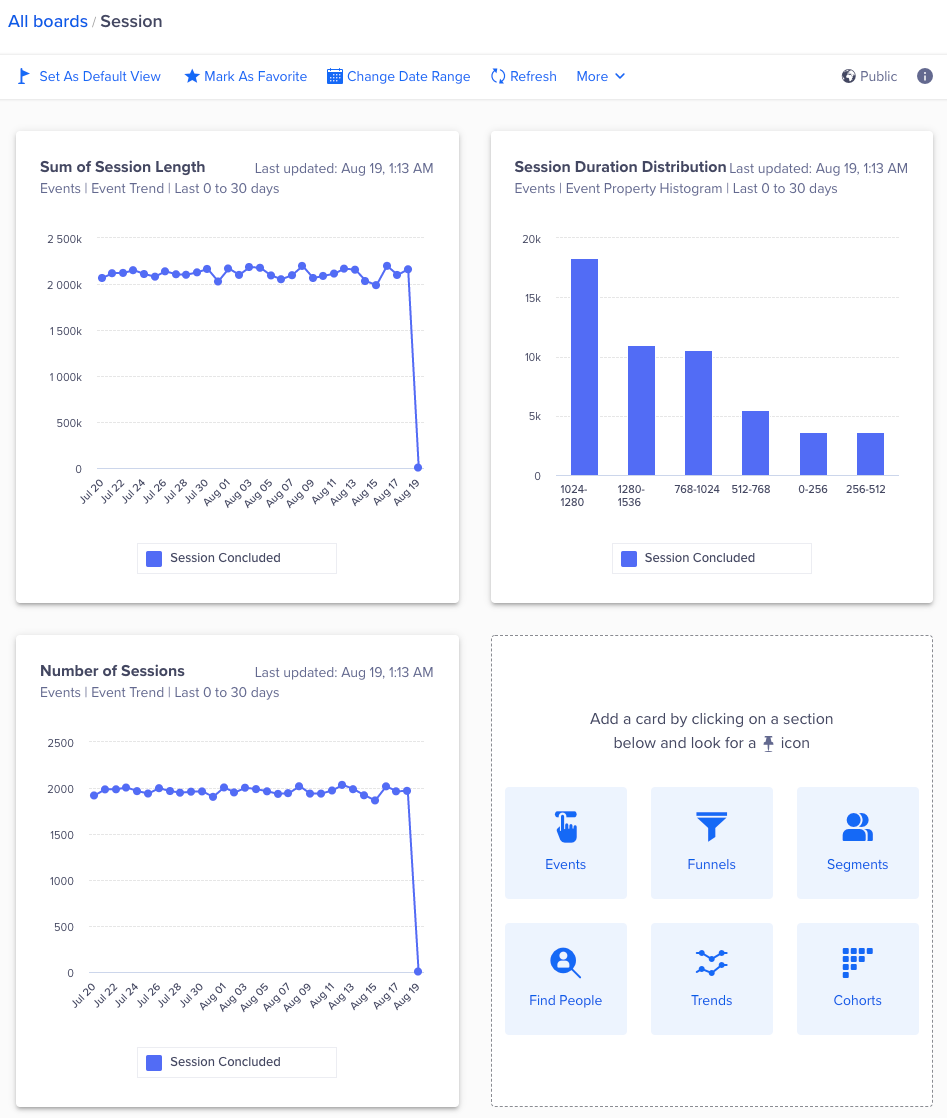
From the Boards Click Session to View Session Dashboard
The session dashboard displays an overview of the app sessions with the following information:
- Session length distribution: The distribution of session length (in seconds).
- Sum of session lengths per day: The total session length across all users per day in the last 30 days.
- Number of sessions: The number of sessions in a day that occurred over the past 30 days.
Session Length Distribution Buckets
The session length distribution is displayed using ranges rather than absolute values. These ranges help visualize how sessions are distributed across different durations, especially when session lengths are highly variable. It allows you to:
- Identify where most user sessions fall
- Compare the relative distribution across short vs long sessions
These duration buckets follow a power-of-two (2ⁿ) scaling pattern, where each bucket doubles in size. Here, n represents the exponent, meaning each range is calculated as 2 raised to the power of n (for example, 2¹² = 4,096, 2¹³ = 8,192).
This results in progressively larger ranges, such as:
- 0–4,096 seconds (0-68 minutes)
- 4,096–8,192 seconds (68-136 minutes)
- 8,192–16,384 seconds (136-273 minutes)
For example, if a session appears in the 0-4,096 seconds bucket, it does not mean the session lasted close to 4,096 seconds. The actual session duration could be much shorter (for example, 5 minutes), but is grouped into this range for distribution analysis.
Important Considerations
Use the following points to correctly interpret session length buckets and avoid misreading the data:
- Bucket ranges are not exact session values. Each bucket represents a range, not a precise duration.
- Most sessions within a bucket are typically concentrated toward the lower end of the range. For example, in the 0–4,096 seconds bucket, most sessions might actually be around 2–10 minutes (120–600 seconds) rather than close to 4,000 seconds.
- Higher buckets may appear large, but often contain very few sessions. For example, the 8,192–16,384 seconds (2–4.5 hours) bucket may only include a small number of unusually long sessions.
Updated 7 months ago