
Import Listing and Stats
Learn how to track and monitor imports.
Overview
You can view your imports by selecting the Import center tab on the Partners page.
This page lists all imports created for the data warehouse. You can also access it from Settings > Partners > Import center, where you can filter the results by partner.
The Import Listing page displays the following:
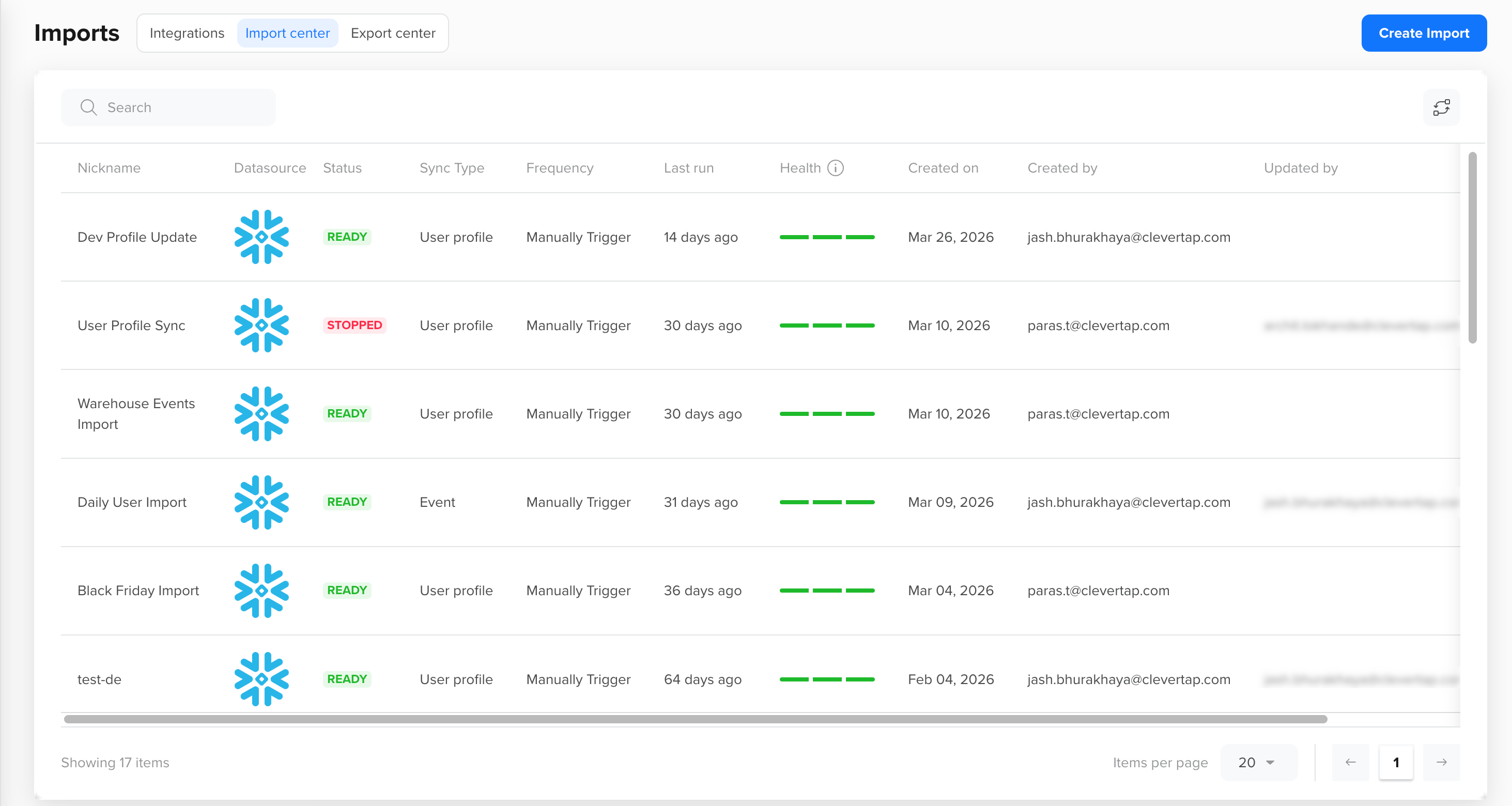
Import Center
| Field | Description |
|---|---|
| Nickname | The unique name assigned to each import. This helps easily identify and differentiate between multiple database imports. |
| Partner | The partner integration used for the import (for example, Snowflake or BigQuery). |
| Status | The current status of the import: Running, Scheduled, Paused, Draft, or Stopped. |
| Sync Type | Indicates whether the import is for user profile data or event data. |
| Frequency | The schedule for running the import (for example, Repeat Intervals, Custom Schedule, or Manually Trigger). |
| Health | The overall health of the import run. For more information, refer to Health Indicator. |
| Last Run | The date and time when the import was last triggered. |
| Datasource | The name of the data warehouse used as the source for the import. |
| Created On | The date when the import was created. |
| Created By | The user who created the import. |
| Updated On | The date when the import configuration was last modified. |
| Updated By | The user who last modified the import. |
Health Indicator
The health indicator provides an at-a-glance view of the success of each import run.
| Health | Description |
|---|---|
| 100% (Green) | All records processed successfully without errors. |
| 50%–99.99% (Yellow) | Some records failed during processing. Review failed records in the detail pane to identify the affected fields. |
| Below 50% (Red) | A majority of records failed to process. Review your data selection and field mappings for potential issues. |
| Blank | No data was processed. This may occur if no records qualified for the run or if the data warehouse credentials are invalid or have changed. |
| No indicator | The first run for this import has not yet completed. |
Stats
Stats provides a detailed view of each import run, including the number of records processed, sync success rate, and any records that need attention. You can track import performance over time, understand the quality of your source data, and make informed adjustments to your import configuration with the help of these stats.
To access Stats, go to Settings > Partners > Import center. Click an import to open its details, and then select the Stats tab.
The Stats table displays the following for each import run:
| Field | Description |
|---|---|
| Date and Time | The timestamp when the import run was initiated. |
| Health | The health percentage for that run. For more information, refer to Health Indicator. |
| Total Records | The total number of records the import attempted to process. |
| Successful Syncs | The number of records successfully imported without errors. |
| Failed Syncs | The number of records that could not be imported due to validation or processing issues. |
You can click a particular import to view the detailed record stats.
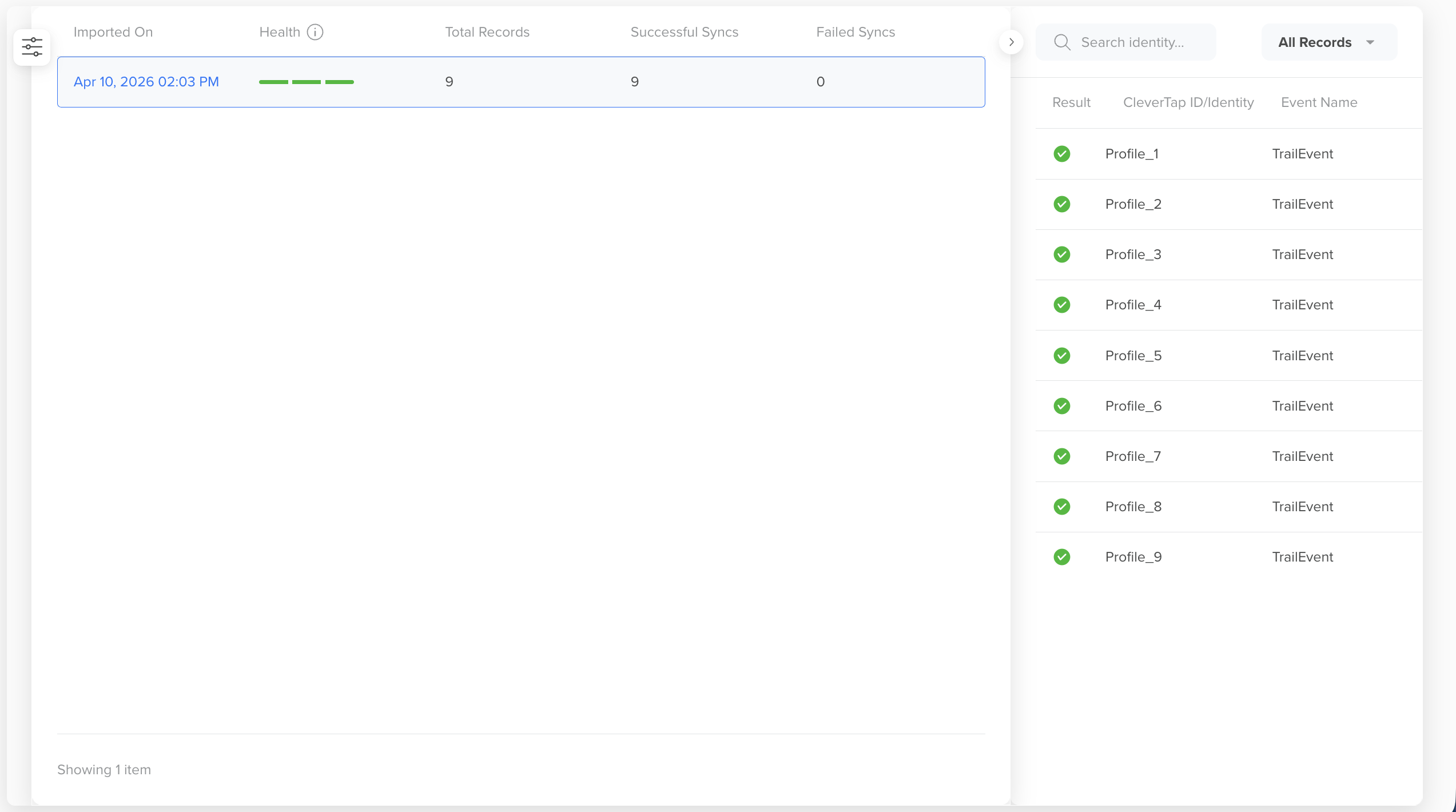
Detailed Record Stats
Detailed Record View
Detailed record data is available only for import runs completed within the last 30 days. You can inspect individual records from the run.
Each record displays the following details:
| Field | Description |
|---|---|
| Result | Success indicates the record was imported successfully. Failed indicates the record was not imported. |
| CleverTap ID or Identity | The identifier associated with the user profile or event, such as the CleverTap ID or the identity used to match the user (for example, email, phone number, or a custom ID). |
| Event Name | Displayed in the case of the Event data import. It indicates the name of the event processed in the import run. |
Using Stats to Improve Your Sync
Stats works best as a feedback loop to actively improve the quality and reliability of future imports. The following are recommended ways to get the most out of Stats.
- Track health trends across runs: Review the health percentage across multiple runs to spot patterns. A consistent green health indicates a stable, well-mapped import. A declining trend often signals a change in the source data structure, unexpected values in a column, or credentials that need updating.
- Use failed records to refine your mappings: When a run shows failed syncs, click into the run and review the error messages in the detail pane. If the same field fails across many records, the issue is likely in how it is mapped or formatted in the source. Addressing the root cause in the source data or remapping the field will improve health across future runs.
- Validate record counts after each run: Compare the Total Records count to what you expect from your source query. A significant mismatch may indicate that the source table was not up to date when we fetched it, or that the import was stopped before completion.
- Prioritize identity errors: Records without a valid identity cannot be linked to a user profile in CleverTap and will not be usable for segmentation or engagement. Resolve identity-related failures before addressing property-level errors.
- Compare runs over time: If health drops suddenly after a period of consistent performance, check whether anything changed in your source data around that time, such as a schema change in the warehouse table or updated credentials.
Best Practices
The following best practices help ensure your imports run smoothly and your data remains clean and reliable.
Before Import Runs
Before configuring and running your import to ensure your source data is ready for a successful sync, review the following:
- Validate your source data before configuring the import. Ensure that identity fields such as email, phone, or custom ID contain clean, non-null values, and that data types in your source columns match the mappings you intend to configure.
- Ensure phone numbers include a valid country code in E.164 format (for example, +919876543210) and that email addresses are properly formatted with the
@sign before the dot. - Avoid including system event names, such as App Launched, in the event name column of your source data, as these cannot be imported from external sources.
- Remove or replace reserved or placeholder identity values such as null, 0, N/A, undefined, or none in the source before the import runs.
- Confirm that your data warehouse credentials are valid and have not been rotated or updated since the import was last configured.
While Monitoring Imports
Review the following practices to stay on top of your import health and catch issues early:
- Review Stats after each run, particularly for scheduled imports, to confirm the health percentage is at expected levels.
- For imports scheduled at short intervals, such as every 15 minutes, be aware that if a run takes longer than the scheduled interval to complete, the next run will be skipped automatically and resume from the one after. This will appear as a gap in the Stats table and is expected behavior.
- Stats are available for runs completed within the last 30 days. For long-term monitoring, note down or export health and record counts periodically if historical tracking is important for your team.
- If an import in a running state is manually stopped, stats will not be available for that run, even if some records were partially ingested. Allow imports to complete before stopping them where possible.
Error Reference
Use this section to identify and resolve validation errors that appear in the detail pane for failed records. Errors are grouped by import type.
Common Errors
The following errors apply to both user profiles and event imports:
| Error | Cause | Resolution |
|---|---|---|
| Invalid identity or CleverTap ID | The Identity or CleverTap ID contains an invalid or reserved value (for example, null, undefined, 0, or empty) or exceeds 1024 characters. | Remove or replace invalid values in the identity column. Ensure each value is valid and within the character limit. |
| Value should be an Integer or a Float, but a different data type was received | A field mapped as Integer or Float contains a non-numeric value. | Ensure the source column contains only numeric values or remap the field to the correct data type. |
| Value for Boolean data type needs to be 0, 1, true, or false | A Boolean field contains unsupported values. | Use only 0, 1, true, or false in the source column. |
| Field mapped as Date contains invalid values | A field mapped as Date contains non-date values. | Ensure the source column contains valid date values or remap the field to the correct data type. |
User Profile Import Errors
The following errors may appear for failed records in a user profile import:
| Error | Cause | Resolution |
|---|---|---|
| Email is not valid | The email value is missing required components or is incorrectly formatted. | Ensure all email values follow a valid format (for example, include an “@” and a domain). |
| Phone number must start with a valid country code and contain more than 4 digits | The phone number is missing a country code or has fewer than 4 digits. | Store phone numbers in E.164 format (for example, +91XXXXXXXXXX). |
| Communication preferences contain unsupported values | A communication preference field contains values other than 0, 1, true, or false. | Standardize values in the source column to 0, 1, true, or false. |
Event Import Errors
The following errors may appear in the detail pane for failed records in an event import.
| Error | Cause | Resolution |
|---|---|---|
| Event name contains a prohibited character | The event name contains one or more prohibited characters, including percent, greater than, less than, exclamation point, pipe, ampersand, dot, colon, semicolon, dollar sign, single quote, double quote, backslash, or hash. | Remove or replace prohibited characters in the event name column of the source data. |
| The system event name cannot be processed from the data source | A record in the event name column contains the name of a CleverTap system event, such as App Launched, which cannot be imported from external sources. | Exclude system event names from the event name column or filter them out in the source query before the import runs. |
| Timestamp value is in an unsupported format or data type | The Created On field contains a value that does not match any of the supported date formats. | Use one of the supported formats: Epoch seconds, Epoch milliseconds, or a recognized date string such as dd/MM/yyyy HH:mm:ss or yyyy/MM/dd. If the field is blank, CleverTap will use the processing timestamp instead. |
Updated 6 months ago