
Google Cloud Platform (GCP)
Understand how to integrate CleverTap dashboard to Google Cloud Platform (GCP).
Overview
Use Google Cloud Storage (GCS) to import data from files in a bucket that you own and to export CleverTap data to that bucket. CleverTap authenticates with the Service Account Key of a Google Cloud service account that you create. This is the only supported authentication method for both import and export.
- Import user profiles and events from CSV or Parquet files stored in your GCS bucket.
- Export profile and event data to your GCS bucket for analysis in BI tools or storage in a data warehouse.
NoteCleverTap supports IP whitelisting for Google Cloud Storage connections. CleverTap connects from fixed IP ranges, and the ranges for import and export differ. For more information about allowed IP ranges, refer to FAQs.
The setup involves the following five steps:
- Create Service Account.
- Create Bucket and, for import, an optional subfolder.
- Grant Service Account Access to Bucket. For export, you can first create a custom role.
- Create Service Account Key.
- Add the bucket and key on the CleverTap dashboard, and then save the connection.
If you already have a service account and bucket, skip to Grant Service Account Access to Bucket.
Quick Start Guide for Existing Users
If you previously configured a Google Cloud service account and bucket and you know the CleverTap dashboard, the setup requires the following details and steps.
Have the following details ready:
- The GCS bucket name, which you enter as Folder on the CleverTap dashboard
- (Import only, optional) The subfolder path within the bucket
- The Service Account Key (JSON) of a service account that has the required role on the bucket:
- Import: Storage Object Viewer (
roles/storage.objectViewer) - Export: Storage Legacy Bucket Writer (
roles/storage.legacyBucketWriter), or a custom role withstorage.buckets.get,storage.objects.create, andstorage.objects.list
- Import: Storage Object Viewer (
Then configure the connection:
- Go to Settings > Partners and select Google Cloud on the Integrations tab.
- Select the Import Connections or Export Connections tab, and then click Add Google Cloud Bucket.
- Enter the Connection name and the Folder (your bucket name). For an import connection, optionally enter a Subfolder.
- Under Google Service Account Key, select Upload JSON file and upload your downloaded key, or select Custom key and paste the key contents.
- For import, click Test Connection.
- Click Save to save the connection, and continue with Next Steps.
Prerequisites for Integration
Ensure the following are in place before you begin:
- An active Google Cloud account with a project, and permissions in that project to create service accounts and keys, create buckets, and grant IAM roles on buckets. The Service Account Admin, Service Account Key Admin, and Storage Admin roles on the project together cover these actions. If you plan to create a custom role for export, you also need Role Administrator (
roles/iam.roleAdmin) on the project. - Permission to create service account keys. If your organization enforces the Disable service account key creation policy, an Organization Policy Administrator must exempt your project first. For more information, refer to Create Service Account Key.
- A CleverTap account with the Google Cloud partner enabled. To enable the feature for your account, contact your CleverTap account manager.
- A globally unique bucket name that follows the bucket naming rules in Create Bucket.
- The CleverTap IP ranges to allow, if your organization restricts access to Cloud Storage by source IP. For more information, refer to the FAQ.
Set Up Google Cloud Storage for Integration
Setting up Google Cloud Storage for the integration involves creating a service account and a bucket, granting the service account access to the bucket, and creating a Service Account Key. If you already have a service account and bucket, skip to Grant Service Account Access to Bucket.
Create Service Account
The service account is the identity CleverTap uses to read from or write to your bucket.
-
Log in to the Google Cloud console and select the project for your bucket. If you do not have a project, create a new one.
-
From the left navigation, select IAM & Admin > Service Accounts.
-
Click Create service account.
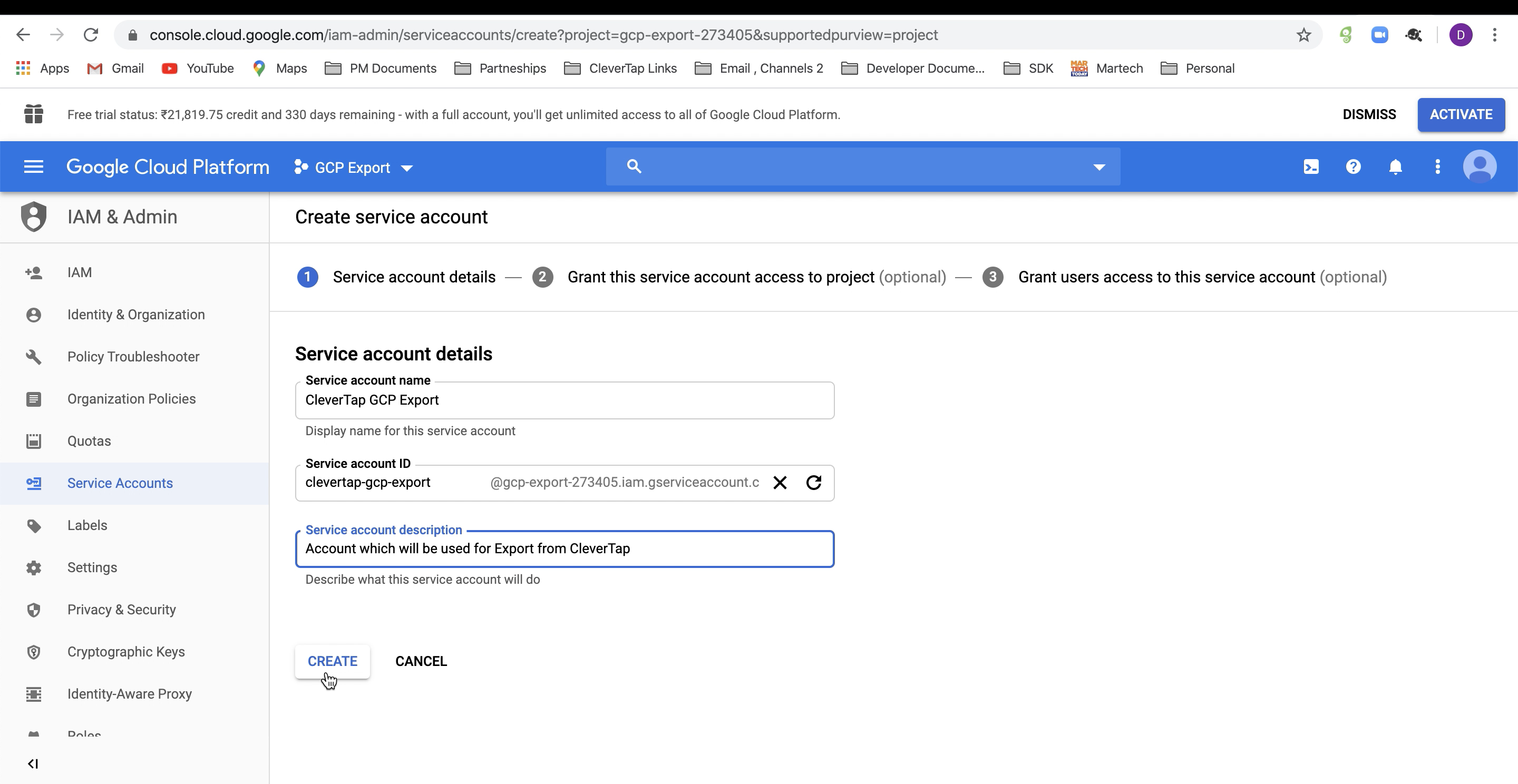
Create Service Account
-
Under Service account details, enter a Service account name (for example,
clevertap-storage) and a description. The console generates the Service account ID from the name. -
Click Create and continue.
-
(Optional) Under Grant this service account access to project, leave the role empty. You grant the role on the bucket in Grant Service Account Access to Bucket, which limits CleverTap to that one bucket. If your organization requires project-level grants, grant Storage Object Viewer here for import, or a custom role for export. A project-level grant gives CleverTap access to every bucket in the project, and you can grant legacy roles only on a bucket.
Note the service account email, which uses the following format. You need the email to grant access to the bucket.
<service-account-id>@<project-id>.iam.gserviceaccount.com
For more information, refer to Google Cloud's Create service accounts documentation.
Create Bucket
A general-purpose bucket stores the files that CleverTap reads or writes.
-
From the left navigation, select Cloud Storage > Browser.
-
Click Create Bucket.
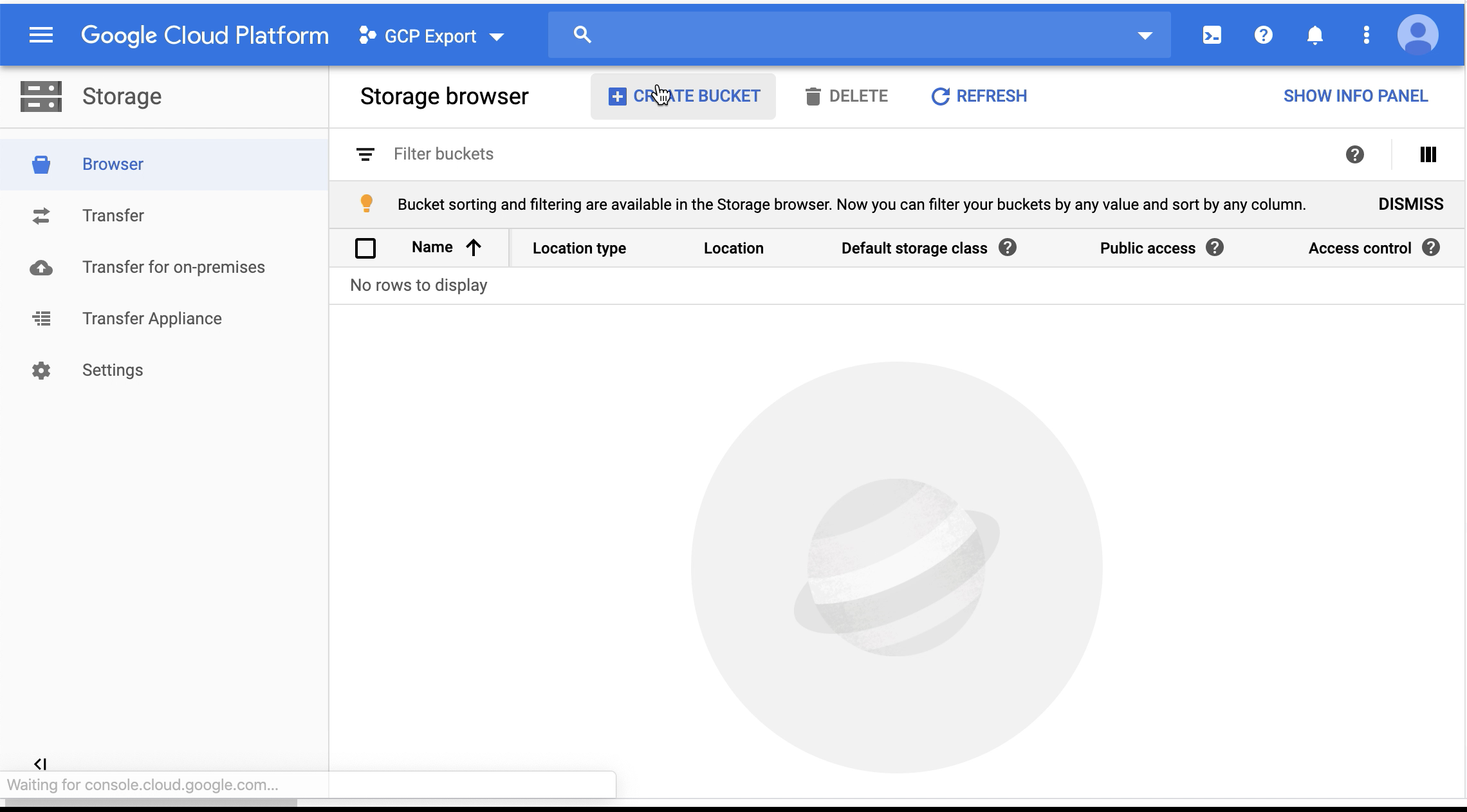
Create Bucket
-
Under Name your bucket, enter the bucket name. You enter this same name in Folder on the CleverTap dashboard, which identifies your bucket, and click Continue.
NoteBucket names must be 3 to 63 characters, contain only lowercase letters, numbers, dashes (-), underscores (_), and dots (.), and begin and end with a letter or number. Bucket names must be unique across all Google Cloud projects globally. For more information, refer to Google Cloud's bucket naming guidelines.
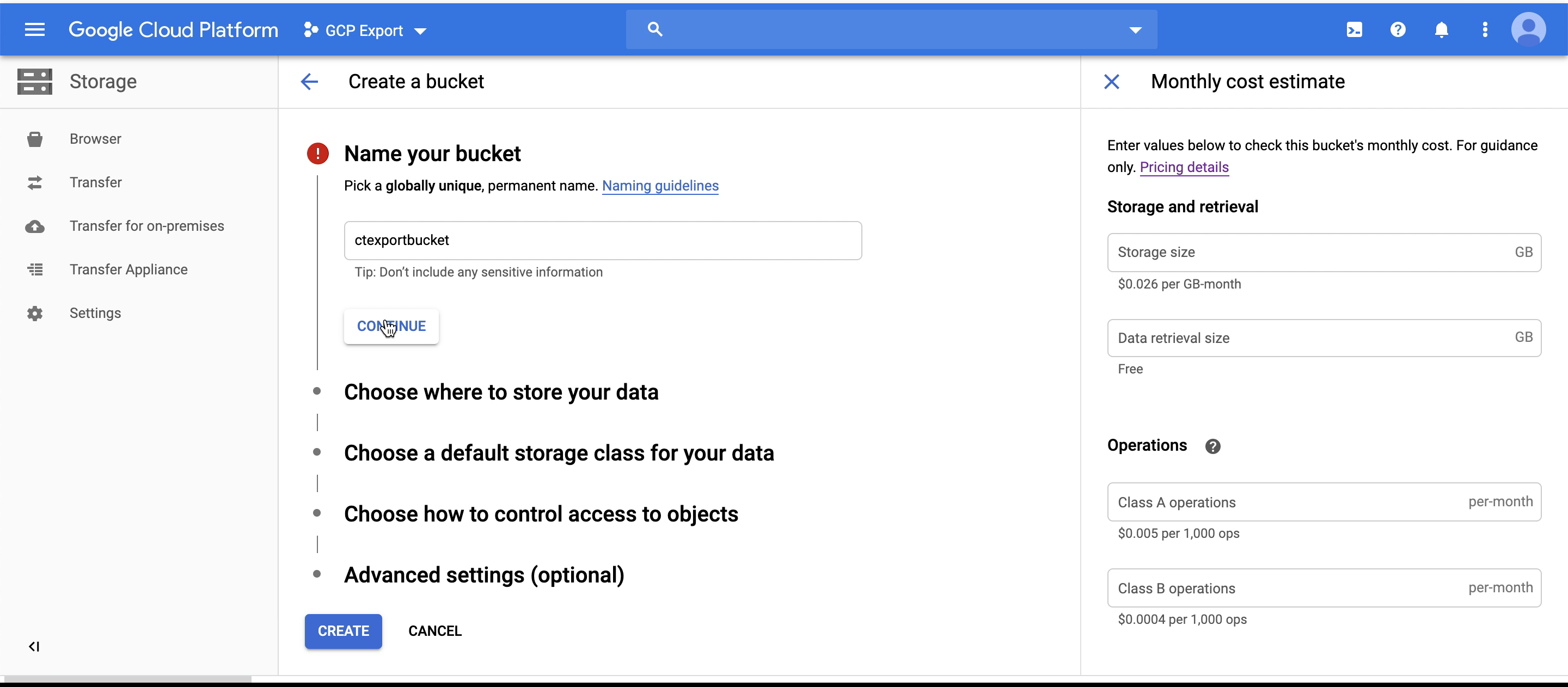
Name Your Bucket
-
Under Choose where to store your data, select any location type and location, and click Continue. CleverTap does not check the bucket location.
-
Under Choose a storage class for your data, select Standard and click Continue. Standard is recommended for import buckets, because colder storage classes add retrieval costs and latency. CleverTap does not check the storage class.
-
Under Choose how to control access to objects, select Enforce public access prevention on this bucket selected, Uniform access control, and click Continue. CleverTap does not use object ACLs.
-
Under Choose how to protect object data, keep the default soft delete policy and keep object versioning off, and do not enable a retention policy if the bucket is for export.
-
Under Data encryption, select Google-managed encryption key. If your organization requires a customer-managed encryption key, refer to Can I use a customer-managed encryption key on the bucket? before you select it.
-
Click Create.
Copy the bucket name, as you will need to enter it during the CleverTap configuration.
For more information, refer to Google Cloud's Create a bucket documentation.
CautionDo not enable a Retention policy on a bucket that you use for export. A retention policy prevents CleverTap from replacing existing files, and the export fails with
403: retentionPolicyNotMet. You cannot remove a locked retention policy, so you must create a new bucket. For more information, refer to Google Cloud's Use and lock retention policies documentation.
Create Subfolder for Import
For an import connection, you can optionally create a subfolder so that CleverTap reads only from a specific path within the bucket.
NoteFor an export connection, you set the folder path when you create the export job, and Cloud Storage creates the path when CleverTap writes the first file, so you do not need to create a subfolder in advance.
To create a subfolder, perform the following steps:
-
Select your bucket from the Buckets list.
-
Click Create folder.
-
Enter a folder name and click Create.
-
Copy the folder name as you need to enter it in the Subfolder field on the CleverTap dashboard.
For more information, refer to Google Cloud's Folders overview documentation.
Create Custom Role for Export (Optional)
A custom role gives the service account only the permissions that CleverTap uses for export, which matters when your security policy does not permit the storage.objects.delete permission in Storage Legacy Bucket Writer. Creating a custom role requires the Role Administrator (roles/iam.roleAdmin) role on the project.
-
From the navigation menu, select IAM & Admin > Roles.
-
Select your project from the dropdown at the top of the page.
-
Click Create custom role.
-
Enter a Title (for example,
CleverTap Export Writer), a Description, and an ID. Keep the Role launch stage as General Availability. -
Click Add permissions.
-
In the Filter box, enter each of the following permissions, select the permission, and click Add:
storage.buckets.getstorage.objects.createstorage.objects.list
-
Click Create.
The custom role now appears under Assign roles when you grant access on the bucket. For more information, refer to Google Cloud's Create and manage custom roles documentation.
Grant Service Account Access to Bucket
Granting the service account a role on the bucket lets CleverTap read files (import) or write files (export), and it limits CleverTap's access to that one bucket.
CleverTap uses the following Cloud Storage permissions:
| Permission | Import | Export |
|---|---|---|
storage.objects.list | Required | Recommended |
storage.objects.get | Required | Not needed |
storage.objects.create | Not needed | Required |
storage.buckets.get | Not needed | Required |
Grant the role that matches your connection type:
| Connection Type | Description | Role to Grant | Permissions Included |
|---|---|---|---|
| Import | Includes exactly the permissions that import requires. | Storage Object Viewer (roles/storage.objectViewer) | storage.objects.get, storage.objects.list |
| Export (Recommended) | The smallest predefined role that includes both storage.buckets.get and storage.objects.create. It also includes storage.objects.delete, which CleverTap does not use. You can grant legacy roles only on a bucket, not on a project. | Storage Legacy Bucket Writer (roles/storage.legacyBucketWriter) | storage.buckets.get, storage.objects.list, storage.objects.create, storage.objects.delete |
| Export (Least Privilege) | Use this role when your security policy does not permit the extra storage.objects.delete permission. For more information, refer to Create Custom Role for Export. | A custom role that contains storage.buckets.get, storage.objects.create, and storage.objects.list | Only the listed permissions |
Important
- Storage Object Creator is not sufficient for export. It does not include
storage.buckets.get, so the export connection fails with a 403 error when you click Save.- Do not grant Storage Admin to the service account. The role includes
storage.buckets.*andstorage.objects.*, and when you grant it at the project level, it lets the key holder delete or change the IAM policy on every bucket in the project. CleverTap never requires it.
To grant access to the bucket, perform the following steps:
-
From the left navigation, select Cloud Storage > Buckets and select your bucket.
-
Select the Permissions tab.
-
Click Grant access.
-
Under Add principals, paste the service account email that you noted in Create Service Account.
-
Under Assign roles, select Storage Object Viewer for an import connection, or Storage Legacy Bucket Writer (or your custom role) for an export connection. If you use the same bucket for both import and export, add both roles.
-
Click Save.
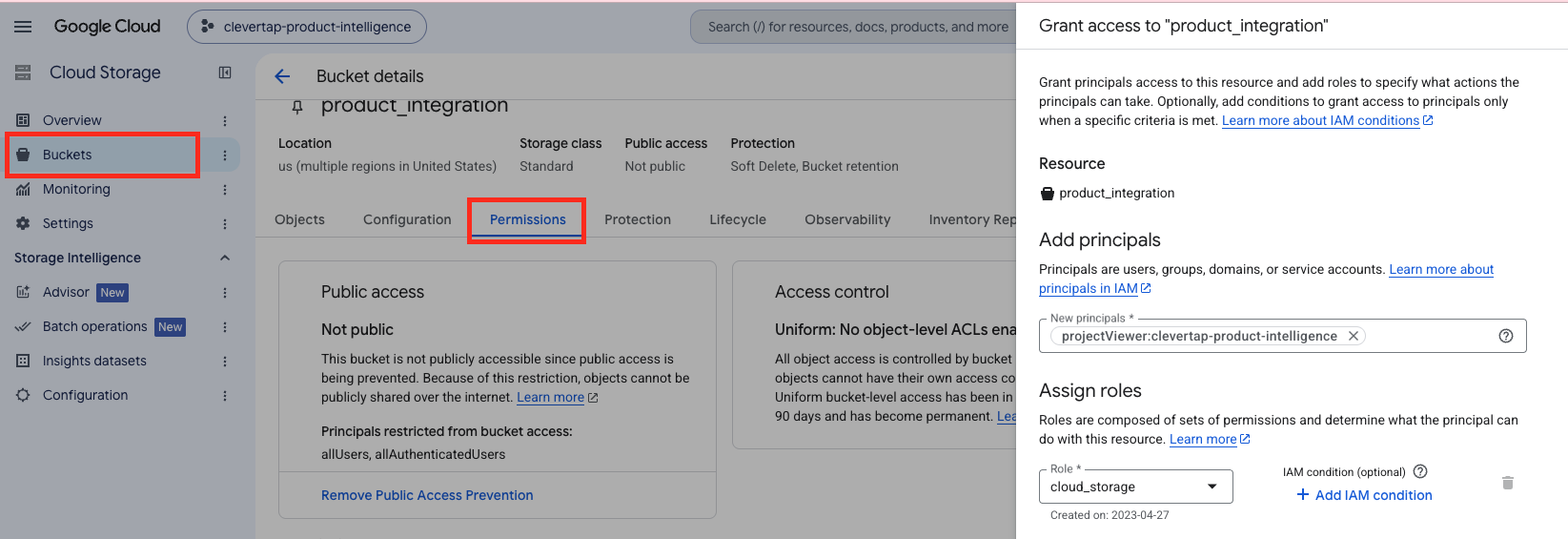
Grant Access
For more information, refer to Google Cloud's Set and manage IAM policies on buckets and IAM roles for Cloud Storage documentation.
Create Service Account Key
The Service Account Key is the credential that you provide to CleverTap.
-
From the left navigation, select IAM & Admin > Service Accounts.
-
Click the email address of the service account that you created.
-
Select the Keys tab.
-
Click Add key and select Create new key.
-
Under Key type, keep JSON and click Create. The JSON key file downloads to your machine automatically.
Security Best PracticeSave the downloaded JSON key securely, because Google Cloud does not let you download it again. If you believe the key has leaked, delete it from the Keys tab, create a new one, and update the connection on the CleverTap dashboard.
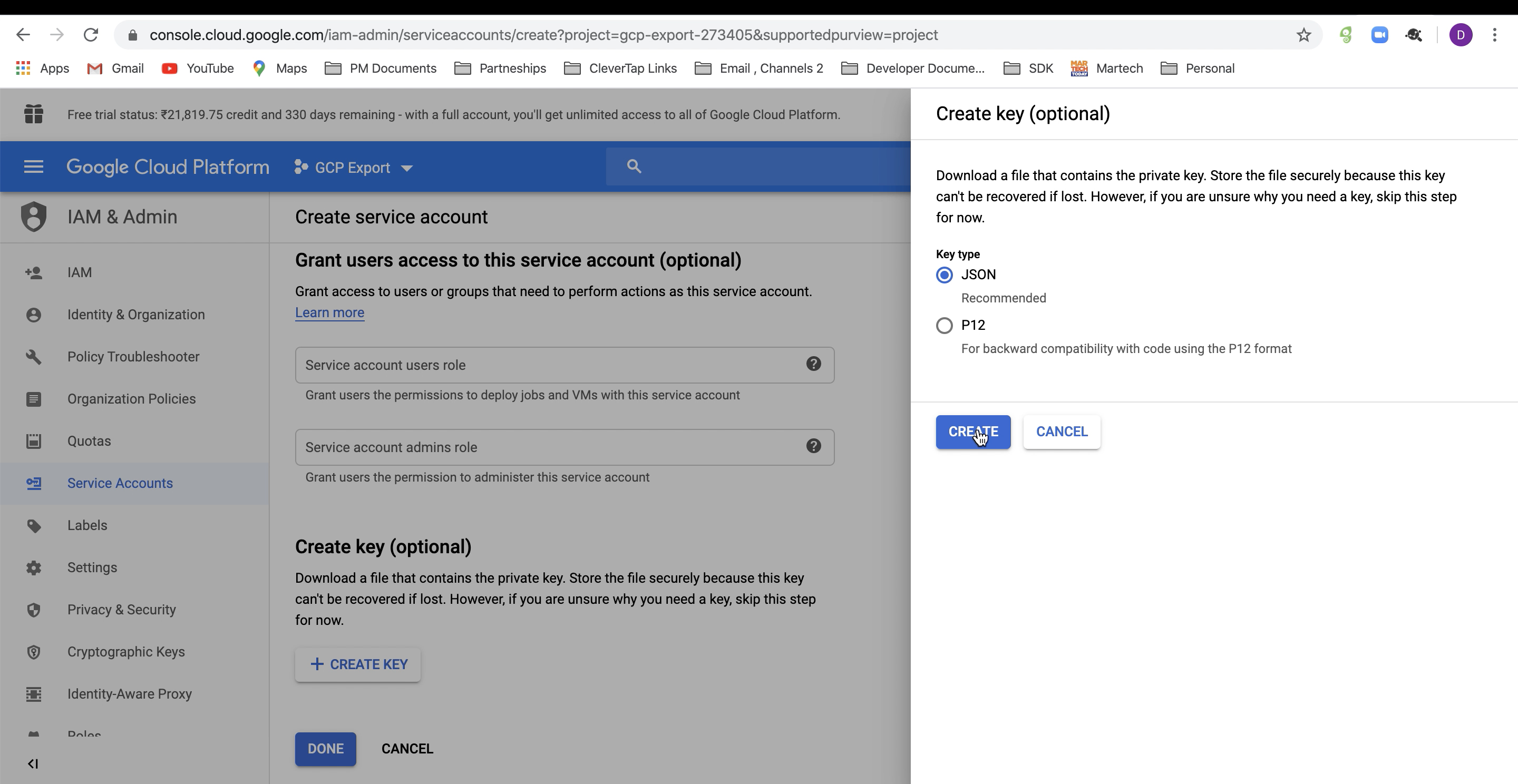
Create Service Account Key
For more information, refer to Google Cloud's Create and delete service account keys documentation.
Key Creation DisabledIf Create new key is unavailable or Google Cloud shows "Service account key creation is disabled," your organization enforces the Disable service account key creation policy (
iam.managed.disableServiceAccountKeyCreation) policy. Ask an Organization Policy Administrator to add an exception for your project under IAM & Admin > Organization Policies > Disable service account key creation, and then repeat these steps. For more information, refer to the Allow service account key creation section of Google Cloud's Create and delete service account keys documentation.
Configure Google Cloud Storage in CleverTap
Add the bucket details and the Service Account Key on the CleverTap dashboard to complete the connection, as follows:
-
On the CleverTap dashboard, go to Settings > Partners and select Google Cloud on the Integrations tab.
-
Select the connection type:
- For import, select the Import Connections tab.
- For export, select the Export Connections tab.
-
Click Add Google Cloud Bucket.
-
Under Bucket Details, enter the details in the following table:
Field Description Import Export Connection name A unique name that identifies this connection in CleverTap, for example, events-prod-gcp.Yes Yes Folder Required. The name of the GCS bucket. The name must match your bucket name in Google Cloud exactly, for example, product_integration.Yes Yes Subfolder Optional. A path within the bucket if your import files are in a subdirectory, for example, file_based. CleverTap reads only from this path. For export, you set the folder path when you create the export job.Yes No Preview Displays the resulting path that CleverTap uses: gs://<folder>/<subfolder>for import andgs://<folder>for export. Verify the path before you proceed.Yes Yes Google Service Account Key Required. Select Upload JSON file to upload your downloaded Service Account Key file (1 MB maximum, JSON only), or select Custom key to paste the key contents instead. Paste the complete file, including the opening and closing braces. Yes Yes Field MappingThe CleverTap dashboard does not have a separate field labeled "Bucket name." The Folder field identifies your bucket, so enter your bucket name there, for example,
product_integration. For import connections, use Subfolder only if CleverTap should read from a directory nested inside that bucket.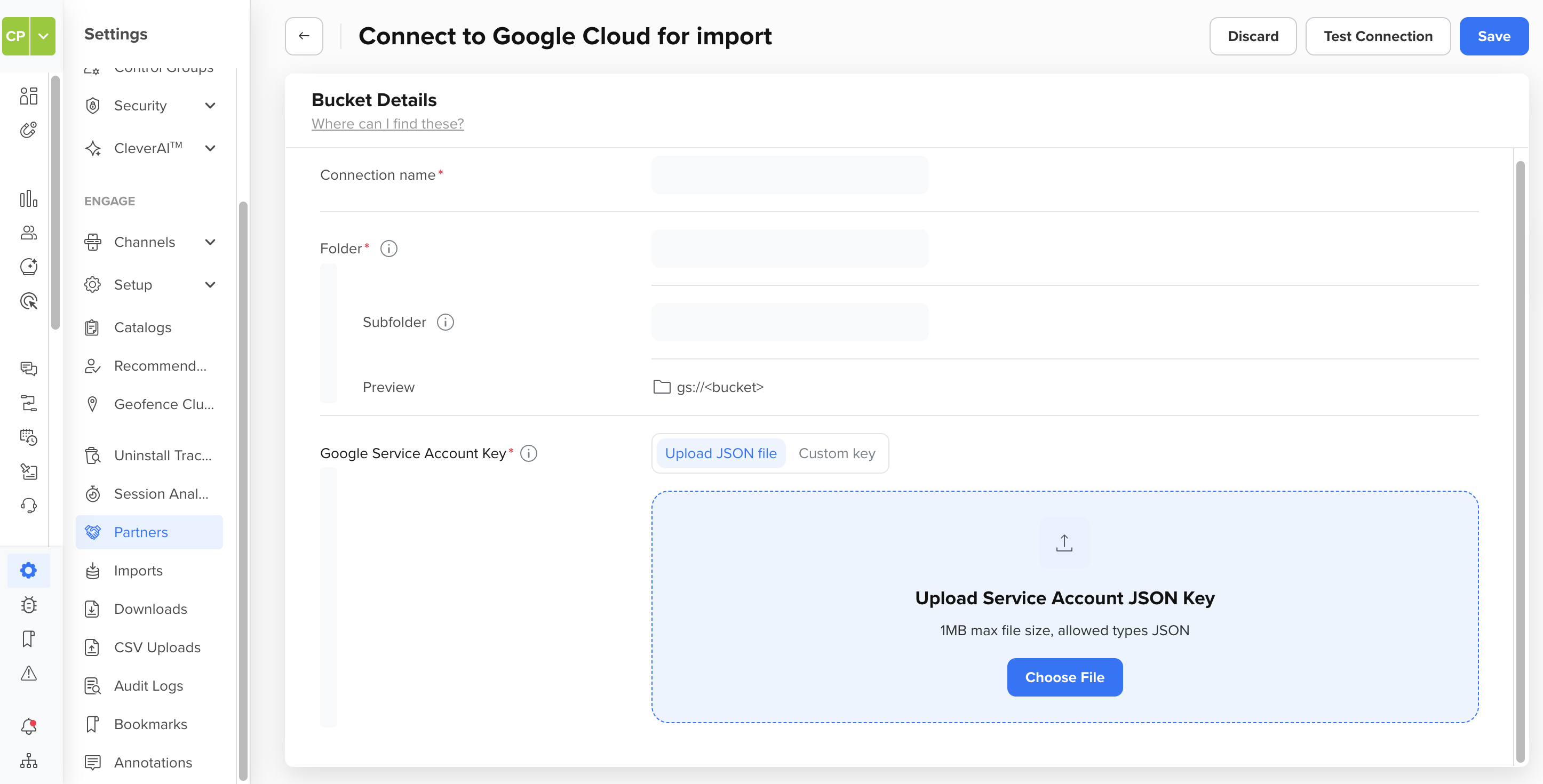
Google Cloud Bucket Details
-
Verify and save:
- Import: Click Test Connection. CleverTap lists the bucket and the subfolder, if you entered one, using the Service Account Key. When the test succeeds, click Save.
- Export: Click Save. CleverTap uploads a test file to the bucket you specified and saves the connection only if the upload succeeds.
If the test or save fails, refer to FAQs.
The Google Cloud Storage bucket is now configured on both Google Cloud and the CleverTap dashboard.
FAQs
What permissions does CleverTap need?
For import, CleverTap needs read access on the bucket: storage.objects.get and storage.objects.list, both of which Storage Object Viewer includes. For export, CleverTap needs storage.objects.create and storage.buckets.get on the bucket, and storage.objects.list is recommended. Storage Legacy Bucket Writer includes all three, or you can create a custom role with exactly those permissions. CleverTap never requires Storage Admin.
Can I use one connection for both import and export?
No. You configure import and export connections separately under Import Connections and Export Connections. You can point both connections at the same bucket, and you grant the service account both roles on that bucket.
Does the bucket have to be in a specific location?
No. Any Google Cloud location type and location works.
Can I use a customer-managed encryption key on the bucket?
You can set a customer-managed encryption key (CMEK) from Cloud KMS as the default encryption key of the bucket. Cloud Storage performs the encryption and decryption through the Cloud Storage service agent of your project, so grant that service agent the Cloud KMS CryptoKey Encrypter/Decrypter (roles/cloudkms.cryptoKeyEncrypterDecrypter) role on the key. Create the key ring in the same location as the bucket. If the service agent loses access to the key, Cloud Storage cannot decrypt the objects that the key encrypts. For more information, refer to Google Cloud's Use customer-managed encryption keys documentation.
How can I limit which files CleverTap reads from my bucket?
Use the Subfolder field on the import connection to point CleverTap to a specific directory within your bucket. CleverTap reads only from that path. For stricter isolation, create a dedicated bucket for CleverTap and grant the service account a role on that bucket only.
How do I whitelist CleverTap's IP addresses for my bucket?
CleverTap connects to Google Cloud Storage from fixed IP ranges. If your organization restricts access to Cloud Storage by source IP, for example, through a VPC Service Controls access level, allow the ranges for the connection type that you use. The import and export ranges differ:
- Export: Refer to CleverTap IP Ranges.
- Import: Refer to How can I whitelist IPs for CleverTap integration? in the Import FAQs.
IP whitelisting does not replace the IAM role grant. The service account still needs the role described in Grant Service Account Access to Bucket.
What happens if I delete or rotate my Service Account Key in Google Cloud?
Imports and exports that use the connection fail. For export, CleverTap also emails the export creator with the error "Credentials are incorrect, GCP account is forbidden" (403). Create a new JSON key in Google Cloud, go to Settings > Partners > Google Cloud, and edit the connection on the relevant tab. Upload the new JSON file or paste the new key under Custom key. For import, click Test Connection and then Save. For export, click Save. Confirm that the service account still has the role on the bucket.
How does CleverTap notify me when an export stops?
CleverTap checks exports for failures every hour. If an error occurs, CleverTap sends three emails to the export creator within three days. The first two emails include the error details and a link to fix the problem, and they warn that the export stops if you do not fix the problem within three days. The third email notifies the export creator that CleverTap stopped the export.
Why does Google Cloud show "Service account key creation is disabled"?
Your organization enforces the iam.managed.disableServiceAccountKeyCreation policy, which is the default for organizations created on or after May 3, 2024. Ask an Organization Policy Administrator to exempt the project, and then create the key again. For more information, refer to Create Service Account Key.
Why does Google Cloud show "The requested bucket name is not available"?
GCS bucket names are unique across all Google Cloud projects, so another project already uses the name. Choose another name, for example, by appending your company name or project ID. Then enter the final name in the Folder field on the CleverTap dashboard.
Why does Test Connection fail for an import connection?
The Folder does not match the bucket name, the Subfolder does not exist, the service account lacks storage.objects.list or storage.objects.get, or the key is incomplete or someone deleted it. Confirm that Folder matches the bucket name exactly (the match is case-sensitive), confirm that the subfolder exists, confirm that the service account has Storage Object Viewer on the bucket, and confirm that the uploaded JSON is under 1 MB and still appears on the Keys tab.
Why does Save fail with a 403 error for an export connection when the service account has Storage Object Creator?
Storage Object Creator does not include storage.buckets.get, which CleverTap requires to verify the bucket before it uploads. Replace the role with Storage Legacy Bucket Writer, or grant a custom role that includes storage.buckets.get, storage.objects.create, and storage.objects.list. For more information, refer to Grant Service Account Access to Bucket.
Why does Save fail for an export connection when CleverTap cannot upload the test file?
The Folder does not match the bucket name, the service account lacks storage.objects.create or storage.buckets.get, the bucket has a retention policy, or your organization blocks the export IP ranges of CleverTap. Confirm that Folder matches exactly, confirm the role on the bucket, check the Protection tab of the bucket for a retention policy, and confirm that your organization allows the export IP ranges if it restricts access by IP. For more information, refer to How do I whitelist CleverTap's IP addresses for my bucket?.
Why does an export fail with 403: retentionPolicyNotMet?
A retention policy is active on the bucket, so CleverTap cannot write or replace files. To remove the policy:
- Open the Google Cloud console and go to Cloud Storage > Buckets.
- Select the bucket.
- Go to the Protection tab.
- In the Retention policy (for compliance) section, click the Delete icon.
If the Delete icon is disabled, someone locked the policy, and you cannot remove it. In that case, create a new bucket without a retention policy and update the connection.
Why does an import run but read no files?
The Subfolder points to a path that contains no CSV or Parquet files, the files are in a different folder, or your organization blocks the import IP ranges of CleverTap. Verify that the path under Preview matches the location where your pipeline writes the files. If your organization restricts access by IP, confirm that it allows the import IP ranges. For more information, refer to How do I whitelist CleverTap's IP addresses for my bucket?.
Next Steps
After you configure the connection, you can create imports and exports that use it.
- Create an import that reads from this connection. For more information, refer to Create Import, Map Data for Import, Schedule Import, and Import Listing and Stats.
- Create an export that writes to this connection. For more information, refer to Cloud Storage, Event Exports, or Profile Exports.
Updated about 1 hour ago