
Authenticate with IAM Policy Using SSE-KMS Encryption
Understand how to encrypt CleverTap exports to Amazon S3 using your own AWS KMS key.
Overview
Use an IAM Policy with SSE-KMS Encryption to export data to an Amazon S3 bucket and encrypt every exported file with a customer-managed AWS Key Management Service (KMS) key that you own. This method works for export connections only.
Setting up Amazon S3 for SSE-KMS encryption requires a symmetric KMS key, a CleverTap-generated statement added to the key policy, a bucket policy applied to your S3 bucket, and the KMS key ARN entered on the CleverTap dashboard. The statement allows CleverTap's AWS account to encrypt, decrypt, and generate data keys with your key, and you can revoke that access at any time by removing the statement from the key policy. CleverTap specifies your key on every file that it writes, so the default encryption setting of the bucket is optional.
This method builds on the IAM Role method: you apply a bucket policy generated by the CleverTap dashboard, and no IAM user or access key is needed.
Prerequisites for Integration
Before you configure IAM Policy with SSE-KMS Encryption, ensure that the CleverTap bucket details, the AWS permissions, and the key administrator are available.
- Bucket details entered on the CleverTap dashboard with IAM Policy with SSE-KMS Encryption selected under Configure with. For more information, refer to Add Bucket on CleverTap Dashboard and Enter Folder Name.
- AWS console access with permissions to create KMS keys (
kms:CreateKey,kms:PutKeyPolicy), create or edit S3 buckets, and edit bucket policies - An IAM user or role in your AWS account that administers the key, which you select as the key administrator during key creation
- The AWS region of the bucket, because you must create the KMS key in the same region
Set Up Amazon S3 for Integration
Setting up Amazon S3 for SSE-KMS encryption requires four tasks. You can create the S3 bucket before or after creating the KMS key.
The setup involves the following four steps:
- Copy KMS Policies from CleverTap.
- Create KMS Key on AWS.
- Apply Bucket Policy to Your S3 Bucket.
- Configure Connection on CleverTap.
If you already have a suitable KMS key, skip to Use an Existing KMS Key.
Copy KMS Policies from CleverTap Dashboard
When you select IAM Policy with SSE-KMS Encryption, the dashboard shows three items under Configure with: a generated KMS Key Policy (a single policy statement), a KMS Key ARN field, and a generated IAM policy (the bucket policy).
-
On the Connect to Amazon S3 for export page, confirm that Folder contains your exact bucket name.
-
Under Configure with, select IAM Policy with SSE-KMS Encryption.
-
Under KMS Key Policy, click the copy icon and save the statement in a text editor. You use the statement in Create KMS Key on AWS.
-
Under IAM policy, click the copy icon and save the policy in a text editor. You use the policy in Apply IAM Policy to S3 Bucket.
NoteThe KMS Key Policy is a single statement, not a complete key policy document. In Create KMS Key on AWS, you add the statement to the existing
Statementarray of the key policy and do not replace the policy. Keep this page open, and return to it to enter the KMS key ARN and save the connection.
Create KMS Key on AWS
A symmetric KMS key encrypts the data CleverTap exports, and the CleverTap statement in the key policy allows CleverTap to use the key to encrypt data. I
If you already have a symmetric KMS key with Encrypt and decrypt usage in your bucket region, open the key from Key Management Service (KMS) > Customer managed keys. Click Edit under Key policy, add the CleverTap statement as described in step 7 below, and save the policy. Copy the ARN of the key, and skip to Enable SSE-KMS Encryption on S3 Bucket.
ImportantCleverTap supports only symmetric keys with Encrypt and decrypt usage, and you cannot change the key type or usage after creation. CleverTap does not support asymmetric keys, HMAC keys, or multi-region keys in a different primary region.
To create a KMS Key on AWS, perform the following steps:
-
Log in to your AWS console, confirm that the console region matches your bucket region, and go to the Key Management Service (KMS).
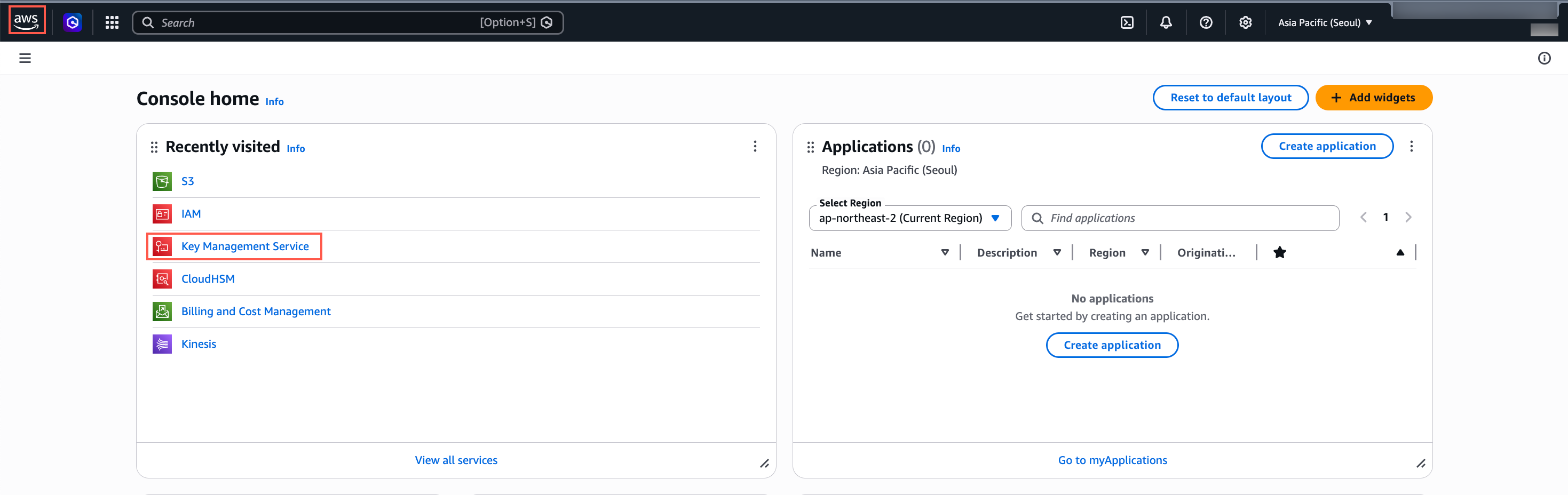
Key Management Service (KMS) - AWS S3
-
Select Customer managed keys from the left navigation, then click Create key.
-
Configure key, under Key type, select Symmetric, and under Key usage, select Encrypt and decrypt. Under Advanced options, select KMS as the key material origin, Single-Region key as the Regionality, and click Next.
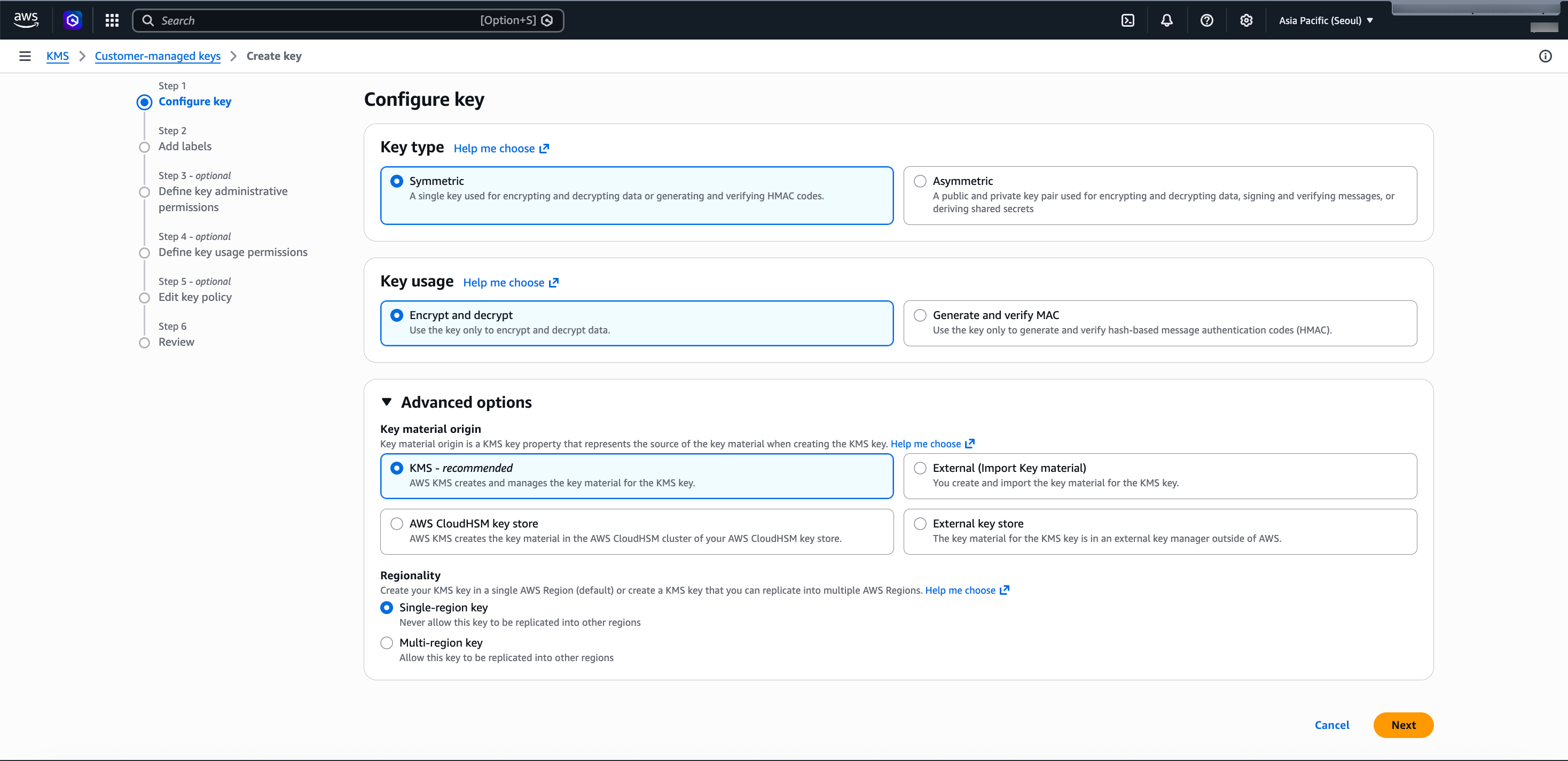
Configure KMS - AWS S3
-
Add labels; enter an Alias for the key, for example,
clevertap-export-keyand click Next. -
Define key administrative permissions, select the IAM user or role that administers the key, and click Next.
-
Define key usage permissions, optionally select the IAM users or roles in your account that read (decrypt) the exported files, and click Next.
-
Under Edit key policy, click Edit, and add the KMS key policy statement that you copied from CleverTap to the existing
Statementarray. Use a comma to separate the new statement from the existing one.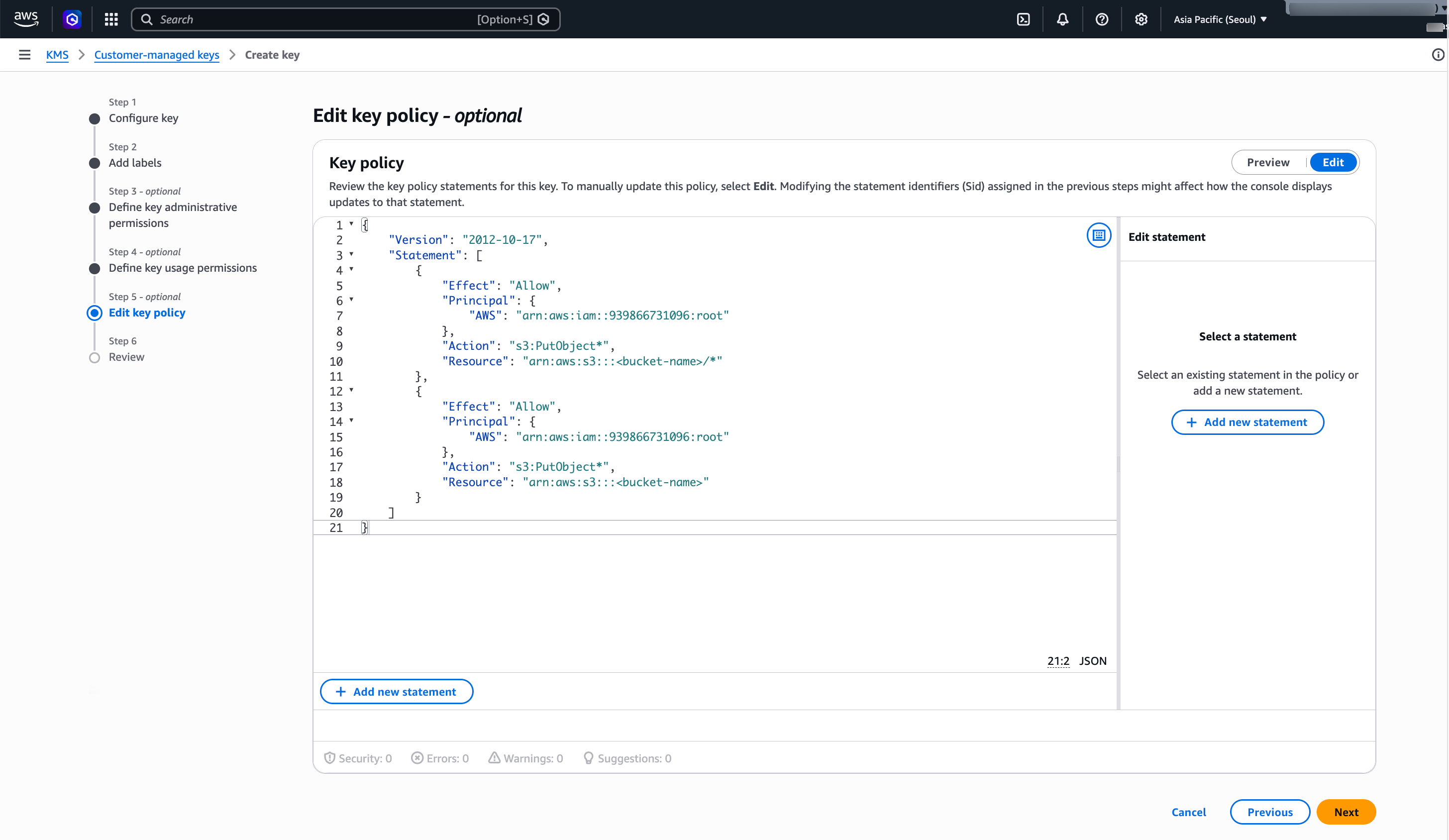
Paste Key Policy from CleverTap Dashboard
-
Click Next, review the configuration, and click Finish.
-
Open the key from the Customer managed keys list and copy its ARN. You can use the ARN in Enable SSE-KMS Encryption on S3 Bucket and Configure Amazon S3 in CleverTap.
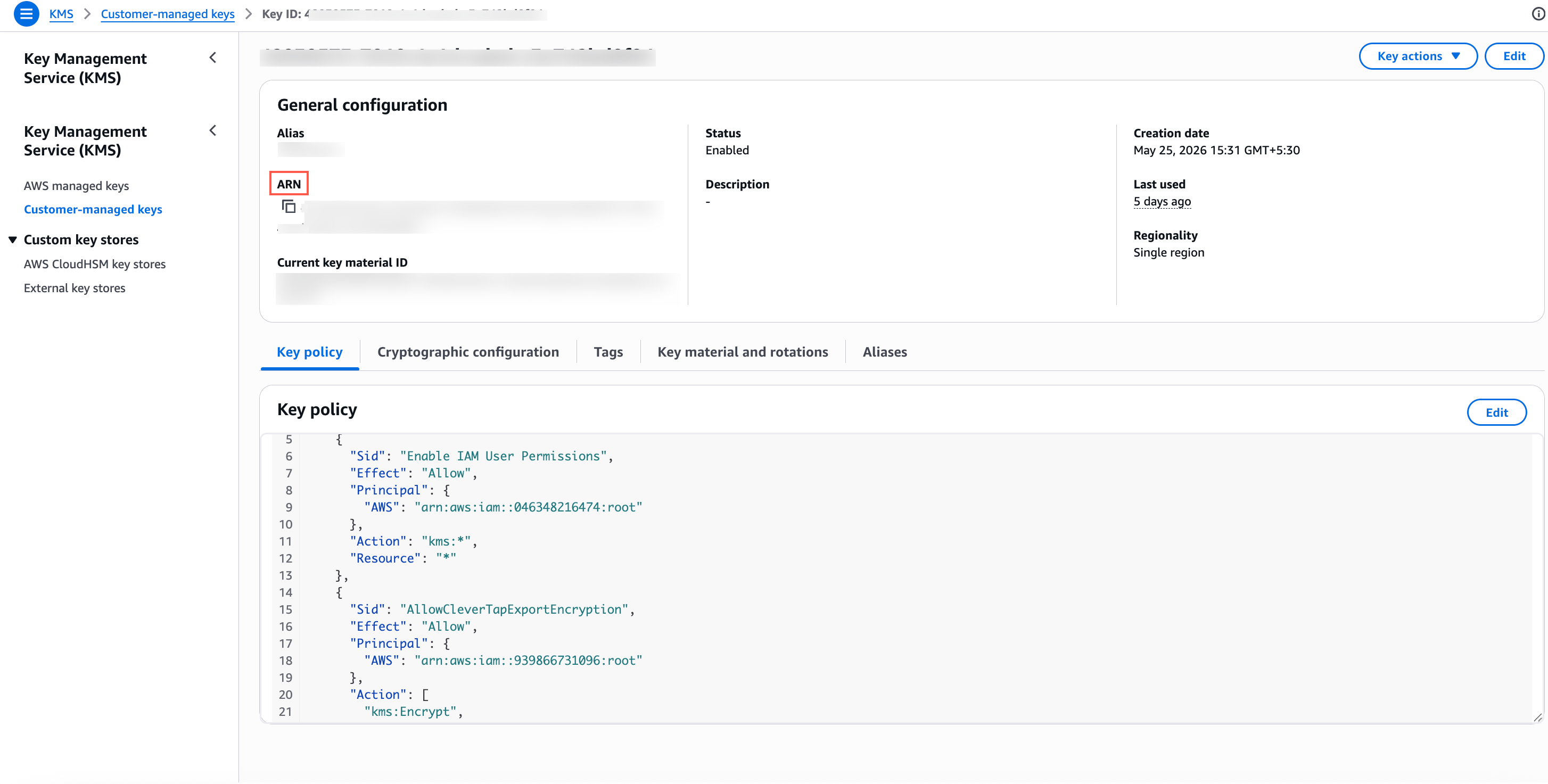
Copy ARN - AWS S3
Enable SSE-KMS Encryption on S3 Bucket
The default encryption setting of the S3 bucket applies your KMS key to every object that CleverTap exports.
ImportantThe key must be in the same AWS region as the bucket. S3 does not accept a single-region key from another region.
New Bucket
A new bucket uses the KMS key during creation. Follow the steps in Create S3 Bucket on AWS. In step 9, select Server-side encryption with AWS Key Management Service keys (SSE-KMS), select Enter AWS KMS key ARN, paste the key ARN, and keep Bucket Key set to Enable.
Existing Bucket
An existing bucket uses the KMS key through its default encryption setting.
-
In your AWS console, go to S3 and open the bucket.
-
Select the Properties tab and click Edit under Default encryption.
-
Select Server-side encryption with AWS Key Management Service keys (SSE-KMS).
-
Under AWS KMS key, select Enter AWS KMS key ARN and paste the key ARN.
-
Keep Bucket Key set to Enable and click Save changes.
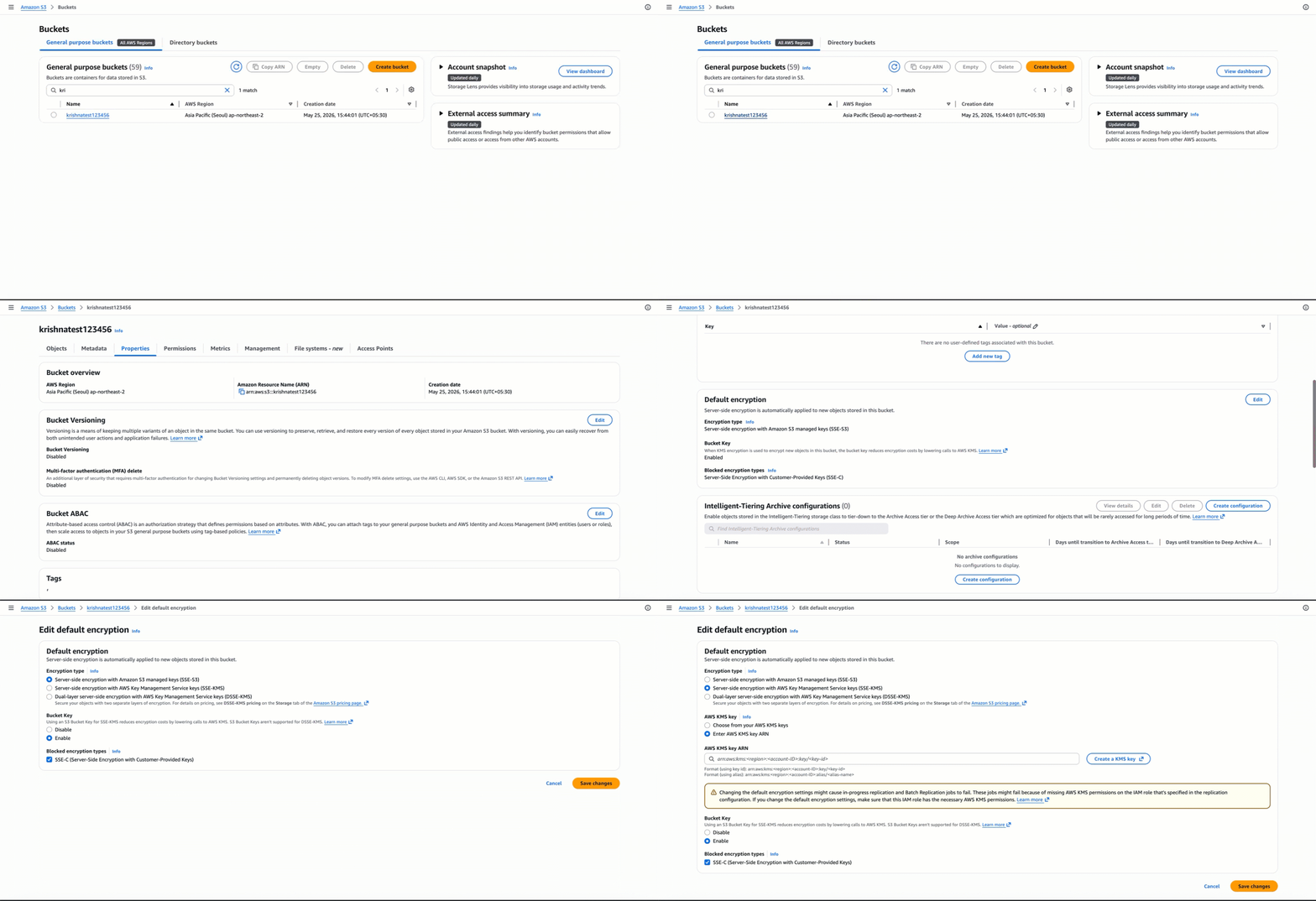
Select Server-Side Encryption with AWS Key Management Service Keys (SSE-KMS)
Apply IAM Policy to S3 Bucket
The IAM policy that CleverTap generates grants CleverTap write access to export data to your bucket.
-
In your AWS console, go to S3 and open the bucket that you created or updated in Enable SSE-KMS Encryption on S3 Bucket.
-
Select the Permissions tab and click Edit under Bucket policy.
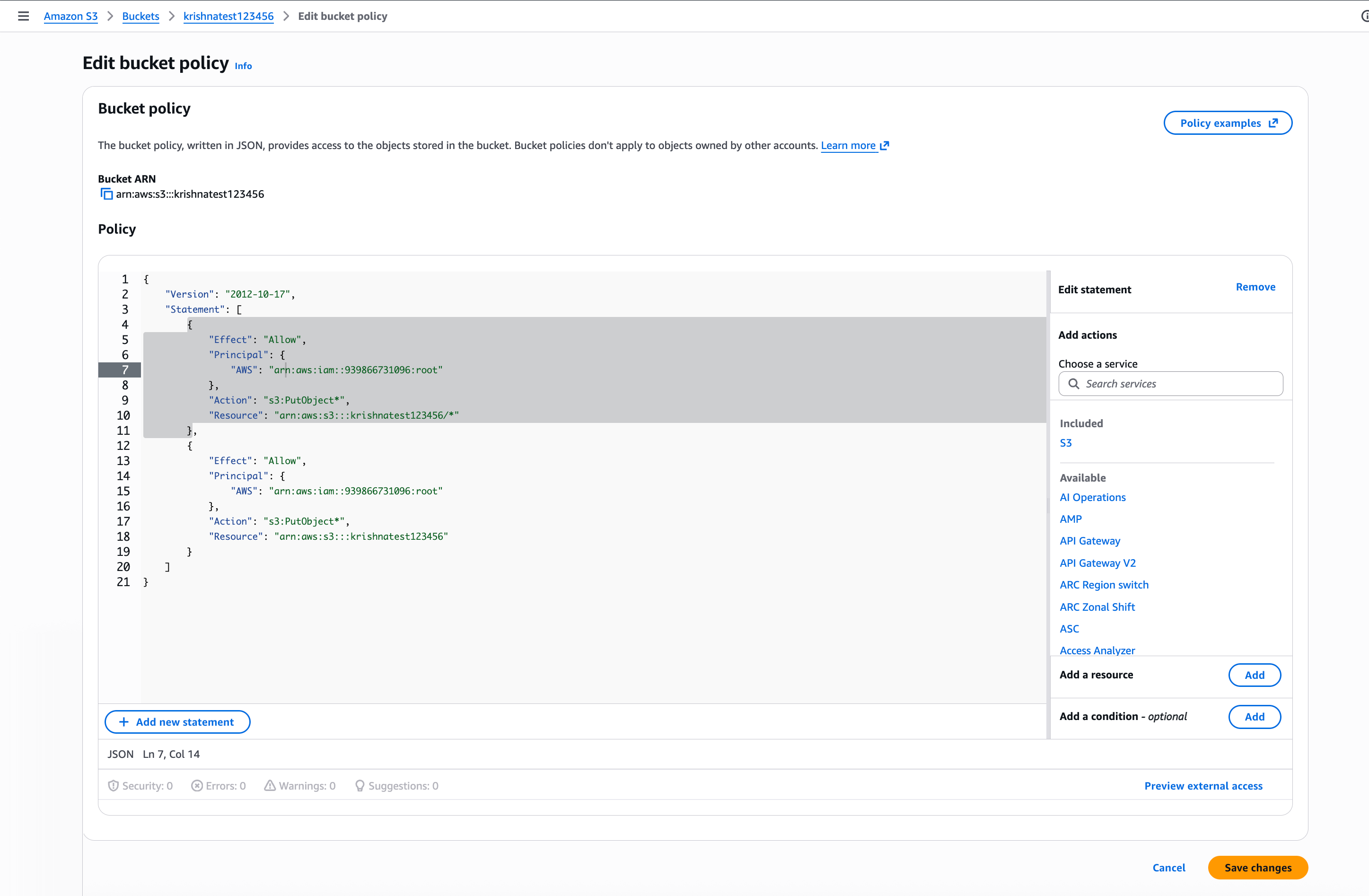
Edit Bucket Policy
-
Add the CleverTap policy to the bucket policy:
- If the bucket has no bucket policy, paste the policy that you copied from CleverTap.
- If the bucket has a bucket policy, add the CleverTap statements to the existing
Statementarray.
-
Click Save changes.
ImportantDo not remove or replace existing statements in the bucket policy. Replacing the policy removes permissions that other systems depend on.
Configure Amazon S3 in CleverTap
The CleverTap dashboard needs the ARN of the KMS key that your bucket uses.
-
Return to the Connect to Amazon S3 for export page that you left open.
-
Under Configure with, confirm that IAM Policy with SSE-KMS Encryption is selected.
-
In KMS Key ARN, paste the ARN that you copied in Create KMS Key on AWS. The ARN uses the following format:
arn:aws:kms:<region>:<account-id>:key/<key-id>
Verify Integration
CleverTap verifies the connection when you save it, after you have saved both the key policy and the bucket policy on AWS.
-
Confirm that you saved the key policy and the bucket policy on AWS.
-
Click Save. CleverTap uploads a test file to the bucket, encrypted with your KMS key, and it saves the connection only if the upload succeeds.
After the connection is saved successfully, the Amazon S3 bucket is configured with SSE-KMS encryption in both the AWS console and the CleverTap dashboard.
Review Security Configuration
The following checks confirm that the key, the bucket, and the CleverTap connection match before you use the connection in production.
- Confirm that the KMS key is symmetric, has Encrypt and decrypt usage, and is in the same region as the bucket.
- Confirm that the key policy contains the CleverTap
AllowCleverTapExportEncryptionstatement and at least one statement that lets your account administer the key. - Confirm that the default encryption of the bucket is SSE-KMS with this key and that Bucket Key is enabled.
- Confirm that the bucket policy contains the CleverTap statements and all pre-existing statements.
- Confirm that the KMS Key ARN on the CleverTap dashboard matches the key used by the bucket.
- Confirm that Save succeeded on the CleverTap dashboard.
- Confirm that a principal in your account with
kms:Decryptcan open the test file.
FAQs
Why does Finish fail with a MalformedPolicyDocumentException error?
The error message reads The new key policy will not allow you to update the key policy in the future. You replaced the default Enable IAM User Permissions statement with the CleverTap statement, or you did not select a key administrator. Click Previous to Step 3 and select a key administrator, or restore the default statement and add the CleverTap statement alongside it.
Why does Finish fail with a JSON syntax error?
You pasted the CleverTap statement without a separating comma, or outside the Statement array. Ensure that the statement sits inside "Statement": [ ... ] and that a comma separates it from the previous statement.
Why does S3 not accept the KMS key ARN under Default encryption?
The key is in a different region from the bucket, or you truncated the ARN. Create the key in the bucket region, then paste the complete ARN.
Why does Save fail on CleverTap even though the bucket policy is correct?
The CleverTap statement is missing from the key policy, so S3 cannot obtain a data key on CleverTap's behalf, or the KMS Key ARN field is empty or points to a different key than the bucket uses. Confirm that the AllowCleverTapExportEncryption statement exists on the key that the bucket uses, and that you entered the same ARN on CleverTap.
Why can't my team open the exported files?
The readers lack kms:Decrypt on the key. Add the readers as key users (Step 4 of key creation), or grant kms:Decrypt in the key policy.
Why is the bucket name that I want unavailable?
S3 bucket names are unique across all AWS accounts. Choose another name, and update Folder on CleverTap before you copy the policies.
Updated about 1 hour ago