
Product Catalog in Campaigns
Learn how to add a catalog to a campaign and reference catalog attributes to populate item-specific details in your messages at send time.
Overview
Product Catalog lets you reference product or content data directly in a campaign message. Instead of manually entering product names, images, or prices into your template, you reference catalog attributes as variables, and CleverTap resolves them per recipient at send time.
When you add a catalog block to a campaign and map its attributes, each recipient views item details populated from the matching catalog record, keeping your content accurate without manual updates.
How Catalog Data is Resolved at Send Time?Catalog attributes are not embedded when you build the campaign. At the moment CleverTap sends to each recipient, it looks up the catalog record and substitutes the mapped attributes into your template. If a catalog item is updated after the campaign is scheduled, the latest value is used at send time.
Use Cases
The following use cases show how different teams use catalog-driven personalization to keep messages accurate and relevant.
Trigger Catalog-Driven Messages Based on User Actions
Send a message when a product a user viewed drops in price. The message is triggered by the price change event and pulls the current product name, image, and price from the catalog at send time.
The following table lists example use cases by domain:
| Domain | Use case |
|---|---|
| OTT | Send a Price Drop notification when a title a user watched drops in price, pulling the title name, thumbnail, and updated price from the catalog. |
| E-commerce | Trigger a price-drop alert that displays the exact product name, the updated price, and an image sourced directly from the catalog when the price changes. |
| Travel | Trigger a fare-drop alert when the price of a route a user searched for decreases, pulling the destination name, updated fare, and booking link from the catalog. |
| Food delivery | Send a notification when a dish a user previously ordered is available at a reduced price, pulling the dish name, image, and updated price from the catalog. |
Keep Promotional Content Accurate
Build campaign templates that reference catalog attributes instead of static copy. When product details change, such as pricing, availability, or descriptions, the campaign reflects the latest values automatically, without rebuilding the template for each send.
The following table lists example use cases by domain:
| Domain | Use case |
|---|---|
| OTT | Feature a new release whose title, synopsis, and thumbnail are drawn from the catalog, so no template edits are needed when the lineup changes. |
| E-commerce | Run a flash-sale campaign that pulls featured product names and prices from the catalog at send time, eliminating the need to rebuild the campaign each time inventory changes. |
| Travel | Promote seasonal packages using catalog-sourced destination names, prices, and imagery that update automatically as inventory changes. |
| Food delivery | Send a Featured this week push where the dish name and image come from the catalog, so the campaign template stays the same across weeks. |
Maintain Consistency across Channels
Use the same catalog as the single source of truth for product details across email, push, SMS, and WhatsApp campaigns. A change to a catalog record propagates to every campaign that references it without requiring per-channel edits.
The following table lists example use cases by domain:
| Domain | Use case |
|---|---|
| OTT | Reference the same title details in both a push notification and a follow-up email without maintaining separate copies of the content. |
| E-commerce | Use catalog-sourced product names and images consistently in push, email, and WhatsApp campaigns so users see identical item details across channels. |
| Travel | Surface the same destination details and pricing in an SMS alert and a follow-up email from a single catalog record. |
| Food delivery | Use a single catalog entry to share a restaurant's details across a push notification and a promotional email campaign. |
Prerequisites
Before adding a catalog block to a campaign, confirm the following are in place:
-
At least one active product catalog with populated product records.
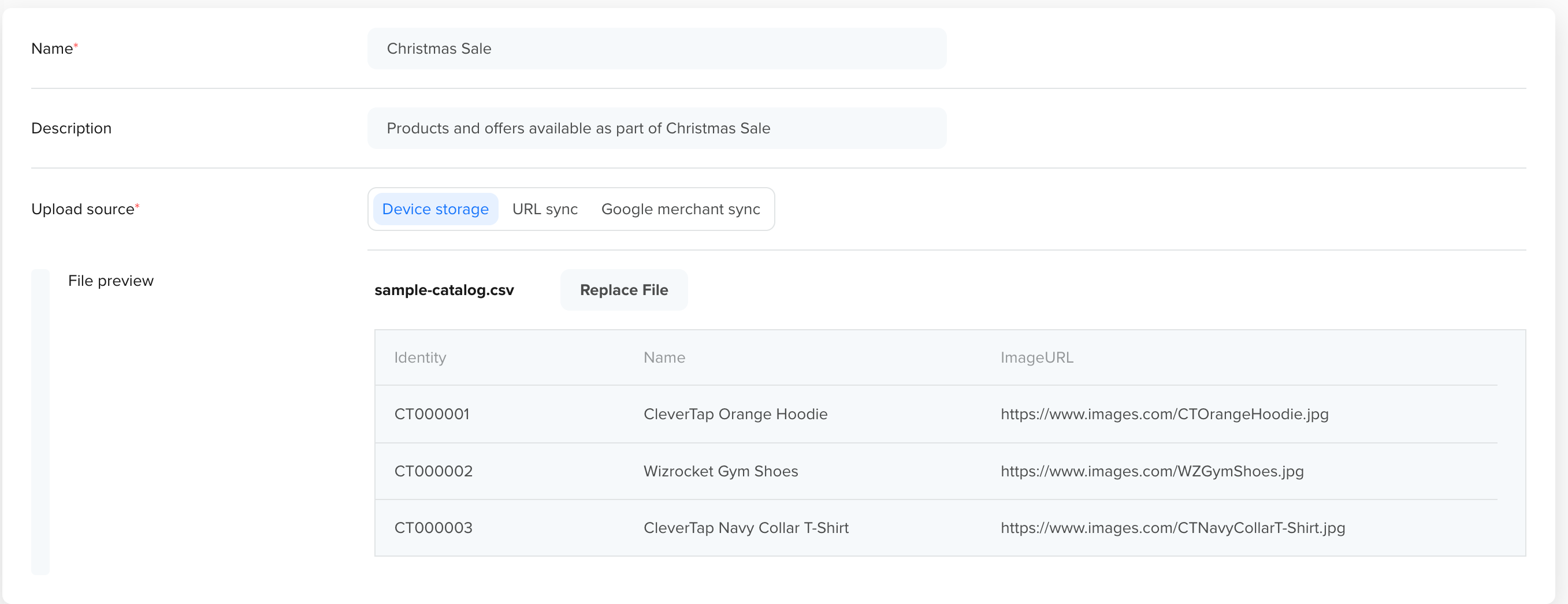
Product Catalog
-
The catalog includes the attributes you intend to use in the message, such as name, image URL, price, and product URL.
Add Catalog to Campaign
Open your campaign and go to the Content Editor. Click Personalize, select the Product Catalog tab, and complete the following steps:
- Select catalog
- Map catalog attributes
- (Optional) Apply include and/or exclude rules
- Reference catalog data in campaign message
Select Catalog
Choose a catalog from the dropdown. The selected catalog is the data source for the campaign. All attribute references in the message template are resolved against records in this catalog.
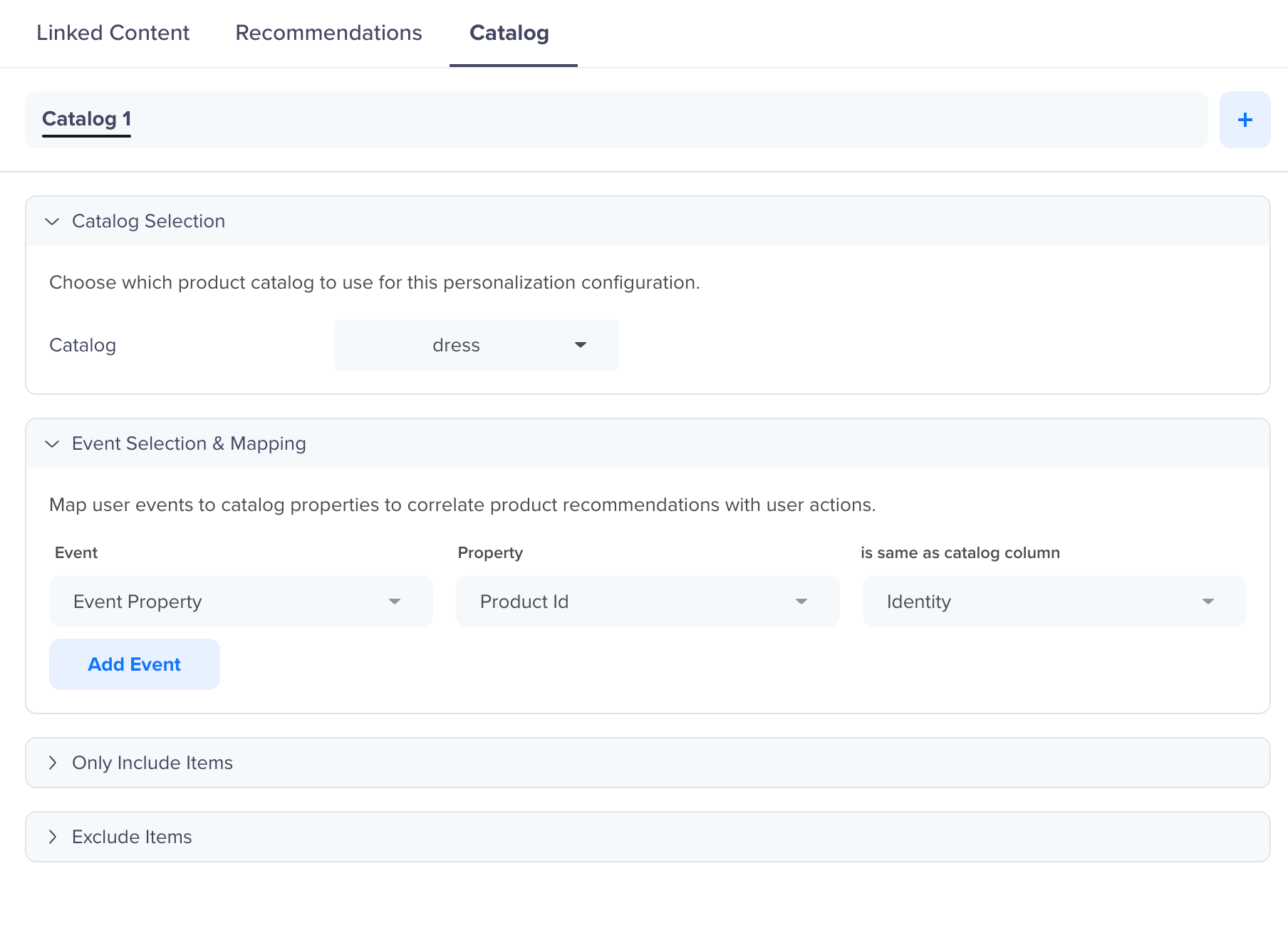
Select Catalog
Only active product catalogs are available for selection. If the catalog you need is not listed, verify its status on the Product Catalog page.
Map Catalog Attributes
Select the catalog attributes you want to use in the message template. Any attribute defined in the catalog schema is available to map.
Catalog attributes are mapped using one of two methods, depending on the campaign type.
Profile Mapping
Available for any campaign type that includes a Product Catalog tab. Maps a user's profile property to a catalog item identifier, so CleverTap looks up the catalog record that matches the value stored in the user's profile. Use this when the item to surface is derived from something known about the user.
For example, if a user's profile stores their preferred city ashome_city, you can map that to a catalog of travel destinations to surface city-specific deals.
Event Mapping
Available for Live campaigns only. Maps an event property from the triggering event to a catalog item identifier. Use this when the item to surface is determined by the action that fired the campaign. For example, the item_id from a Price Drop event is used to look up the matching catalog record.
For example, for an e-commerce campaign, you might map Product Name, Product Image, Price, and Product URL. These variables are then available in the Title and Message fields, so each message displays the correct details for the promoted item.
Once attributes are mapped, use Liquid Script to reference them in your campaign message.
If your campaign is triggered by a Charged event, you can reference item array properties from that event in Liquid Tags to look up the matching catalog record. This uses the same Event Mapping mechanism described above, rather than bypassing it.
Apply Include and/or Exclude Rules
Refine which catalog items are eligible to appear in the message using catalog-based rules. Rules are evaluated at send time.
Include Items
Add rules to restrict the items that can appear. Only items that match all the include rules are eligible.
For example, add a catalog rule In Stock = true to ensure only available items appear in the message.
Exclude Items
Add rules to prevent specific items from appearing. Items are removed from consideration only if they match all the exclusion rules, not just one.
For example, add a catalog rule Category = Clearance to prevent clearance items from appearing in a full-price promotion.
These rules help control relevance and prevent unintended items from surfacing in the message.
Reference Catalog Data in Campaign Message
Once the catalog is configured, use Liquid Tags in your Title and Message fields to pull mapped attribute values into the template.
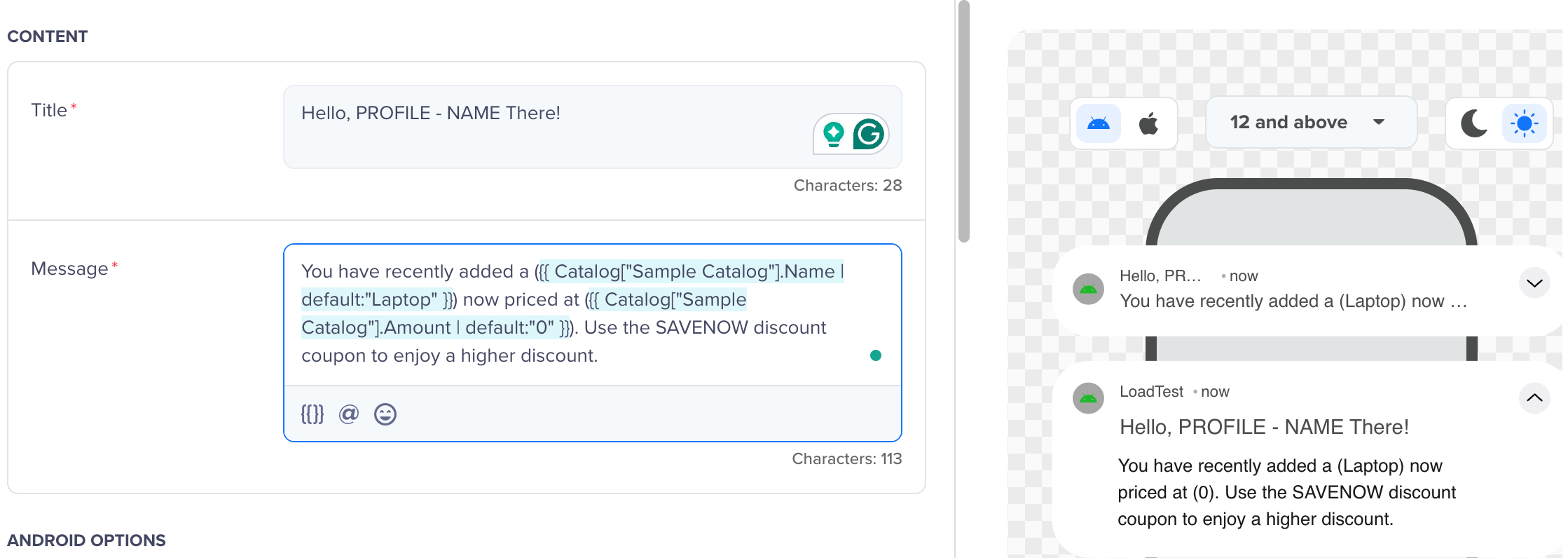
Catalog Reference using Liquid Tags
The following example shows how a price-drop alert is resolved in an e-commerce campaign.
A user who previously viewed a product receives a price-drop notification. CleverTap looks up the catalog record for that product and substitutes its attributes into the template.
| Field | Resolved value |
|---|---|
| Title | Running Shoes - Now ₹1,999 |
| Message | Price just dropped on an item you viewed |
| Image | Product image from the catalog |
| Click to view | Deep link to the product page |
The price and product name are pulled from the catalog record at send time. If the price changes again before the message is delivered, the updated value is used.
Publish
Use Preview to verify the message template structure and confirm that catalog attribute placeholders are correctly mapped and positioned in your content.
Once the template is validated, publish or schedule the campaign. At send time, CleverTap resolves each catalog attribute reference and populates the message with the current values from the catalog record.
Updated about 1 month ago