
SMS Gateway Center
SMS Provider
Overview
SMS Gateway Center is a leading enterprise communication platform that enables businesses to send transactional, promotional, and OTP messages at scale. Integrating SMS Gateway Center with CleverTap allows you to send SMS notifications directly from CleverTap’s engagement dashboard.
This integration supports GET-based message delivery, DLT-compliant routing, and custom sender configuration for campaign tracking.
Businesses integrate SMS Gateway Center with CleverTap to:
- Send Transactional Messages: Deliver OTPs, verification codes, and real-time alerts.
- Run Promotional Campaigns: Send targeted offers and marketing messages to specific user segments.
- Automate User Engagement: Schedule reminders, feedback requests, and reactivation messages.
Integrating SMS Gateway Center with CleverTap combines intelligent audience targeting with robust SMS delivery.
Prerequisites for Integration
Before integrating, check the following:
- You have an active SMS Gateway Center account with sufficient SMS credits and a valid paid subscription.
- You have an active CleverTap account with SMS channel access enabled.
- You have completed DLT registration with approved Entity ID, Sender ID, and Template IDs for all transactional or promotional SMS messages.
Support for IntegrationThis integration is managed and continuously improved by SMS Gateway Center. For any questions or issues, contact SMS Gateway Center or visit the SMS Gateway Center Support Portal for support and resolution.
Integrate SMS Gateway Center with CleverTap
To integrate SMS Gateway Center with CleverTap, perform the following steps:
Find SMS Gateway Center Details
Before configuring CleverTap, gather the required DLT and message template details from your SMS Gateway Center account.
As per the DLT mandate, ensure the following details are configured in your SMS Gateway Center panel under Settings > DLT Configuration:
- Entity ID: The unique ID assigned to your business by the DLT platform.
- Sender ID: The 6-character sender code from which SMS messages will be sent.
- Template ID: The unique ID for each approved transactional or promotional message template.
- Template Details: Upload the DLT-approved message templates you plan to send to customers.
Once these details are verified, proceed to configure CleverTap to connect with SMS Gateway Center.
Set Up CleverTap Dashboard
Once your SMS Gateway Center account is ready, set up the CleverTap dashboard to connect and authenticate the SMS provider.
- Go to Settings > Engage > Channels > SMS in the CleverTap dashboard.
- Click + Add Provider. The Add SMS provider page opens.
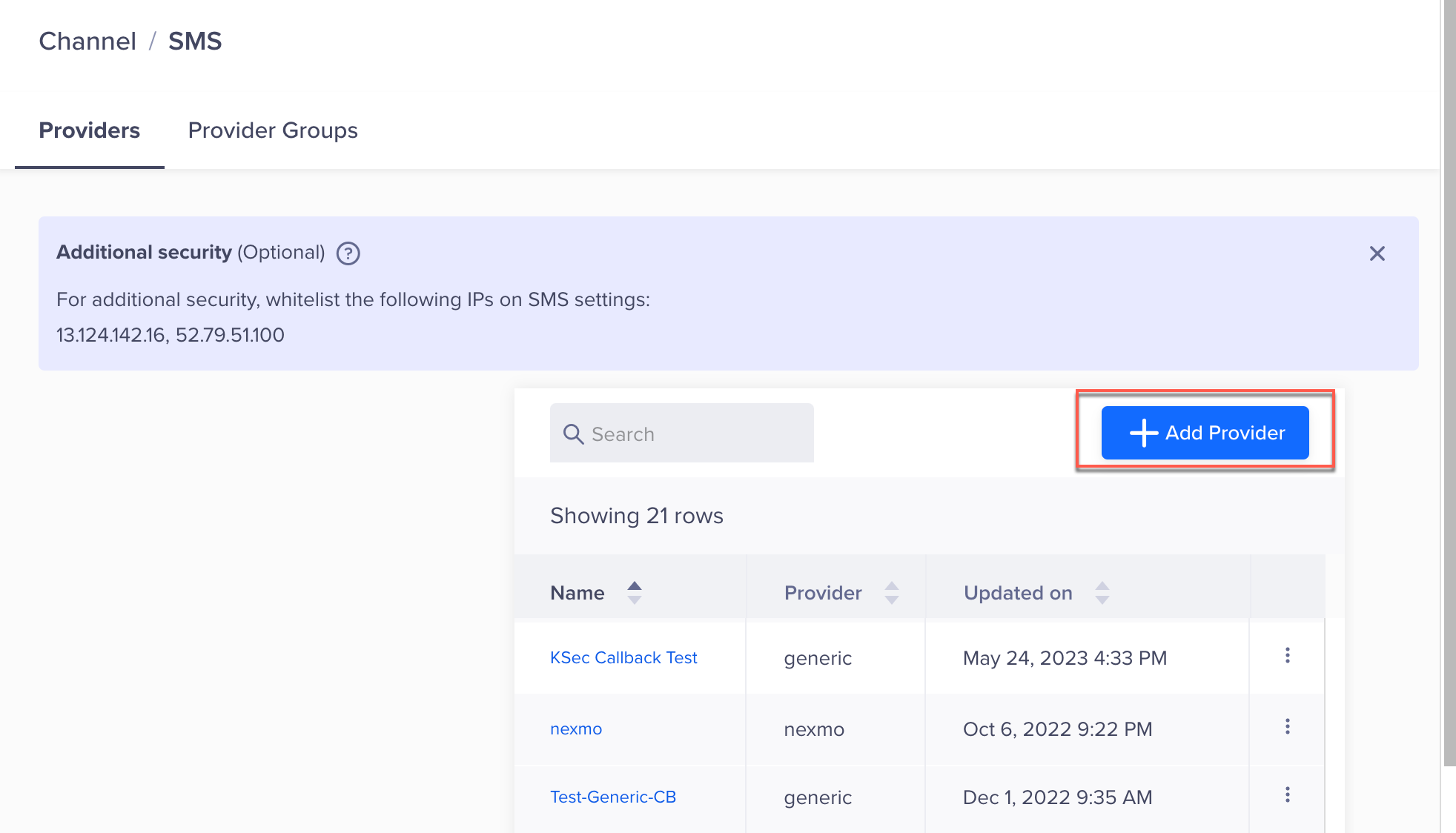
Add Provider
- Under Provider, select Other (Generic) and enter the following details:
| Field | Description |
|---|---|
| Nickname | Enter a name such as SMSGatewayCenter_SMS. |
| Request Type | Select GET. |
| HTTP Endpoint | Paste the following URL: Note: Replace |
- (Optional) Enable Set as Default to make SMS Gateway Center your default SMS provider.
- Click Save. A pop-up opens, prompting you to Send Test SMS.
Send Test SMS
Sending a test SMS helps confirm that your SMS Gateway Center integration is working correctly before launching a live campaign. This ensures that the API endpoint is correctly configured, that authentication is valid, and that messages can be delivered.
To verify that the integration works:
- Click the Send Test SMS hyperlink before creating SMS campaigns and journeys.
- Enter the following details:
- Country Code and Mobile Number: Enter the country code and mobile number to which you want to send the message.
- Message: Enter sample text, such as
This is a test message powered by SMS Gateway Center.
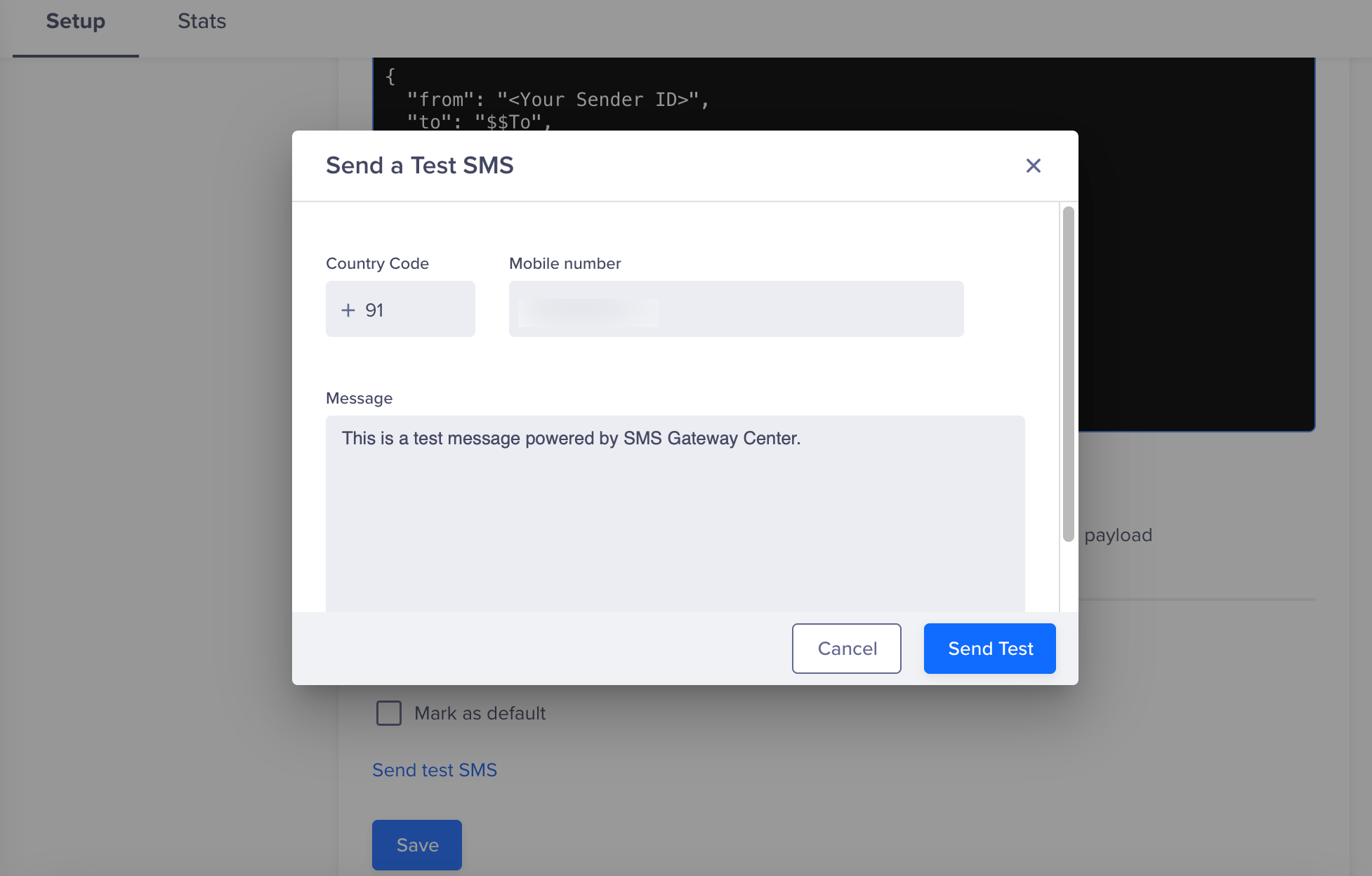
Send a Test SMS
- Click Send Test.
If the configuration is correct, the test message will be delivered, and SMS Gateway Center will return a DLR update. If there is an error (for example, incorrect credentials or endpoint), CleverTap will display a failure notification.
Verify Successful Integration
Your integration is successful when the following conditions are met:
- The test SMS is delivered to the recipient’s number.
- CleverTap logs show no authentication or delivery errors.
- The message appears in your SMS Gateway Center delivery reports.
Once verified, you can build and publish SMS Campaigns or set up Journeys using SMS Gateway Center as your default SMS provider.
Updated 6 months ago