
Authenticate with IAM Role
Understand how to configure Amazon S3 in CleverTap using an IAM Role.
Overview
Use IAM Role-based authentication to allow CleverTap to read from or write to your Amazon S3 bucket. CleverTap authenticates using its own AWS identity, and you grant that identity access to your bucket by applying a bucket policy generated by the CleverTap dashboard. No IAM user or access key is required, and no credentials are stored in CleverTap. This method works for both import and export connections.
The generated policy differs by connection type:
- Import: Grants CleverTap's IAM role
s3:GetObjectands3:ListBucketon your bucket (read access). - Export: Grants CleverTap's AWS account
s3:PutObject*on your bucket path (write access).
NoteCleverTap's AWS account ID differs by CleverTap region. Always copy the policy from your own dashboard; do not reuse a policy from documentation, another project, or another region.
Prerequisites
Ensure the following before proceeding further:
-
An S3 bucket already created on AWS. For more information, refer to Create S3 Bucket on AWS.
-
The bucket is added to the CleverTap dashboard with the correct Folder value and Configure with set to IAM Role. For more information, refer to Add Bucket on CleverTap Dashboard. The Folder value is inserted into the generated policy.
-
AWS console access with permission to edit the bucket policy (
s3:PutBucketPolicy) on the bucket.
Configure with IAM Role
Setting up Amazon S3 for IAM Role authentication requires a bucket policy generated by the CleverTap dashboard and applied to your S3 bucket on AWS. No IAM user or access key is needed.
The setup involves the following three steps:
- Copy IAM Policy from CleverTap Dashboard
- Apply IAM Policy to S3 Bucket on AWS
- Configure Connection on CleverTap
If you already have a bucket policy on the bucket, add the CleverTap statements to it instead of replacing it. For more information, refer to Apply Bucket Policy to Your S3 Bucket.
Copy IAM Policy from CleverTap
This section covers copying the IAM policy generated by the CleverTap dashboard. CleverTap pre-fills the policy with its AWS principal and the bucket name you entered under Folder.
To copy the policy, perform the following steps:
- In the CleverTap dashboard, go to Settings > Partners, and select the Import center or Export center tab.
- Select Amazon S3, and then open your connection.
- Click Edit to open the Edit Amazon S3 Connection page.
- Under Configure with, select IAM Role.
- Copy the generated IAM policy using the copy icon.
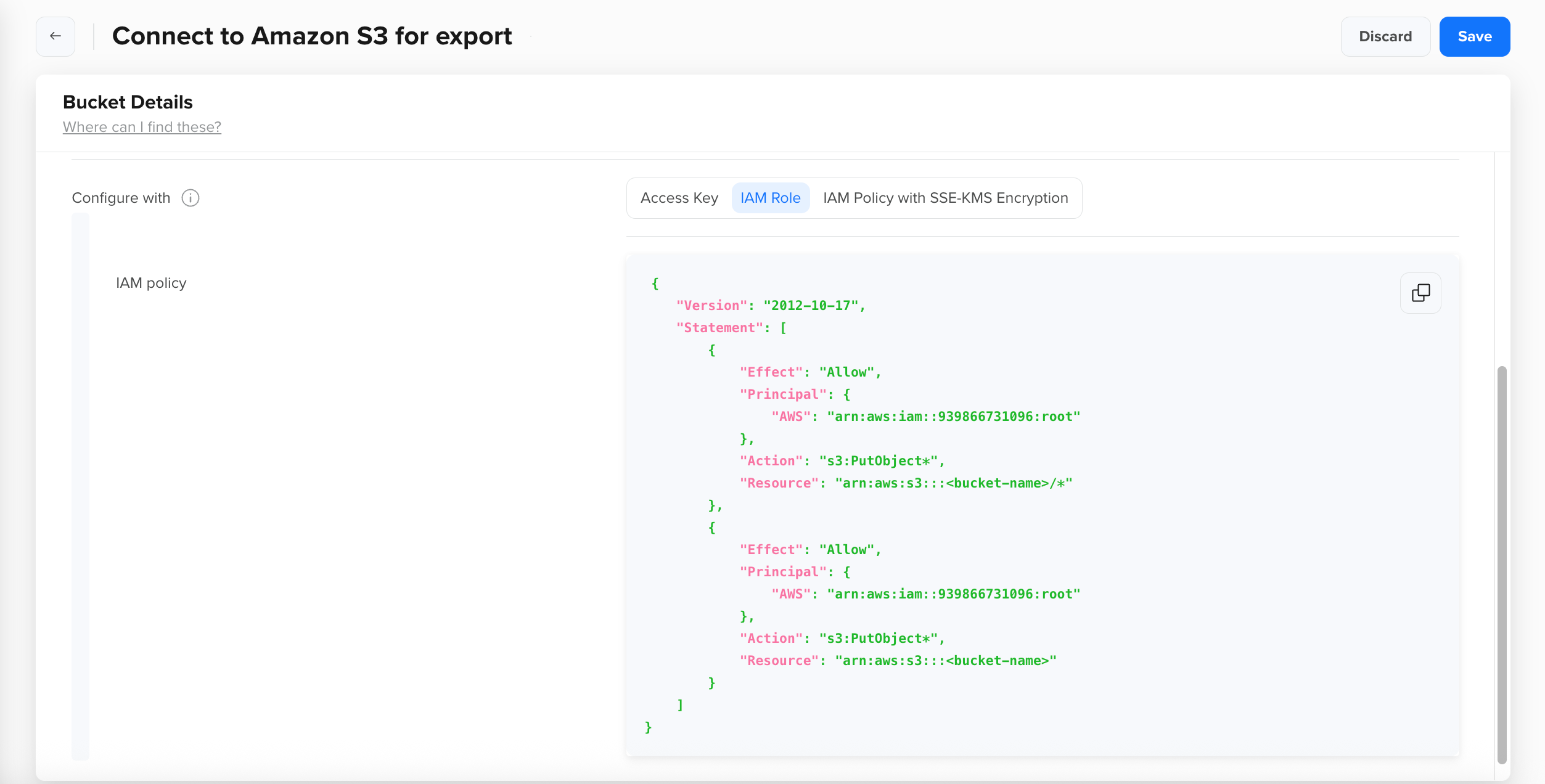
IAM Policy
Apply IAM Policy to S3 Bucket on AWS
Applying the policy to your bucket grants CleverTap access to it. The CleverTap dashboard labels the generated policy an IAM policy. On AWS, you apply it as the bucket policy of your S3 bucket (a resource-based policy), not as an IAM identity policy. For more information about AWS bucket policies, refer to Adding a bucket policy using the Amazon S3 console.
-
Log in to your AWS console and go to S3.
-
Select your bucket from the Buckets page.
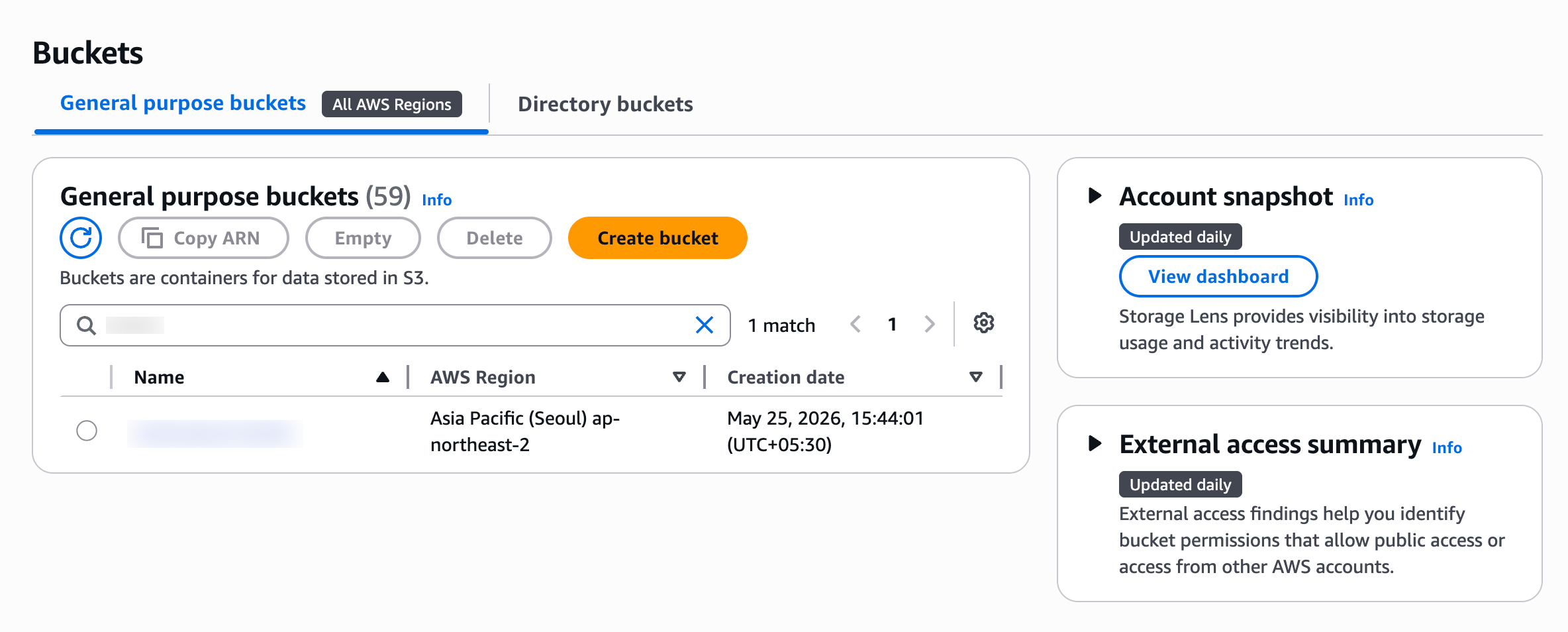
Select Bucket - AWS S3
-
Go to the Permissions tab and click Edit under Bucket policy.
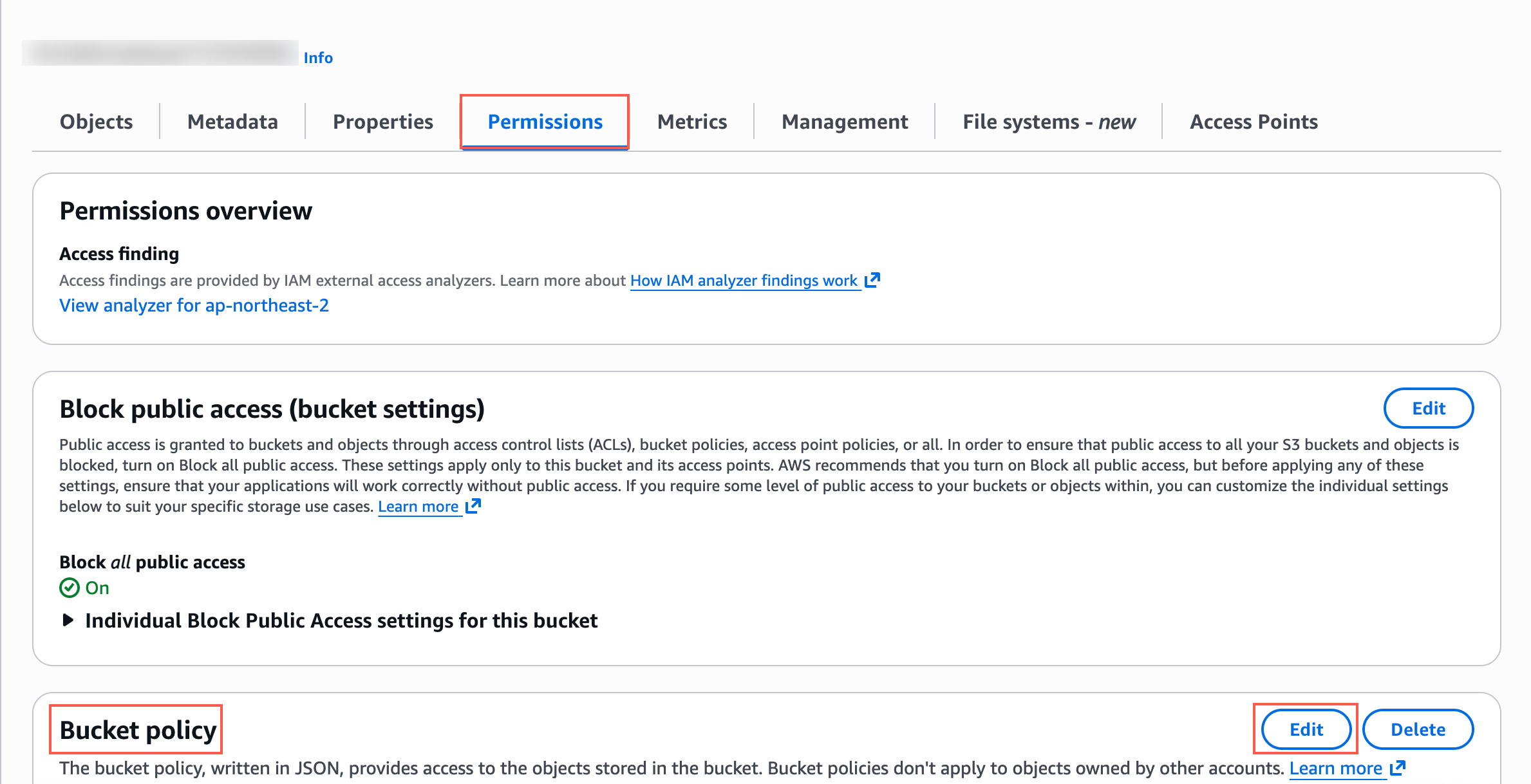
Permissions and Bucket Policy - AWS S3
-
Add the policy:
- If the bucket has no existing policy, paste the policy you copied from CleverTap.
- If the bucket already has a policy, copy it to a safe place first. Then add only the objects inside the
Statementarray of the CleverTap policy to the existingStatementarray. Do not paste the whole CleverTap policy, and do not replace the existing policy. Replacing it removes permissions that other systems depend on.
-
Click Save changes.
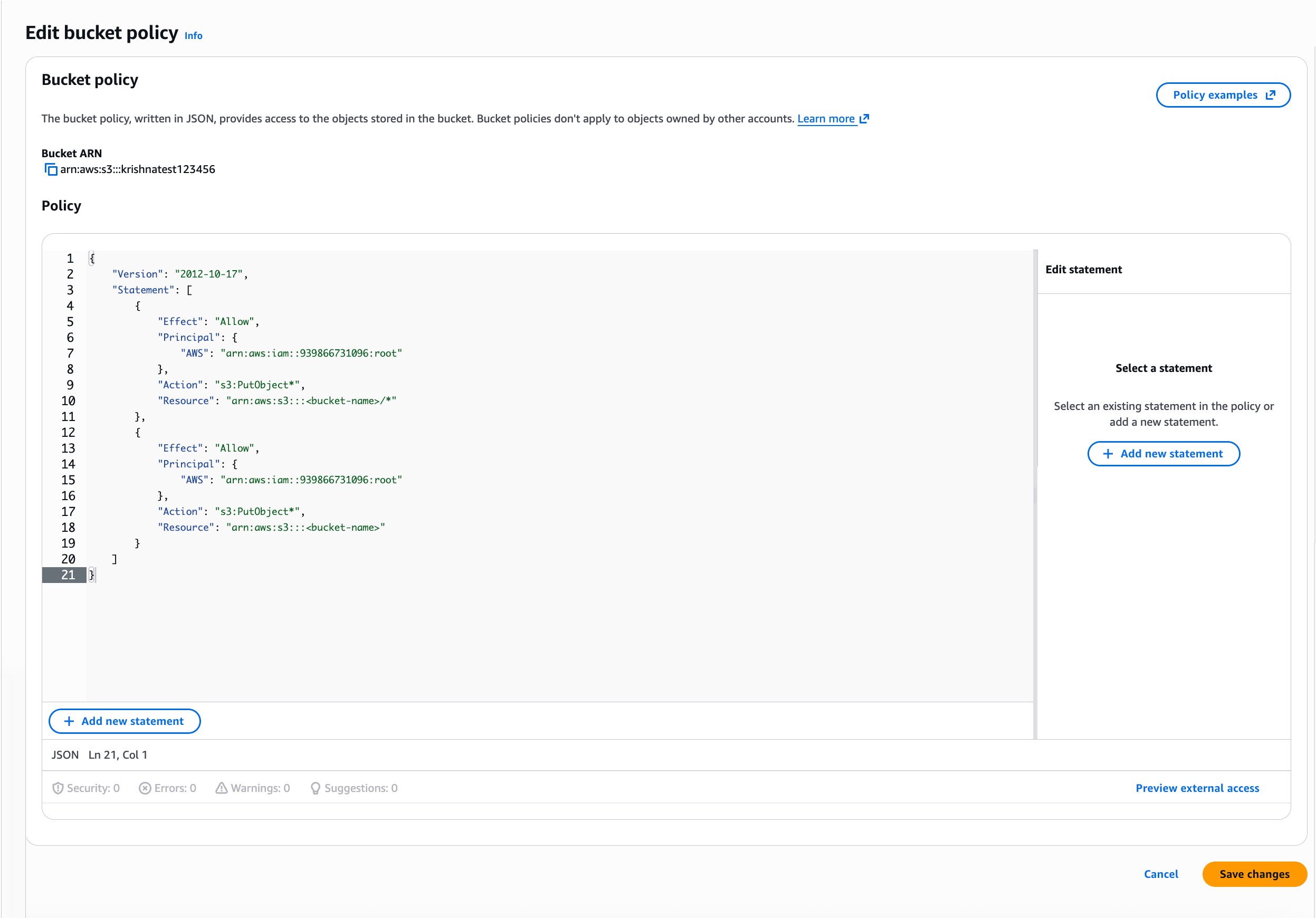
Paste IAM Policy and Save Changes
Configure Connection on CleverTap
Return to the CleverTap dashboard to complete the connection.
- Confirm that you saved the bucket policy on AWS, and then return to the Amazon S3 connection page that you left open on the CleverTap dashboard.
- Verify and save:
- For import, click Test Connection. When the test succeeds, click Save.
- For export, click Save. When you click Save, CleverTap uploads a test file to the specified bucket and region. The connection is saved only if the upload succeeds. Ensure the bucket policy was saved on AWS before clicking Save.
The Amazon S3 bucket is now configured on both the AWS console and the CleverTap dashboard.
Troubleshooting
| Issue | Cause | Resolution |
|---|---|---|
| AWS rejects the bucket policy with "Invalid principal" | The policy was copied from another source, or the principal account ID was edited. | Copy the policy again from your CleverTap dashboard without modification. |
| AWS rejects the bucket policy with a resource error | The bucket name in the policy does not match the bucket you are editing. | Fix Folder on the CleverTap dashboard, copy the regenerated policy, and paste it again. |
| Existing integrations lose access after saving the policy | The existing bucket policy was replaced instead of extended. | Restore the previous statements and add the CleverTap statements to the Statement array. |
| Save or Test Connection fails on CleverTap even though the policy is saved | Block all public access is on and the policy includes a wildcard principal, or the region on CleverTap differs from the bucket's region. | The CleverTap policy uses a specific principal and is compatible with Block all public access. Confirm the Region value on CleverTap. |
Verification Checklist
Confirm the following before using the connection in production:
- Folder on the CleverTap dashboard matches the AWS bucket name exactly.
- The bucket policy on AWS contains the CleverTap statements and all pre-existing statements.
- The principal in the bucket policy matches the one shown on your CleverTap dashboard.
- Test Connection (import) or Save (export) succeeded on the CleverTap dashboard.
Updated about 2 hours ago