
Amazon S3
Understand how to connect your S3 bucket into CleverTap
Overview
CleverTap allows you to import and export user and event data to and from an Amazon S3 bucket. This document covers creating an S3 bucket on AWS, adding the bucket to the CleverTap dashboard, and selecting a configuration method. The method-specific steps are covered in separate documents.
With the Amazon S3 integration, you can:
- Import user profiles and events from files stored in your S3 bucket.
- Export profile and event data to your S3 bucket for analysis in BI tools or storage in a data warehouse.
- Encrypt exported data with your own AWS KMS key (SSE-KMS).
Choose Configuration Method
CleverTap supports three methods to grant access to your S3 bucket. Select one before you begin.
| Method | Import | Export | What you create on AWS | Credentials stored in CleverTap | Recommended for |
|---|---|---|---|---|---|
| IAM Role | Yes | Yes | A bucket policy, generated by CleverTap, that grants CleverTap's AWS principal access to your bucket | None | Most customers. No long-term credentials to store or rotate. |
| Access Key | Yes | Yes | An IAM policy, an IAM user, and an access key | Access Key ID and Secret Access Key | Customers whose security policy requires a dedicated IAM user. |
| IAM Policy with SSE-KMS Encryption | No | Yes | A customer-managed KMS key, a KMS key policy statement, an S3 bucket with SSE-KMS default encryption, and a bucket policy | KMS Key ARN | Customers who must encrypt exported data with their own KMS key. |
Note
- IAM Policy with SSE-KMS Encryption is available only for export connections. The import connection screen shows only Access Key and IAM Role.
- IP whitelisting is not supported for S3 connections
Prerequisites
Ensure the following before you begin:
- An active AWS account with permissions to create S3 buckets. Depending on your method, you also need permissions to create IAM policies and users (Access Key) or KMS keys (SSE-KMS).
- A CleverTap account with the Amazon S3 partner enabled.
- A globally unique bucket name. Refer to the bucket naming rules in Create S3 Bucket on AWS.
Set Up Amazon S3 Bucket with CleverTap
The following are the major steps to add an Amazon S3 bucket:
Create S3 Bucket on AWS
This section covers how to create a general-purpose S3 bucket.
If you are using IAM Policy with SSE-KMS Encryption, complete steps 1 to 8, create a KMS key as described in IAM Policy with SSE-KMS Encryption, and then complete steps 9 and 10.
To create an S3 bucket, perform the following steps:
-
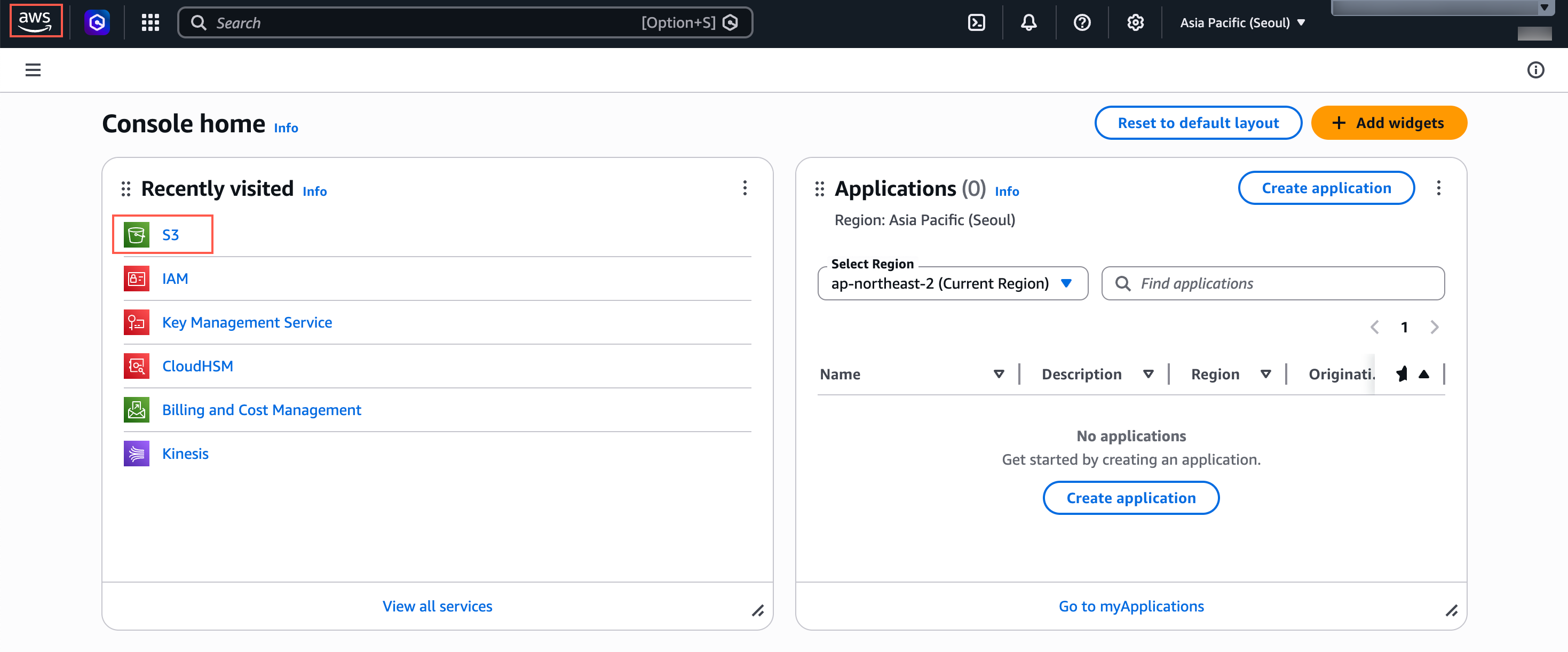
Log in to the AWS console and search for S3 in the search bar.
-
Select S3 from the search results.
Create S3 Bucket
-
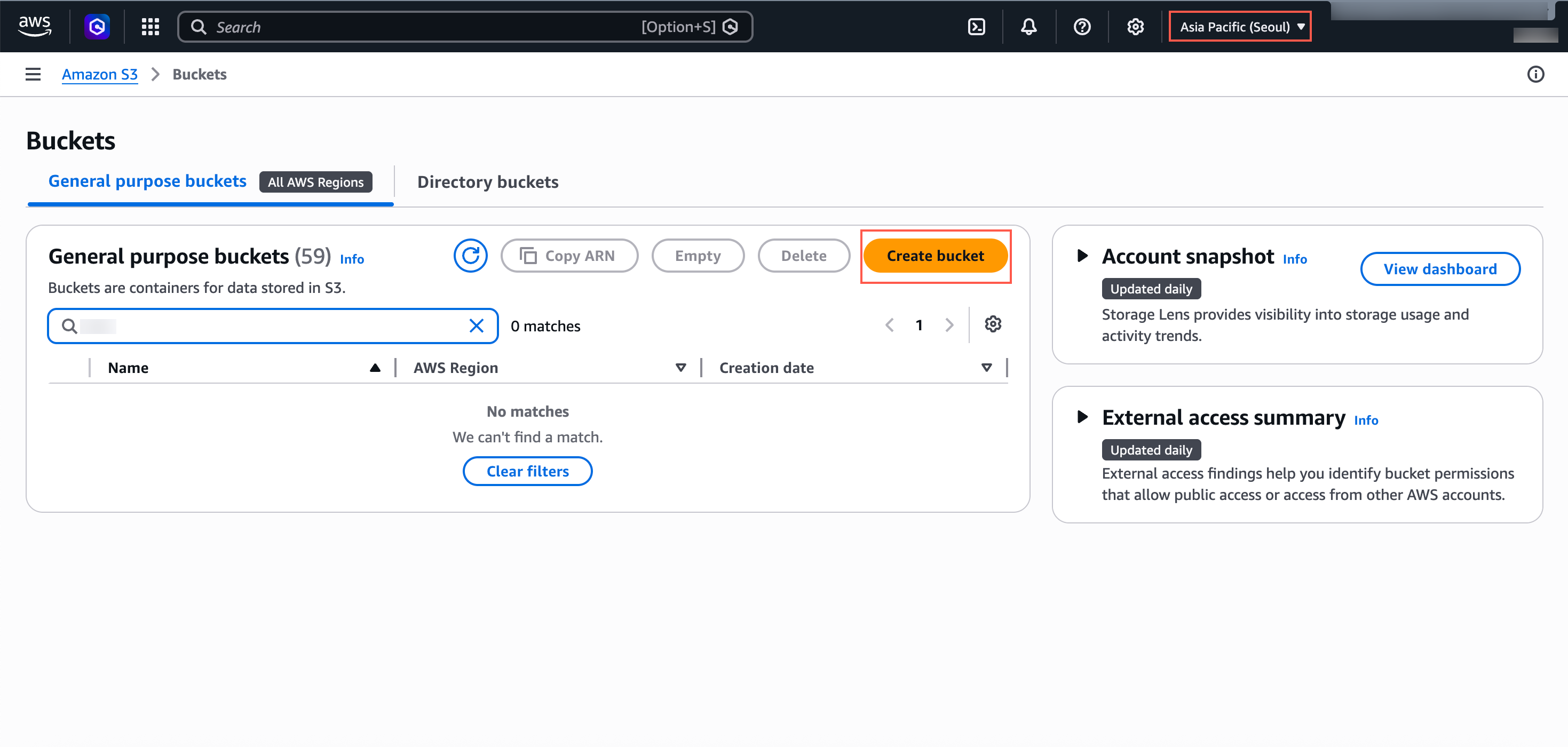
Click Create bucket.
-
Under General configuration, verify that the AWS Region matches the region you will select on the CleverTap dashboard. AWS pre-selects the region based on your current console region. If the regions do not match, the export connection cannot be saved.
Create Bucket and Select Region
-
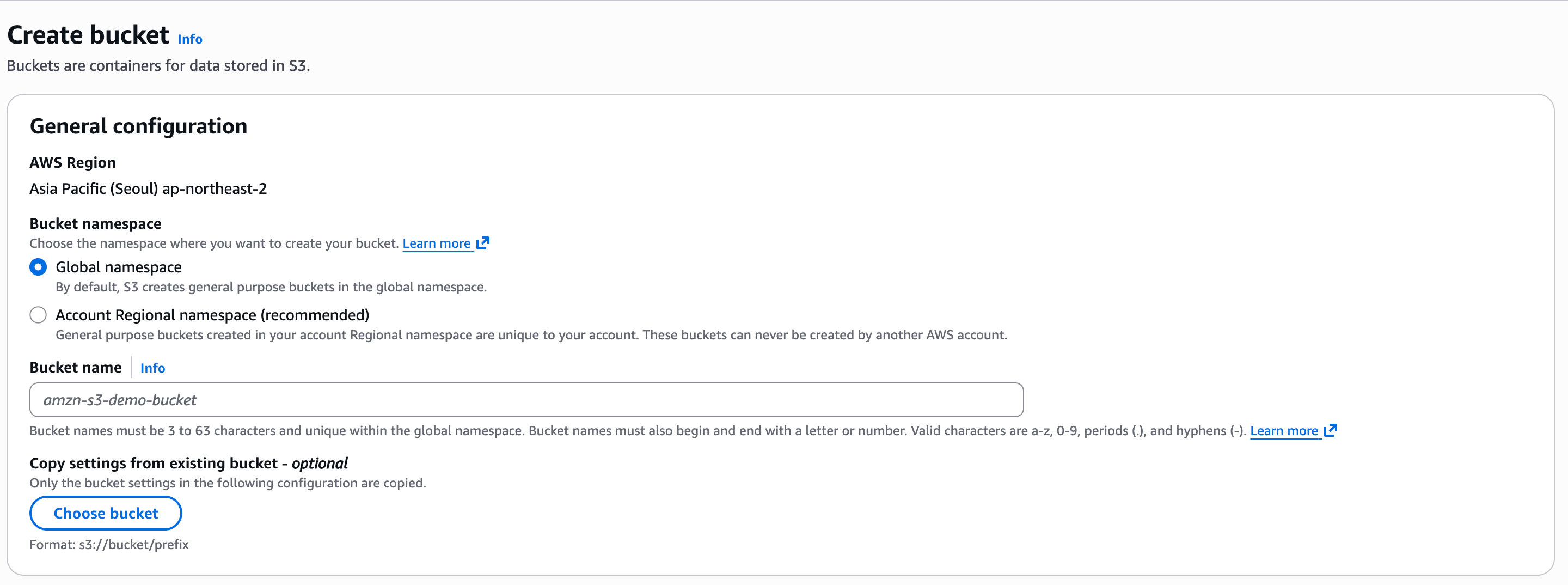
Under Bucket name, enter a name for the bucket. You must enter the same name in the Folder field on the CleverTap dashboard.
NoteBucket names must be 3 to 63 characters, begin and end with a letter or number, and contain only lowercase letters, numbers, periods (.), and hyphens (-). Bucket names must be unique across all AWS accounts.
General Configuration - AWS S3
-
Under Object Ownership, CleverTap recommends selecting ACLs disabled.

Object Ownership - AWS S3
-
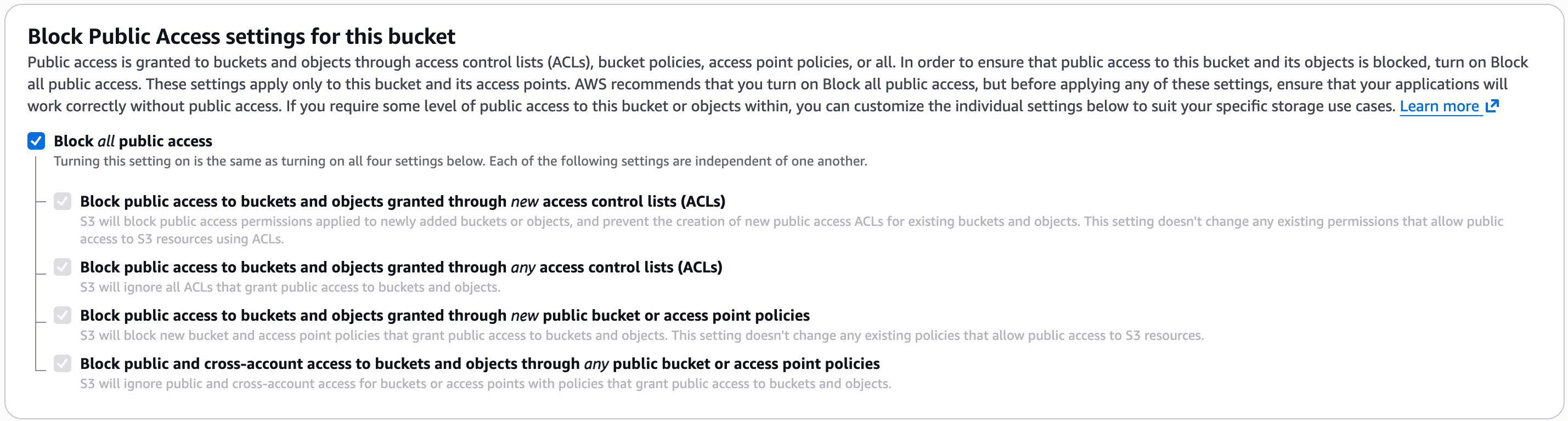
Under Block Public Access settings for this bucket, select Block all public access.
Block All Public Access - AWS S3
-
Under Bucket Versioning, select Disable.

Bucket Versioning - AWS S3
-
Under Default encryption, select the encryption type that matches your configuration method:
-
Access Key or IAM Role: Keep the default selection of Server-side encryption with Amazon S3 managed keys (SSE-S3).
-
IAM Policy with SSE-KMS Encryption: Select Server-side encryption with AWS Key Management Service keys (SSE-KMS) and paste the KMS key ARN that you copied in Create KMS Key on AWS into the AWS KMS key ARN field.
-
-
Click Create bucket.
Add Bucket on CleverTap Dashboard
This section covers how to enter the bucket details on the CleverTap dashboard. The details you enter here (in particular, Folder) are used to generate the policies for the IAM Role and SSE-KMS methods, so complete this section before the AWS policy steps.
To add the bucket, perform the following steps:
-
On the CleverTap dashboard, go to Settings > Partners and select Amazon S3 on the Integrations tab.
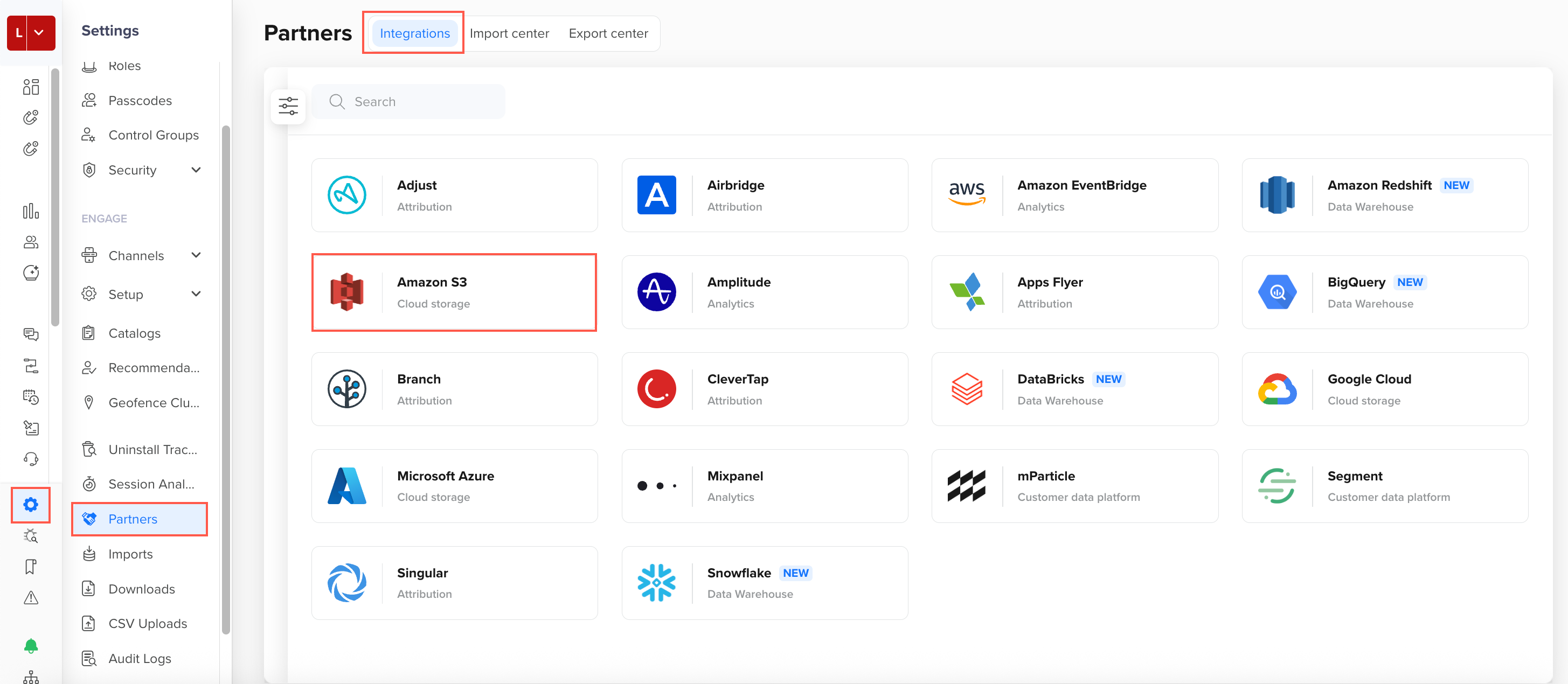
Select S3 Integration
-
Select the connection type:
- For import, select the Import Connections tab.
- For export, select the Export Connections tab.
-
Click Add Amazon S3 Bucket, then add the bucket details.
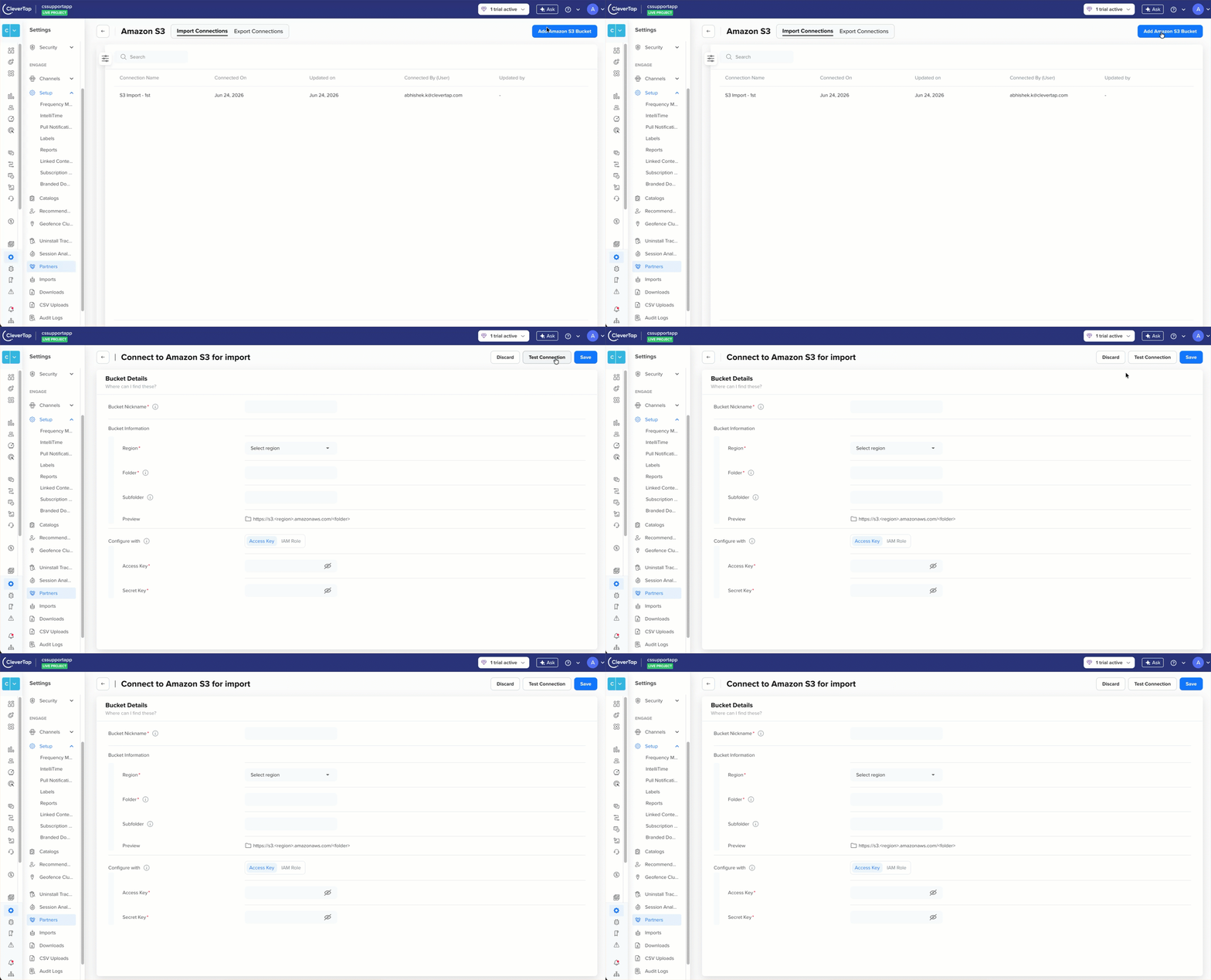
Add Amazon S3 Bucket
-
Under Configure with, select one of the following methods and refer to the corresponding document to complete the configuration:
CautionDo not click Save or Test Connection yet. Both actions contact your bucket and fail until the AWS-side permissions are in place. Keep this page open; you return to it at the end of the method-specific steps.
Clicking Discard shows a Discard edits? confirmation and removes everything you entered.
Verify Connection
After you complete the steps on AWS, return to the CleverTap dashboard.
- Import: Click Test Connection. CleverTap checks access by listing the bucket (and the subfolder, if specified) using the configured method. When the test succeeds, click Save.
- Export: Click Save. CleverTap uploads a test file to the bucket and region you specified. The connection is saved only if the upload succeeds.
If the test or save fails, refer to Troubleshooting.
Troubleshooting
| Issue | Cause | Resolution |
|---|---|---|
| AWS shows "The specified bucket name is not available" when creating the bucket | S3 bucket names are unique across all AWS accounts. | Choose another name; for example, append your company name or AWS account ID. Update the Folder on the CleverTap dashboard to the final name. |
| Export Save fails; CleverTap cannot upload the test file | Bucket name or region on the CleverTap dashboard does not match AWS, or the AWS-side policy has not been saved. | Confirm the Folder matches the bucket name exactly (case-sensitive), confirm the region, and confirm the bucket policy or IAM policy was saved on AWS before clicking Save. |
| Import Test Connection fails | The policy grants write but not read access, or the Subfolder path does not exist. | Confirm the policy grants s3:GetObject and s3:ListBucket, and confirm the subfolder exists in the bucket. |
| The generated policy contains a bucket name that is not yours | The Folder field was empty or incorrect when the policy was generated. | Correct the Folder on the CleverTap dashboard; the policy regenerates. Copy the policy again. |
| Files cannot be decrypted after export | SSE-KMS is enabled on the bucket, but your reader has no kms:Decrypt permission on the key. | Grant kms:Decrypt on the key to the IAM principal that reads the files. This is separate from CleverTap's access. |
FAQs
What permission does CleverTap need?
For import, CleverTap needs read access (s3:GetObject, s3:ListBucket) on the bucket. For export, CleverTap needs write access (s3:PutObject) on the bucket path. The IAM Role and SSE-KMS methods generate the exact policy for you.
Can I use one connection for both import and export?
No. Import and export connections are configured separately under Import Connections and Export Connections. You can point both at the same bucket.
Does the bucket have to be in the same region as my CleverTap account?
No. Any AWS region works.
Next Steps
After you configure the connection, you can create imports and exports that use it.
- Create an import that reads from this connection. For more information, refer to Create Import, Map Data for Import, Schedule Import, and Import Listing and Stats.
- Create an export that writes to this connection. For more information, refer to Cloud Storage, Event Exports, or Profile Exports.
Updated about 1 hour ago