
FirstConnectt
RCS Provider
Overview
FirstConnectt is a Communications Platform as a Service (CPaaS) provider that enables businesses to engage customers across multiple channels. Its integration with CleverTap lets businesses send Rich Communication Services (RCS) campaigns directly from the CleverTap dashboard using FirstConnectt's RCS infrastructure, with delivery report tracking for delivery status and visibility into campaign performance.
Private BetaGeneric RCS is an integration method that connects Alot Solutions to CleverTap. Generic RCS is available as part of the RCS Connect add-on and is currently in Private Beta for select CleverTap accounts. For early access to this feature, contact your Customer Success Manager or Account Manager.
Businesses can use FirstConnectt with CleverTap for the following use cases:
- Send RCS campaigns using approved templates.
- Trigger transactional and promotional messages based on CleverTap segments and user behavior.
- Track delivery status and inbound user messages using CleverTap callbacks.
Support for IntegrationThis integration is managed and supported by FirstConnectt. For any questions or issues related to this integration, contact FirstConnectt Support.
Prerequisites
Before you configure FirstConnectt as your RCS provider in CleverTap, ensure that you have the following:
- A CleverTap account with the RCS Generic Campaigns feature enabled.
- An active FirstConnectt account with RCS Services access.
- A provisioned, active RCS Agent in FirstConnectt. For more information, refer to RCS Agent Onboarding.
- RCS-approved message templates in your FirstConnectt dashboard.
- An API key for your FirstConnectt account, available from your FirstConnectt point of contact.
- (Optional) An SMS Sender ID and SMS body parameters from FirstConnectt, for SMS fallback.
- (Optional) Distributed Ledger Technology (DLT) registration, including the Principal Entity ID and the approved template IDs, for SMS fallback when you send messages in India.
RCS Agent Onboarding
An RCS Agent is a brand's verified business profile (the sender). FirstConnectt provisions the RCS Agent, and mobile carriers approve it. CleverTap uses the RCS Agent ID as the RCS Sender ID during provider setup to authorize and deliver RCS messages.
If you are new to FirstConnectt or have not completed RCS Agent onboarding, complete the onboarding in the FirstConnectt platform before you set up the provider in CleverTap.
The onboarding process includes the following steps:
- Registering the business with FirstConnectt as an RCS sender and creating the brand profile (name, logo, description, and website).
- Submitting brand and compliance details for carrier review and obtaining approval for RCS messaging.
- Completing the FirstConnectt verification checks, such as domain or business verification.
- Receiving the RCS Agent ID from FirstConnectt. To find the RCS Agent ID, go to Config > RCS Agent in the FirstConnectt platform. You enter this value in the RCS Sender ID field in CleverTap during provider setup.
Set Up Generic RCS on CleverTap Dashboard
This section covers how to add FirstConnectt as an RCS provider on the CleverTap dashboard.
To add the provider, perform the following steps:
-
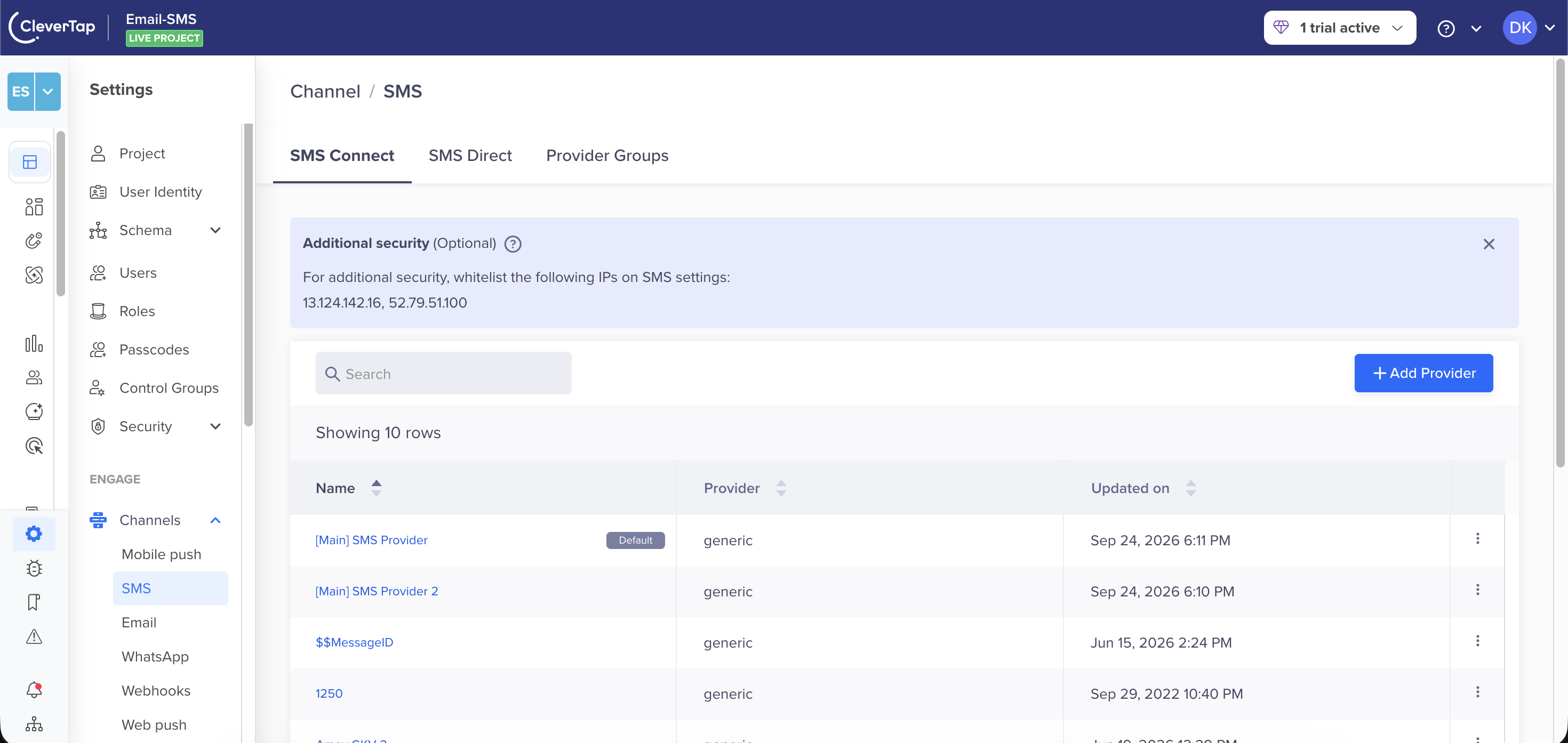
On the CleverTap dashboard, go to Settings > Channels > SMS, and then select the SMS Connect tab.
Provider Configuration
-
Click + Add Provider.
-
Under Provider, select Generic RCS Provider from the dropdown and then enter the Nickname.
-
Set up API.
-
Configure RCS settings.
-
Configure SMS Fallback.
-
Select Mark as Default to set Alot Solutions as your primary RCS provider for all RCS messaging in CleverTap.
-
Click Send Test to verify the integration. Enter the following details:
- Country Code and Mobile Number: Enter the recipient's country code and mobile number for the test.
- RCS Message: Enter the message content to send via RCS.
-
Click Save after verifying that the integration was successful.
Set Up API
This section covers how to enter the FirstConnectt messaging endpoint, authentication headers, and concurrency details in CleverTap.
To set up the API, perform the following steps:
-
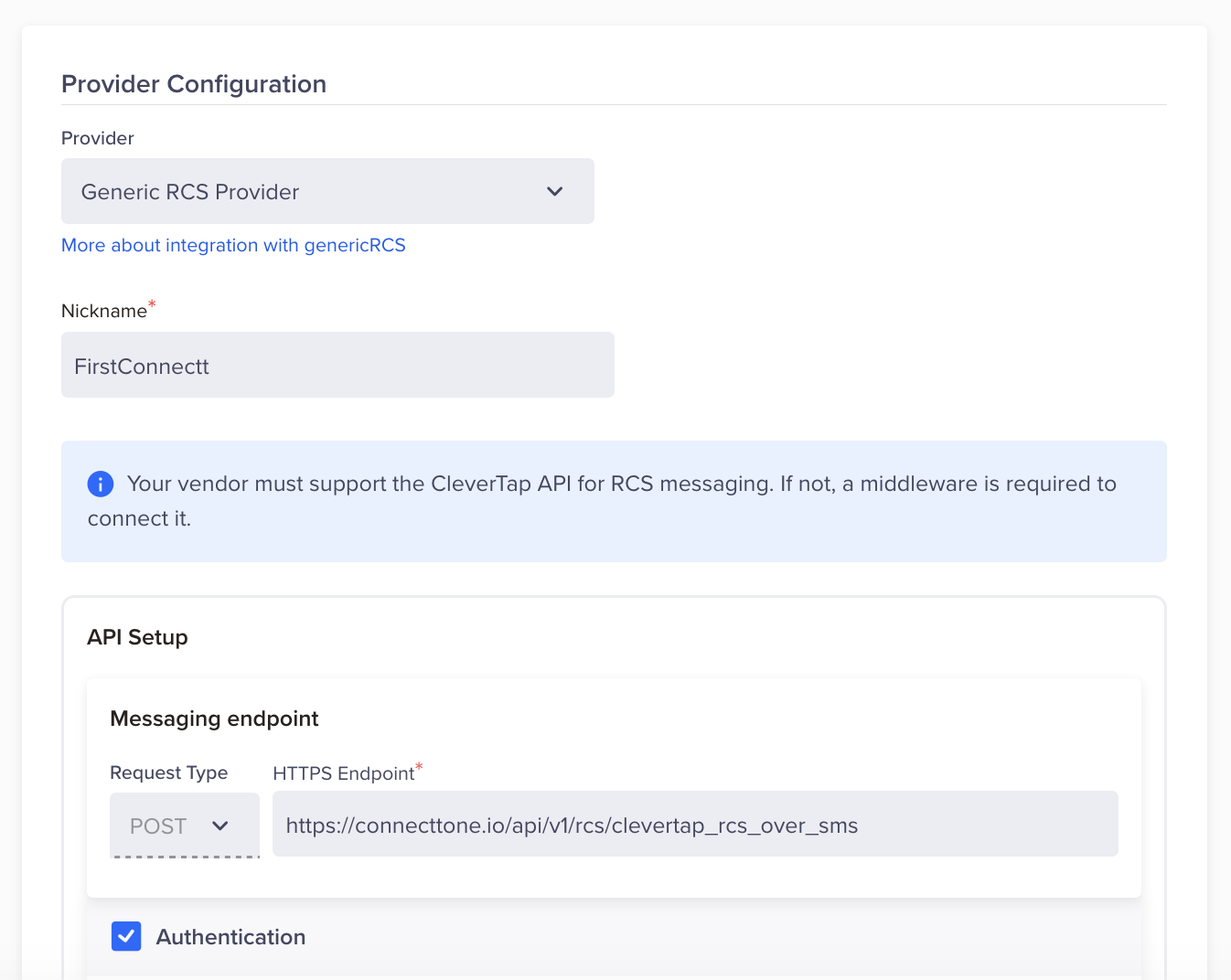
Under Messaging Endpoint, enter the following details. The messaging endpoint is the API URL that FirstConnectt uses to receive RCS send requests from CleverTap.
Set Up API
Field Value Request Type POSTHTTP Endpoint https://connecttone.io/api/v1/rcs/clevertap_rcs_over_sms -
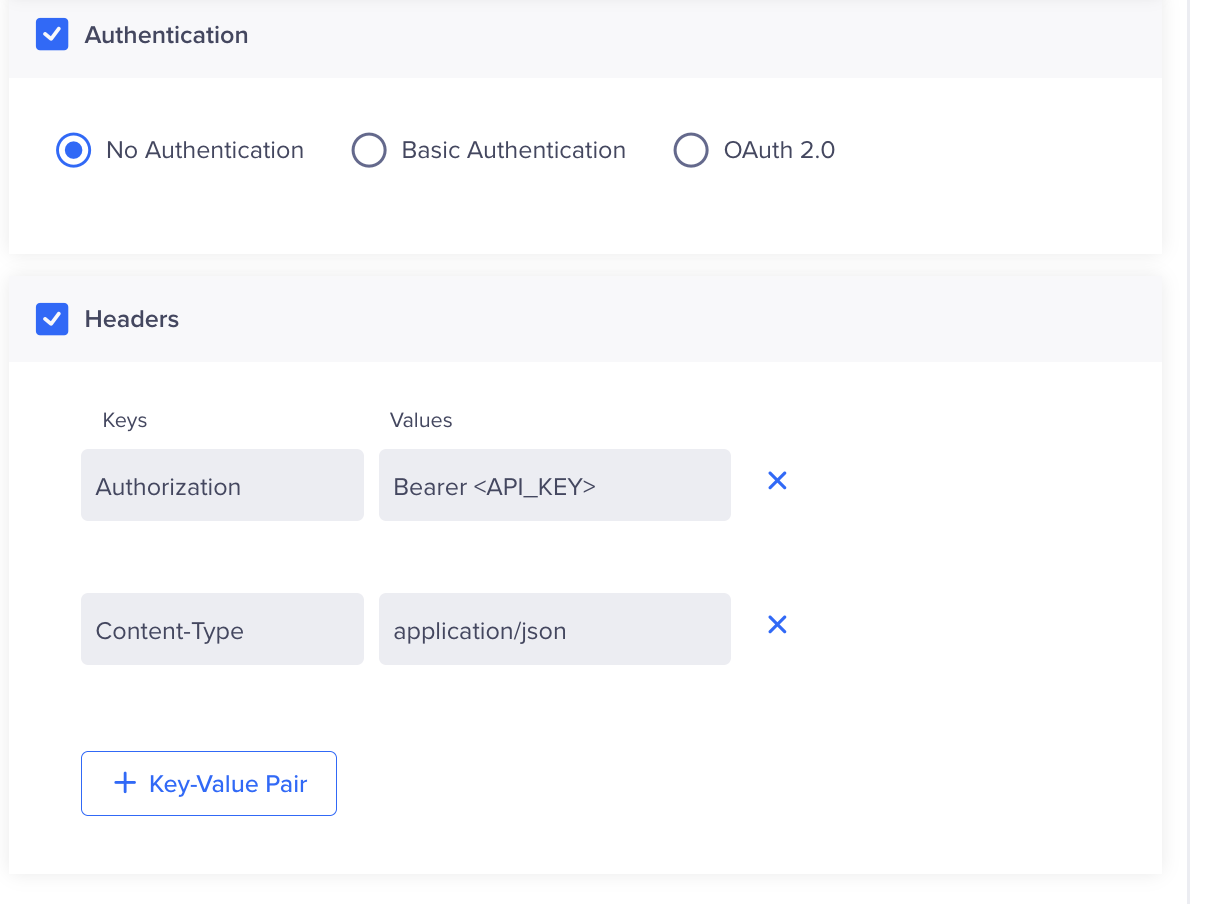
Under Headers, add the following key-value pairs. FirstConnectt uses bearer token authentication passed as an HTTP header.
Provider Configuration - Headers Section
Key Value AuthorizationBearer <API_KEY>
Replace<API_KEY>with the API key provided by FirstConnectt.Content-Typeapplication/json -
(Optional) In the Custom Concurrency field, enter the maximum number of parallel requests that CleverTap sends to the FirstConnectt API at any given time. Set this value based on the throughput limit that FirstConnectt recommends. If you leave the field blank, CleverTap applies its default concurrency settings. The maximum supported rate is 4,600 requests per second.
Configure RCS Settings
The RCS Config section maps your FirstConnectt RCS Agent to CleverTap.
| Field | Description |
|---|---|
| RCS Sender ID | Enter the RCS Agent ID from Config > RCS Agent in the FirstConnectt platform. This is the verified business sender identity used to deliver RCS messages. |
| Callback Config | Contact your FirstConnectt point of contact to share the CleverTap callback URL and complete the callback configuration on the FirstConnectt platform. |
Callback URL GenerationThe Delivery Report Callback URL is generated automatically by CleverTap once the provider is saved. Copy it from the Provider Setup page and share it with FirstConnectt support.
Configure SMS Fallback
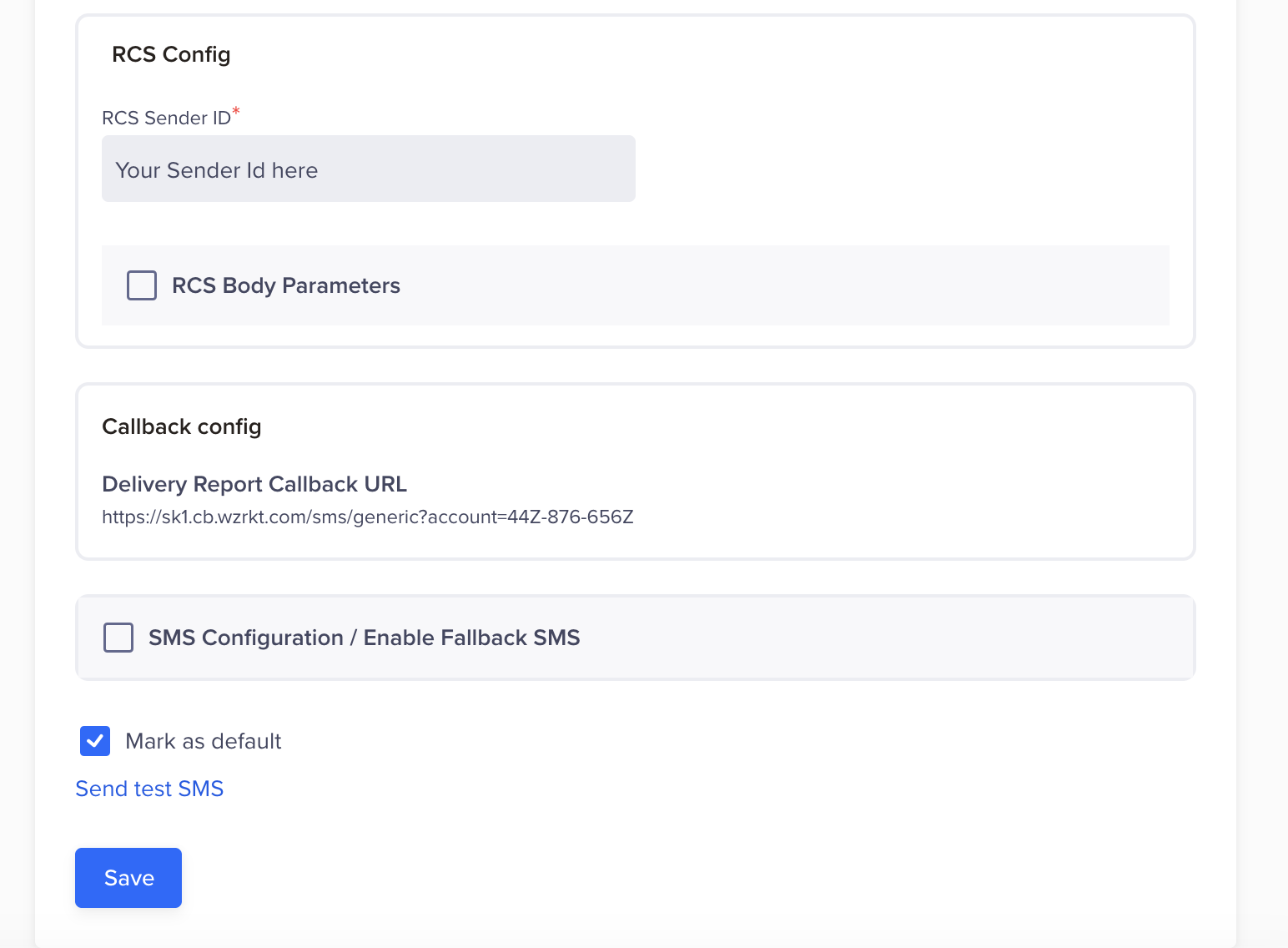
SMS fallback helps deliver the message when RCS delivery fails because of device incompatibility, lack of internet access, or carrier restrictions. If the recipient's device does not support RCS or is offline, CleverTap automatically sends the message as an SMS.
If you send messages in India, DLT registration is mandatory under the Telecom Regulatory Authority of India (TRAI) regulations.
To enable SMS fallback, configure the following:
Configure SMS Fallback
- SMS Sender ID: Required when SMS fallback is enabled.
- SMS Body Parameters: Add the key-value pairs required by your SMS fallback configuration.
DLT RegistrationIf you are sending messages in India, DLT (Distributed Ledger Technology) registration is mandatory. Configure the Principal Entity ID and approved template IDs as per TRAI regulations.
Add Template
The Add Template feature lets you create, manage, and deploy RCS message templates for your campaigns. If FirstConnectt requires template approval, create the template in the FirstConnectt portal first, then create the same template in CleverTap under Templates. Use the exact same template name in both systems so submissions map correctly.
To access templates, go to Settings > Channels > SMS > SMS Connect, open your FirstConnectt provider, and select the Template tab. CleverTap supports the following three template formats:
Create Campaign
For detailed instructions on creating an RCS campaign with FirstConnectt as your provider, refer to Create SMS Campaign.
Create Journey
For detailed instructions on creating an RCS journey using FirstConnectt as your provider, refer to Journeys.
Updated about 6 hours ago