
Create Product
Learn about creating and managing catalog products using APIs and data feeds.
Overview
Creating a product allows you to add individual items to a catalog. Products represent the core entities within a catalog and include attributes such as name, ID, image URL, and additional custom attributes.
Products are created and managed programmatically using APIs or ingested through feeds. Create Product APIs are typically used for real-time or controlled product creation, while feeds are used for bulk uploads and periodic updates.
Create Product
Products cannot be created directly from the dashboard. To add products to a catalog, you must use the Create Product API or upload data through feeds.
System Fields
System fields are enforced by the API. These fields below correspond to the three fixed columns shown on the dashboard: Product ID, Name, and Image URL.
| Field | Description | Constraints |
|---|---|---|
| Identity | Unique identifier for the product. | Required. Max 500 characters. Must be unique within the catalog. |
| Name | Name of the product. | Required. 1–1,000 characters. |
| ImageURL | Link to the product image. | Required for single product creation; optional for bulk creation. Maximum 2000 characters. |
NoteFor bulk product creation, up to 100 products can be included in a single request, and the request payload must not exceed 500 KB.
Attributes
In addition to system fields, products support a flexible attributes object that stores additional key-value pairs based on your catalog schema.
The following are common conventions used in the attributes object:
| Attribute | Description |
|---|---|
| price | Price of the product. |
| description | Details about the product. |
| category | The category the product belongs to. |
| Custom attributes | Any additional attributes based on your catalog schema. |
For more information on the request format, authentication, and the full list of supported fields, refer to Create Product API.
Guidelines
The following guidelines apply to product creation and catalog management in CleverTap:
- Each product must have a unique identity within the catalog.
- Users can create products only through APIs or feeds, not from the dashboard.
- Missing or invalid system fields result in validation errors during ingestion.
- Attributes such as price, description, and category are conventions stored in the
attributesobject. The API does not validate or reject a product that omits these values. - Attribute values must match the data type declared for that attribute in the catalog schema.
- Only attributes marked filterable in the catalog schema can be used in campaign catalog rules.
- When creating products via the API in bulk, up to 100 products can be included per request.
- Each bulk request must not exceed 500 KB in total payload size.
- Use feeds for bulk uploads and APIs for real-time or incremental updates.
Updating attributes replaces the whole objectBoth the update APIs and feeds replace a product's entire attributes object rather than merging individual keys. To change one attribute, send every attribute you want to keep. For more information, refer to Create Feed.
Manage Catalog Products
The Items tab displays all products within the selected catalog, with search and an item detail panel.
Product List
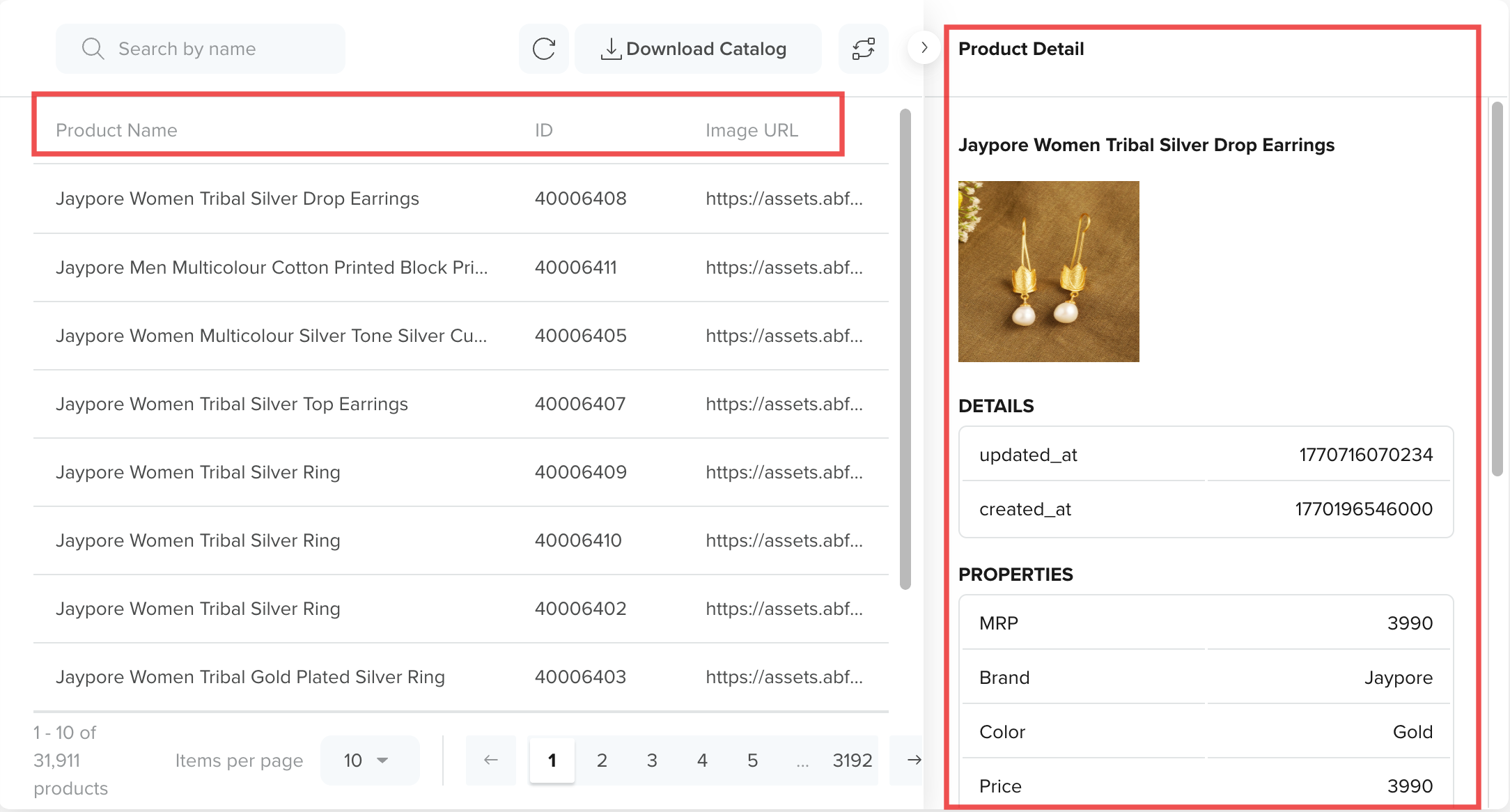
The product list displays all catalog items in a paginated table.
The following table describes each column:
| Column | Description |
|---|---|
| Name | The name of the product as defined in the catalog. |
| Item ID | The product's identity, its unique identifier within the catalog. |
| Image URL | The link to the product image. |
Download Catalog
Click Download Catalog to export all active products in the catalog as a CSV file. The export runs in the background and may take a few minutes.
The Download button reflects the current export state as shown in the following table:
| Button state | Description |
|---|---|
| Download Catalog | Click to start a new export. |
| In Progress | Export is being generated. |
| Ready to download | Click to download the file. |
When the export is complete, you receive an email notification. Click the Ready to Download button to get the exported CSV file.
Product Details
Selecting a product from the list opens the Selected Item panel on the right. The panel shows the product name and image, followed by two subsections: Upload Details and More Details.
To collapse the panel, click the arrow at the top.
Upload Details
The Upload Details subsection shows system-level metadata for the selected product.
| Field | Description |
|---|---|
| updated_at | The timestamp indicates when the product was last updated. |
| created_at | The timestamp indicates when the product was first created. |
NoteThese timestamps are shown as Unix epoch values in milliseconds, for example 1786000117000. Divide by 1000 to convert to epoch seconds.
More Details
The More Details subsection shows the custom attributes stored in the attributes object for the selected product. The fields displayed here vary depending on the catalog's schema.
The following image shows the Product Details:
Product Details
Updated about 1 month ago